Wiring harness routing & packaging Rules Week 3 Challenge
Report :
Q1. Download following cad data & define it as Electrical support using Electrical Part design Workbench. Define all the necessary properties.
As per the given question
- First we download the files that are given
- Then open the file in Catia.
- Now as the file belogs to a p clamp design, we assume this data is of p clamp support.
- Create two points and plane as the clamp have two entry points
- Then create another plane as base plan.
- Now shift to electric part design work bench and define the given 3d model as support part with define support command.
- As the dialogue box opens we should select first plane defination, second plane defination and Base plane Defination and click enter.
- Now repeat the same command on model as it have two entry points, So this time we select the second plane as entry point and do the same.
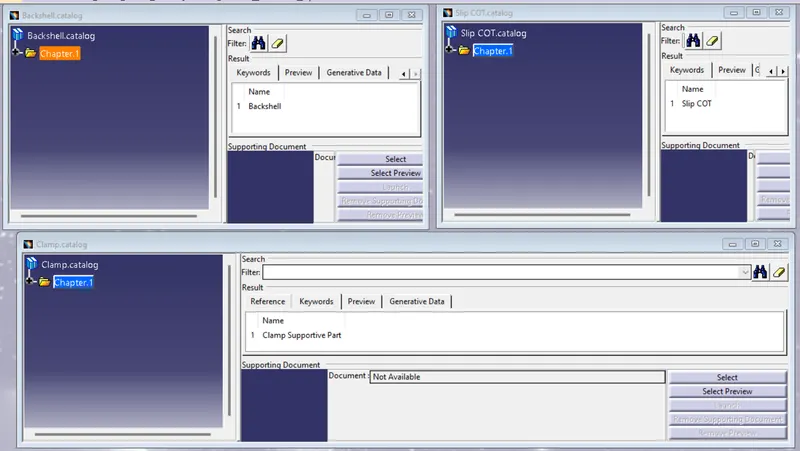
- Then save the p clamp in its respective catalogue document and save file.
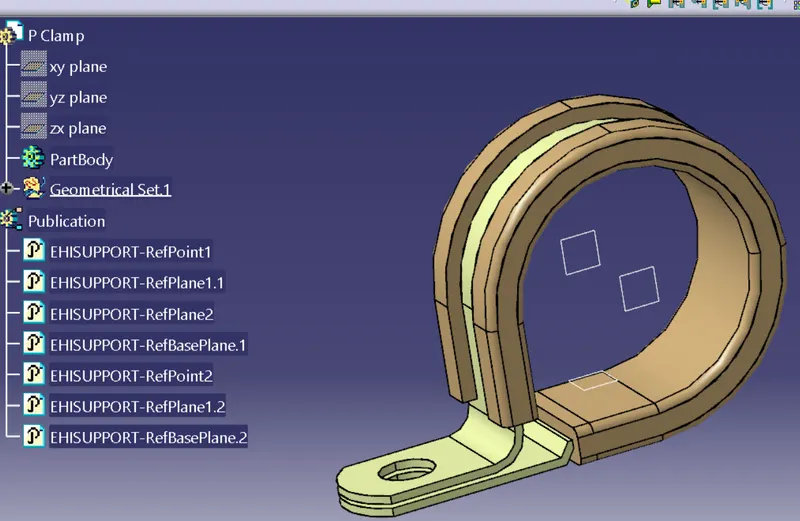
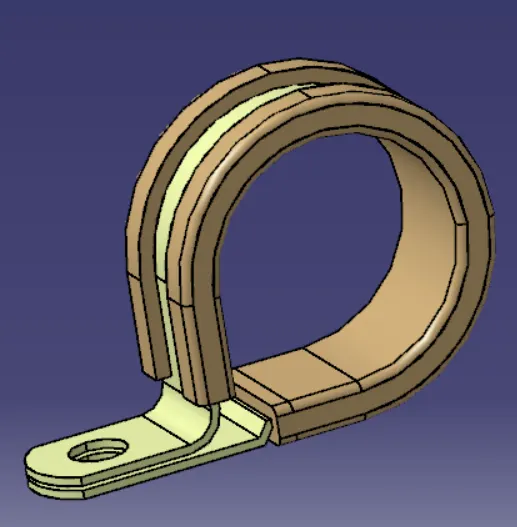
After hiding geometry
Q2. Download following Back shell cad data & define it as Electrical back shell using Electrical Part design Workbench. Define all the necessary properties.
As per the given question
- First we download required files from the website and open the file in Catia.
- Now Create a point and axis at the conncting part to connector.
- And Create a point for bundle connection point.
- Now open the electrical part design workbench.
- First define the model as backshell by using define Back Shell command.
- Now Specify the Backshell Connecton point with required considerations like representation, contact, coincidence and orientation.
- Then define Bundle Connection point with its command
- Now save the file and also store device in Backshell Catalogue.
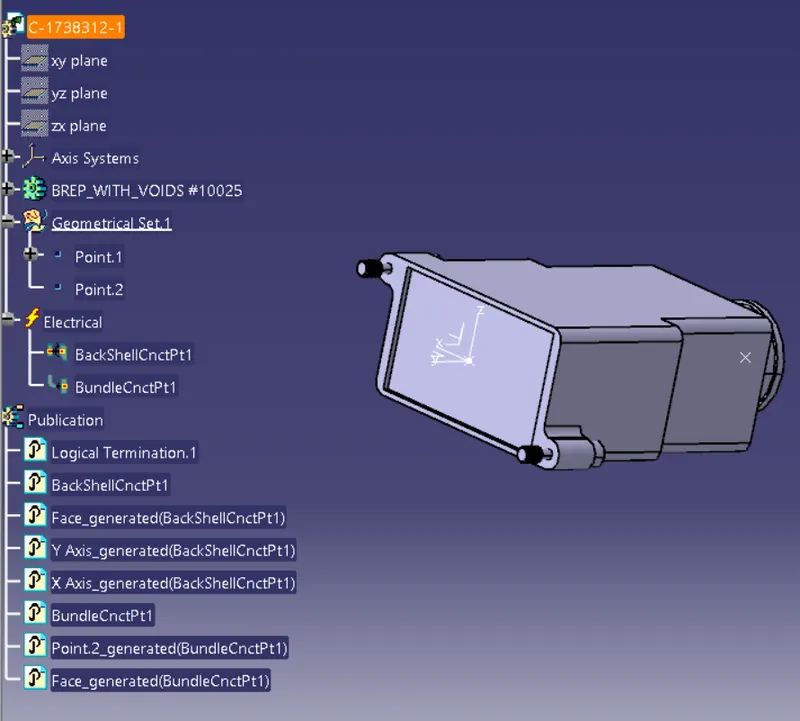
After hiding Geometry
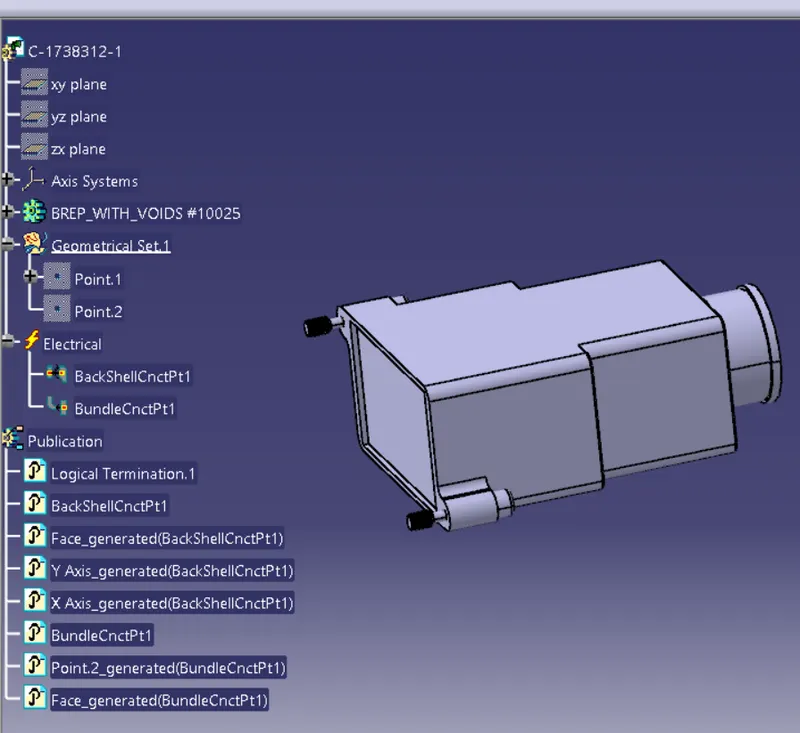
Q3. Create Following Corrugated tubes & Add them in Catalogue under “Slit COT” family.
|
Name |
ID (mm) |
OD (mm) |
Thickness (mm) |
|
15mm COT |
12 |
15 |
1.5 |
|
20mm COT |
17 |
20 |
1.5 |
|
35mm COT |
32 |
35 |
1.5 |
|
10mm COT |
7 |
10 |
1.5 |
|
5mm COT |
3 |
5 |
1 |
As per the given question
- First open the catia electric part design workbench.
- Now define protection part and select the part.
- Here the protection part is corrogated tube.
- In the dialogue box of command fill in the measurements as given and repeat and save the files.
- Create a Catalogue document named Slip COT and add store device of every protection part to Slip COT Catalogue.
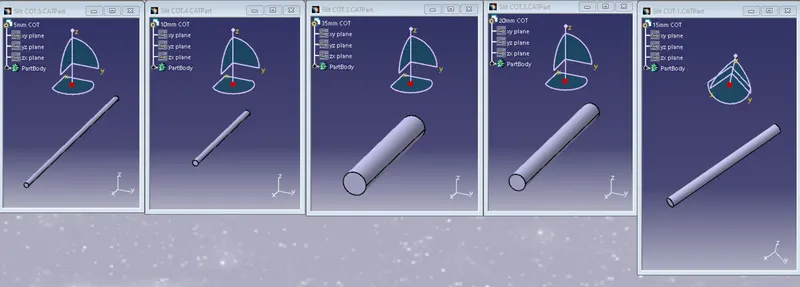
Catalogue image :