Wiring harness routing & packaging Rules Week 3 Challenge
Q1] Download following cad data & define it as Electrical support using Electrical Part design Workbench. Define all the necessary properties.
Answer:
- First download the P clamp file were given question and load into the Catia V5
- Next to select the part design for define the geometric parameter for the given clamp
- Then switch From Part design to Electrical part design for Define the part as support
- Now select the Mount equipment from the Electrical part design
- Then Define the Entry & Exit point by selecting Support definition and given th require axis
- And the image file were mention below
- Step 1: Define the geometric parameters
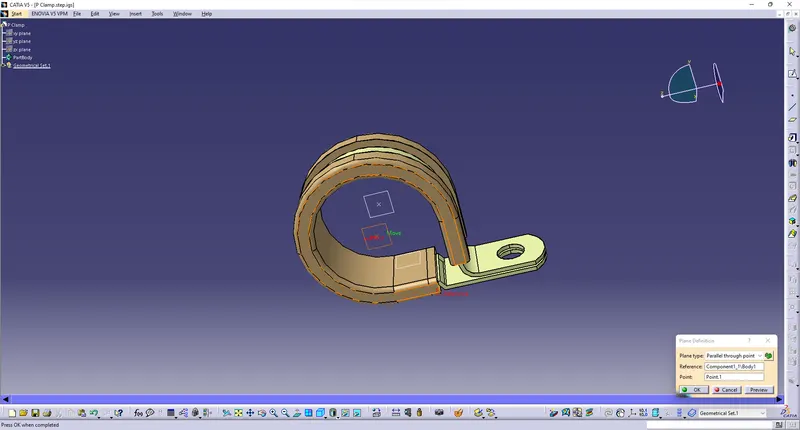
- Step 2: Define part as support
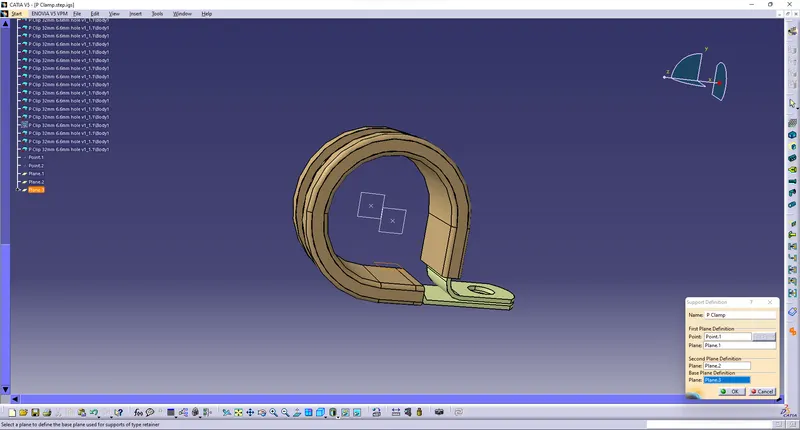
- Step 3: Define Entry & Exit point
Q2] Download following Back shell cad data & define it as Electrical back shell using Electrical Part design Workbench. Define all the necessary properties.
Tyco 1738312-1 https://www.te.com/usa-en/product-1738312-1.html
- First download the Backshell file were given question and load into the Catia V5
- Next to select the part design for define the geometric parameter for the given Backshell
- Then switch From Part design to Electrical part design for Define the part as Backshell
- Now select the Define Backshell Option from the Electrical part design
- Then Define the Connector connection point by selecting Define Backshell Connection Point
- Then Define the Bundle Connection point by selecting Bundle connection point
- And the image file were mention below
- Step 1: Define the geometric parameters
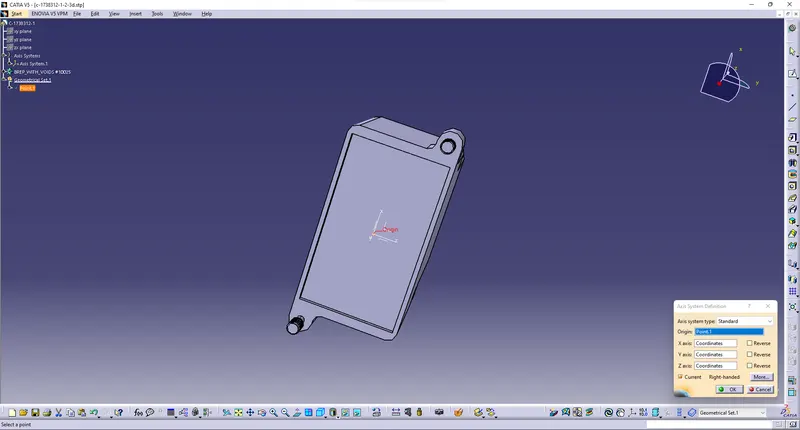
- Step 2: Define Part as Back shell
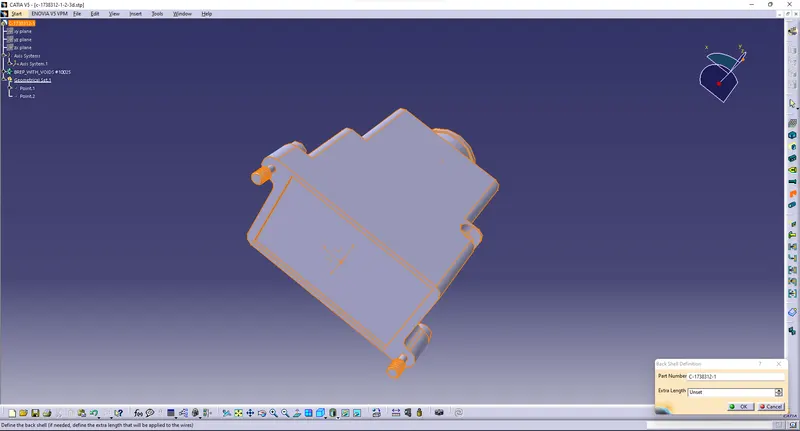
- Step 3: Define Backshell Connection Point
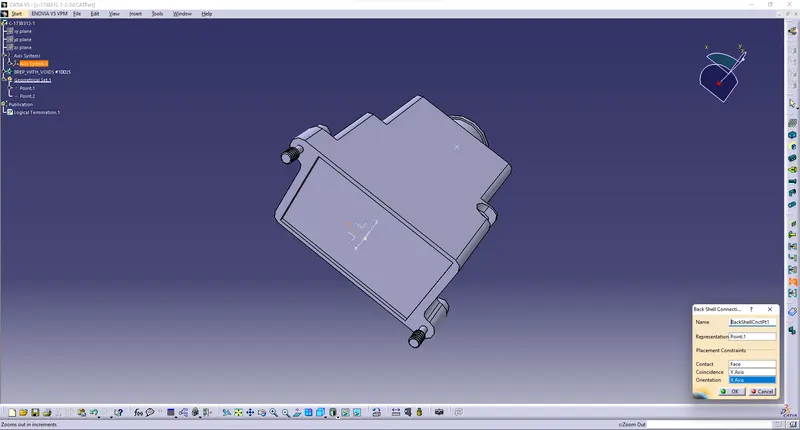
- Step 4: Define Bundle Connection Point
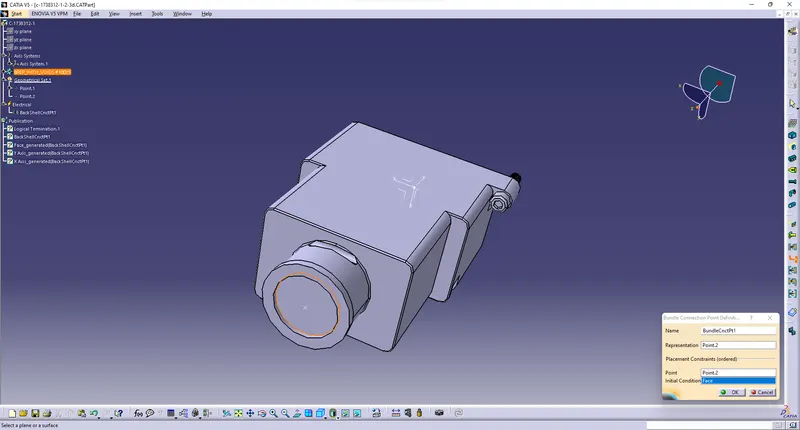
Q3] Create Following Corrugated tubes & Add them in Catalogue under “Slit COT” family.
|
Name |
ID (mm) |
OD (mm) |
Thickness (mm) |
|
15mm COT |
12 |
15 |
1.5 |
|
20mm COT |
17 |
20 |
1.5 |
|
35mm COT |
32 |
35 |
1.5 |
|
10mm COT |
7 |
10 |
1.5 |
|
5mm COT |
3 |
5 |
1 |
Answer:
- First Create the Covering tube by selecting covering option from the Electrical Part design
- Next given the values for the creation For the cot tube
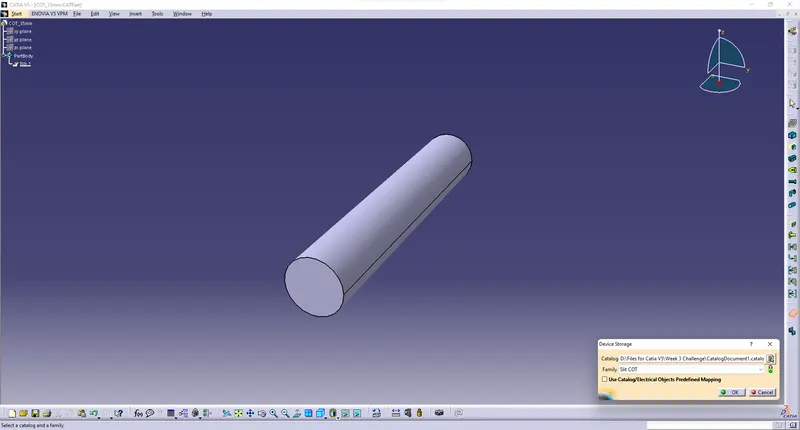
- Then Create the new Catalogue from the by seleccting New File->catalouge document->Add family
- And given name as Slit COT->Type: Condute
- Add new part in catalogue by selecting store option
- And the image file were mention below
- Step 1: Create the Covering tube
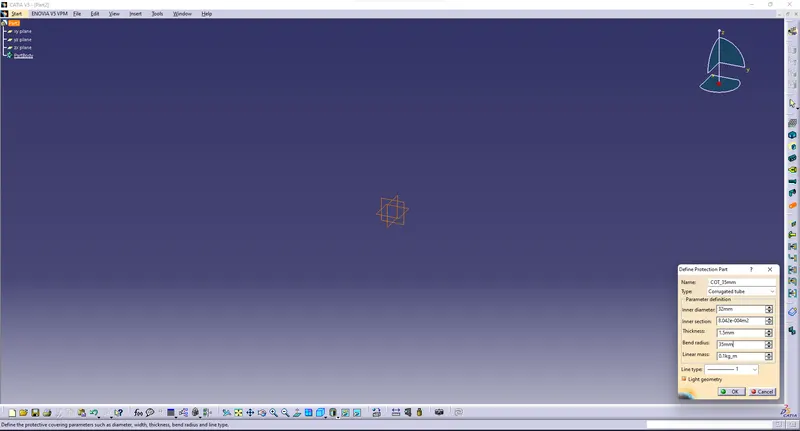
- Step 2: Create Catalouge for covering
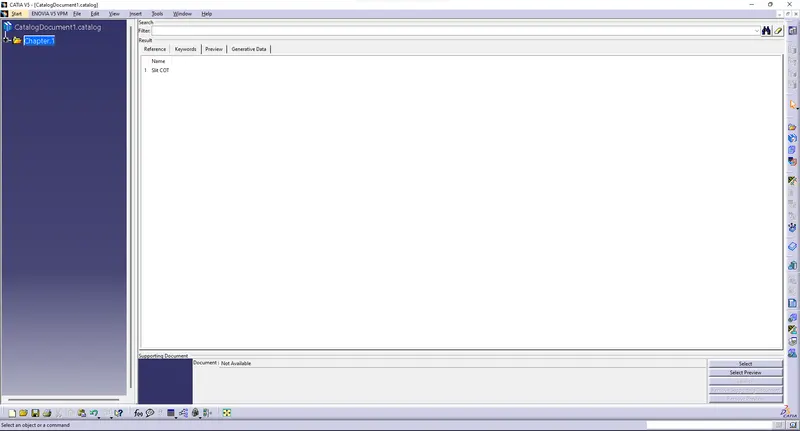
- Step 3: Add part to the catalouge document
- Files:
Above files were uploaded and named as week 3 challenge.zip and image also uploaded in same file