Wiring harness design in CATIA V5 - 3D modeling Week 7 Challenge
In this Challenge we are going to take the Challenge 4 CADPart as a reference and going to make Flatten, Bundle Protective Cover and the Drawing View of the Product.
At First the Challenge 4 CADPart is taken in a Assembly WorkBench and then a New File opened the Electrical Harness Flattening. Then click on the Harness Flattening Parameters and change the setting to your requirement and select ok. Then go to the Extract option and select the Title of the Challenge 4. Now the Bundle Assy will be generated into the Electrical Harness Flattening.
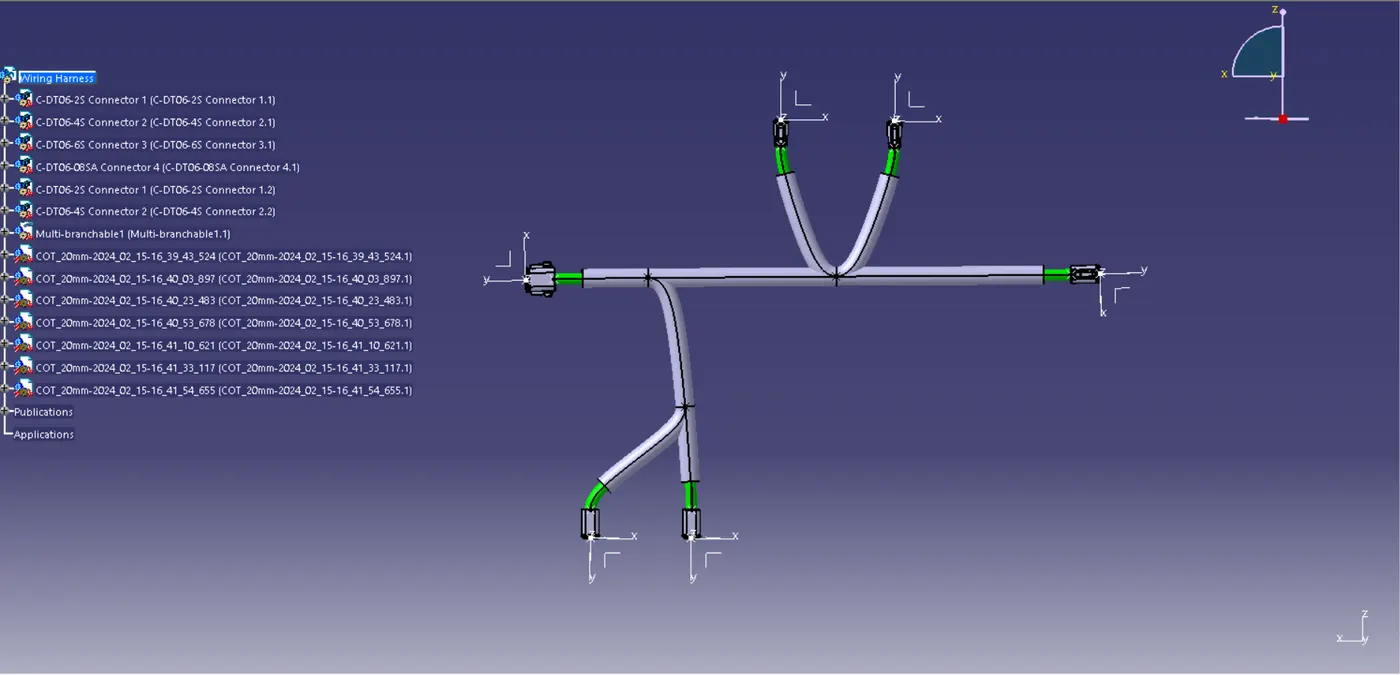
Fig 1. Wiring Harness
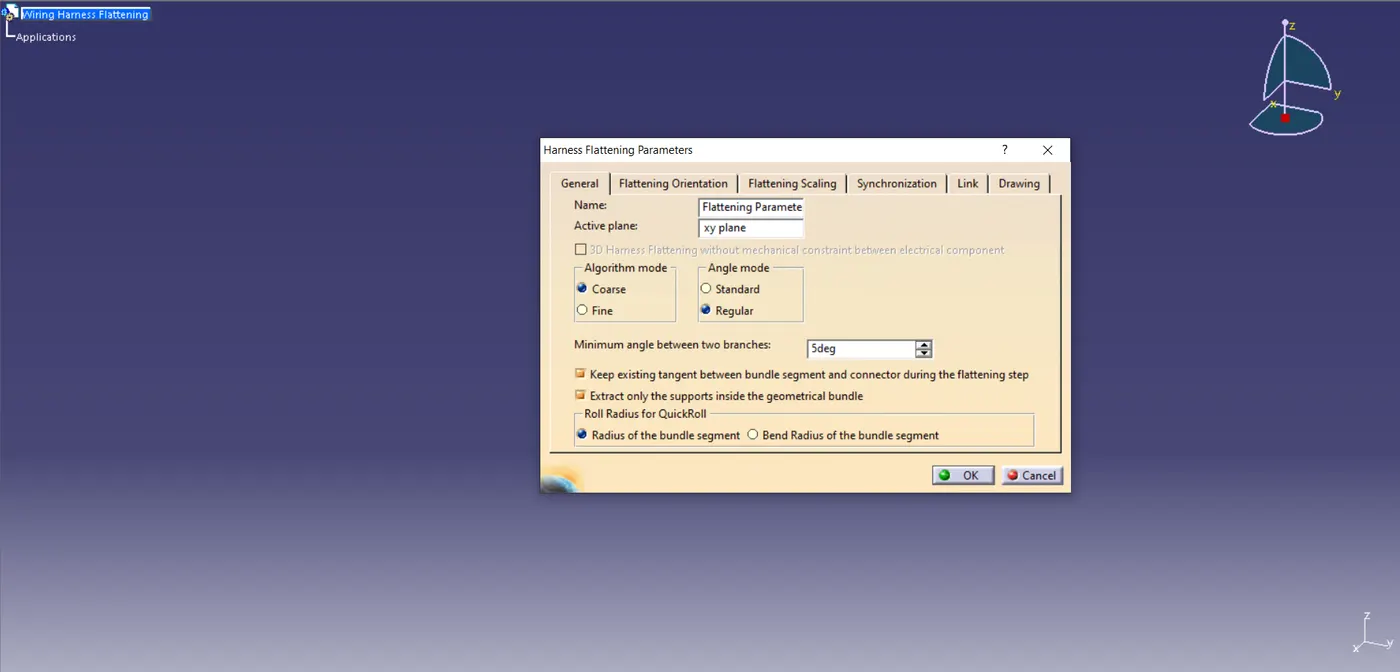
Fig 2. General Setting for Wiring Harness Flattening
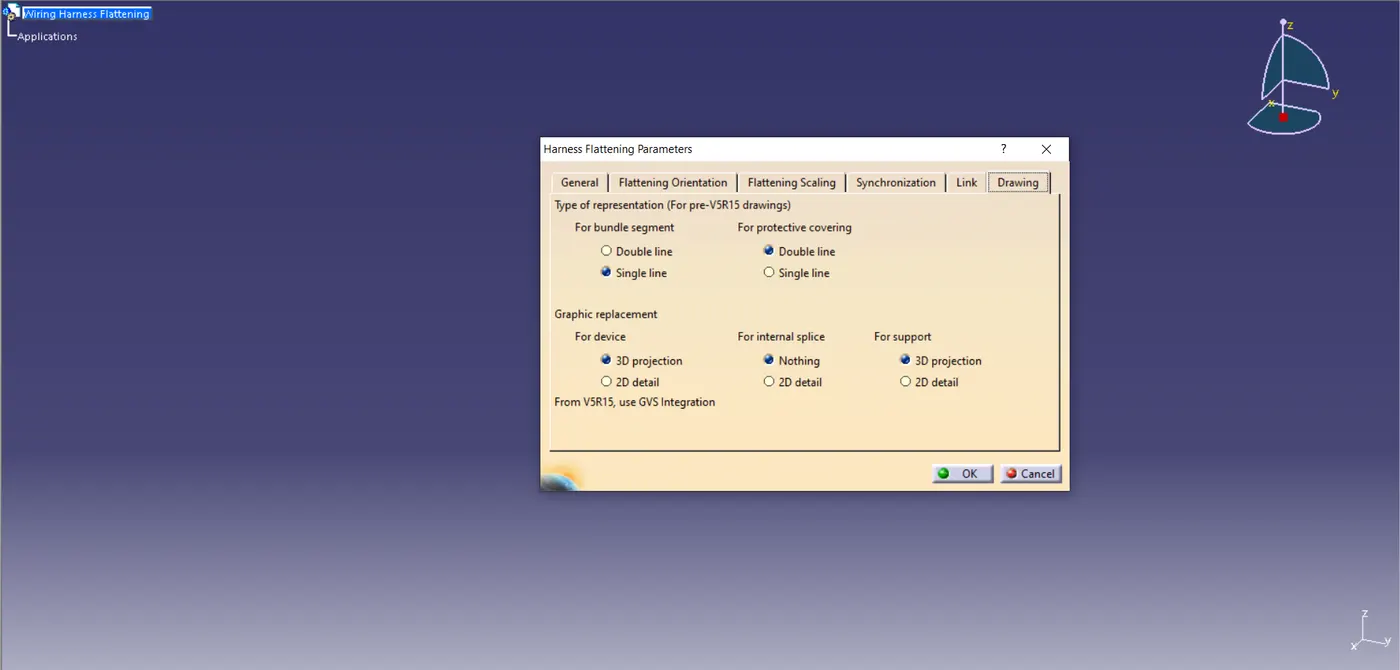
Fig 3. Drawing Setting for Wiring Harness Flattening
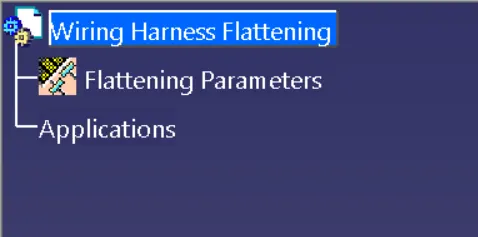
Fig 4. Harness Flattening Parameters Created

Fig 5. Extract Option
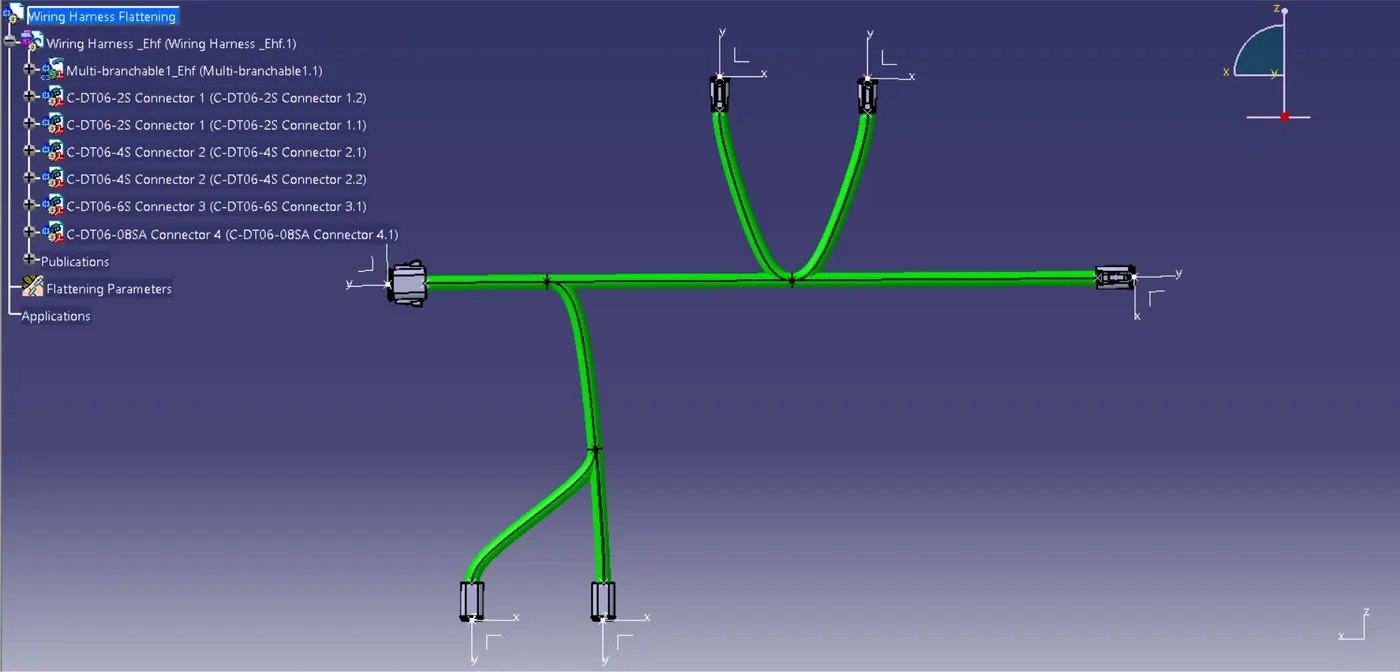
Fig 6. Wiring Harness_Ehf is Imported to Product File
Now the Flatten option is selected to Flat the Bundle of the Wiring Harness_Ehf.
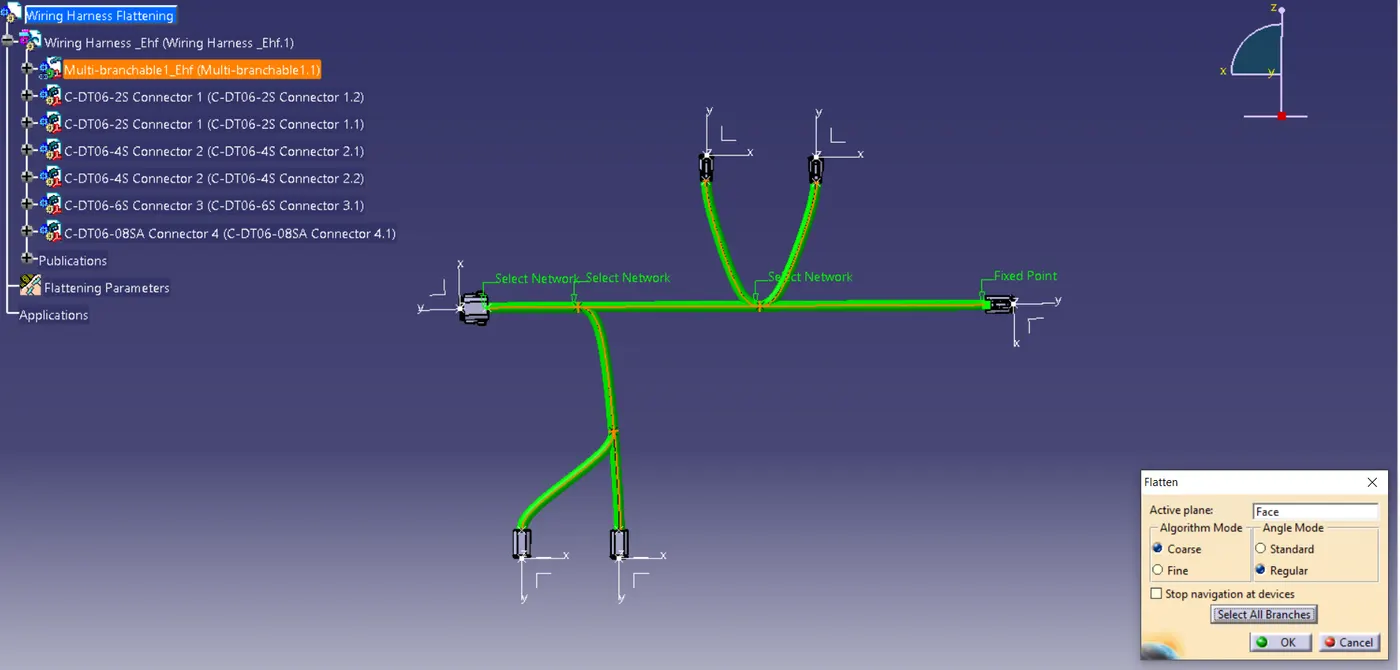
Fig 7. Flatten is done in Flattening WorkBench
After the Flatten is done the Bundle are Rotated and Scaled to get the requirements.
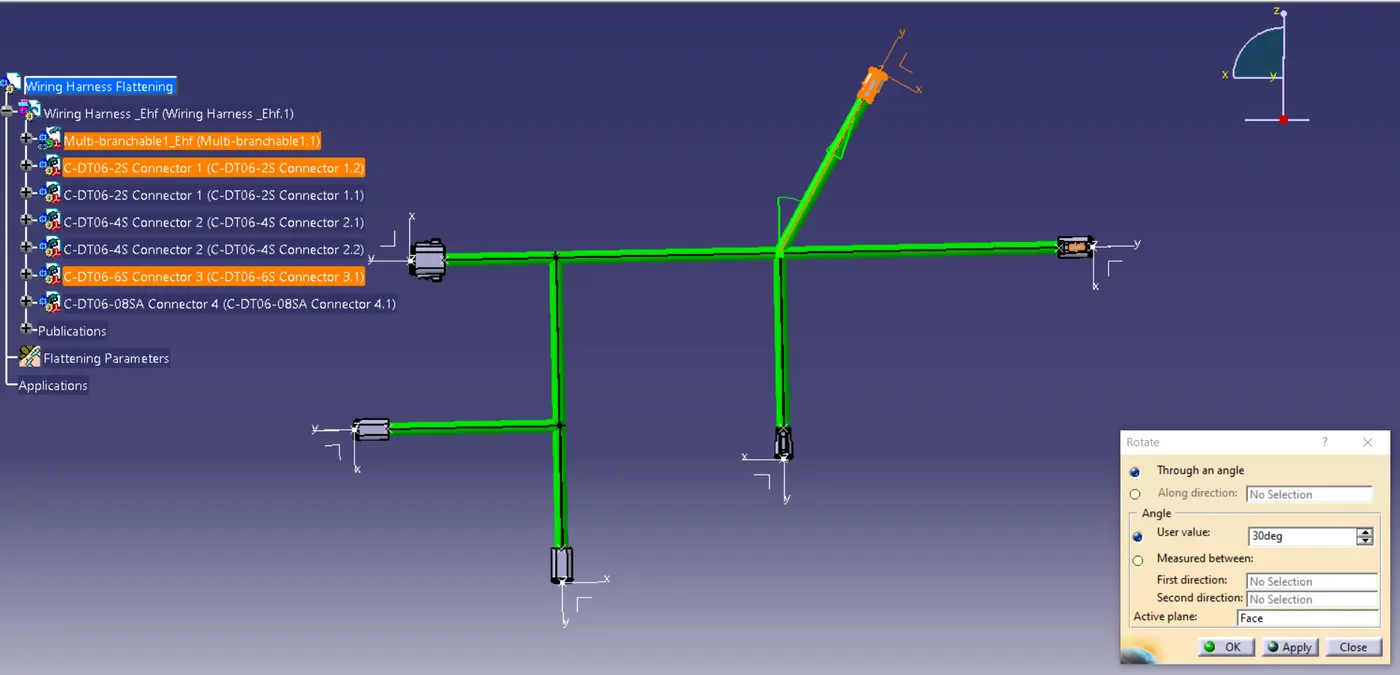
Fig 8. Rotating the Bundle to the required Area
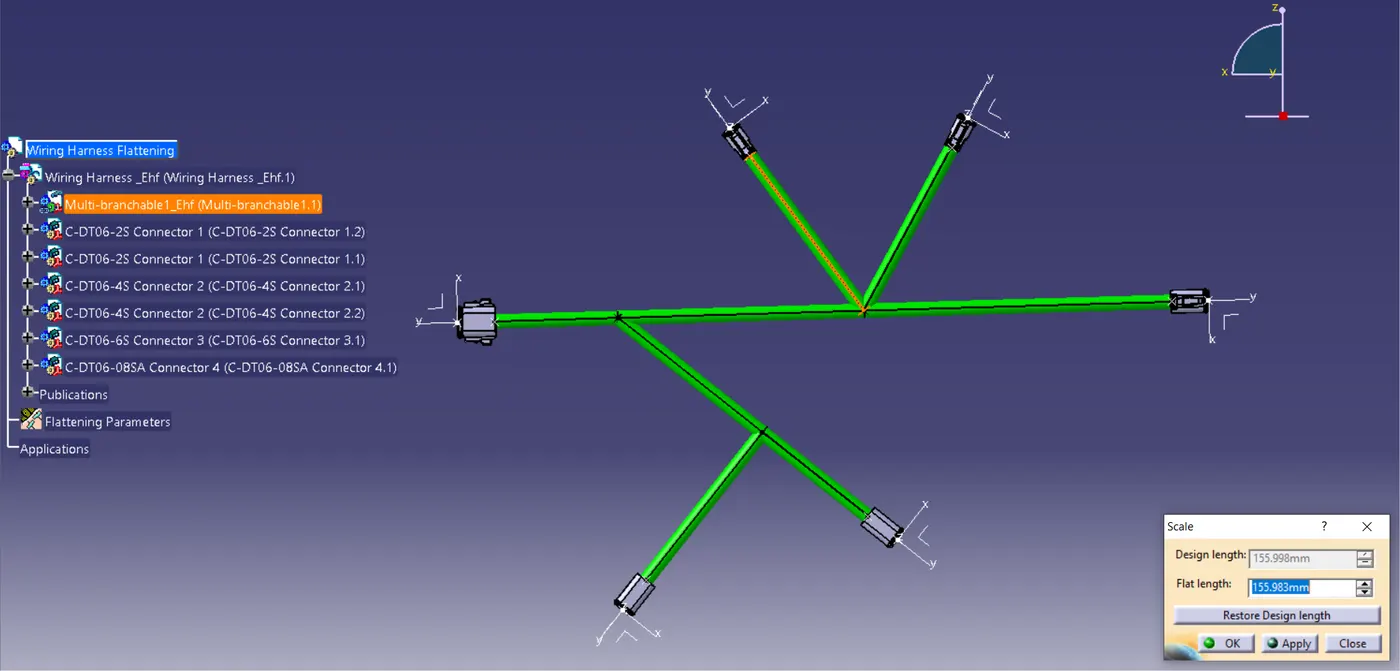
Fig 9. Scaling Bundles with the Required Dimensions
Now the Wiring Harness_Ehf is opened in a new window and the Bundle areas are covered with the Protective Covering.
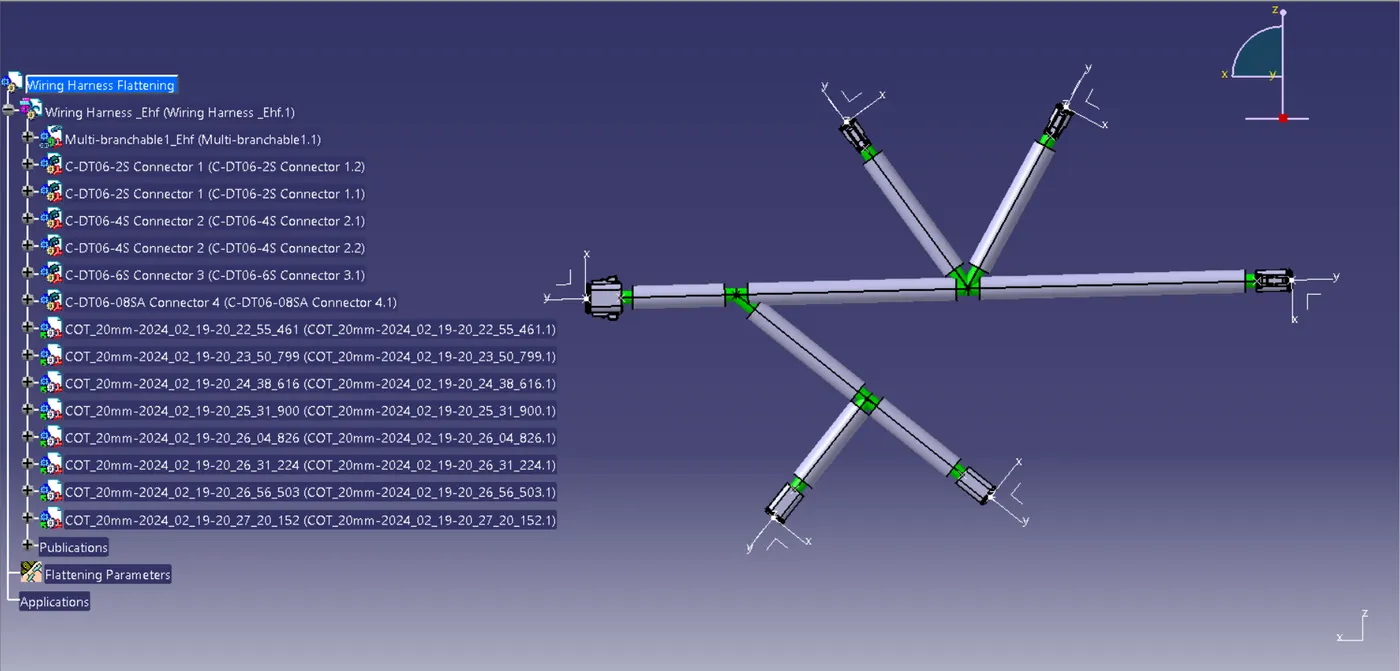
Fig 10. Protective Covering is created for Bundle
Now the Final stage which is Drafting of Wiring Harness Flattening. Open a New File for Drawing, in that select the Front View of the Assy. Now in the Drafting select the imported drawing and right click on it and go to properties. In the Properties select the 3d Wireframe and select the Always Visible Options to have a clear view of the Harness Flattening.
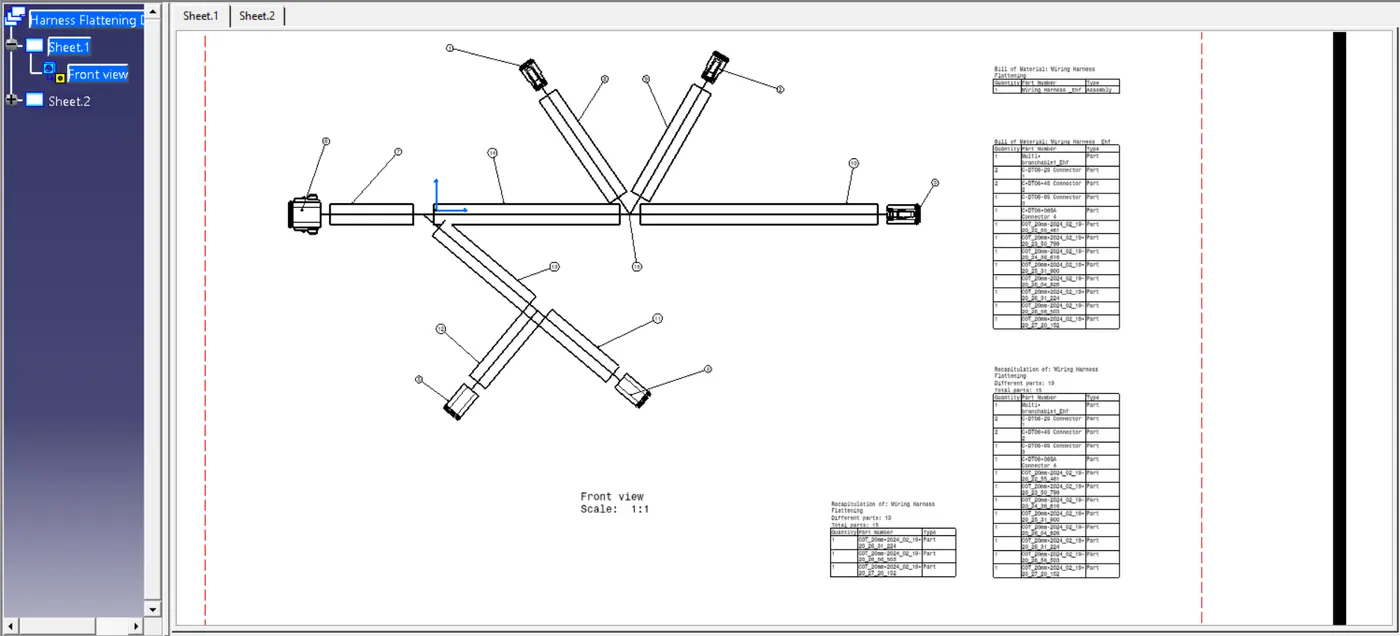
Fig 11. Drafting for Wiring Harness Flattening