Wiring harness design in CATIA V5 - 3D modeling Week 7 Challenge
Aim:
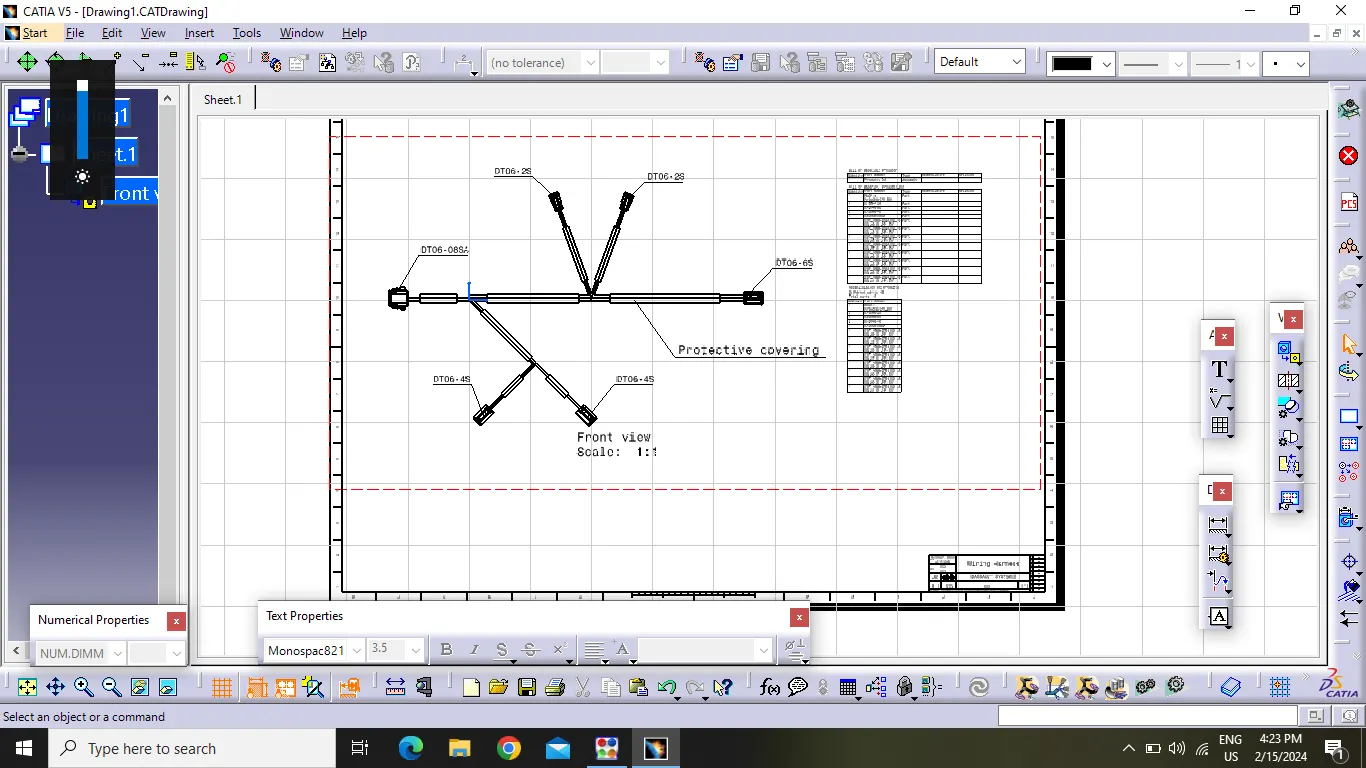
- To Flatten the harness assembly completed in Week 4 Challenge .and Placeing the flattened view on drawing sheet.Ensuring Bundle with protective covering has different visuals on drawing view .
Objectives :
- To Flatten the wiring harness assembly of week 4 challenge .
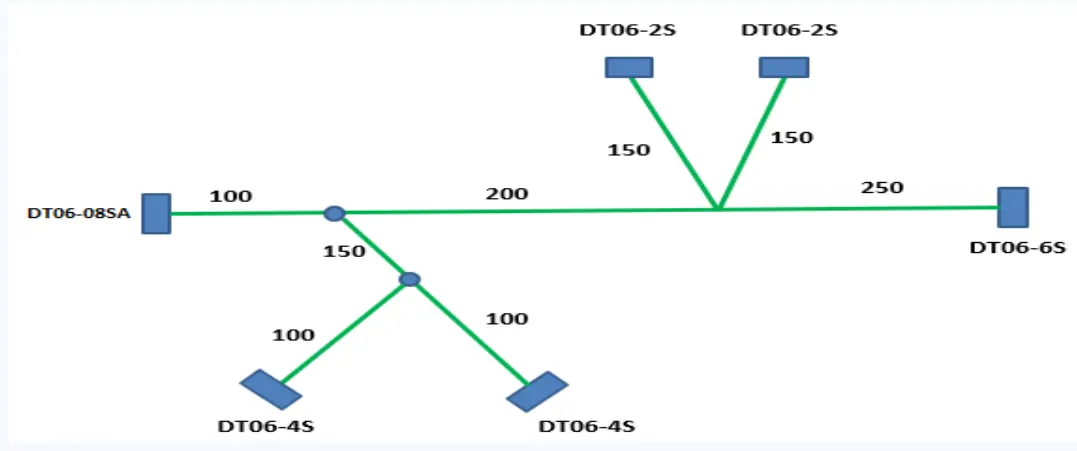
- To assemble the wire bundle as showen in the layout .
- 2D drawing of the bundle with connector representation.
- To ensure Bundle with protective covering has different visual on the drawing view.
Procedure :
- Create a New Product file and switch to Electrical harness Flattening .
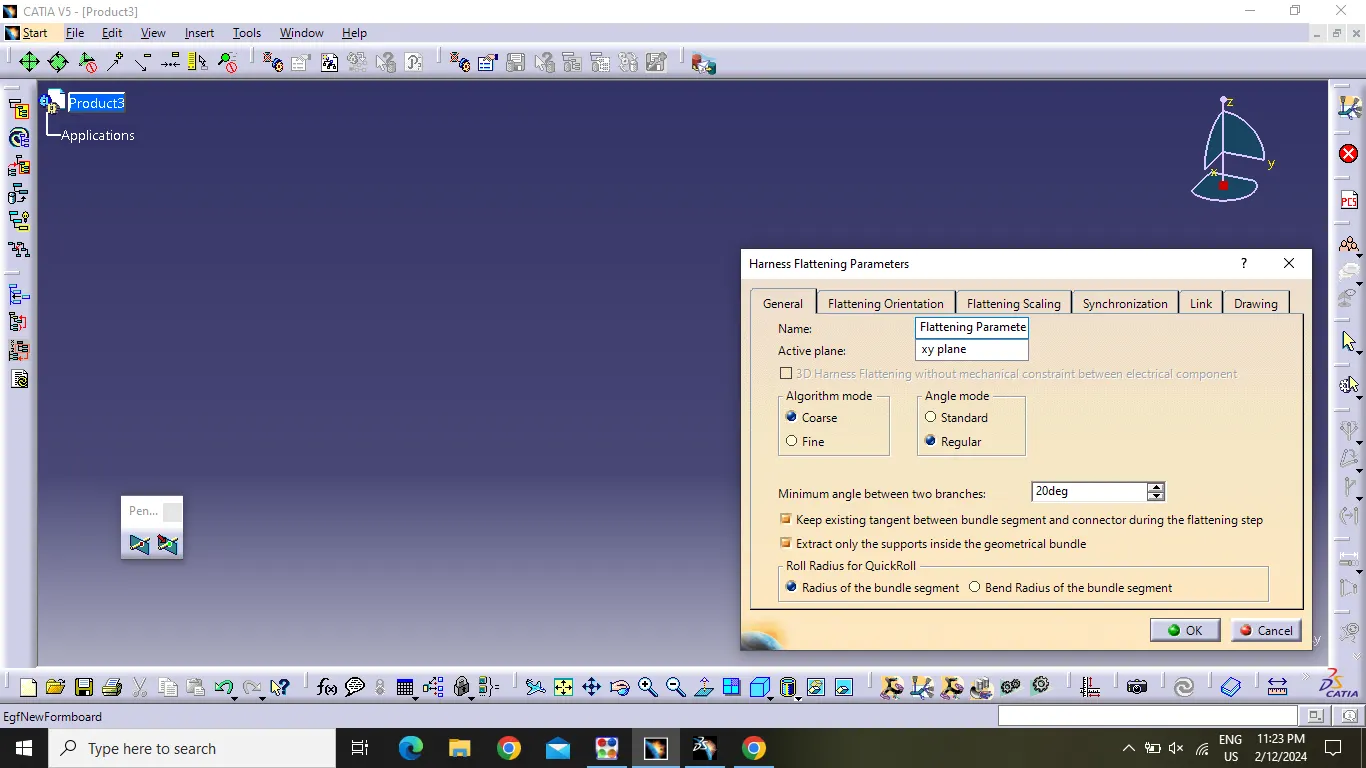
- Now Open the tool of Harness Flattening Paramaters and change the setting accourding to the harness assembly challange .
- Change the Harness Flattening paramaters setting as showen in the figure .
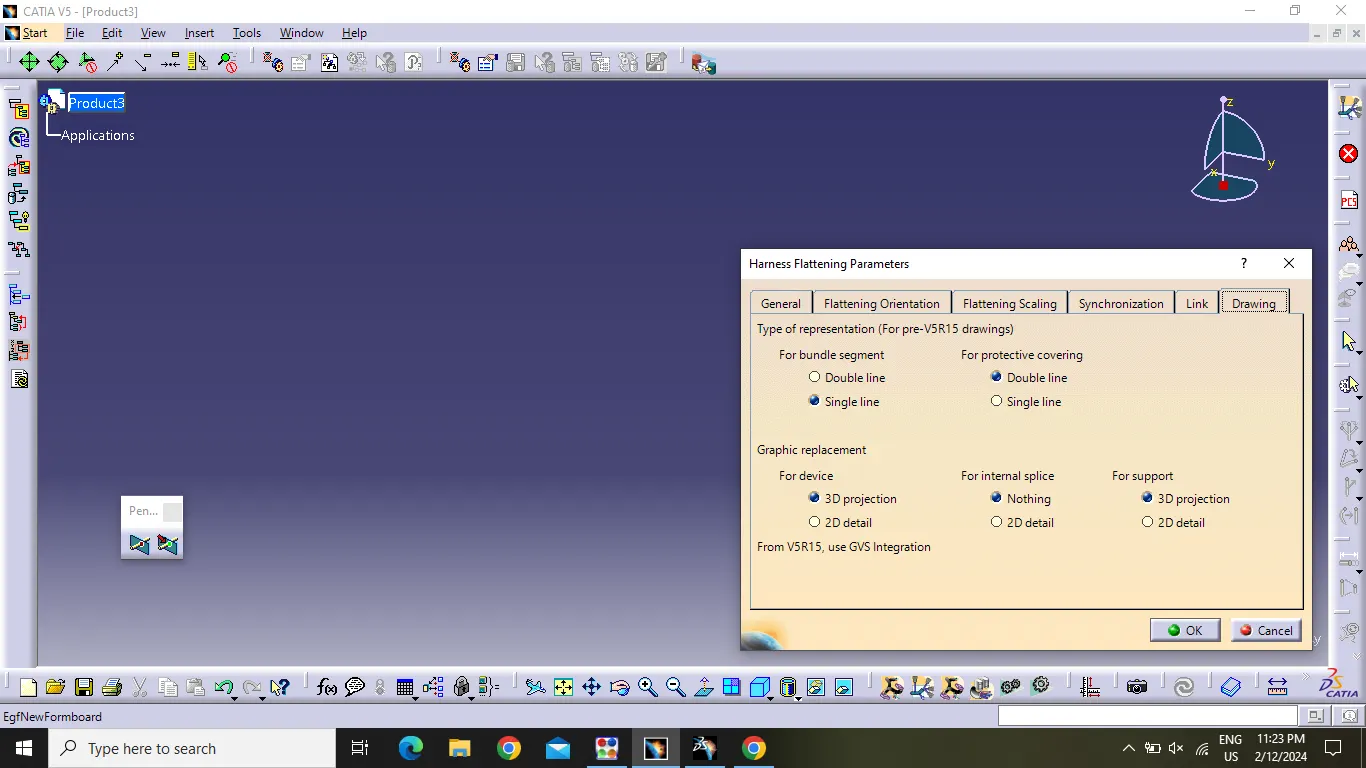
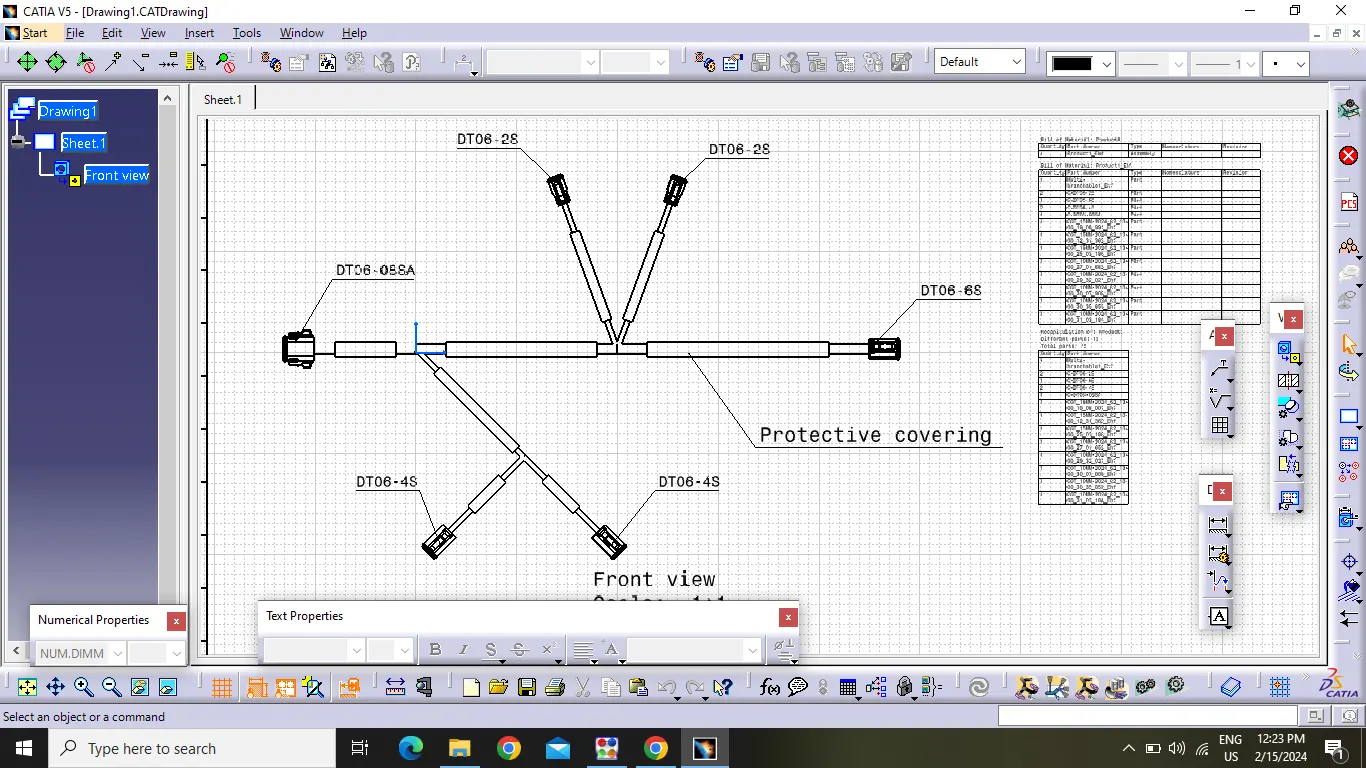
- In drawing menue single line is selected for bundle segment and double line selected for protective covering in order to differentiate the wire bundle and Cot tubes in drafting .
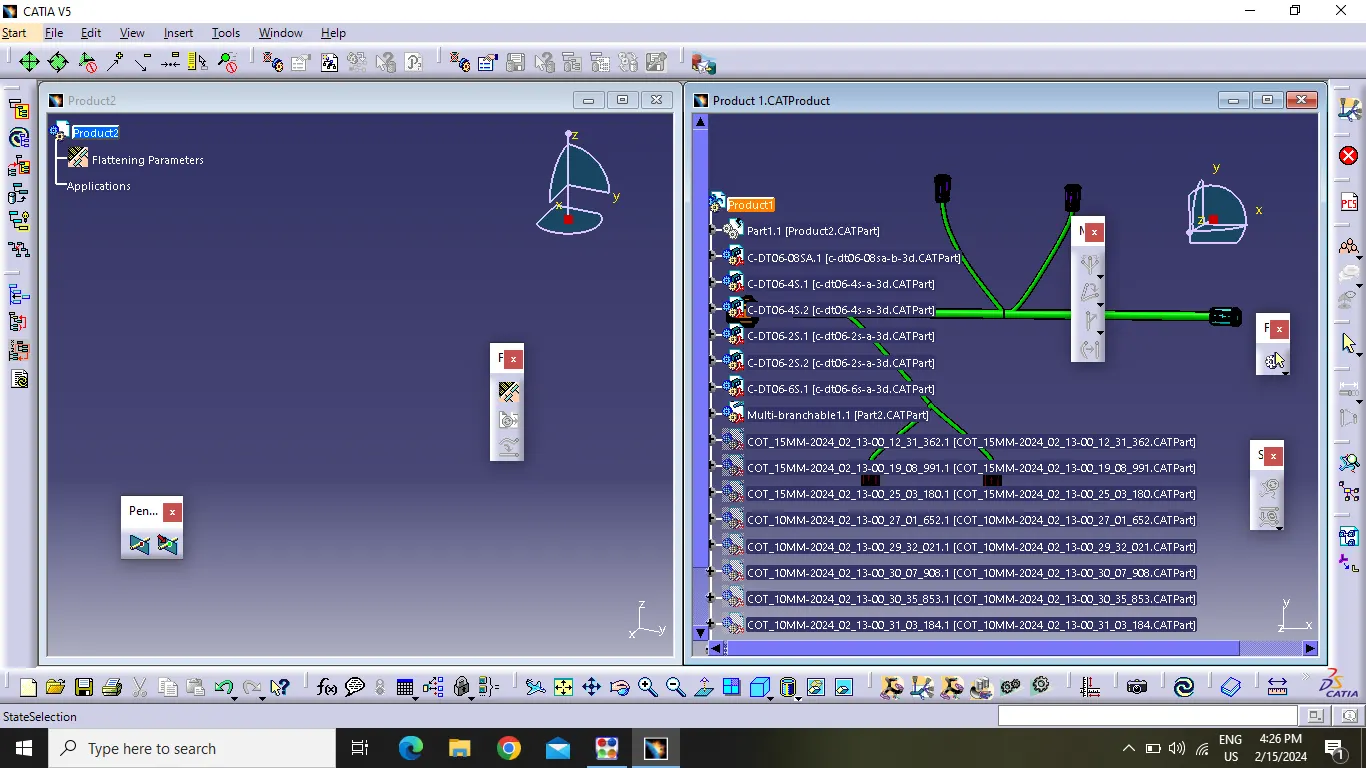
- Now open the challange 4 in another tab . keep two tabs vertically as show in the figure .Then select the "EXTRACT" tool in Electrical harness flattening workbench and select the challange 4 product in the wire harness assembly .
- now challange 4 will be imported to the flattening product file with "EHF" as show in the figure .
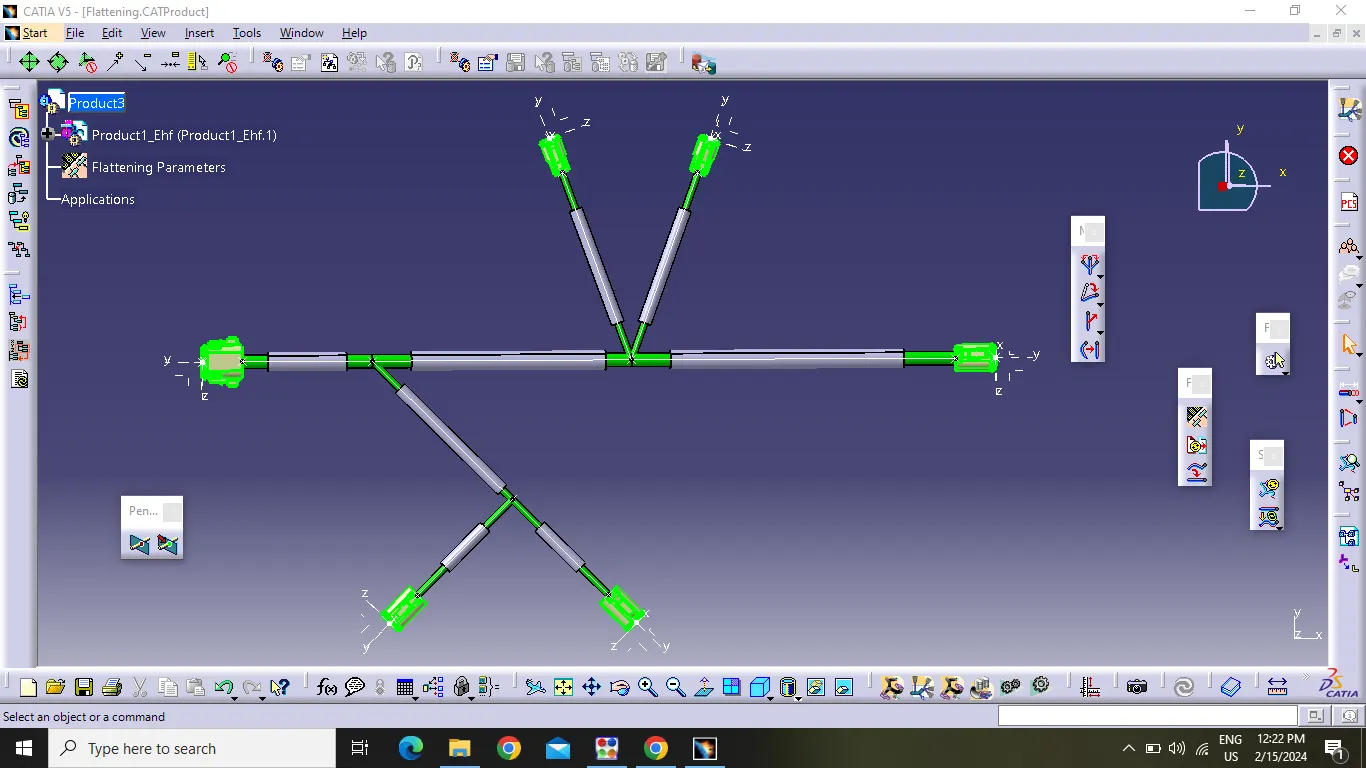
- Select the "FLATTEN " tool to flatten the wire harness assembly.
- Now Select Active plane as connector front face then select one branch and then select all branches in tool bar .if wire harness assembly is in continuity in the bundle segment then all the branches will selected then press "ok" now all the branches will be flattened .
- now use the "ROTATE" tool to get the desire shape of the layout .then save the file .
Drafting :
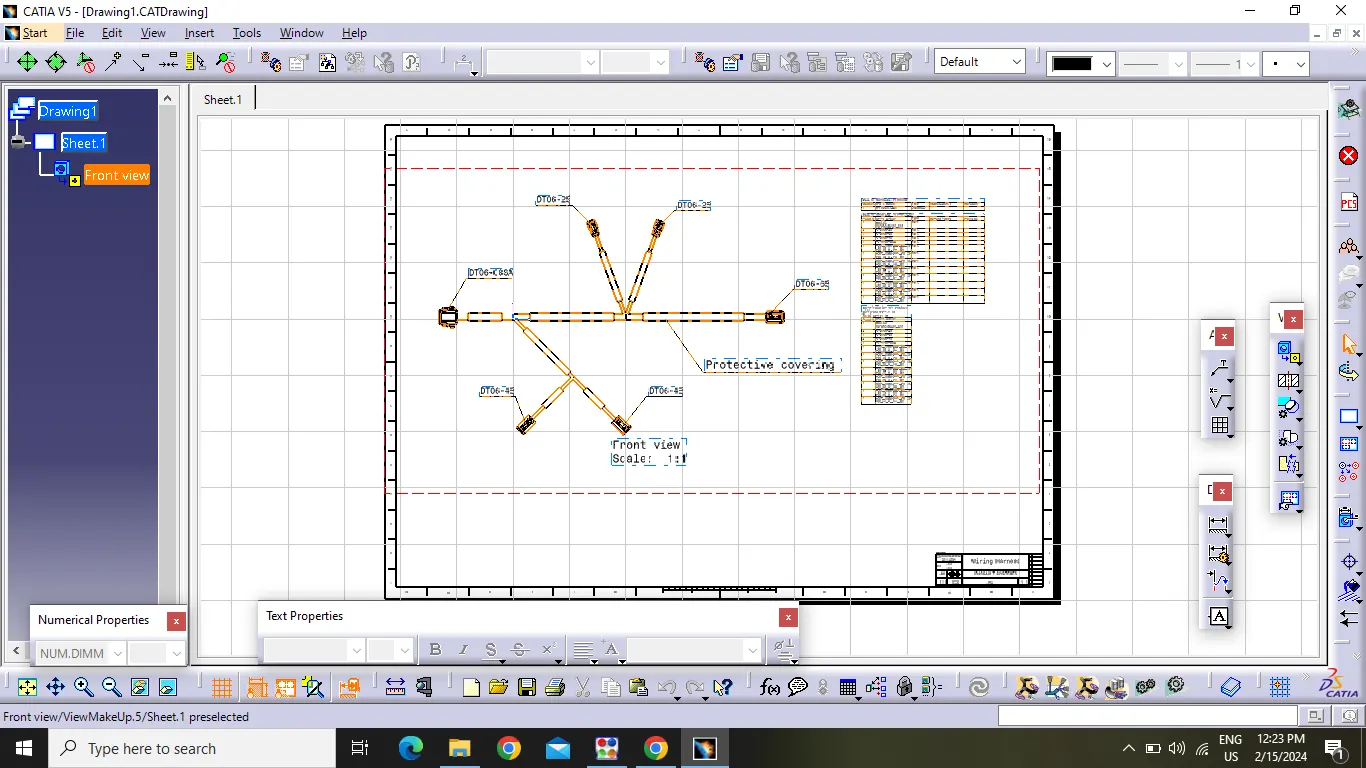
- Create a new drawing file and create frame and title block and fill up the required data .
- Insert the harness assembly by selecting "front view" tool . then select flate face of any connector . then product will be inserted .
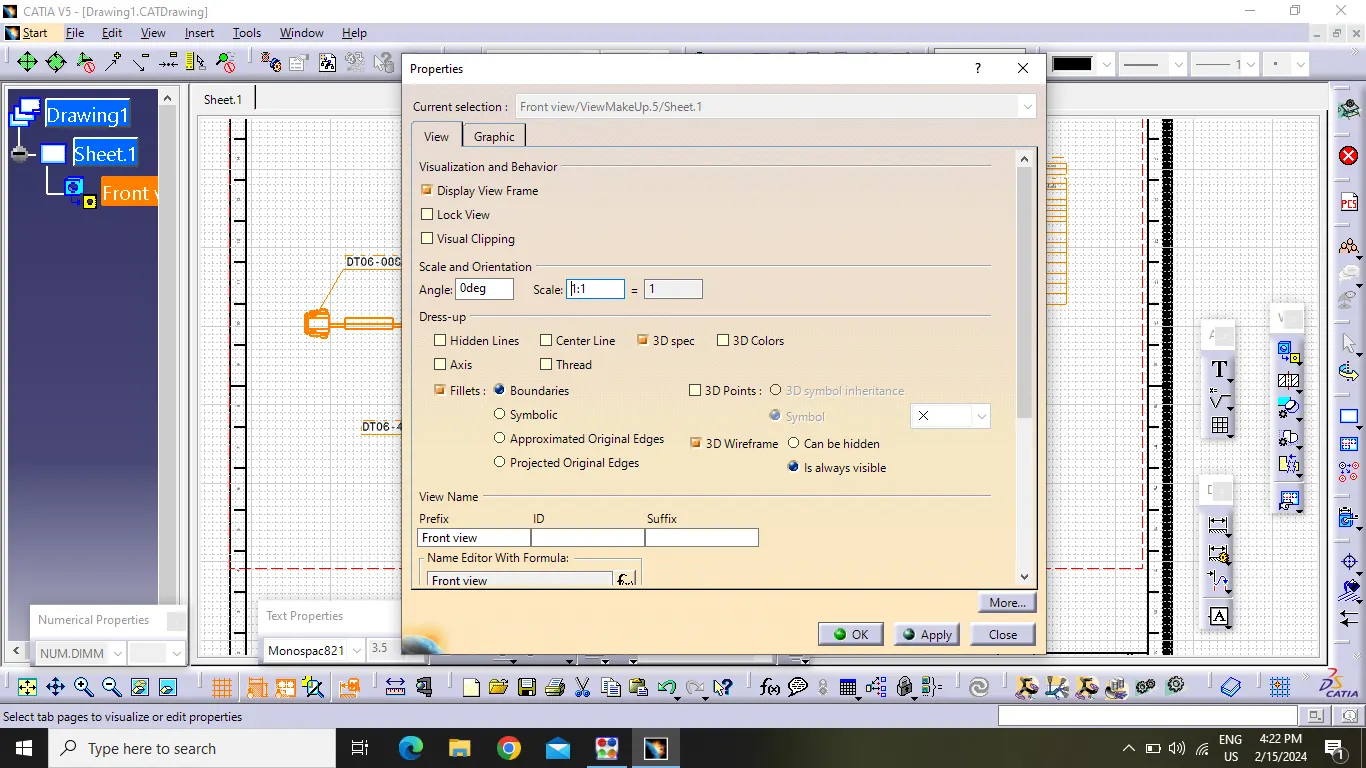
- Now go to the view properties and select 3D wire frames and keep it "ON" and then select "Is always visible"
- Then name all the connectors by using text tool.
Conclusion :
- Hence , Flattening the harness assembly of week 4 challange was done by using Electrical Harness Flattening, and placed the flattaned view on the drawing sheet .