Wiring harness design in CATIA V5 - 3D modeling Week 7 Challenge
CHALLENGE-5
Objective:-
l Define all mechanical parts electrically
l Prepare bundle flattering
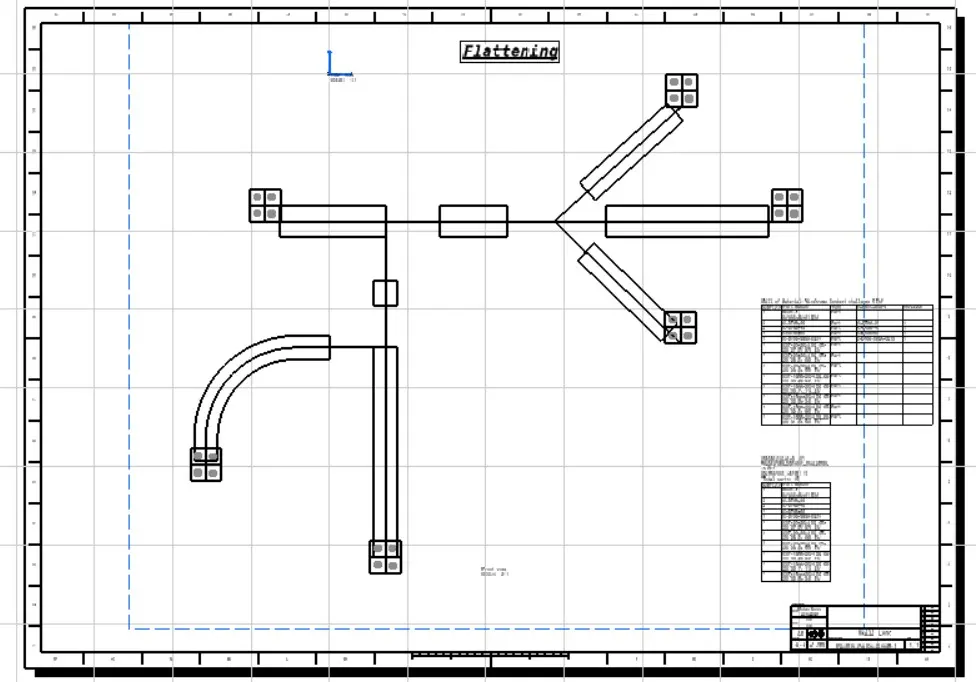
l 2D drawing of the bundle with connector representation
l Report preparation
1. Download all the connectors form T.E .com
2. Represent them electrically with bundle connector connection and connector connection point through equipment and system -electrical harness discipline-electrical part design now create one new product electrical harness assembly and Arrange all the connectors as given in the diagram,define product electrically.
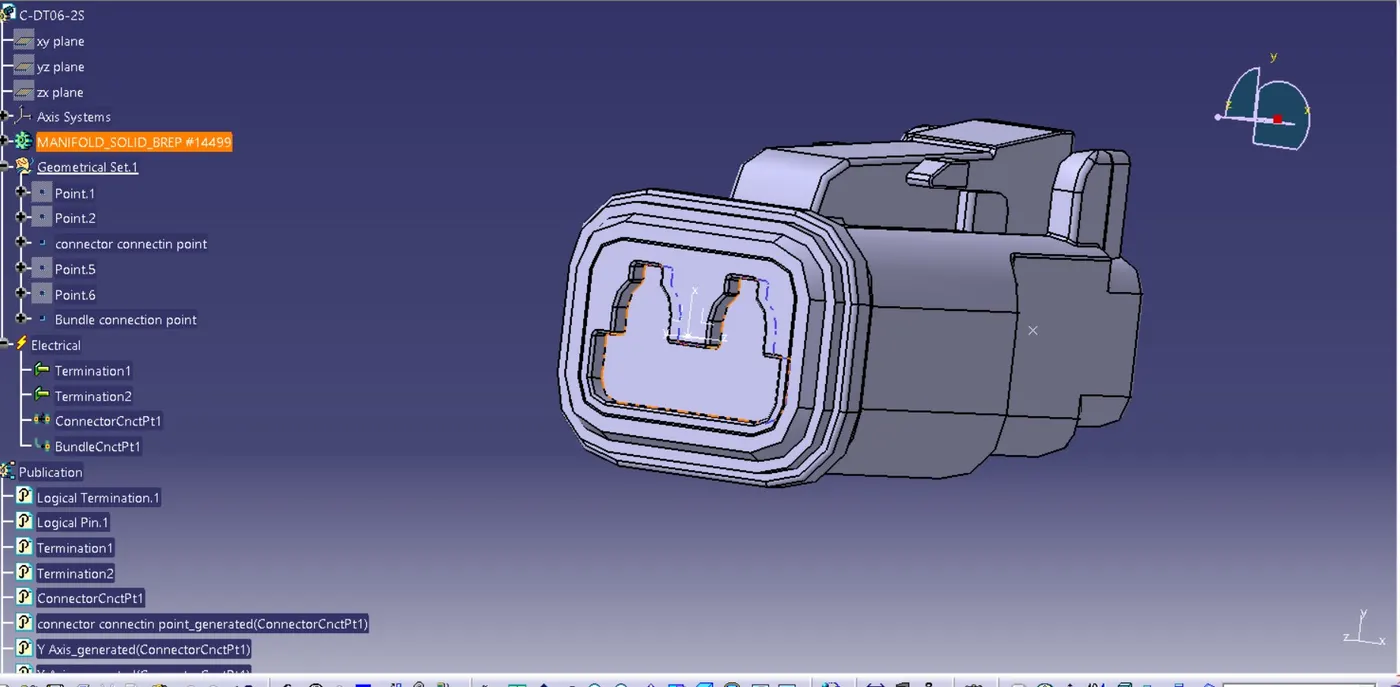
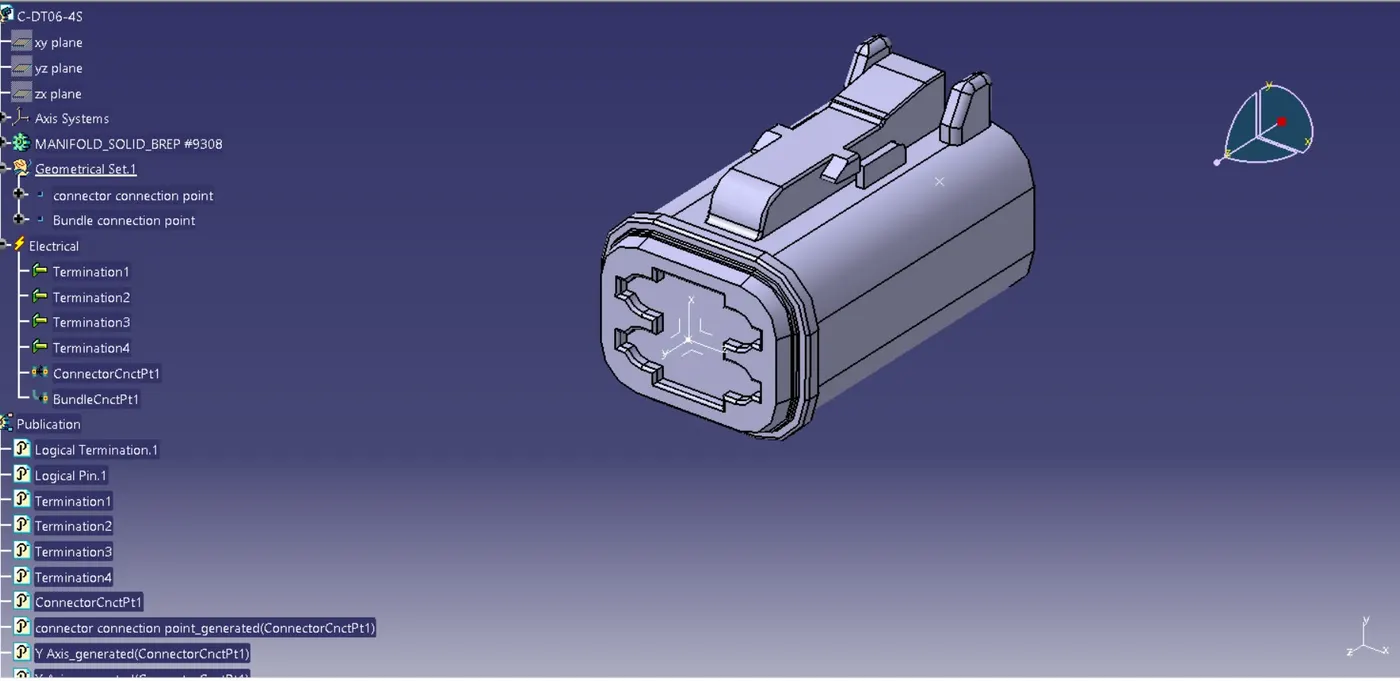
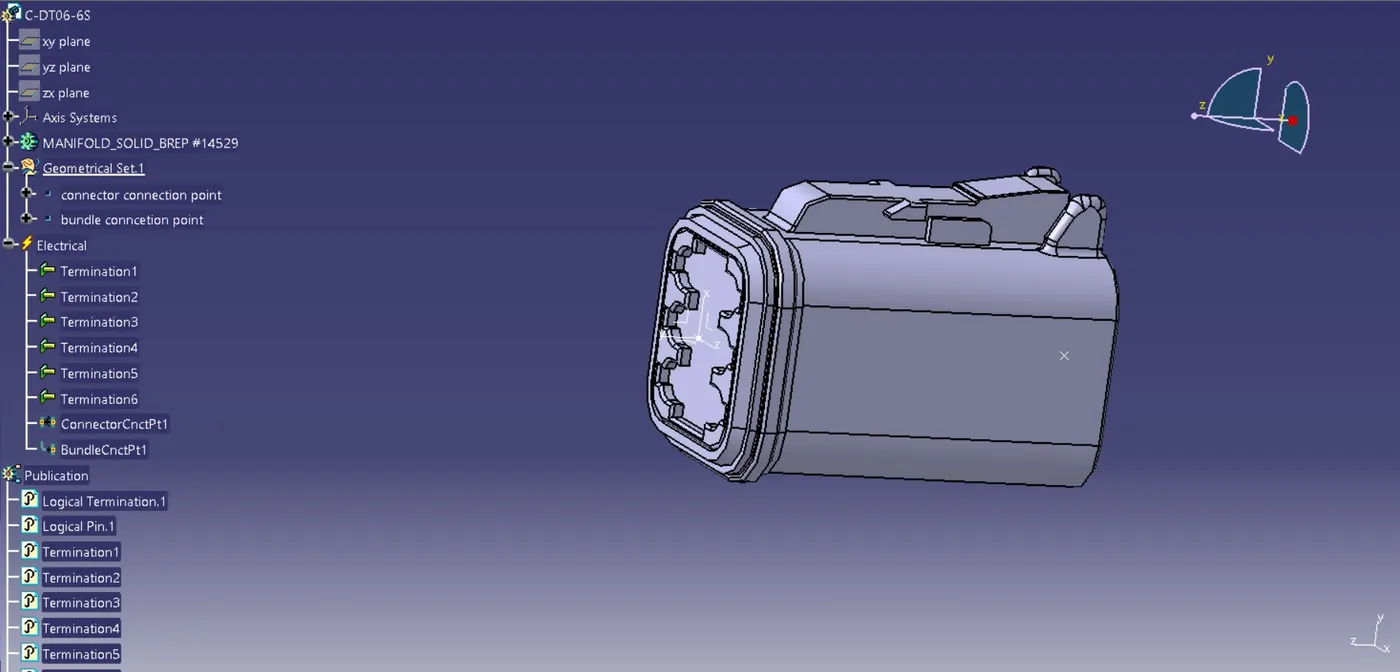
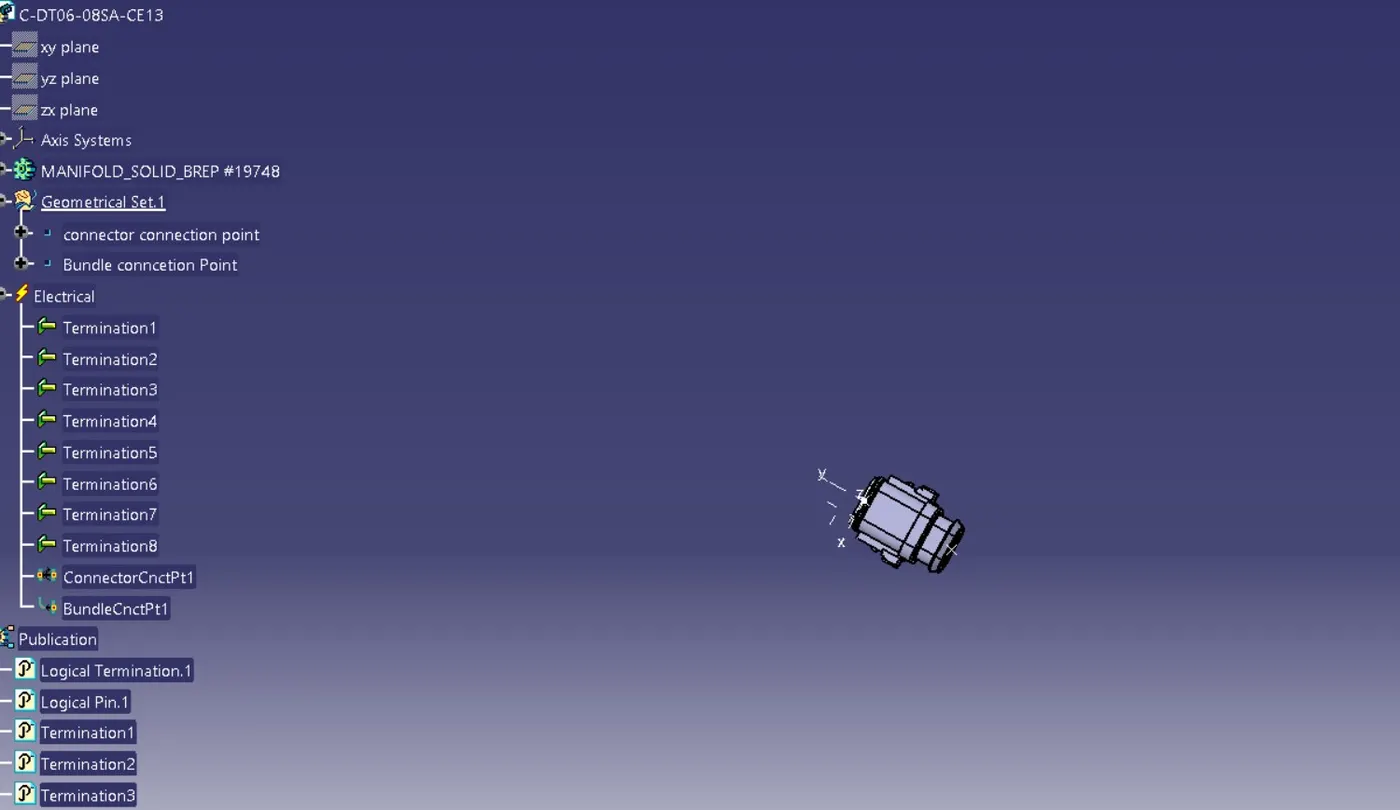
3. Now create bundle segment for given harness and branch point as well sub branches.apply protective covering to all the branches.
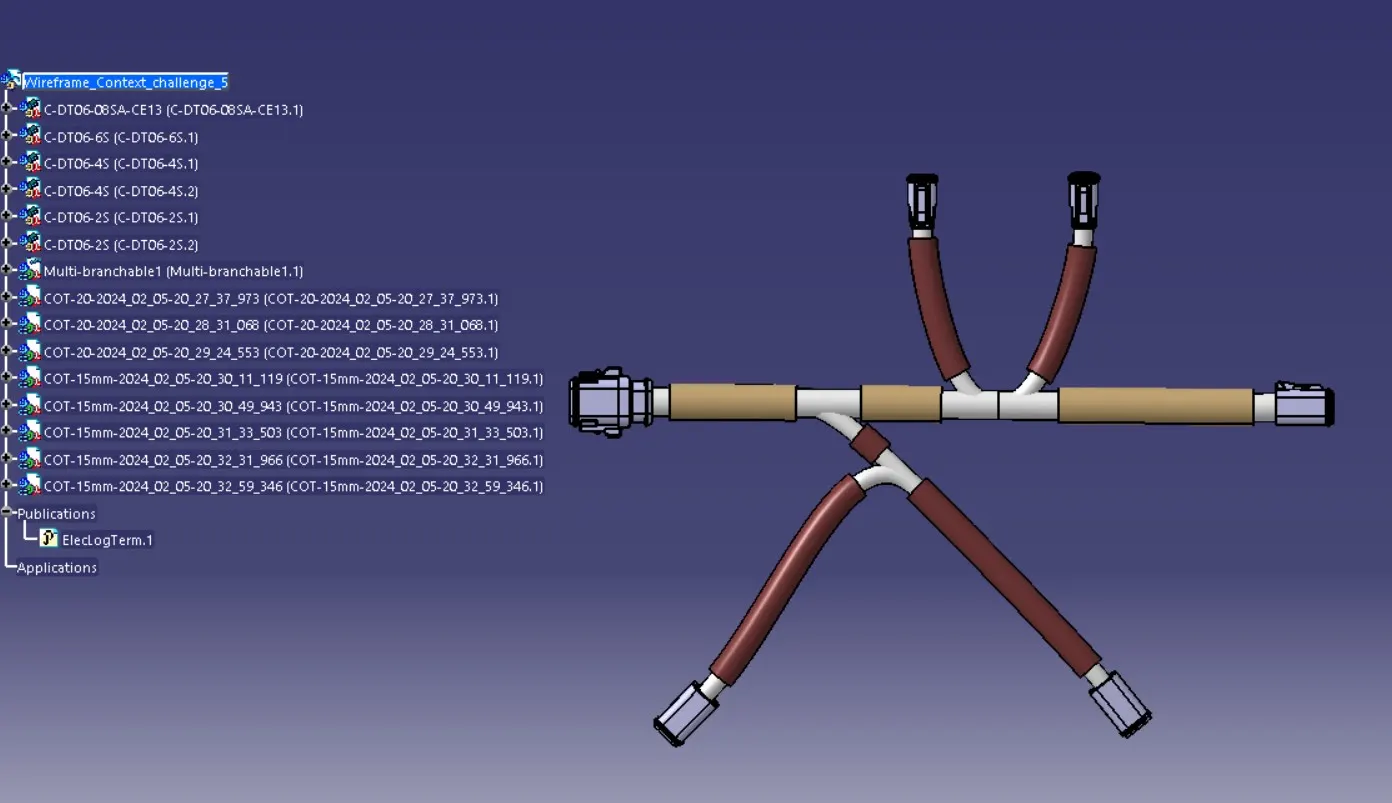
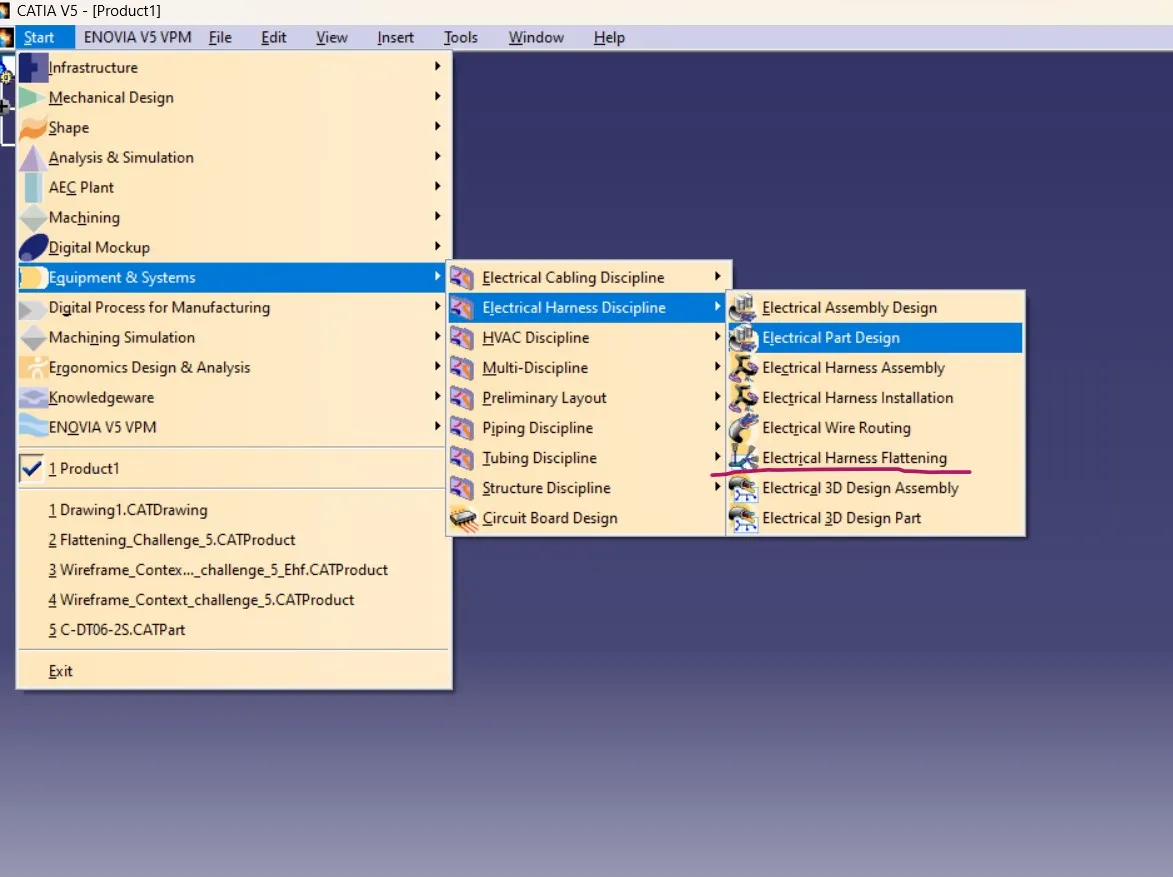
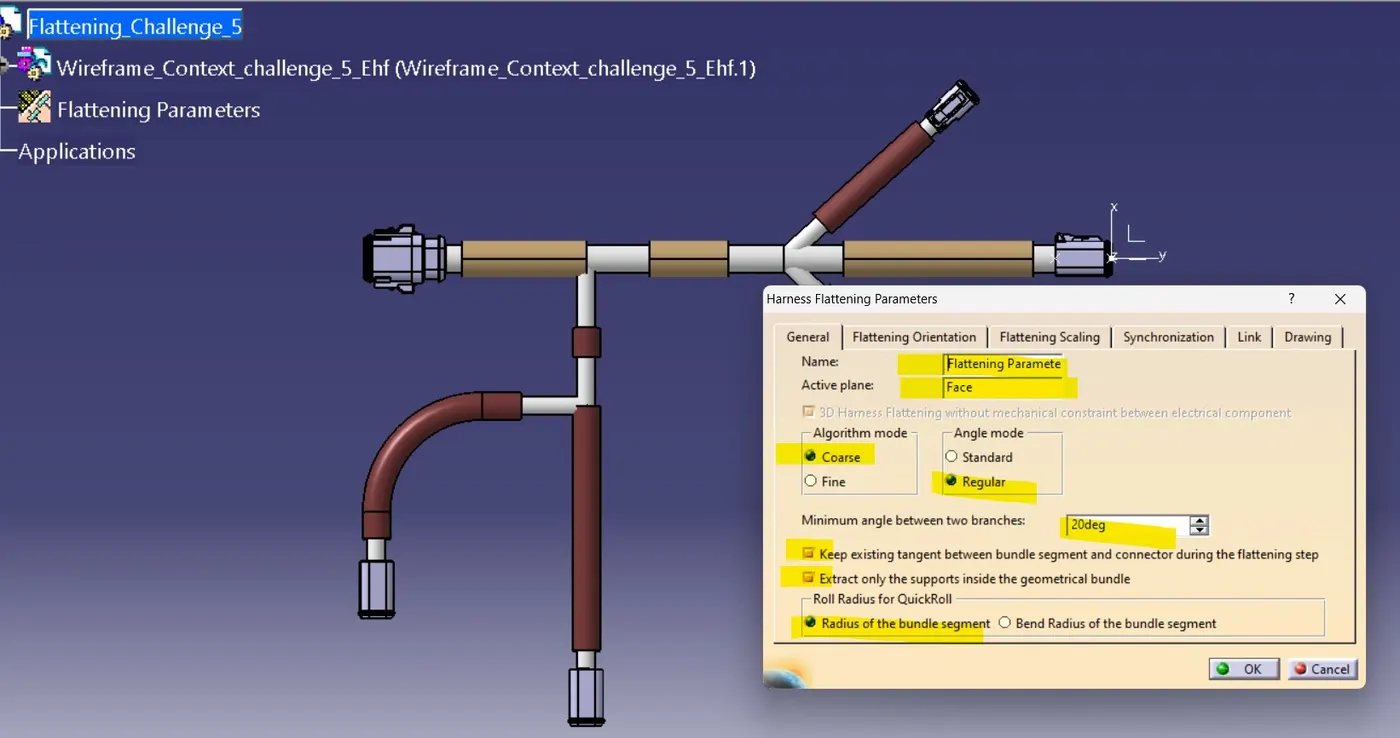
4. Now go to electrical harness flattening and do some settings as follows
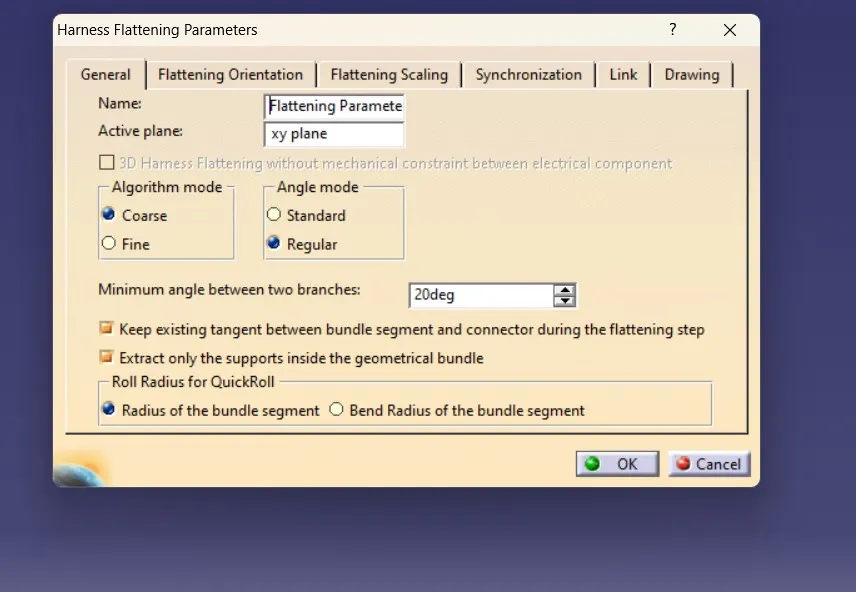
5. Name :flattening parameter,Active plane XY plane,Algorithm mode coarse,Angle mode Regular,Maximum angle between two branches more than 5deg can keep 20deg,keep existing tangent between bundle segment and connector between the flattening steps ,Extracts only the supports inside the geometrical bundles,radius of the bundle segment.
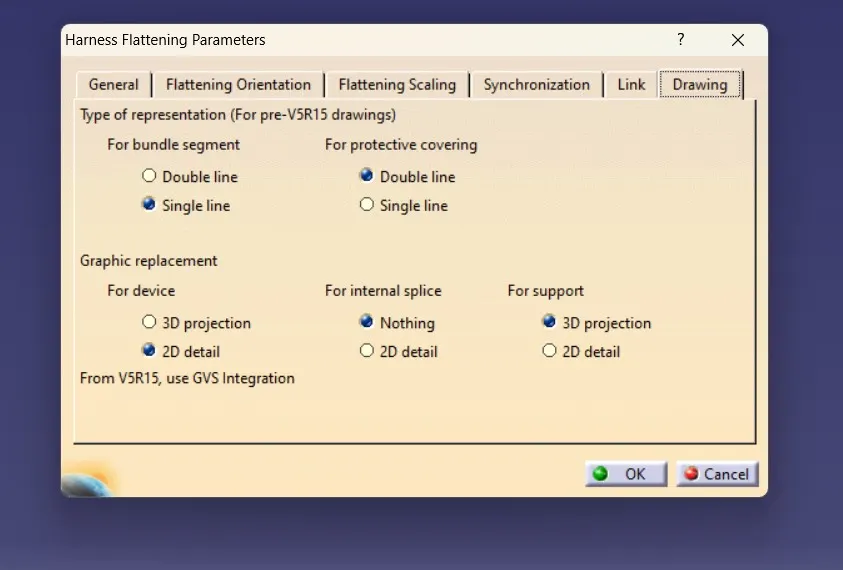
6. In drawing tab :-For bundle segment single line,For protective covering double line,Graphic replacement :for device 2d detail ,for internal splice nothing,For support 3d projection.now save this product file to same location as harness product has saved.
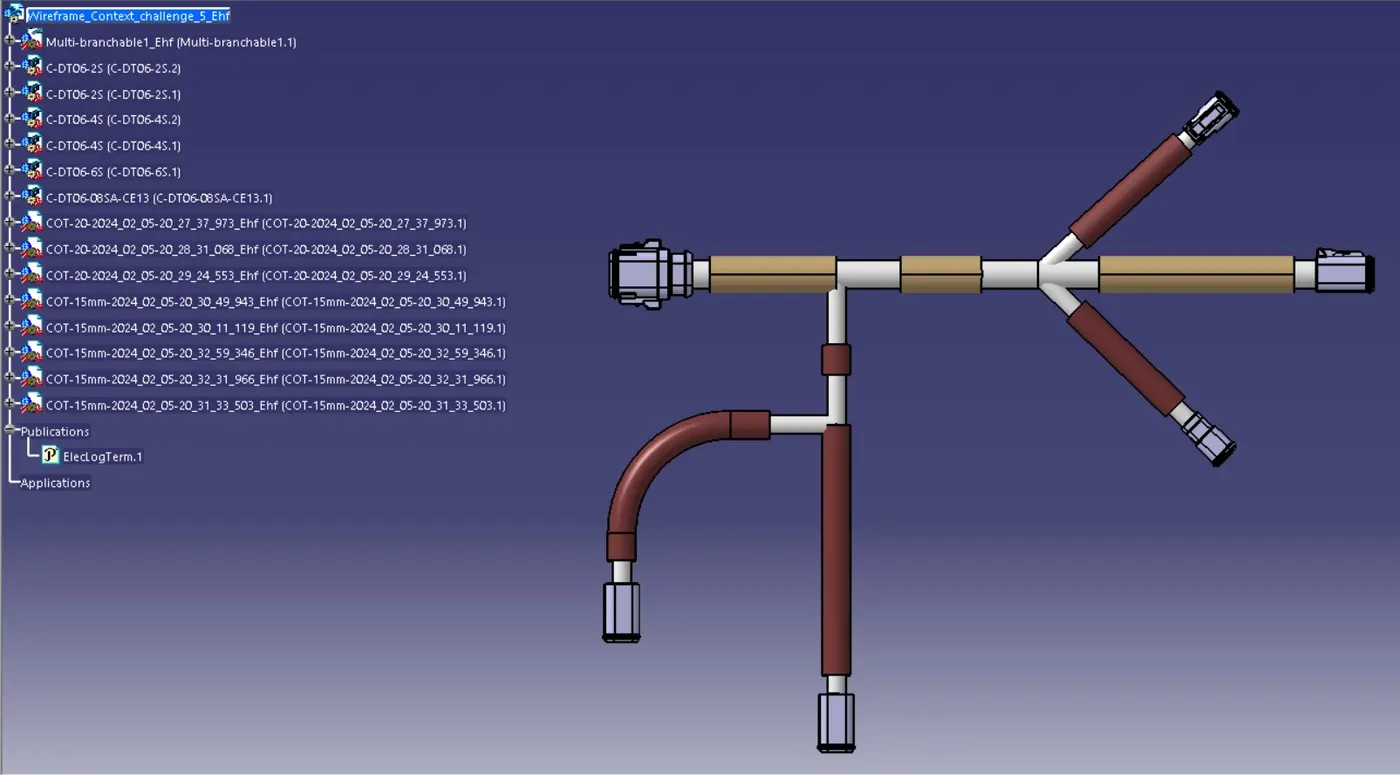
7. Now open wiring harness product and flattening product file in vertical window then click on extract icon in flattening and then wiring harness product so that both files will get merge together.
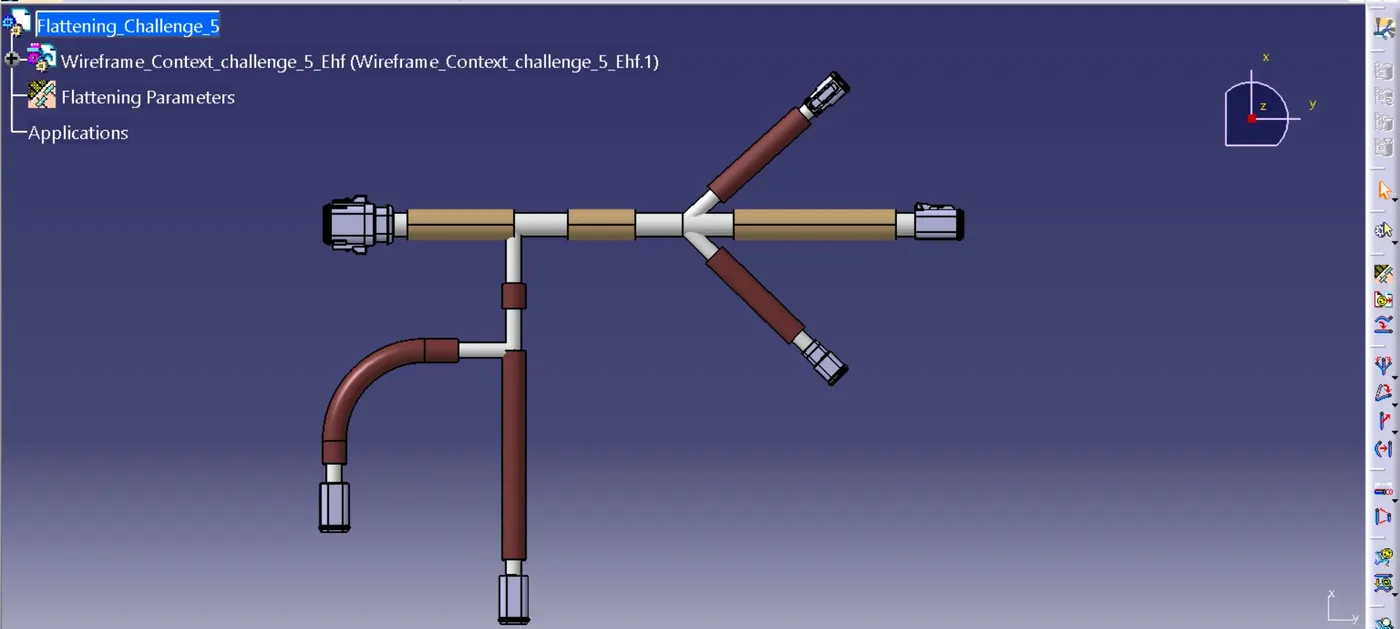
8. Now apply operation on flattening file like flatten select plane as xy as selected in setting or may select connectors face of which you want or in which plane you want to perform other operations.
9. Perform other operation like rotate,roll quick roll strength and bend operation as you want .
10. Drawing : Now go to file -new drawing -standard iso -sheet A0 largest as per requirement
11. Select front view icon and select drawing as required face of wiring harness product .
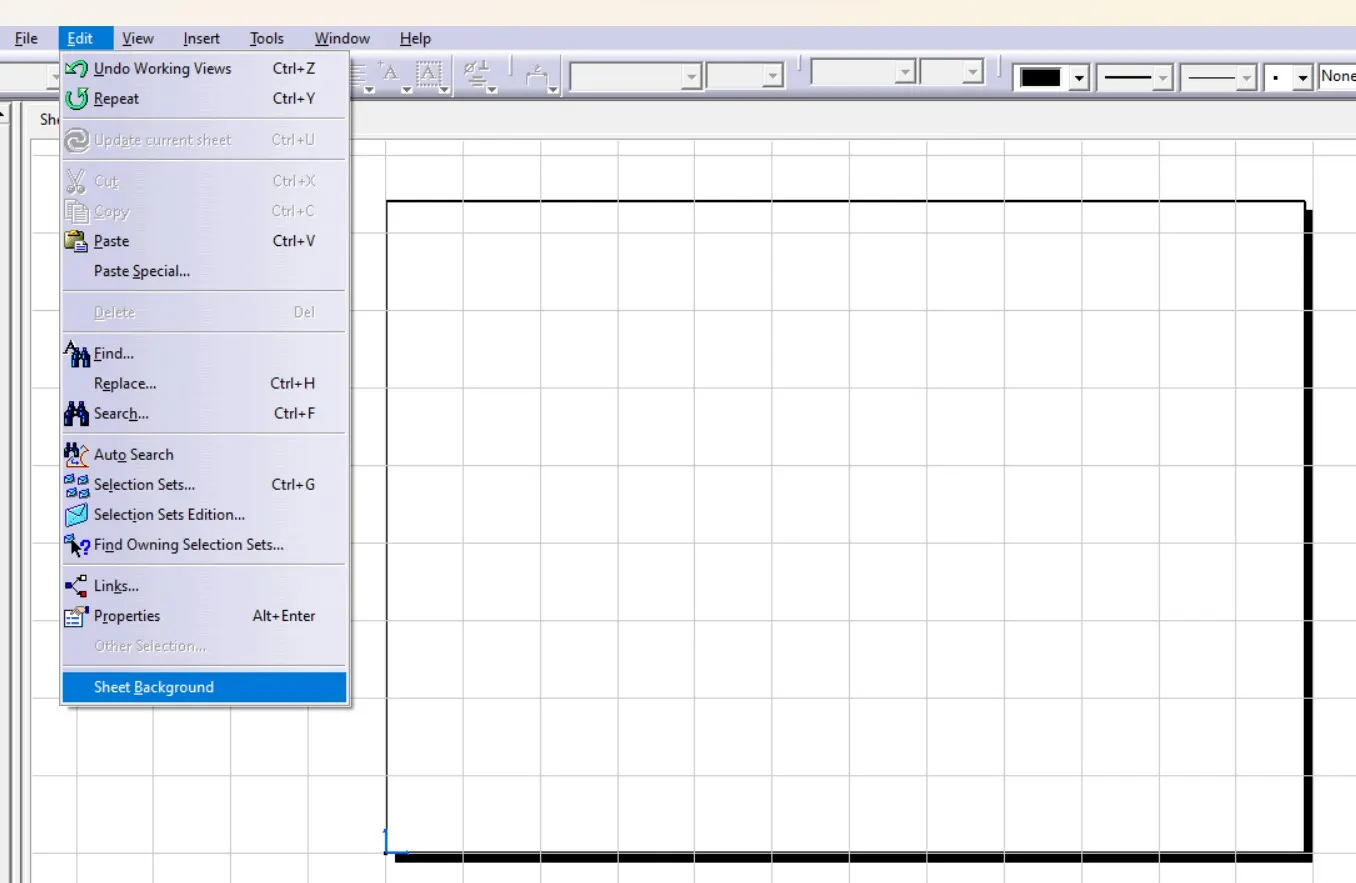
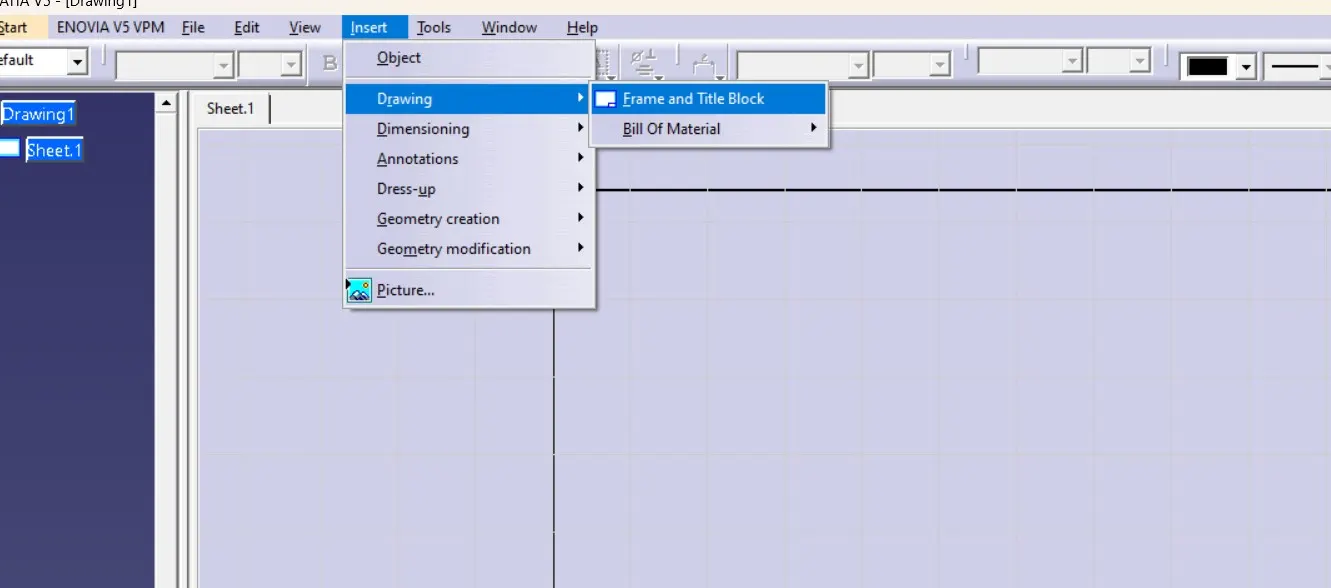
12. For title box go to edit -sheet back ground-insert-drawing -frame and title box.
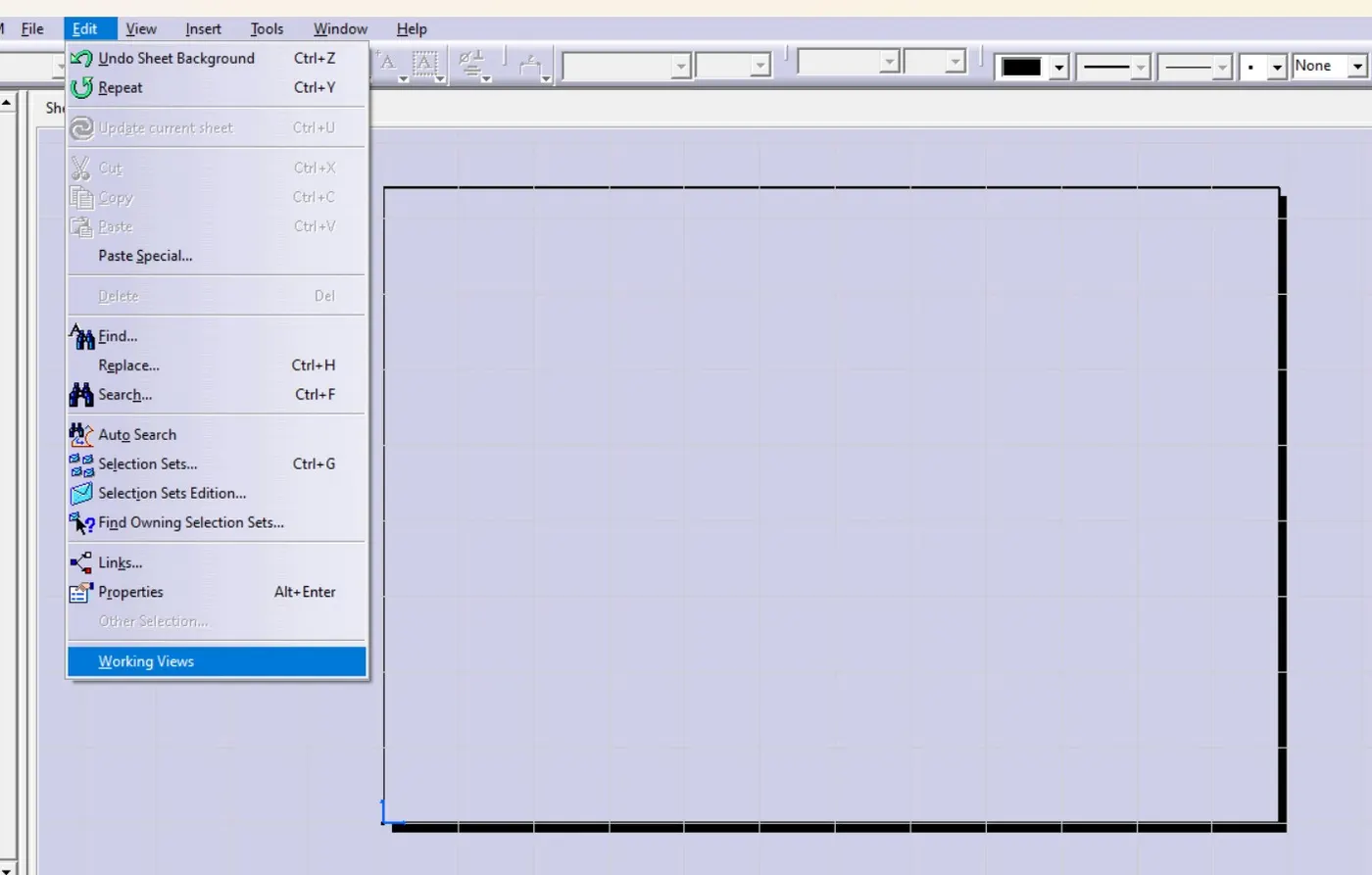
13. To go back working view back will select edit -working view.
14. For bill material edit sheet back ground then advance bill material from left tab and then select wiring harness o k you may change ration of drawing .
15. Save this file as p d f.