Wiring harness design in CATIA V5 - 3D modeling Week 7 Challenge
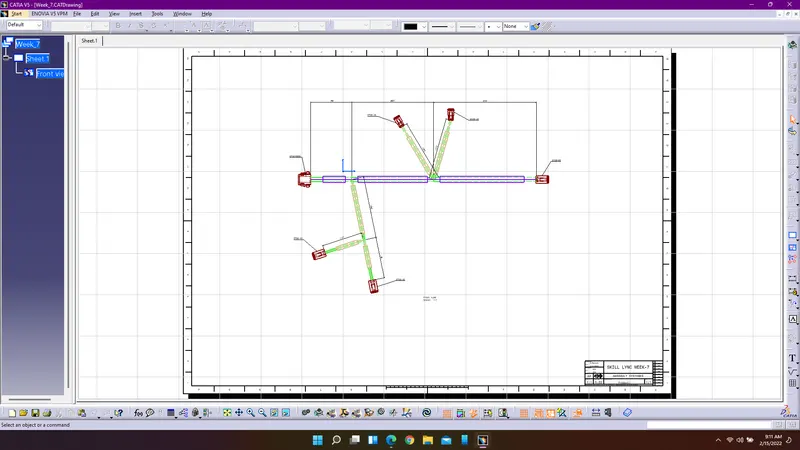
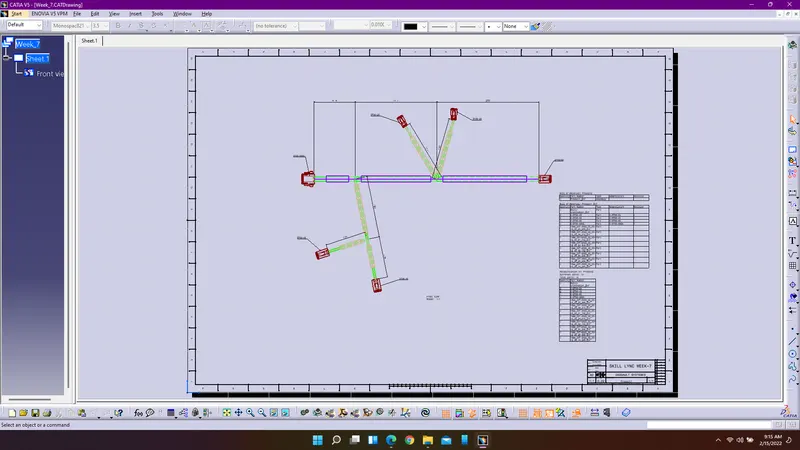
Aim: The main aim of the challenge is to define the components electrically and to arrange them according to the given routing using electrical assembly workbench and also to create flattening for the routing which has been created using electrical flattening workbench. Also to create drafting for the electrical routing which is developed in the flattening workbench.
Procedure:
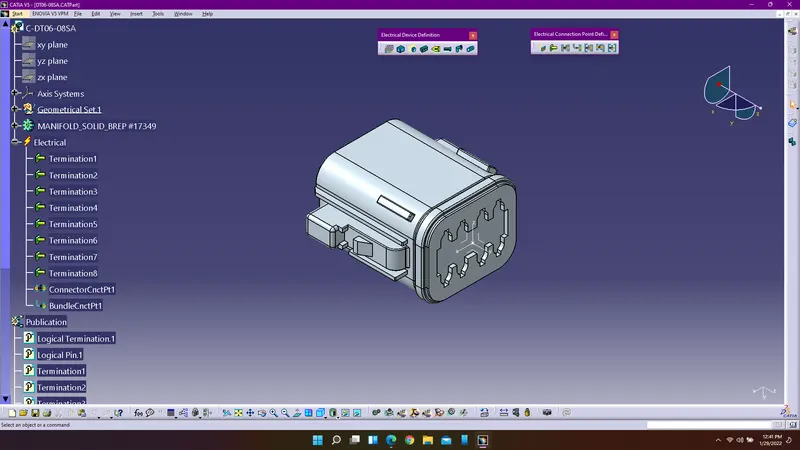
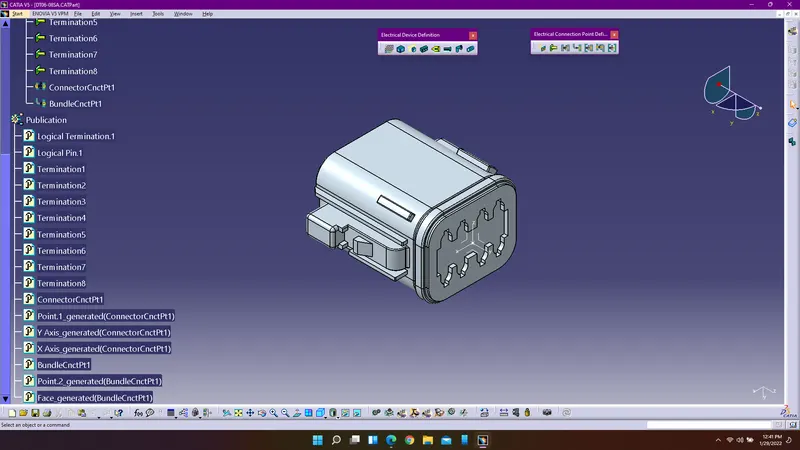
1. Enter into catia v5r21 and use part design workbench to create the points where the connector connection and bundle connection happens.
2. Insert an axis system at the connector connection point and make sure the axis alligned accordingly.
3. Enter into electrical part design workbench to define the given connector electrically.
4. Similarly follow the above procedure to define the other connectors electrically.
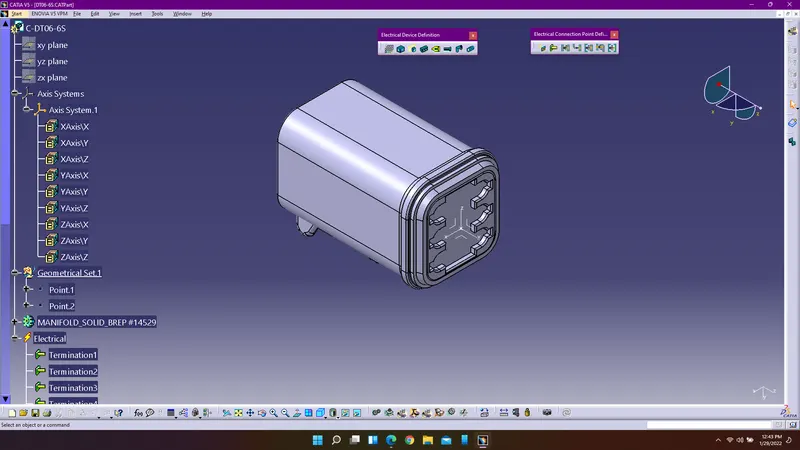
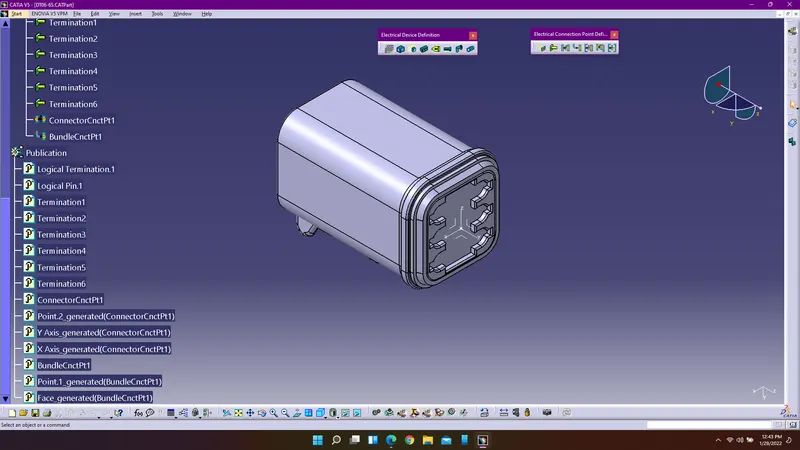
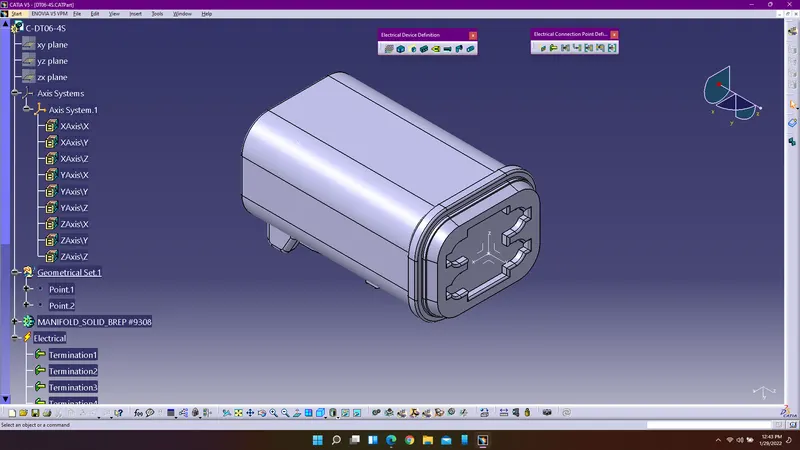
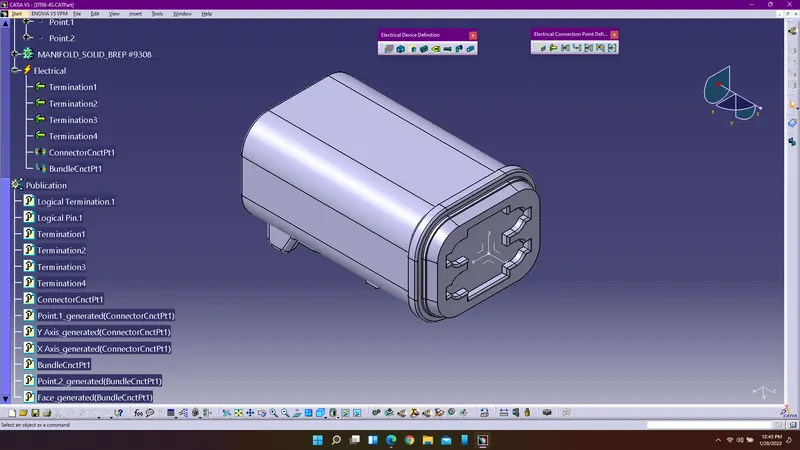
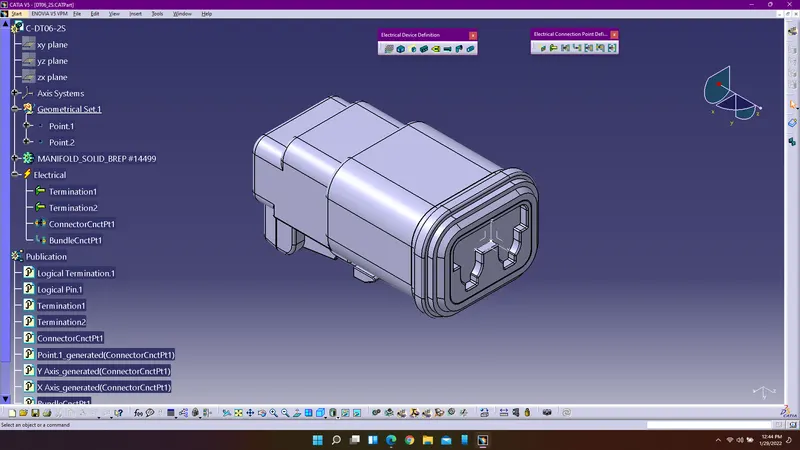
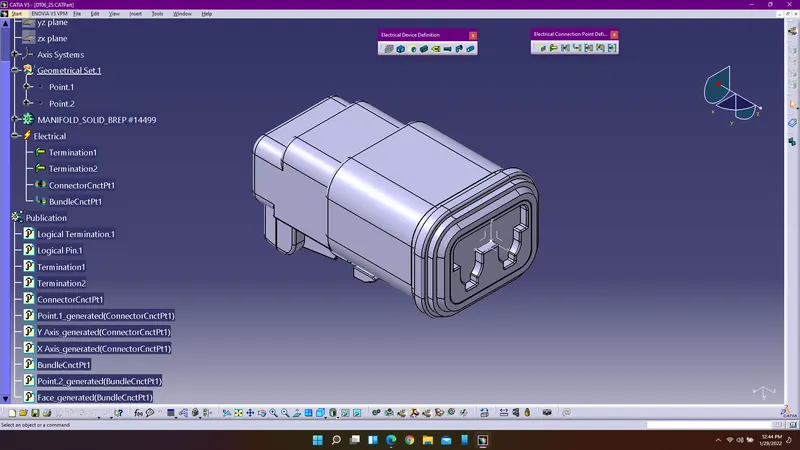
Create a new product which is assembly workbench add all the existing components into the assembly workbench arrange them properly accroding to the given challenge using snap and smart move commands.
After arranging them enter into electrical harness assembly workbench to define the routing.
Use multibranchable to create bundles between from one connector to the other and make sure to check bundle connectivity at the end. Use branch point command to create branch points on the existing bundle.
Procedure for creating flattening for the provided routing:
Enter into electrical harness flattening workbench and define the electrical flattening parameters and extract the product which is developed and use straight command to flatten the bundles which have created. Use commands rotate, quick roll to position the bundles according to the given challenge.
Use length tolerance and scale commands to provide the exact lengths for the bundles.
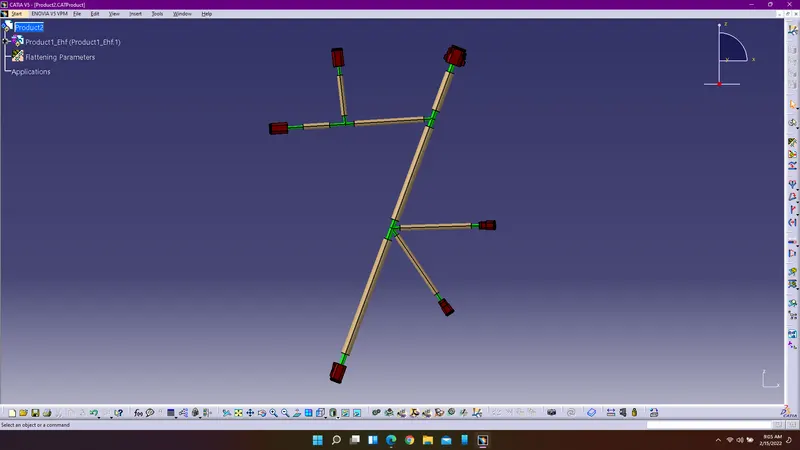
Procedure for creating drafting for the created flattening bundles:
Create a new drawing and select the required size of paper, use command front view and select the plane or face of the connector to create the two dimensional view of the flatten bundle. Select the 3d colours, hidden lines and axis etc.,. to visible them in the drawing sheet.
Use sheet background and insert the title block and bill of materials for the product which has been created. Provide the dimensions and annotations in the working views.