Wiring harness design in CATIA V5 - 3D modeling Week 7 Challenge
Wiring harness design in CATIA V5 - 3D modeling Week 7 Challenge.
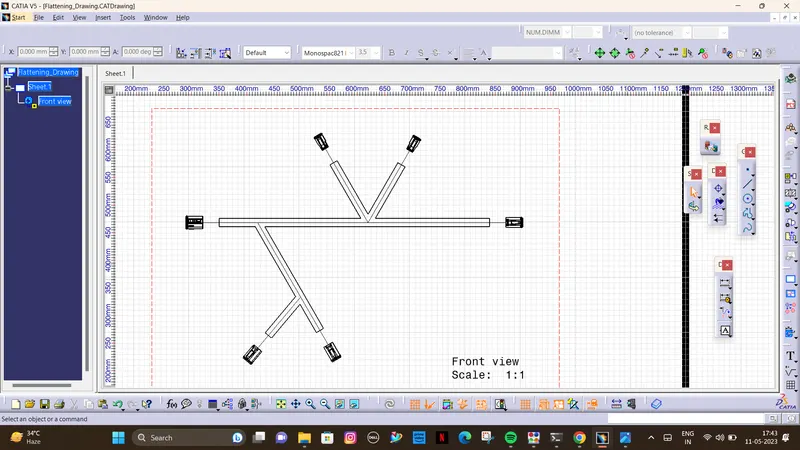
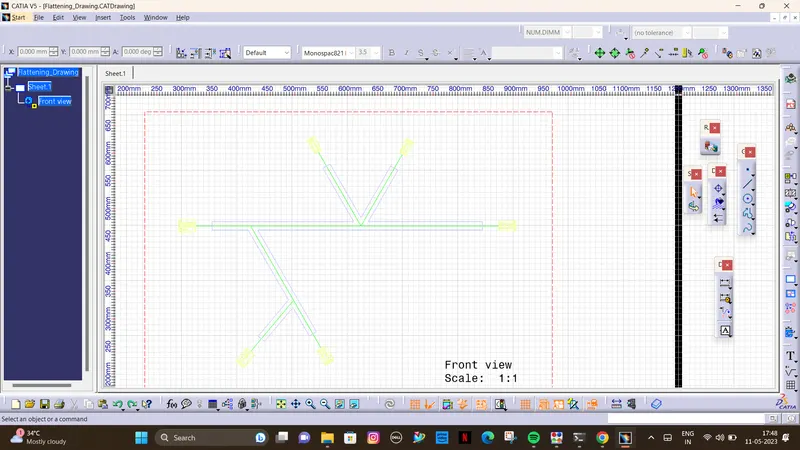
Flatten the harness assembly completed in “ week 4 challenge”. Place the flattened view on drawing sheet. Ensure bundles with protective coverings has different visuals on drawing view.
Methodology for Flatten the harness assembly.
- First imported week 4 challenge model.
- Again, open the new product file and save it with the appropriate name.
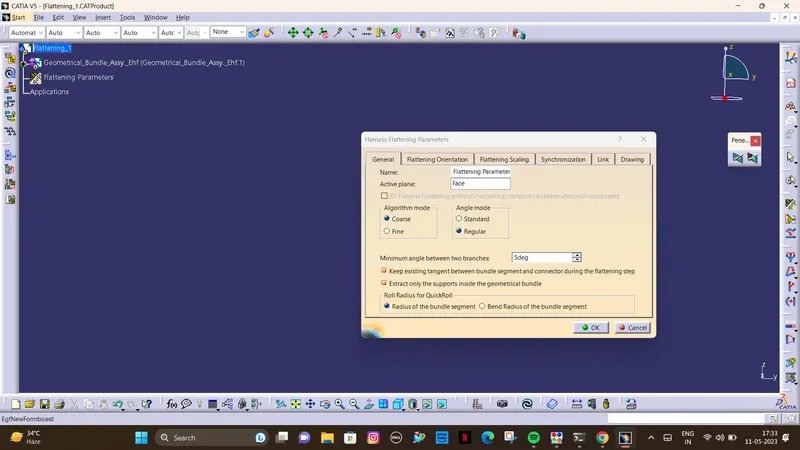
- Now, set the Flatten parameters.
- Then, open both the file with the help of tile vertically command.
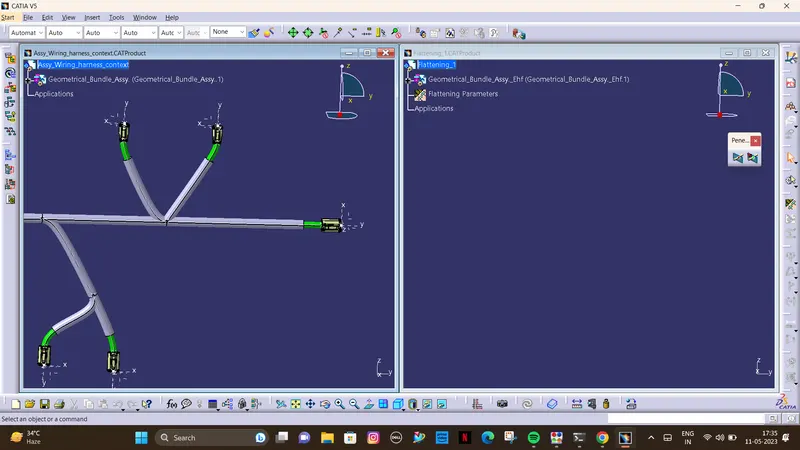
- Select Extract command from the Flatten file and click the harness assembly name in the product tree structure.
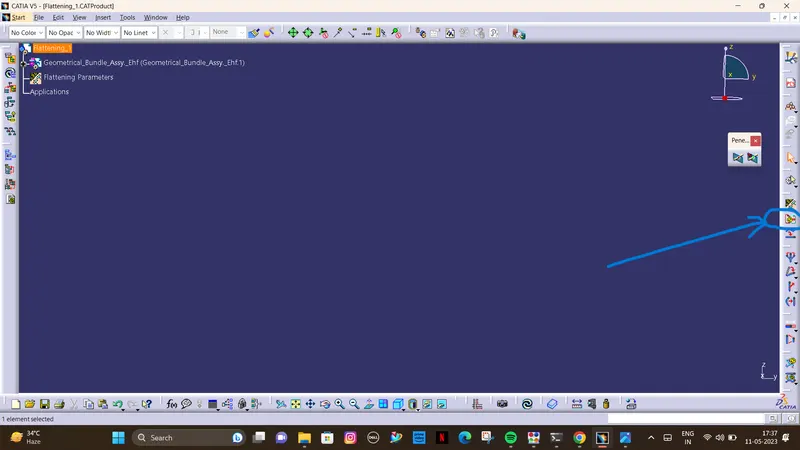
- It extract the design from the harness assembly file and open it in the flatten file.
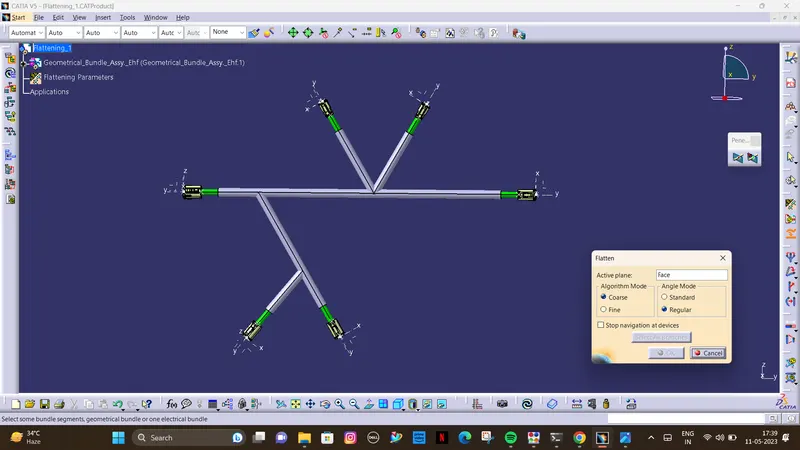
- Then select the active plane, then select any one branch and then select the 'select all branches'.
- If there is no discontinuity in the bundle segment then all the branches will be selected and by pressing 'ok' the wire harness assembly will be flattened.
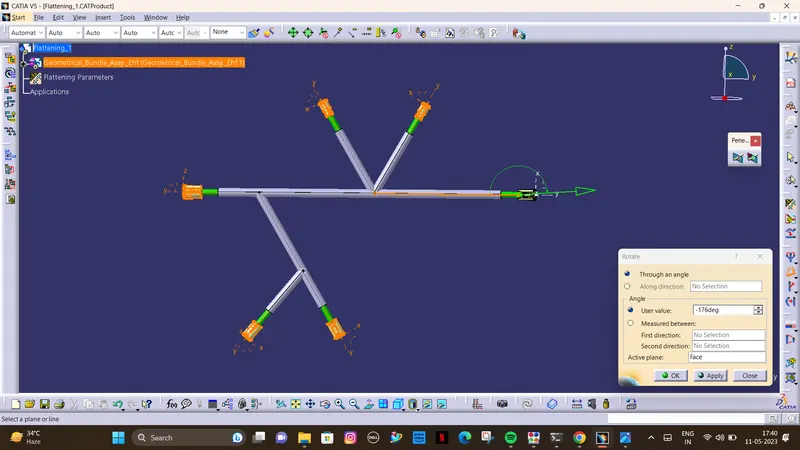
- Use 'Rotate' and other commands to rotate the branches and bring them in proper orientation as per the given layout.
- Save the product file using 'Save management' option so that all the related product files and part files are stored in single directory.
Methodology for DRAFTING:
- Create a new drawing file and save the file in the same location.
- Add the front view of the harness assembly by selecting any one of the flat faces of the connector and orient the view as per the requirement.
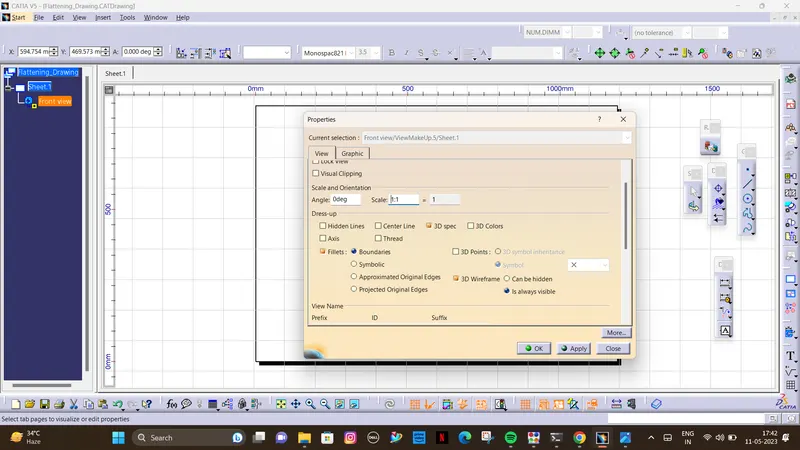
- Go to the properties of the view and select the '3D Wireframe' on and ' Is always visible' option in order to see properly the Wire bundle, connectors and the protection coverings.