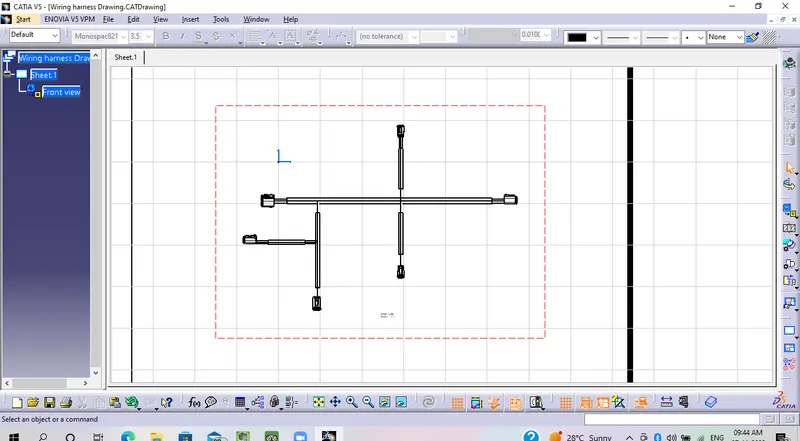
Wiring harness design in CATIA V5 - 3D modeling Week 7 Challenge
1. 1st created one product file with making the setting for flattening parameter then changed the product file name as flattening product as per below snap then saved it in specific location.
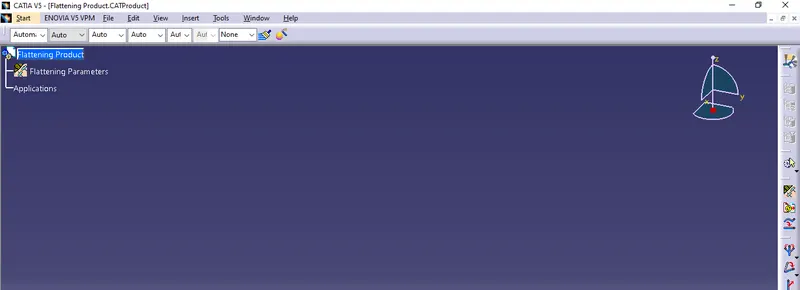
2. Then open wiring harness assy product file which one completed on week-4 challenge the save as it to same location where flattening product file available. So that both wiring assy product & flatening product file will be available in same path inside single folder path. as per below snap

3. Now keep the both Flatten file & wiring harness assy product file in vartical wondow as per below snap.
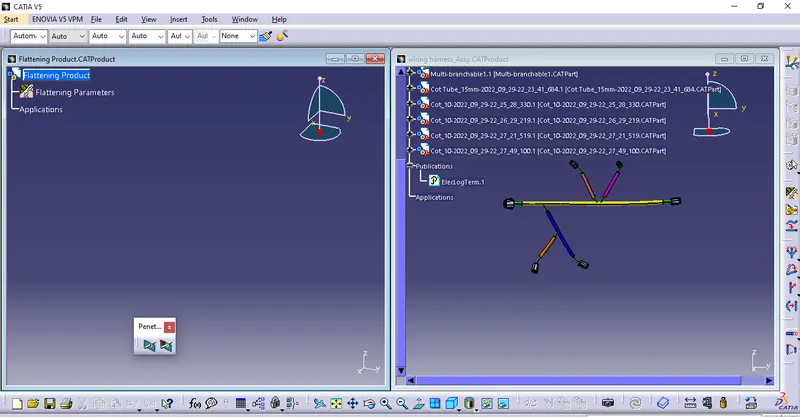
4.then import the wiring harness product by select extract button then click on wiring harness assy product after that it will close & automatic it will moved to harness flattening product window as per below snap.
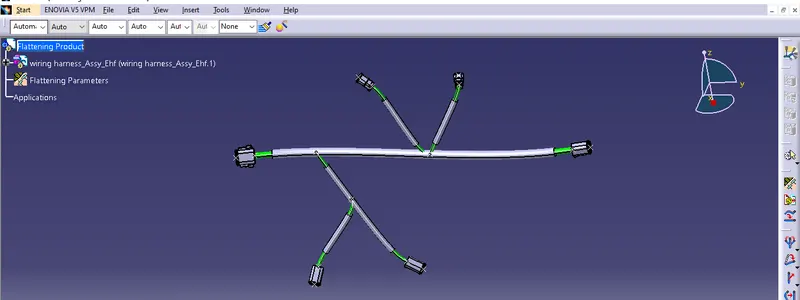
5. then select the flatten command then set the setting as per requirement then click ok as per below snap.
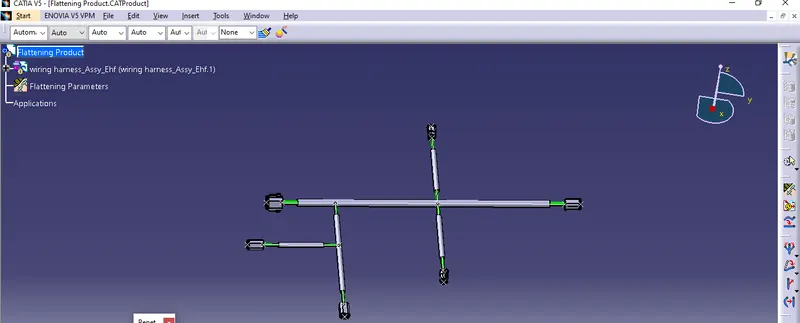
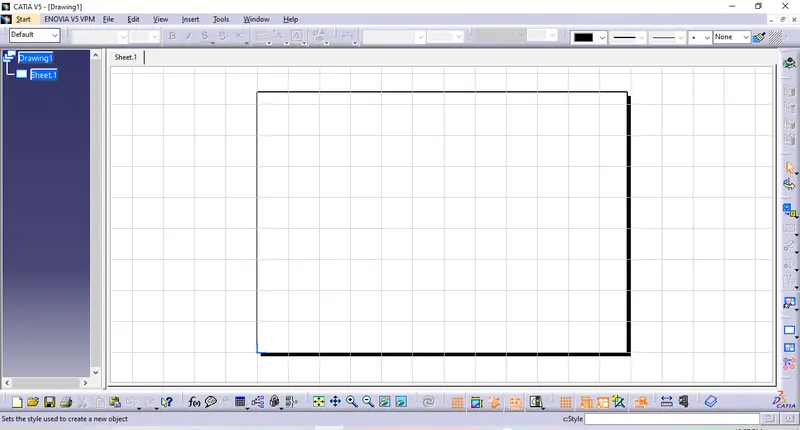
6. Next need to do drawing creation so for new wiring harness drawing click File+new+drawing+standard (ISO)+sheet style (Ao ISO)+landscape+OK then save it as per below snap.
7. next click on front view then select the one side of plane of connector for flattening product then arrange as per need then click ok the drawing.after that right click & set the properties then click ok as per below snap.
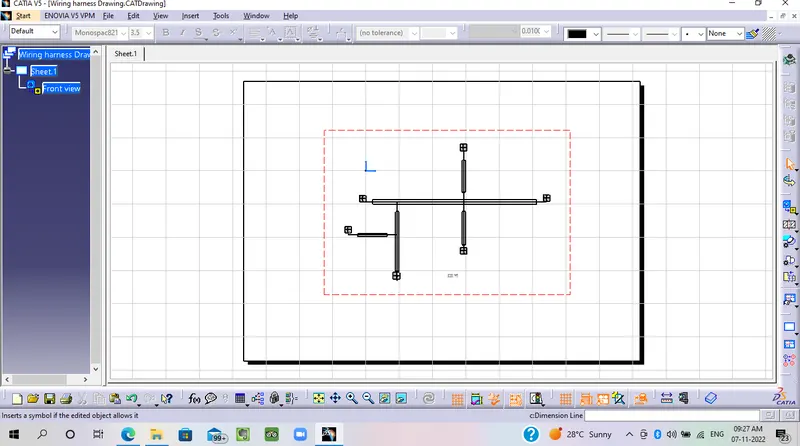
8. Again if we change the flattening parameter for 3D projection of 2D drawing of the bundle with connector representation then again do drawing creation as per below sanp.