Wiring harness design in CATIA V5 - 3D modeling Week 5 & 6 Challenge
Q1. Route the following harness layout in Electrical workbench. Make assumption for harness bundle diameters. Use the connectors provided. After completion of routing,
- Check the bundle Continuity. Add snap of result in submission
- Add annotation to all connectors. Make an assumptions for annotations like connect 1 , 2 etc
- Check for the bundle warning. Add snap.
- Generate CAT.part of harness assembly and convert is in. igs format.
Click here for CAD data and routing mapping data
Answer:
- First Download the given connector from the required link were in place on question
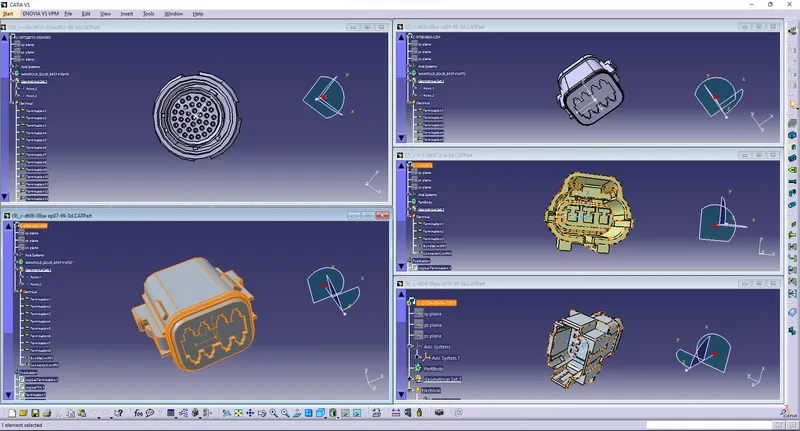
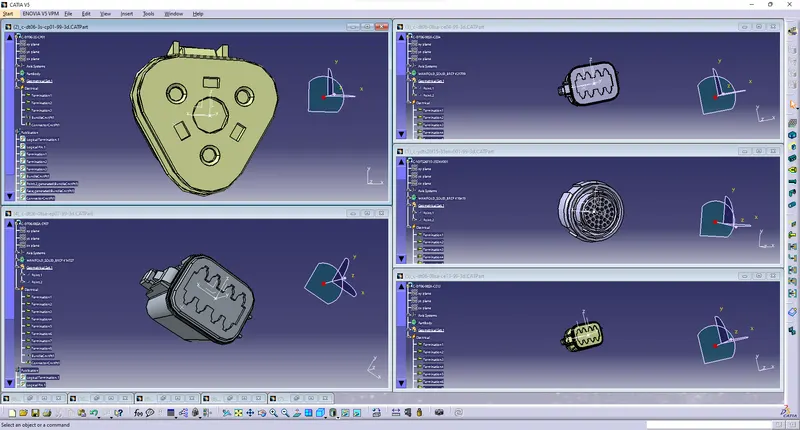
- And load all the connector in Catia V5 and define all connector as electrical part
- Then create Harness A and Harness B seperate files and save both file in seperate
- Next create another product file then add both Harness A&B into the new product file
- Then given named has Assy_Harness_A&B and save the file has CATpart file
- Then the CATpart file convert into the .igs files and save the both file in the new folder
- Step 1: load all the conector and define as electrical part
- Harness A
- Harness B
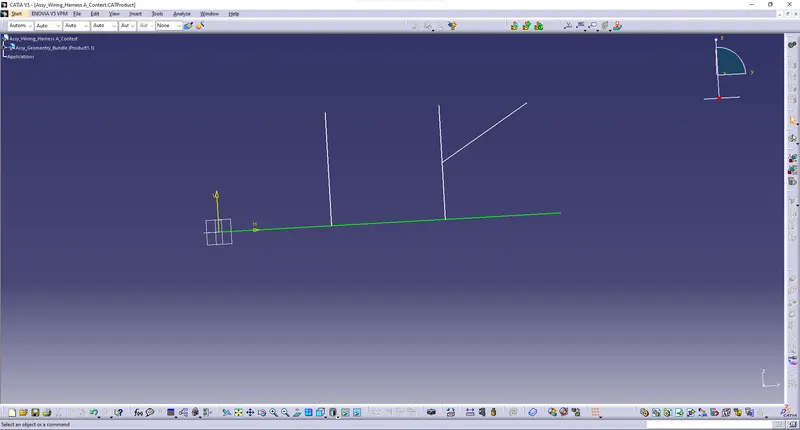
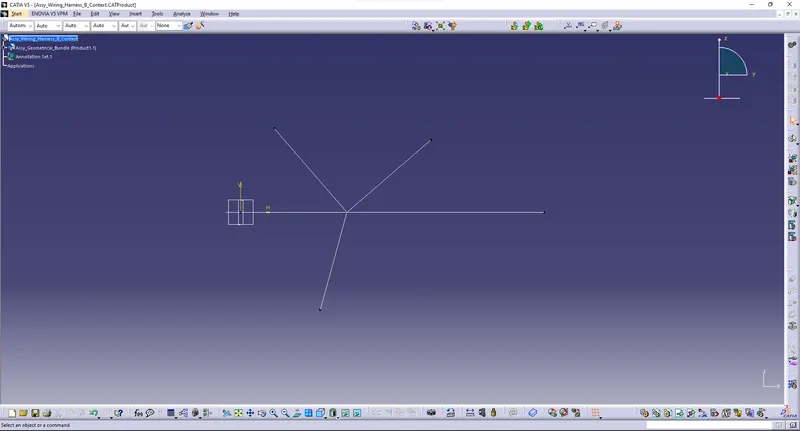
- Step 2: Then create the two seperate file and given name as Harness A and Harness B and also create the path skecth for both file
- Harness A
- Harness B
- Step 3: And arrange the connector for the require placed on both harness file
- Harness A
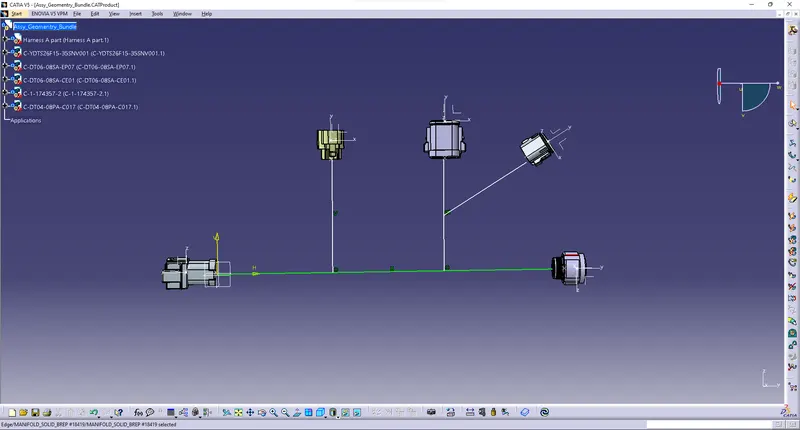
- Harness B
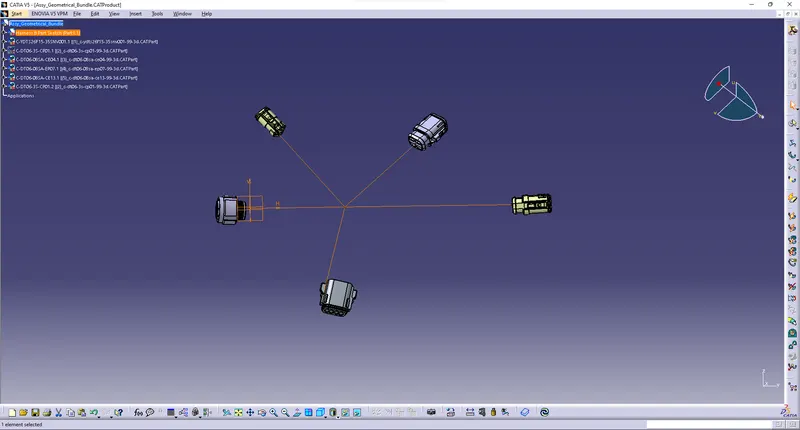
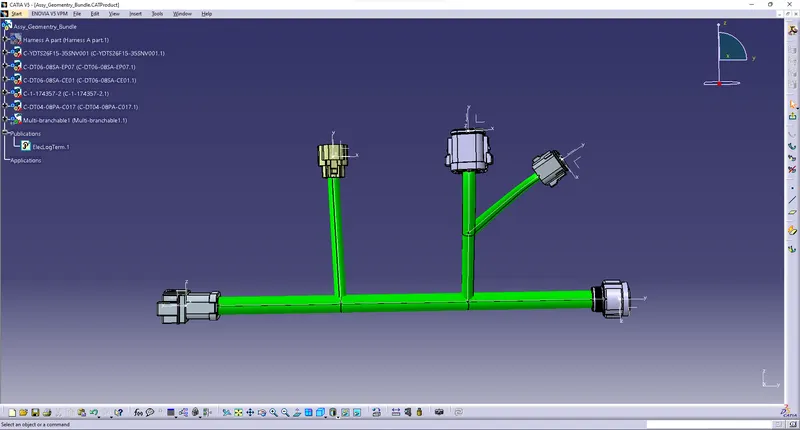
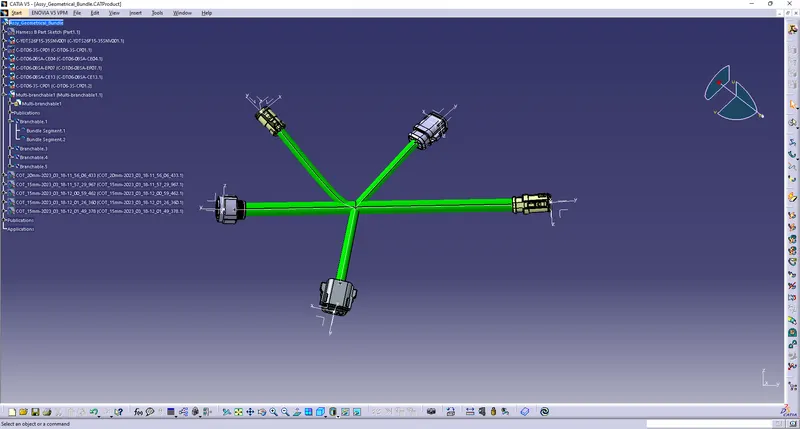
- Step 4: Add wiring as per given diagram on both harness A & Harness B
- Harness A
- Harness B
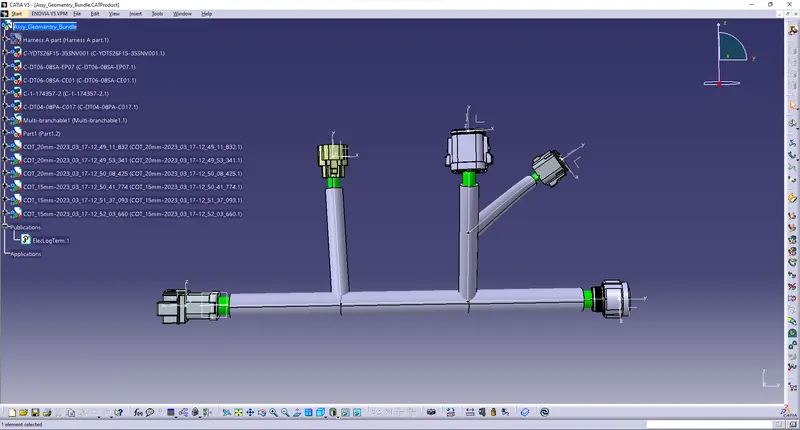
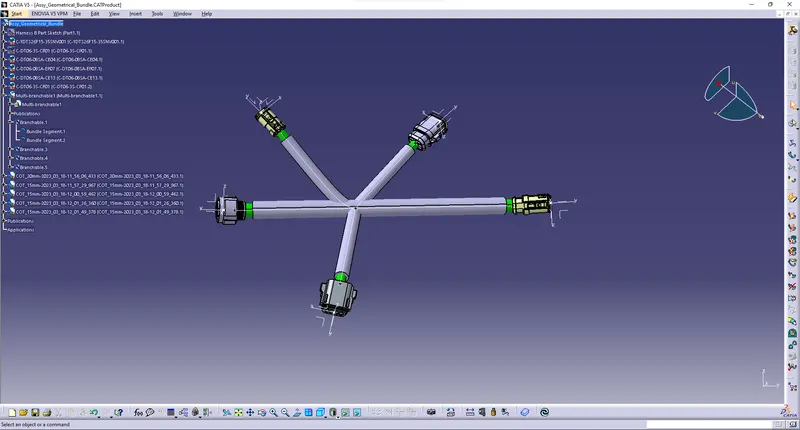
- Step 5: Then Add Cot tube on both Harness file
- Harness A
- Harness B
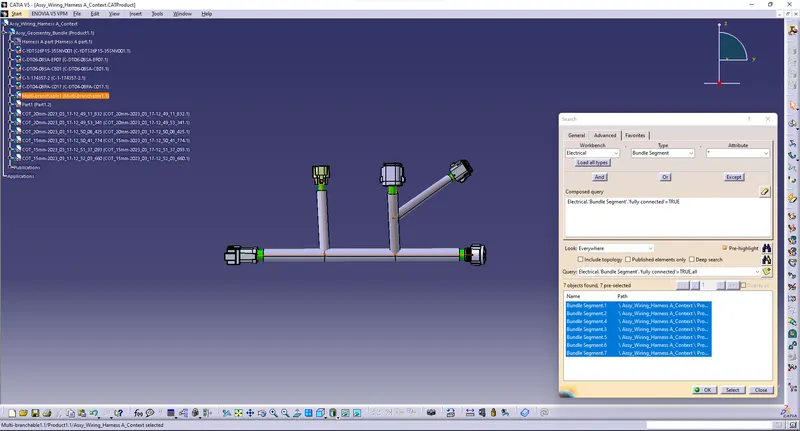
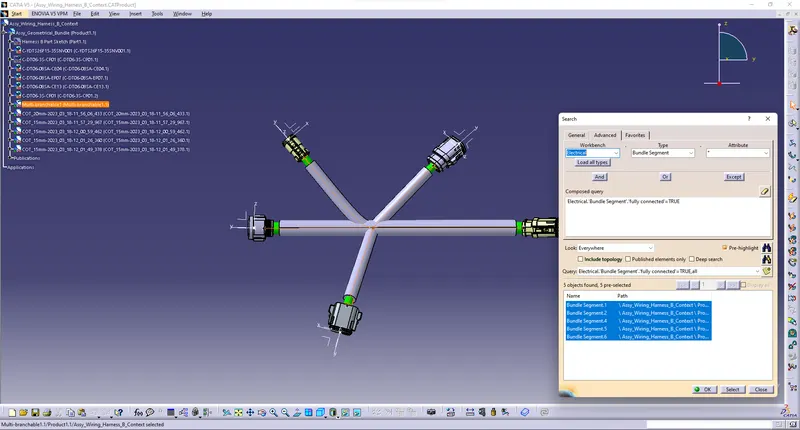
- Step 6: Check the bundle contiunity for the both Harness A and Harness B
- Harness A
- Harness B
- Step 7: Checking the bundle warning and resolve them on both harness A & B
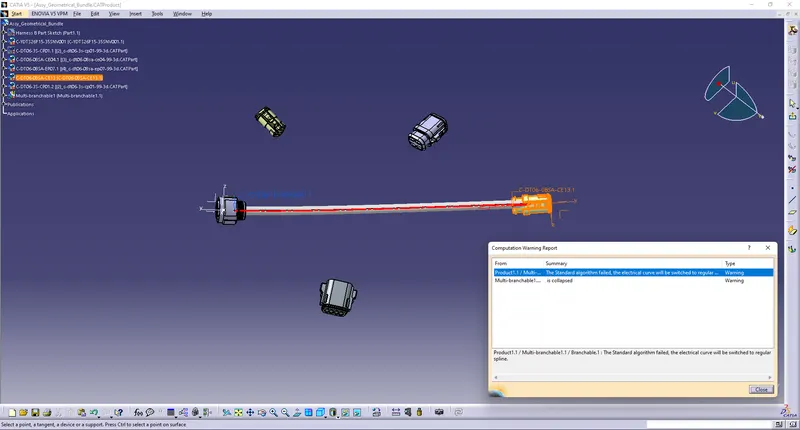
- warning has solved by removing tangent
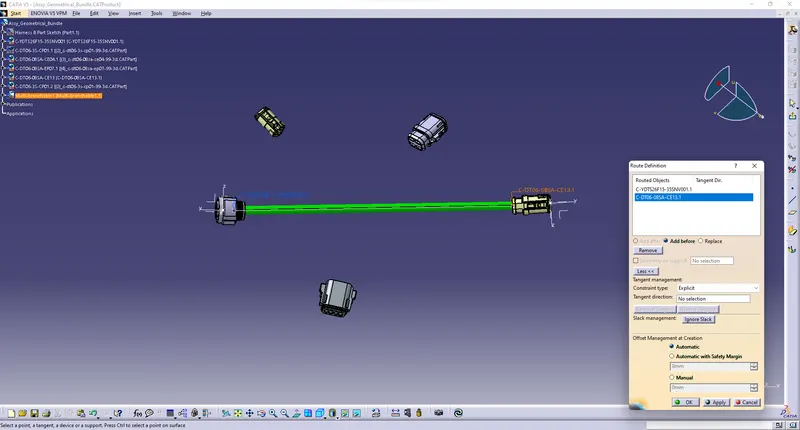
- Step 8: Then create new product file and add both harness A and Harness B into that file and connect the connector 5 & 6
- Step 9: And add annotation on each connector and given respetive no
- Step 10: Then save the file as CATpart file and also save the file in the .igs format file
- Files:
Above file uploaded below in the name of 'Week 5&6 challenge.zip' and output image also uploaded in the same file