Wiring harness design in CATIA V5 - 3D modeling Week 4 Challenge
Creation of Multi-Branching and Protective Covering for the Electrical CAD Part.
At First the given CAD Parts are downloaded from the Te.com using their Model Number. Then each parts are opened in a different Part File and the midpoint and Axis System is created for the CAD Parts. After that the WorkBench is change into Electrical Part Design and the Components are changed into Electrical Parts by defining them as a Connector. Then Connector Connection Point and Bundle Connection point are defined in the Electrical Parts.
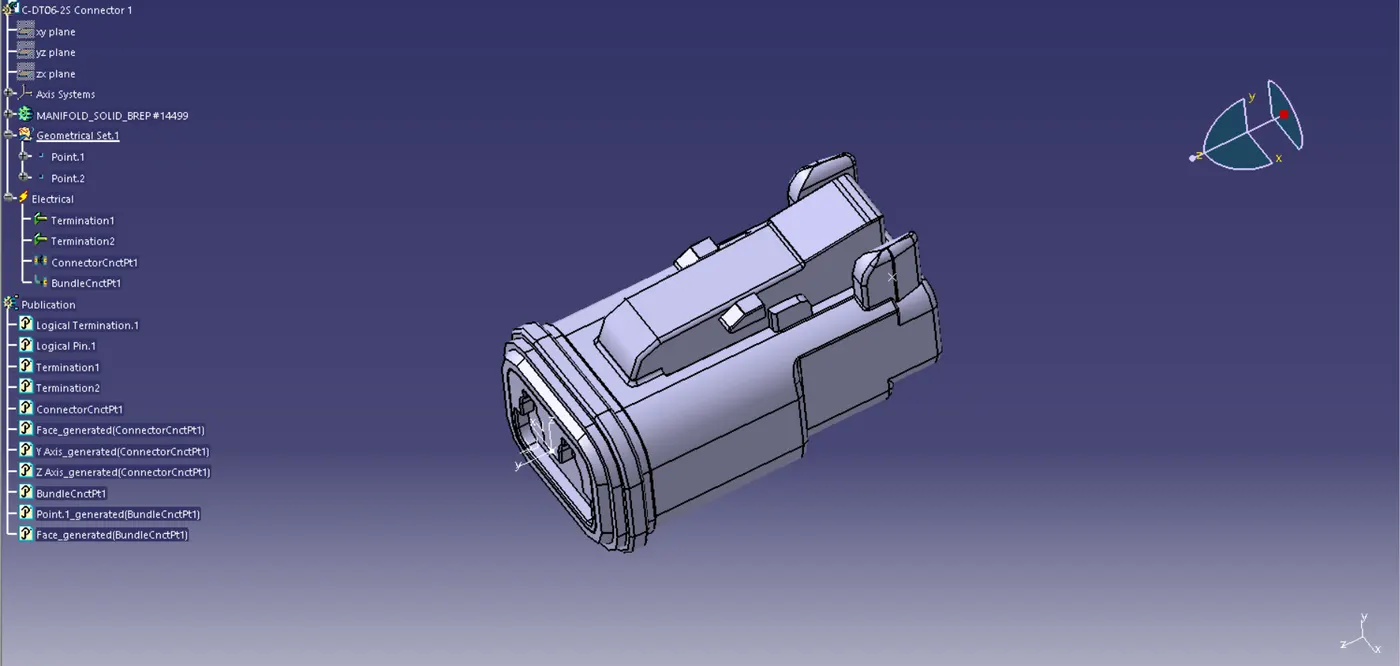
Fig 1. Connector 1
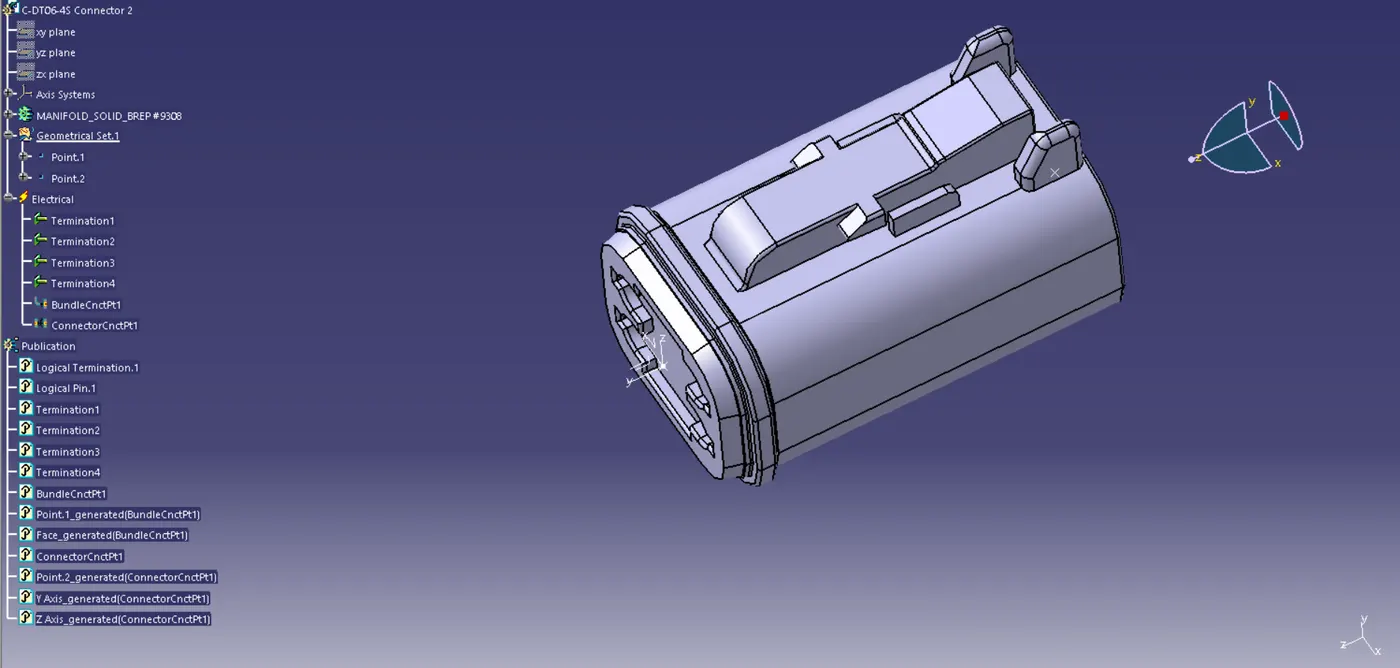
Fig 2. Connector 2
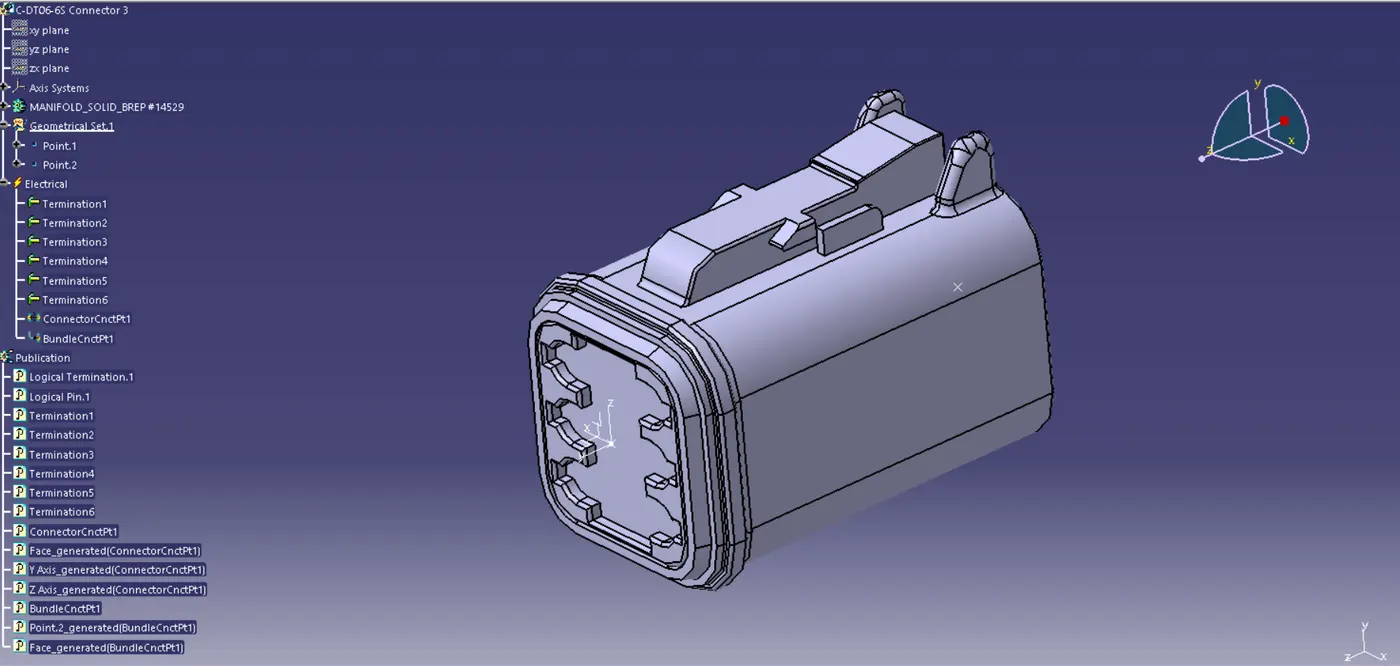
Fig 3. Connector 3
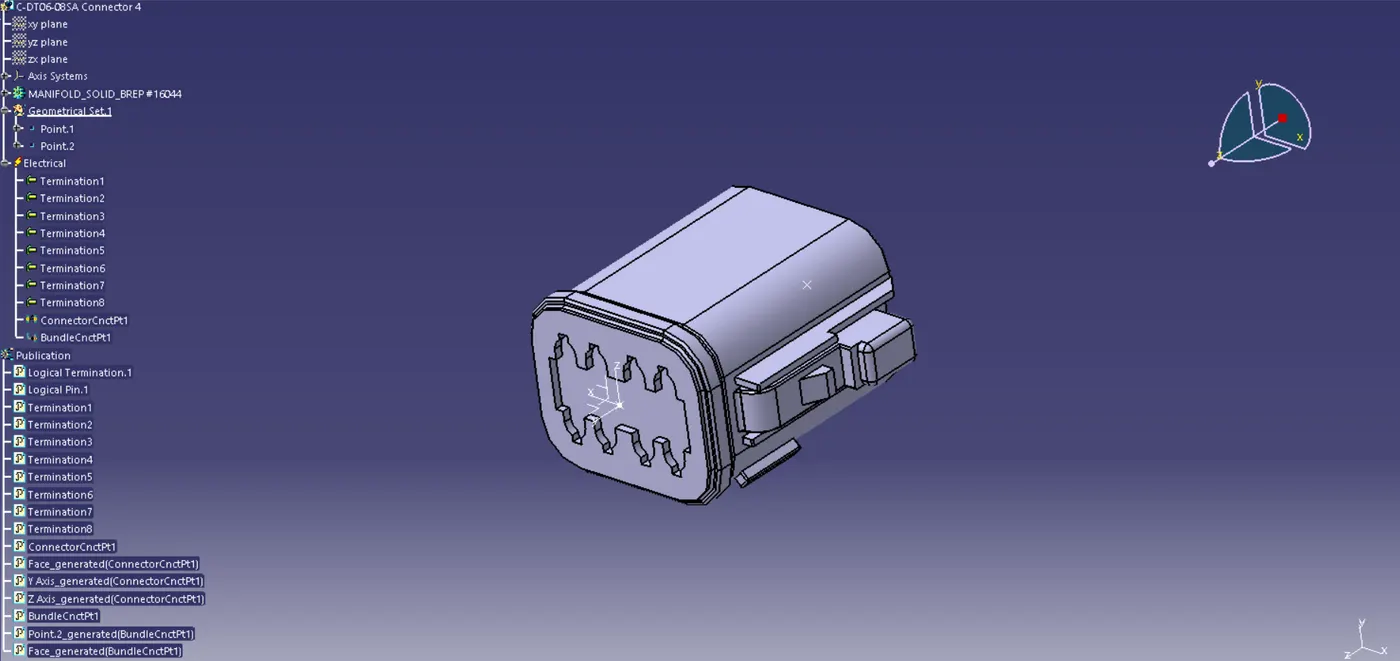
Fig 4. Connector 4
Now we need to create a Catalog for the Protective Covering. First we need to open Catalog Document then we need to select the Add Family and name the Family, then select the type. Now Save the Catalog Doc and open a New Electrical Part Design WorkBench. In this WorkBench select the Protective Part option and select the Title of the Part. Now a Dialog box will appear, fill the required data in it and click ok. Then save the Part and select Store Device option to store the Part in the Catalogue Doc on the Family which we created.
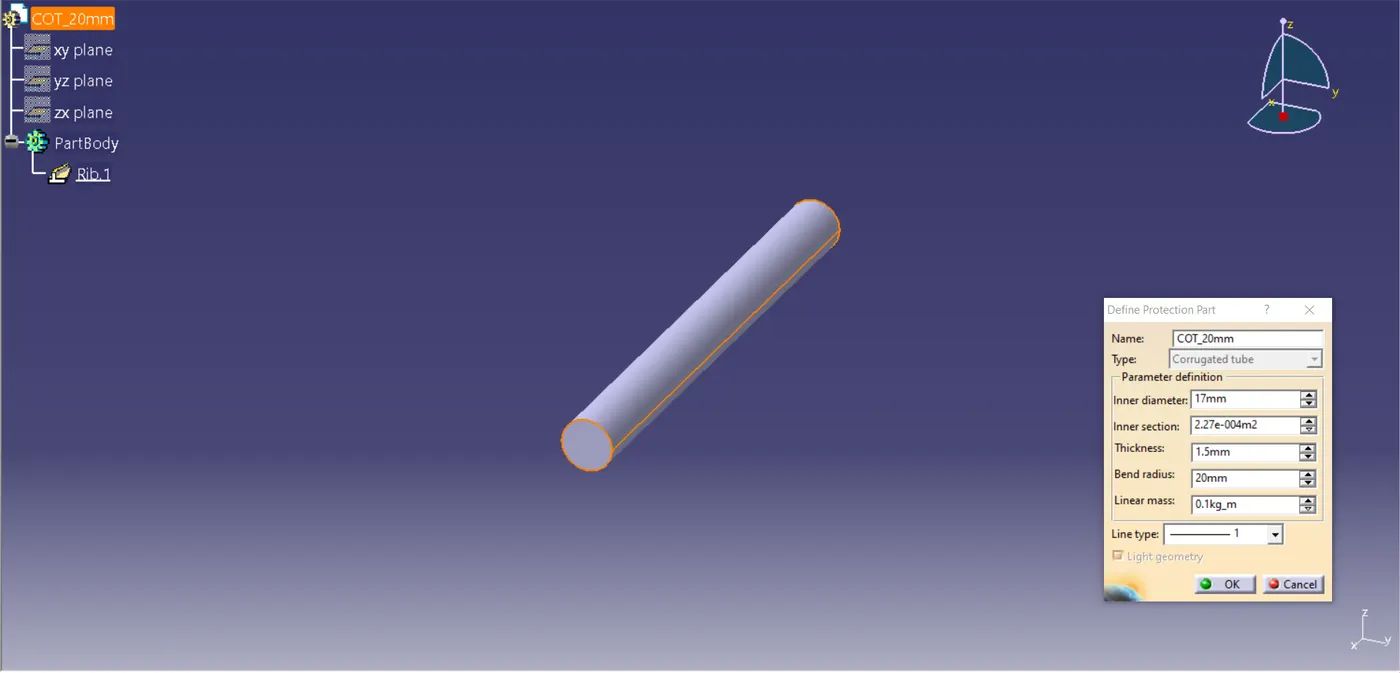
Fig 5. Protective Part COT_20mm
After the Protective Part work is over open the Electrical Harness Assembly WorkBench and import all the Connector Part in it. Then click the Geometrical Bundle and select the Title of the Assy to define it as an Electrical Part. Now move the parts to the required area and select the Multi Branchable option and the Branch Dialog box will appear, in the box give the required data and select the Route Definition to select the Part where the Branch has to be connected. Then after that click on the Protective covering option a dialog box will appear. In the Dialog box select the covering from the Catalog Doc which we created and in Bundle Segment select the Bundle which is need to be covered. Then Select OK.
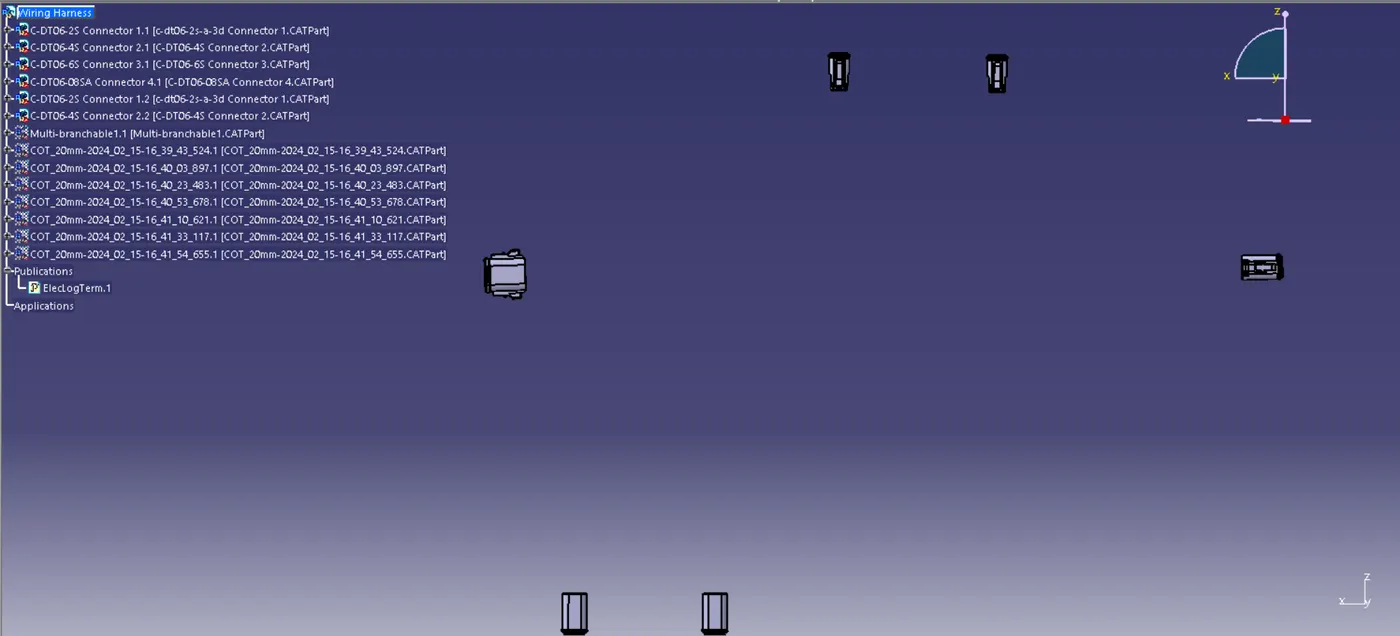
Fig 6. Connectors are Placed in the Required Area
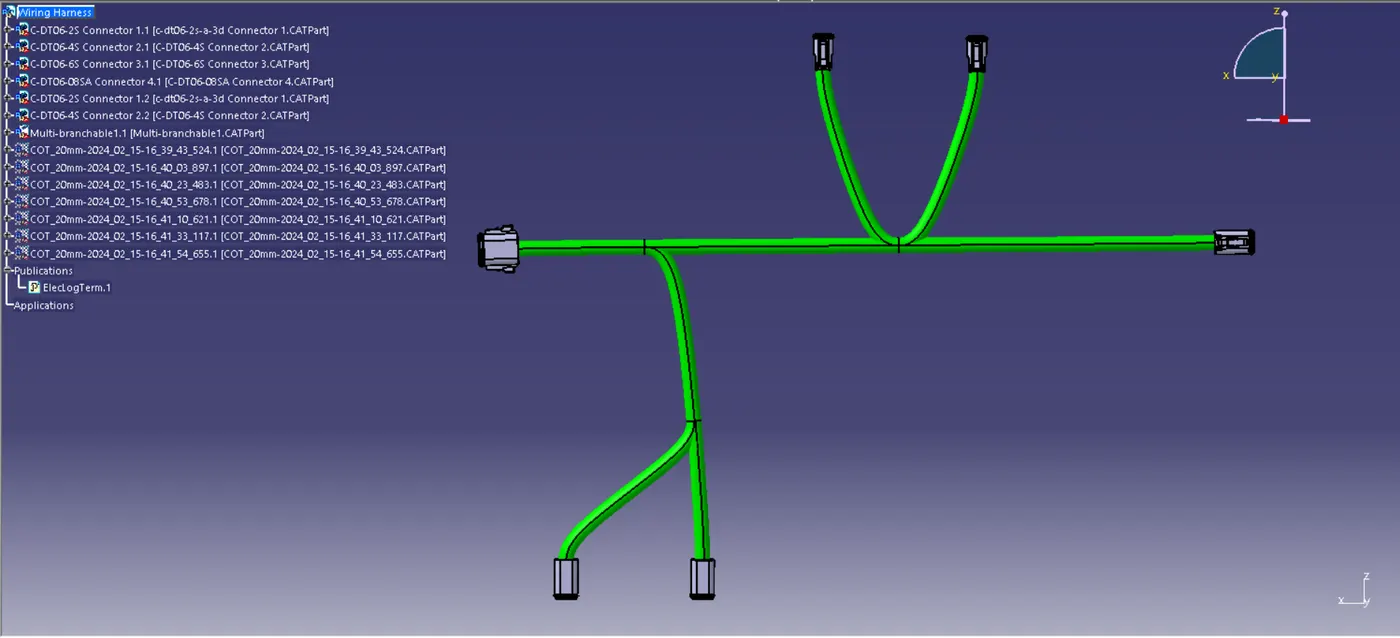
Fig 7. Creating Multi Branchable
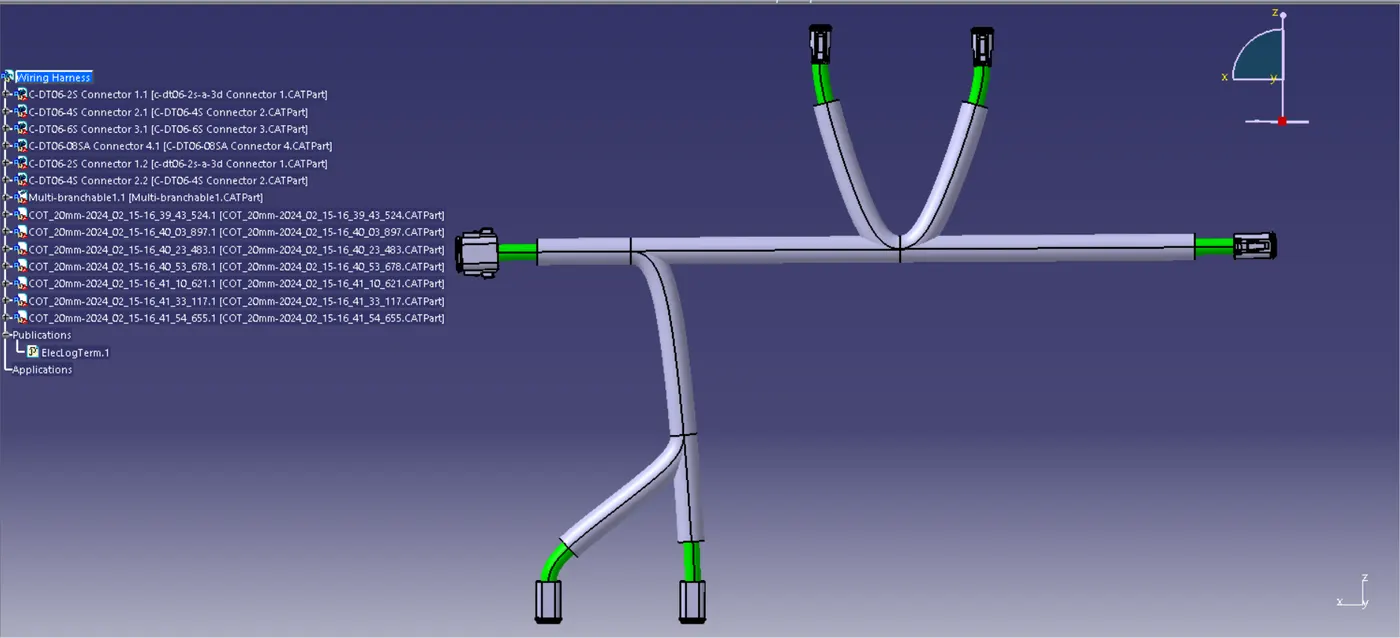
Fig 8. Creating Protective Covering