Wiring harness design in CATIA V5 - 3D modeling Week 2 Challlenge
Report :
This challenge is about downloading the 3d customer view of the given connecters and connector clips cad data from the links provided and defining as electric connenctors, electric connector mounting. Then we need to creat catalogue documents.
1st Connector
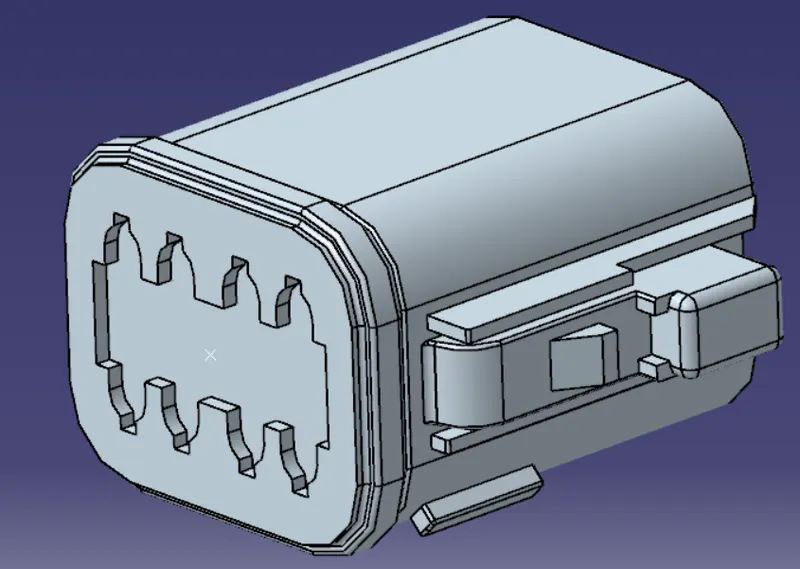
- First we download customer view cad data of the connector from the given link and open in in the catia software.
- Now we add a point for bundle connection point and connector connection point in the part design.
- Then we insert a Axis system for the connector connection point and rotate the axis as per requirements.
- Then we shift to electric part design platform.
- Now we define the component as connector by the define connector command. Here in the dialogue box we should specify no. of terminations and what type of connector.
- Next we will specify the connector conneting point by using the command. here we have to specify the representation, contact, coincidence and orientaton.
- Now we will specify the bundle connection point by usong that particular command. Here we should specify Representation, Point and Initial condition.
- Then we save the cad file.
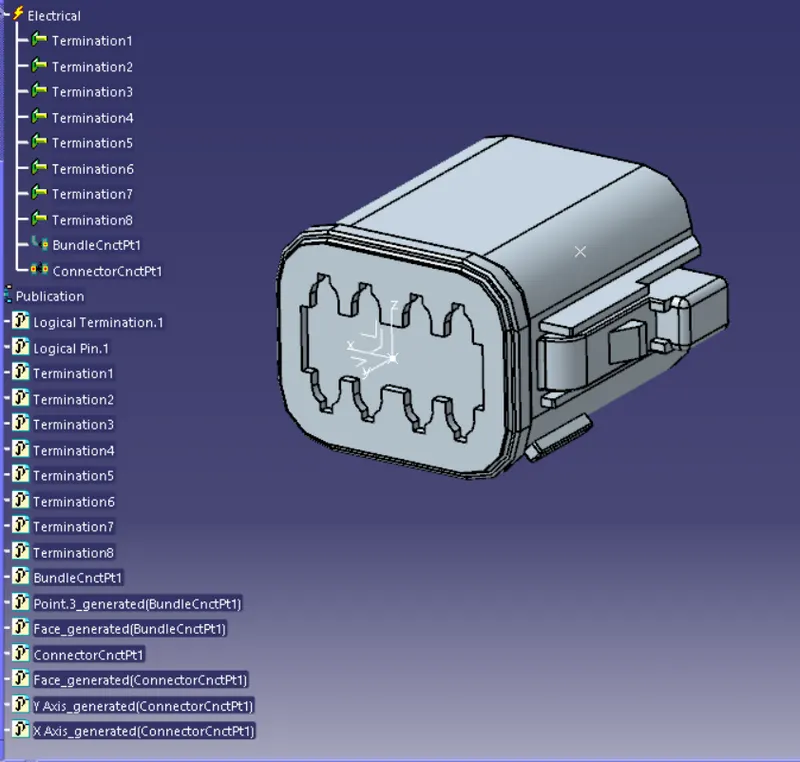
2nd Connector
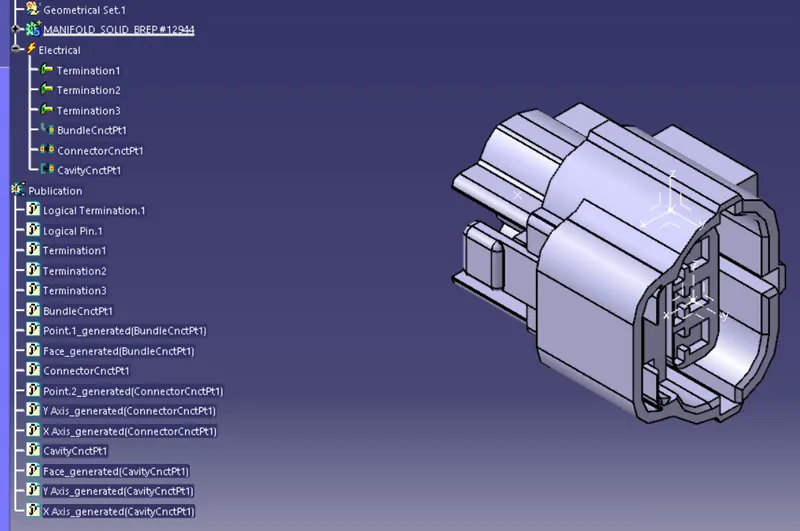
This connector is also defined in the same way as the previous one.
- First we create three points for bundle connection point, connector connecton point and cavity connection point.
- Now as we did before, same way we will create axis for connector connection point and define it like we did before and akso we define bundle connection point as same way before with respective representations.
- Here we additionally created a point and axis for cavity connection point so now define the cavity connection point by specifying representation as the point, contact as contact face, coincidence as y axis and orientation as x axis.
- Then we save the file.
Catalogue
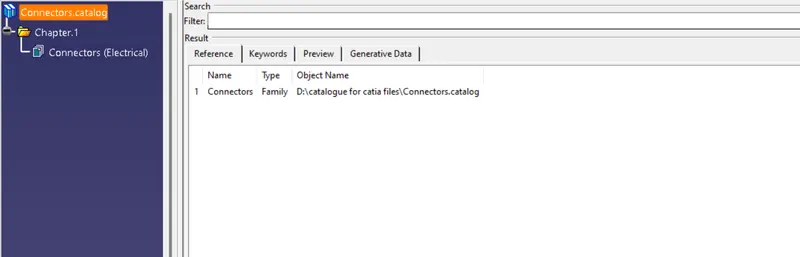
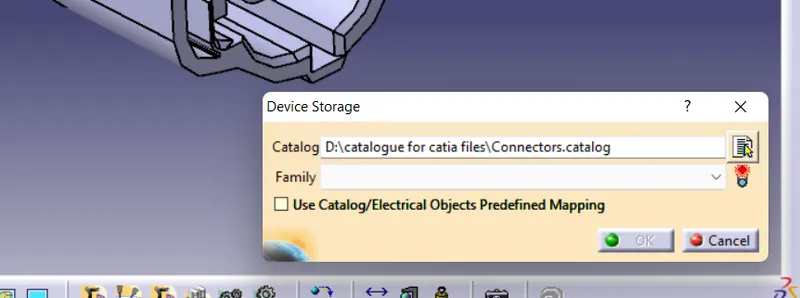
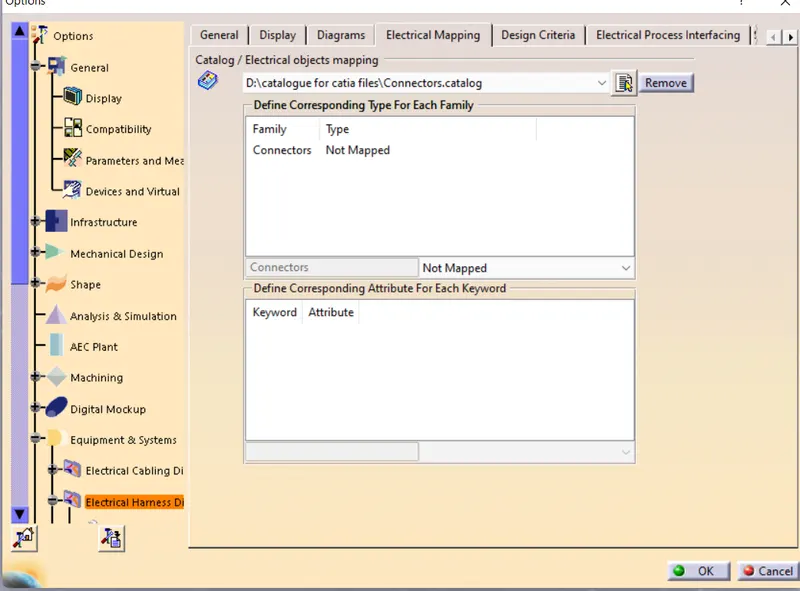
now as we have previoulsy saved connector models we try to create catalogue documents for catalogue new family
- First we click on new catalogue document.
- Then click on add new family and select type as electrical. save it as connectors family.
- Now as we have connectors models open the connectors models in catia and we can see store device in the electric part design command windows
- Here applying store device command, in the command window we can select which family and catalogue document to add.
- Now after selecting catalogue document exit the window and open different connector model and do the same.
- Here we can add N no. of connectors to the catalogue famiily document.
- Now open options and select electric wiring hasrness setting and add favorite catalogue document.
Mounting part/Connector cavity
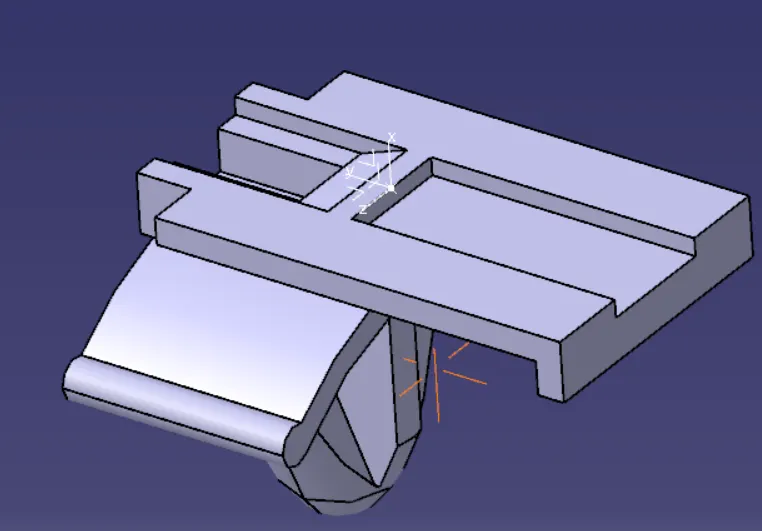
Here we have another part to defiine
- First this is a connector cavity mounting part.
- now here we should add a point to be used in electric assemble design
- we should insert an axis system and define the model as a mounting part
- here we should mention the axis and the point that is previously inserted in the model as cavity.
- save the file