Week 9 - Project - Master Section Development
Aim :
- The objective of this project is to develop a Closed Surface Model using Master Sections
- To develop attachment features for Fixation of Parts by following OEM Design standards and procedures in CATIA SURFACE WORKBENCH
and PART DESIGN
Description :
Master Section :
Master Sections are the guides for design requirements that shape the component after Class A Surfaces' technical styling.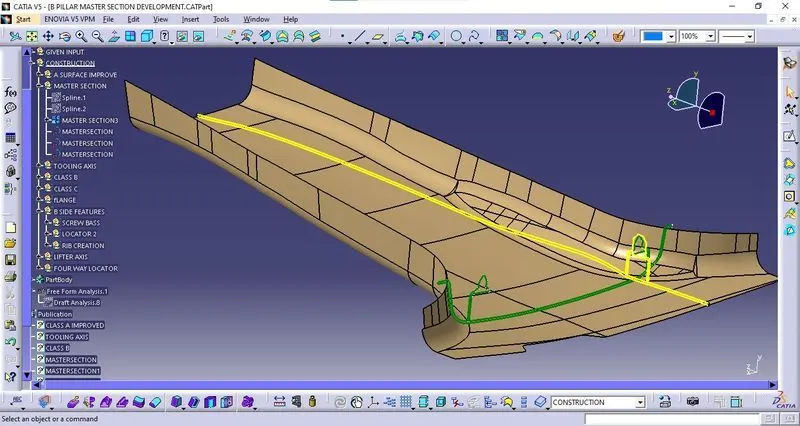
Class A Improvement :
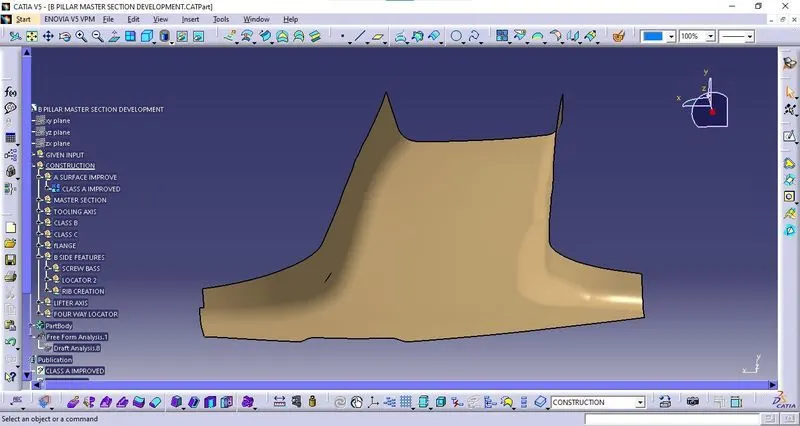
Class A is connected using the join option.
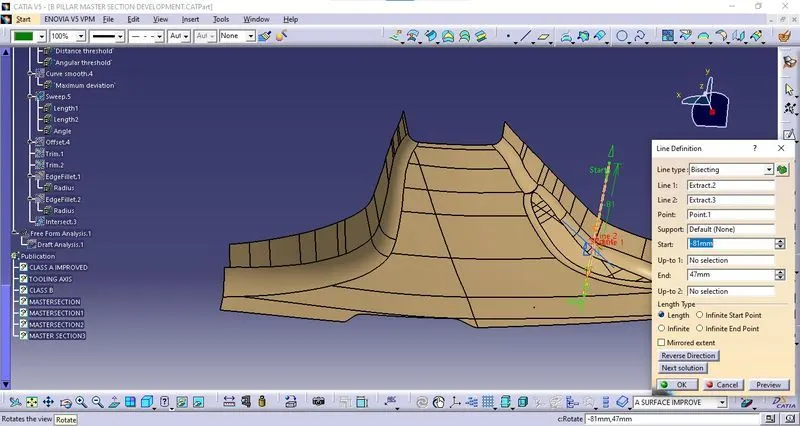
Main Tooling Axis Creation:
- To Find The Tooling Direction We Use The Master section For The Engineering Feature.
- Here We Take The Two Boundaries And Find a Bisecting Line Between Them
Finally, the Tooling axis is created by bisecting the two lines and it is published.
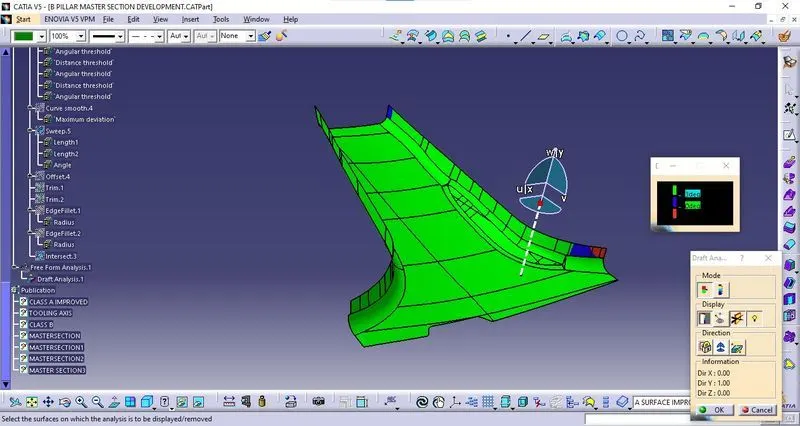
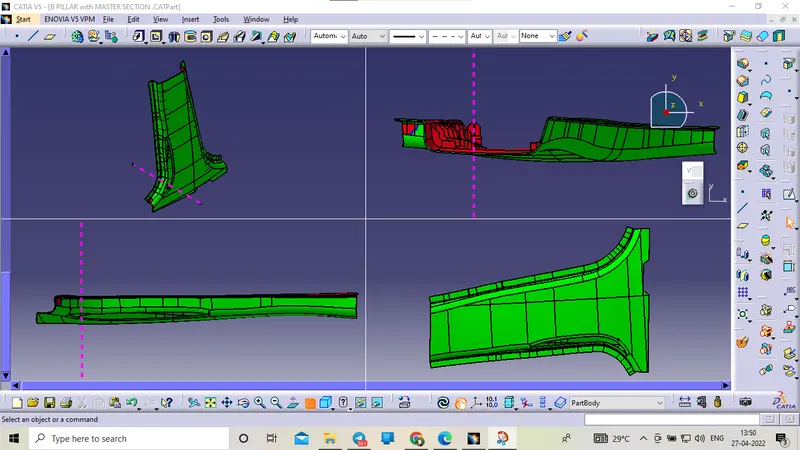
Manufacturing Feasibility Of The A-Surface (Draft Analysis):
- Once the model is prepared and the Tooling axis is created then the Draft analysis is done on the surface.
- To perform Draft Analysis,
- Go to the insert Menu >> Click Analysis >> Click Feature Draft Analysis option >> New Dialog boxes open.
- Select the Elements as the Class-A Model and the Direction as the Tooling Axis using the Compass option to define a new direction of the
draft. - Click OK to check if all the surfaces come under the limits of 0 to 3 degrees.
- If the draft is more than 3 Degree then the surface will be shown as green.
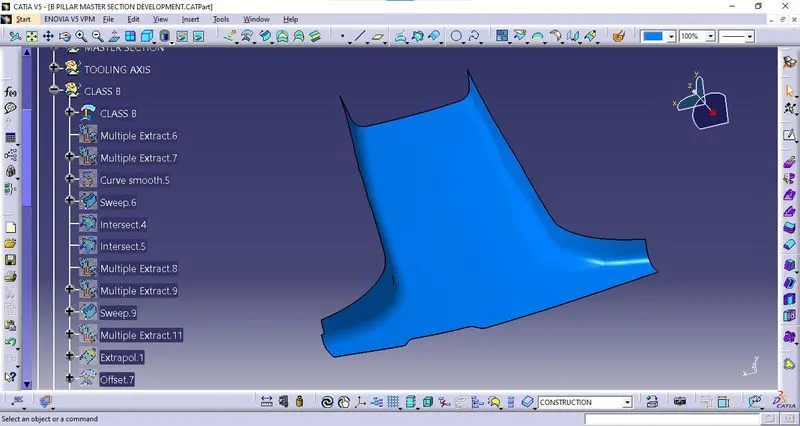
Class B :
- Offset the Class-A surface to 2mm for Class B.
- Finally, Class B is created.
Flanges :
- First, we create the plane on the master section, we take three points for the plane.
- Finally, the plane is created
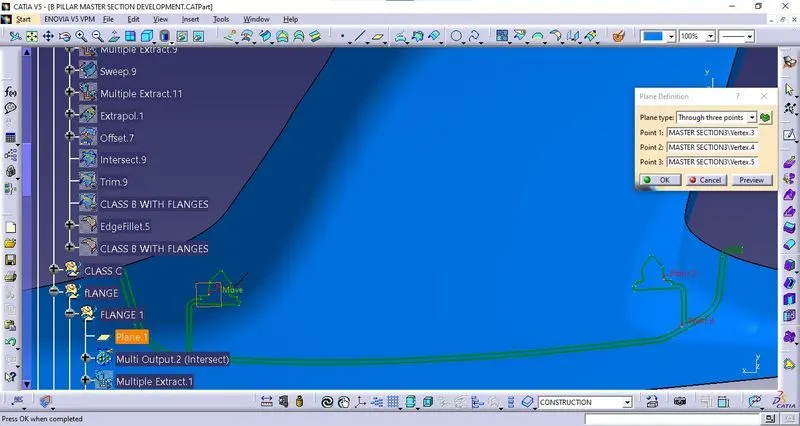
Flange Creation
- According To The Master Section, The B-Pillar Has Flanges On Both Sides.
- The Flanges Have To Be Included In The Design And The A And B Surface Has To Be Modified.
- The Surfaces Should Match The Master Section.
Class A Flanges :
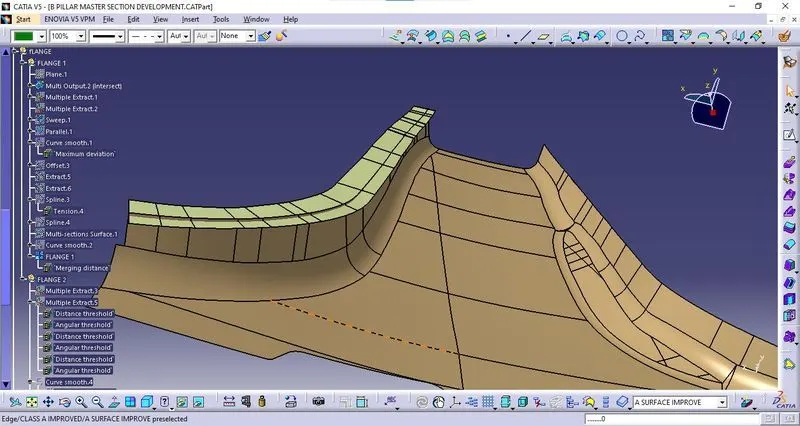
We take a section of Class A and plane 1
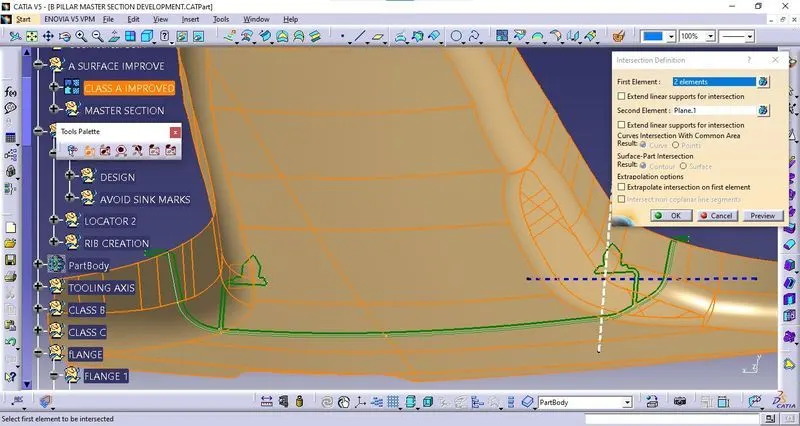
Sweep 1:
- We take the extract of class A edges and extract of adjacent surfaces.
- In sweep go-to reference surface then pick the guide curve and reference surface.
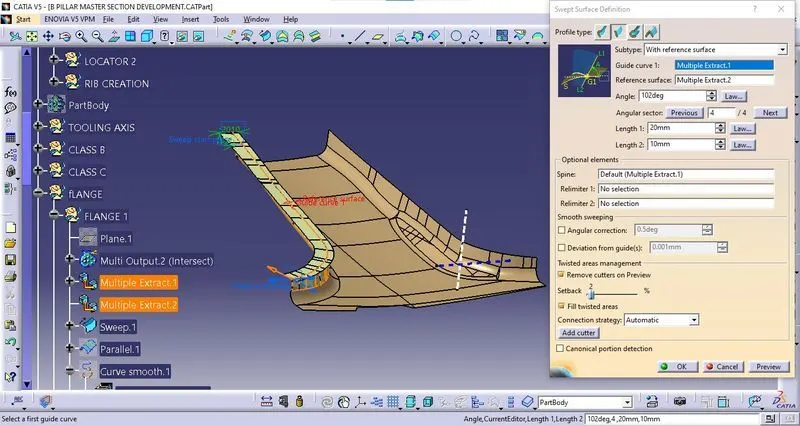
Offset :
offset the sweep to 1.454 mm to meet the master section boundary at 0mm.
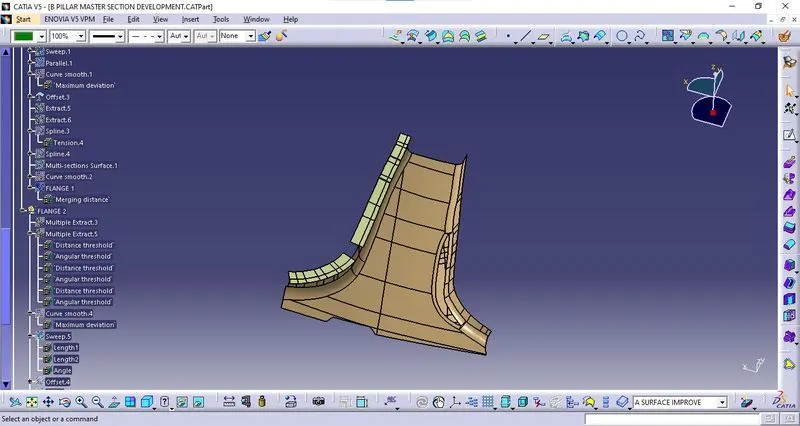
Multi-Section surface :
Offset surface error covers using multi-section surface.
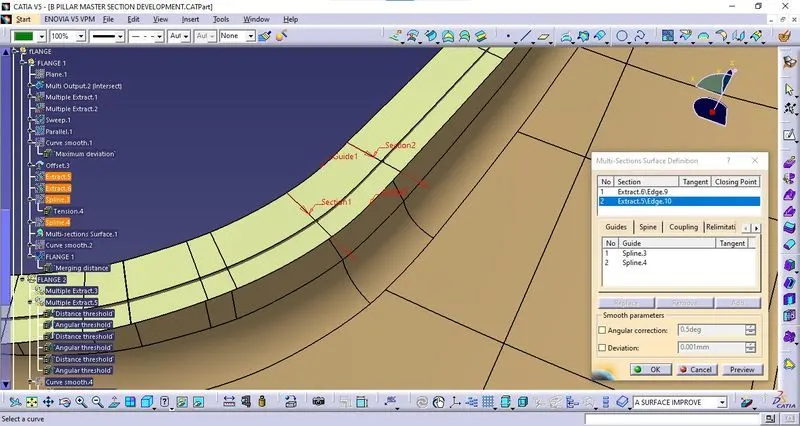
Flange 1 :
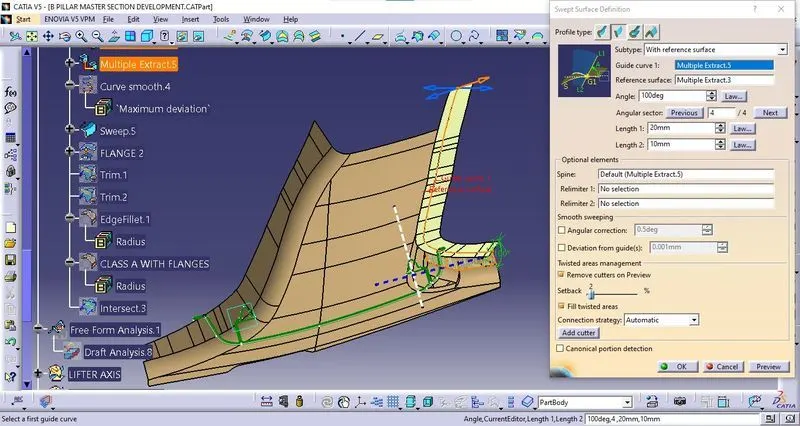
Sweep 2 :
- We take the extract of class A edges and extract of adjacent surfaces.
- In sweep go-to reference surface then pick the guide curve and reference surface.
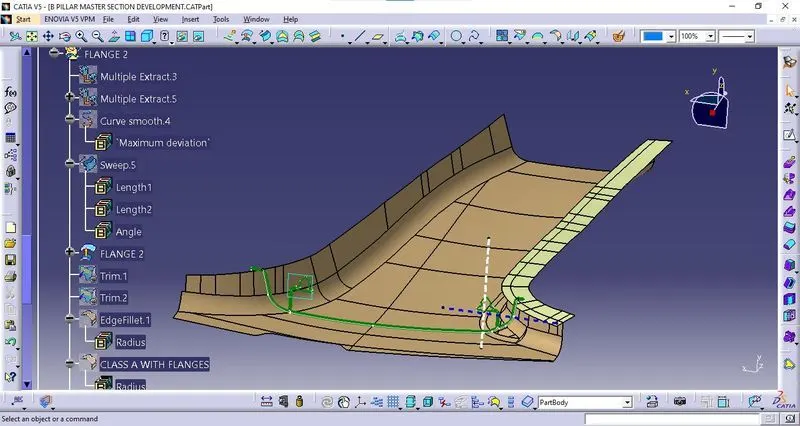
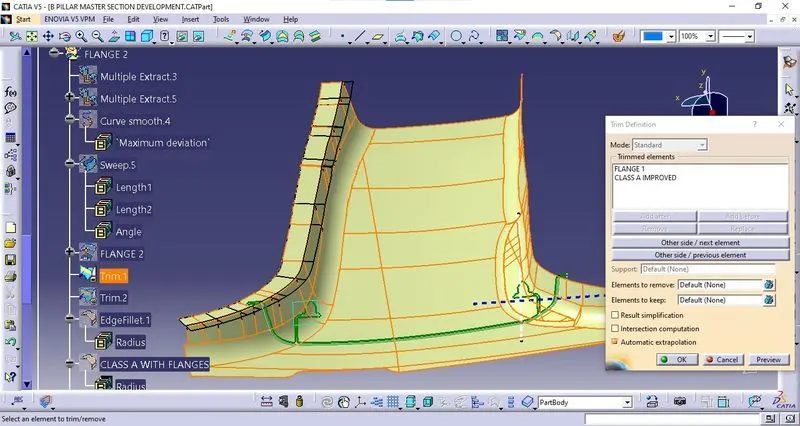
Flange 2 :
offset the sweep to 0.489 mm to meet the master section boundary at 0mm
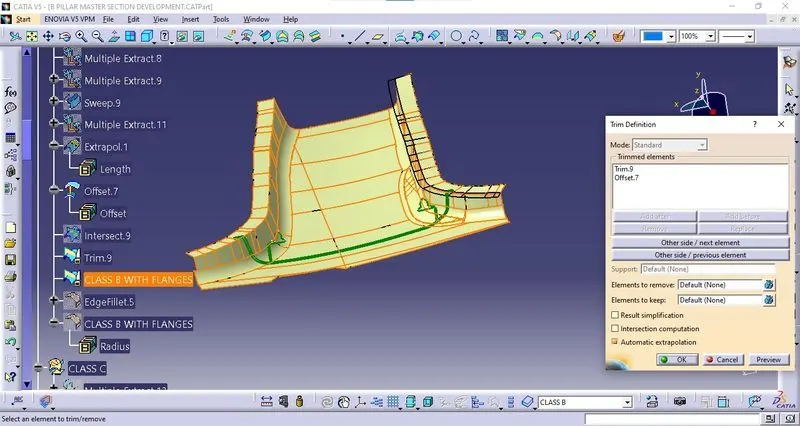
Final Trim of Class A Flanges :
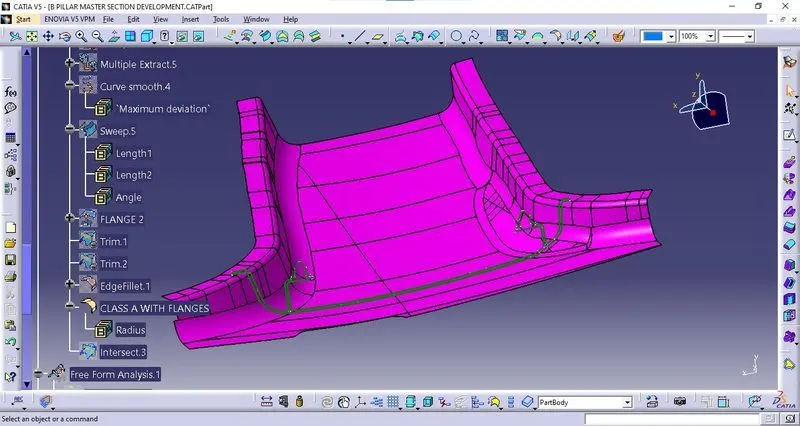
Fillets of Class A :
Give edges fillets of 5mm to flanges edges.
Class B Flanges :
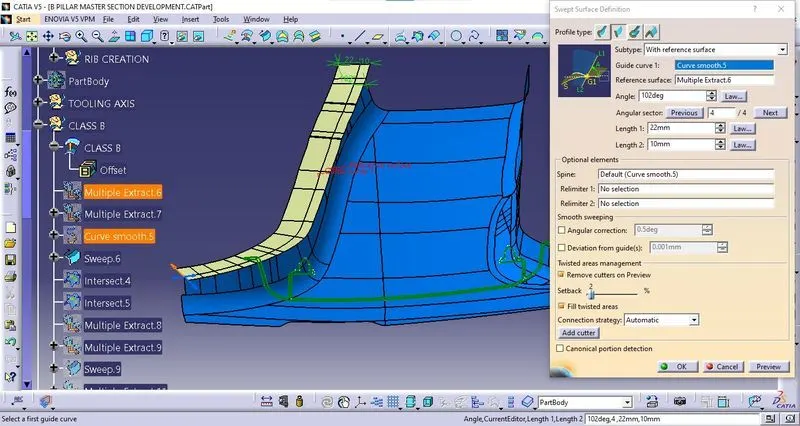
Sweep 3 :
- We take the extract of class A edges and extract of adjacent surfaces.
- In sweep go-to reference surface then pick the guide curve and reference surface.
Sweep 4 :
- We take the extract of class A edges and extract of adjacent surfaces.
- In sweep go-to reference surface then pick the guide curve and reference surface.
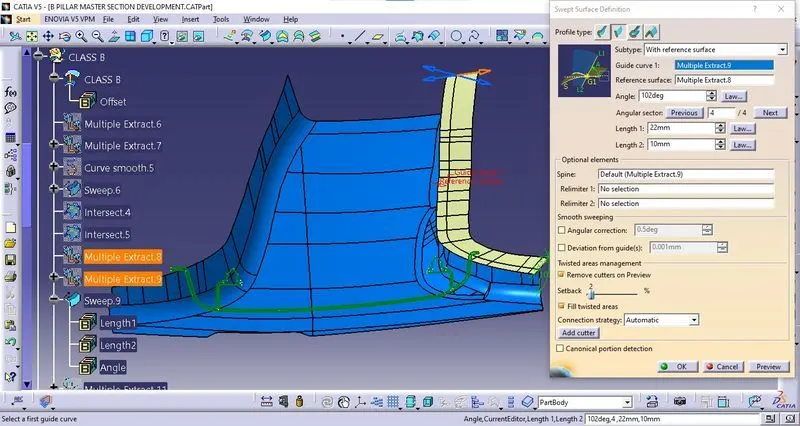
Final Trim of Class B Flanges :
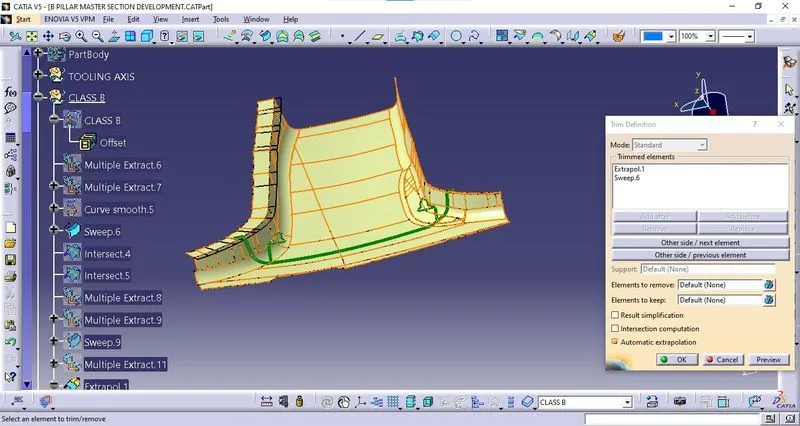
Fillets of Class B Flanges :
Give edges fillets of 4.5 mm to flanges edges.
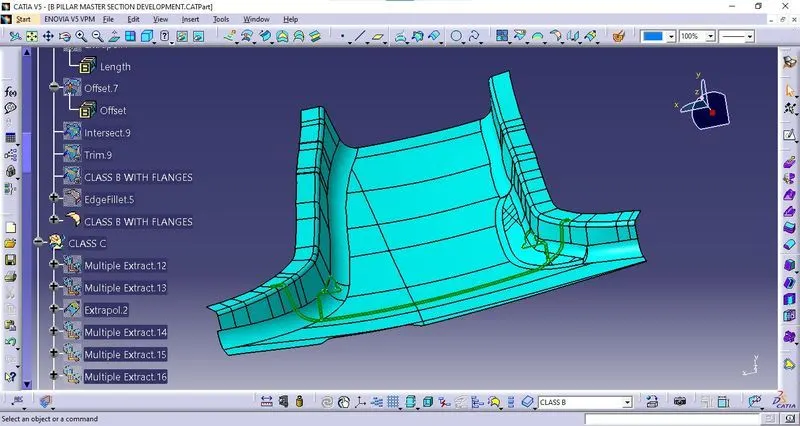
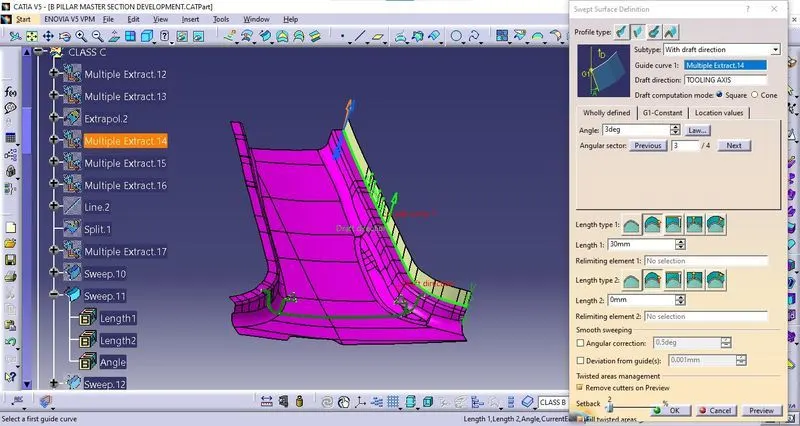
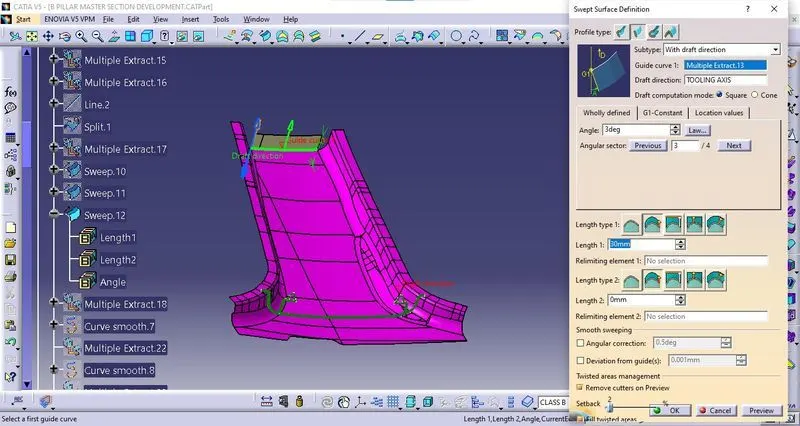
Class C Creation :
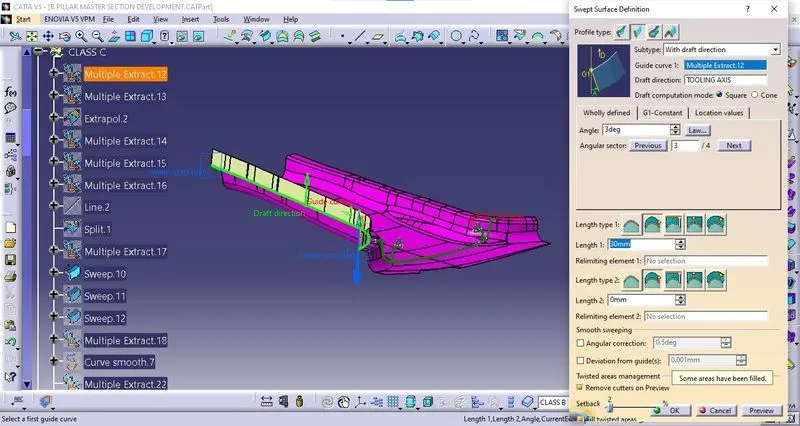
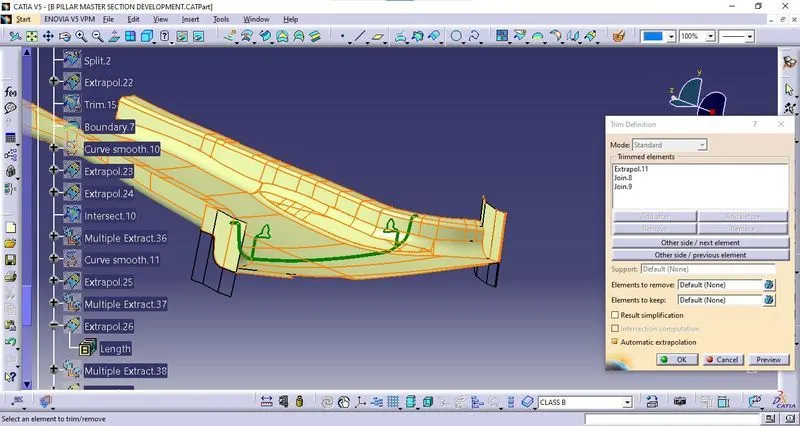
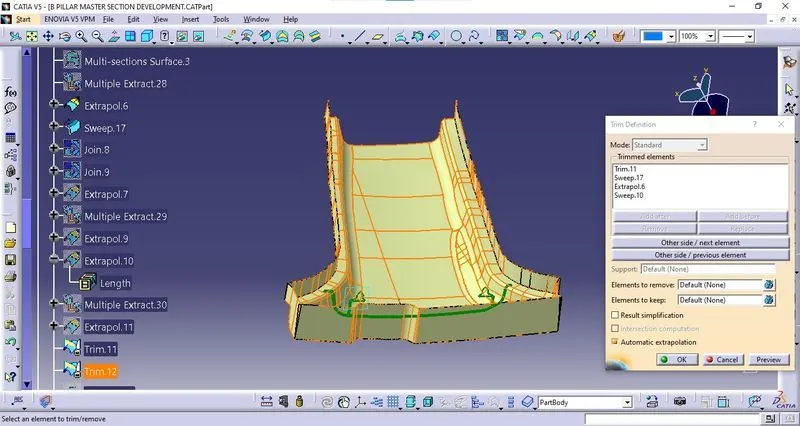
Final trim of Class C :
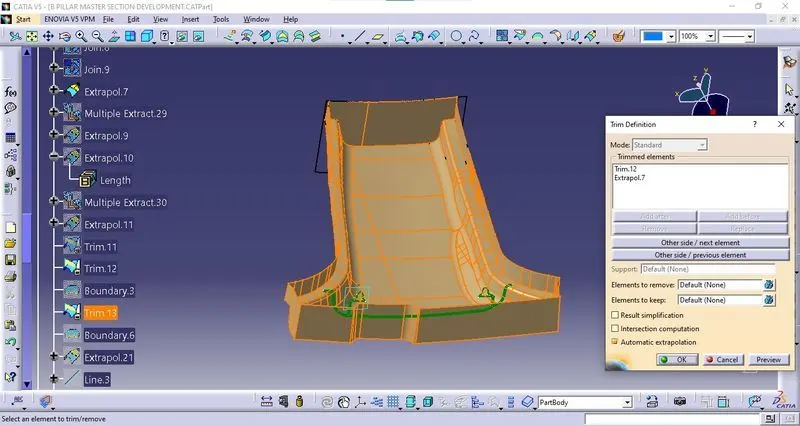
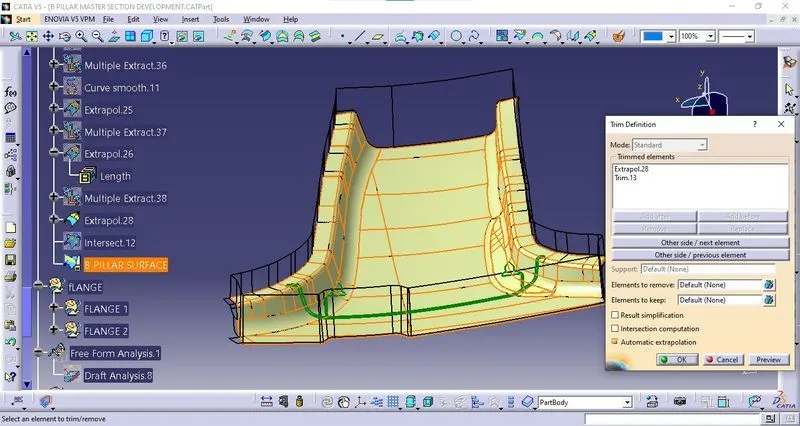
Final Trim of B Pillar Closed surface :
- Now, start with joining the Class A and Class C surfaces together.
- Next, trim the combined surface with the Class B Surface to create the final surface.
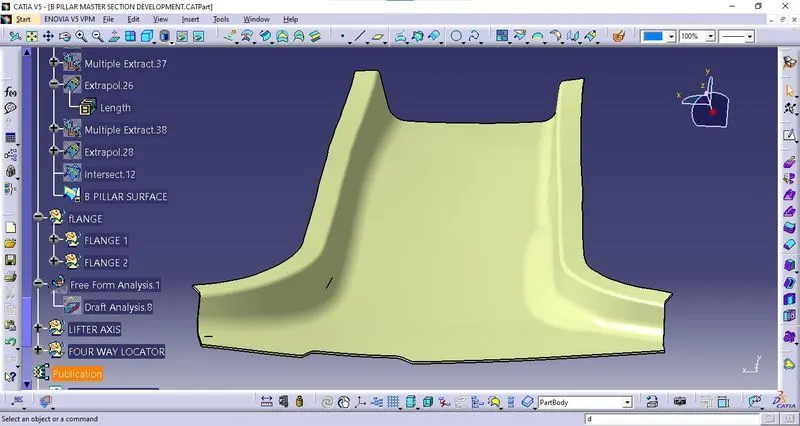
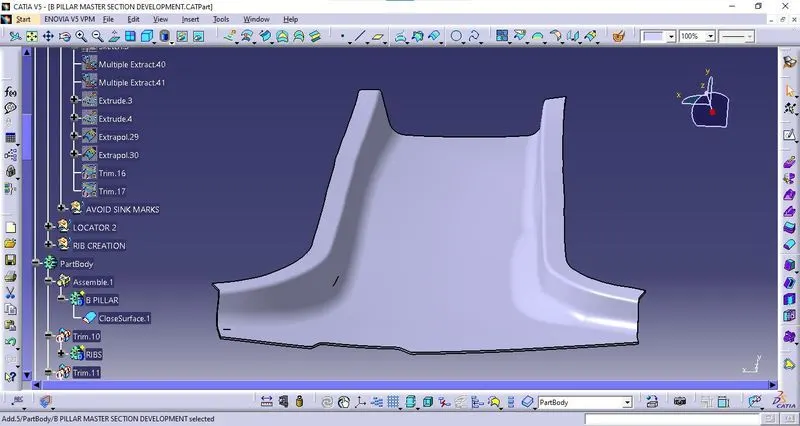
Surface convert into the solid body :
- After creating the surface, go to the Part design option and create the solid using the closed surface option.
- The solid is created.
B Side Feature used in B-pillar Creation :
1. Doghouse
2. 4-way Locator
3. Ribs
Procedure for dog house creation :
- To create a Doghouse, Create the sketch on the Surface face, such that there are 3 sides are created and constraint it.
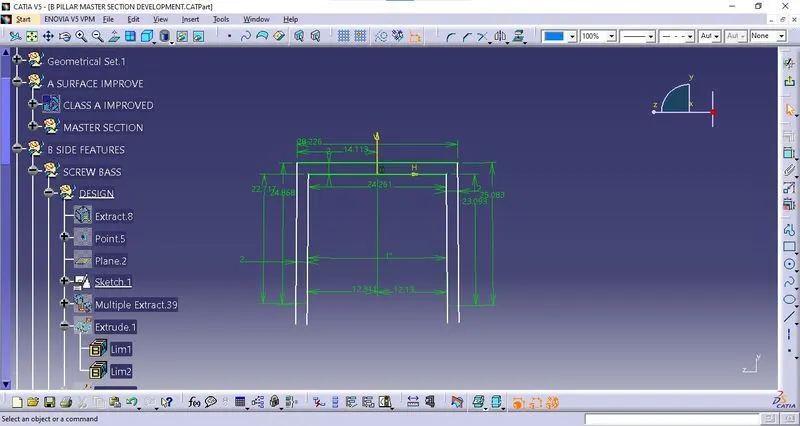
- Exit the Sketcher Workbench.
- After exiting the sketcher workbench, Open the Generative Shape design and extract the sketch.
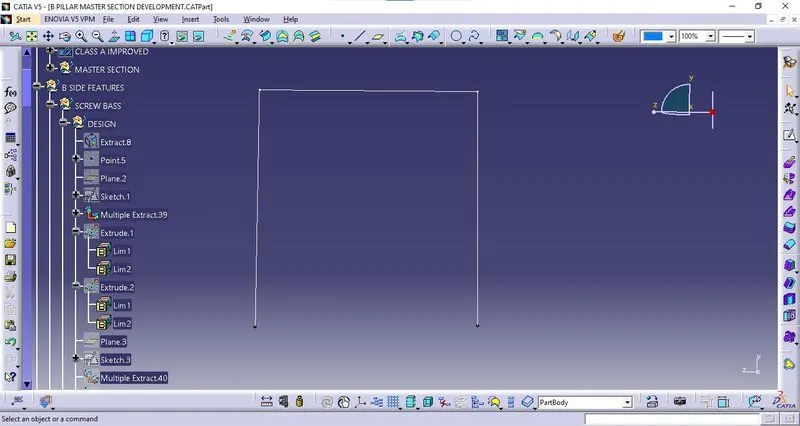
- Extracted sketch to extrude
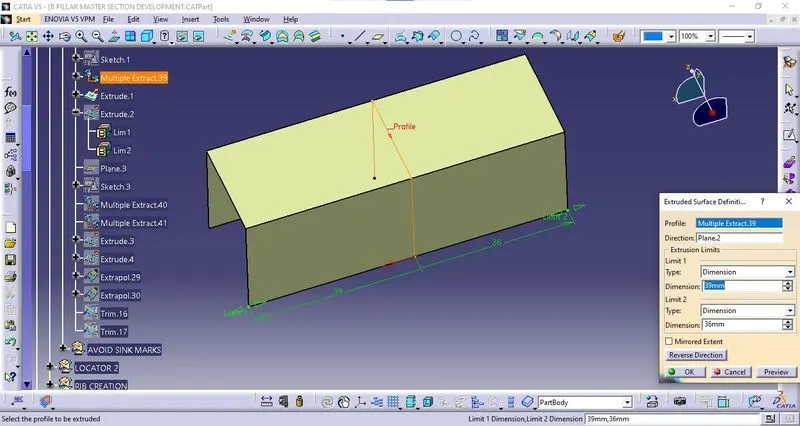
- Trim the extrude with extrapolated surface
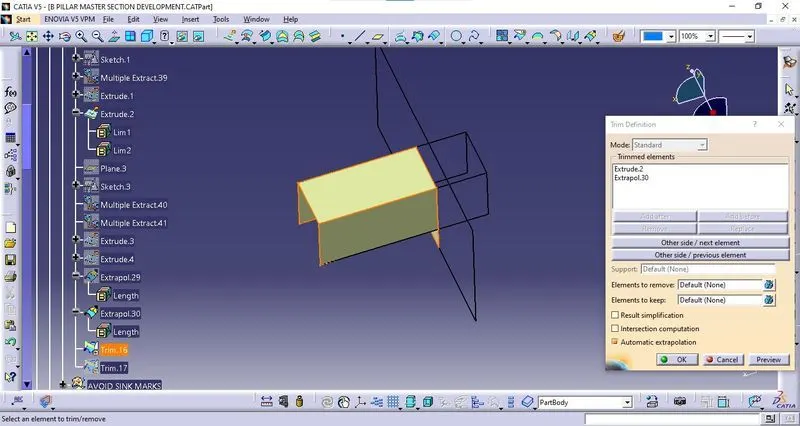
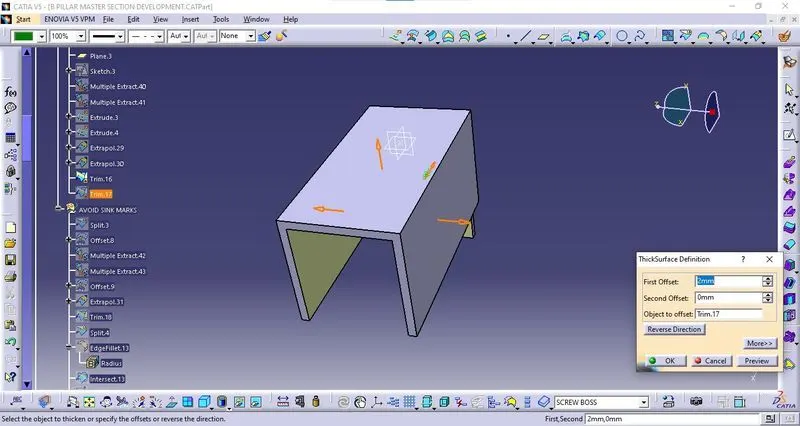
- After creating the surface, go to the Part design option and create the solid using the thicken option.
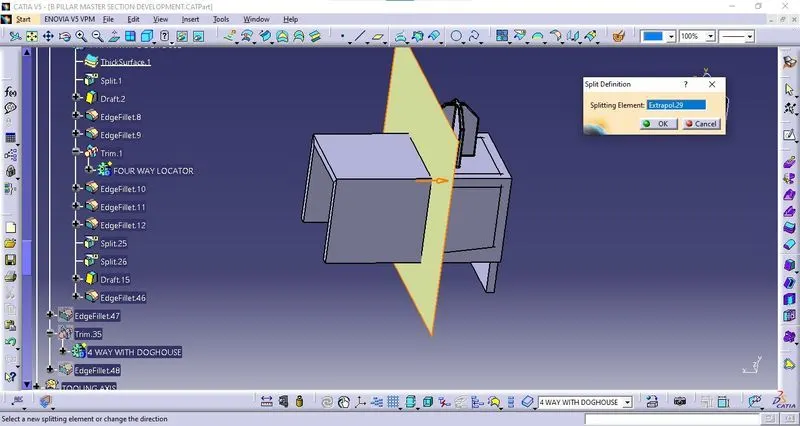
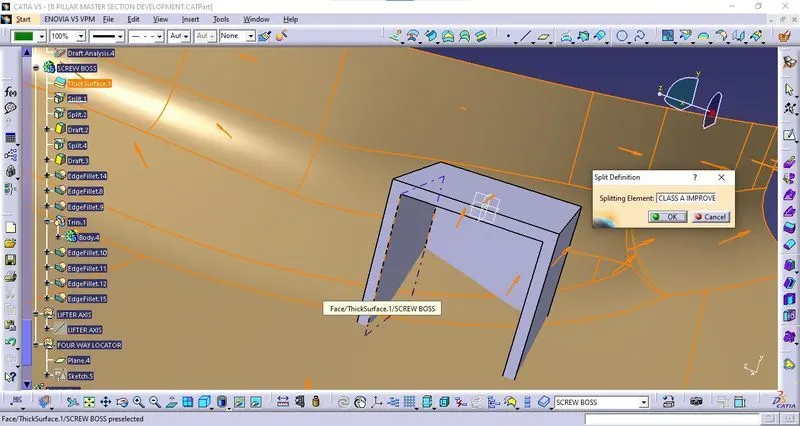
- Using the split option cuts the front face and bottom face.
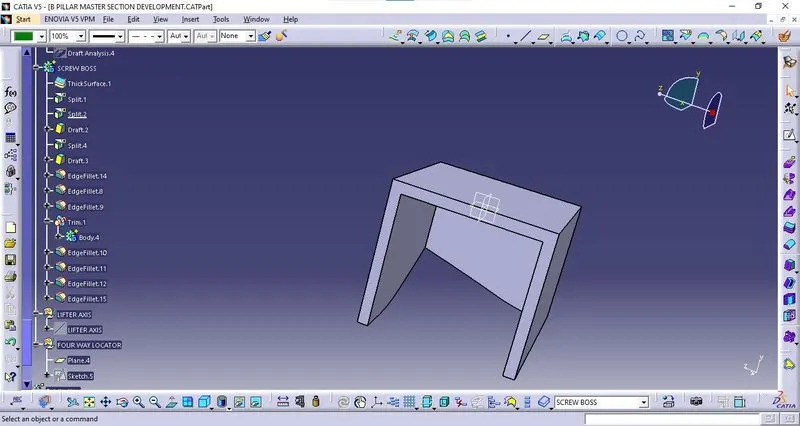
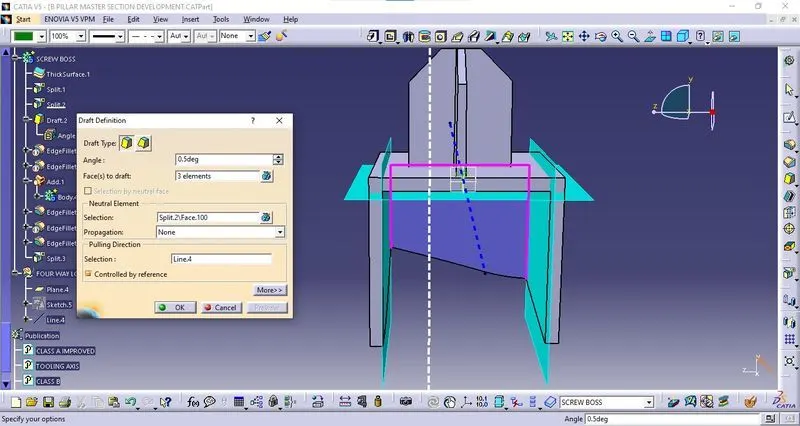
Draft :
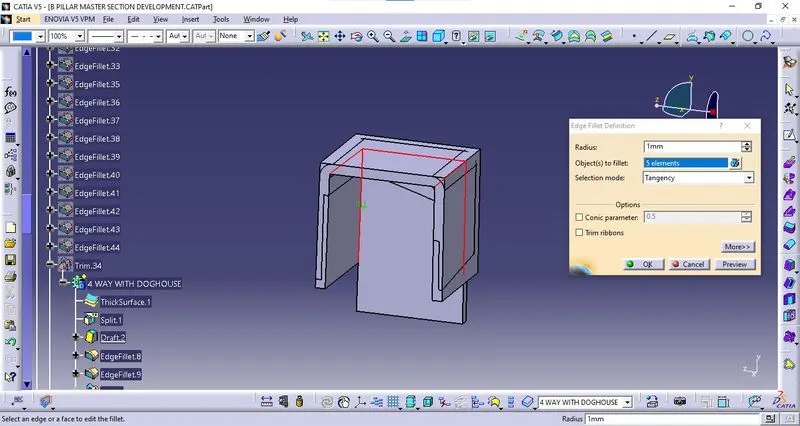
Fillets :
Give the edges fillet of 1mm to the inside doghouse edges.
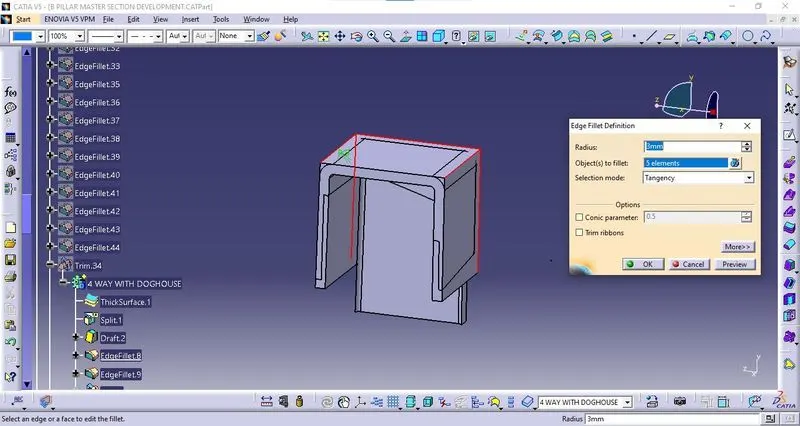
Give the edges fillet of 3 mm to the outside doghouse edges.
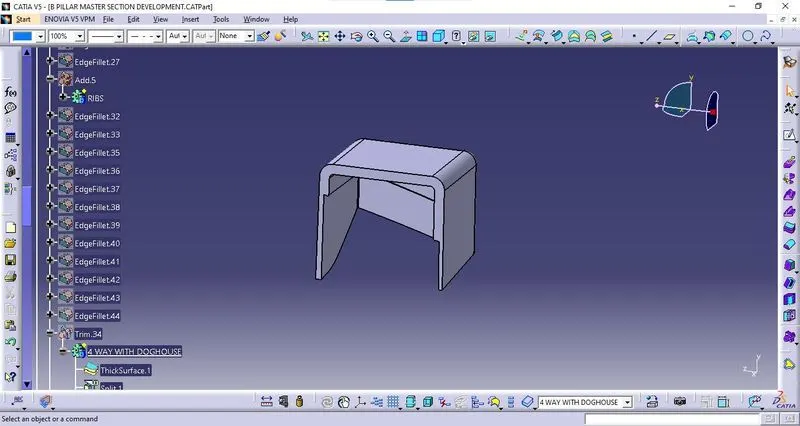
Split the Undercut :
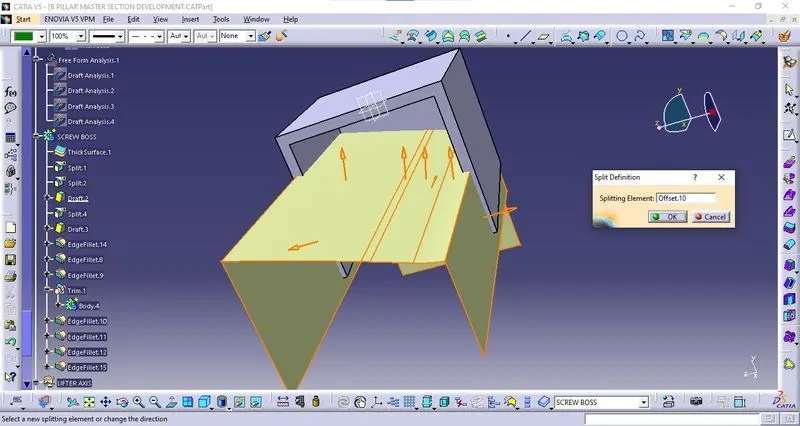
Undercut as shown in the figure.
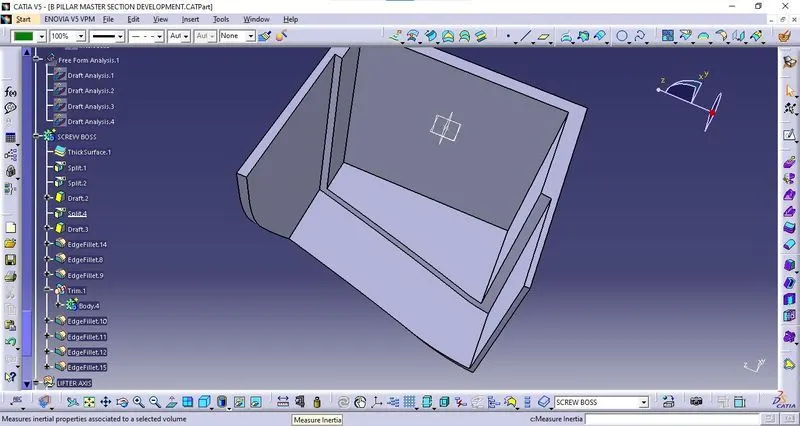
Fillet undercut :
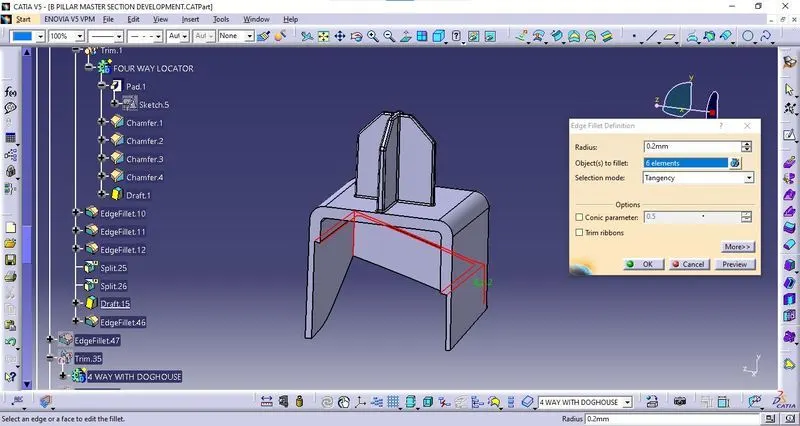
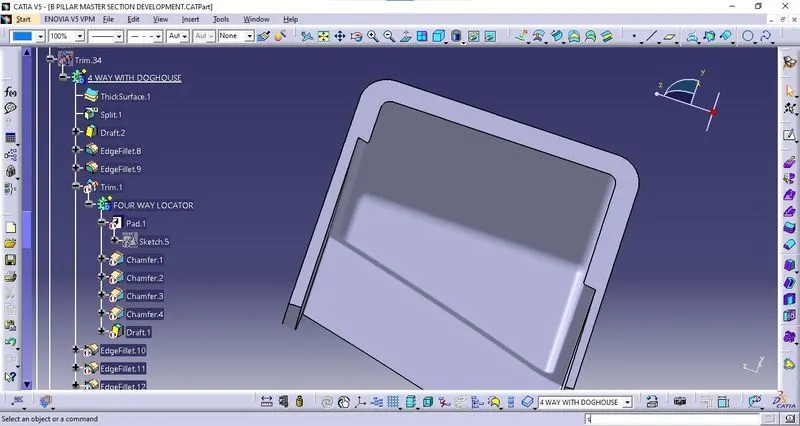
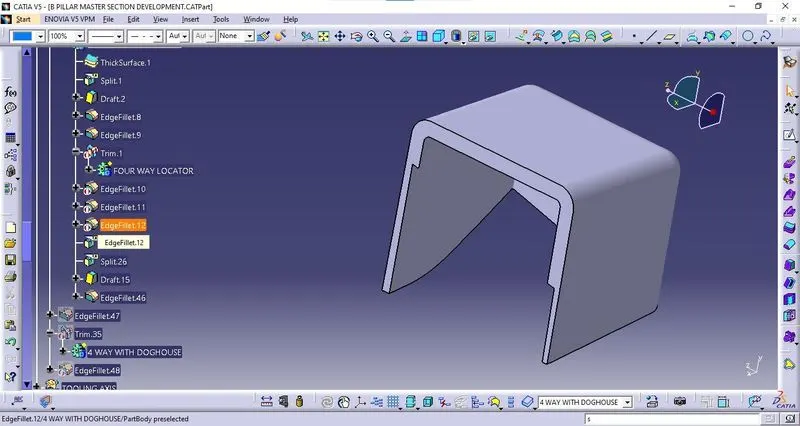
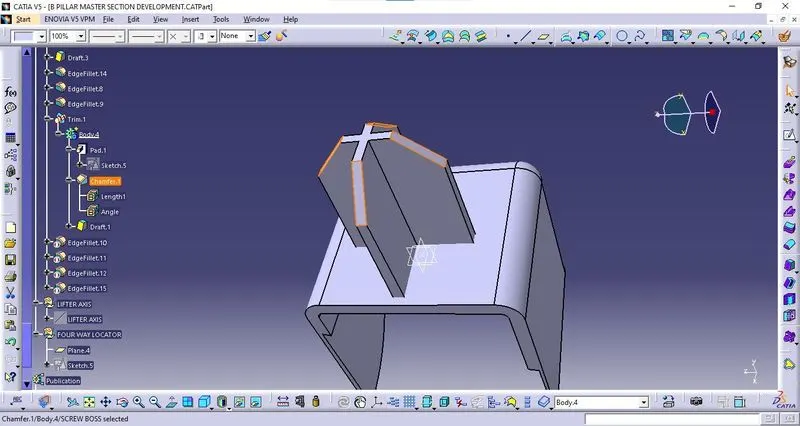
Procedure for 4 Way locator :
Sketch for 4-way locator
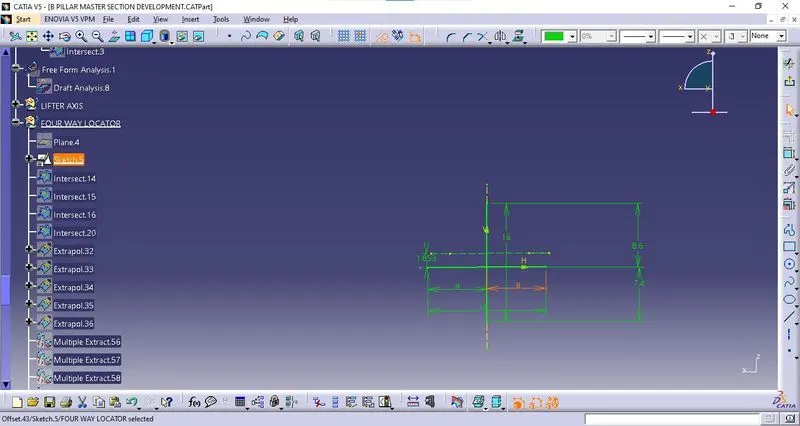
Pad the sketch by switching the workbench to Part Design workbench
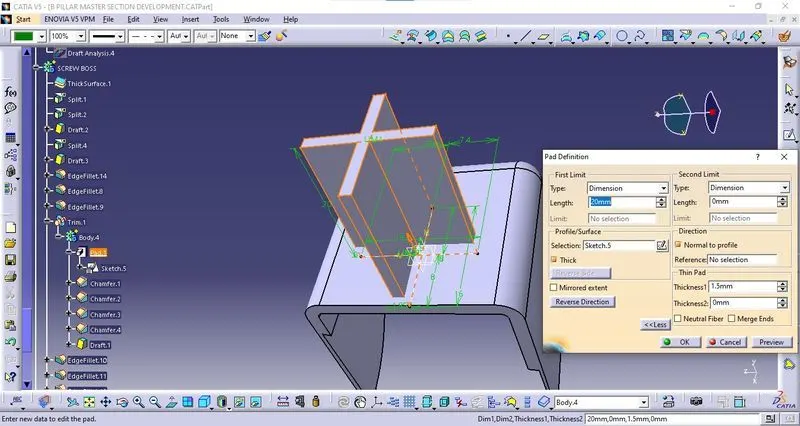
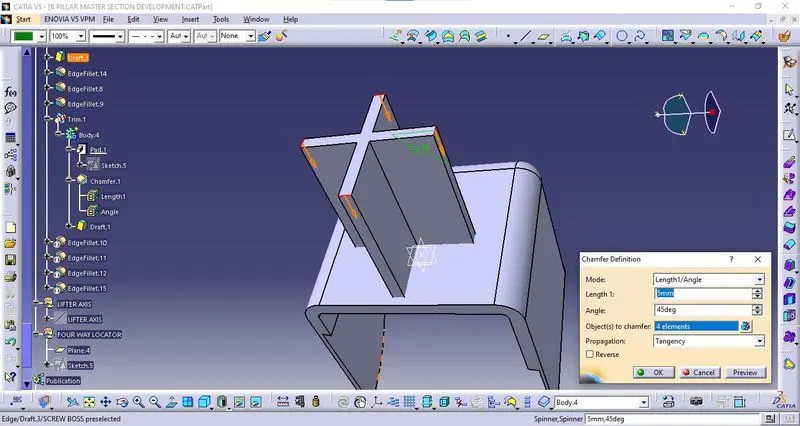
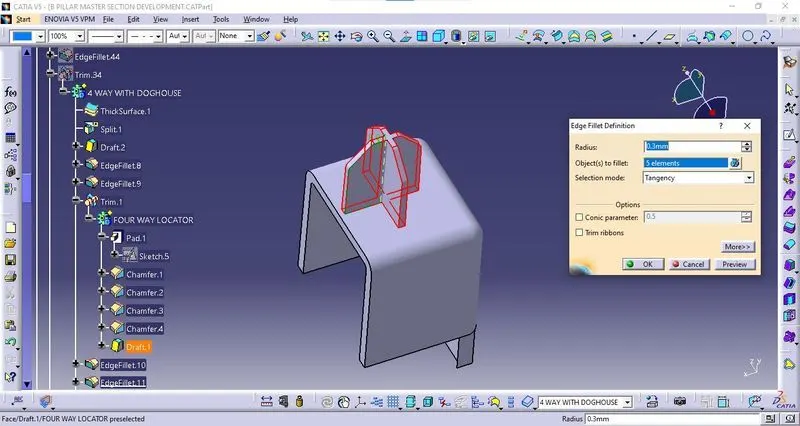
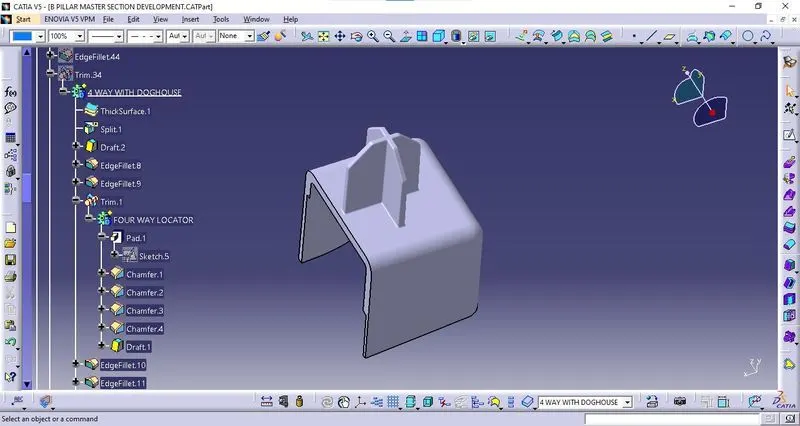
Fillet :
Give the edge fillet of 0.3 mm to the 4 way locator edges.
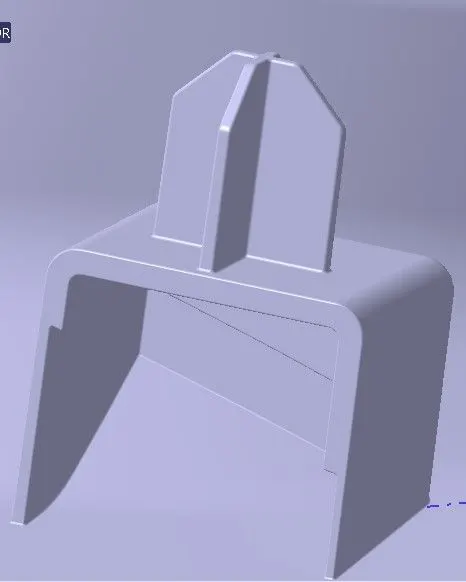
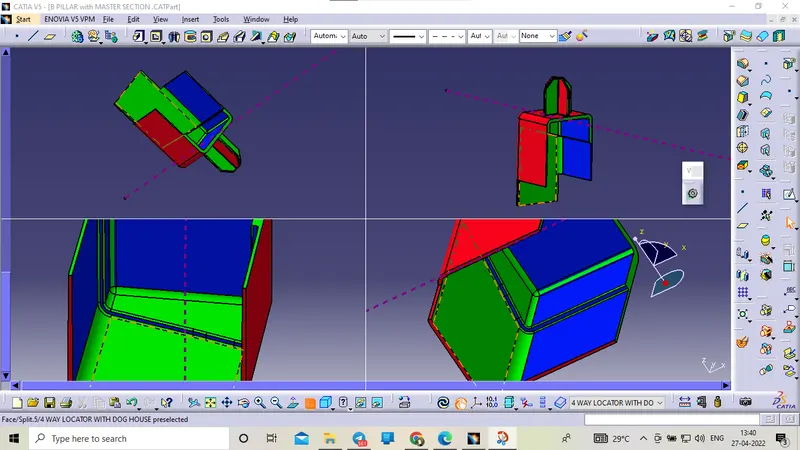
Final Doghouse with 4 Way locator :
Second Doghouse :
Second doghouse is created by using the mirror option in part design.
Final second doghouse:
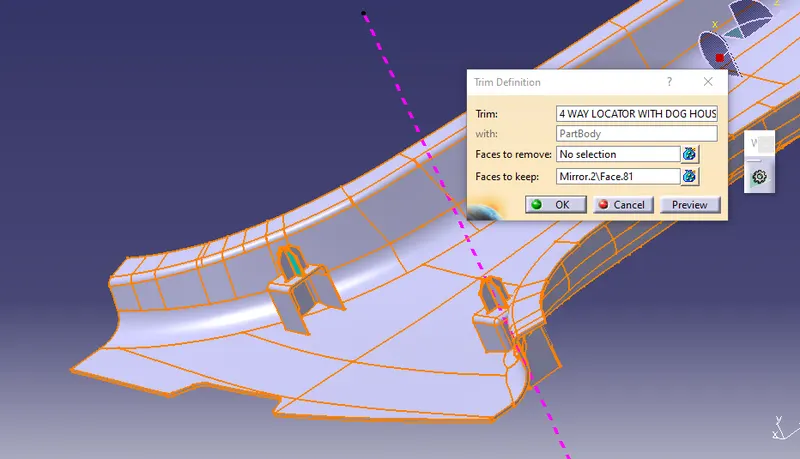
Procedure for Ribs creation :
- To create the Ribs, Go to the Sketcher workbench and draw a straight line on the face you want to create a rib and constraint it.
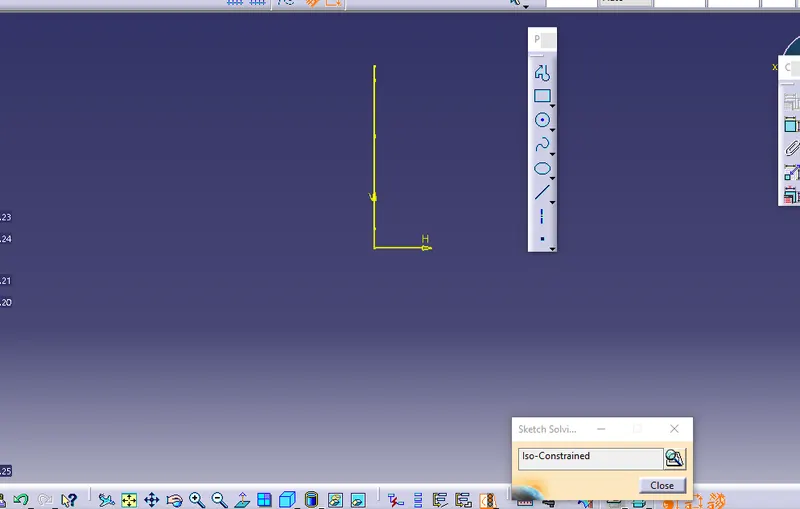
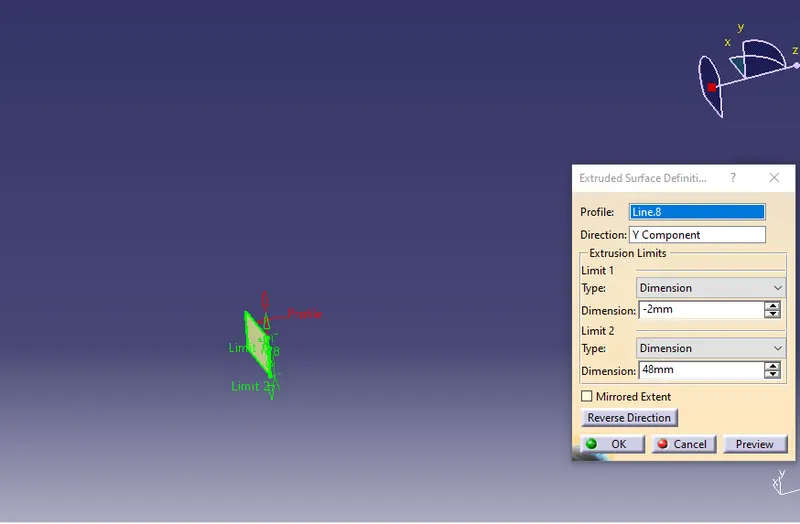
- Exit the Sketcher workbench and Open the Generative shape design
- Extract the sketch then the extracted line to extrude in-plane direction.
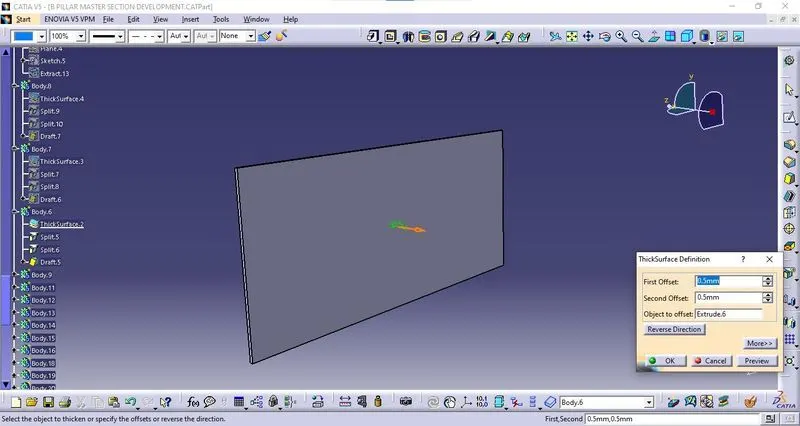
- Using the thicken option to create the solid component
- Now copy the Part body and paste it on the main Tree Structure(Note: Paste it with the option “Paste Special >>Paste with the Link).
- Use the Translate option to move the copied rib part body from the starting point to the ending point as the geometrical points.
Split :
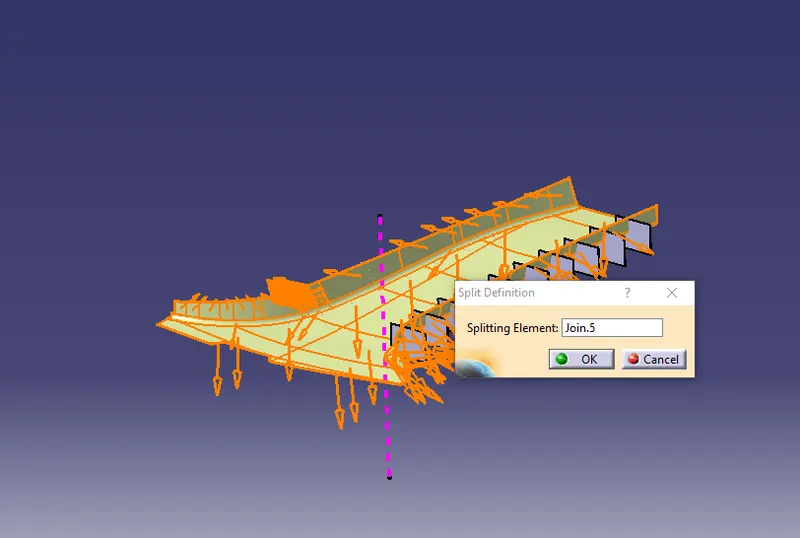
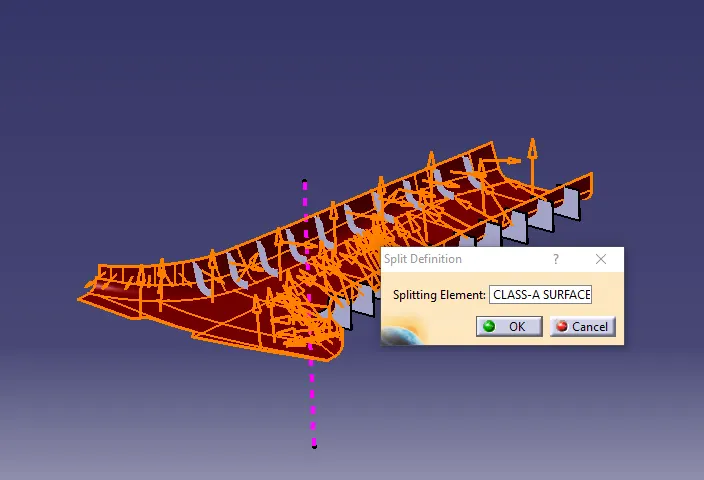
Draft :
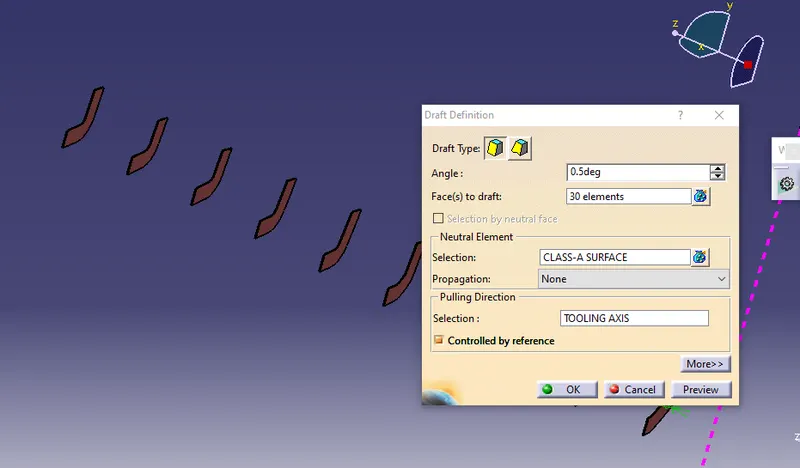
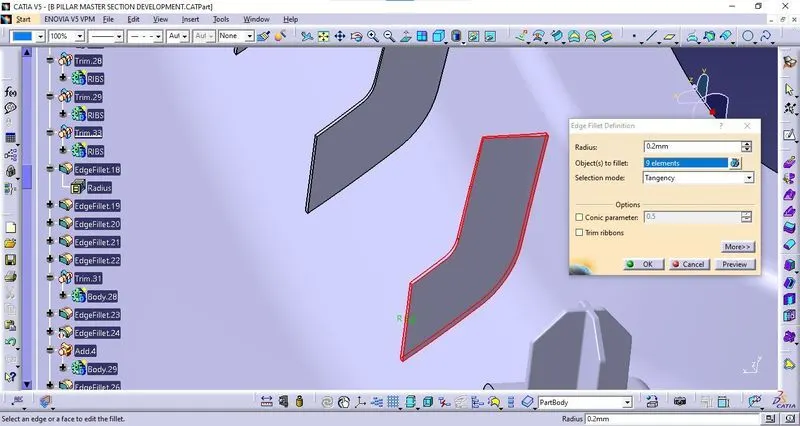
Fillets :
Give the edges fillets of 0.2 mm to rib edges.
Final Ribs :
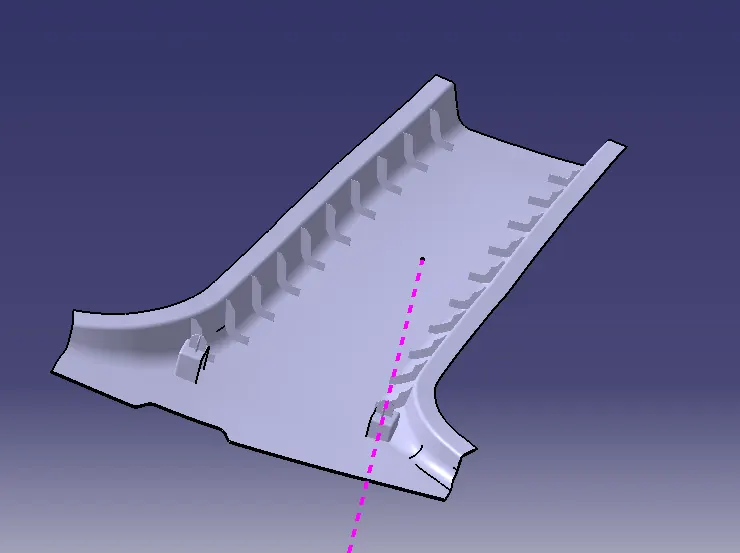
- Follow the above steps repeatedly to create the ribs on both sides.
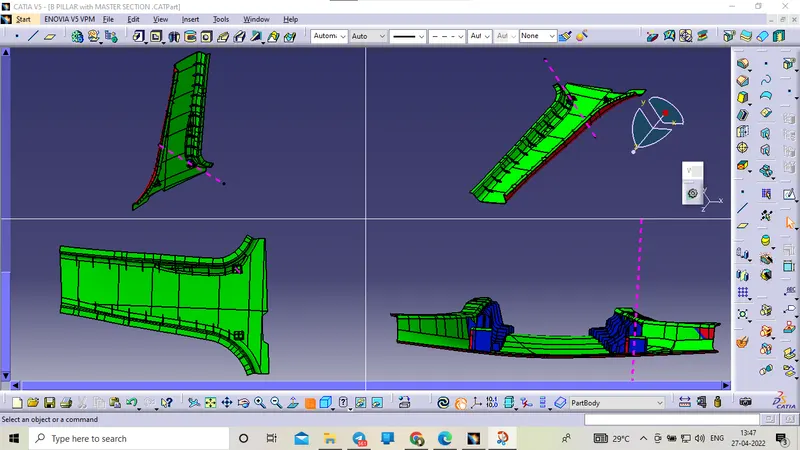
- The Final Solid component is created.
Draft Analysis :
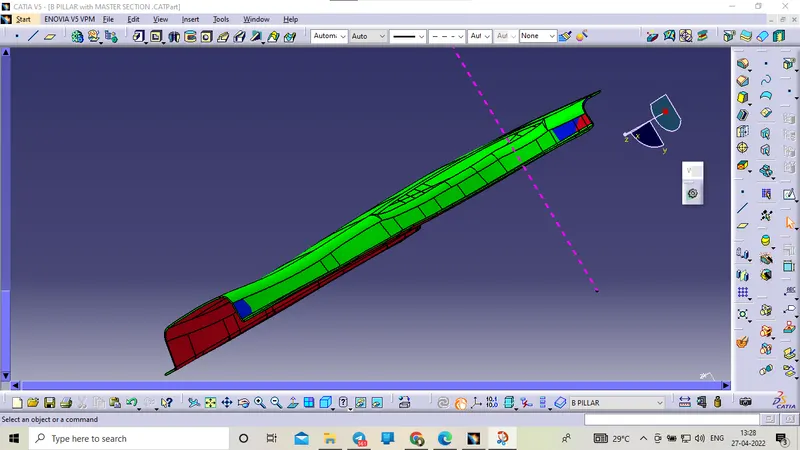
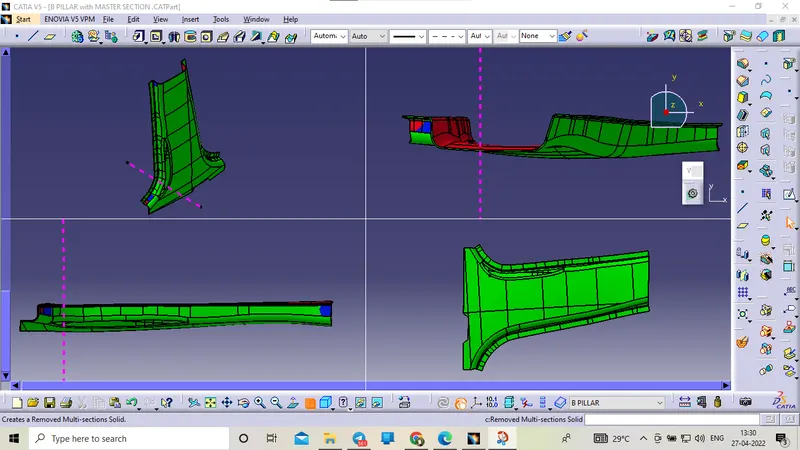
- Once the model is prepared and the Tooling axis is created then the Draft analysis is done on the surface.
- To perform Draft Analysis, Go to the insert Menu >> Click Analysis >> Click Feature Draft Analysis option >> New Dialog boxes opens.
- Select the Elements as the Class-B Model and the Direction as the Tooling Axis
- using the Compass option to define a new direction of the draft.
- Click OK to check if all the surfaces come under the limits of 0 to 3 degrees.
- If the draft is more than 3 Degree then the surface will be shown as green.
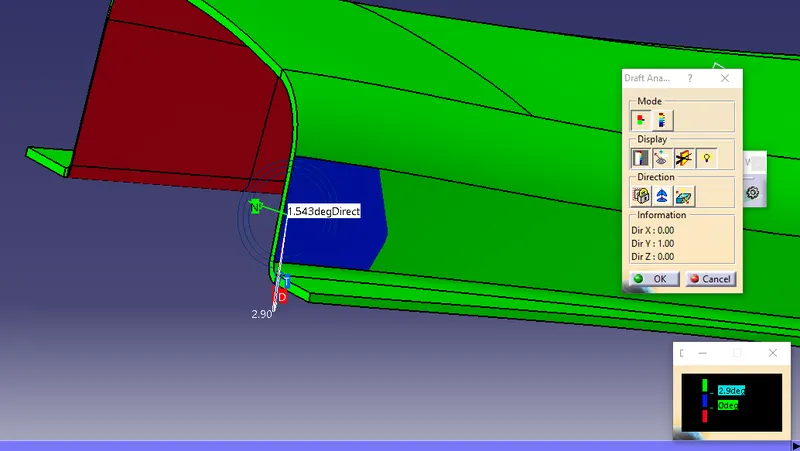
Doghouse :
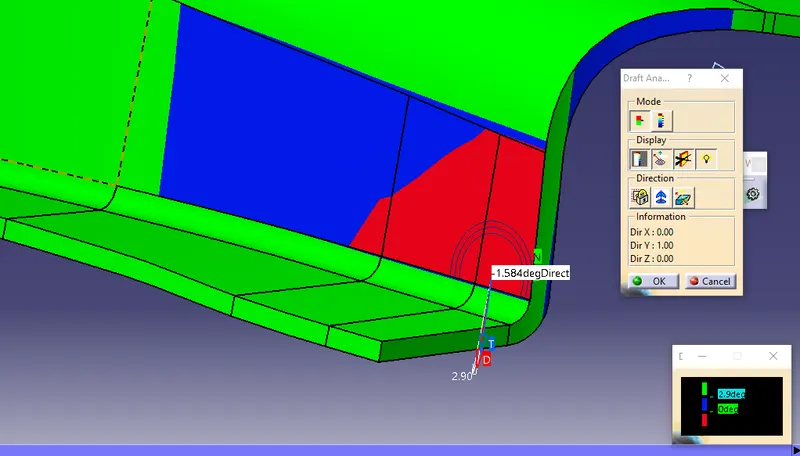
- Once the model is prepared and the Tooling axis is created then the Draft analysis is done on the surface.
- To perform Draft Analysis, Go to the insert Menu >> Click Analysis >> Click Feature Draft Analysis option >> New Dialog boxes opens.
- Select the Elements as the Doghouse Model and the Direction as the LIFTER axis.
- Using the Compass option to define a new direction of the draft.
- Click OK to check if all the surfaces come under the limits of 0 to 3 degrees.
- If the draft is more than 3 Degree then the surface will be shown as green.
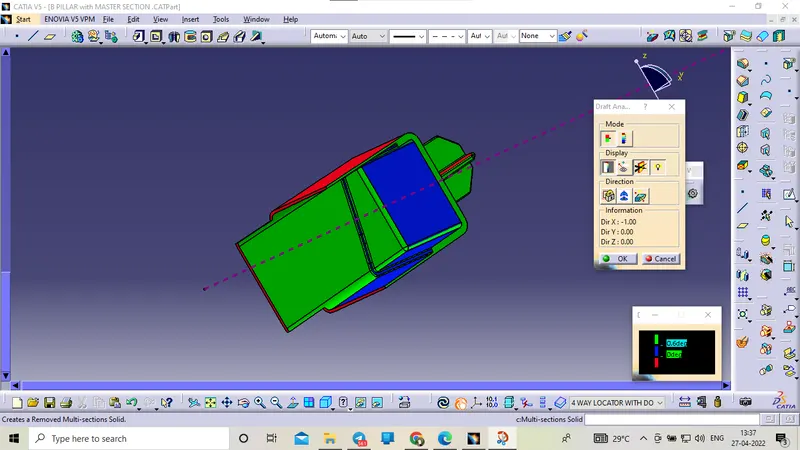
- Select the Elements as the Doghouse Model and the Direction as the tooling axis.
- The minimum draft of 0.48deg to the doghouse.
FINAL MODEL :-
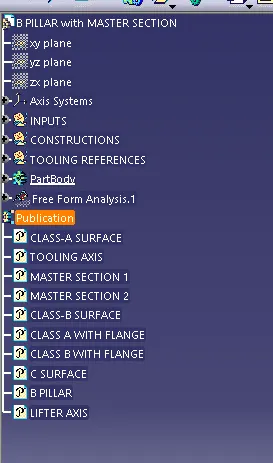
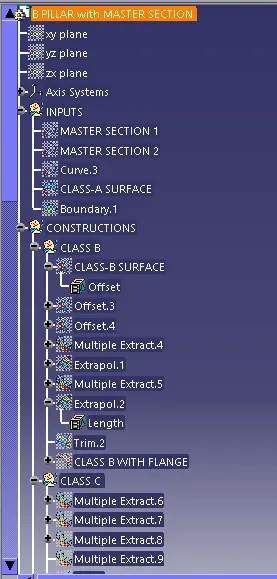
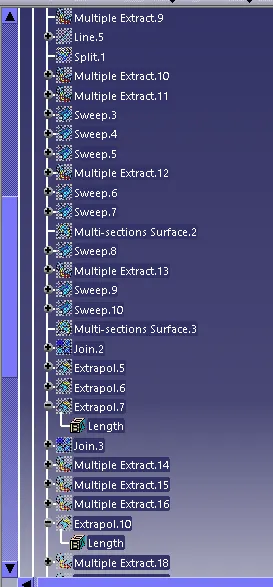
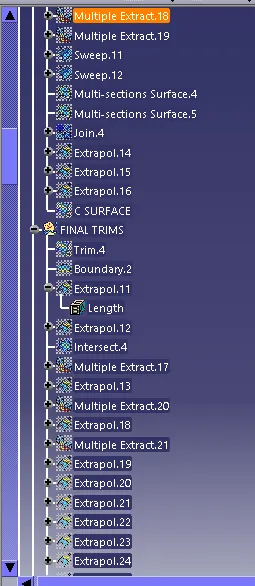
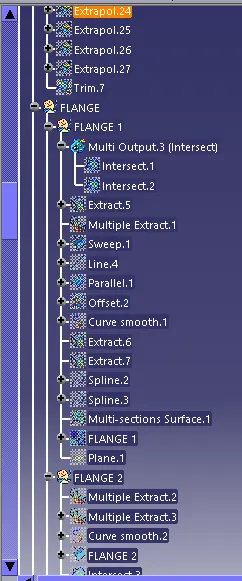
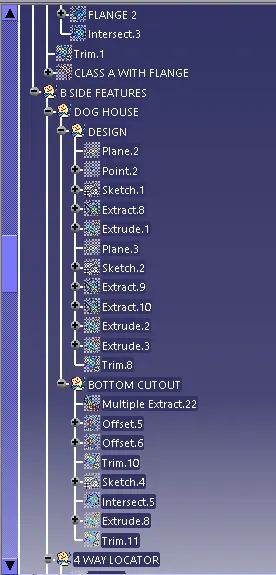
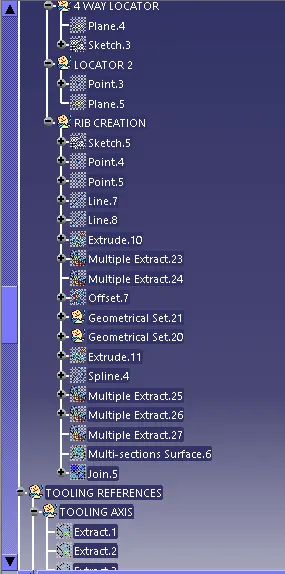
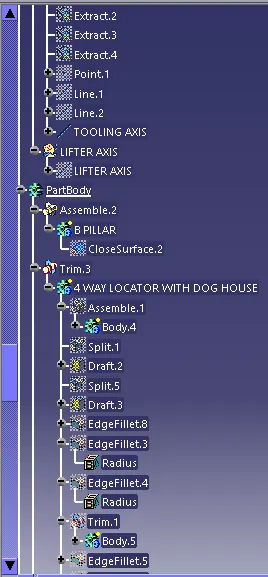
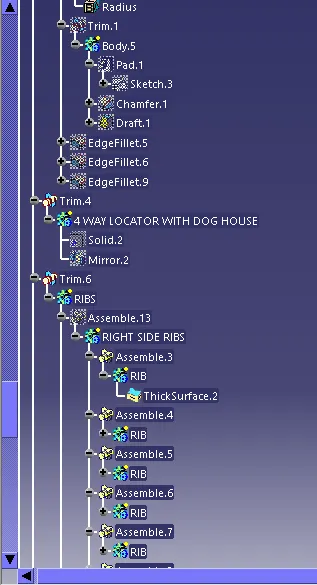
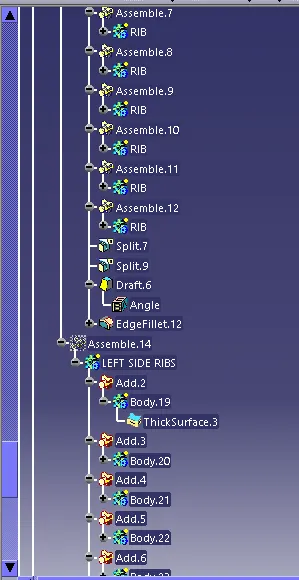
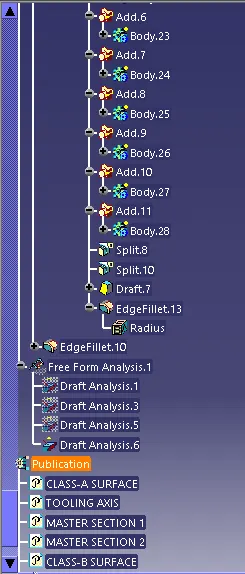
Tree Structure :-