Week - 8 - Morphing
Basic of Morphing (ANSA)
Morphing
ANSA encompasses a full – fledged Morphing menu which is completely integrated with ANSA’s interface and doesn’t require any additional module installations or licenses. The functions of the Morphing menu can be used to efficiently re-shape both FE and/or Geometry based models.
Domain (Box) Morphing
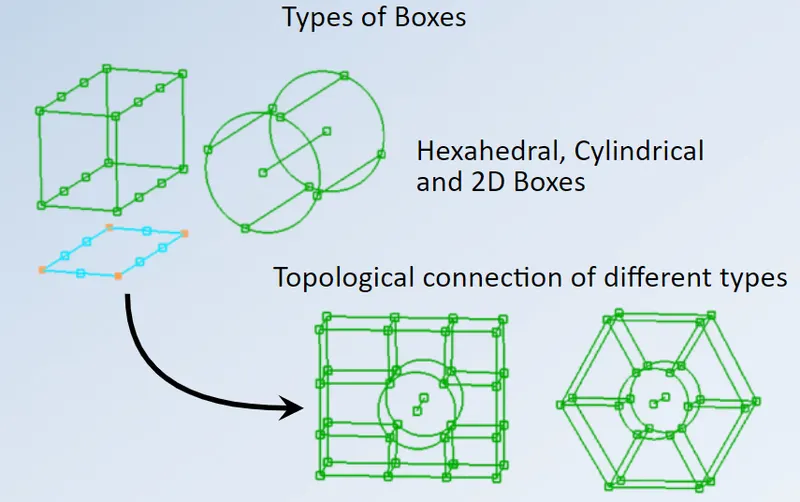
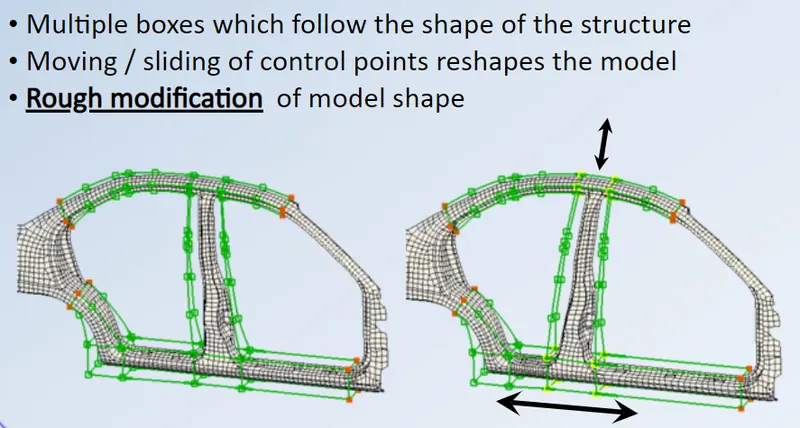
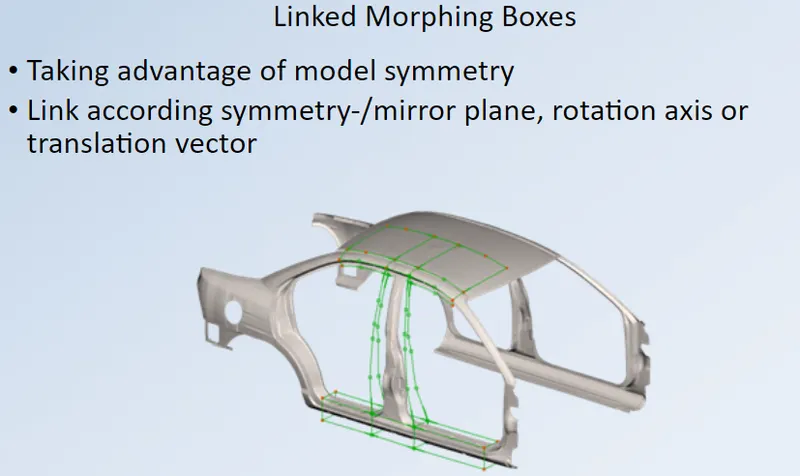
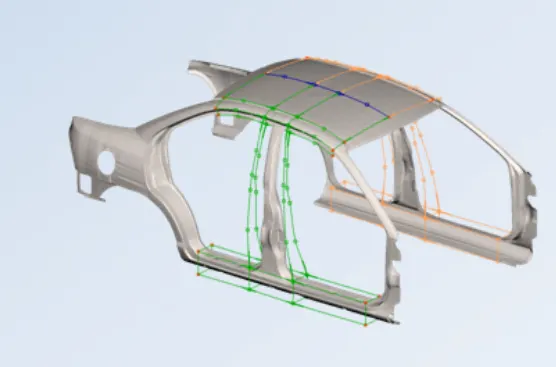
Domain or Box Morphing is preformed via boxes that are created around a particular part or assembly that the user intends to morph. The movement of the Morphing boxes control points defines the morphing operations on the entities inside the Morph box. This type of Morphing can be applied to both FE and Geometry based models.
Direct Morphing
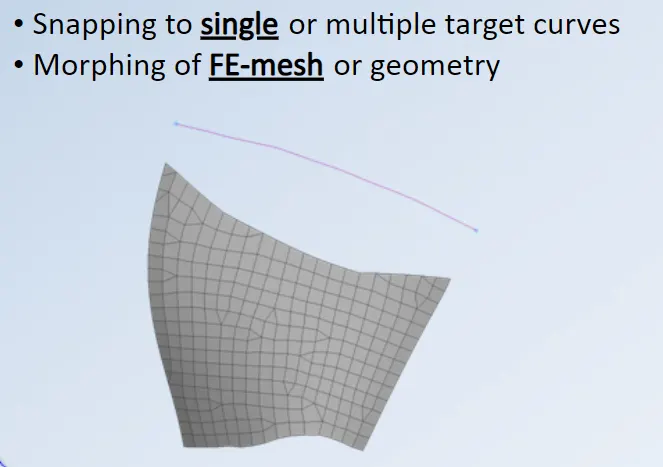
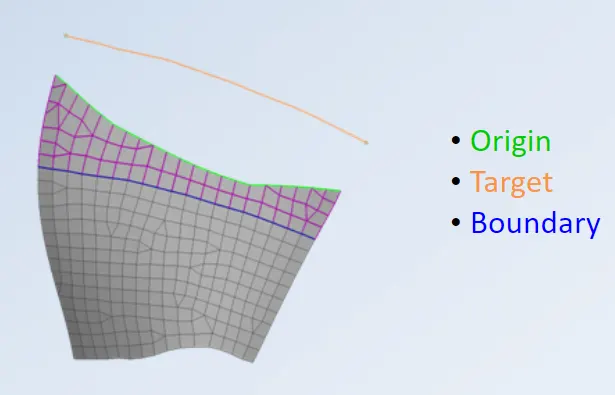
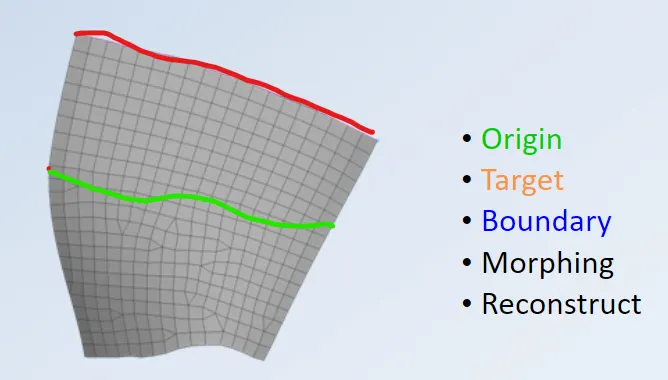
ANSA’s Direct morphing features gives the user the ability to efficiently modify a part locally without having to create Morphing boxes. This method is extremely useful in creating local modifications on single parts. Creation of depressions, surface fitting certain FE part features to new target geometry, moving selected features along the contour of a surface and also the ability to freeze (rigid) elements during the morphing process are some of the direct morphing abilities.
Parametric Morphing
The desired morphing actions can be saved as parameters which can be accessed in batch mode. Users can enforce desired shape changes by changing numerical input value for the appropriate parameter. This method of morphing is highly utilized for coupling of the morphing operations to an external optimizer. The scripting capability can be used in conjunction with ANSA’s parametric morphing functionality to deliver faster DOE models.
Geometry Morphing
ANSA brings to the CAE world its ‘one – of – a kind’ tool for CAD geometry morphing. This pioneering concept allows the user to utilize the inventory of all the familiar FE morphing functions to perform equivalent operations in a CAD environment on geometric entities.
Morphing with ANSA
- Reshape any type of FE without turn back to the CAD model for modification
- Introducing parametric shape modification for optimization purpose
- Morphing modification on both FE and Geometry
Two main methods
- Box Method
- Direct morphing
Direct morphing (without morphing boxes)
- For local modification of simple component or assembly
- Applicable on geometry and FE model
- Different type of movements
Box-Morphing
Domain or Box Morphing is preformed via boxes that are created around a particular part or assembly that the user intends to morph. The movement of the Morphing boxes control points defines the morphing operations on the entities inside the Morph box. This type of Morphing can be applied to both FE and Geometry based models.
Model 1:
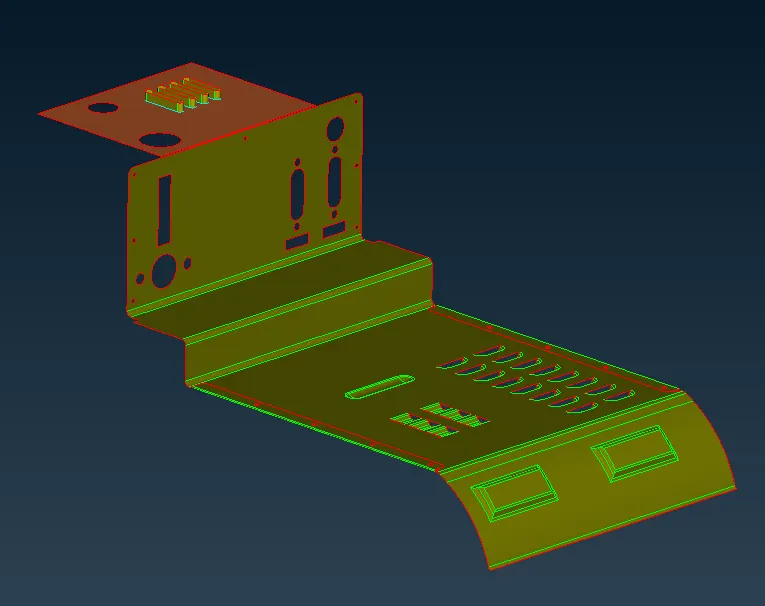
Here we are using only Box morphing method to change the shape of the model
- For doing morphing by box method, firstly we have to create the morph box, for that go to morph module then go to new option, check out ortho and then go to geometry to create the morph box for the geometry, if we have FE then select FE option, after that select the surfaces for which you want to change the shape, so for the selected geometry morph box is created
- In box morphing by the use of grids and handles, we try to change the shape of the model as per our requirement
- To move handles, go to morph box option then go to move, here we got two option to move handles one is free and other one is value dependent (i.e. the value we defined), also we can split the morph box in order to get accurate result, or more precise control
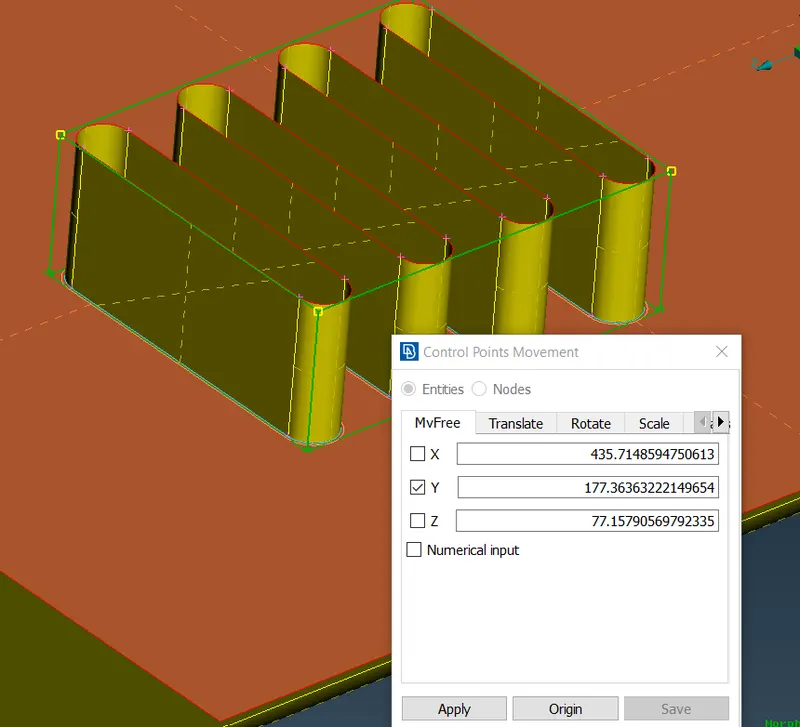
Moving the handles or control point in Y-direction to increase the height of the feature
- After finishing the morphing means after reshaping your model is done, then we have to delete the morph box
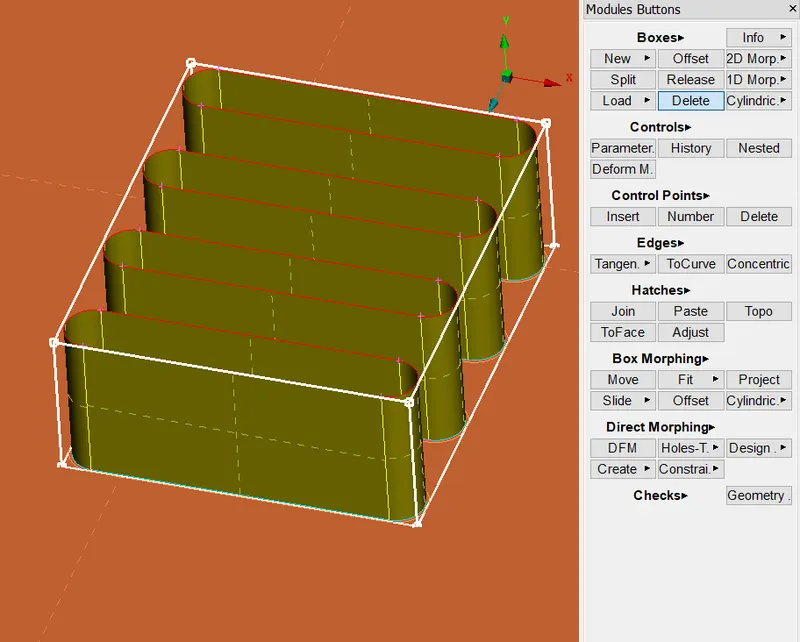
Deleting the Morph-Box
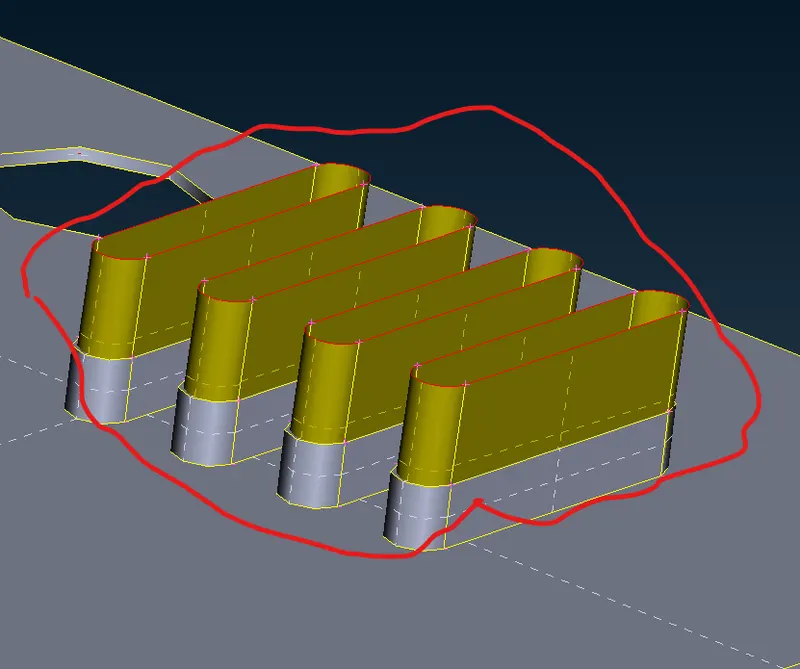
Increasing the height of the feature by morphing
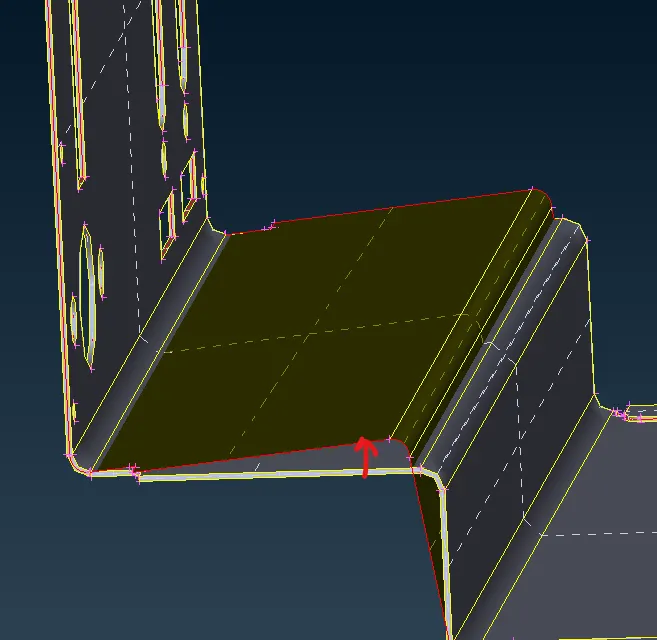
Increasing the height of the floor
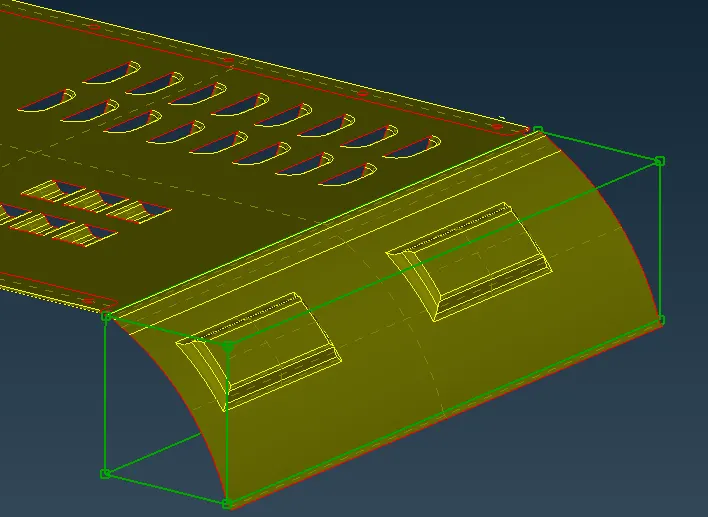
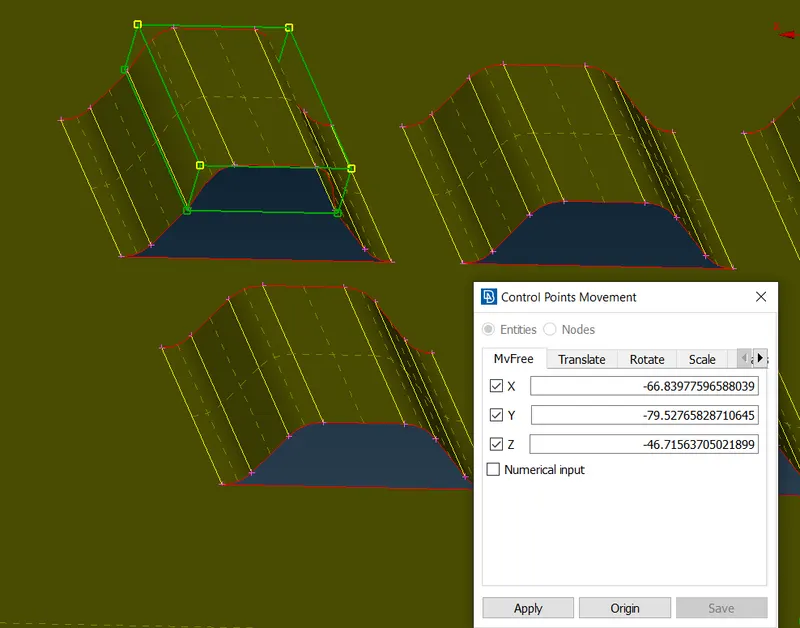
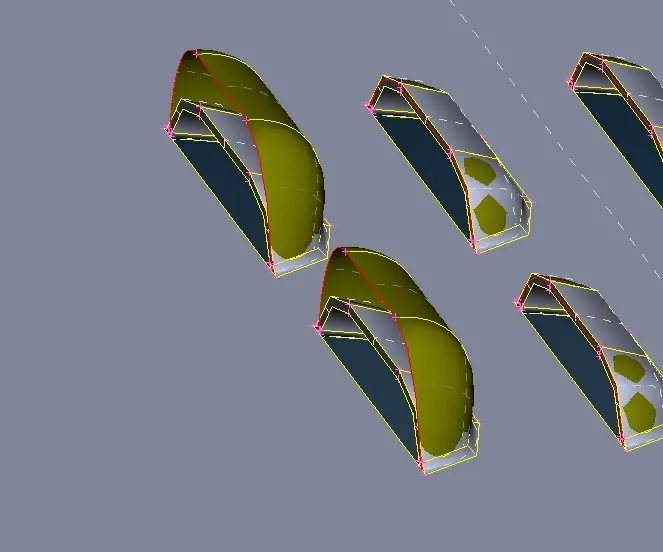
Increasing the height by using morph box method
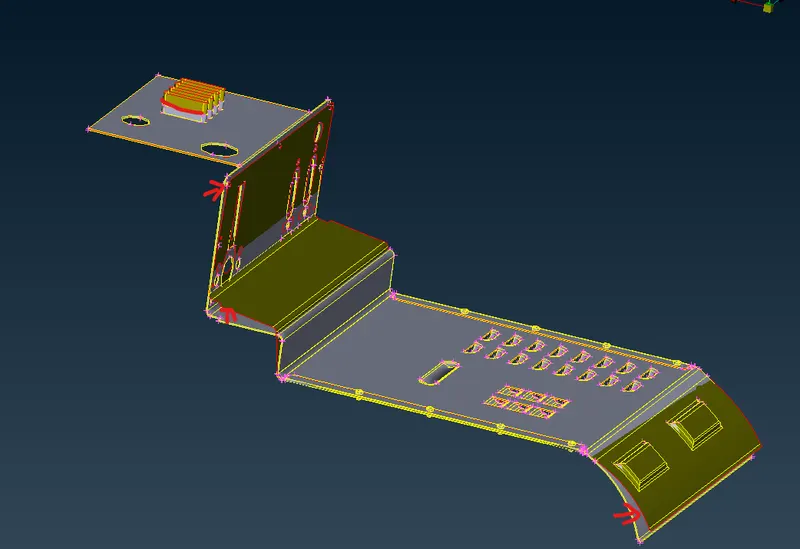
Final morphed model
Model 2:
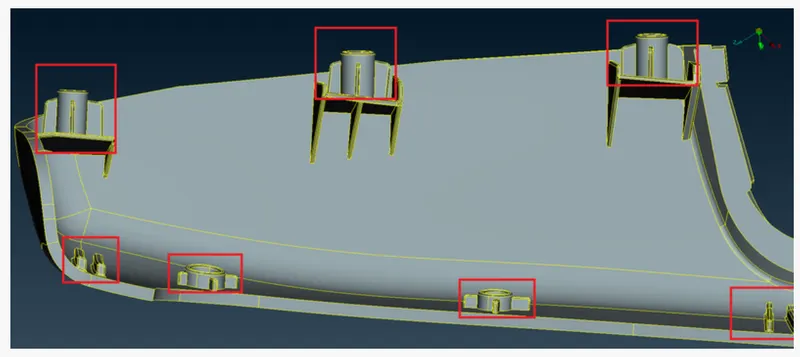
Hand rest model
Note: Here we have to only increase the height of the Dog house and ribs
- Here again we use the Box morph technique to increase the height of the Dog house and the ribs
- Firstly, we have to create the morph box by using new option in morph panel
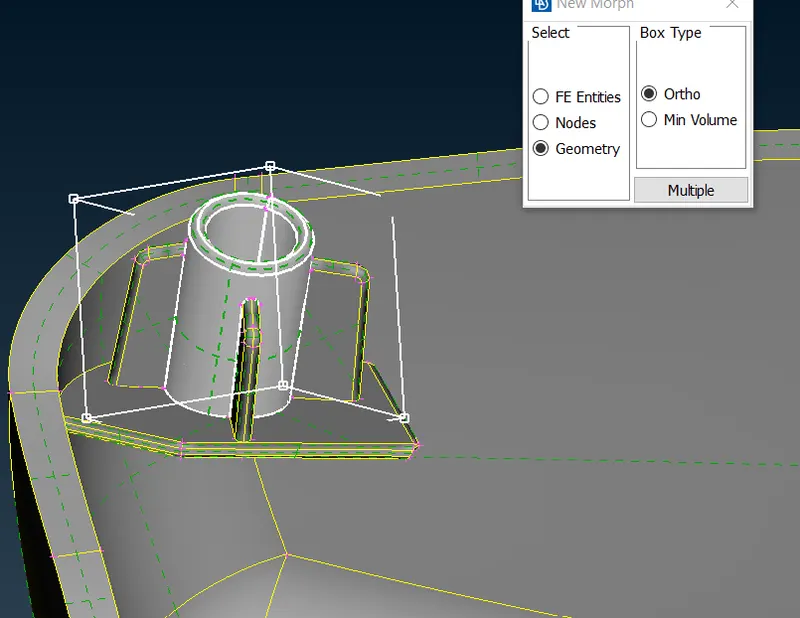
Creating a morph Box
- After creating the morph box now, we have to move the handle or control point in y-direction to increase the height of the dog house and ribs.
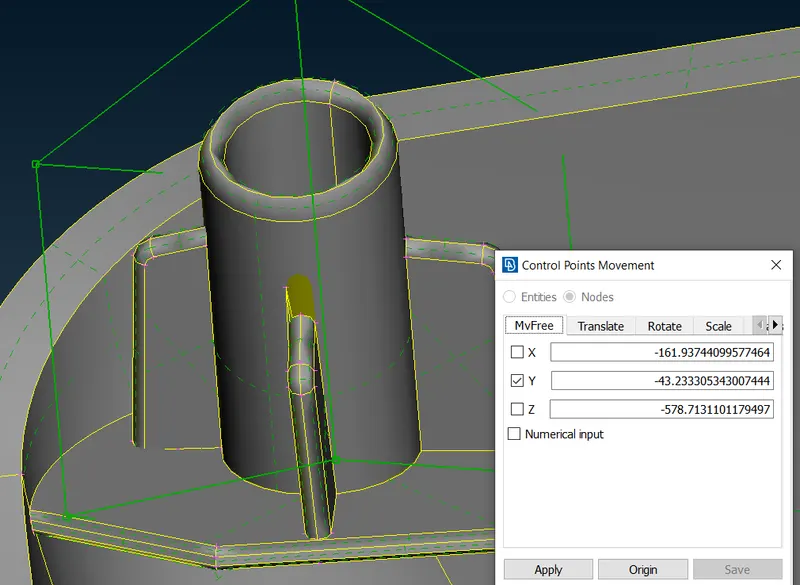
Increasing the height of Dog-House and ribs
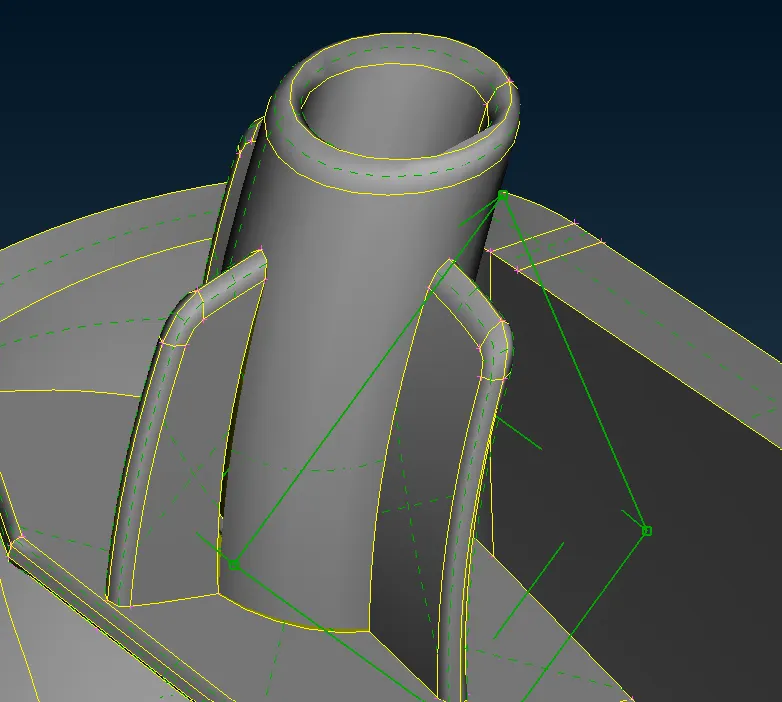
Increasing the height of the Ribs
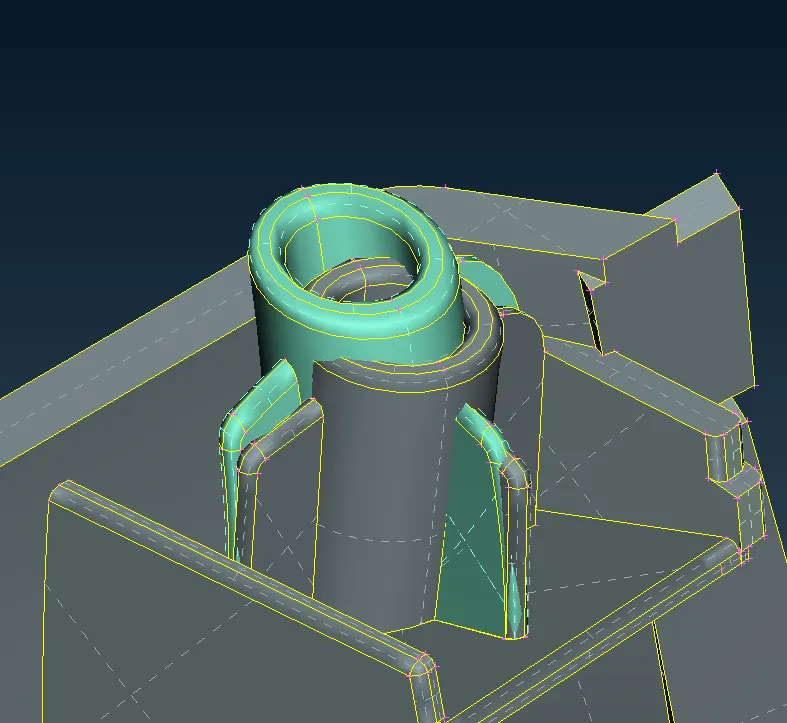
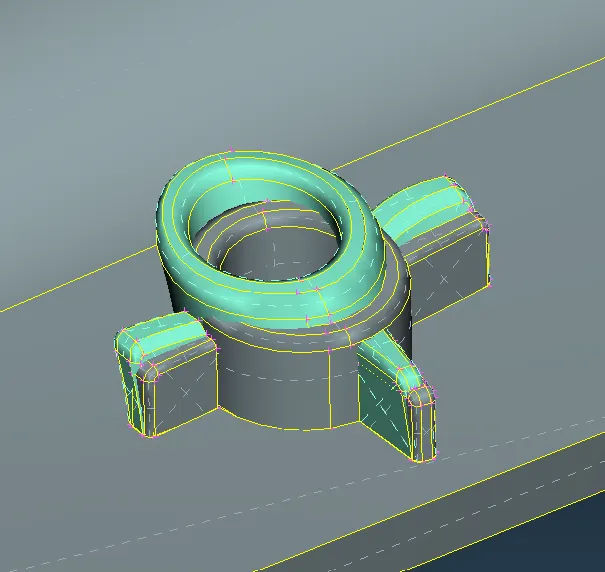
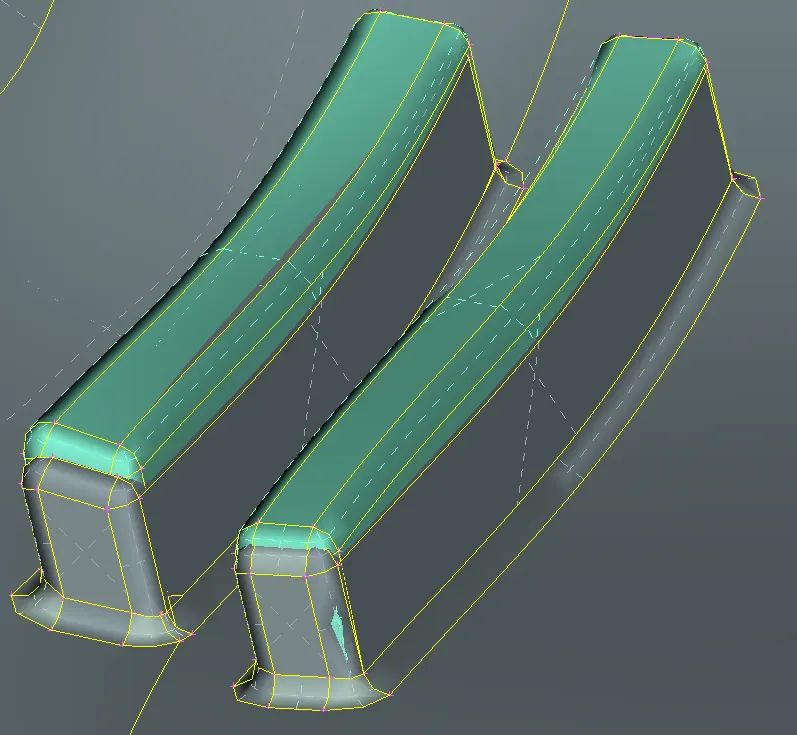
Final morphed model
Learning outcomes:
- Understanding about the morphing and its various types
- Understanding about the application of morphing and how to use them