Week 8-Challenge
OBJECTIVE- TO CREATE 3D TETRA MESH ON THE GIVEN COMPONENTS WITH GIVEN QUALITY CRITERIA
A.
creating tetra mesh for housing
| element min size | 2 |
| element max size | 7 |
| element target size | 5 |
| tet collapse | 0.15 |
1. Importing model- go to the import option in the tool bar and import the geometry and select the type of file
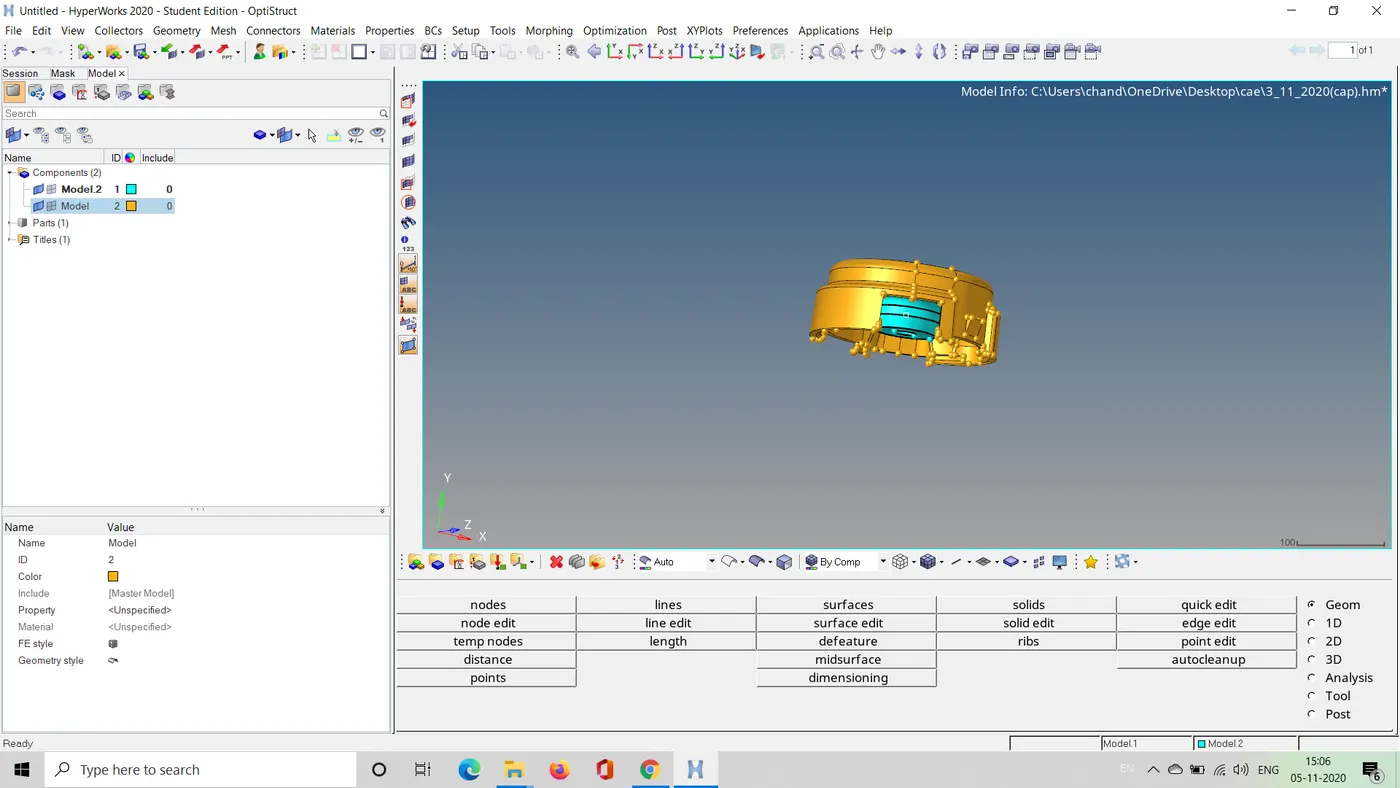
2. After importing the model do the geometrical cleanup and check for surfaces that might fail under minimum element size and using quick edit menu , choose replace points and defeature elements in geometry tool bar
3. After clean up , go to the 2d meshing meshing and choose 2d tria and fix the element size as 5 and select the furfaces and hit ok
4. after meshing check for the quality criteria and using the elemental checkup repair the failed elements
5. And to develop tetra mesh , go to 3d mesh toolbar and choose tetra mesh and choose the elements created and hit ok
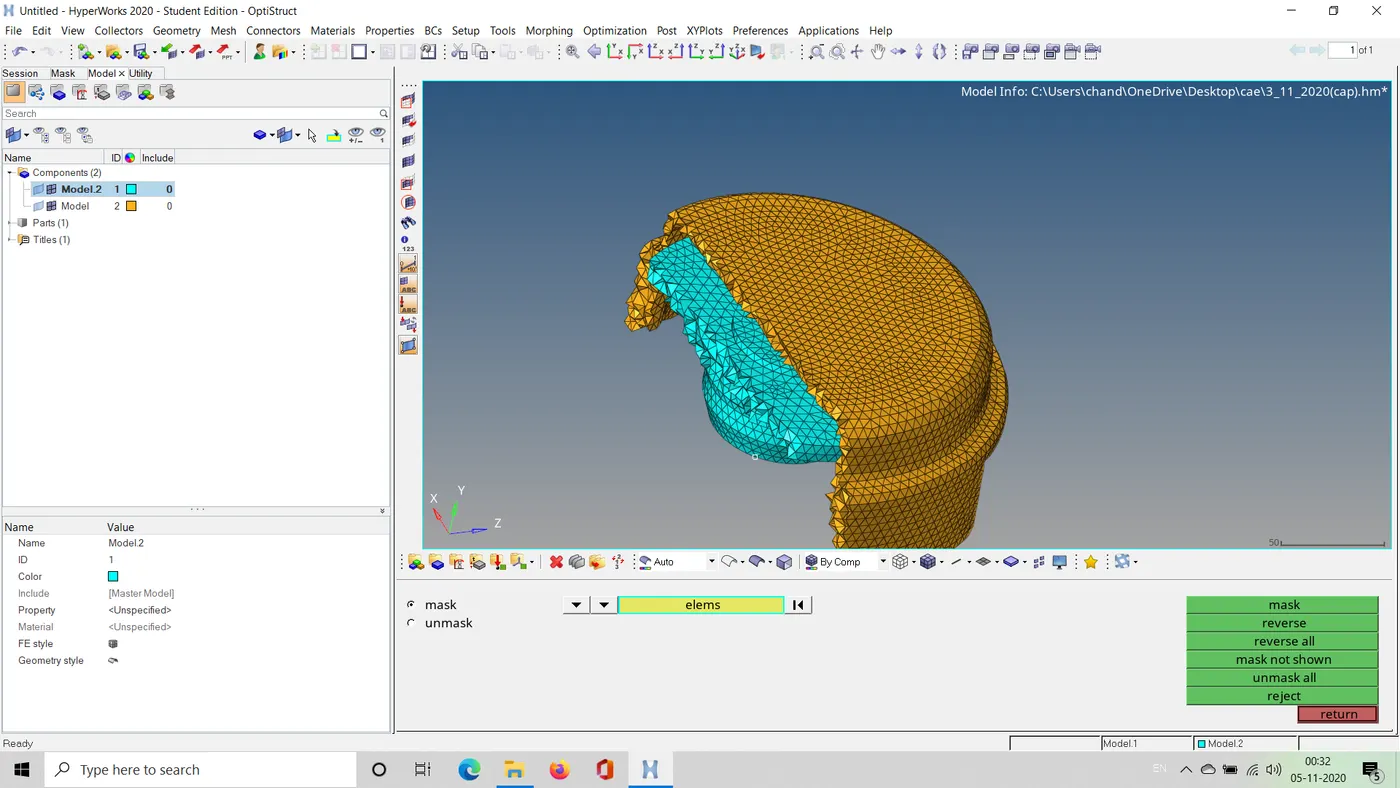
6. The 3d tetra elements are created successfully
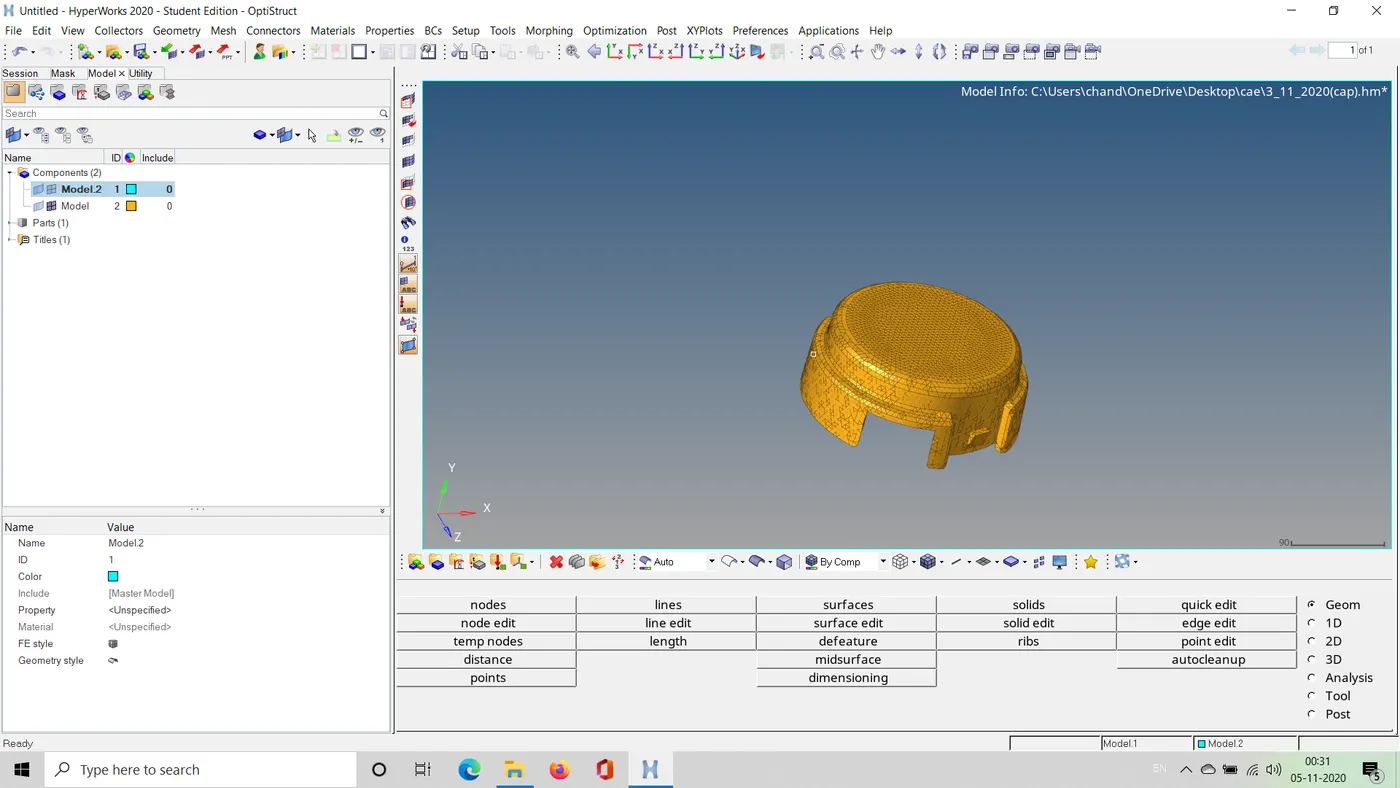
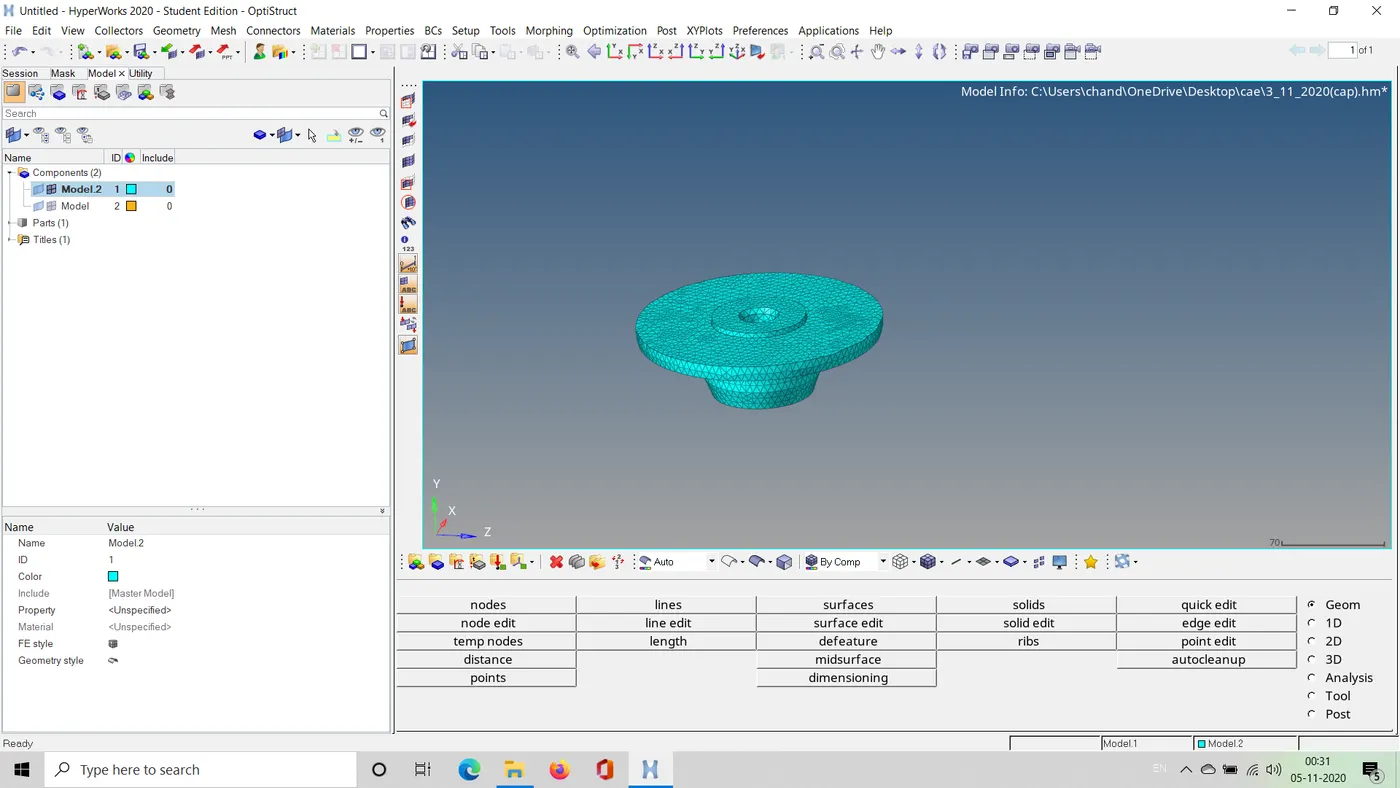
final meshed model
B.
MESHING CRANK CASE
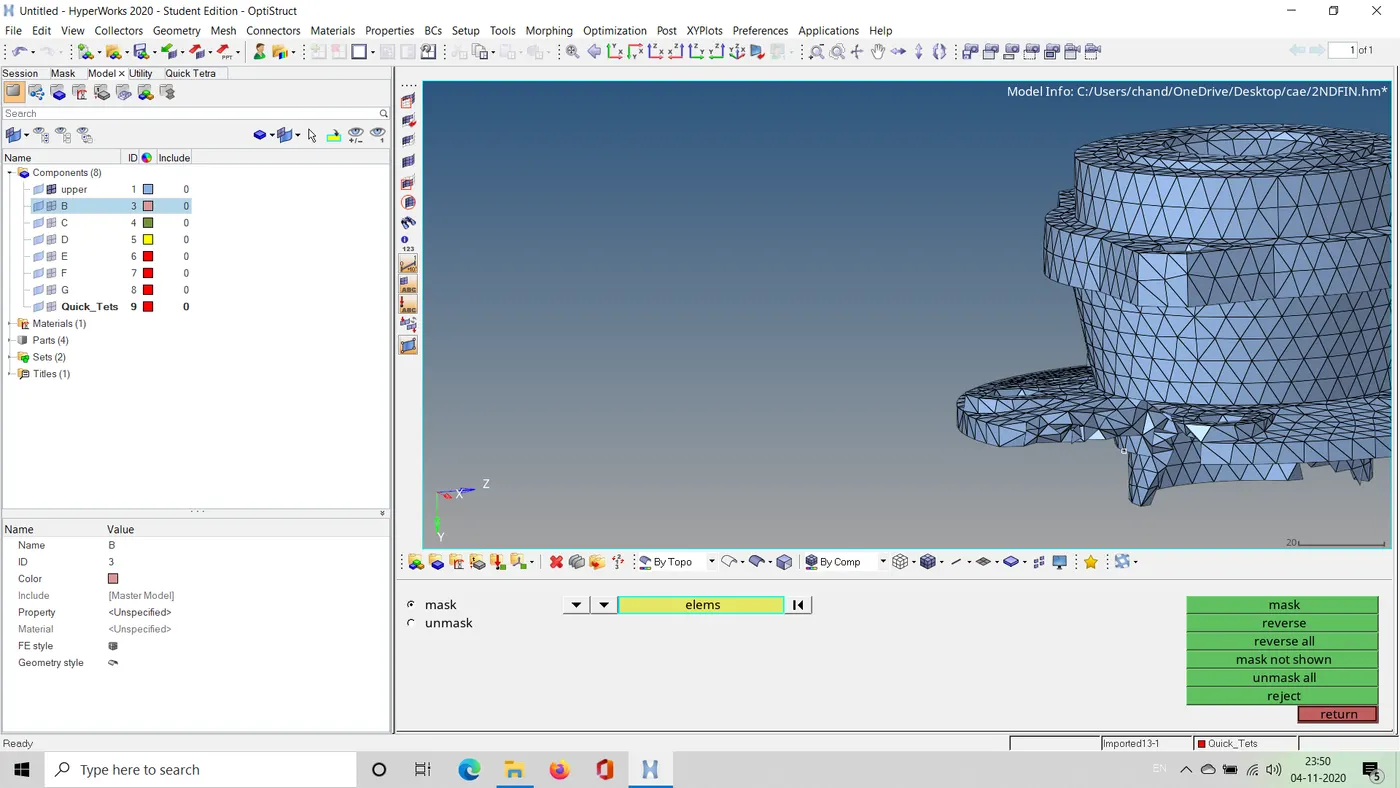
1.Import the cad model from the import tool bar, import grometry --> choose the type of model and hit import
2.Change it to topo view mode and check for any open edges
3. Go to 3d tool menu and select tetra mesh ( it showed a open surface or not a closed error)
4. Go to the view and choose hypermesh and in hypermesh choose utility , under utility chose quick terta mesh and select the component and give the quality criteria and choose trias only and hit mesh
5. The 3d tetra mesh is created successfully
6.Go to tools -element check -and check for tet collapse and if any failed elements try remeshing them again to overcome the failed elements
CAD MODEL
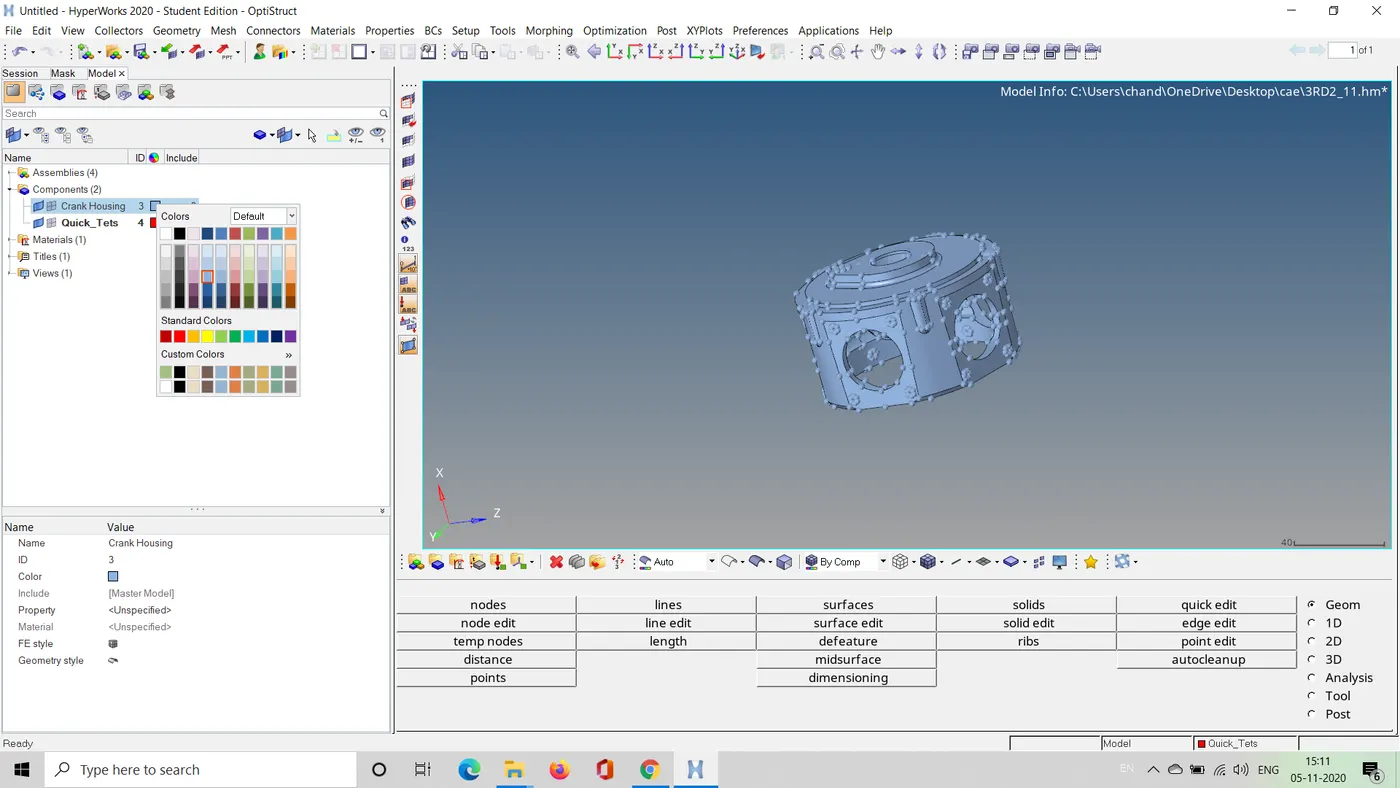
FINAL TETRA MESHED MODEL
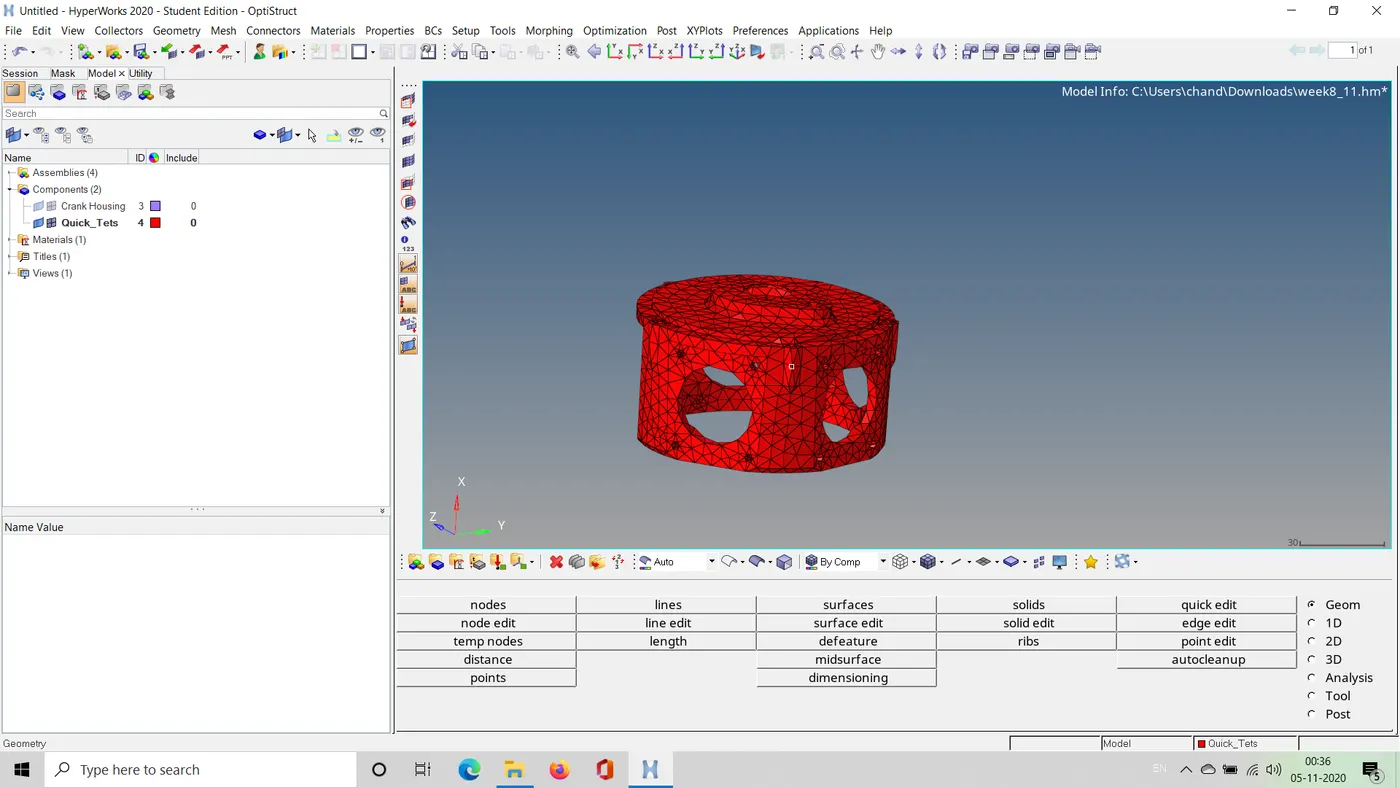
C. 3D TETRA MESH OF THE GIVEN AXLE COMPONENT
1.Import the cad model from the import tool bar, import grometry --> choose the type of model and hit import
2.Change it to topo view mode and check for any open edges
3.Do manual geometry cleanup and remove small teeth like structure from hub which might cause a element failure
4. Go to 3d tool menu and select tetra mesh ( it showed a open surface or not a closed error)
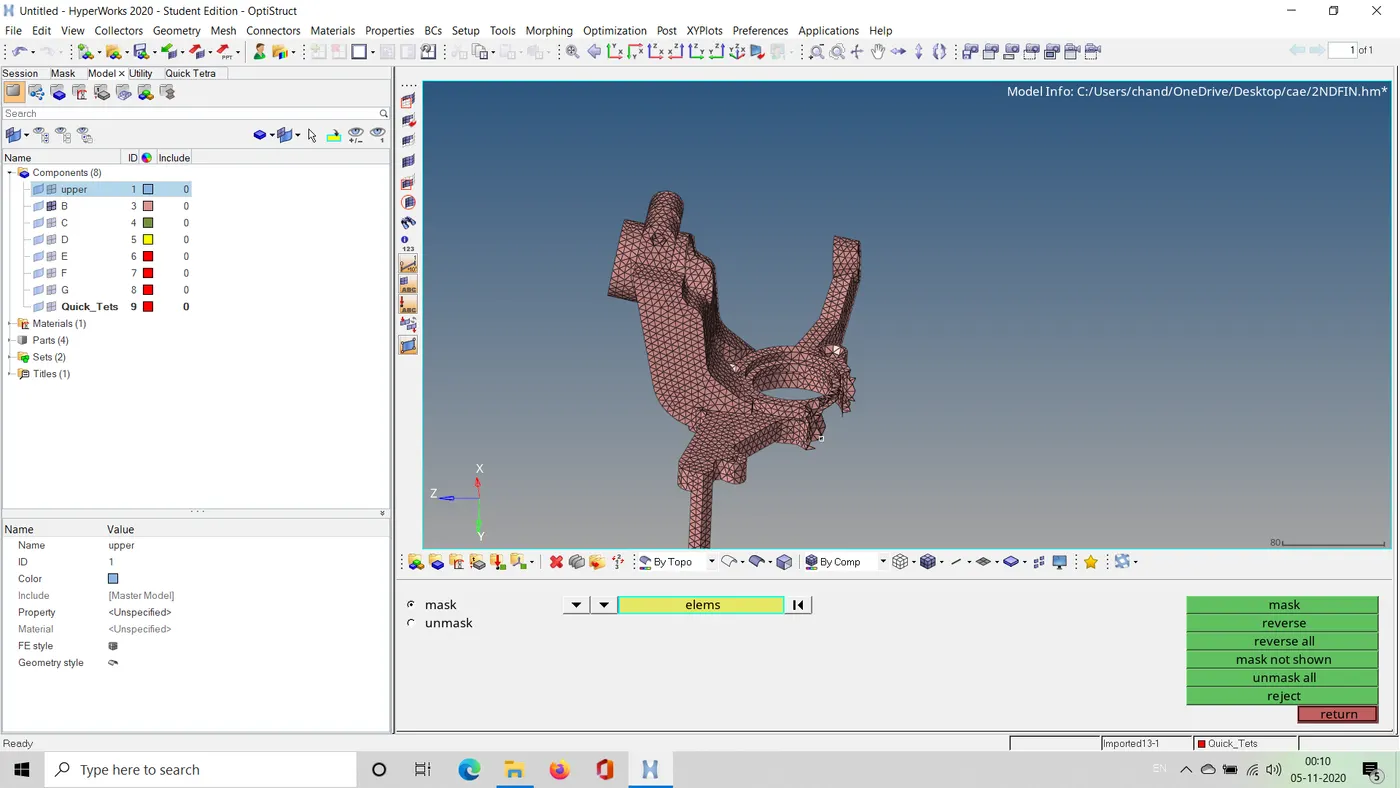
5. Go to the view and choose hypermesh and in hypermesh choose utility , under utility chose quick terta mesh and select the component and give the quality criteria and choose trias only and hit mesh
6. The 3d tetra mesh is created successfully
7.Go to tools -element check -and check for tet collapse and if any failed elements try remeshing them again to overcome the failed elements
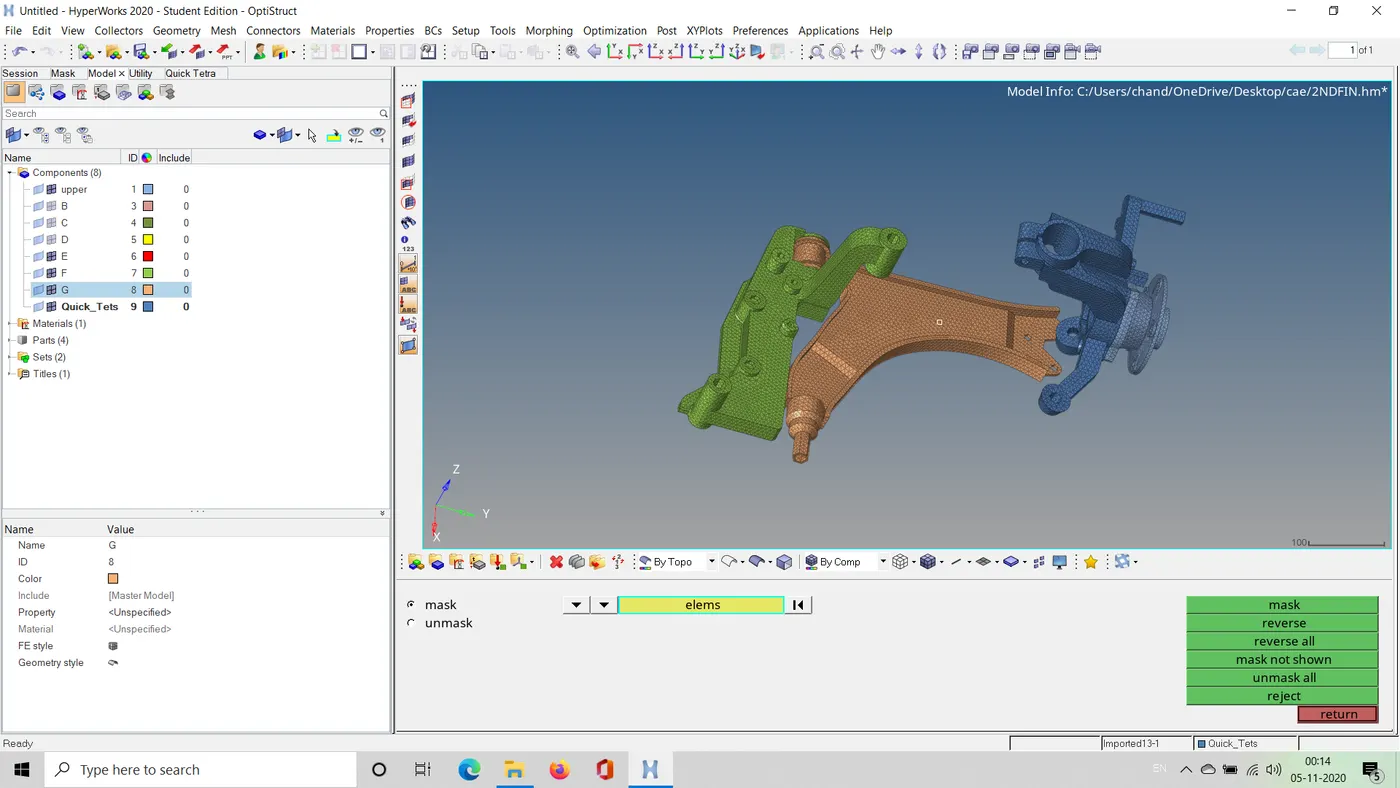
8.Do the same for all remaining components
CAD IMAGE
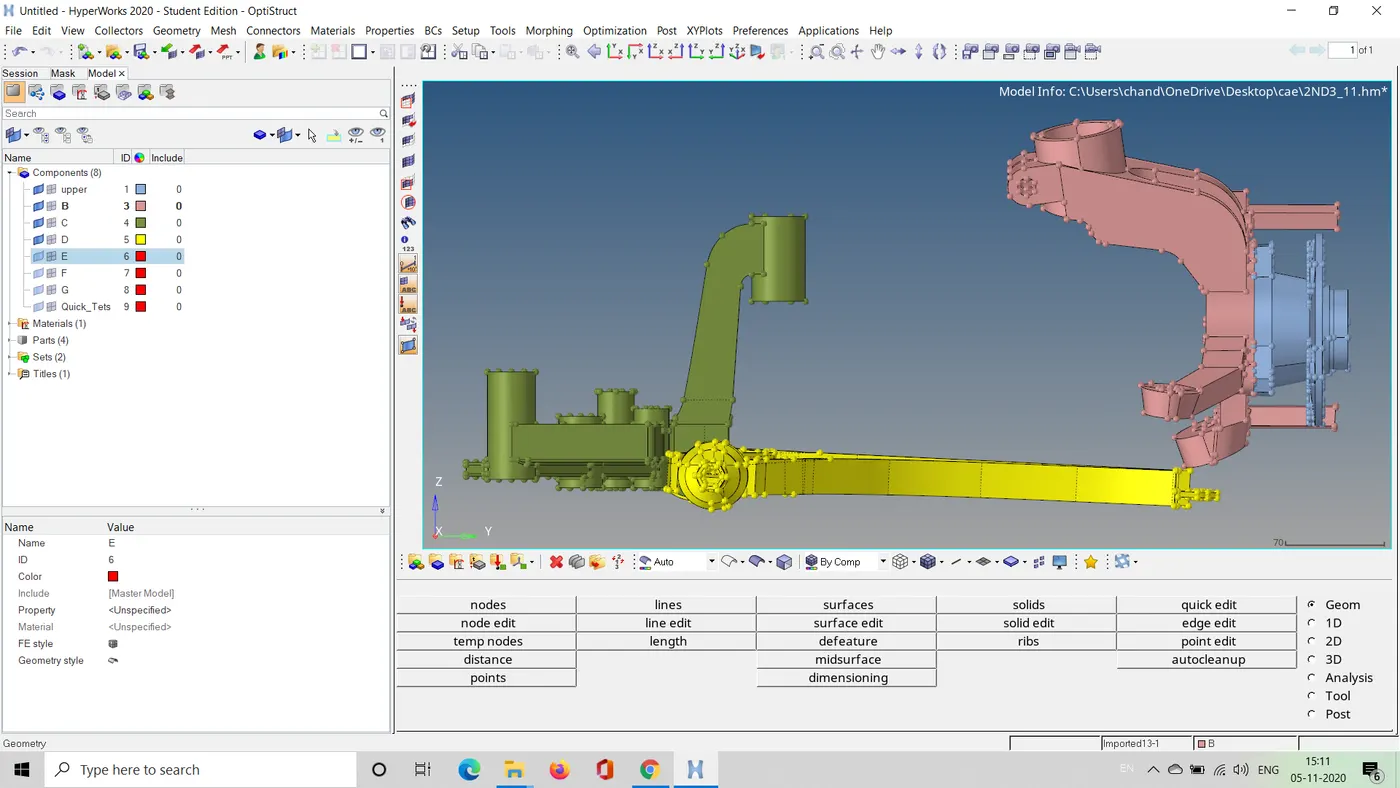
FINAL TETRA MESHED COMPONENTS