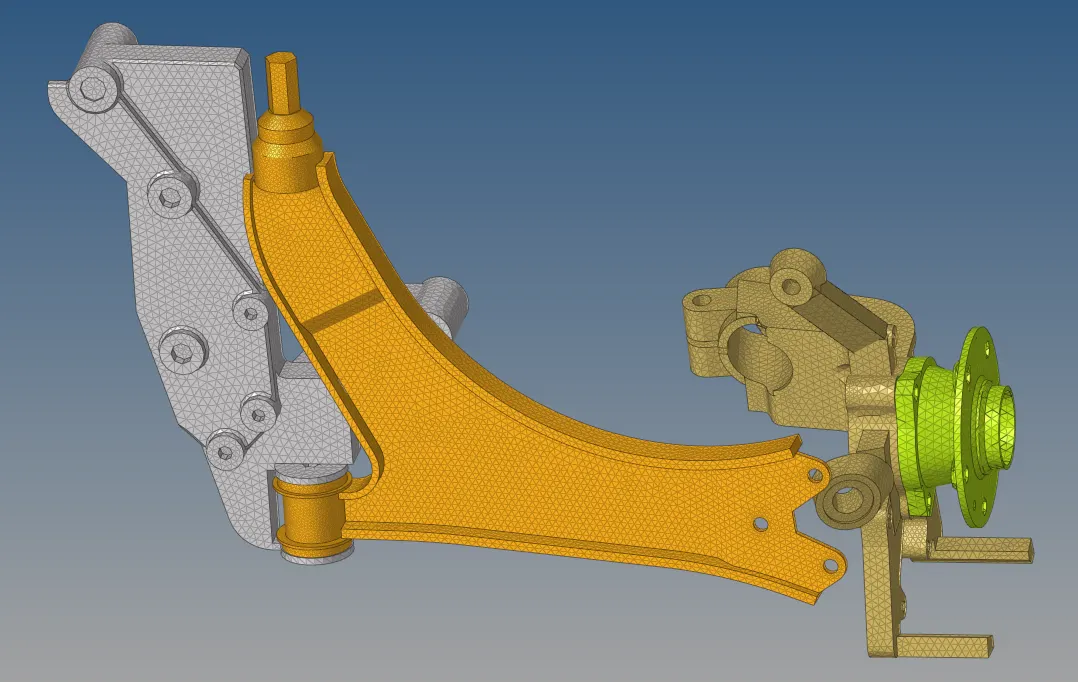
3D Meshing.
There are 3 methods to generate tetra meshing:
- Conversation of 2D tria to tetrahedral elements, by using tetra mesh panel.
- Using the quick tetra mesh from utility panel.
- Using the volume tetra mesh panel.
Conversation of 2D tria to tetrahedral elements, by using tetra mesh panel.
- Import the model intop hypermesh clean the geometry.
- Delete the solid from the model. by going into delete > solid > delete entity
- Perform 2D meshing on the model, Go to 2D > automesh > trias > element size > mesh

- After 2D meshing, Check the quality criteria and fix it.To check and fix the quaity error go to 2D > quality index > check the element size . fix the element size manually if any error are found.
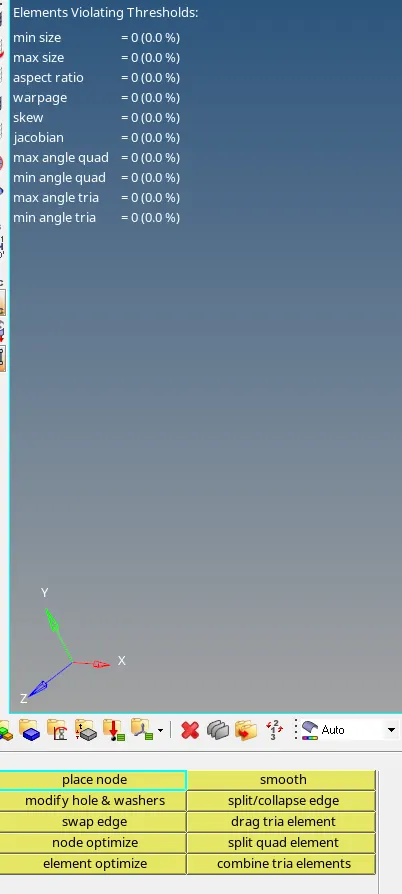
- now model is ready for 3D meshing. To perform 3D mesh go to 3D > tetramesh > select elements > mesh

- to check weather 3d elements are created mask some surface for that go to tool > mask > select some part > mask
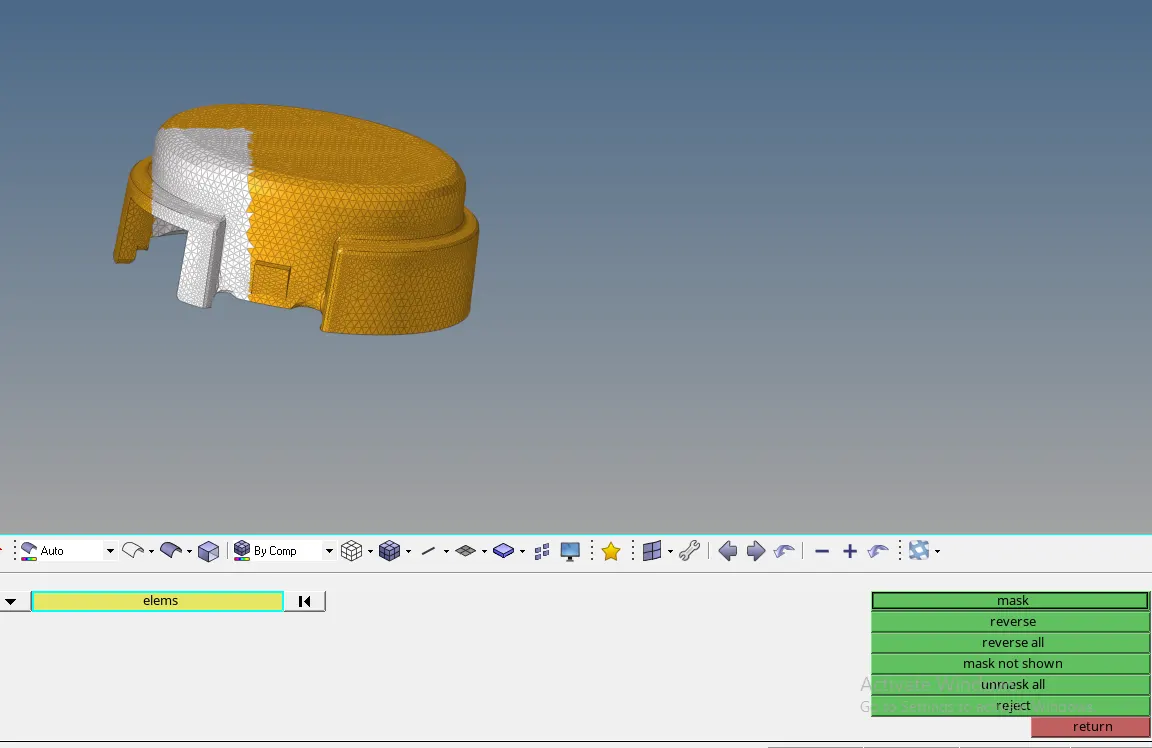
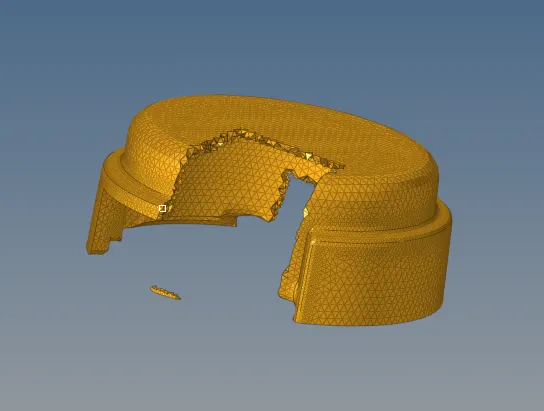
- 3D element are created succesfully.
Genetrating tetra mesh by using the quick tetra mesh from utility panel.
- Import the model intop hypermesh clean the geometry.
- Delete the solid from the model. by going into delete > solid > delete entity
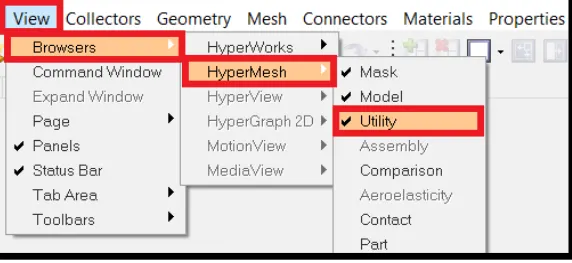
- Click on view > browser > hypermesh> utility
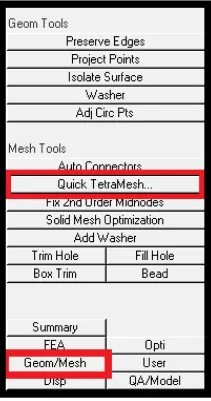
- select geom/mesh from utility menu> Quick tetramesh
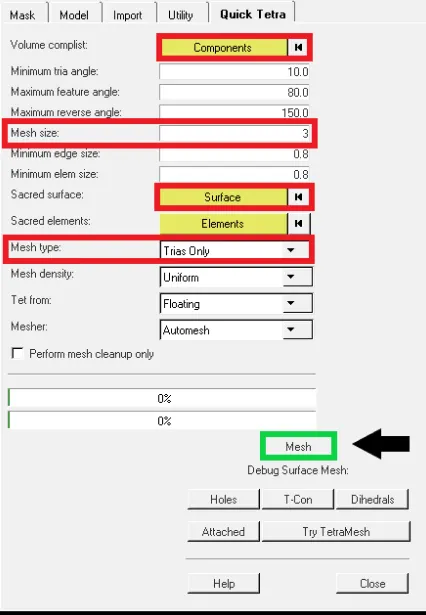
- Now select component and surfaces.
- specify the mesh size , mesh type and click on mesh.
- after compelting surface remesh dialogue will pop up.
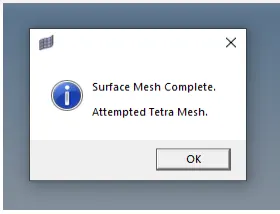
- click on the ok butto to complete the tetrameshing process, A new component will be created in the tab bar.which contain tetrahedral element.
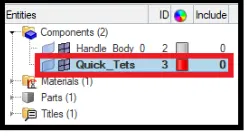
- To check weather 3d elements are created mask some surface for that go to tool > mask > select some part > mask.
Genetrating tetra mesh by using the volume tetra mesh panel.
- Import the model intop hypermesh clean the geometry.
- Do not delete the solids of the model, Go to 3D > tetramesh > Select volume tetra > select use curveture > select use proximity > specify the element size > tick clean up element and mesh

- To check weather 3d elements are created mask some surface for that go to tool > mask > select some part > mask.
AIM : Create Teramesh for Housing.
PROCEDURE:
Housing model
component 1
In this model lets try by volume tetra mesh panel.
Step 1 : Import the model into hypermesh.
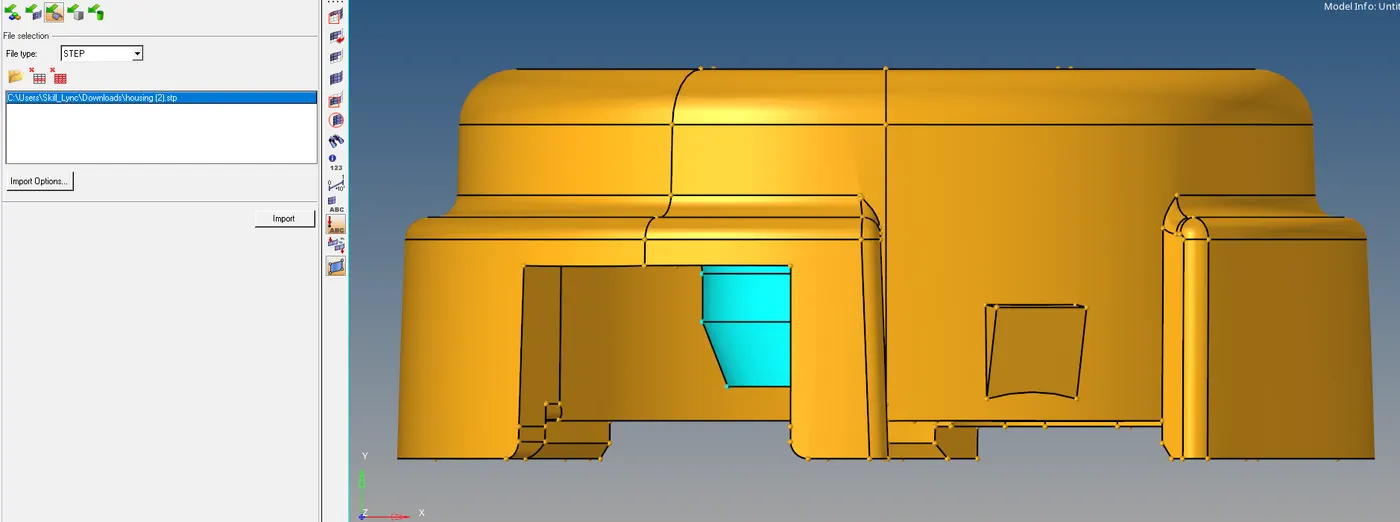
There are two component in the housing model.
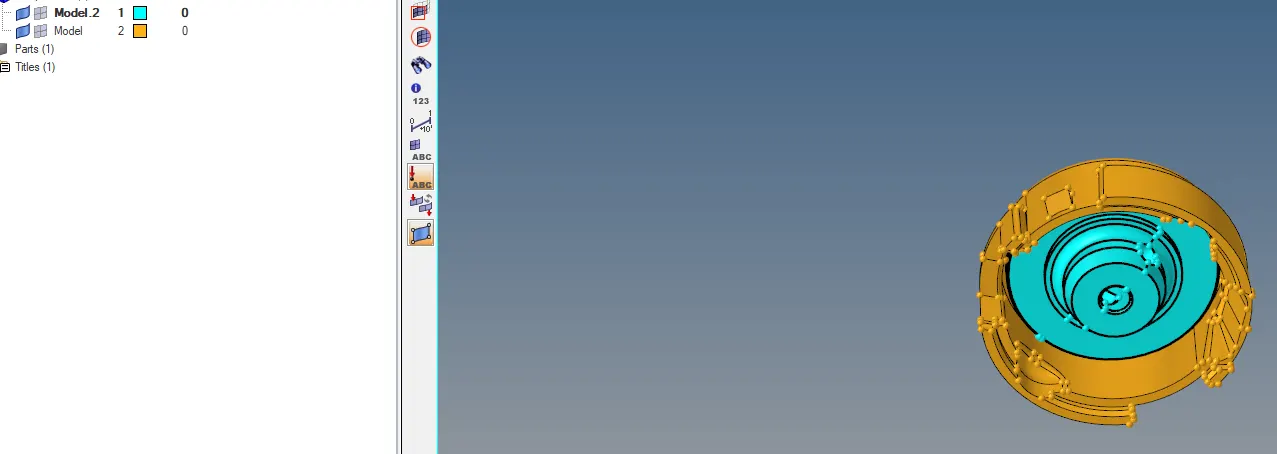
select one component perform tetra mesh by using the quick tetra mesh from utility panel. steps to perform the tetra mesh by utility panel are shown above. Perform the mesh.
Now check for the tet collapse. to check tet collapse , Go to tools > check elems .

In check element set the value for tet collapse.

check for the failed element

Step 2 : Remove the tet collapse.
to check for tet collaspse
click on check tet collapse > save failed > mask > retrieve > mask > reverse
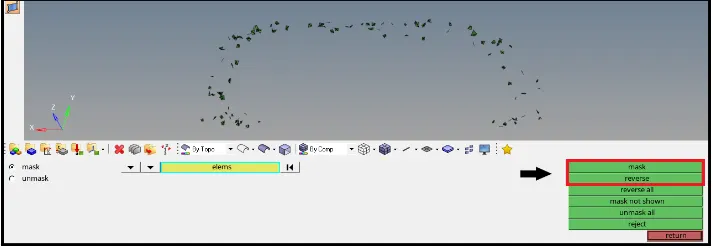
tet collapse can be removed in two way :
- Go 3D > tetramesh > tetraremesh > select the element > remesh.

- Go to tools > translate > select the node > select the N1 , N2 > translate accordingly.

check for the failed elements for tet collapse and fix it, again check the fixed value as shown below
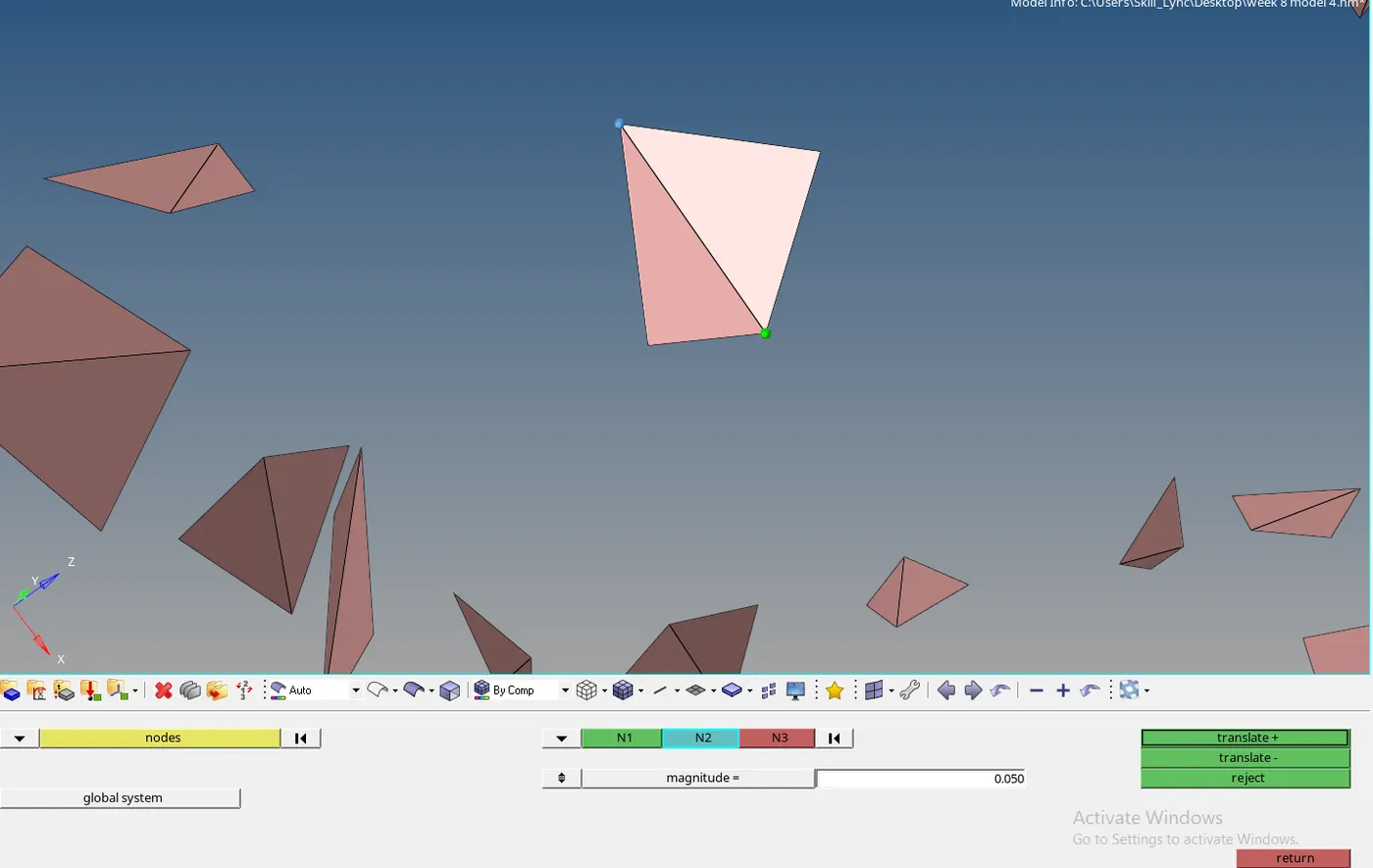
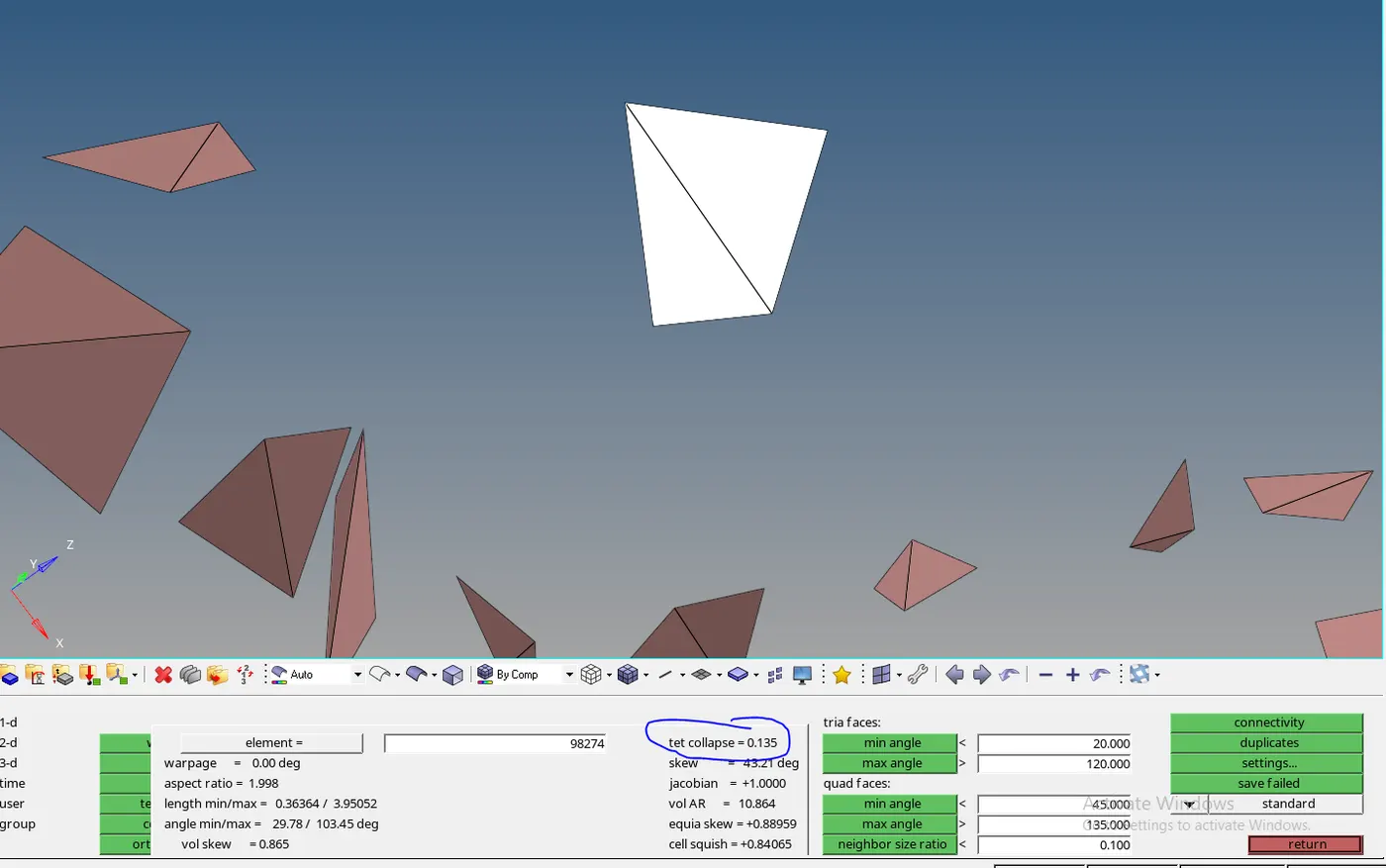
tet collapse value should be 0 . as shown below.
component 2 : we can do meshing for this component by using the quick tetra mesh from utility panel. follow all same steps which wer done for model 1 check for the tet collapse.
Cad model image :
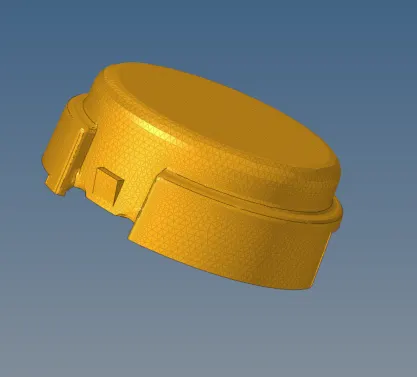
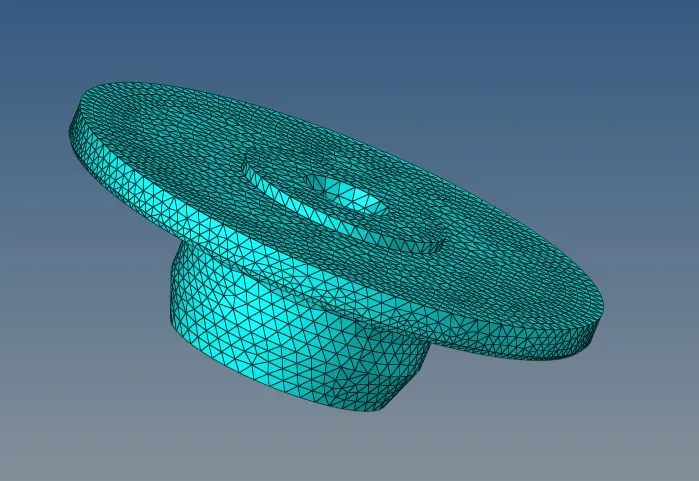
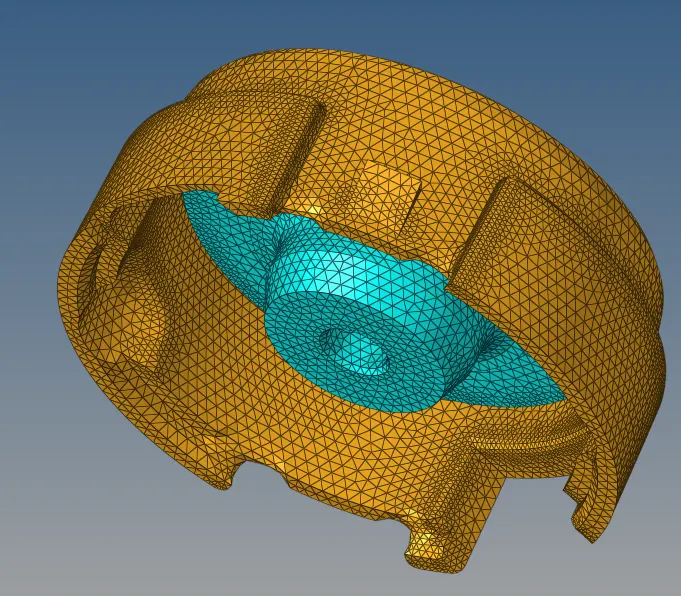
conculsion : Teramesh for Housing was successfully created.
Final model image :
AIM : Create Teramesh for given model . (element size : 6mm )
PROCEDURE:
model 2
select any method from which you can create the 3D meshing as mentioned above.
Mesh the component . (with element size 6)
check for tet collapse as mentioned above in step 2
bring all tet collapse value to 0.
Cad model image :
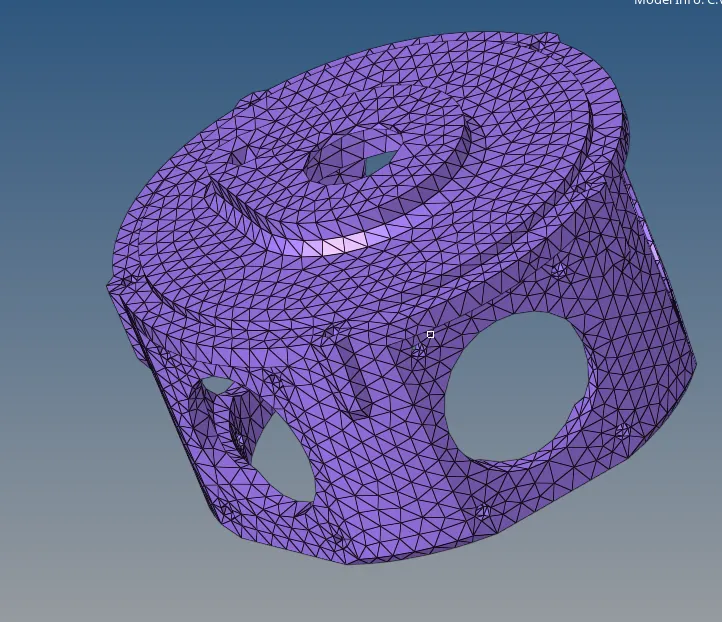
conculsion : Teramesh for Model 2 was successfully created.
Final model image :
AIM : Create Teramesh for given model . (element size : 6mm )
PROCEDURE:
model 4 ( chassy assembly )
Firstly import the model , check the model , check the no of components
In model 4 we have 8 component, we can delete the symetrical component and work acoordingly.
select any method from which you can create the 3D meshing as mentioned above.
Mesh the component . (with element size 6)
check for tet collapse as mentioned above in step 2
bring all tet collapse value to 0.
Cad model image :
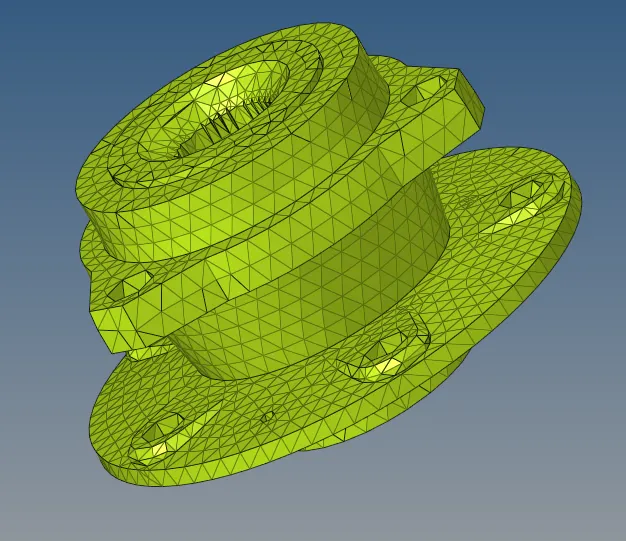
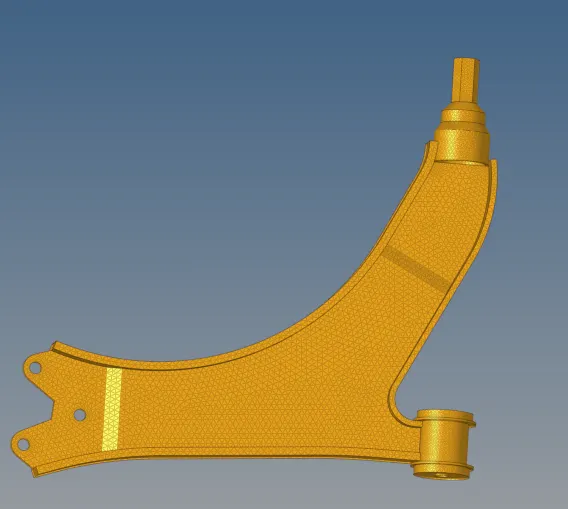
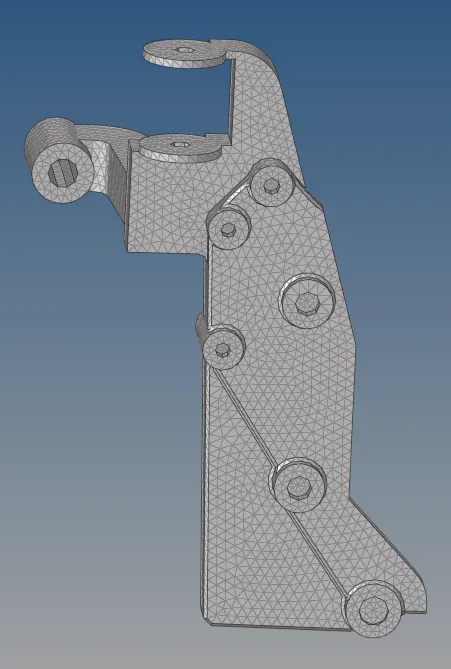
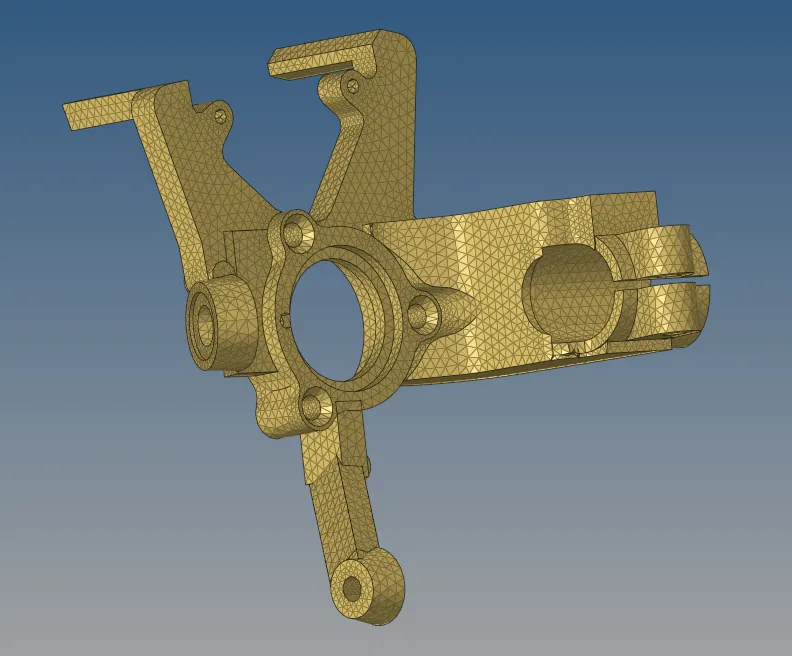
conculsion : Teramesh for Model 4 was successfully created.
Final model image :