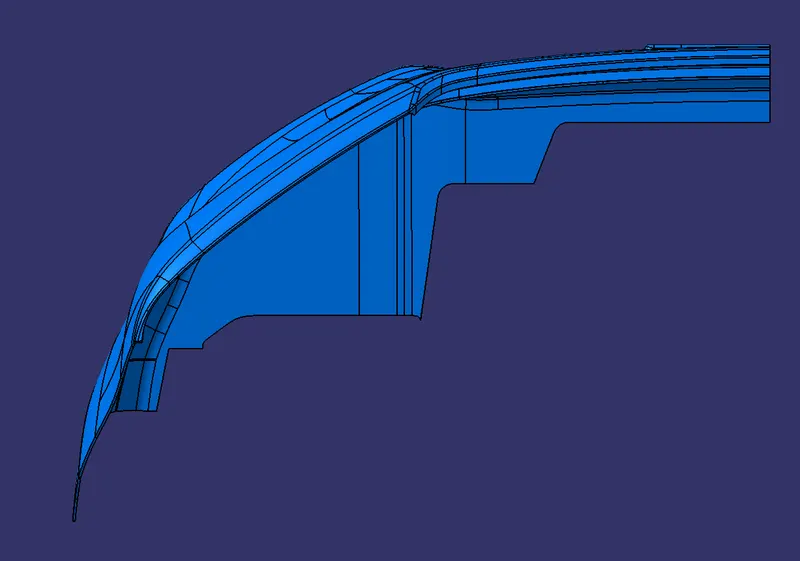
Week 8 - Challenge 4 - Bumper
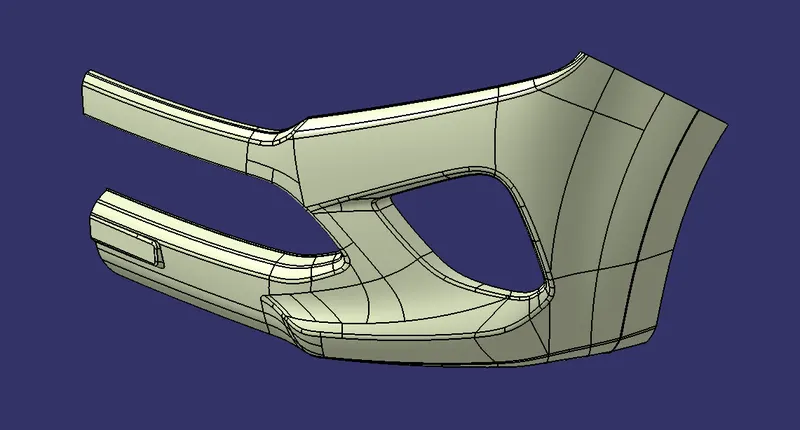
OBJECTIVE: To create the Bumper's Plastic-Component using the Class A Surface that is provided. Desired Thickness of the Plastic Component is 3mm with 3 degrees as the Draft Angle.
Firstly, we have to create the required Tooling-Axis for the given Class A Surface while meeting the requirements of the necessary Draft Angle & then perform the Draft-Analysis Operation on the Class A Surface itself.
After that, we have to create the required Class B & Class C Surfaces using which we have to create the Final Plastic Component and perform Draft Analysis on it as well.
INTRODUCTION:
CLASS 'A' SURFACE:
TOOLING DIRECTION:
The Tooling Direction is the direction that the mold pulls apart. The mold is built in two separate pieces,
- A Cavity side and
- The Core side.
The Core pulls apart from the Cavity and that's the Dyeline or the Tooling Direction. The direction in which the mold or core and cavity open is the tooling axis.
FEATURES OF THE TOOL:
- Cavity half – The cavity half is the side of a tool that does not move. It is typically attached to the side of the molding machine.
- Core half – The side of the tool that opens and closes with the molding machine against the cavity half. It opens when removing the part from the tool.
- Cooling lines – Channels that allow coolant to flow throughout the tool and control the cooling of the plastic part.
- Ejector system – Pins on the core half of the tool that helps push the cooled part out after molding.
- Runner – A flow path for the plastic resin allowing the press to inject material directly into the part cavity.
- Side actions – Moving pieces within the part cavity added to allow for undercuts.
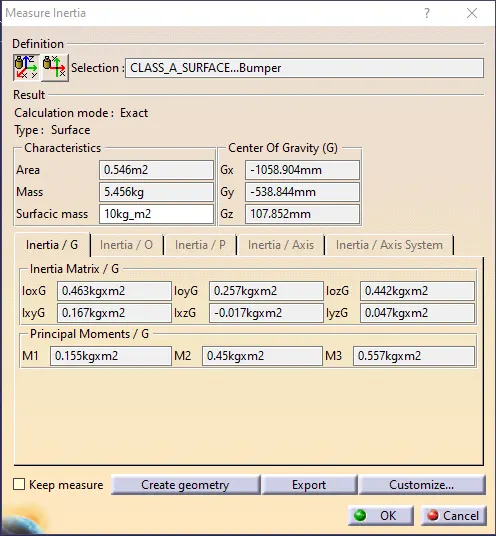
CREATING THE MAIN TOOLING AXIS:
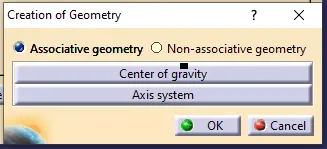
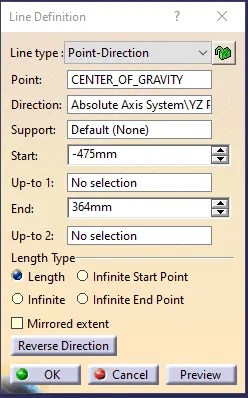
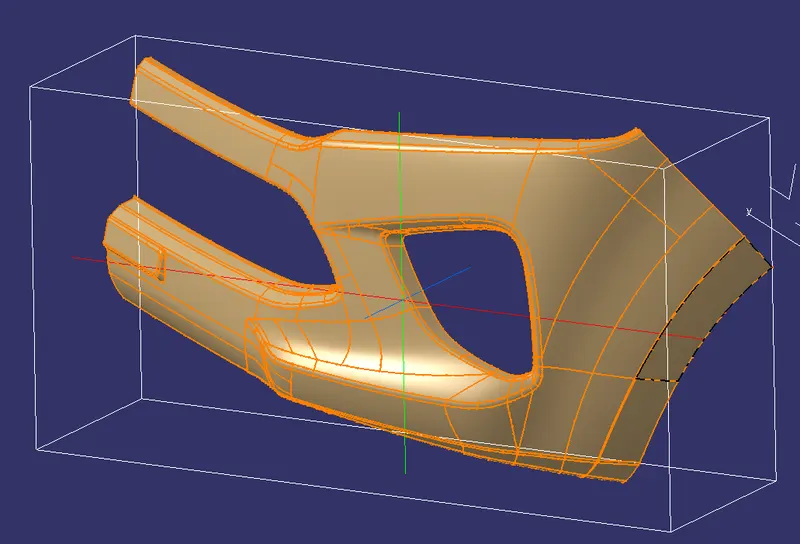
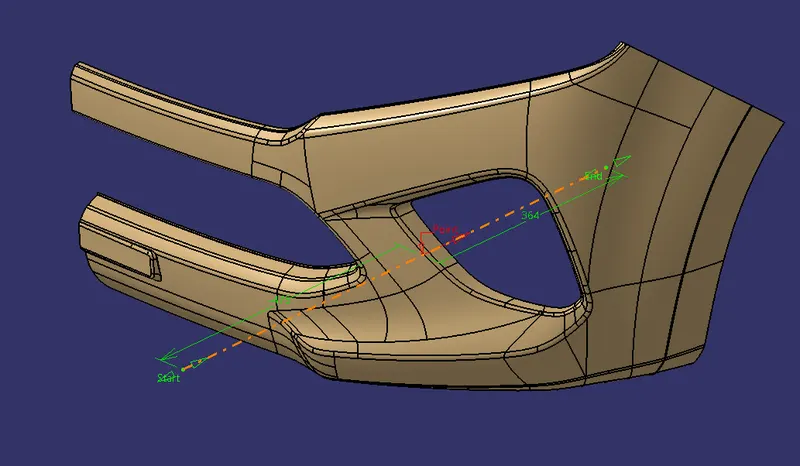
- Inertia Method:
DRAFT ANALYSIS FOR THE CLASS A SURFACE USING THE MAIN TOOLING AXIS:
Before starting with a Draft Analysis Operation, we will go to the 'Customize View Parameters' option under the 'View Toolbar'. Then we will enter the 'Customize View Mode' where we will go under the 'Mesh' option and select 'Material' and press 'OK'.
To start the Draft Analysis in the 'Generative Surface Design Workbench', we will go to 'Insert' and then look for the option called 'Analysis'. Once found, we will go under that and click on 'Feature Draft Analysis. This will open the 'Draft Analysis' Dialogue box. There, we will ensure that under 'Mode' we have selected 'Quick Analysis', under 'Display' we will select 'Show or Hide the Color Scale' and then select '3 Degrees' as the permissible draft angle. Then, under 'Direction' we will choose the icon with the symbol of the compass on it which stands for 'Use the Compass to define the new current draft direction'.
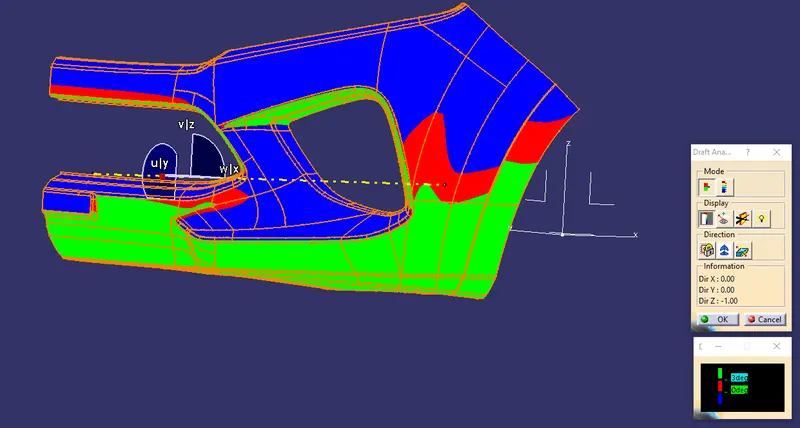
It is evident from the above image that the Draft-Analysis on our Class A Surface was successful and the component is feasible to manufacture.
CONSTRUCTION OF THE CLASS B SURFACE:
We'll start the procedure by creating an offset for the entire Class A Surface at a distance of 3mm as that is the desired thickness for our final plastic component.
As this is a complex surface hence the offset will fail to offset every element according to our necessity. It'll select some sub-elements that belong to the filleted regions by themselves that we have to remove to get the rest of the surface that is offset.
These 'Sub-Elements' will get selected by themselves to be removed if we want to obtain the rest of the offset surface.
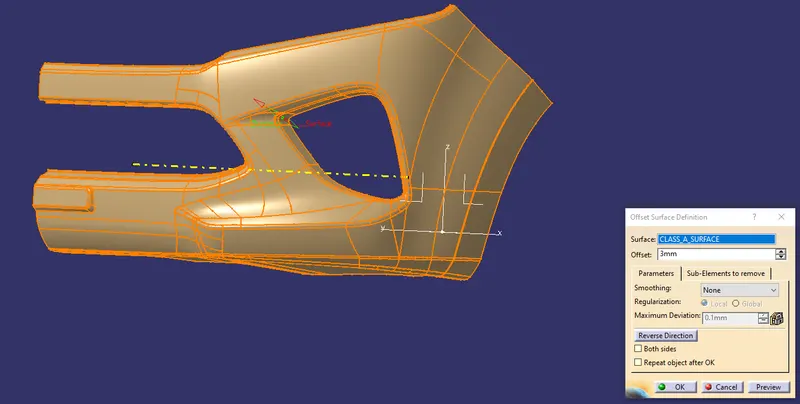
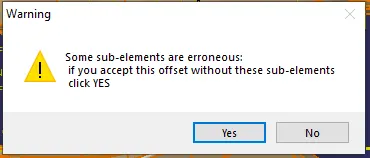
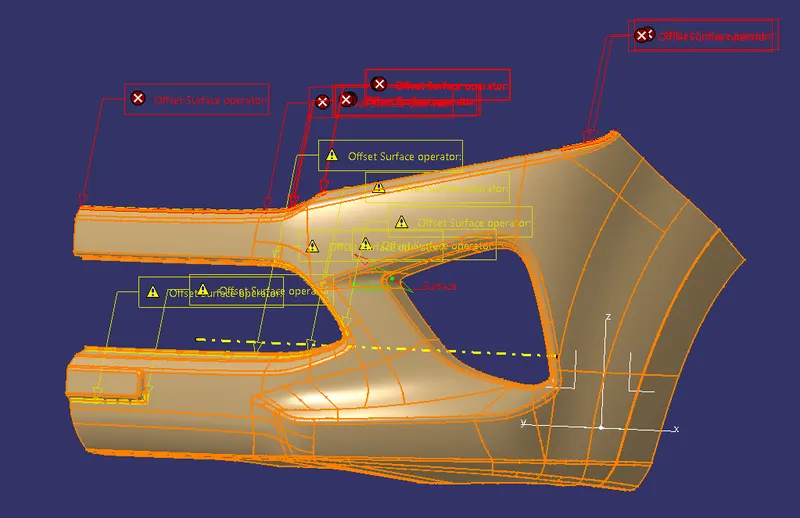
In the above image, CATIA is showing us the filleted regions where these sub-elements are located that are going to be removed after the offset operation.
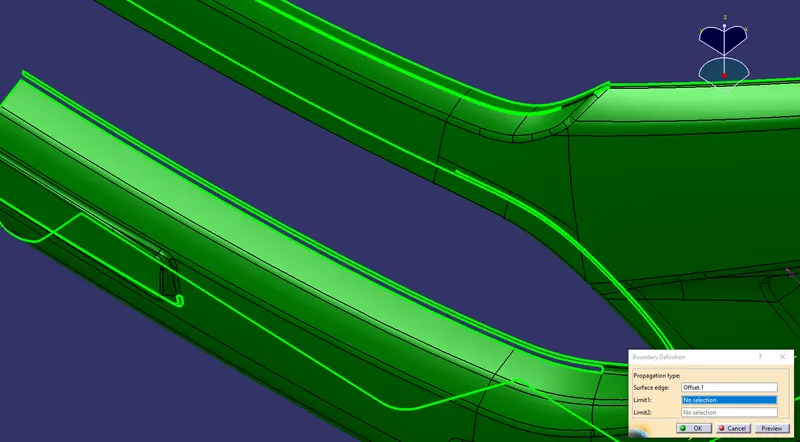
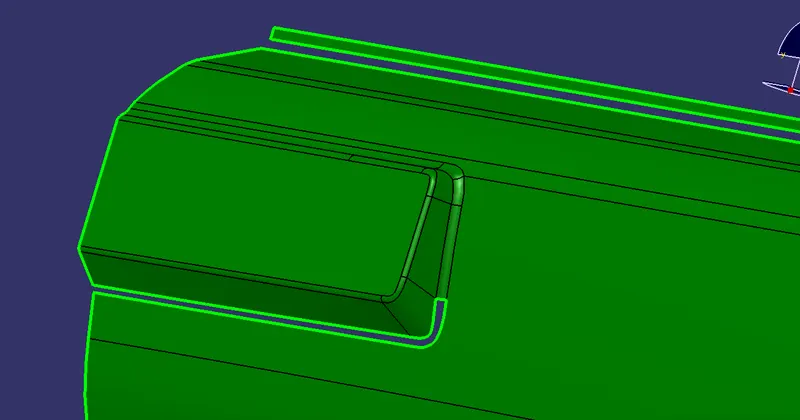
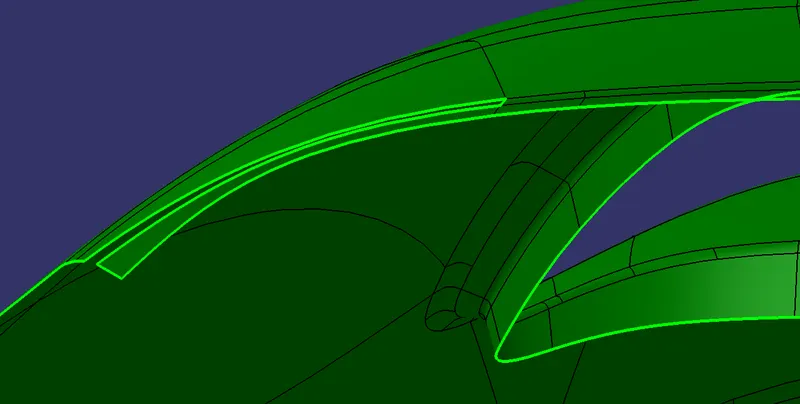
To fix all these Patches, we will use the JOIN command into which uncheck the CHECK CONNEXIVITY and in SUB-ELEMENTS TO REMOVE option we will select the filleted surface to remove and click OK. We will do the same for all REGION PATCHES.
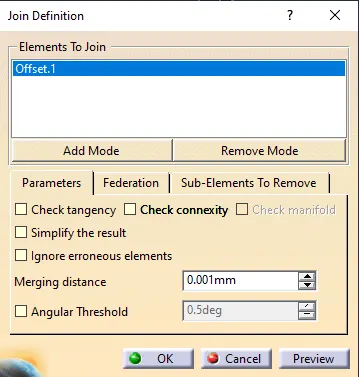
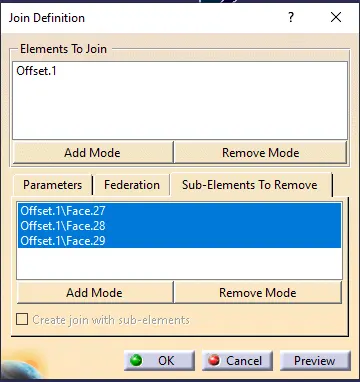
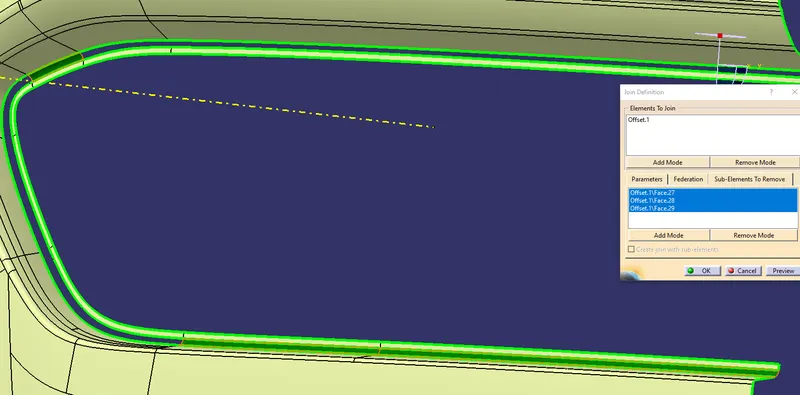
After removing the filleted surface, we will disassemble the surface body by using the DISASSEMBLE command. Once the 2 surface domain created we will create the BOUNDARY curve for both surfaces.
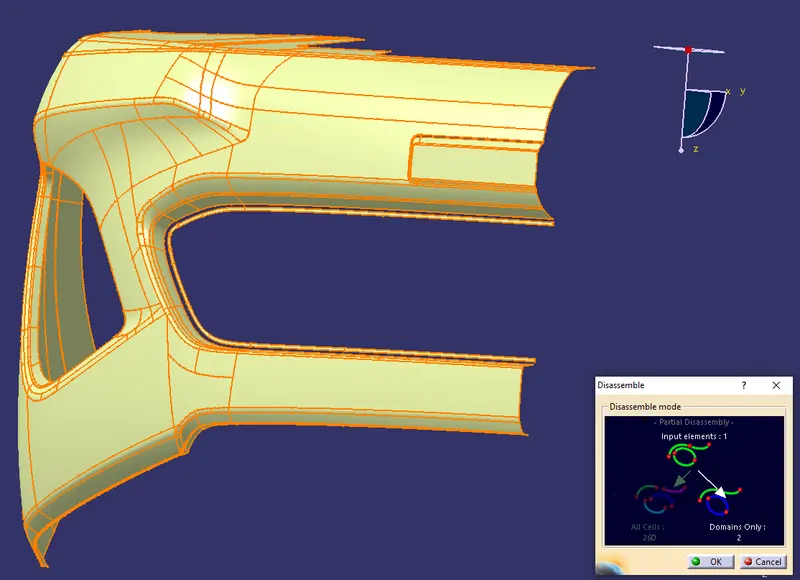
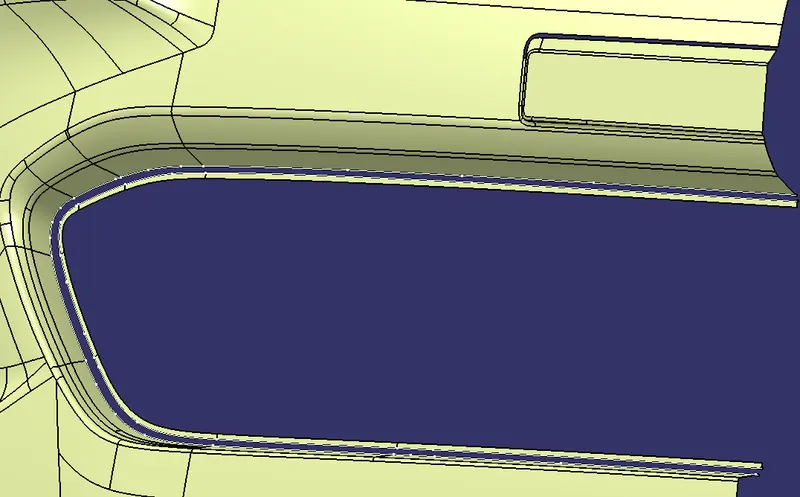
After creating the boundary curves, we will use EXTRAPOLATE command to extend the surfaces till the intersection then we will use the TRIM command to remove the extra surfaces and they will be joined together automatically.
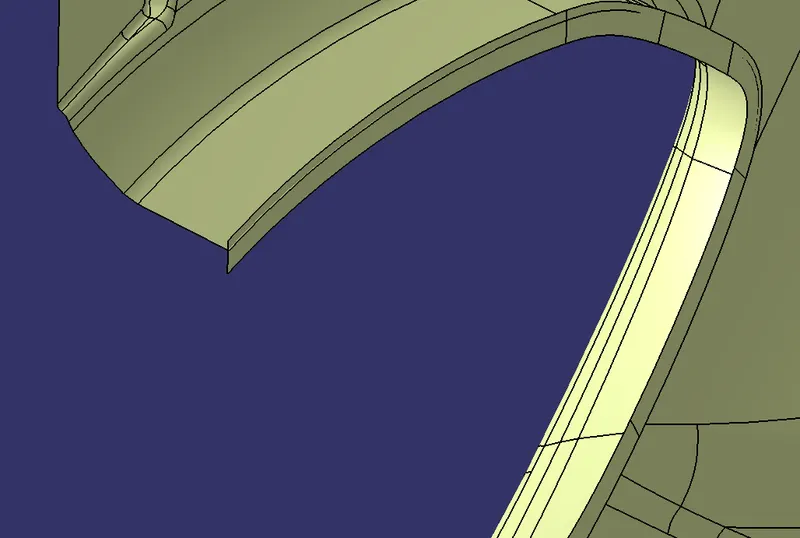
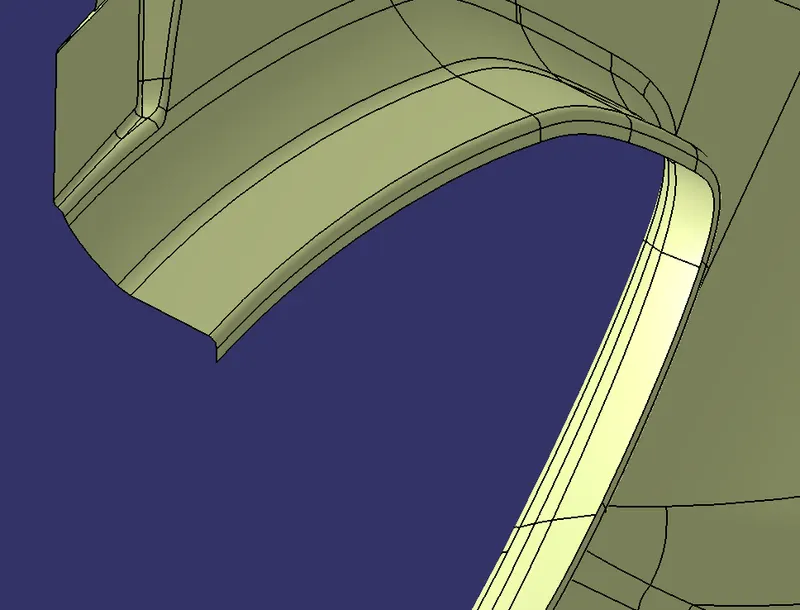
The same procedure is followed for all REGION PATCHES, and the final result is below with no PATCH REGION.
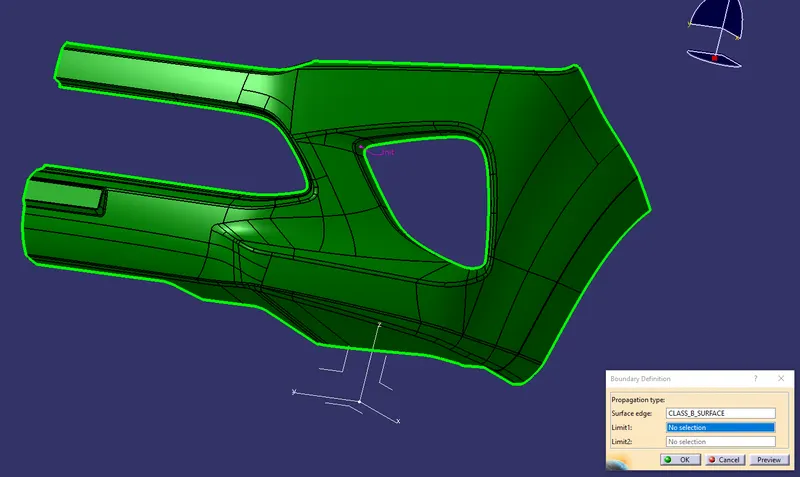
The CLASS B SURFACE:
PROCEDURE TO CREATE THE CLASS C SURFACE:
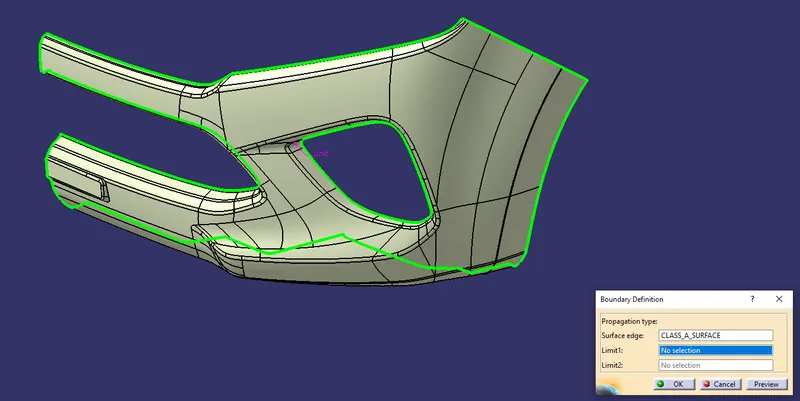
Now, we're going to create the 'Class C Surface' while using the 'Class A Suface' as the Reference Surface. We'll start that procedure by creating boundary segments all along the Class A Surface using the 'Boundary Command' with limits and then we'll use the 'Sweep Command' to create segments of Class C Surfaces using those boundaries as shown below:
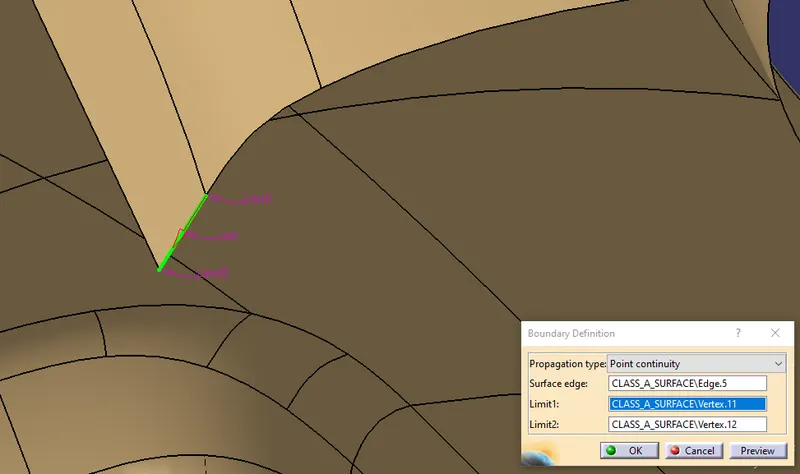
In the above image, the boundary is made using the boundary command by choosing the vertices of the Class A Surface as limits to create our desired boundary. We have to use limits so that we can create good-quality surfaces using those boundaries. If the boundary is created without considering the complex shape of the Class A Surface then in certain instances longer than usual boundaries will lead to poor-quality surfaces.
After creating the boundary we will use the 'Sweep Command' where we'll use its 'Subtype' as 'With Reference Surface' so that we can use the Class A Surface as our reference surface. We'll select the boundary as our Guide Curve and use the angle of 90 degrees to create our required surface as shown below:
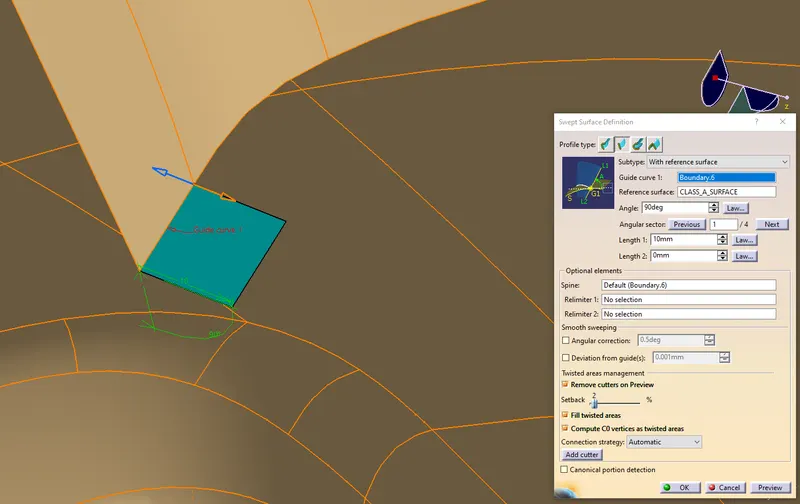
Now, generally, we'll continue the above-mentioned steps but in certain instances, we'll come across such complex boundaries using which required surfaces cannot be made conventionally as it'll lead to poor quality surfaces that cannot be used in further operations as it can lead to the generation of gaps or even overlapped regions.
One such conflicting region is shown below where we can see that two surfaces are overlapping with one another and the boundary between them is shaped in such a way that if we used the Sweep Command to create the required surface it'll only result in further poorly constructed surfaces.
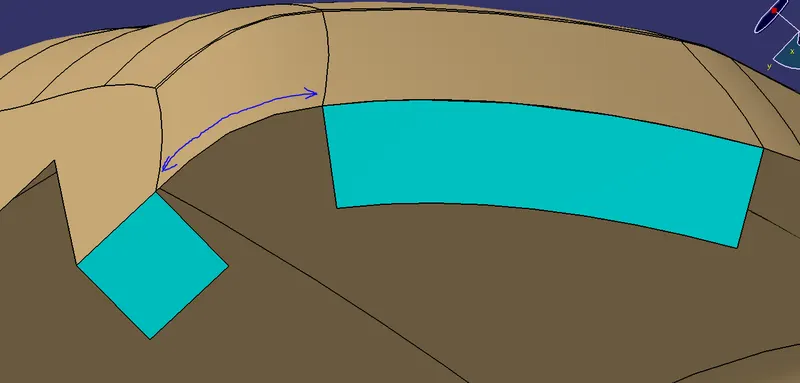
Hence to avoid those instances we'll use a workaround using 'Multi-Sections-Surfaces'. Steps that should be taken before using the Multi-Section Surfaces command are shown below:
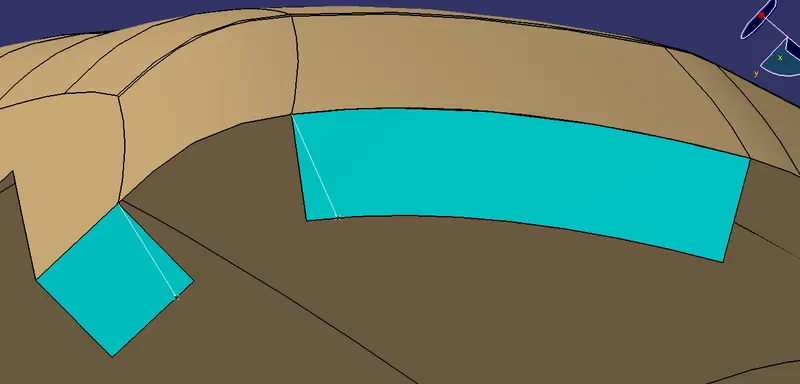
First, we have to create points on both surfaces using the Point Command and then construct lines with respect to those points and corners as shown below:
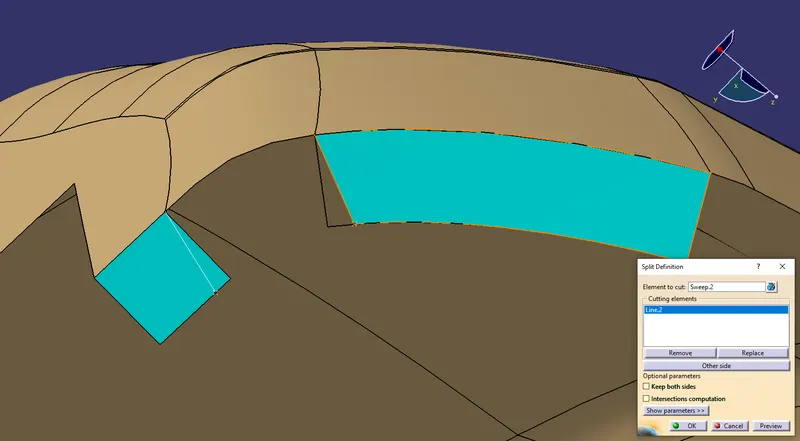
Then, we'll use the 'Split Command' to cut both surfaces with respect to the lines as shown below:
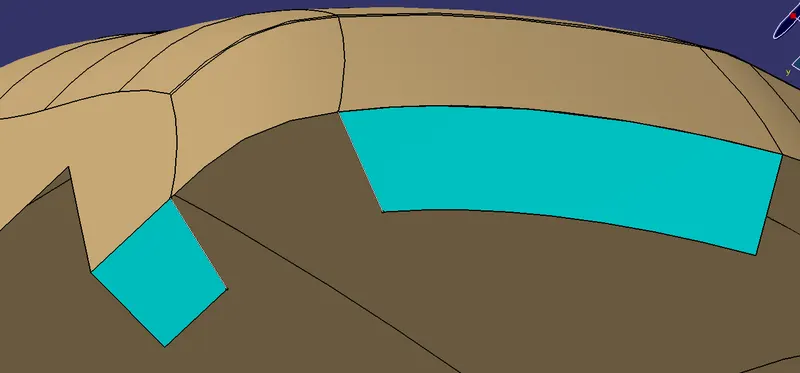
After this we'll use the Multi-Section Surfaces command to create the surface between these two surfaces as shown below:
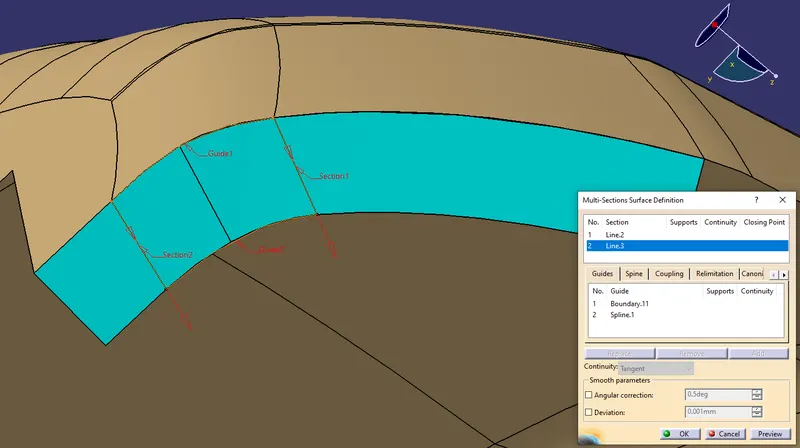
Here, we have used those two lines that we previously constructed for the split operation as limits for the surface and the edge boundary from the Class A Surface as the Guide Curve to create this Multi-Section Surface.
We'll use the combination of Sweep & Multi-Section Surfaces depending upon the kind of surfaces we'll deal with as we move along the edge of the Class A Surface to create the Class C Surface shown below:
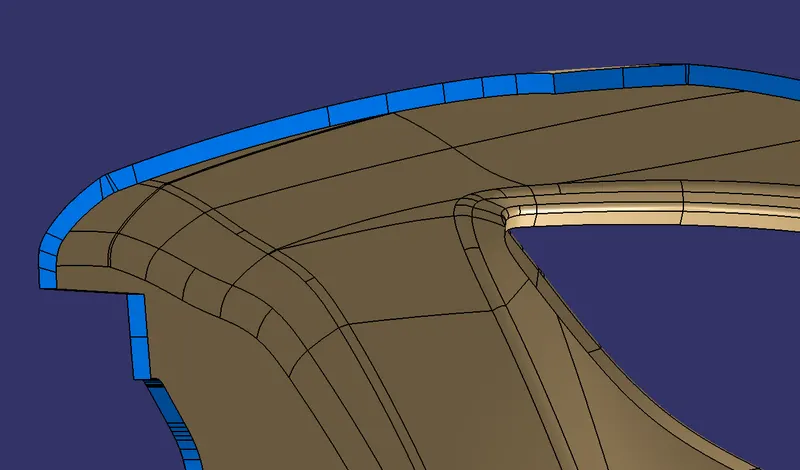
FINAL CLASS C SUFRACE:
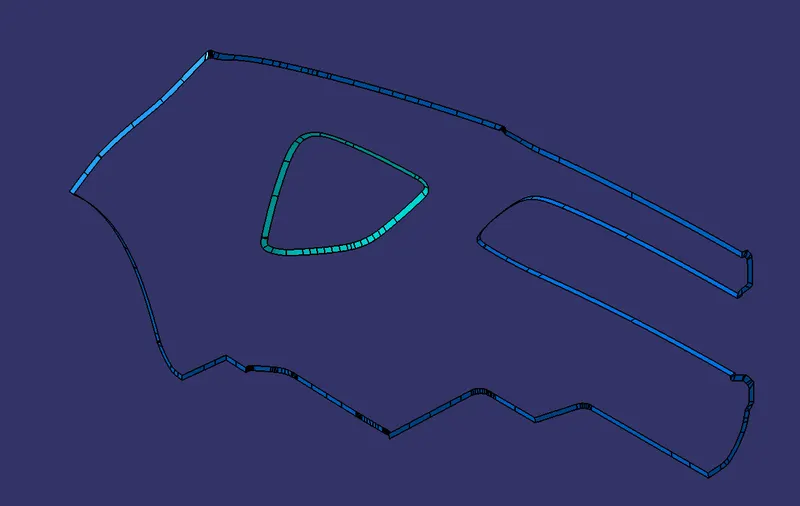
Now, we have all the required surfaces: Class A, Class B & Class C
To proceed forward we have to add Class A & Class C together using the 'Join Command'.
First, we'll add the Outer Class C Surface with our Class A Surface as shown below:
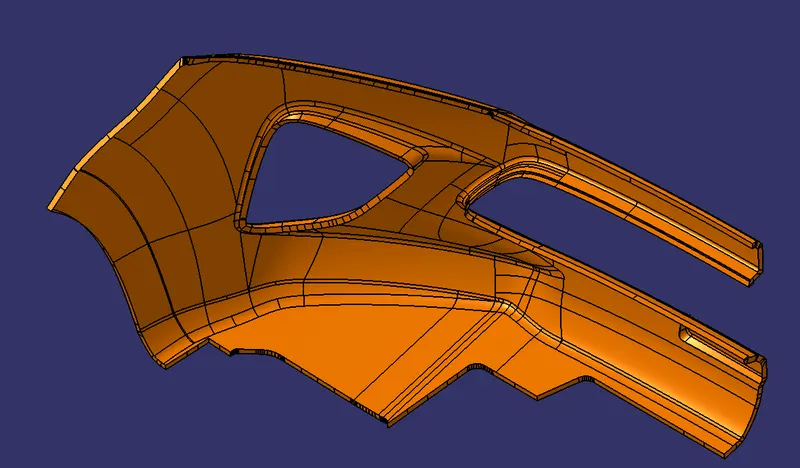
Then, we'll add the Inner Class C Surface with this as shown below:
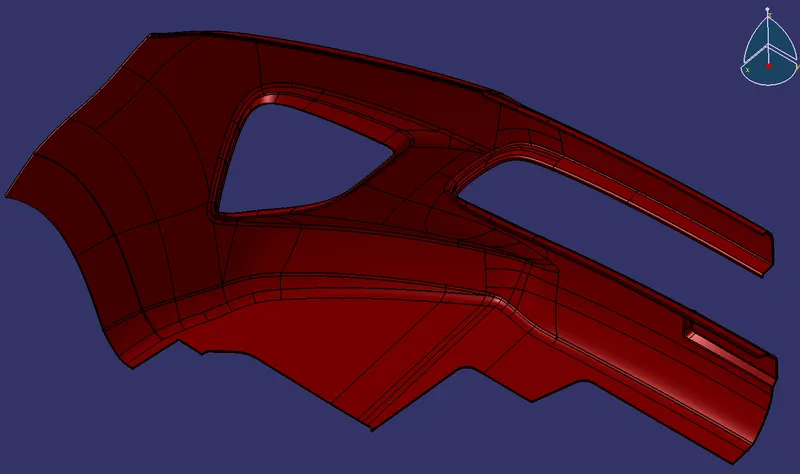
Finally, we have to use the Trim Command to trim the Combination of Class A & C surfaces with Class B Surface to obtain the final body that we can eventually use to create a solid body.
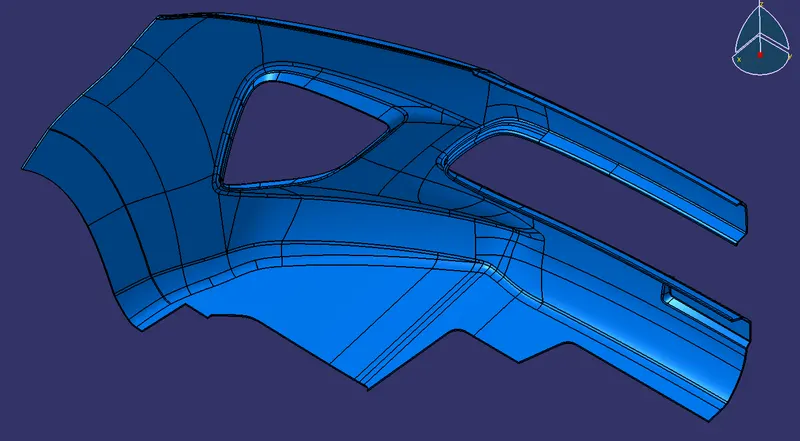
Finally, we'll go to the Part Workbench and use the option 'Closed Surface' from the 'Surface-based Features' toolbar to convert the final trimmed body into a solid body as shown below:
DRAFT ANALYSIS FOR THE FINAL PART USING THE MAIN TOOLING AXIS:
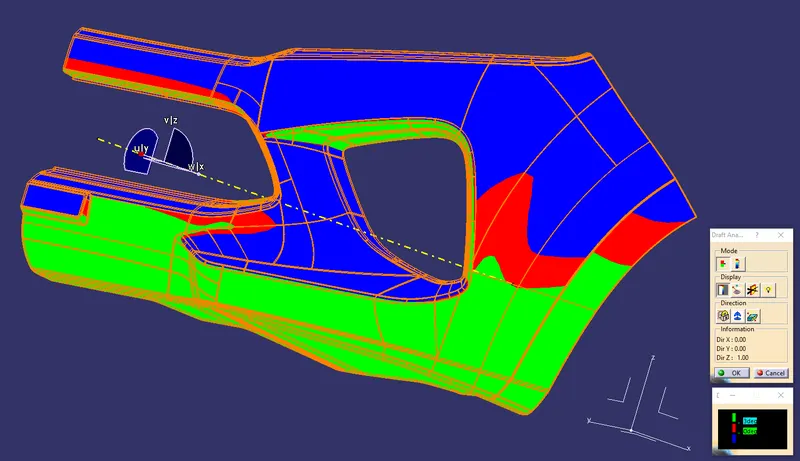
In the Draft-Analysis,
Green Colour stands for regions where the Draft-Angle is more than 3 degrees,
Blue Colour stands for regions where the Draft-Angle is between 0-3 degrees , &
Red Colour stands for regions where the Draft-Angle is lower than 0 degrees.
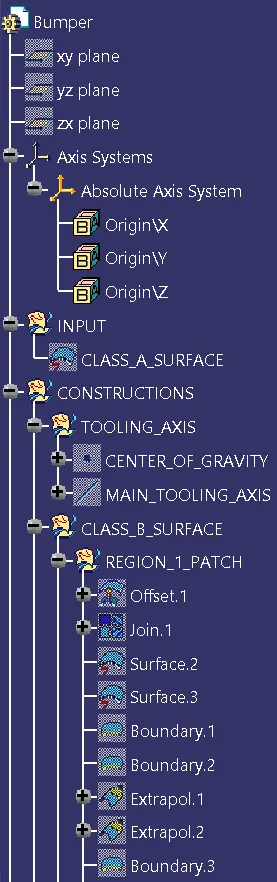
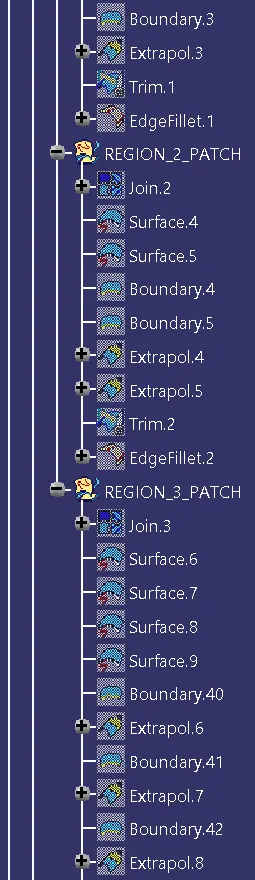
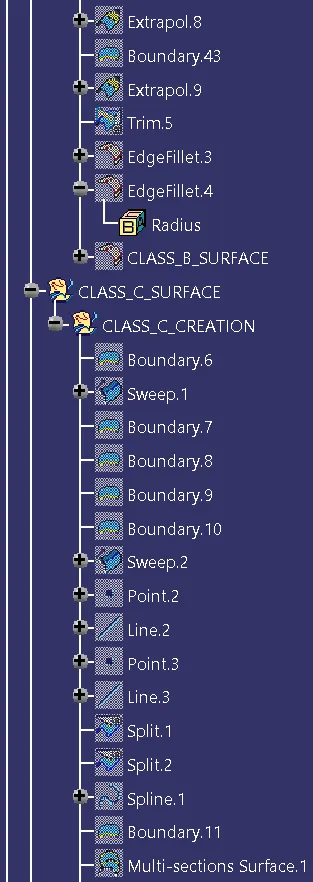
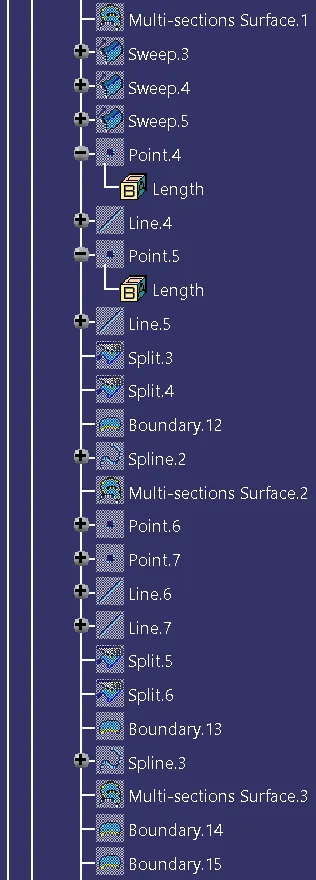
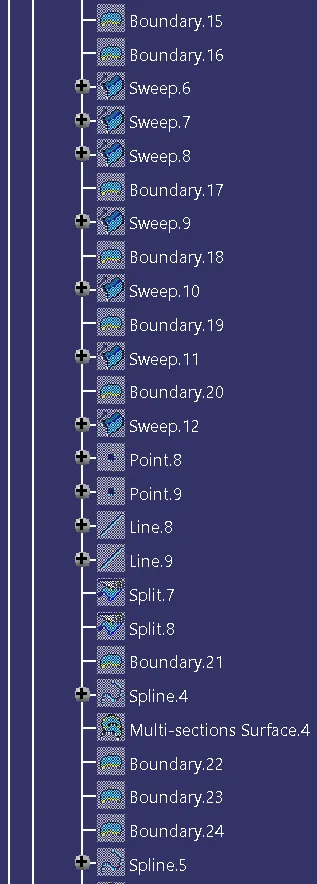
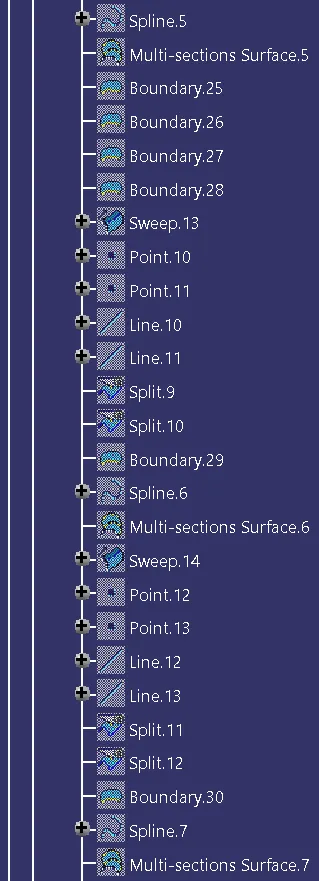
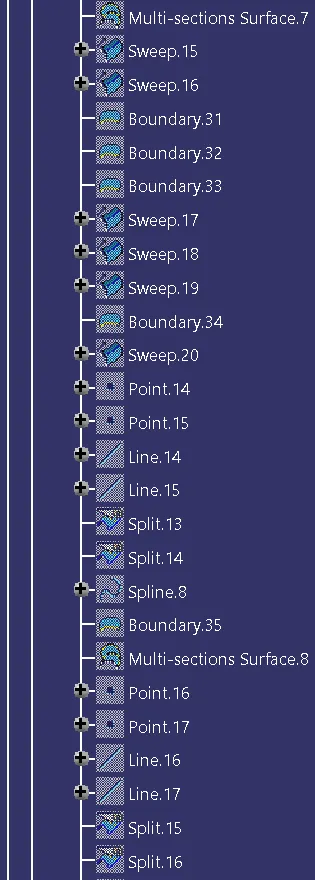
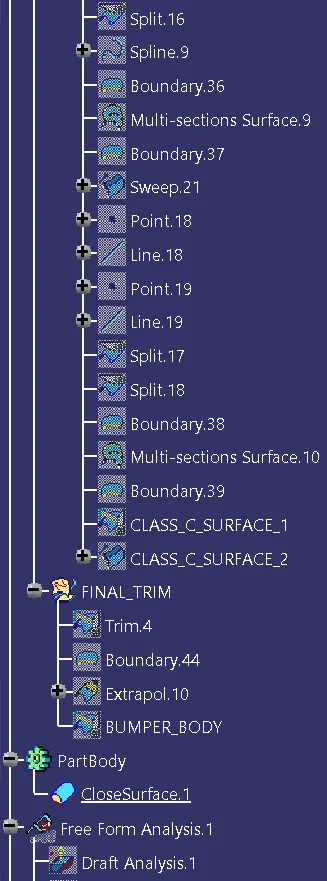
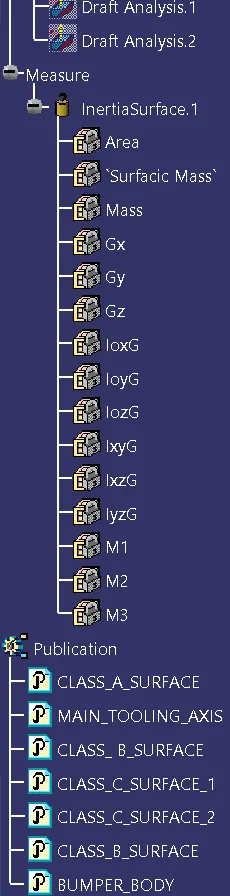
TREE STRUCTURES:
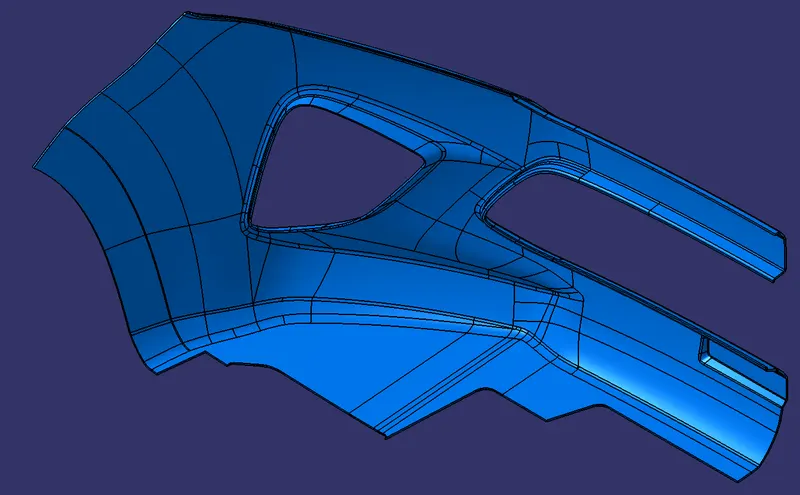
ISOMETRIC VIEW:
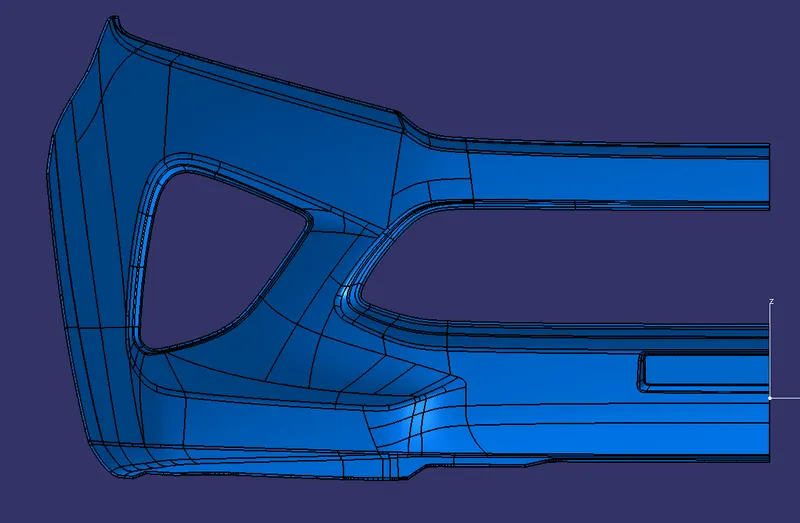
FRONT VIEW:
SIDE VIEW:
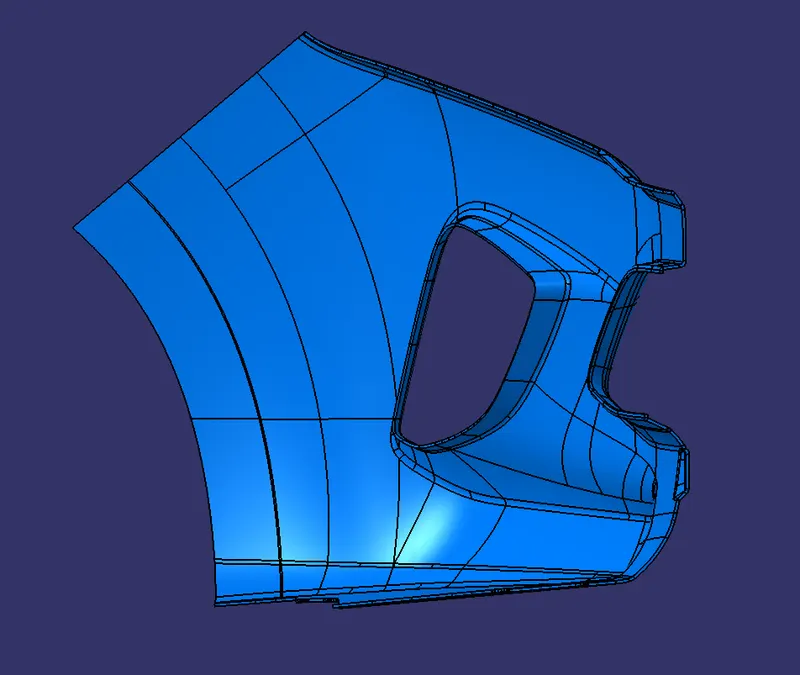
TOP VIEW: