Week 8-Challenge
WEEK 8 CHALLENGE
TO CREATE 3D TETRA MESHING FOR GIVEN COMPONENTS
MODEL 1. HOUSING MODEL
OBJECTIVE:
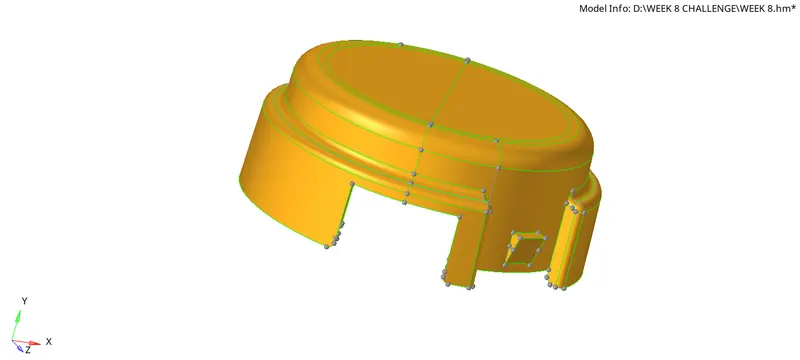
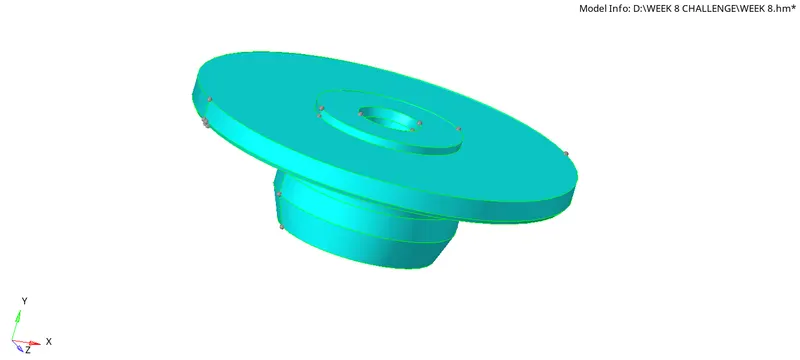
The main objective in week 8 challenge for model-1 is to cleanup near certain areas and create a 2D mesh and than convert it into 3D tetramesh by maintaining necessary quality values.
Elements sizes:
Min- 2mm
Target- 5mm
Max- 7mm
Tet collapse= 0.15
PROCEDURE:
- File - Import - Model - Filetype - IGES - select the file - click Import
- Press 'F' to fit the model in the screen
- Now check the fillets distance by F4 - select two points - if distance is below min.length Defeature those
- Geom - defeature - surfs fillets - find fillets - surfs - displayed - Give Min.radius & Max radius values - click find - it will highlight the fillets in between the radius given but some fillets will not be defeatured than try to extract manually and delete the min.lengthed fillets
- Than start meshing by going to 2d - Automesh - element size- 5 - Element Type as-Trias and select the component by displayed or shift+left click and start meshing.
- After completing meshing check the quality criteria values by -
- Tools - check elements - check min.length, max.length.....and bring failure values to zero by Remeshing again and again.
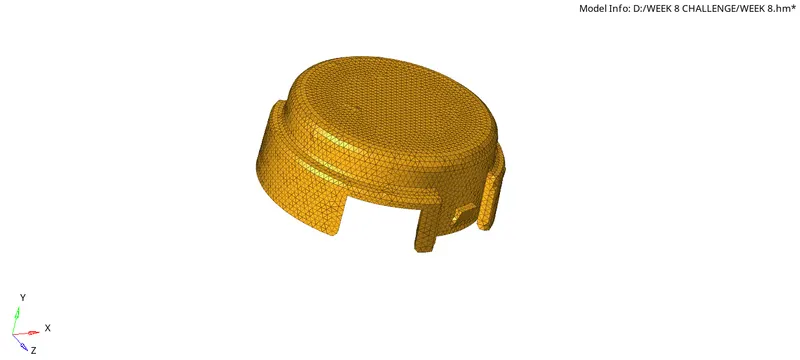
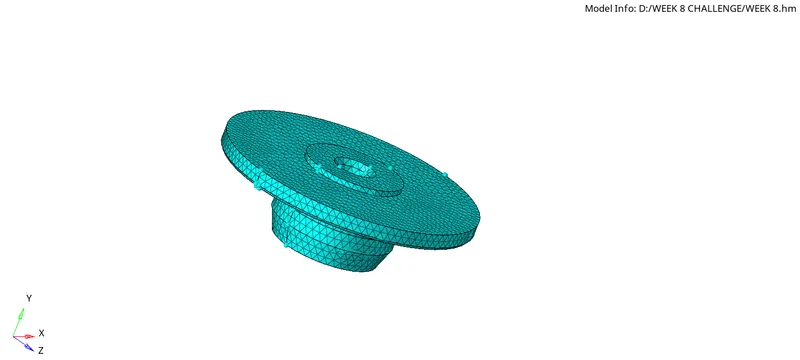
- Than go to 3d panel - Tetra mesh - Select components - it will display the components which we are working on and select the required component which should be tetrameshed than click - Mesh.
- The tetramesh will be formed on the component & to crossverify that Go to -Mask - Select few elements - Mask and than you will be seeing the 3d elements formed .
- Than Go to Tools - Checkelements-3d - Tet. collapse=0.150 -See how many elements are failing and minimise that and bring the value to zero by-
- 3d - Tetra mesh - Tetra remesh - Select elements which are failing by masking those and retrieving and than switch on few surrounding elements and select all those elements and - Mesh than the Tet. collapse value can be brought to zero .
- We also have another method for reducing Tet.collapse failure by going to Distance command(F4) - Select - Two nodes - and change the height value for that element and wherever it is perfectly done the tet.collapse value will be minimised.
- After bringing the Tet.collapse failure values to zero check for other connectivity and submit it.
RESULT:
Finally we will receive the Housing model with 3D Tetramesh with good quality mesh as shown in the above images.
MODEL 2.CREATING TETRAMESH ON THE GIVEN COMPONENT
OBJECTIVE:
The main objective in week 8 challenge for model-2 is to cleanup near certain areas and create a 2D mesh and than convert it into 3D tetramesh with 6mm element size by maintaining necessary quality values.
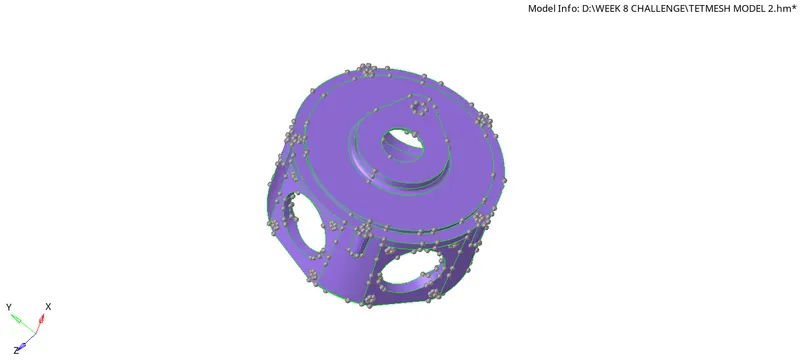
PROCEDURE:
- File - Import - Model - Filetype - IGES - select the file - click Import
- Press 'F' to fit the model in the screen
- Now check the fillets distance by F4 - select two points - if distance is below min.length Defeature those
- Geom - defeature - surfs fillets - find fillets - surfs - displayed - Give Min.radius & Max radius values - click find - it will highlight the fillets in between the radius given but some fillets will not be defeatured than try to extract manually and delete the min.lengthed fillets
- Than start meshing by going to 2d - Automesh - element size- 5 - Element Type as-Trias and select the component by displayed or shift+left click and start meshing.
- After completing meshing check the quality criteria values by -
- Tools - check elements - check min.length, max.length.....and bring failure values to zero by Remeshing again and again.
- Than go to 3d panel - Tetra mesh - Select components - it will display the components which we are working on and select the required component which should be tetrameshed than click - Mesh.
- The tetramesh will be formed on the component & to crossverify that Go to -Mask - Select few elements - Mask and than you will be seeing the 3d elements formed .
- But for some parts the tetramesh will not be perfectly formed due to some cleanups or so , in that case Go to-
- View - Browser - Hypermesh - Utility - Quick tetramesh - Mention max.element size and Min.element size - Select Component whichever to be tetrameshed - Select - Proceed - Mesh - It gives a Dialogue box saying Attempted for Tetra mesh - Than the Tetramesh will be directly formed than it can be crossverified through masking process.
- Than Go to Tools - Checkelements-3d - Tet. collapse=0.150 -See how many elements are failing and minimise that and bring the value to zero by-
- 3d - Tetra mesh - Tetra remesh - Select elements which are failing by masking those and retrieving and than switch on few surrounding elements and select all those elements and - Mesh than the Tet. collapse value can be brought to zero .
- We also have another method for reducing Tet.collapse failure by going to Distance command(F4) - Select - Two nodes - and change the height value for that element and wherever it is perfectly done the tet.collapse value will be minimised.
- After bringing the Tet.collapse failure values to zero check for other connectivity and submit it.
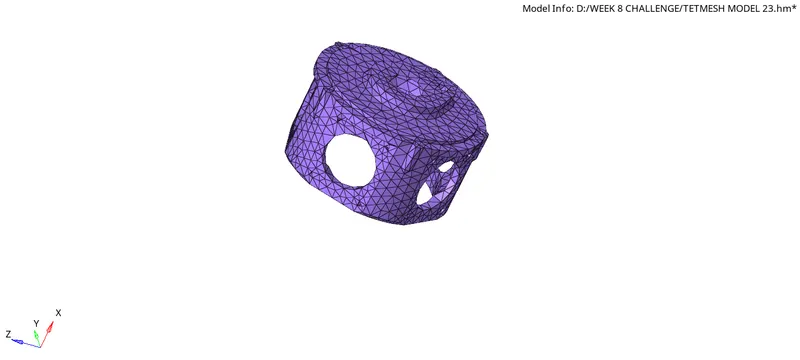
RESULT:
Finally we will receive the model with 3D Tetramesh with good quality mesh.
MODEL 3.CREATING 3D TETRAMESH ON THE GIVEN COMPONENT
OBJECTIVE:
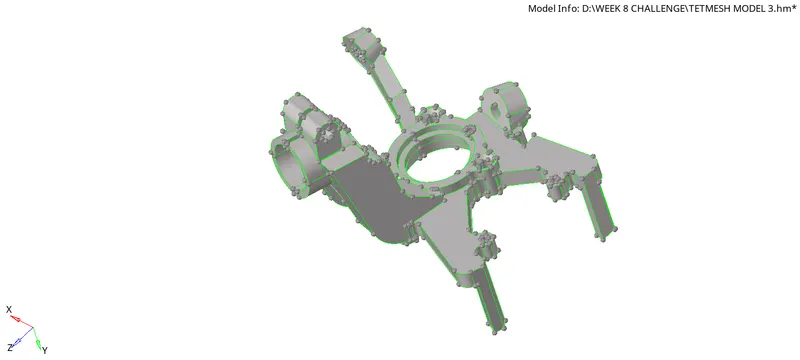
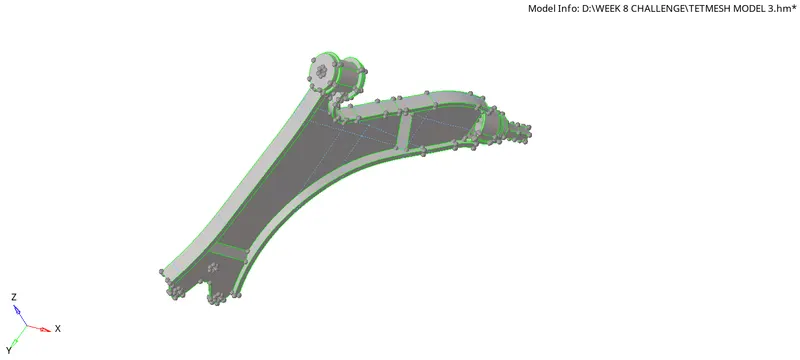
The main objective in week 8 challenge for model-3 is to cleanup near certain areas and create a 2D mesh and than convert it into 3D tetramesh with 6mm element size by maintaining necessary quality values.
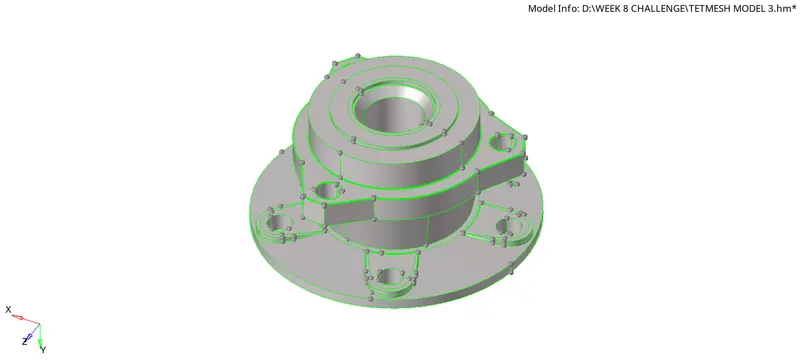
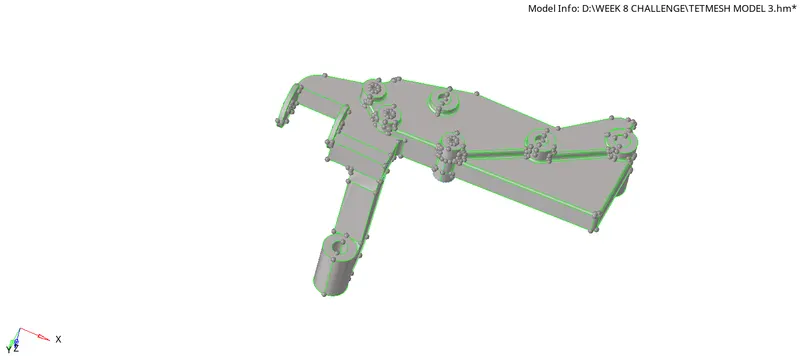
PROCEDURE:
- File - Import - Model - Filetype - IGES - select the file - click Import
- Press 'F' to fit the model in the screen
- Now check the fillets distance by F4 - select two points - if distance is below min.length Defeature those
- Geom - defeature - surfs fillets - find fillets - surfs - displayed - Give Min.radius & Max radius values - click find - it will highlight the fillets in between the radius given but some fillets will not be defeatured than try to extract manually and delete the min.lengthed fillets
- Than start meshing by going to 2d - Automesh - element size- 5 - Element Type as-Trias and select the component by displayed or shift+left click and start meshing.
- After completing meshing check the quality criteria values by -
- Tools - check elements - check min.length, max.length.....and bring failure values to zero by Remeshing again and again.
- Than go to 3d panel - Tetra mesh - Select components - it will display the components which we are working on and select the required component which should be tetrameshed than click - Mesh.
- The tetramesh will be formed on the component & to crossverify that Go to -Mask - Select few elements - Mask and than you will be seeing the 3d elements formed .
- But for some parts the tetramesh will not be perfectly formed due to some cleanups or so , in that case Go to-
- View - Browser - Hypermesh - Utility - Quick tetramesh - Mention max.element size and Min.element size - Select Component whichever to be tetrameshed - Select - Proceed - Mesh - It gives a Dialogue box saying Attempted for Tetra mesh - Than the Tetramesh will be directly formed than it can be crossverified through masking process.
- Than Go to Tools - Checkelements-3d - Tet. collapse=0.150 -See how many elements are failing and minimise that and bring the value to zero by-
- 3d - Tetra mesh - Tetra remesh - Select elements which are failing by masking those and retrieving and than switch on few surrounding elements and select all those elements and - Mesh than the Tet. collapse value can be brought to zero .
- We also have another method for reducing Tet.collapse failure by going to Distance command(F4) - Select - Two nodes - and change the height value for that element and wherever it is perfectly done the tet.collapse value will be minimised.
- After bringing the Tet.collapse failure values to zero check for other connectivity and submit it.
RESULT:
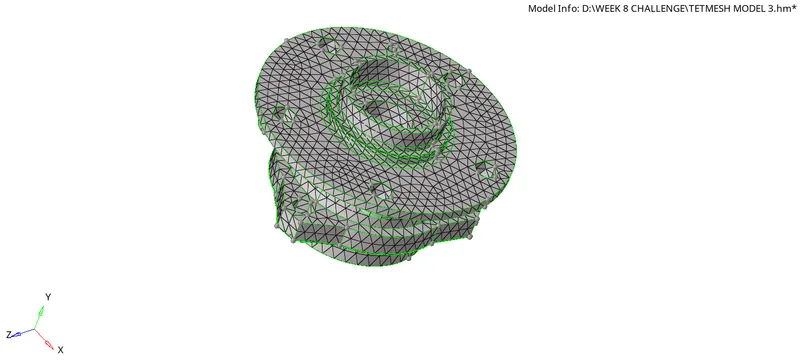
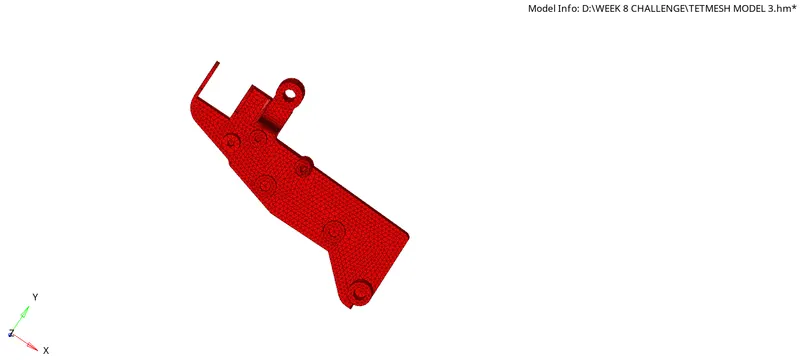
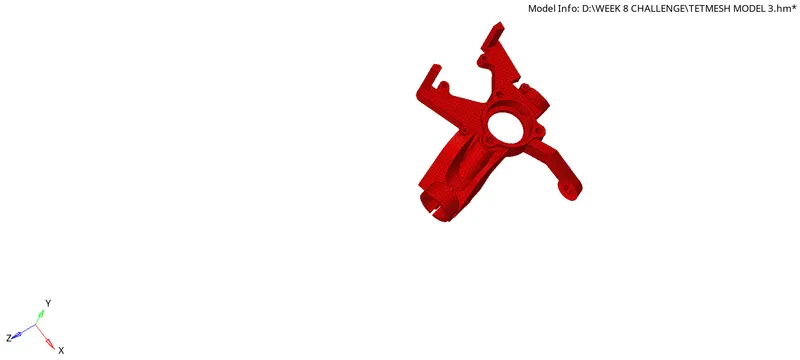
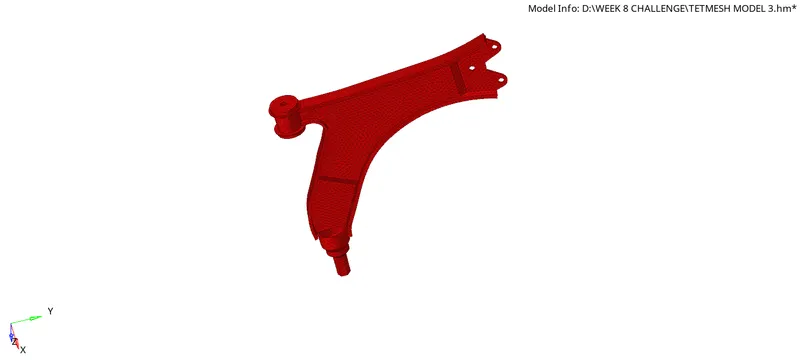
Finally we will receive the model with 3D Tetramesh with good quality mesh as shown in the above figure.