Week 4- Challenge
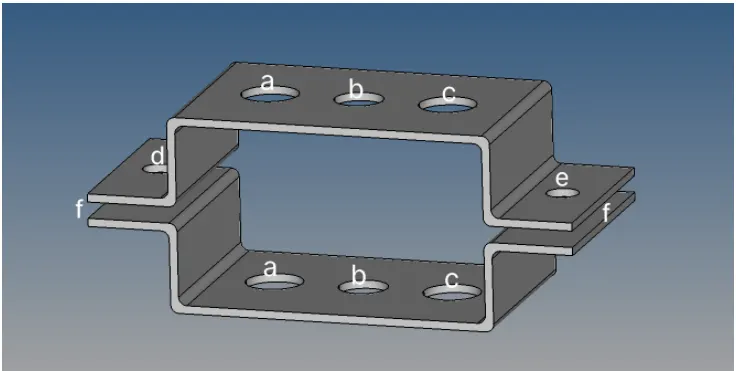
CREATE 1D ELEMENTS ON THE FOLLOWING COMPONENT WITH GIVEN CROSS-SECTION & DOF
OBJECTIVE:
To create 1d elements on the given Brackets using the given Cross-section and corresponding Degrees of freedom(DOF).
PROCEDURE:
- File- Import - Model - Import Geometry - Open file - File type - IGES - Open - Import
- Delete - Select the whole model - Select solids- Delete Entity
- Midsurface - Automidsurface - Autoextraction - Extract
- Hide the Parent Model.
- Mesh only the Midsurface.
- Geometry - Nodes - Arc centre - Choose lines of circle - Create - For all the holes - Centre nodes will be created in circles.
A}Rod element with only translational DOF and RBE2 link
Cross-Section: BOX- Dimension a= 12 mm
dimension b=10 mm
Thickness t= 0.75 mm
- The cross-section of BOX is created with the help of Hyperbeam.
- 1D - Hyperbeam - Standard section type - Thin walled Box - Create
- Mention all the necessary dimensions which are mentioned in the question
- Now for creating RBE2 link ,go to-1D - Rigids - Nodes - Multiple nodes - By path-Translational DOF - Uncheck dof1,dof2,dof3 - Create.
- Right click near the components window - Create - Property - Cardimage - PROD-Consider this property as Property1
- Now we should assign By creating CROD by going to-1D - Rigids - Rods - CRODS-mention property here and assign it as PROPERTY1.
- Hence the ROD element is created.
B} Beam element:- with all DOF and RBE3 link
Cross-Section: I Section- Dimension a= 8 mm
Dimension b= 10 mm
Dimension c= 8.5 mm
Thickness t1= 0.75 mm
Thickness t2= .6 mm
Thickness t3= .6 mm
- The cross-section of "I" is created with the help of Hyperbeam.
- Go to -1D - Hyperbeam - Standard section type - Standard I section.
- Mention all the necessary dimensions which are given in the question
- Now for creating RBE3 link -1D - RBE3 - Nodes - Multiple nodes - By path - All DOF - Uncheck dof1,dof2,dof3,dof4,dof5,dof6 - Create.
- Right click near the components window - Create- Property - Cardimage - PBEAM-consider this property as Property2
- Now we should assign By creating CBEAM by going to-
- 1D - Bars - CBEAMS - Mention property here and assign it as PROPERTY2
- Hence the required BEAM element is created.
C} Bar element:- with only x and y DOFs With RBE3 link
Cross-section: CROSS section- Dimension DIM1= 5 mm
Thickness DIM2= 1.2 mm
Dimension DIM3= 10 mm
Thickness DIM4= 1.2mm
- The cross-section of "CROSS SECTION" is created with the help of Hyperbeam.
- 1D- Hyperbeam - Standard section library - Optistruct - Standard sectiontype - CROSS.
- Mention all the necessary dimensions which are given in the question
- Now for creating RBE3 link Go to-
- 1D - RBE3 - Nodes - Multiple nodes - By path - X&Y DOF - Uncheck dof1,dof2,dof4,dof5 - Create.
- Right click near the components window - Create - Property - Cardimage - PBAR -consider this property as Property3.
- Now we should assign By creating CBAR by going to - 1D - Bars - CBEAMS - mention property here and assign it as PROPERTY2
- Hence the required BEAM element will be created.
D & E} Apply the mass of magnitude 10 with RBE2 Link
- For creating RBE2 link - 1D - Rigids
- Nodes- Multiple nodes - By path
- Translational DOF- Constrained DOF - Create.
- 1D- Mass - 10units
- Element type - CMASS1 - Create
- The mentioned RBE2 link is created with mass - 10 units
F}Join the two components with Spring Elements
- 1D - Springs - Select nodes
- Element types - HMSPRING - Create
- Create four springs near all Corners.
FINAL OUTPUT OF THE COMPONENT:
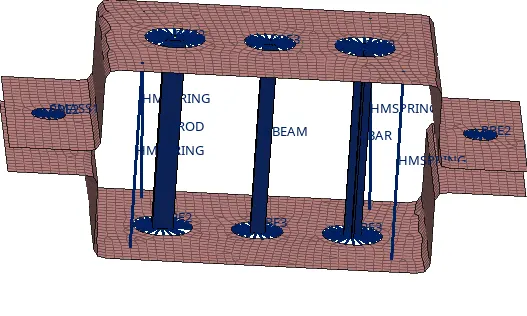
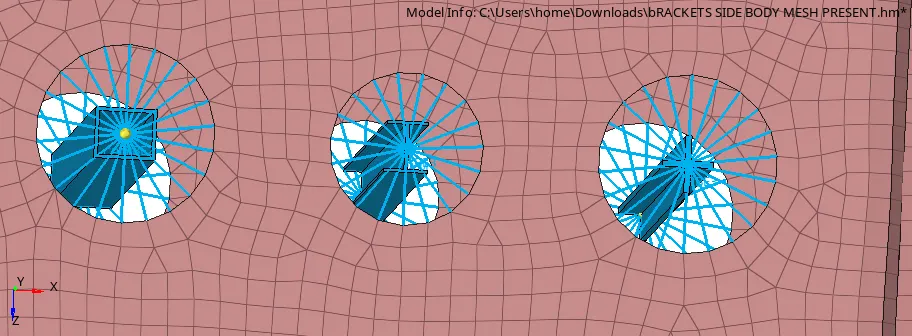
1D DETAILED ELEMENT REPRESENTATION
CONCLUSION:
Creating 1D elements on the following component (PARALLEL BRACKET) with given cross-section and DOF is successfully completed.