Week 8 Challenge
- Calculate dead load in design report based on IS code and apply dead load on the model
- Finishes of 50mm
- Slab thickness as per the design
- Brick wall load
- Roofing load
ANS
AIM: To calculate the dead load base on the IS code and apply on the Structure.
Tools Used:
- Excel sheet
- Load cases
- Loads
- Area load
- Full UDL
Procedure:
Step1:Fist open the excel and calculate the dead load which is to be applied to the model.
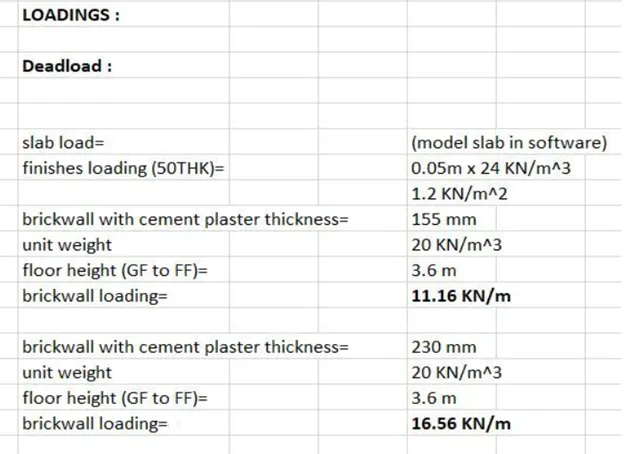
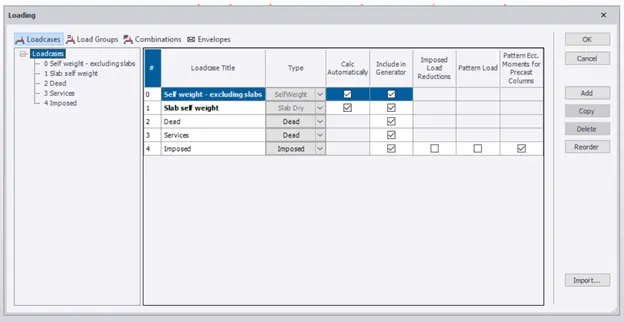
Step2: After calculating dead load first create load cases.
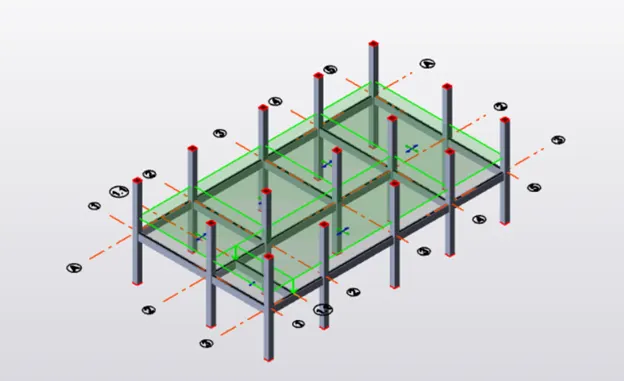
Step 3: Apply the Finishes load as an area load on the slab.
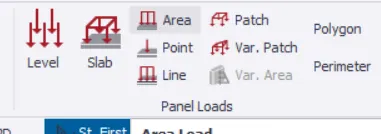
After application, it will look like this.
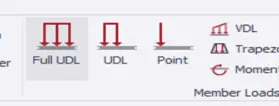
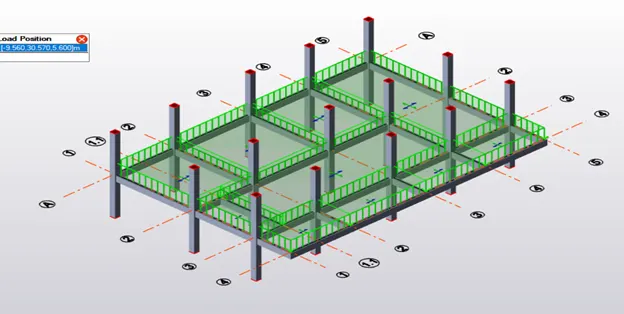
Step 4: Now apply full UDL by specifying Internal brick wall loading and external brick wall loading.
After application, it will look like this.
Now apply the roofing load as 1.5kN/m^2.
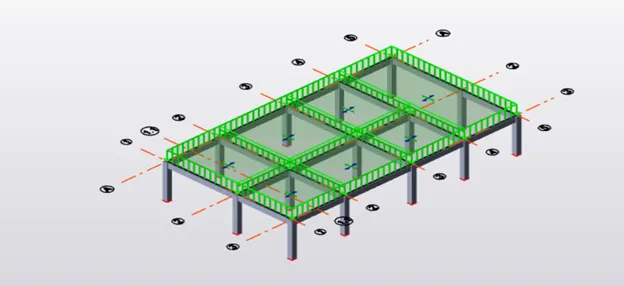
RESULT: By following the above procedure we had applied dead load successfully to the model.
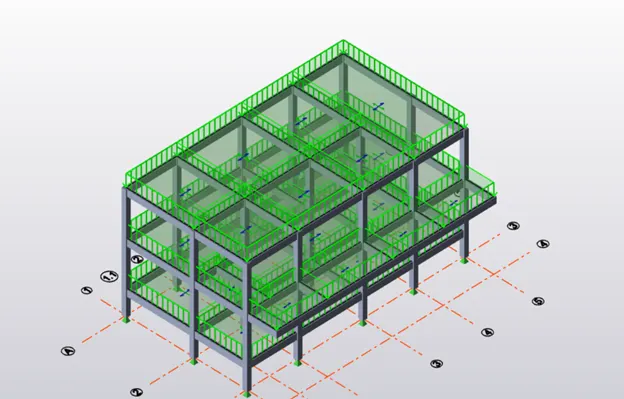
2. Calculate live load in design report based on IS code and apply Live load on the model
ANS
AIM: To calculate and apply live load based on IS code on the model.
TOOLS USED:
- Excel
- Load cases
- Loads
- Area load
Procedure:
Step1:
LIVE LOADS as per IS:875 part2 and according to the plan
Office Room = 3 kN/m^2
Common Room = 2 kN/m^2
Conference room = 2 kN/m^2
Store room = 5 kN/m^2
Stair case = 4 kN/m^2
Corridor = 4 kN/m^2
Toilet = 2 kN/m^2
Reception= 2 kN/m^2
Machine area = 10 kN/m^2
Meeting Room = 2 kN/m^2
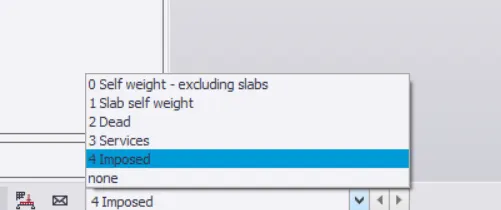
Step2: After getting the live lode according to IS codes we have to select imposed load in the Loading list then we have to apply area load according to the rooms in the plan.
After application, the model will look like this in 3D view.
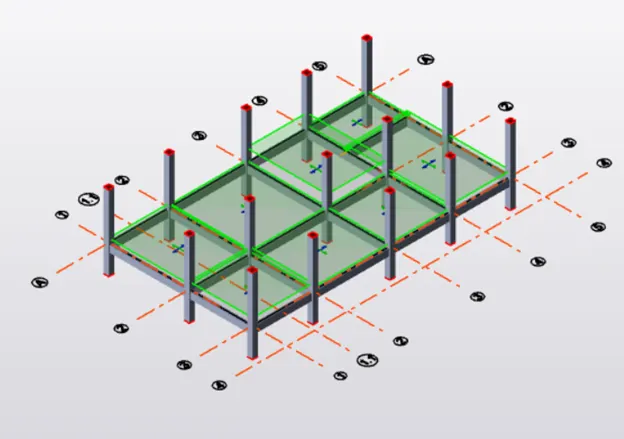
Step3: As per table 2 of IS 875 Part 2 the roof with no access will have a live load of 0.75 kN/m^2.
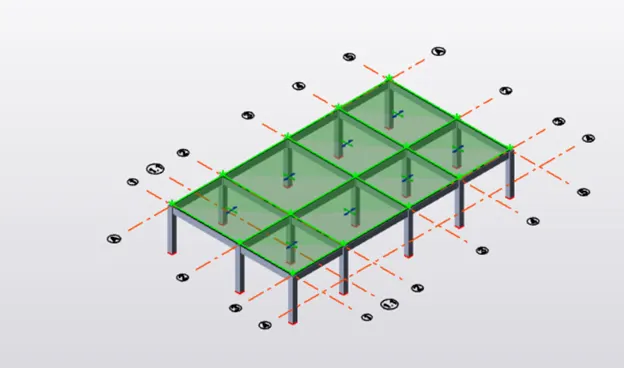
RESULT: by following the above steps we had applied the live loads successfully.
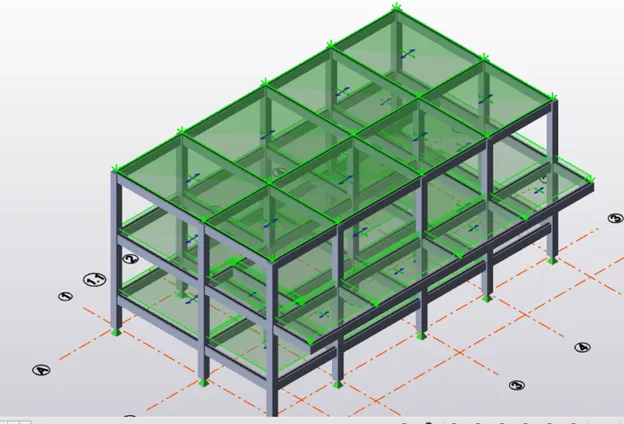
3. Generate manual wind loading in the design report based IS code as per the following input
- Basic wind speed = 50m/s
- Terrain category 2
ANS.
AIM: To generate manual wind loading in the design report-based IS code as per the input given in the question.
Procedure:
Step1: From IS codes we will calculate wind loads
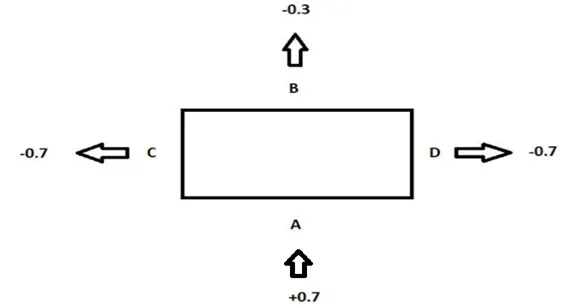
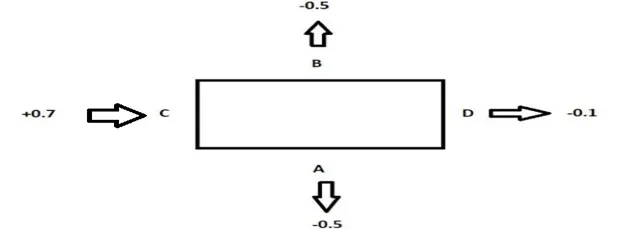
From table 5 of IS 875 Part3 and from h/w & l/w ratios we use the following values.
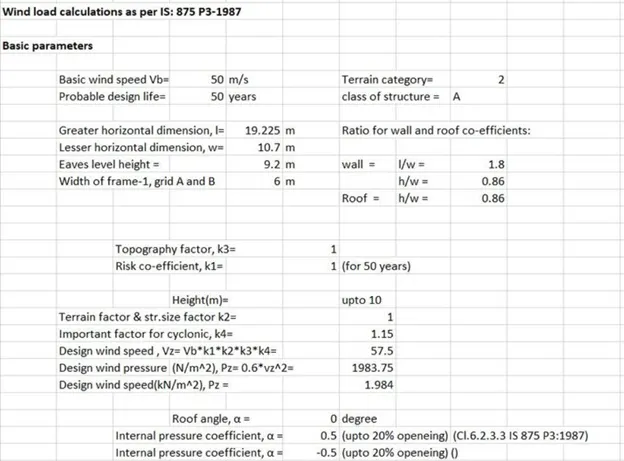
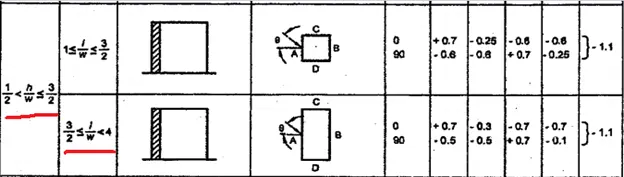
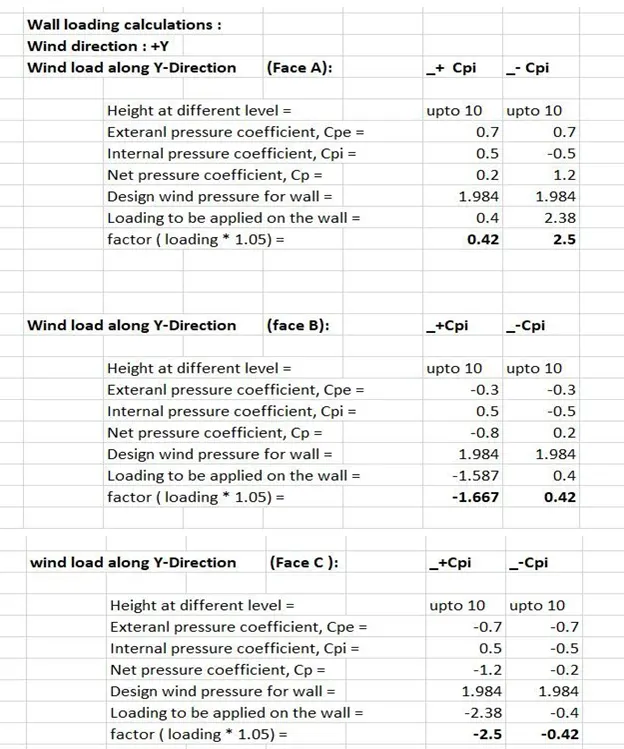
Step2: Wind load calculation along +y direction here C & D faces have same values.
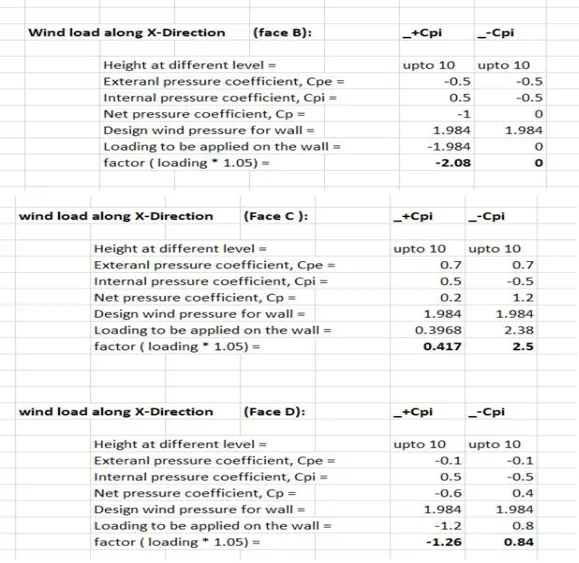
Step3: Wind load calculation along +x direction here A & B faces have same values.
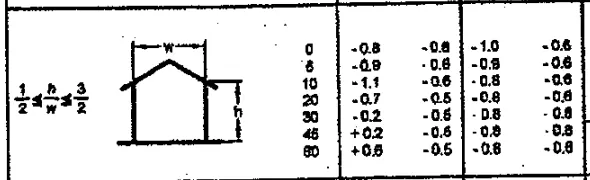
Step4: Roof loading Calculation
From table 6 of IS 875 Part3 with an h/w ratio 0.86
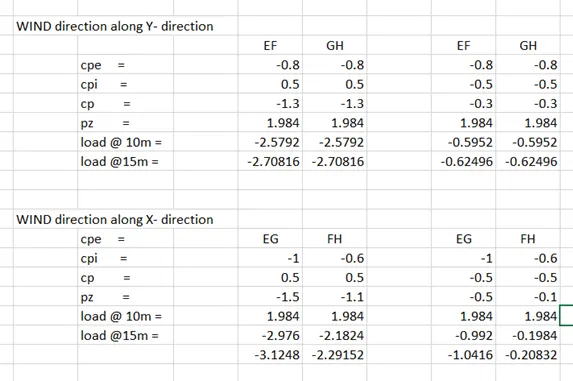
RESULT: By this, we had calculated Wind load which is to be applied on to the model.
4. Based on the above calculation apply the loadings on the model
ANS.
AIM: Based on the above calculation apply the loadings to the model.
Tools Used:
- Load cases
- Loads
- Patch load
- Wall panels
- Frames
Procedure:
Step1: First create frames on the outer edge of the model.
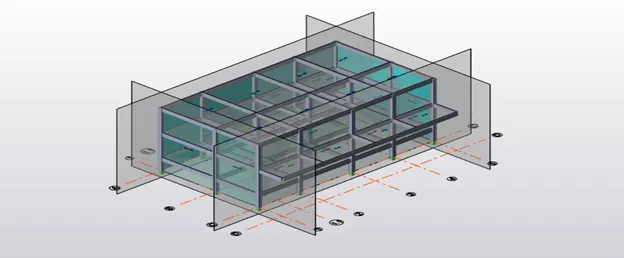
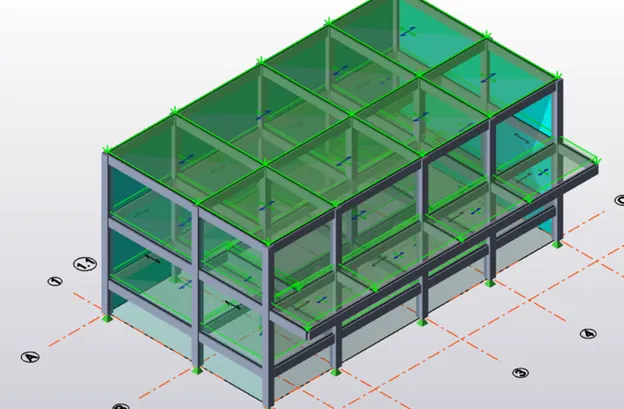
Step2: First of all create the wall panels on the outer frames using the wall panels option in the model.
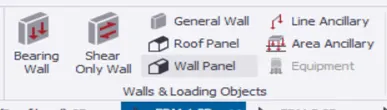
Step3: Open the frame then create the wall panels.
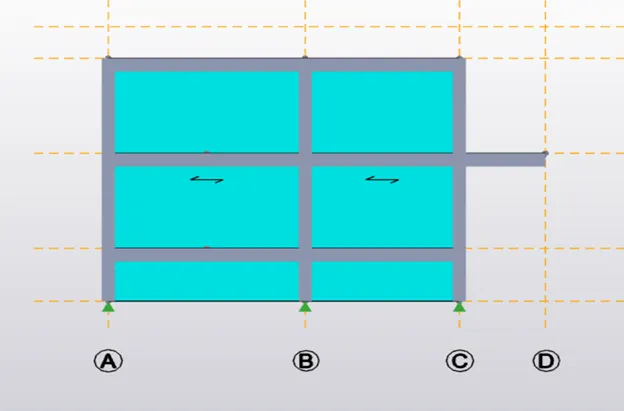
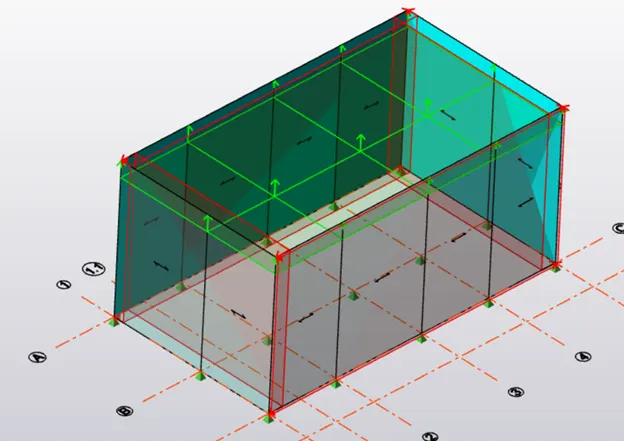
After the creation of panels, the model will look like this in 3D view.
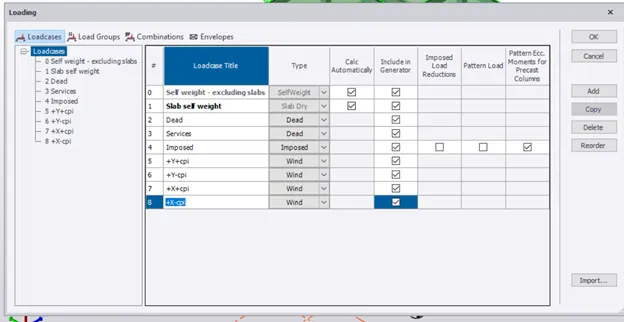
Step4: Create the load cases like the below figure.
Step5: Apply on Face A of load 0.42kN/m^2.
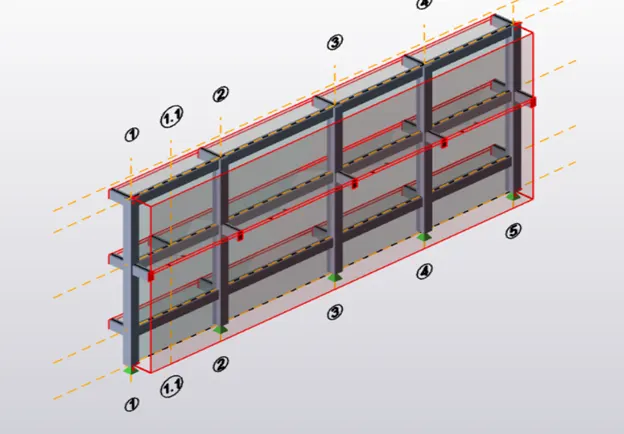
Likewise, apply wind loading on each outer frame according to the calculated value.
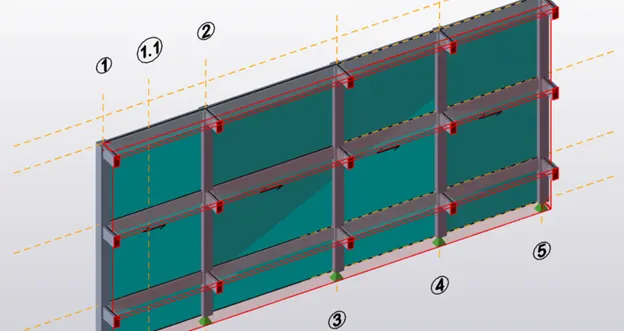
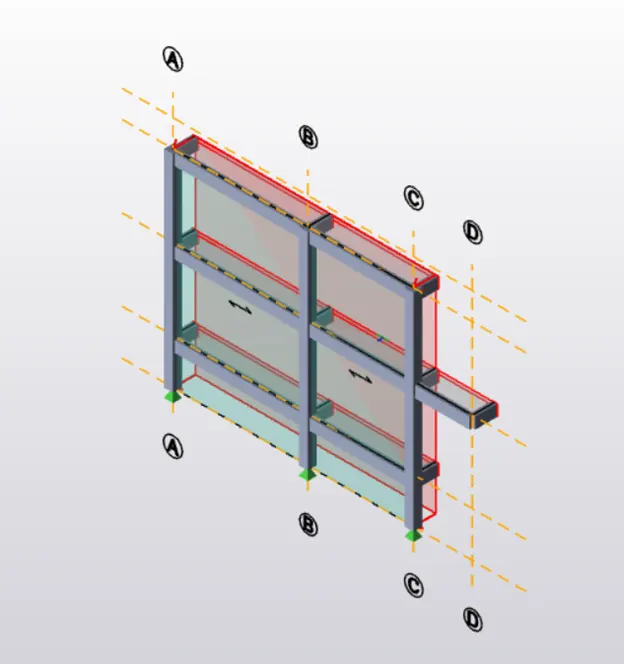
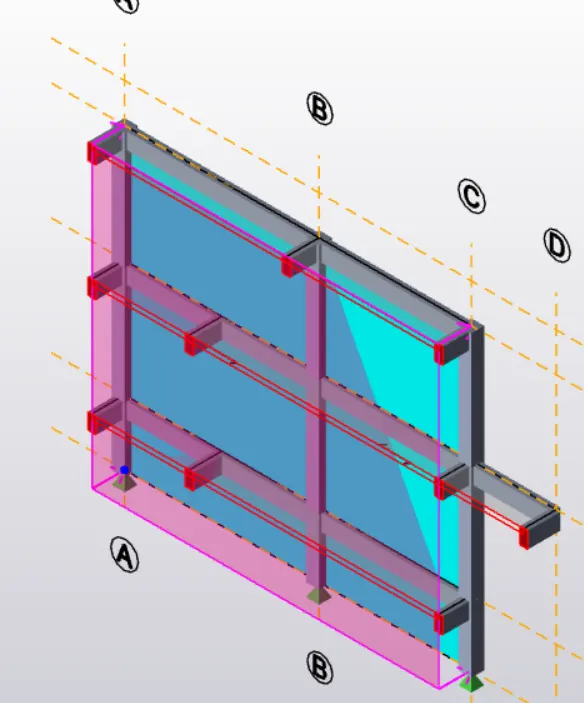
After the application of loads, it will look like this in 3D view.
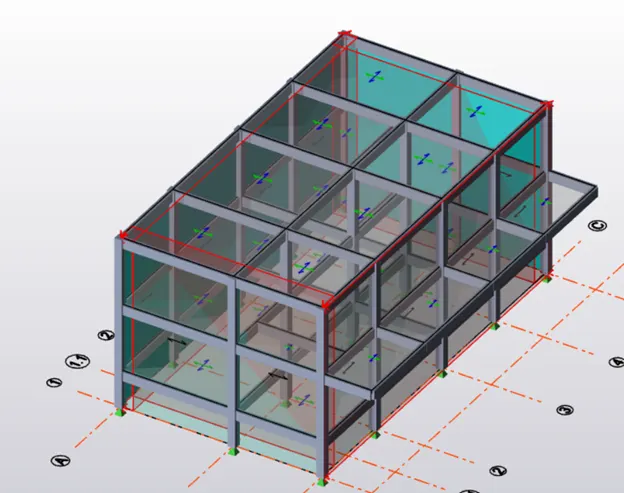
Step6: Now apply the Roof load, use area loading to apply wind load on the roof.
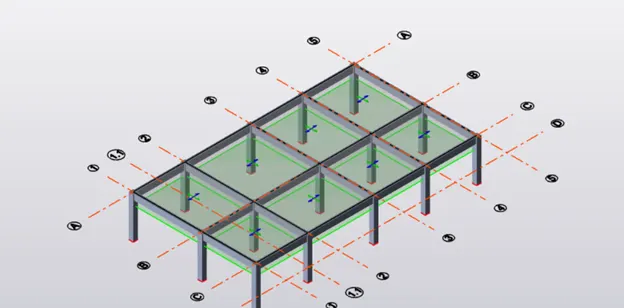
Step 7: Likewise apply each load case on the model according to the calculations.
RESULT: By following the above procedure we had been successfully applied wind load on the model without any error.