Draft Analysis on a Fan Cover
Introduction:
Draft Analysis is the process of assessing the designed plastic part if it has the drafting angles as per the requirement. In CATIA, draft analysis is done by the tool called as Feature Draft Analysis. It shows the different draft angles available at different parts and says if it meets the requirement or not by various colour codes. In this example, a fan cover’s class-A surface is taken for the draft analysis study.
Objective:
To perform the draft analysis of a fan cover using CATIA V5.
Steps involved:
A) Determining and making the Tooling Axis
1)Checking the boundary
The given part is first checked for its boundary to find if there is any gaps or opening or discontinuity in the boundary. If there are more than one boundary because of the openings, they can be separated.
2) Insert a coordinate system
In order to perform the other steps, first insert a point at almost the symmetric centre of the part and insert a coordinate system at the point. The coordinate system should be facing in all directions same as the default coordinate system.
3) Determining the tooling axis
By looking at the part from various direction, the optimum tooling axis is determined taking consideration of various factors such as low cost, avoiding side cores, etc.
4) Intersect with xz plane
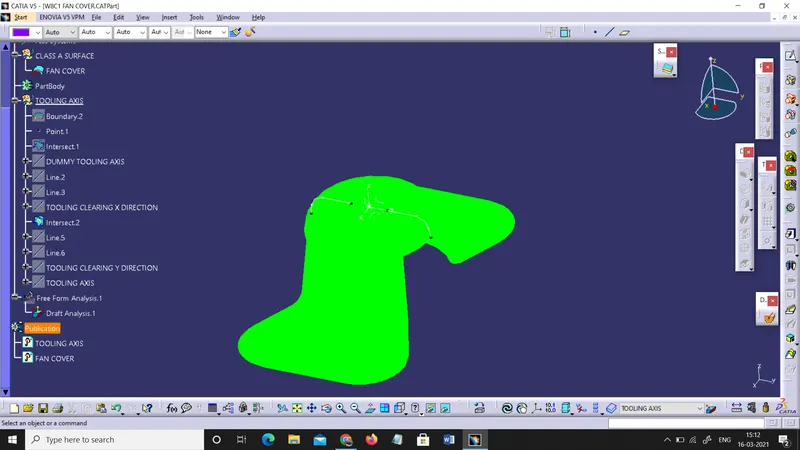
After determining the tooling axis, to make the tooling axis, we need to take the intersection of the part in two directions other than the tooling axis. First, xz plane is used to find the intersection curve. Then it is looked for the curve elements which can possible create problem while ejecting the part. The curves which are almost perpendicular or has high angle with the tooling axis can create no problem as they can be easily ejected. On the other hand, if the intersection curve has some elements which are almost parallel or has small angle with the tooling axis, then it should be assessed using the bisecting line.
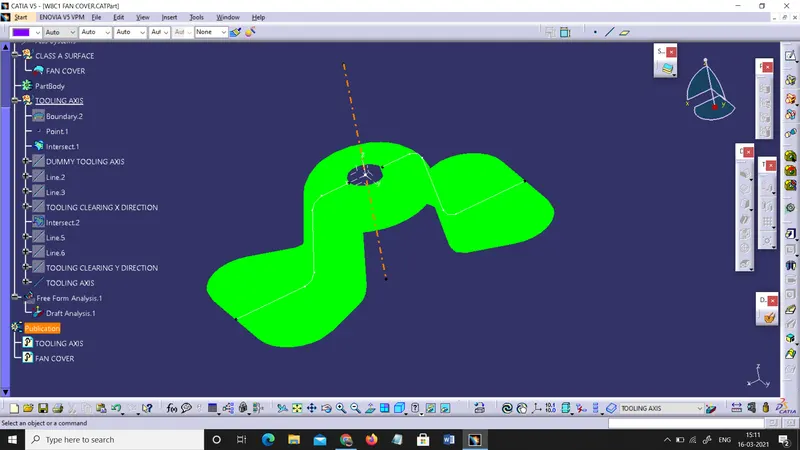
5) Creating the dummy tooling axis
Before actually creating the tooling axis, a dummy tooling axis is created using the help of the point created earlier.
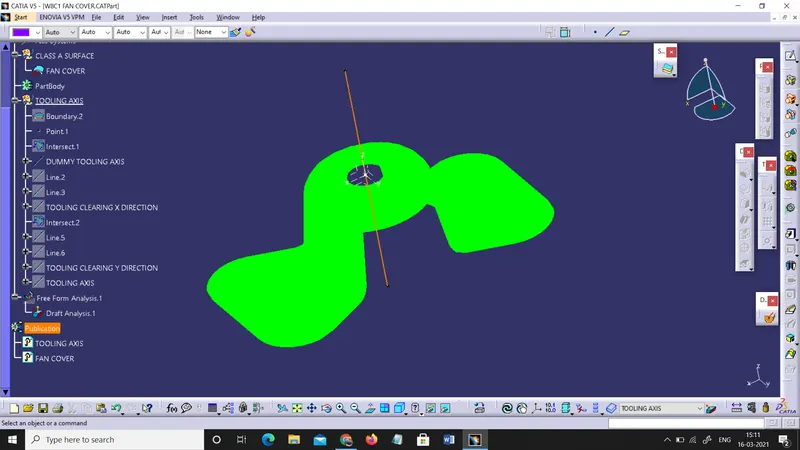
6) Creating lines from steep curve elements
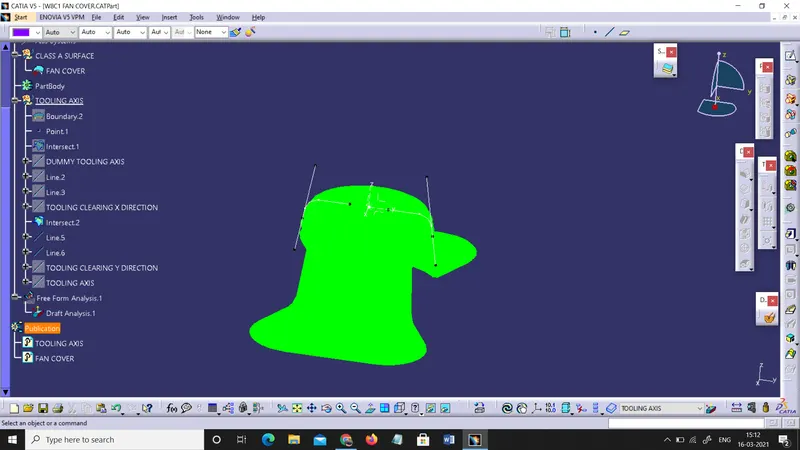
As explained earlier, those elements of the intersection curve which appears to be parallel with the dummy tooling axis, they should be assessed. To do it, their end points are taken and a line is drawn through them. It is done in both sides of the axis.
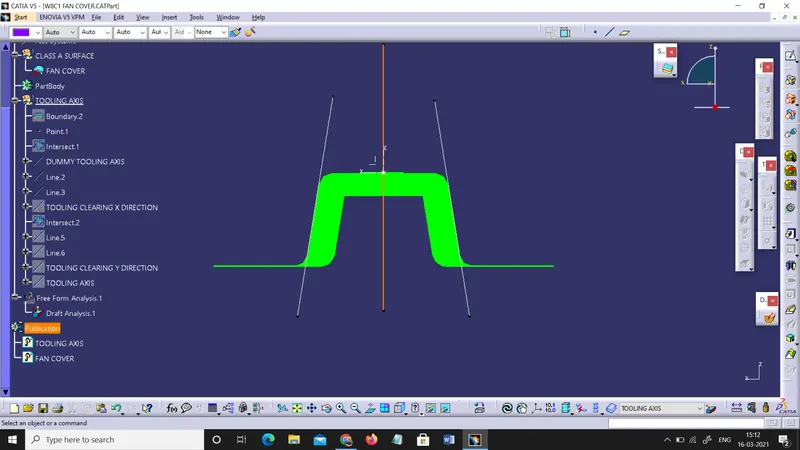
7) Creating TOOLING CLEARING in X direction
After the two lines are formed, a bisecting line using those two lines is formed. Out of the two options for bisecting lines, the line which goes between in the direction of the two lines is selected by clicking which is shown in yellow. This line will help to make the tooling axis once it is done with yz plane too.
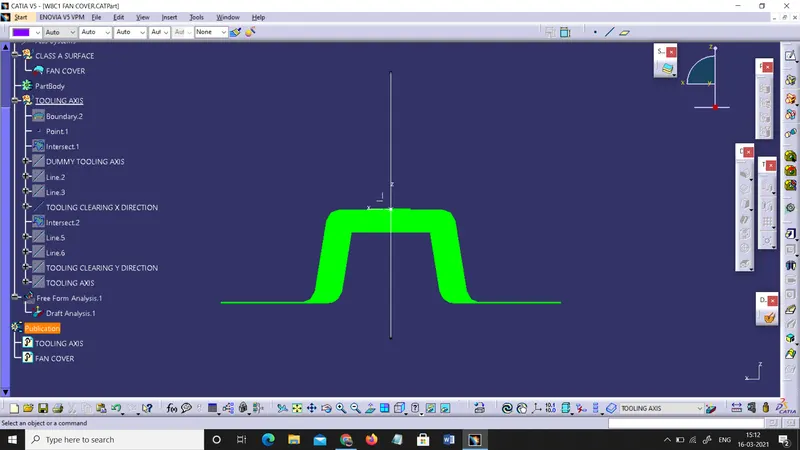
8) Repeat the process 4, 6 & 7 for yz plane
In order to get the tooling axis, we need either two planes or two lines to bisect. Here, to bisect the two tooling clearing lines, we need to do those steps in yz plane too.
9) Creating the tooling axis
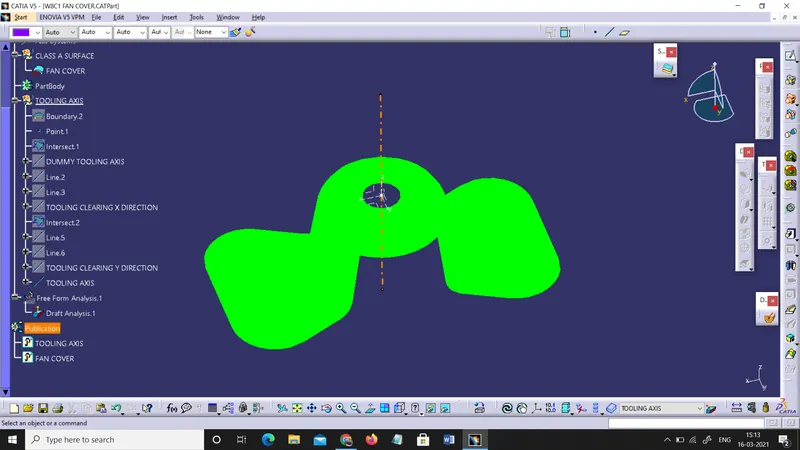
Now, using the two tooling clearing lines in x and y direction, use the bisecting line to create a new line (tooling axis) and select the result in the required direction. This will give the tooling axis we require. It can be made bold and the colour can be changed for its better visibility.
B) Publishing the fan cover and the tooling axis
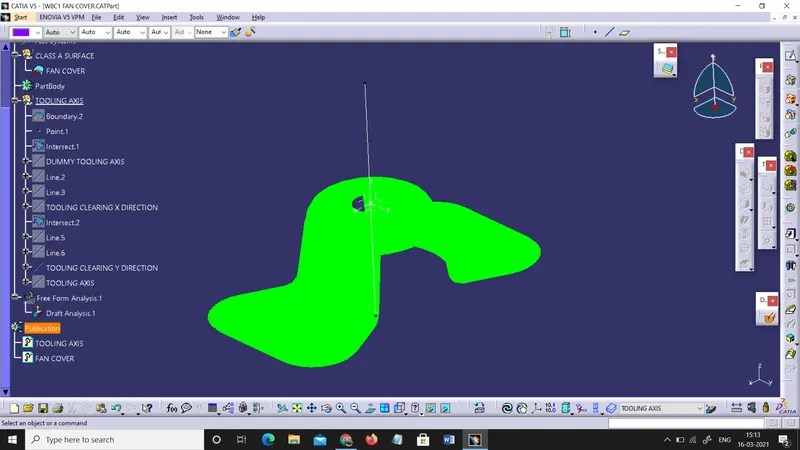
Publishing elements in CATIA V5 is used for various purposes. It helps to make the references of the part as a datum entity of the part.
C)Perform Draft Analysis
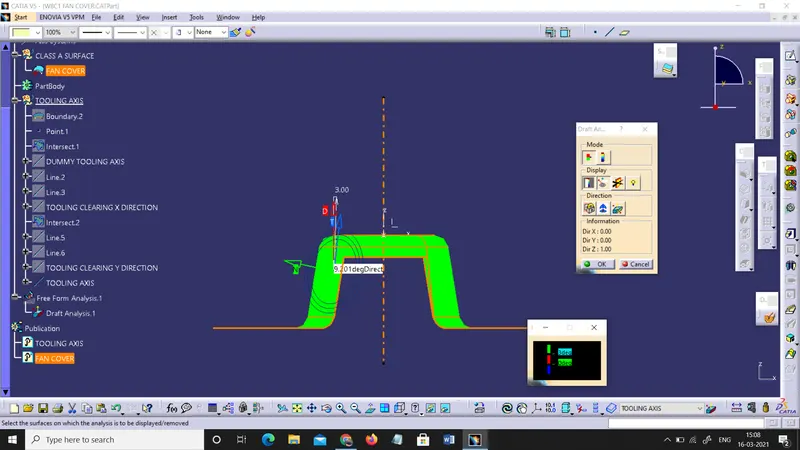
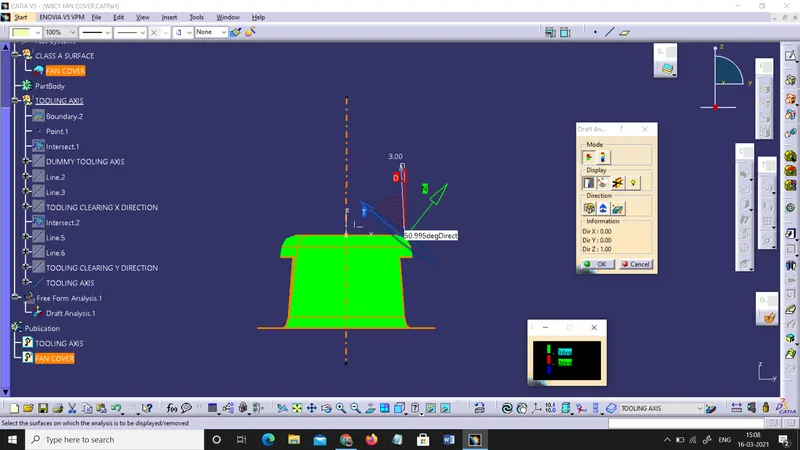
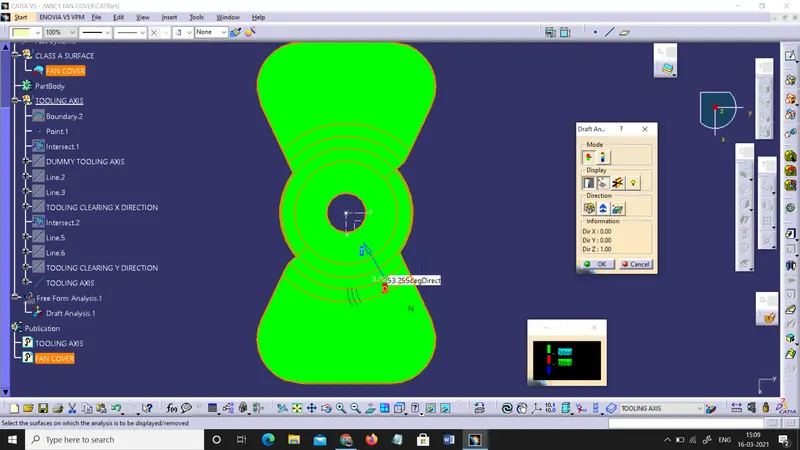
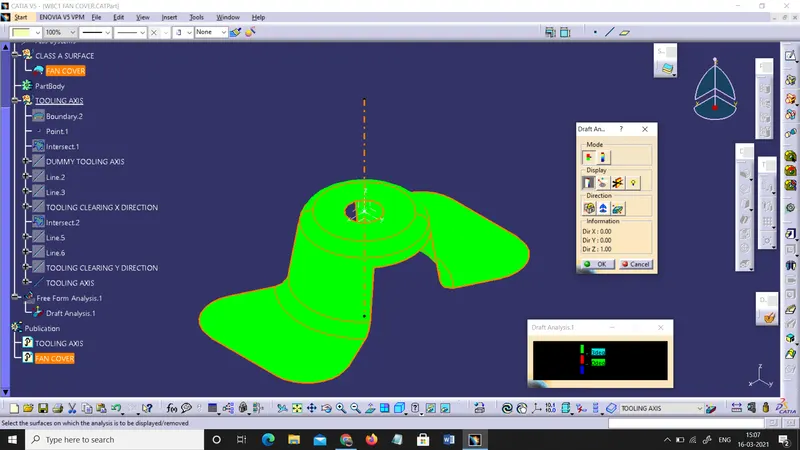
Now, perform the draft analysis of the fan cover. To do so, go to tools > analysis > Feature Draft Analysis. This tool has three group of options namely; mode, display and direction. First, the second icon from the direction group is selected and the red dot in the compass is clicked and dragged to the part to be drafted. The line in the dragged element is matched with the tooling axis and it is locked using the first icon in the direction group. It will define the tooling axis direction and lock it. Then click the fan cover. It will turn green or with green and red based on the draft angles. If the minimum draft angle is set to 3 and we have only 2 degrees of draft angle, it will show that portion in red. If the portion has enough draft angle, it will show it in green. Thus, the draft analysis is complete.
- Screenshots of the Draft analysis report.
- Image of the complete Draft analysis
- Images of the color scale variant
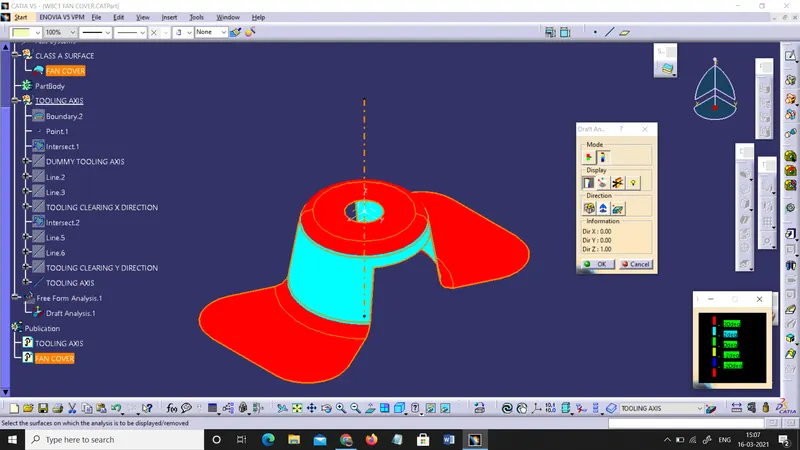
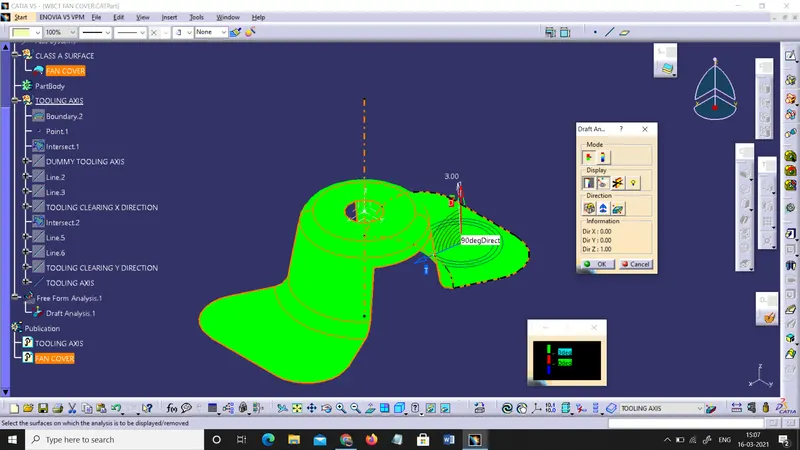
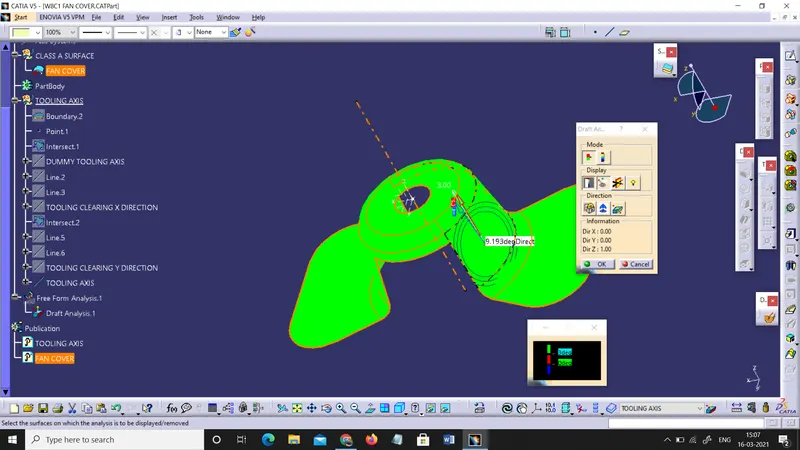
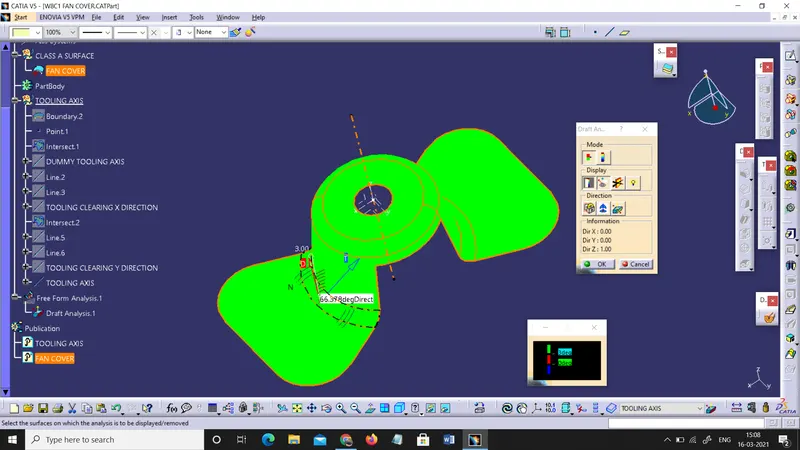
- Screenshots of the model with the proper color code of the draft angle in various orientations (Isometric, Front, Side, and Top View)