Morphing Project
Objective:
Practice all the Morphing techniques and write a detailed report.
Mesh Morphing Overview:
What is mesh-morphing; what kind of advanced features or capabilities can it have, and how does proper mesh morphing lead to faster run-times and predictions?
Morphing is a geometric interpolation technique that is often used by the animation industry to transform one form into another seemingly seamlessly.
Mesh morphing consists of the adaption of a computational grid adopted for computer aided engineering (CAE). For instance, the solid or shell mesh of a structural part ready to be processed by an FEA solver, or the volume mesh complete with boundary conditions for a CFD solver, can take a new shape by just updating nodal positions. This means that the topology of the mesh (nodes count, cells count, connectivity) stays the same. Only the x,y,z coordinates of the nodes in the part of the model undergoing a shape modification are updated.
Mesh morphing can be used for different purposes:
- Create shape parameters (i.e. change a length, an angle a thickness),
- Move onto a new known shape (i.e. as manufactured, as designed by CAD),
- Move onto a shape predicted by the CAE solution (automatic shape optimization with adjoint or BGM),
- Support multiphysics (move CFD mesh according to the evolution of the FEM-connected one, enable erosion/deposition).
Usually mesh morphing is faster than remeshing for a number of reasons:
It avoids “remeshing noise” (having the same mesh adapted means the effect of a parameter is not confused with the effect of a new mesh structure), so variation effects can be assessed even with a coarser mesh.
The CAE model can be updated on the background keeping all the original settings (boundary conditions). The update of nodal positions usually requires less computational efforts vs a full mesh regeneration. Creating shape parameters with mesh morphing is faster than creating a parametric CAD model.
Mesh Morphing in ANSA:
ANSA encompasses a full – fledged Morphing menu which is completely integrated with ANSA’s interface and doesn’t require any additional module installations or licenses. The functions of the Morphing menu can be used to efficiently re-shape both FE and/or Geometry based models.
Domain (Box) Morphing
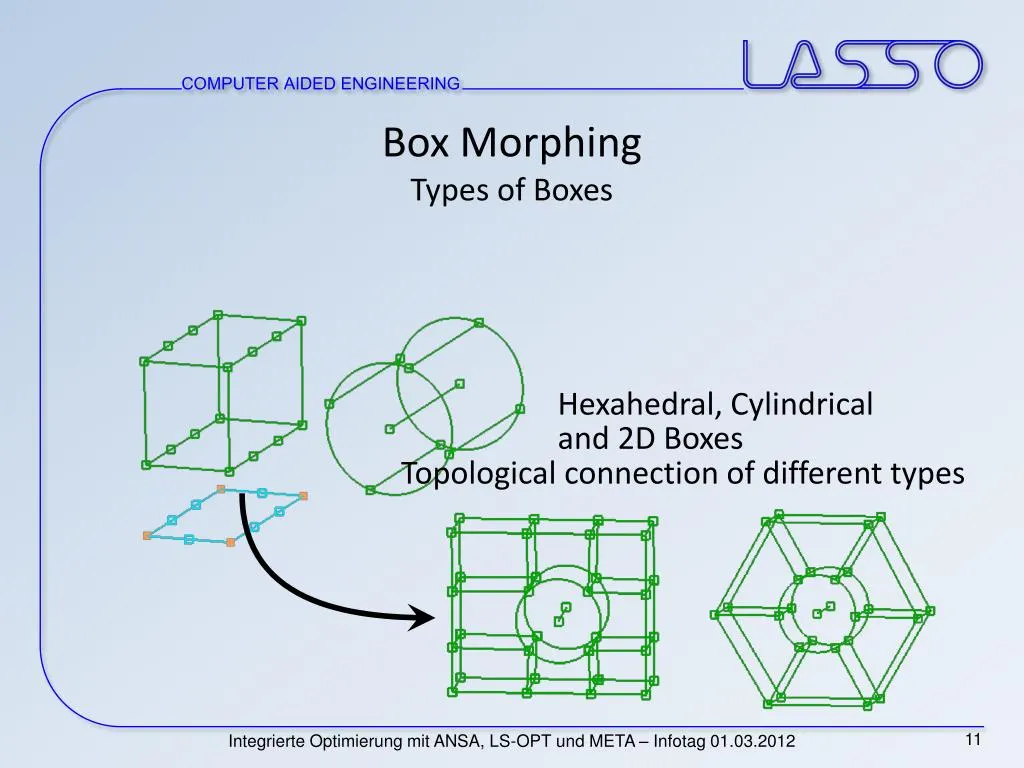
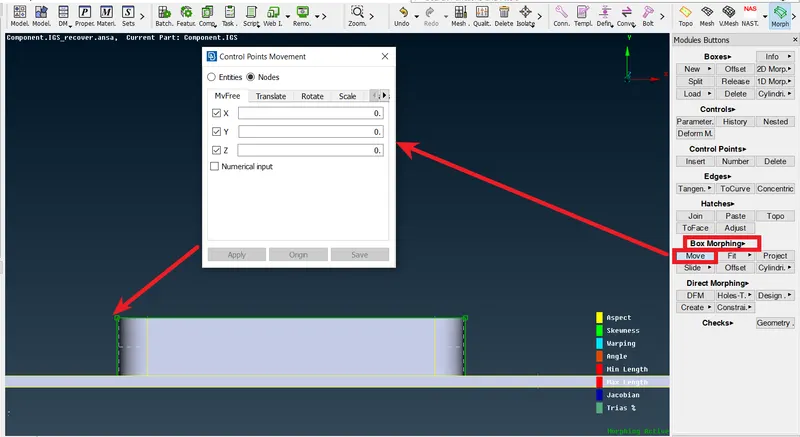
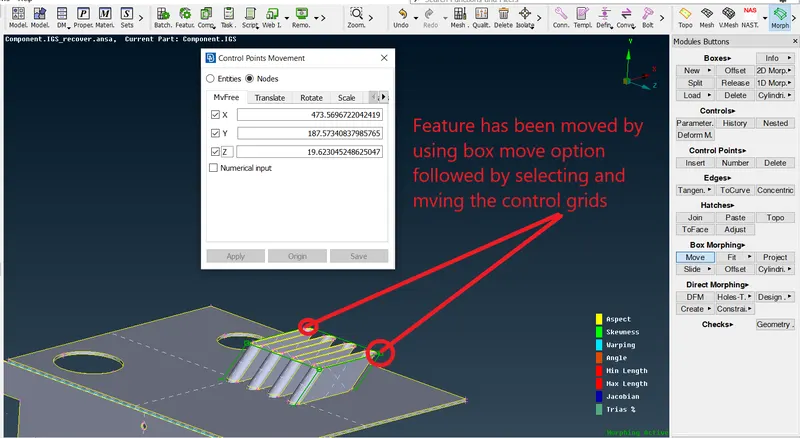
Domain or Box Morphing is preformed via boxes that are created around a particular part or assembly that the user intends to morph. The movement of the Morphing boxes control points defines the morphing operations on the entities inside the Morph box. This type of Morphing can be applied to both FE and Geometry based models.
Direct Morphing
ANSA’s Direct morphing features gives the user the ability to efficiently modify a part locally without having to create Morphing boxes. This method is extremely useful in creating local modifications on single parts. Creation of depressions, surface fitting certain FE part features to new target geometry, moving selected features along the contour of a surface and also the ability to freeze (rigid) elements during the morphing process are some of the direct morphing abilities.
Parametric Morphing
The desired morphing actions can be saved as parameters which can be accessed in batch mode. Users can enforce desired shape changes by changing numerical input value for the appropriate parameter. This method of morphing is highly utilized for coupling of the morphing operations to an external optimizer. The scripting capability can be used in conjunction with ANSA’s parametric morphing functionality to deliver faster DOE models.
Geometry Morphing
ANSA brings to the CAE world its ‘one – of – a kind’ tool for CAD geometry morphing. This pioneering concept allows the user to utilize the inventory of all the familiar FE morphing functions to perform equivalent operations in a CAD environment on geometric entities.
Practical Approach in ANSA:
Model Import:
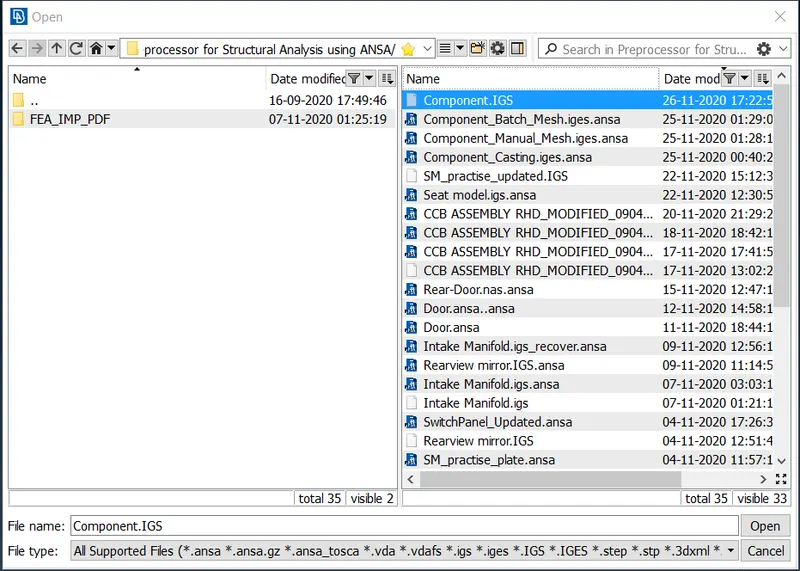
File > Open > Selct > OK
Geometry clean up.
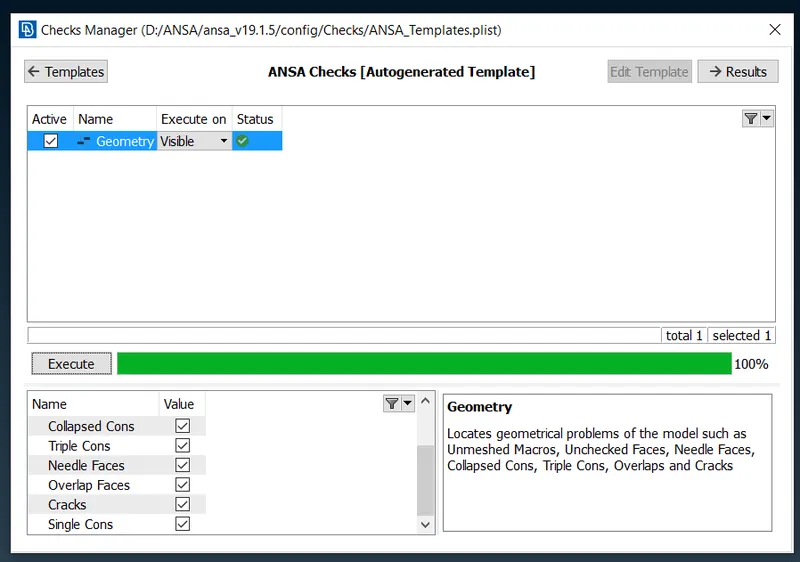
Below shown geometry errors can be detected by running geometry check available in tools tab:
- Use Auto-Fix to resolve errors.
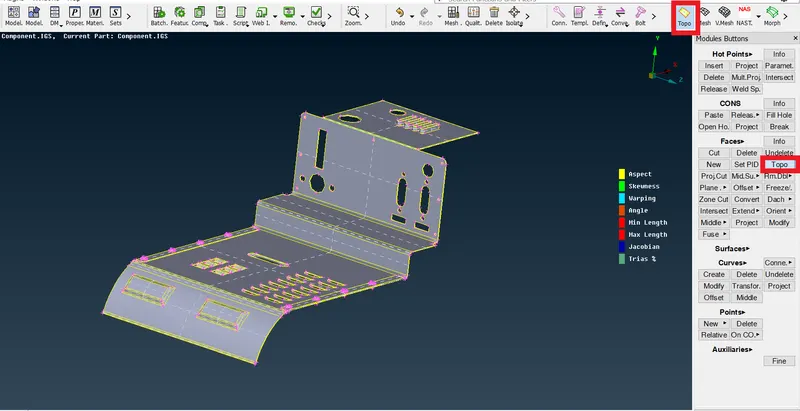
- If any error resolution is unsuccessful in auto mode then use manual method for cleanup by using release and TOPO tabs in Faces section available in TOPO mode.
Perform various morphing techniques on the given model:
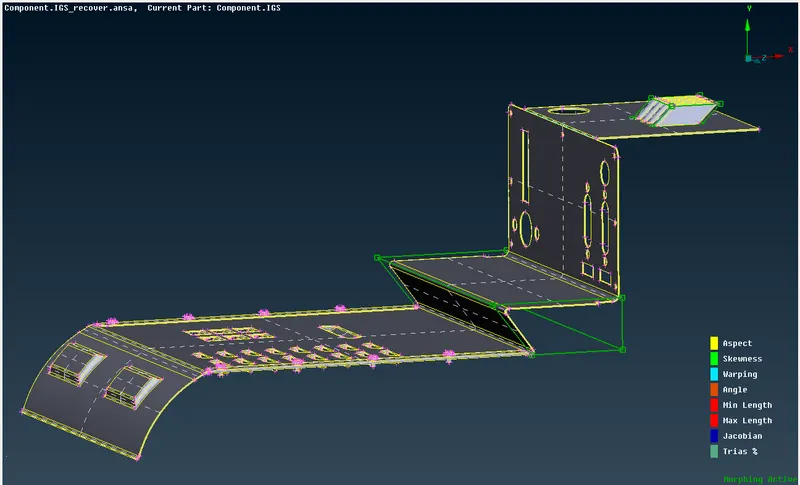
Box Morphing:
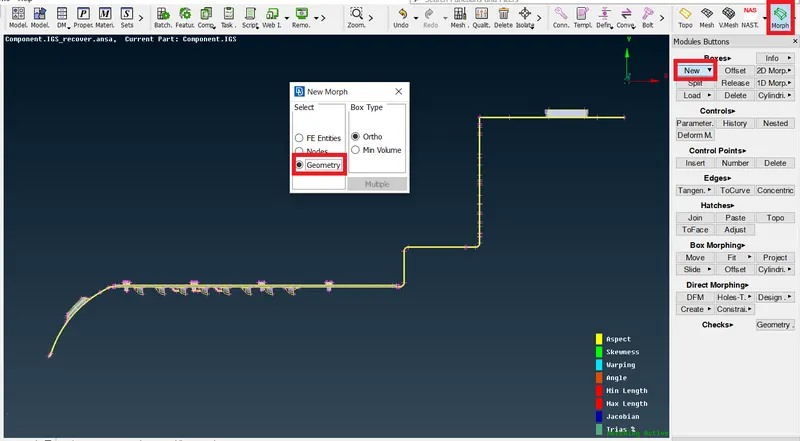
First, we need to switch to morphing tab to begin morphing operation as illustrated below.
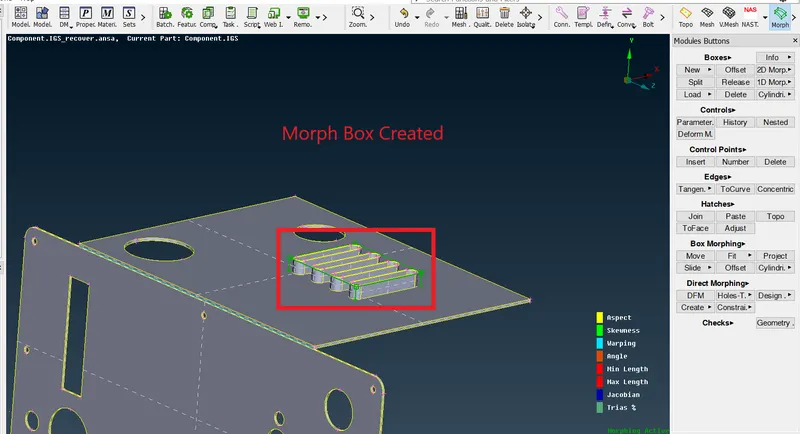
Morphing > Boxes > New > Geometry
Split Morphing:
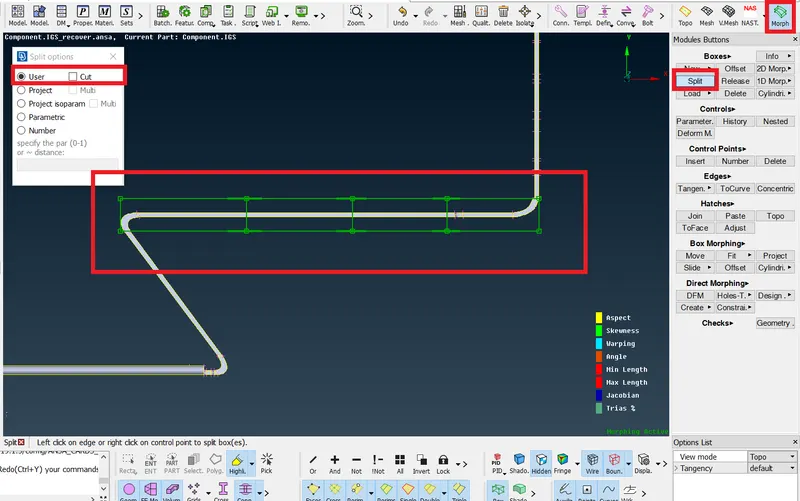
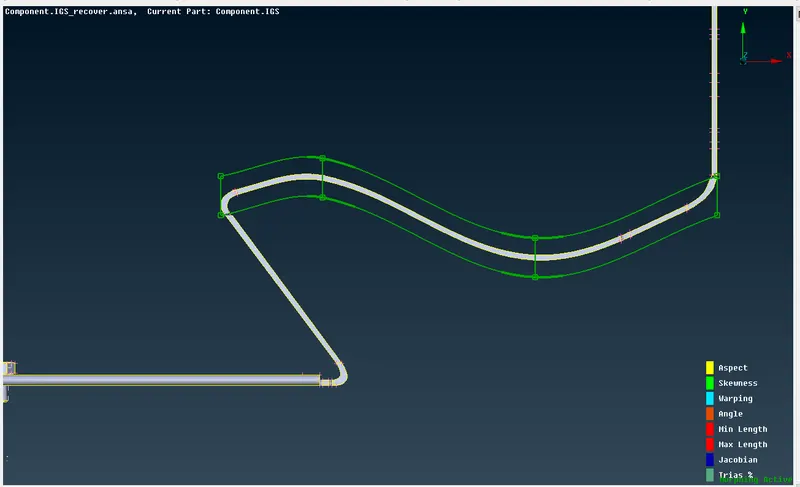
Follow the same steps as mentioned above but this time we will activate split option in Boxes Tab: Boxes > Split
Conclusion:
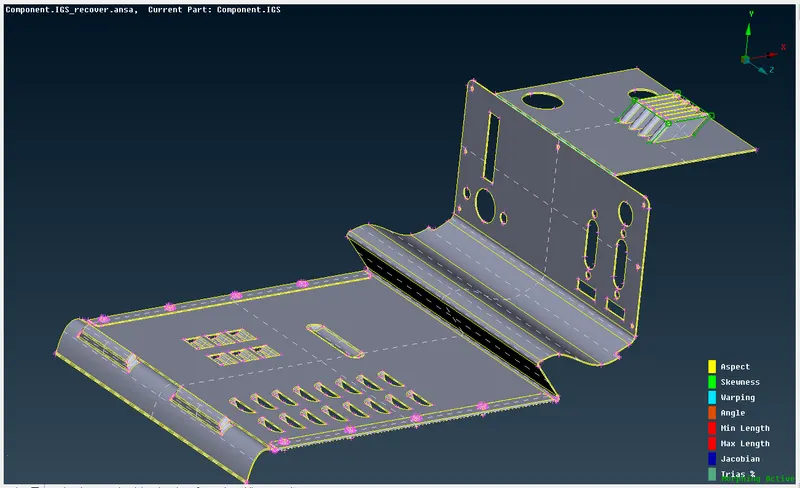
Given model has been sucessfully morphed and basics of morphing has been explained.
Learning Outcomes:
- Importance of morphing in industry.
- Types of morphing.
- Basic Morphing operations on model.
- Box Morphing VS Split Box Morphing