Week 8-3D Tetra Meshing Challenge
AIM:For the given model, Create a 3D Tetramesh with the following quality criteria.
OBJECTIVE:
Here we have 3 model and for the first one we have to go for manual 2D Tria Mesh and then create a tetra mesh using that shell element.And for other two models we have to go directly for the quick tetra mesh from the utility or using the volume mesh.
Model 1:
TetraMesh Generation Method: 2D to 3D Conversion
Elements sizes: Min- 2 Units, Target- 5 Units, Max- 7 Units
Tet collapse: 0.15
Process:
First import the model and then check for the geometry cleanup required because here we have to mesh over the surface of the component and then we have to create the volume using that shell mesh.
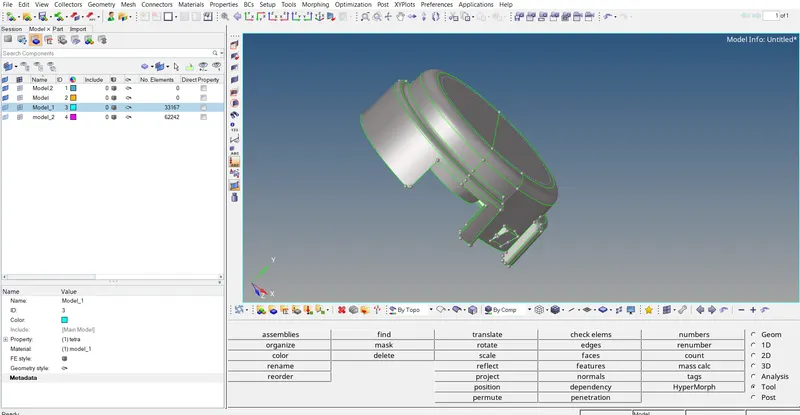
Here we have 2 component in this model so we go one bye one and first we select the first component.
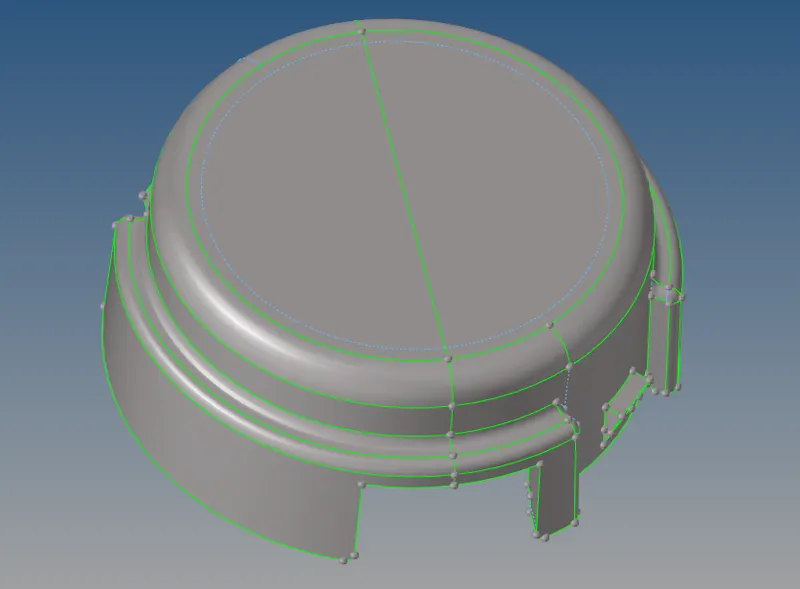
Here you can see that the fillets are suppresed which is smaller than minimum length and for all that we have used the quick edit option under the geometry,where we use the toggle,point retain,node to node,etc
after that we go for the automesh in the 2d mesh option or press f12 and give the element size as 5 as mentioned in the quesation and the mesh type as tria and also we have to keep in mind that for the curve reason we have to mesh with R-tria and for the plane surface with less features we have to use normal tria as mesh.
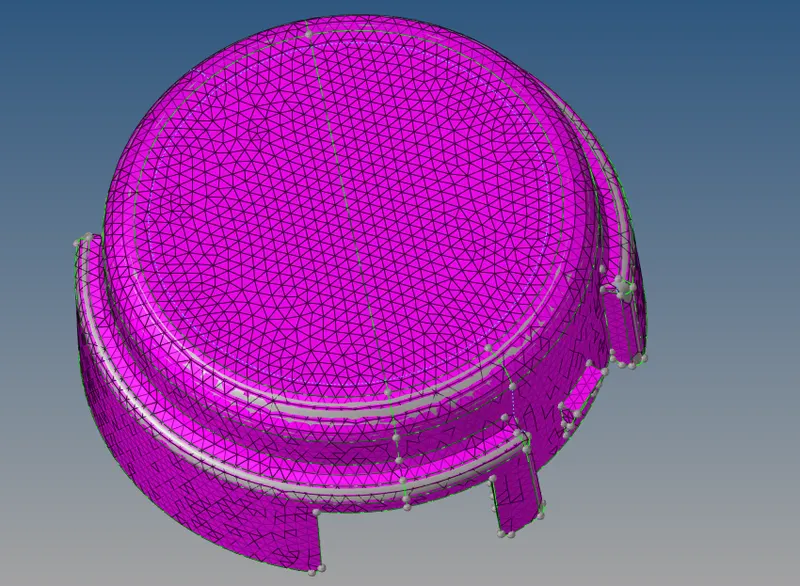
As you can see that here we have meshed with the trias and now here we don't need to check for the 2d quality but if you wanna check only minimum and maximum length we have to check for the quality .
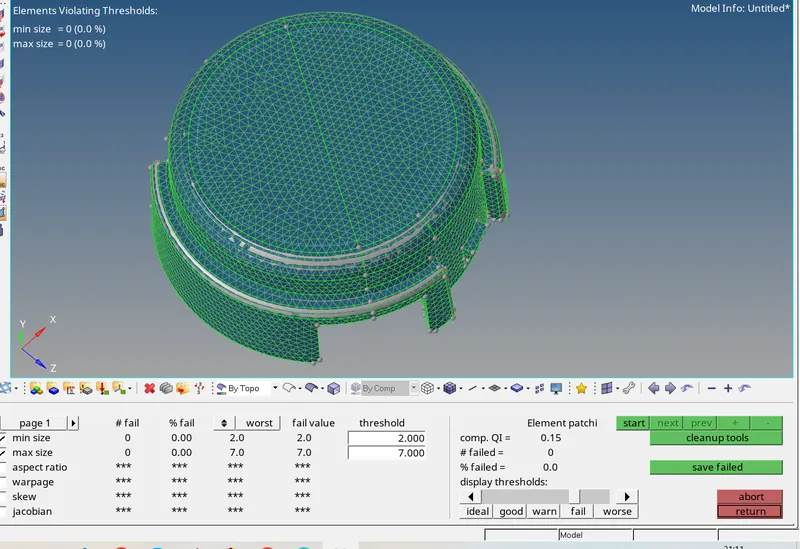
Here you can see that i had cleared all the quality. now i will proceed for the 3D meshing.
so for that we have to go in the 3D in that we have a option tetramesh there we have to select the component or element so here we have shell element so we select the element and than we have to select the element and click mesh.
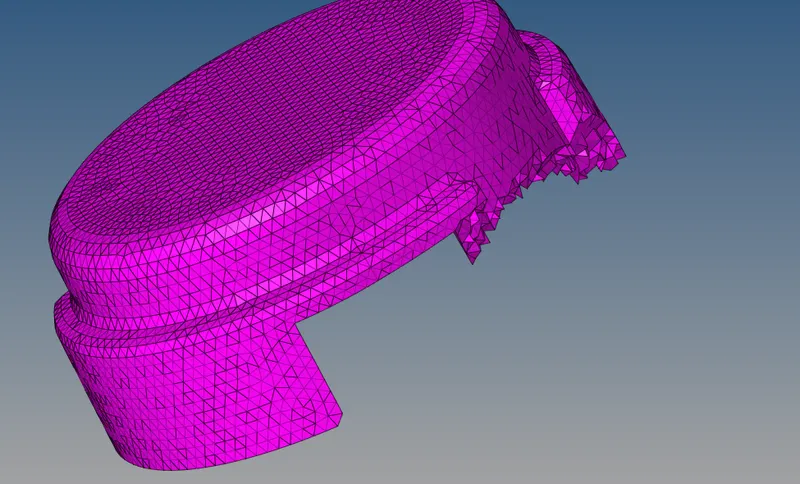
now here you can see the volume mesh is created and by doing mask element we have the volume inside there now here we have to check for the tet collapse as the quality check so it is mentioned as 0.15 so here i didn't get any tet collapse in my model.
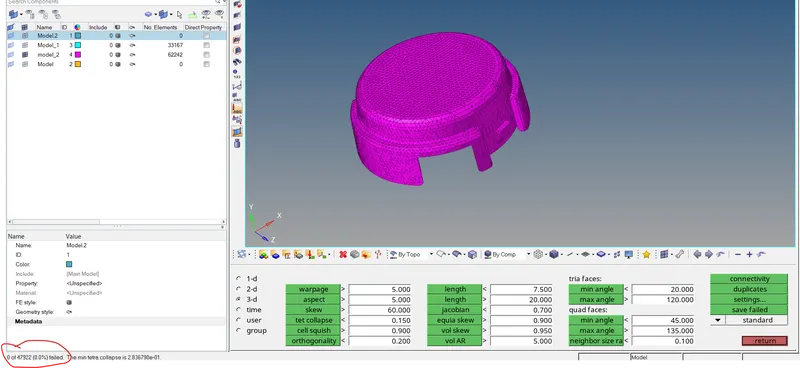
Here i had highlighted that its 0 so no quality issue.
So for the part 2 of this model we have to do the same process for whole component.
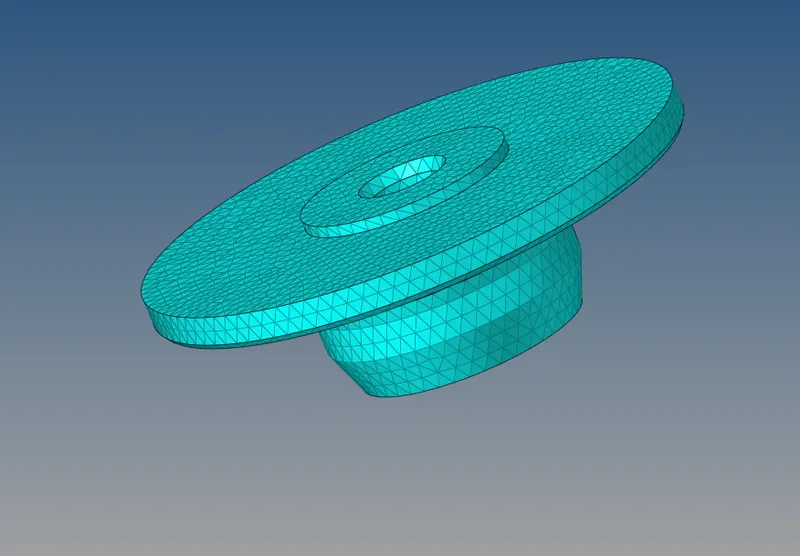
This the both component in this model.
Now finnaly we have to create the property of this volume mesh as PSOLID and material as steel and apply it to both the component.
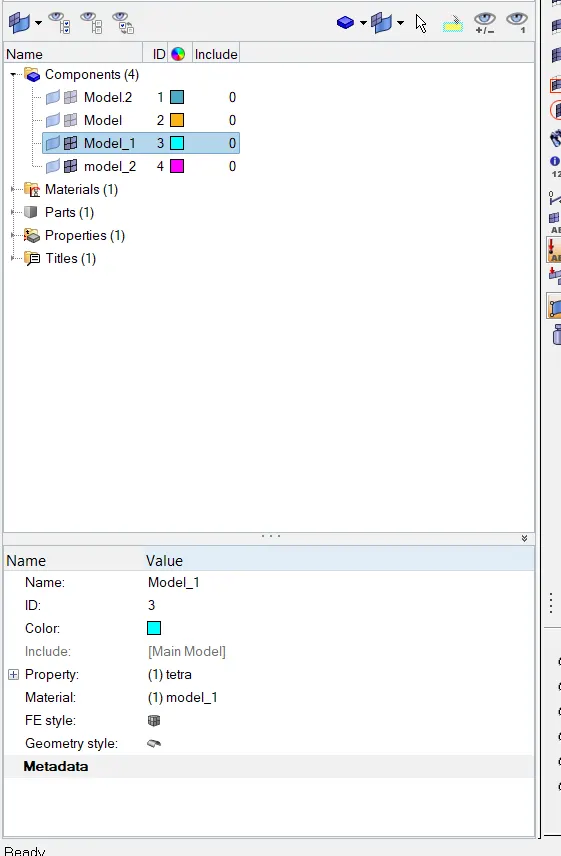
Model:2 For the given model, Create a 3D Tetramesh with the following quality criteria.
TetraMesh Generation Method: Quick Tetra Mesh/ Volume Tetra Mesh
Target Element size: 3 Units.
Tet Collapse: 0.15
Process:
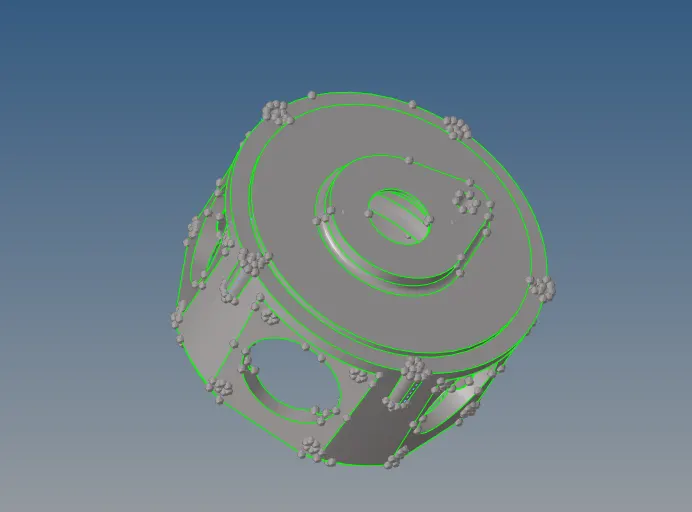
Process is same as above import the geometry.
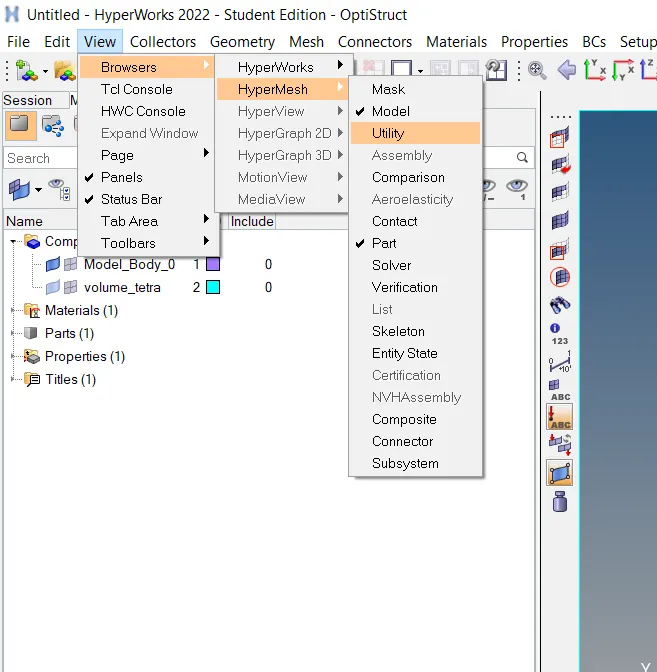
Now here it is asking for the quick mesh so we have 2 option first is in view>Browsers>HyperMesh>Utility and then select the Geometry/mesh and then quick tetramesh.
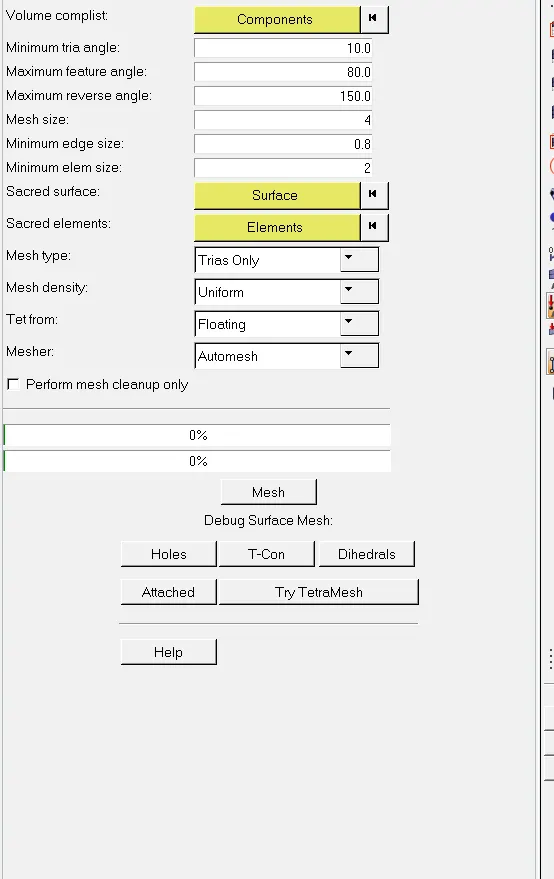
Here we have to select the component and then give the mesh size as 4 and minimum element size as 2 and mesh type as trias only and then click on mesh then after completing the process we will get the rough volume mesh but here i tried many times it is not working here its giving un even or uncompleted mesh so i decided to choose the second method which is volume mesh in the tetramesh option under 3D.
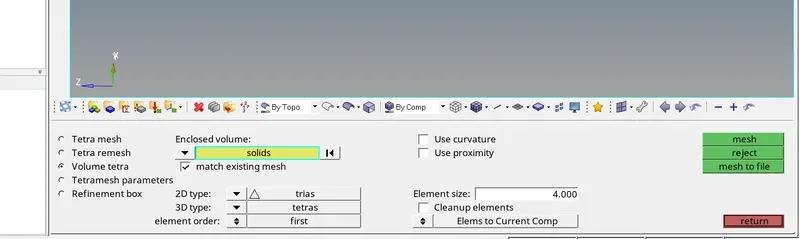
Here i had selected the solid because in this model we have solids given and then 2D type as trias and 3D type is tetra and element size as 4 and then directly mesh it.
after that we will get the volume mesh as shown below.
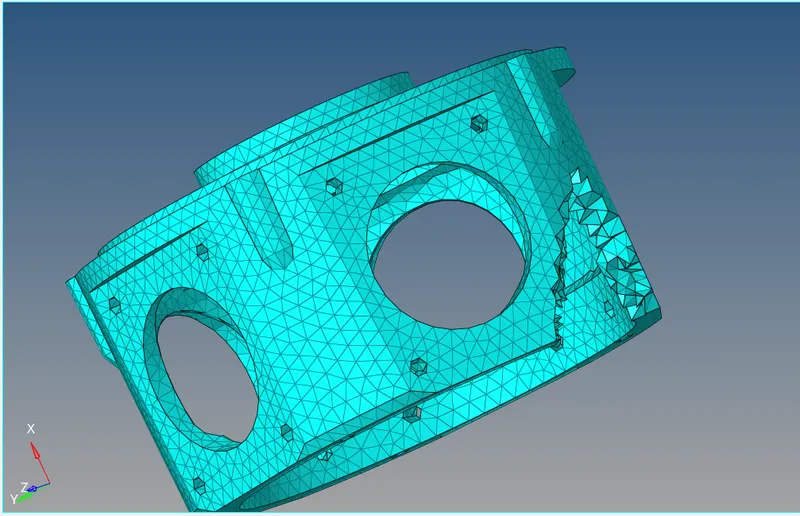
Rest of the process is same for quality check and then apply for the material and property all are same as i explained above.
Model 3: For the given assembly model, Create a 3D Tetramesh with the following quality criteria.
TetraMesh Generation Method: Quick Tetra Mesh/ Volume Tetra Mesh
Target Element size: 4 Units.
Tet Collapse: 0.15
Process:
Here In the second model and the 3rd model both the process are same here so here also i had imported the geometry.
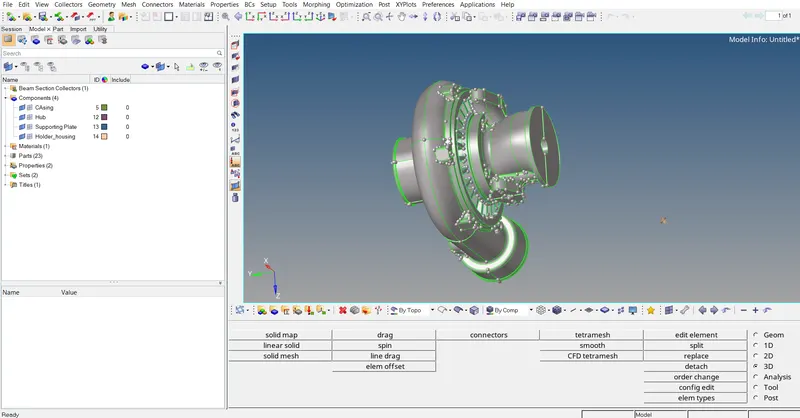
Here we have 4 component in this model and we have to follow all the same process we have done in the 2nd model.
here also we have done on the quick tetra mesh but it didn't work that's why i used to go through the tetra mesh option in the 3D. so now here we have a issue in this model when we select the whole surface it is selecting only half so the problem is we have to delete a surface in the middle of the every component as shown below.
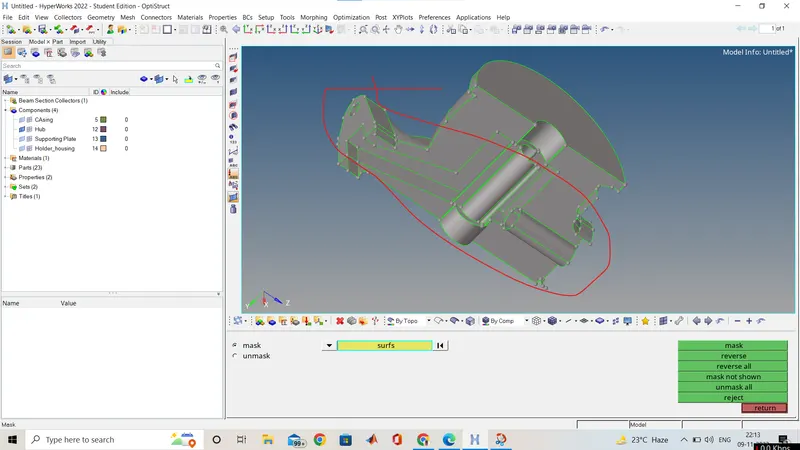
Here i marked it we have same in all the 4 component in the model so we have to del that surfce and then we have to do the volume mesh and select the whole suface and rest of the process is same here also as the complete image you can see below.
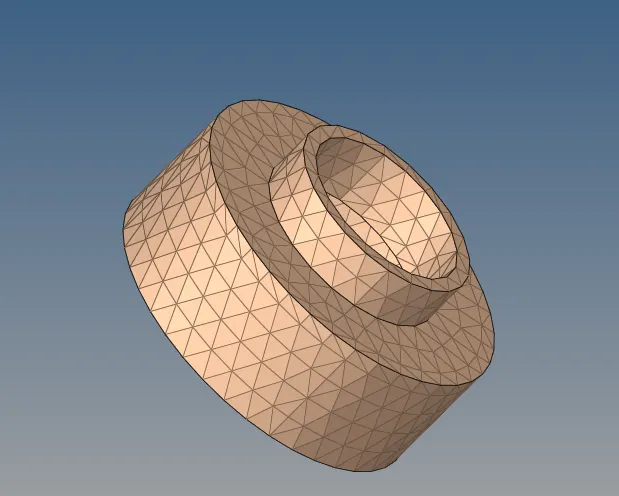
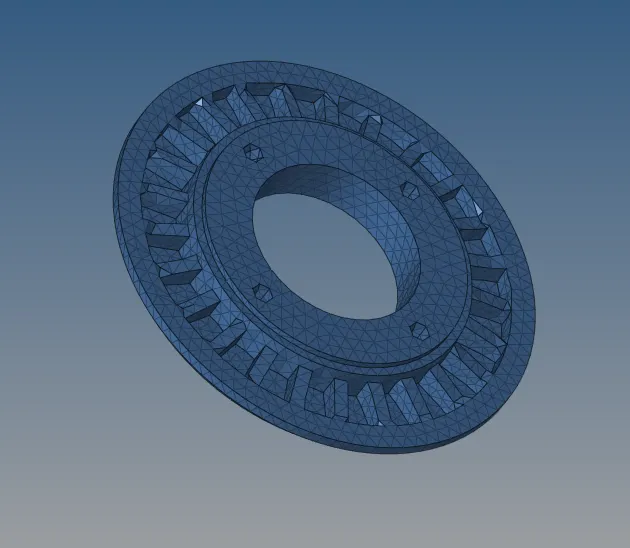
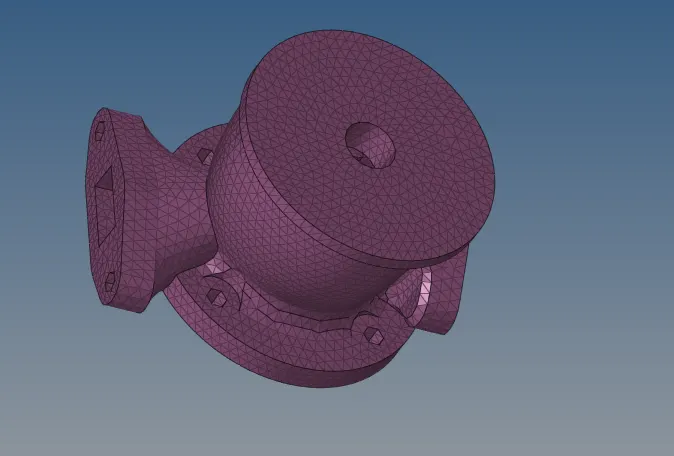
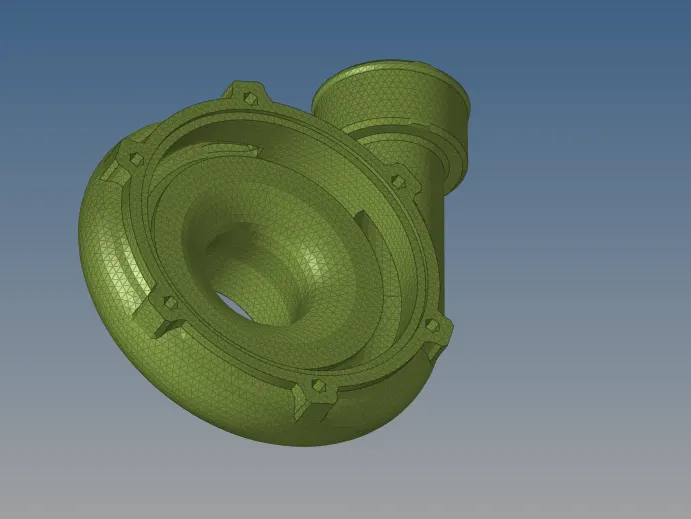
Rest materil,property assign is same as above and tet collapase is also zero.
Conclusion:
- Here we have 3 models and i had meshed with the volume mesh or 3D tetra mesh using different options and learned all the options inside it.