Week 8-3D Tetra Meshing Challenge
AIM :
To perform 3D Tetra Mesh on the given model.
PROCEDURE :
Model 1 :
- Import the given model and check any geometry error.
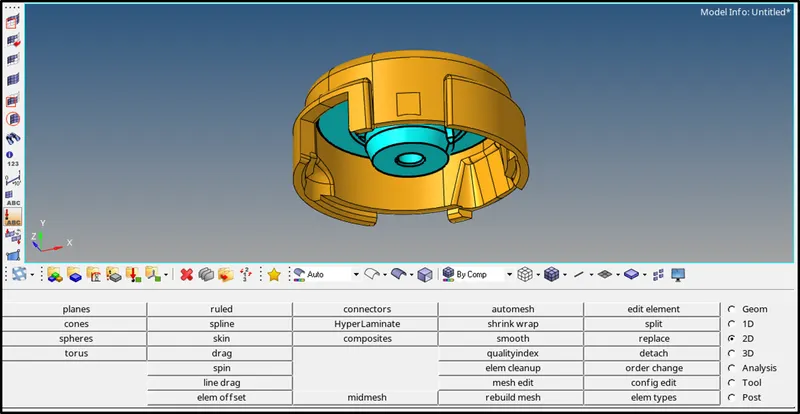
- In this model there are few missing surface . Fill the surface by QUICK EDIT > FILLER SURFACE OPTION.
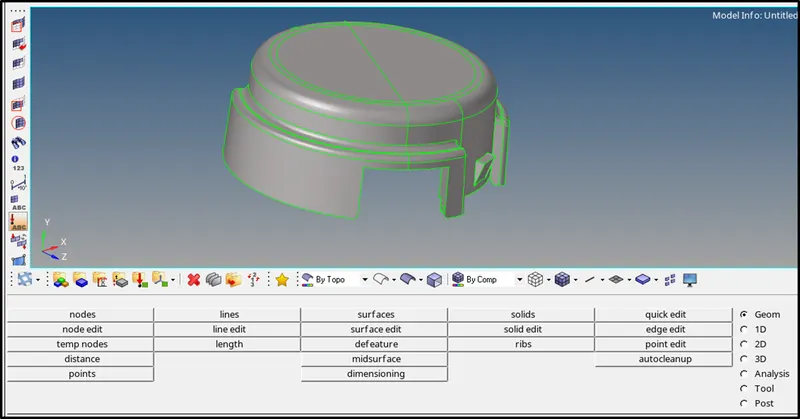
- Next step is to defeature some edges which might for minimum length quality criteria
- Initially mesh the Surface using 2D tria elements .
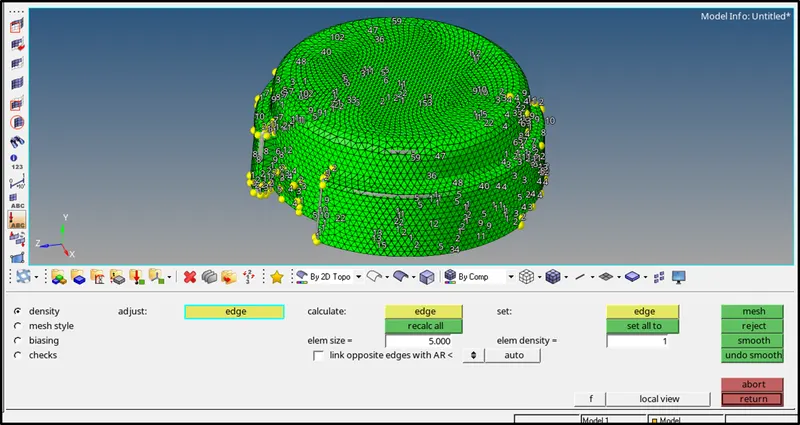
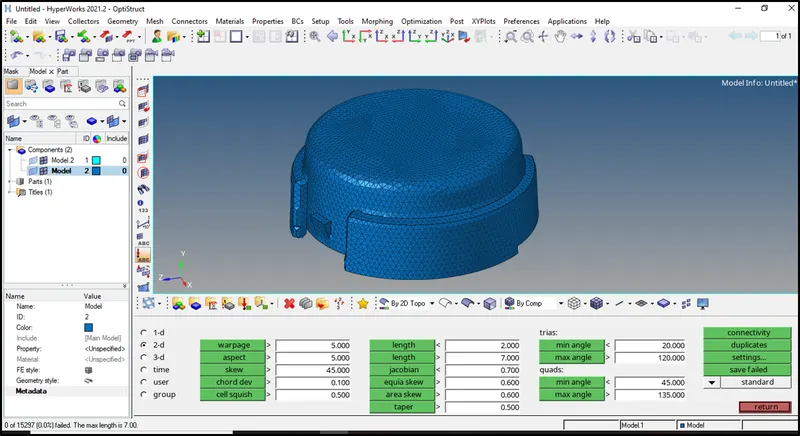
- Check for minimum and maximum element size error from and clear the same.
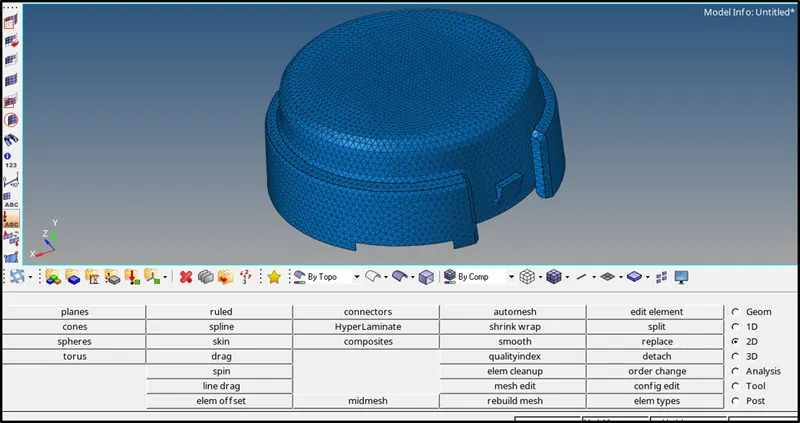
- Below image shows there no MIN and MAX elements size error.
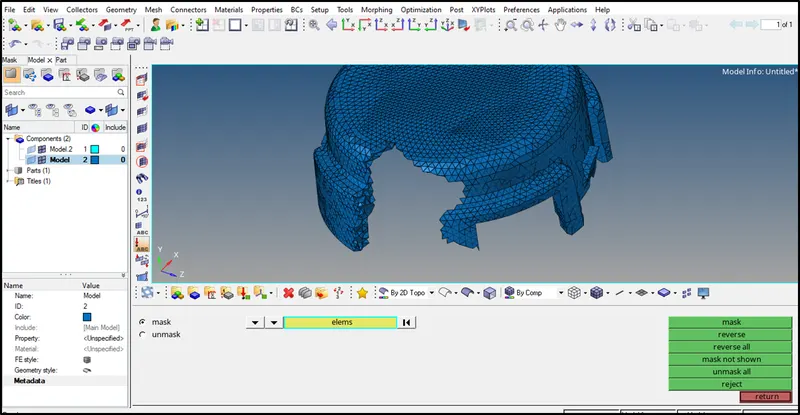
- Perform 3D Tetra mesh using the 2D tria elements. 3D>TETRA MESH>SELECT ALL THE ELEMENTS.
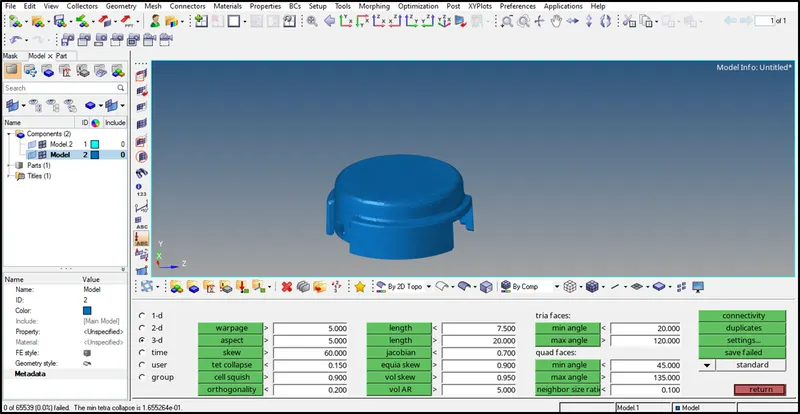
- Check Tet Collapse for 0.15, in TOOLS > CHECK ELEMENTS > 3D > TET COLLAPSE , fix the error by tetra or manually by moving the nodes.
- Below image shows there is no tet collapse error.
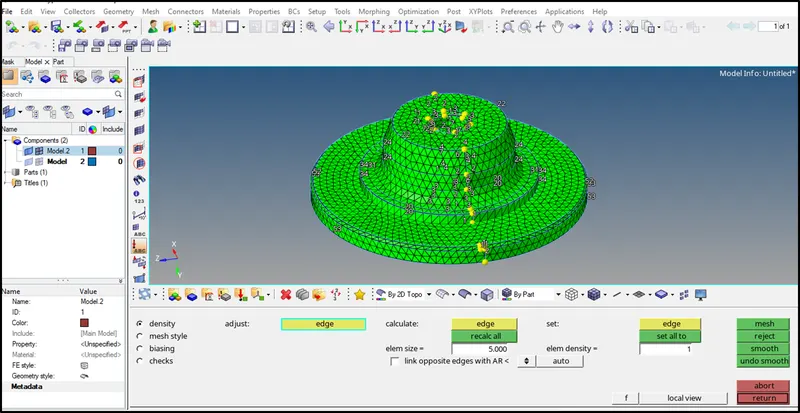
- The above procedure same done at below shown part also.
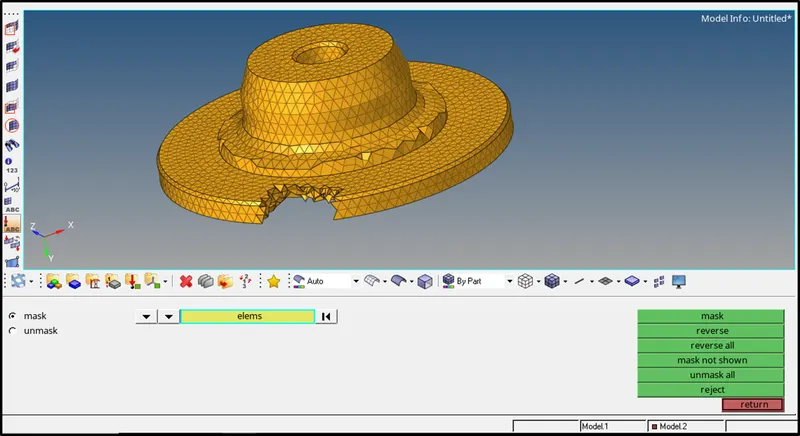
MODEL 2 :
- Import the given model and check the geometry error.
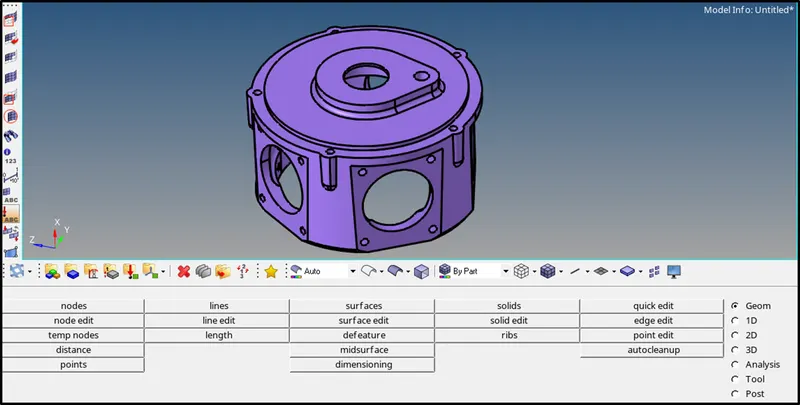
- In this model no need to perform the 2D mesh . Here we perform the 3D Quick tetra or Volume mesh.
- In option, 3D > TETRA MESH > VOLUME TETRA > SELECT THE SOLID.
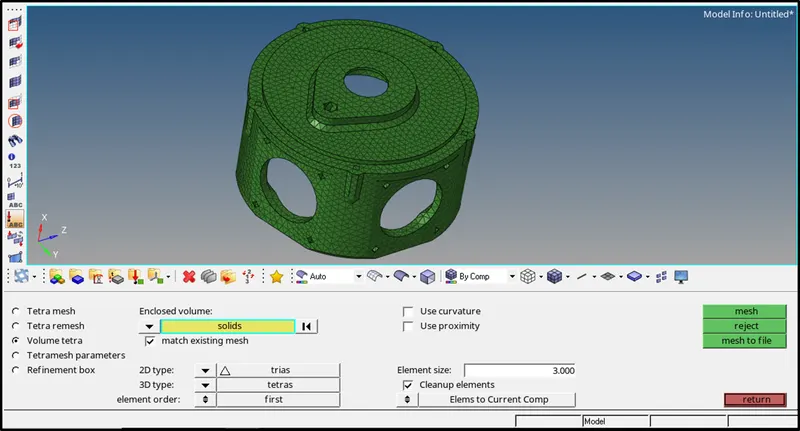
- Before Mesh we can set the element size and Tet collapse value in Tetramesh parameter option.
- Below image shows the final result.
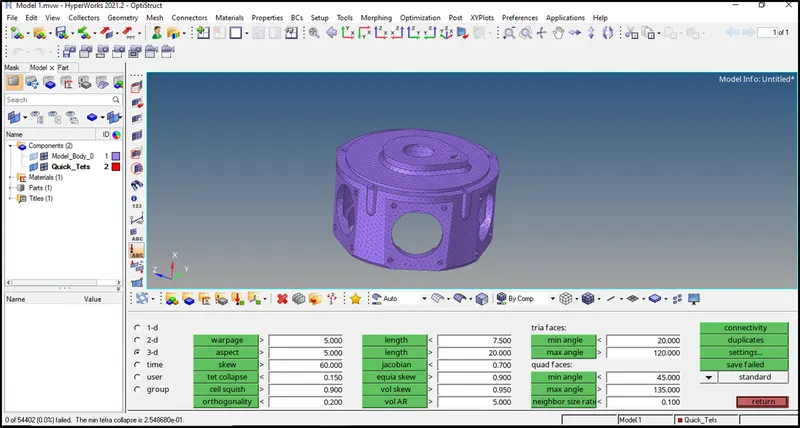
MODEL 3 :
- In model 3 not available in given attachment.
CONCLUSION :
- Understand the types of 3D mesh used in different scenrio.
- The given model is meshed using 3D tetra elements.