Week 8-3D Tetra Meshing Challenge
Aim:- Creat tetramesh for given components using Hypermesh.
PART 1:- Create a Teramesh for Housing component with the following quality criteria.
Objective:-
* TetraMesh Generation Method :-2D to 3D Conversion.
* Elements sizes: Min- 2 Units, Target- 5 Units, Max- 7 Units
* Tet collapse: 0.15
* Check the quality of tetra elements.
Procedure:-
1. Importing the model:
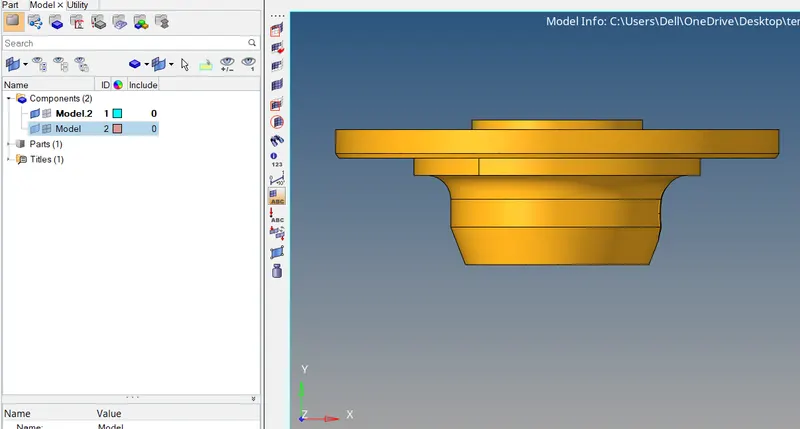
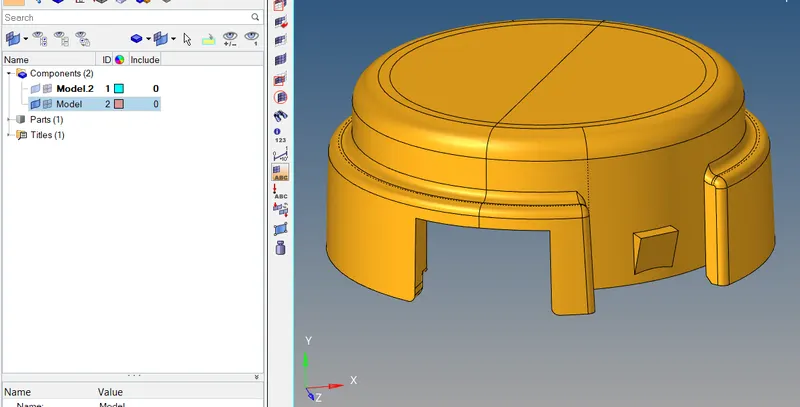
* Import the housing model which is in stp file format.
* This model contain 2 components.
2. Deleting solids:
* Ones the model is imported we will deleted the solids in the model. for deleting we go to delete tool select solids and click on displayed and delete them. ( tool - delete - solids )
3. Geometry cleanup and defeaturing:
* We will check model for any free surfaces, gaps , overlaping surfaces by viewing in visualization panel.
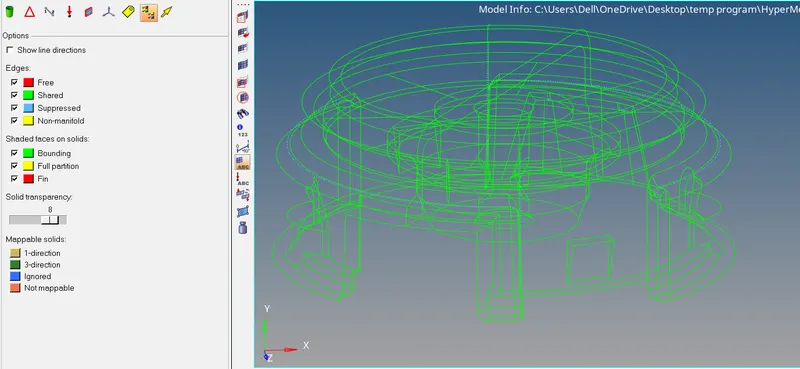
In the given model there is no free surface , gap and overlaping surfaces, hence we can proceed with geometry cleanup in which we remove the lines by toggling where minimum thickness occur.
4. 2D Meshing:
* As per the method ( 2D to 3D trtra meshing ) we have to first create 2D mesh with tria element.
* For generating 2D mesh we have to use given criteria for obtained required meshing.
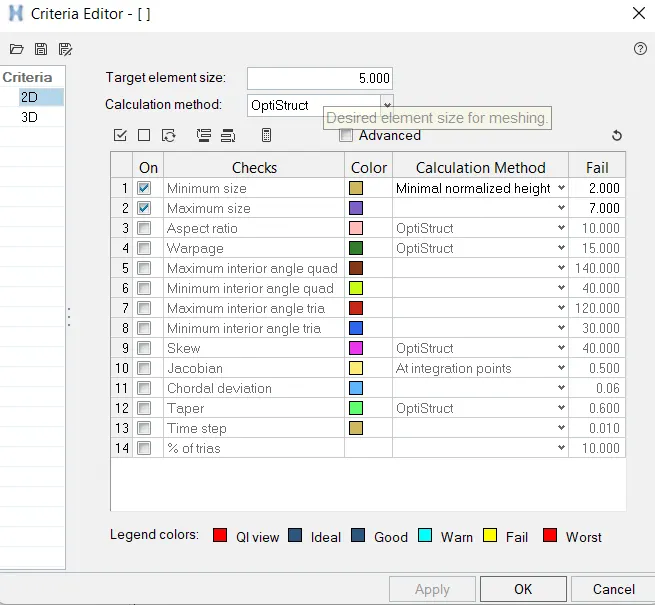
* In criteria file we give only target , minimum and maximum element size criteria. and we unclick other parameters because these are not given.
* After geometry cleaning and criteria file setting we go for 2D meshing.
* For 2D meshing we use automesh tool then we select the surface and meshing done. (2D - automesh - sixze and bias -select surface)
* For 2D meshing we use only tria element because our aim is to do 3D tetrahedral meshing on given components.
* After meshing we check element for quality, as we observed many element are failing for min and maximum size so to resolve that we use remesh tool and also use quality index panel for rid of this problems.
* At the end we check all elements are passed our quality criteria for obtain required 3D tetrahedral meshing.
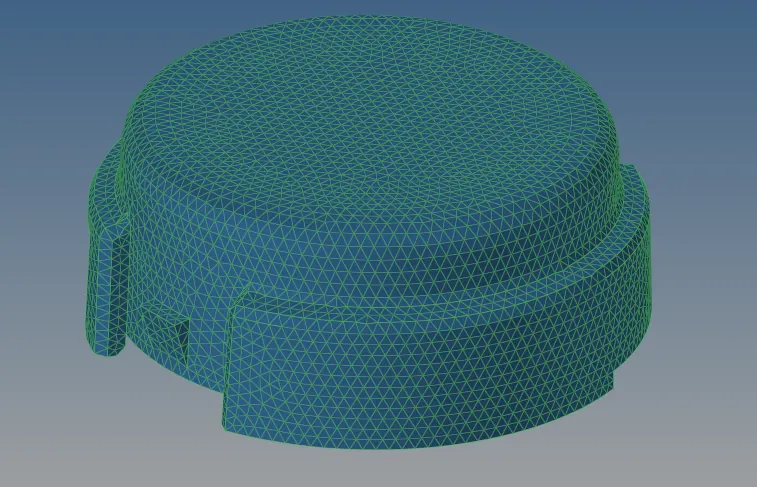
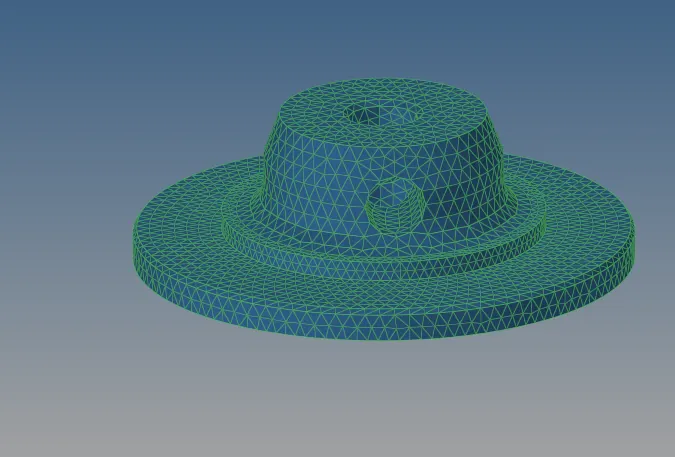
* We do all above processes individually for both components.
5. Tetrameshing ( Converting 2D to 3D mesh )
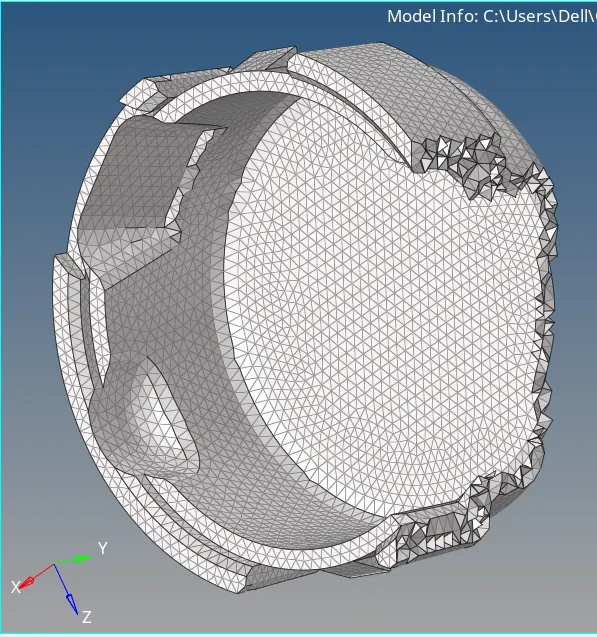
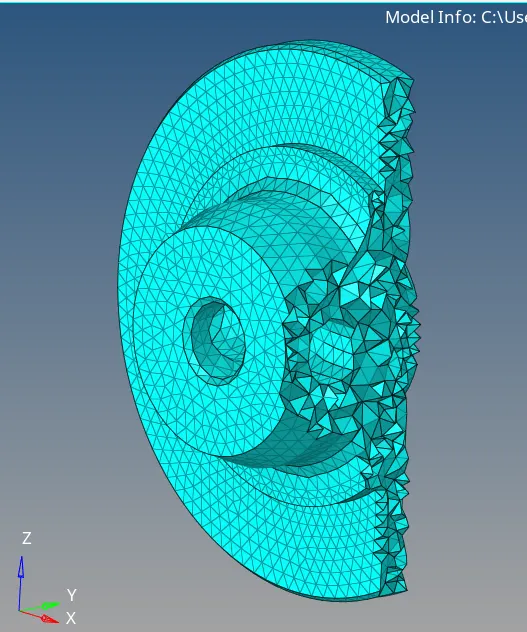
* As per method we have to generate 2D mesh into 3D mesh. in order to do this we go to 3D panel and then tetra mesh , select the 2D elements and click on mesh. (3d - tetra mesh - tetra mesh - element)
* We done 3D meshing individually for both component.
6. Element Qualily checkup :
* Ones the tetra mesh is created we will check for quality of 3D elements.
* For quality check we use check element tool in which we only check for Tet collapse because the given quality requirement is only tet collapse. ( Tool - check element - 3-D - Tet collapse )
* We check elements for tet collapse with the value of 0.15 as per given guidline.
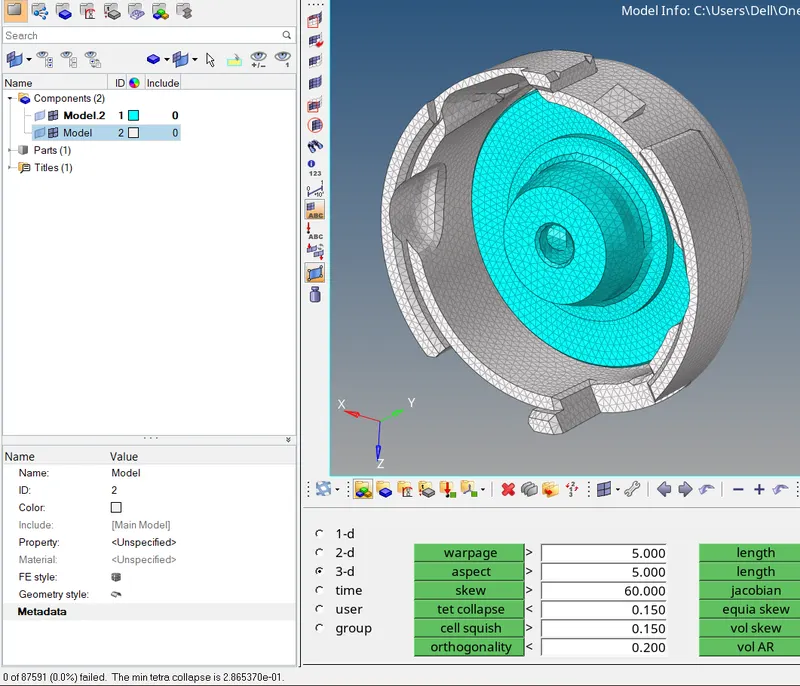
* As we clear the quality issue of 2D elements there was no Tet collapse issue in the 3D mesh as above figure shows.
Conclusion:-
* Here we successfully perform the tetrahedral mesh generated by converting 2D elements into 3D.
* This method is very convenient and accurate as we create 2D mesh and clear and smooth the elements the resulting 3D mesh is automatically fine and accurate.
PART 2:- For the given model, Create a 3D Tetramesh with the following quality criteria.
Objective:-
* TetraMesh Generation Method :- Quick Tetra Mesh
* Target Element size: 3 Units.
* Tet Collapse: 0.15
* Check the quality of tetra elements.
Procedure:-
1. Importing the model:
* Import the model which is in iges file format.
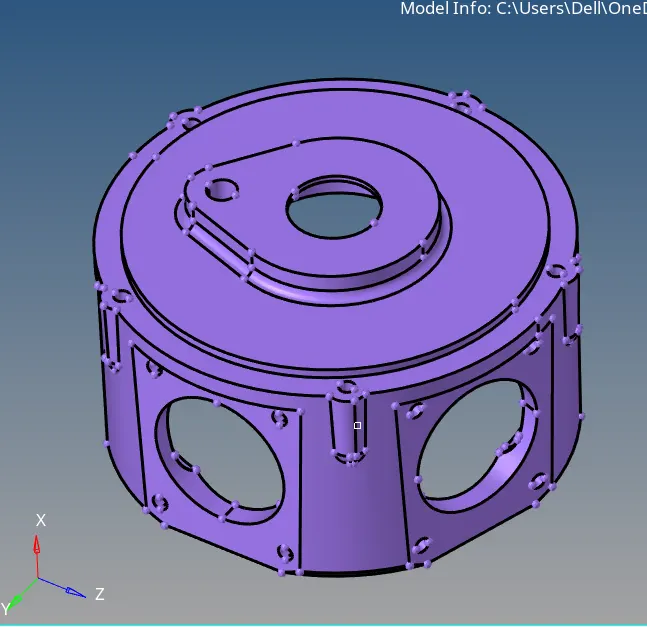
2. Geometry cleanup :
* First we ensure that the model is closed and there is no free edges and no gap surfaces.
* If we find any such kind of issue we clean the geometry with appropriate tools.
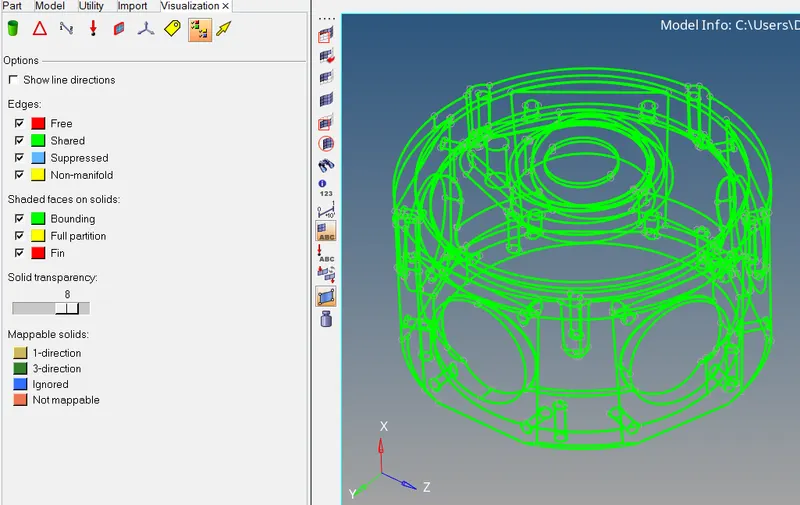
* we use visualization panel for observation and finding above issues.
3. Meshing :
* For this component we use Quick tetra mesh method for 3D tetrahedral meshing. ( View - Browsers - Hypermesh - Utility. than go to Geometry/mesh select quick tetramesh under mesh tools.)
* Ones we open quick tetra mesh panel in browser box we can go for meshing.
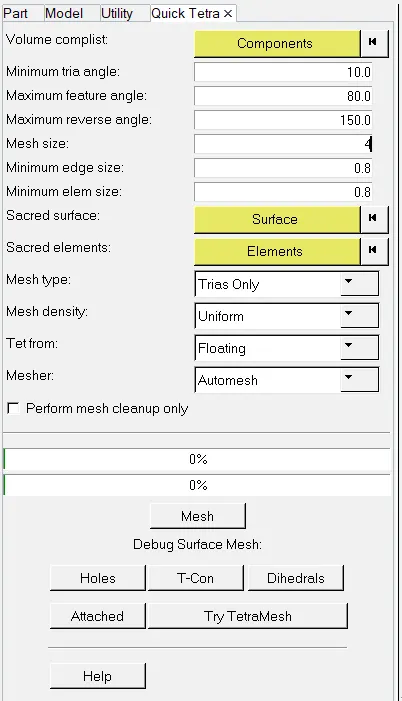
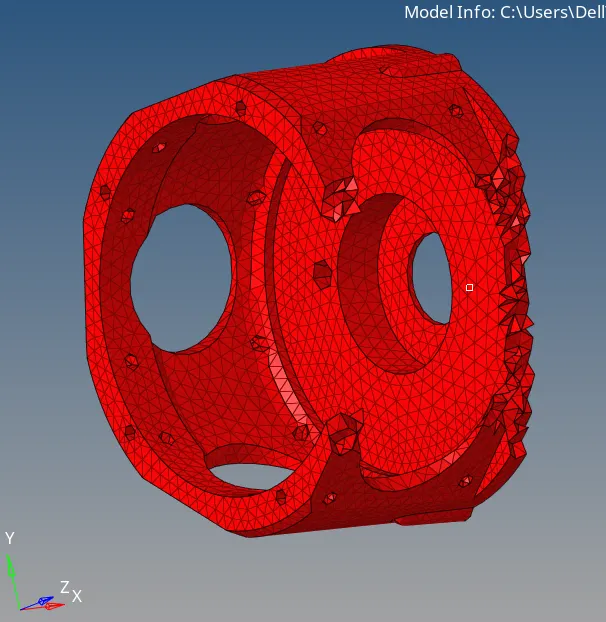
* As we can see above image first we select the component and then fill the given value of mesh size and then select surface after surface selection select mesh type as a trias only and then click on mesh button.
* After this we get a 3D mseh as well as 2D mesh.
* As per requirement we need only 3D elements so we delete the component which contains 2D elements.
4. Element Qualily checkup :
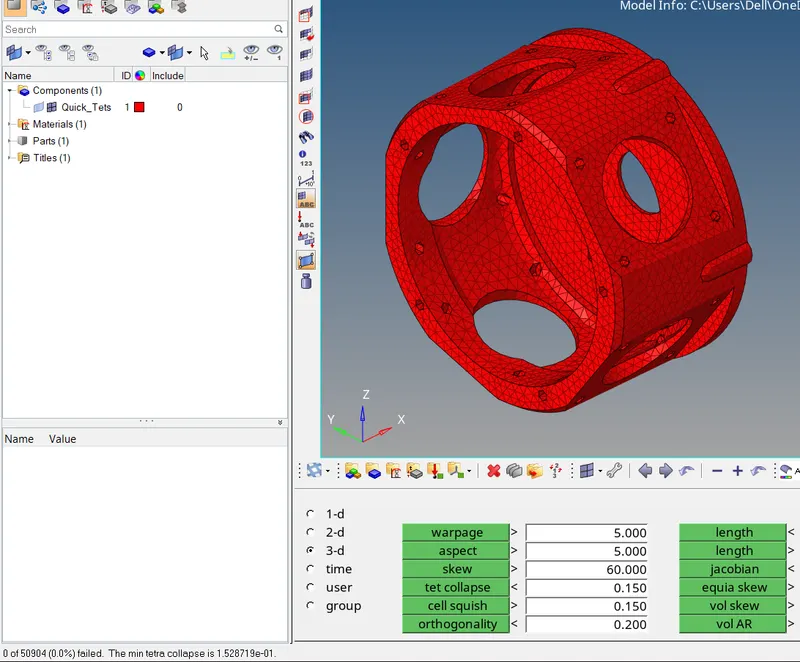
* After generating 3D tetra mesh we have to check elements for Tet collapse.
* For quality check we use check element tool in which we only check for Tet collapse because the given quality requirement is only tet collapse. ( Tool - check element - 3-D - Tet collapse )
* We check elements for tet collapse with the value of 0.15 as per given guidline.
Conclusion:-
* Here we successfully perform quick tetra meshing method.
* Perform 3D quality check and removed all the elements failing for tet collapse.
PART 3:- For the given assembly model, Create a 3D Tetramesh with the following quality criteria.
Objective:-
* TetraMesh Generation Method: Volume Tetra Mesh
* Target Element size: 4 Units.
* Tet Collapse: 0.15
* Check the quality of tetra elements.
Procedure:-
1. Importing the model:
* Import the model which is in iges file format.
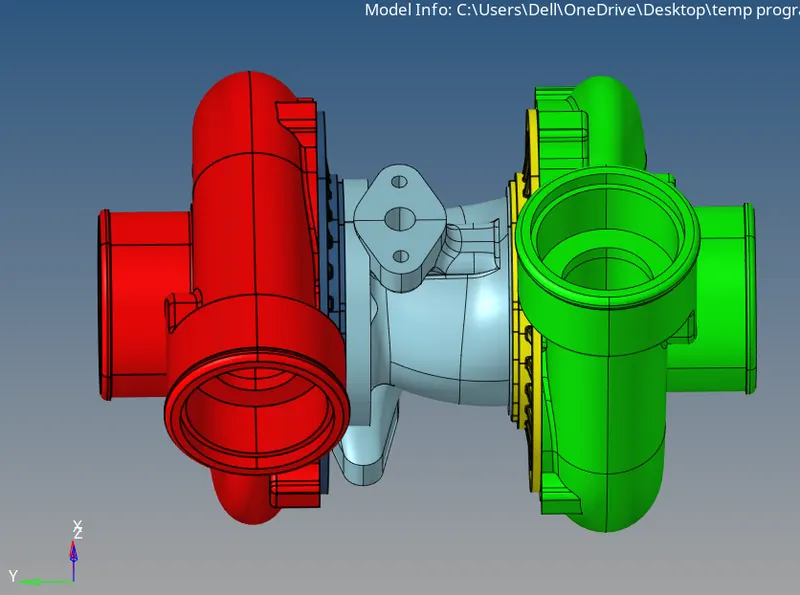
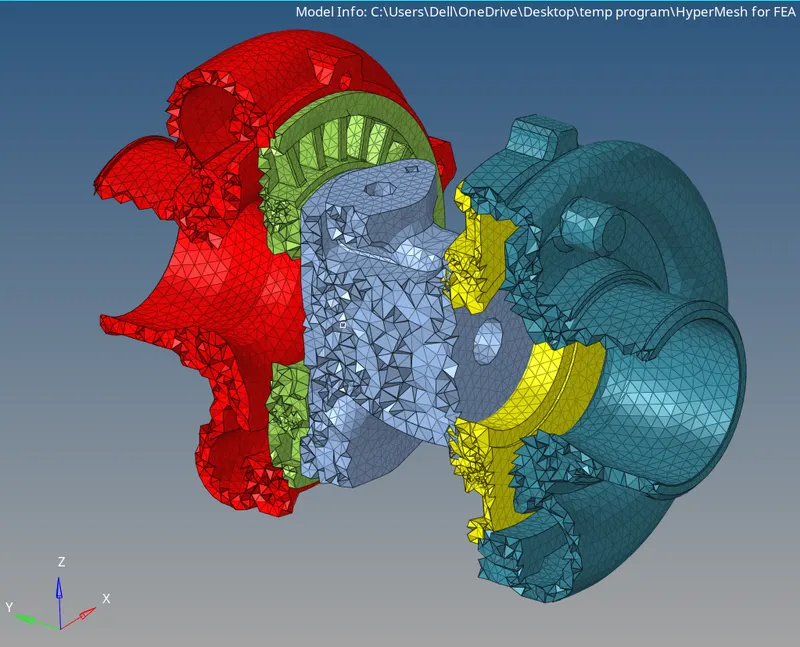
* In this model there are 5 components as shown in above figure.
* We have to mesh every component individually.
2. Geometry cleanup :
* First we ensure that the model is closed and there is no free edges and no gap surfaces.
* If we find any such kind of issue we clean the geometry with appropriate tools.
* In this model we observe the geometry and clean with various tool such as toggle ,split with node to node and node to surface , replace add remove point etc.
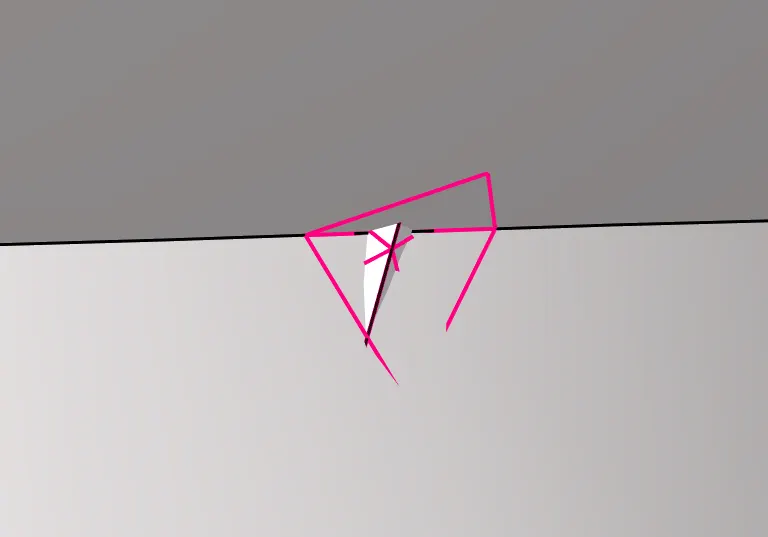
* this types of problems we face in the geometry , in above concern we put the component in wire frame and toggle that line and we solve this problem.
3.Meshing:-
* For all five components we use Volume tetra meshing one by one.
* In this method we should ensure that the geometry is closed volume.
* For doing meshing we go to 3D panel where we select tetra mesh and then click on volume tetra and select element as tria in 2D and 3D and make as 1st order element and click on mesh. ( 3D - Tetra mesh - Volume mesh )
4. Element Qualily checkup :
* After generating 3D tetra mesh we have to check elements for Tet collapse.
* For quality check we use check element tool in which we only check for Tet collapse because the given quality requirement is only tet collapse. ( Tool - check element - 3-D - Tet collapse )
* We check elements for tet collapse with the value of 0.15 as per given guidline.
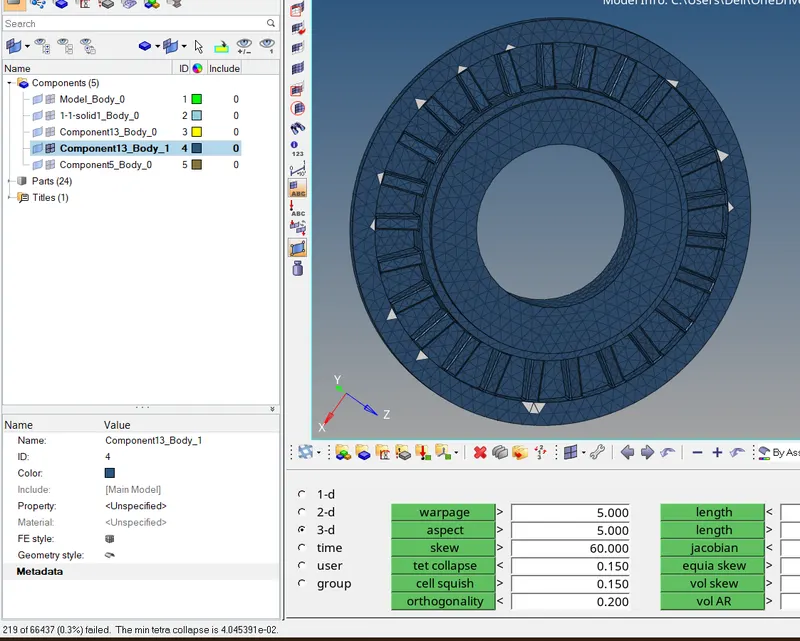
* When we do volulme tetra meshing we get some elements which fails in tet collapse quality as you can see in above image.
* To solve this we go for remesh method and and give remesh parameters. we give tet collapse value as 0.15.
and go to tetra remesh and click on free boundary faces drop down box and select remeshable and done remesh process.
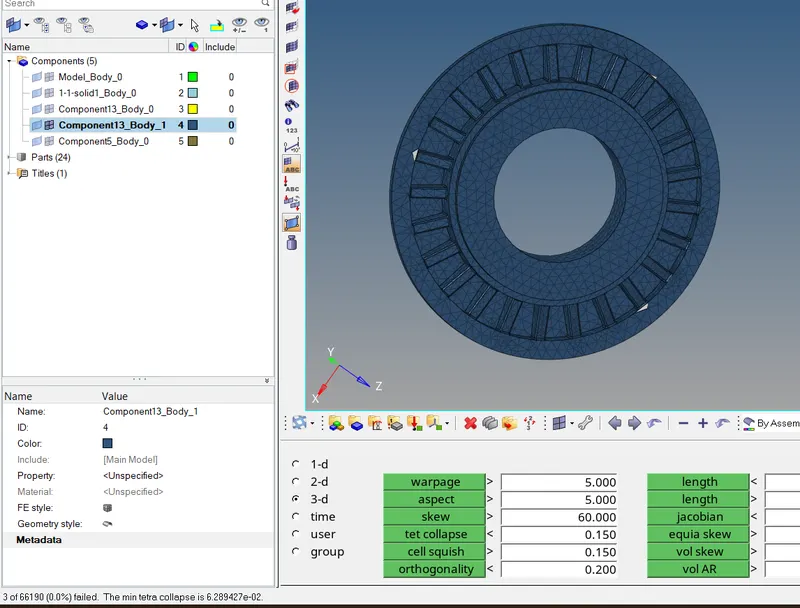
* When we done remesh process the amount of failed element is very much reduced as you can see above image. only three elements are remains which fails for tet collapse quality criteria.
* So now we have to clear this issue manually. to do manually we have to point these elements and put model in wire frame and done cleaning process.

* For resolve this issu we use node replacement , translate and for reduce and increase the gap between two nodes we use distance tool , so in this way we clear the remaing elements which can't clear by remesh method.
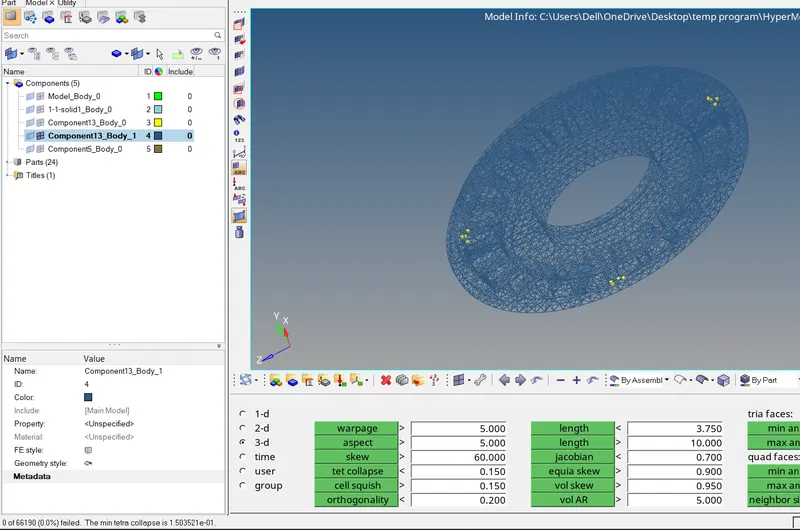
* In this way we mesh all 5 elements and solve the quality criteria.
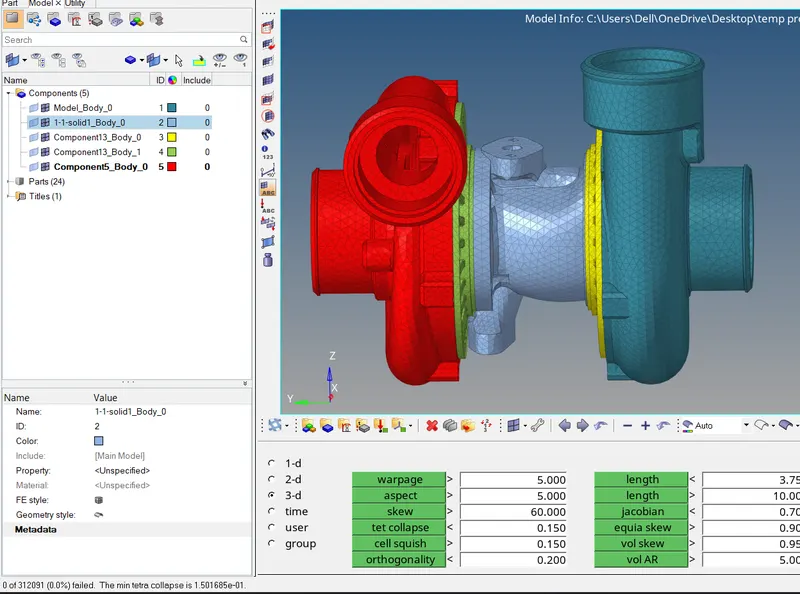
* As shown in above image no one element fail for tet collapse in whole model of five component. All processes are done individually.
Conclusion:-
* Here we successfully generated tetrahedral mesh using the Volume tetra meshing method.
* Remeshing as well as manual method are required to clear the failed elements.