Week 8-3D Tetra Meshing Challenge
REPORT
Objective:
1. To create tetra mesh using the 2D to 3D mesh conversion method.
Elements sizes: Min- 2 Units, Target- 5 Units, Max- 7 Units
Tet collapse: 0.15
2. To create tetra mesh using the Quick Tetras or Volume Tetra.
Elements sizes- 3 Units
Tet collapse: 0.15
3. To create tetra mesh using the Quick Tetras or Volume Tetra.
Elements sizes- 4 Units
Tet collapse: 0.15
CAD Model Images:
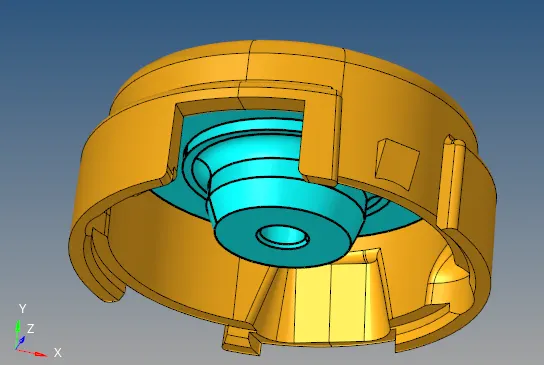
1. Housing and Hub
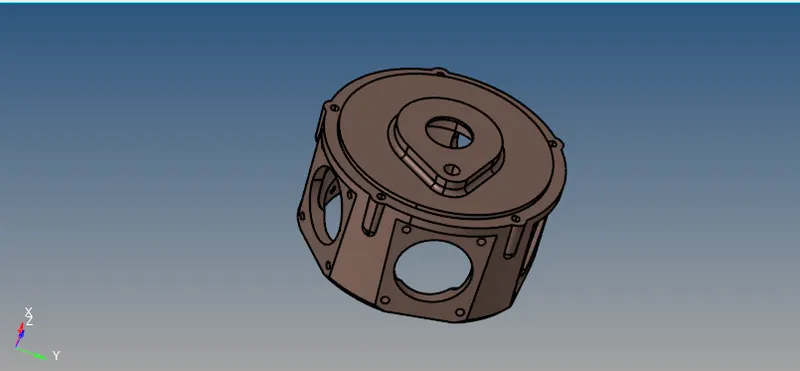
2. Model 2
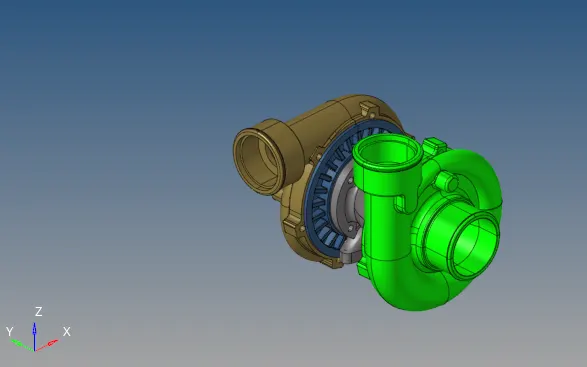
3. Model 3
Procedure:
A) Model 1
- The components (housing and hub) were imported into the Hyperworks software.
- We begin by cleaning the components. After the cleanup, the model was ready for the 2D mesh.
- The 2D mesh parameters were set such as target element size etc. and the mesh type was selected as 'trias'. Then, the 2D mesh was generated.
- For the Tetra mesh to be generated, it was generated through 2D to 3D mesh conversion. For the tetra mesh generation, 3D>tetramesh>Tetra Mesh was chosen and the elements were selected for mesh generation. Therefore, the 3D tetra mesh was generated by this method.
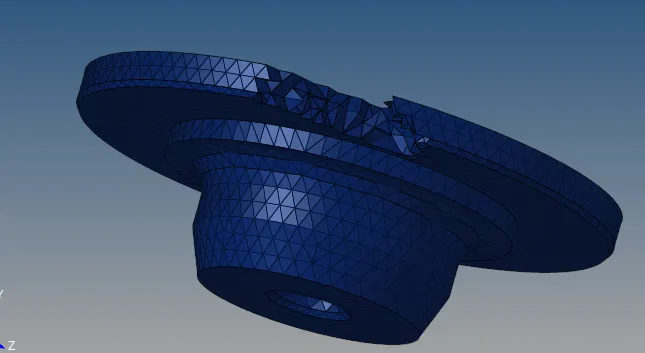
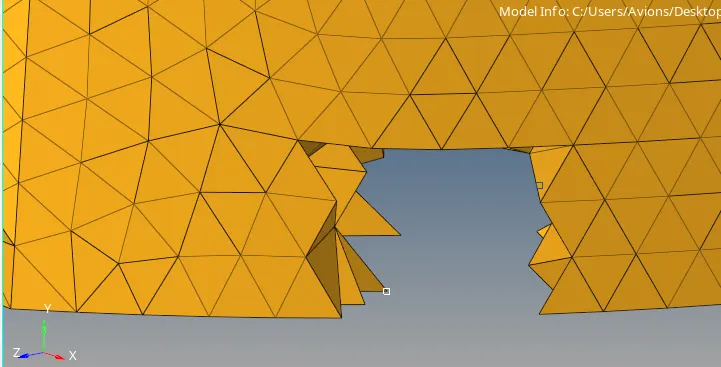
Components after Tetrameshing
5. Once the tetra meshing was done, the elements were checked for Tetcollapse. The tet collapse was <0.15 according to the question, therefore, the elements were optimized according to that.
6. To find out the tet collapse, we go to check the quality, which is F10>3d>tet collapse. The failed elements were highlighted in the status bar. Those elements were 'save failed'. Those elements were then retrieved through the masked through F5>elements(retrieve)>mask>reverse. The elements which were failing then were displayed.
7. Those failed elements were then re-meshed using 3D>tetramesh>Tetra remesh>elements(displayed). This option when sometimes is not optimizing the elements, then we need to manually optimize the tet collapse values.
8. For this we can go to shift+F4, which is the translate option and we can manually translate the nodes which are very small in size.
9. The above methods are continued until 0 elements fail for the given tet collapse values.
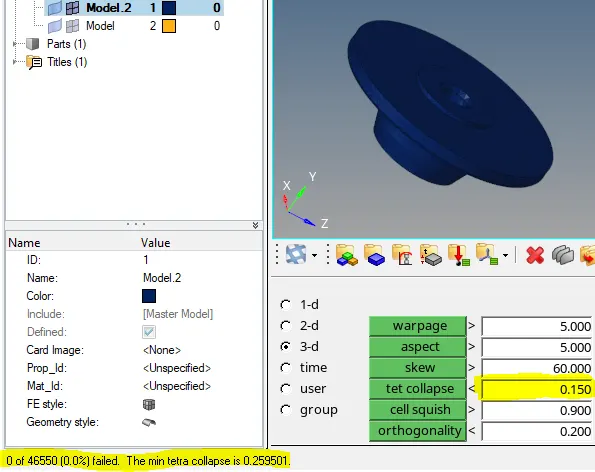
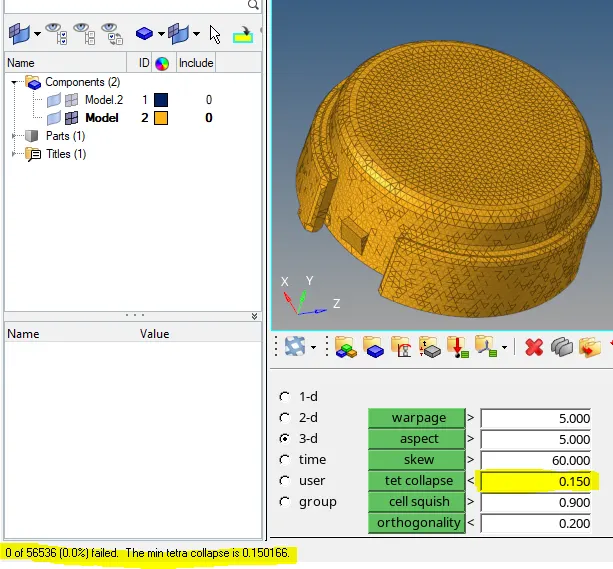
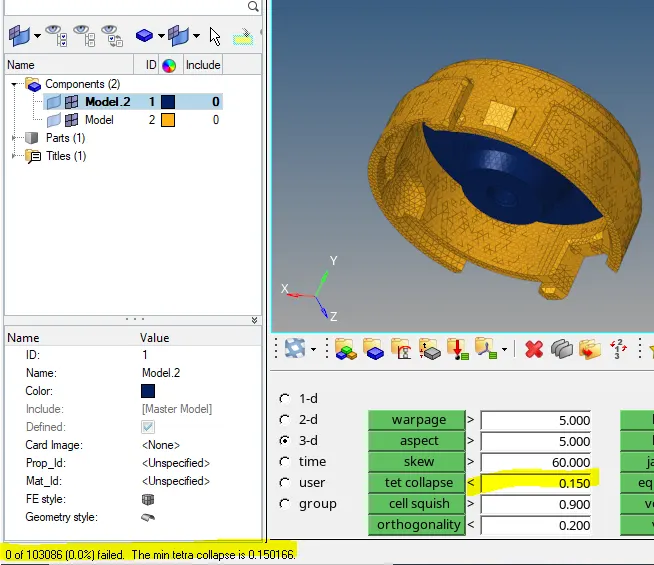
Components after optimizing tet collapse
B) Model 2
- Component 2 was imported into the Hyperworks software.
- We begin by cleaning the components. After the cleanup, the model was ready for the 2D mesh.
- The 2D mesh parameters were set such as target element size etc. and the mesh type was selected as 'trias'. Then, the 2D mesh was generated.
- For the Tetra mesh to be generated, it was generated through Quick Tetras. For the tetra mesh generation, Utility>Geo/Mesh> Quick Tetra Mesh> Mesh size (3 units)> Mesh type (Trias only) >Components >proceed>mesh. Therefore, the 3D tetra mesh was generated by this method.
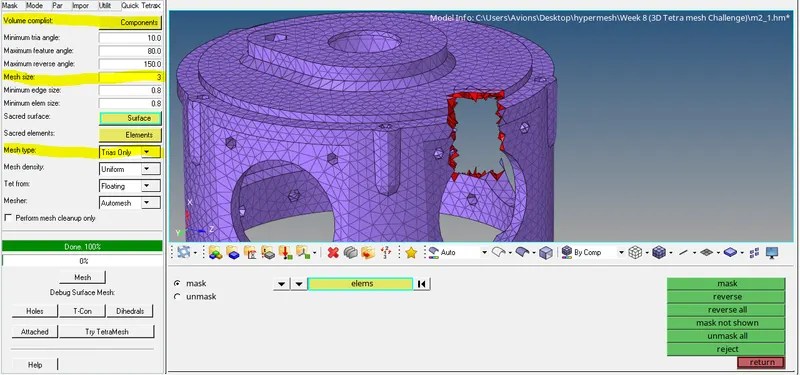
Mesh Generation using Quick tetras method
5. Once the tetra meshing was done, the elements were checked for Tetcollapse. The tet collapse was <0.15 according to the question, therefore, the elements were optimized according to that.
6. To find out the tet collapse, we go to check the quality, which is F10>3d>tet collapse. The failed elements were highlighted in the status bar. Those elements were 'save failed'. Then, those elements were then retrieved through the masked command through F5>elements(retrieve)>mask>reverse. The elements which were failing then were displayed.
7. Those failed elements were then re-meshed using 3D>tetramesh>Tetra remesh>elements(displayed). This option when sometimes is not optimizing the elements, then we need to manually optimize the tet collapse values.
8. For this we can go to shift+F4, which is the translate option and we can manually translate the nodes which are very small in size.
9. The above methods are continued until 0 elements fail for the given tet collapse values.
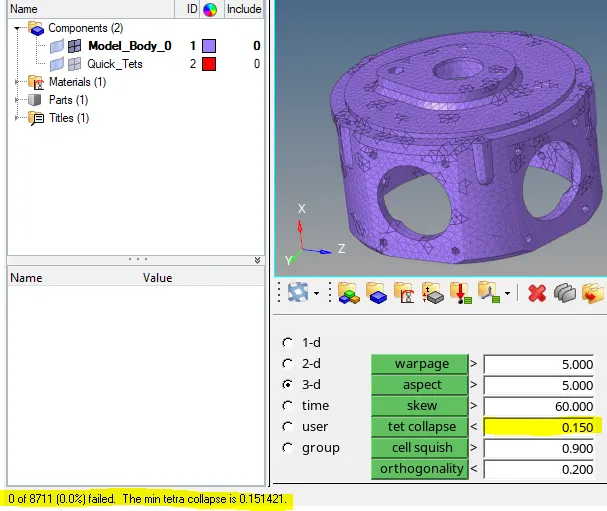
Component after optimizing tet collapse
C) Model 3
- Component 3 was imported into the Hyperworks software.
- We begin by cleaning the components. After the cleanup, the model was ready for the 2D mesh.
- The 2D mesh parameters were set such as target element size etc. and the mesh type was selected as 'trias'. Then, the 2D mesh was generated.
- For the Tetra mesh to be generated, it was generated through Quick Tetras. the quick tetra's method was not able to generate For the tetra mesh for the middle component and was hence not used. After that, the volume tetra mesh was used as 3D mesh but was yielding segmentation error while in process. Therefore, it was also not used subsequently.
- Therefore, the 2D to 3D conversion method was used finally, to mesh the model firstly in 2D mode and then was converted into a 3D mesh using 3D>tetranesh>Tetra mesh>elements(displayed)>Mesh.
-
Once the tetra meshing was done, the elements were checked for Tetcollapse. The tet collapse was <0.15 according to the question, therefore, the elements were optimized according to that.
7. To find out the tet collapse, we go to check the quality, which is F10>3d>tet collapse. The failed elements were highlighted in the status bar. Those elements were 'save failed'. Then, those elements were then retrieved through the masked command through F5>elements(retrieve)>mask>reverse. The elements which were failing then were displayed.
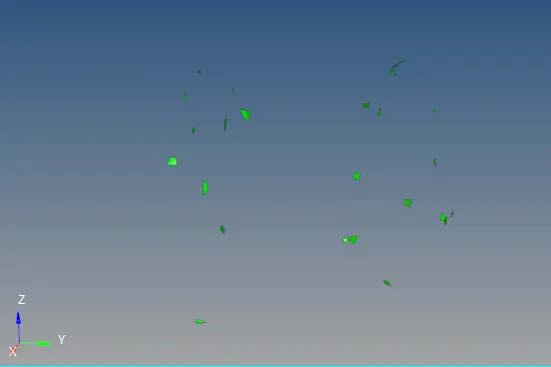
Failed Elements for tet collapse
8. Those failed elements were then re-meshed using 3D>tetramesh>Tetra remesh>elements(displayed). This option when sometimes is not optimizing the elements, then we need to manually optimize the tet collapse values.
9. For this we can go to shift+F4, which is the translate option and we can manually translate the nodes which are very small in size.
10. The above methods are continued until 0 elements fail for the given tet collapse values.
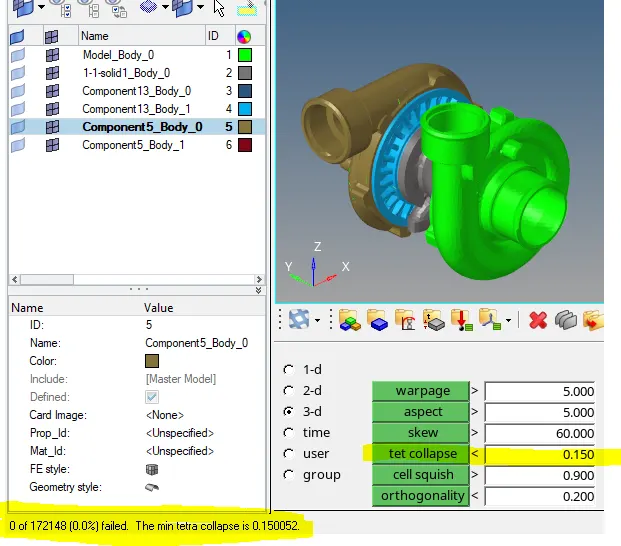
Component after optimizing tet collapse