Week 8-3D Tetra Meshing Challenge
3D Tetra Meshing
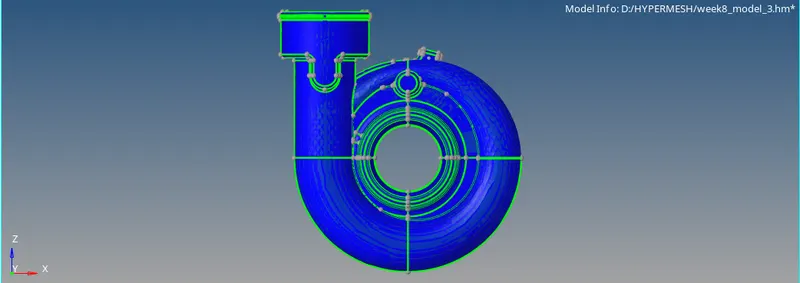
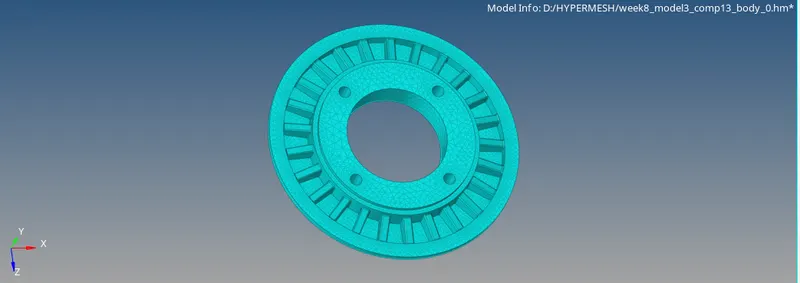
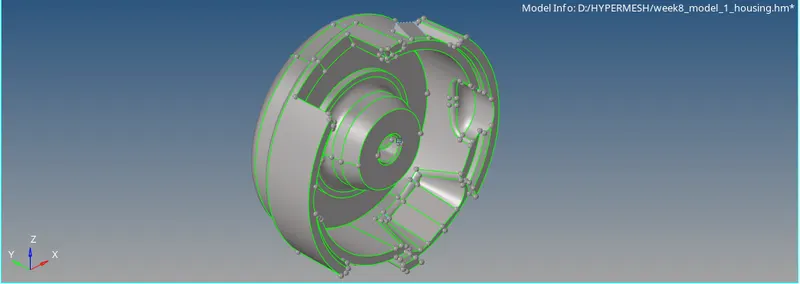
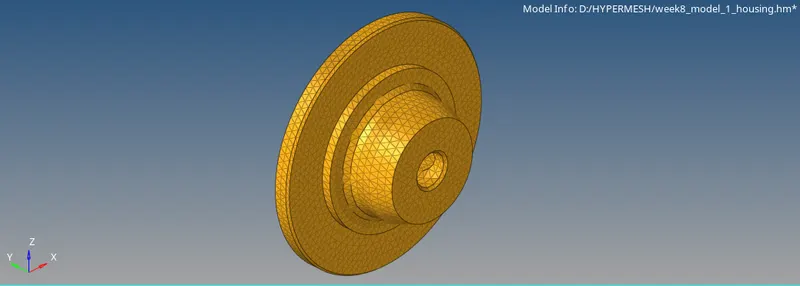
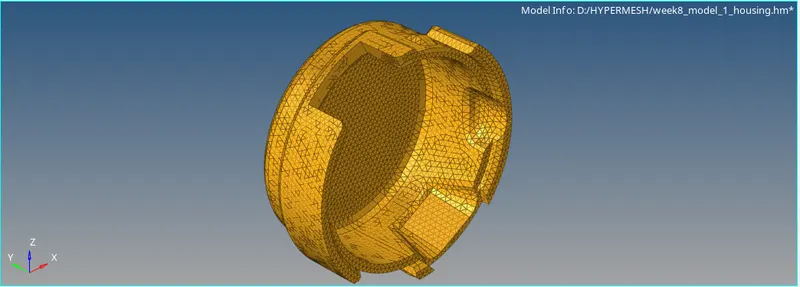
Tetramesh for housing and hub assembly
AIM To Create a Teramesh for Housing component with the following quality criteria by using 2D to 3D tetramesh generation method.
Procedure:
- Import the 'housing. stp' file using the import tool option.
- Using the geometry menu in the menu bar, use the geometry cleanup tools to ensure a fully enclosed volume. Check the topology and verify if we still have free edges.
- Use standard tetramesh technique to mesh the components.
- Generate 2-D tria elements mesh on the hub and cover.
- Click on automesh panel from the 2D elements page. Select the surfaces and put element type as trias. We will set the target element size as 5 units.
- After meshing the surfaces and ensuring that no elements are failing for minimum and maximum element length, we can proceed to convert the 2D tria elements to 3D tria elements.
- Access the Tetramesh panel from 3D page, and then click on tetramesh subpanel.
- Select the elements selector under fixed trias/quads to tetra mesh. Click mesh to generate the tetrahedral elements.
- Use check elements panel and go to the 3D subpanel. Identify elements having a tet collapse value smaller than 0.15.
- Remesh the hub's displayed tetra elements to improve their tetra collapse. Under tetramesh parameters check the minimum tetra and maximum tetra element length box. Also, check the fill voids, fill midnodes and smoothing box. Set the tet collapse value as 0.15
- Another method to improve the tet collapse is by using distance option. The elements that failed the tetra collapse is by using distance option. The elements that failed the tetra collapse check is saved in the user mark by clicking on save failed, and can be retrieved in mask panel using extended selection menu.
- We can increase the distance to improve the tet collapse value.
- By using tetra remesh the tet collpase errors can be eliminated completely and the tet collapse which cannot be removed from this method can be done manually by distance node option.
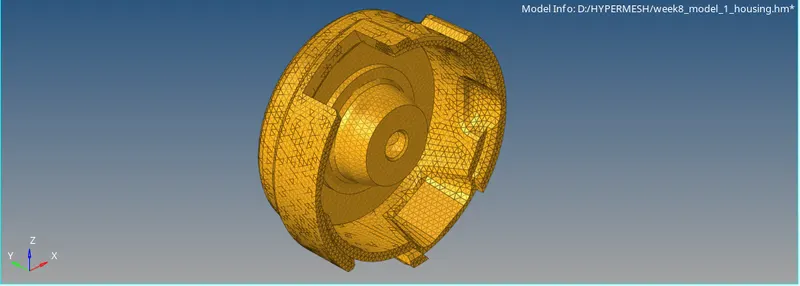
Crank Housing:
- Used quick tetra method for mesh generation.
- Import the 'Crankhousing.hm' file using the import tool option.
- Observe the topology of the geometry by using the visulaisation option. Make sure that there are no free edges.
- We can access the quick tetra menu under View>Browsers>Hypermesh>Utility. Go to geometry/mesh and select quick tetramesh under mesh tools.
- Select the component and put trias only as mesh type. Fill mesh size as 3 units. Click the mesh button to mesh the compon
- Use check elements panel and go to the 3D subpanel. Identify elements having a tet collapse value smaller than 0.15.
- Remesh the crank housing displayed tetra elements to improve their tetra collapse. Under tetramesh parameters check the minimum tetra and maximum tetra element length box. Also, check the fill voids, fill midnodes and smoothing box. Set the tet collapse value as 0.15.
- Another method to improve the tet collpase is by using distance option. The element that failed the tetra collapse check is saved in the user mark by clicking on save failed, and can be retrieved in mask panel using the extended section menu.
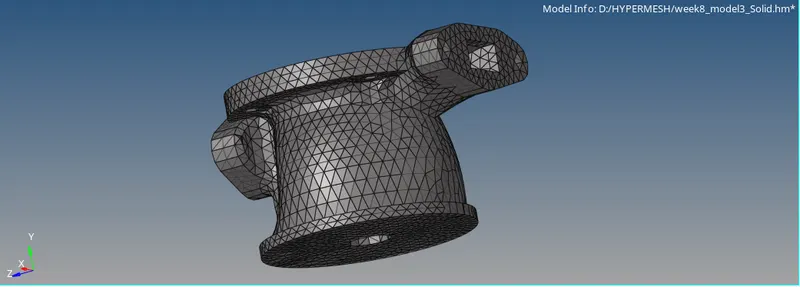
- 3D mesh generated using the quick tetra method.
- Performed 3D quality check and removed all the elements failing for tet collapse.
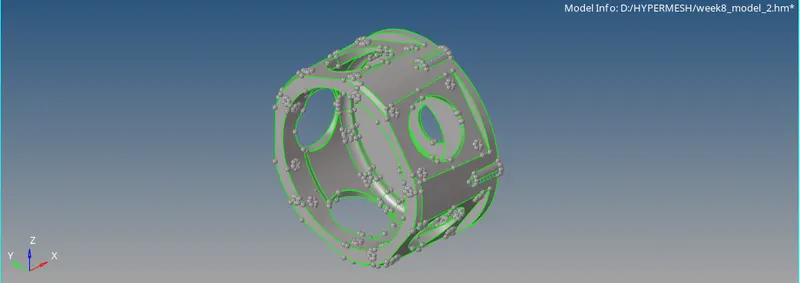
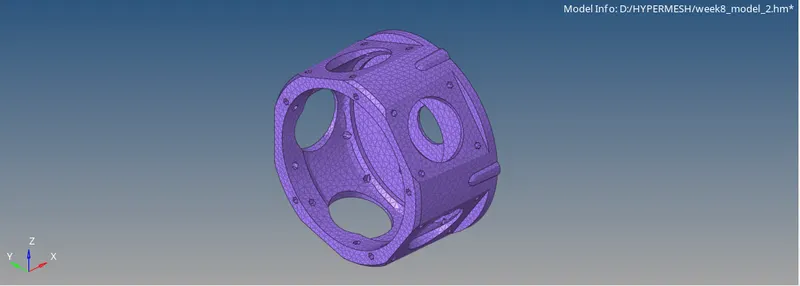
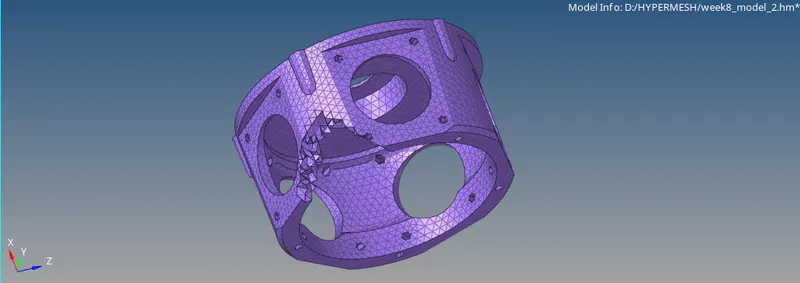
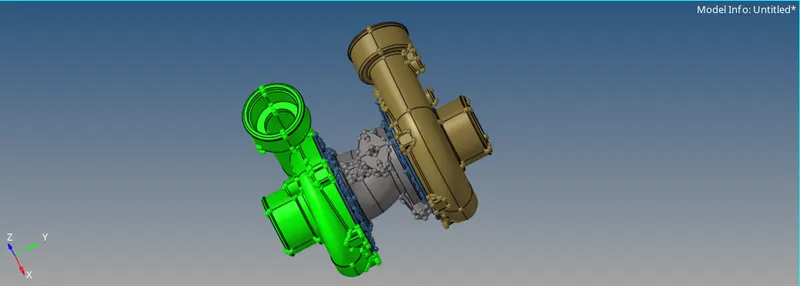
Tetramesh for turbo charger assembly components
- Import the 'assembly.hm' file from the import model tool.
- Take a moment to inspect the geometry. For the component we will convert the trias elements into tetras elements
- Mesh the components using quick and volume tetra meshing technique.
- Perform elements qua
- In order to mesh the components with tria's we need to perform topology cleanup. Remove the surfaces where elements will fail for minimum length. Defeature all of the small surface fillets. Use toggling and replacing points options to clean the geometry.
- For component 1. use volume tetra meshing method. Access the tetramesh panel from 3D page.
- Go to the volume tetra subpanel. Set the entity selector to surface and select the surfaces in the model. Verify that 2D type is set to trias and 3D type is set to tetras. Specify '4' as the element size. Click mesh to generate the mesh.
- For rest of the components use quick tetra mesh method.
- Go to the 'View' option. Click on Browsers and then click on Hypermesh then an option for utility will appear. By selecting on it, access to geometry/mesh option will appear on panel. Select option 'Quick tetramesh' from mesh tools. Set the entity selector to surface and select the surfaces in the model. Specify '4' as the element size. Click mesh to generate the mesh.
- Access the check elements panel to eliminate the failing elements. Identify elements having a tet collapse value smaller than 0.15.
- We can rectify the failing elements by remeshing with tetramesh paramaters. Increasing the distance between nodes using distance tool can also fix the failing elements.
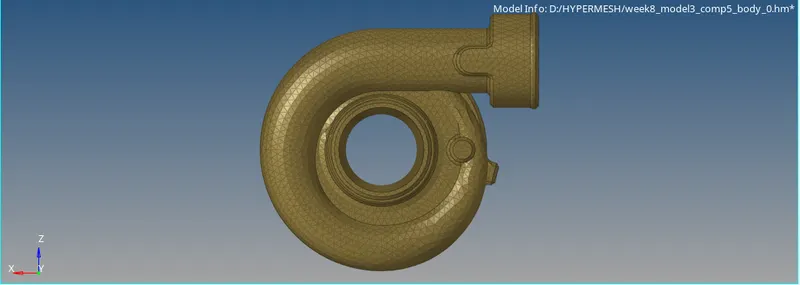
- Tetrahedral mesh generated using the volume tetra meshing technique.
- Remeshed with tetra parameters to achieve a better element quality.