AutoCAD_Creating Plan and Sections with proper dimensioning_Week 7
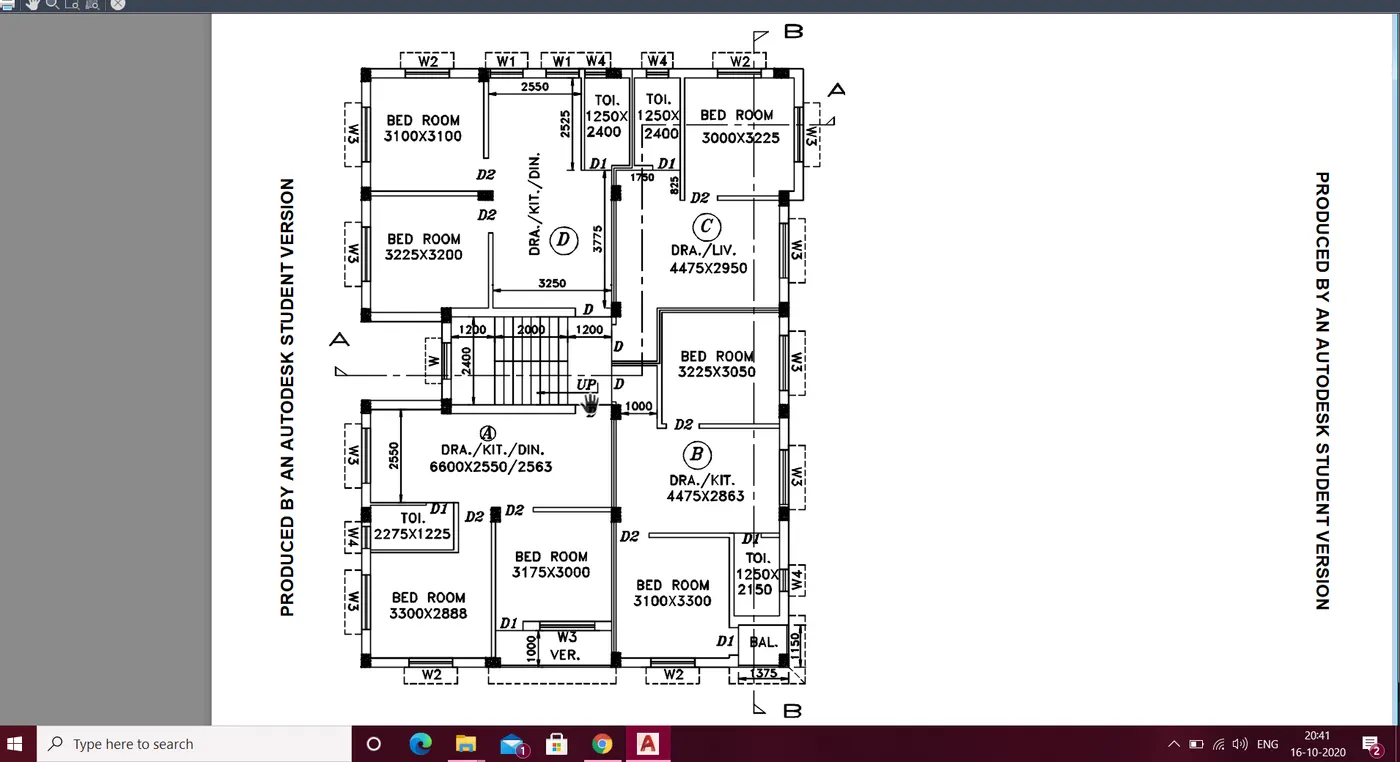
1. Type UN and slect the unit as decimal and precission to 0.00
2. Type Limits and specify lower and upper limits
3. z enter a enter now we are ready for drafting
4. Type L in command prompt and select the first point
5. In command prompt type @3300<0
6. In command prompt type @3770<90
7. In command prompt type @150<0
8. In command prompt type @3770<270
9. Type offset and specify 230 and draw a offset outside and extend the line
10. Type offset and specify 3175 and draw a offset
11. Type offset and specify 150 and draw a offset
12. Type offset and specify 3100 and draw a offset
13. Type offset and specify 150 and draw a offset
14. Type offset and specify 1250 and draw a offset
15. Type offset and specify 230 and draw a offset
16. Type offset and specify 1000 and draw a offset for verenda
17. Type offset and specify 150 and draw a offset
18. Trim the lines at the door opening space say 900mm for all doors
19. Extend the partition wall in y direction where ever required
20. Trim the door opening space for bedroom and toilets
21. Draw the balcony with line command of 1375*1150
22. Type offset and specify 3300 and draw a offset
23. Type offset and specify 150 and draw a offset
24. Type offset and specify 2863 and draw a offset for drawing /kitchen
25. Type offset and specify 3050 and draw a offset
26. Type offset and specify 150 and draw a offset
27. Type offset and specify 2950 and draw a offset
28. Type offset and specify 3225 and draw a offset
29. Type offset and specify 230 and draw a offset
30. Trim all the dooe opening space say as 900mm and join all the lines whereever required
31. Type offset and specify 1250 and draw a offset
32. Type offset and specify 150 and draw a offset
33. Trim the extra line 825mm make the length as 2400 for toilet
34. Type offset and specify 1250 and draw a offset
35. Type offset and specify 150 and draw a offset
36. Type offset and specify 2550 and draw a offset
37. Type offset and specify 150 and draw a offset
38. Type offset and specify 3100 and draw a offset
39. Type offset and specify 150 and draw a offset
40. Type offset and specify 3200 and draw a offset
41. Type offset and specify 230 and draw a offset
42. Trim the extra line and join the short lines to the desired length to the openings of door
43. Draw the staicase with the help of line command
44. Type offset and specify 158.33 and draw a offset for the stairs
45. Draw the column from rectangle option say 230*460 size and place the columns at desired place
46. Copy the column using copy command and copy the column and by using rotate command rotate the column where ever required
47. Draw the windows with the line command say w1=900 w2=1800 w3=2100 w4=900
48. use the solid hatch for the columns from hatch command in ribbon bar
49. select the single line text command from ribbon bar and do the detailing of the rooms, toilets, verenda
50. Use the dimension from the ribbon bar and do the dimension of all the walls required
51. Go to the line type and select dotted line and then cut the section in the plan as given
52. Desired drawing is obtained.
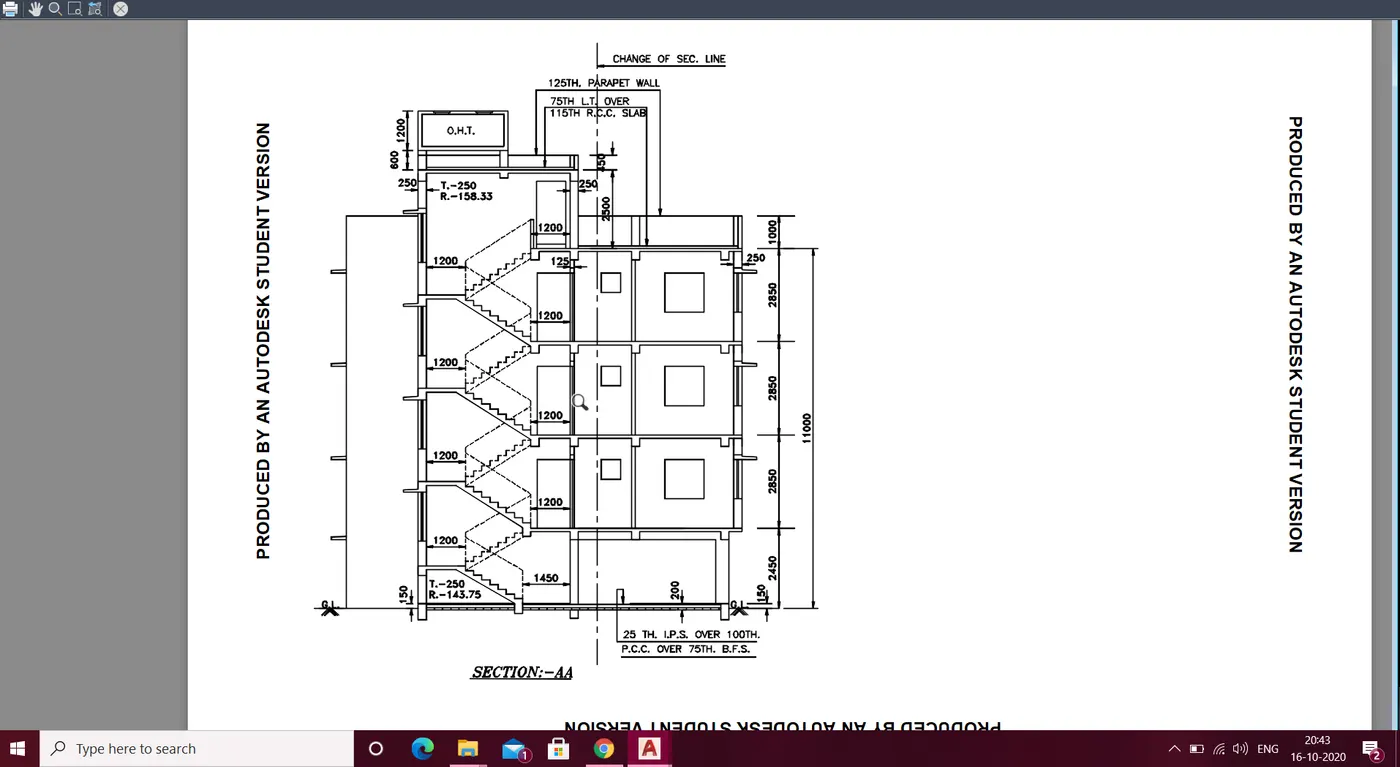
53. To draw the section of the staircase
54. Extend the line of the stair case from the plan all the lines risers and all
53. Draw the wall of the staircase as extended and draw the window
54. with the riser and thread draw the steps and midlandings
53. join the lines of the below portion of the steps with ortho off to the midlandings
54. Select the dotted line and draw the railing of the staircase
55. extend the line of the floor and draw the partition wall from the extended line of plan
56. draw the windows from the extended line of theplan to section and trim all the other lines.
57. use the dimension dialoge box to do the dimension of all the walls
58.select the text option and do all the detailings
59. Section AA is obtained
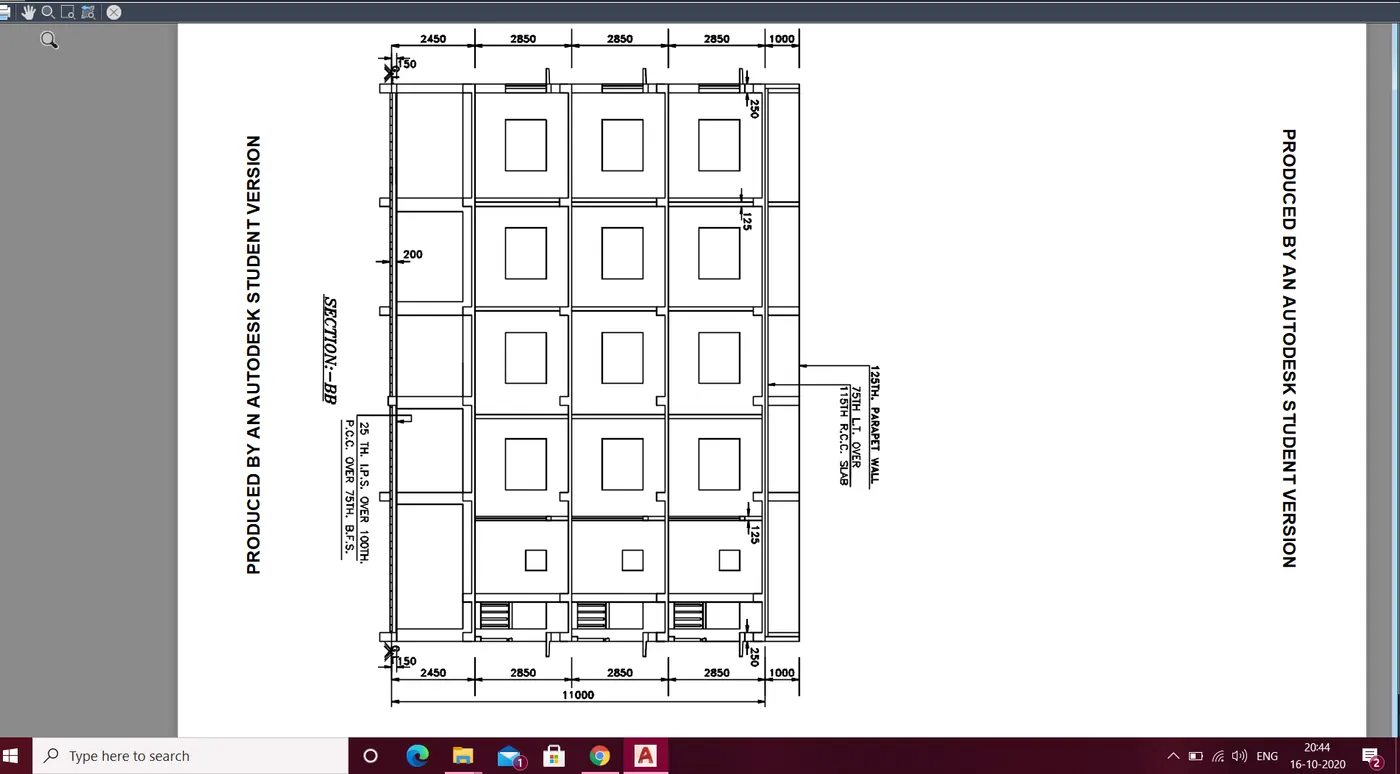
60. Section BB is cut vertically
61. Extend all the walls and windows , doors line from the plan to draw the elevation
62. Trim all the extra lines and keep the lines as required to draw the elevation
63. Draw the elevation with all the lines from plan
64. Use the dimension for the distance measure of walls
65. use text command for the detailing
66. The desired plan , elevation will be obtained