AutoCAD_Layout of Kitchen Cabinet, Elevation of a Residential Building and Industrial Building section_Week 9
Aim of the project:- To create the layout of kitchen, elevation plan of the building and elevation of industrial building with all the standard dimensions and to work with the hatching of different objects like walls, windows, doors etc.
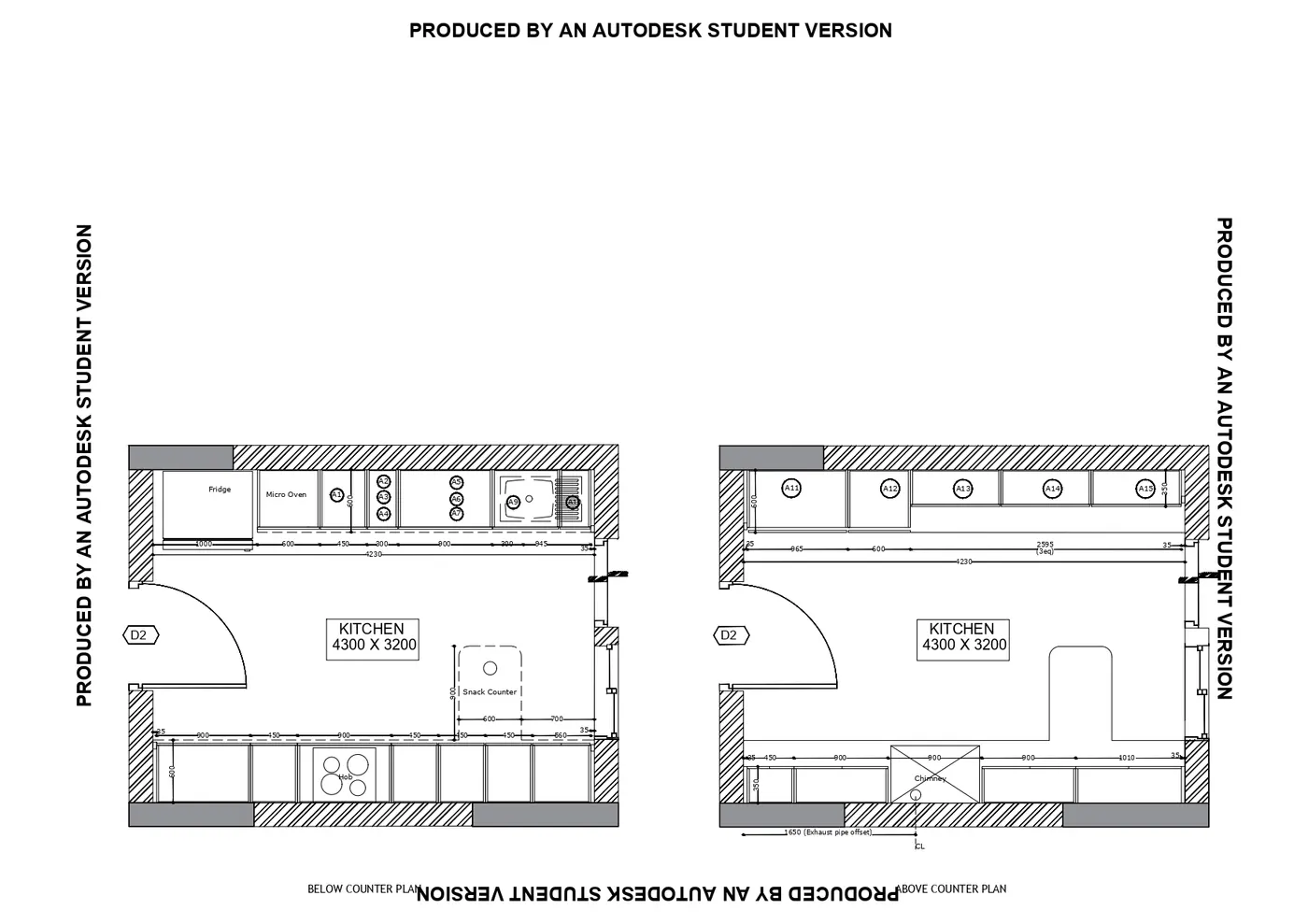
- Open the Autocad
- Type units and select the decical unit and precission as 0.00
- Type Limits and specify the lower and upper limits
- Type Z (Zoom) enter and A enter. Now we are ready for drafting
- Type L in command prompt and draw 4300 in x direction and 3200 in y direction
- Type offset in command prompt and type 250 enter draw the offset towards outside
- join the lines
- Draw a line 4300 in x direction with 600 in y direction for slab
- Type offset in command prompt and type 35 enter draw the offset
- Type offset in command prompt and type 900 enter draw the offset
- Type offset in command prompt and type 450 enter draw the offset
- Type offset in command prompt and type 900 enter draw the offset
- Type offset in command prompt and type 450 enter draw the offset 3 times
- Type offset in command prompt and type 560 enter draw the offset
- Draw the snack counter of 900 in y direction and 600 in x direction with the help of dotted/dashed line
- Draw a circle in the snack counter(middle)
- draw the offset on the other side also with the offset
- Type offset in command prompt and type 1000 enter draw the offset
- draw the offset on the other side also with the offset
- Type offset in command prompt and type 1000 enter draw the offset
- Type offset in command prompt and type 600 enter draw the offset
- Type offset in command prompt and type 450 enter draw the offset
- Type offset in command prompt and type 300 enter draw the offset
- Type offset in command prompt and type 900 enter draw the offset
- Type offset in command prompt and type 1145 enter draw the offset
- Type offset in command prompt and type 35 enter draw the offset
- Insert the text command and do the detaling
- Do the dimensions with the help of dimension command
- Do the hatching on the outer wall with the help of hatching command for walls select solids and then the grey color and for the walls select the pattern hatch
- type the mirror command and select the object and do the mirror of the same drawing and keep the original
- Do the offset as per the drawings
- Remove the dotted line of snack table and make it with solid line
- Draw circle in each cabinet and type the details as mentioned in the drawing
- Draw the door D2 with the line command and with circle command
- 35. Trim the extra half circle
- Type BL
- select the object
- select the specify point or base point
- Save the block with the name D2
- and press ok
- Go to the opening left for the door and insert the block from insert option
- Place the point where it is needed
- and click ok
- Block is inserted Do this for both the doors
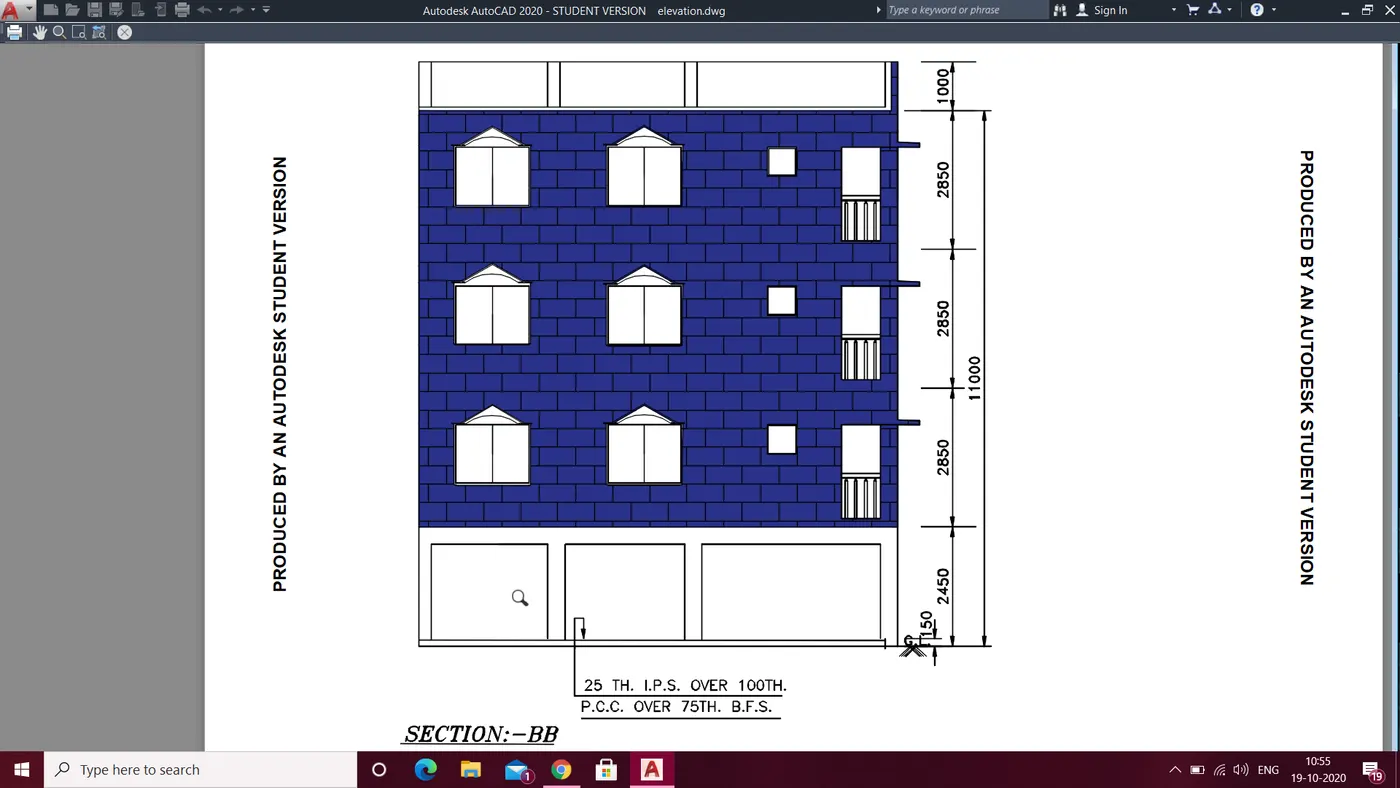
1. open teh autocad
2. open the file of week 7 where plan is made
3. extend the construction line from every wall , windows, staircase, ventilators chajja (elevation is from section BB)
4.Trim the extra lines where lines are not required
5.Draw the frame of the window with the help of line and arc command
6. Type BL in the command prompt and select the frame
7. select the point and name it as frame and save
8. From insrt option insert the block and place is at every window
9. Select the hatch option select pattern and then select the brick
10. click at the wall where hatching is done
11. Select the color
12. right click on the hatch properties then select the size of the hatch pattern
13. Elevation is obtained and hatch is done
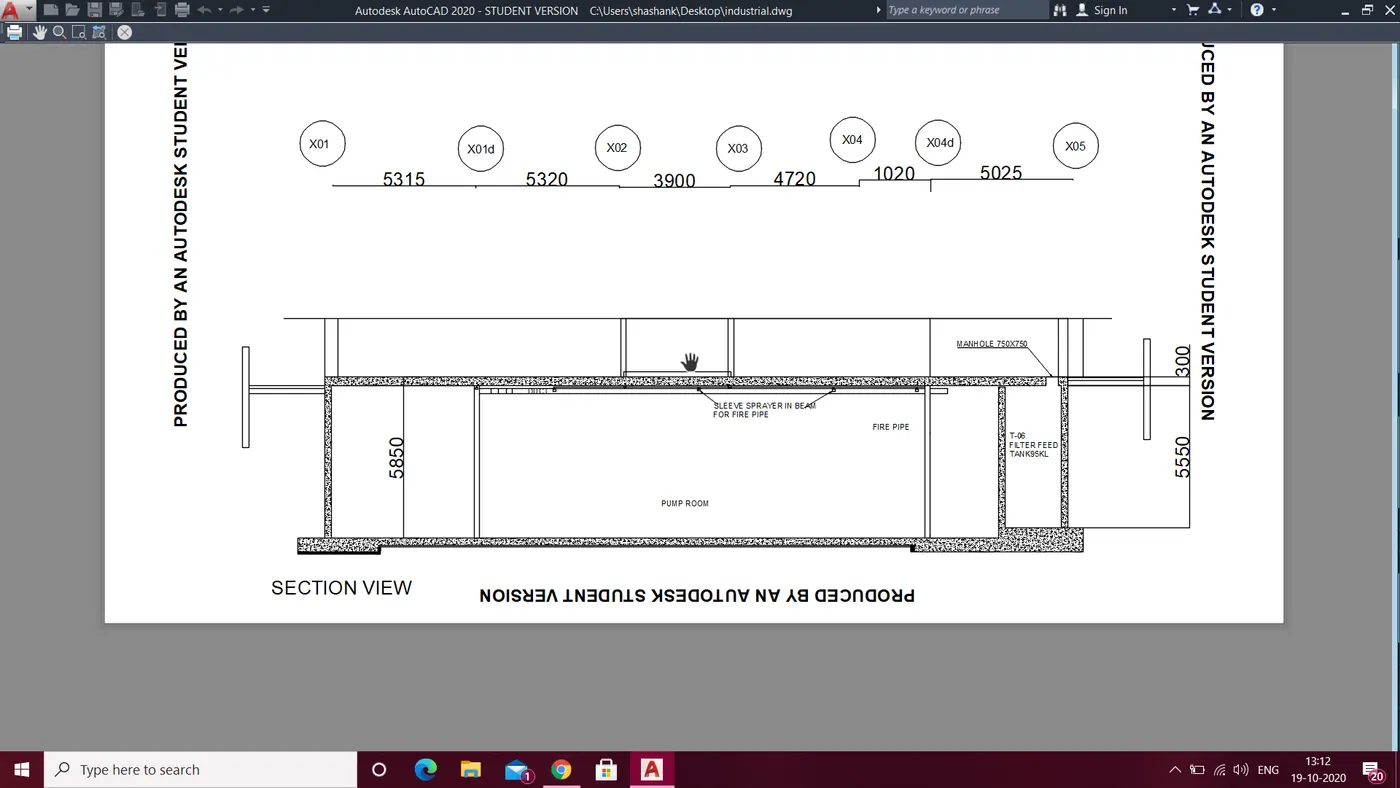
1. Open autocad
2. Type UN in command prompt and select decimal and precision 0
3. Type Limits in command prompt and specify the lower and upper points
4. z enter a enter now we are ready for the drafting
5. Draw a line with ortho on 25300 in x direction
6.Draw a line with ortho on 5850 in y direction
7. Type offset and do the offset as 230 and select the line left side of vertical line
8. draw a line in x direction 25300 with top line
9. type offset and do the offset of 300
10. Draw a line in vertical and do offset of 200
11. Type offset and do offset of 300 horizontal line for duct
12. type offset and do offset oof 200 from bottom horizontal line for duct
13. Type offset and do offset of 100 from top line for sleeve sprayer
14.trim all the extra lines with trim command and join all the lines
15.select the point at lower left and type @1000<180
16. type @500<270
17. type @2000<0
18. type @300<90
19.type @17055<0
20. type @300<270
21. type @5045<0
22. type @500<90
23.type @300<270
24. type 5850<90
25. type offset and do the offset of 230
26. join all the missing lines and trim all the excess lines
27. type offset and do the offset of 100
28. select the hatch command and go to pattern and select concrete and do the hatching whereever shown in fig
29. select the hatch command and go to solid and do the hatching whereever shown in fig
30. select hatch command and go to pattern and do the hatching at bith the horizontal (brickwork)
31. select the line command and draw the sprayer
32. select the leader command and select the place where arrow is needed and type the text
33. type BL in command prompt and select the sprayer and make as a block and insert the block wjereever needed
34. Do the dimension of the following using dimension command or dimliner in command prompt
35. Insert the circle and copy and paste whereever required
36. insert the text in it4
37. do all the finishing by joining and trimming all the lines
38. The following drawing is obtained