Week 6-Meshing of Hood Challenge
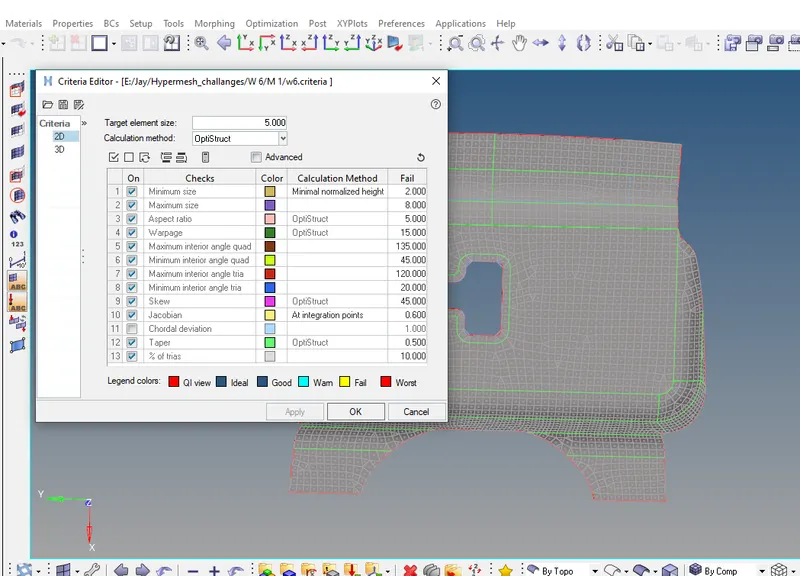
AIM : Follow the below-mentioned quality criteria, mesh the component given below and assign thickness :
Target Element Length = 5 Units
| S.N | Quality Criteria | Value |
| 1 | Aspect Ratio | 5 |
| 2 | Skewness | 45 |
| 3 | Warping | 15 |
| 4 | Taper | 0.5 |
| 5 | Min. Length | 2 Units |
| 6 | Max. Length | 8 Units |
| 7 | Min angle Quad | 45 |
| 8 | Max angle Quad | 135 |
| 9 | Min angle Tria | 20 |
| 10 | Max angle Tria | 120 |
| 10 | Tria % | 10 |
PROCEDURE : Import the model (Ref below) , View model in By Topo.
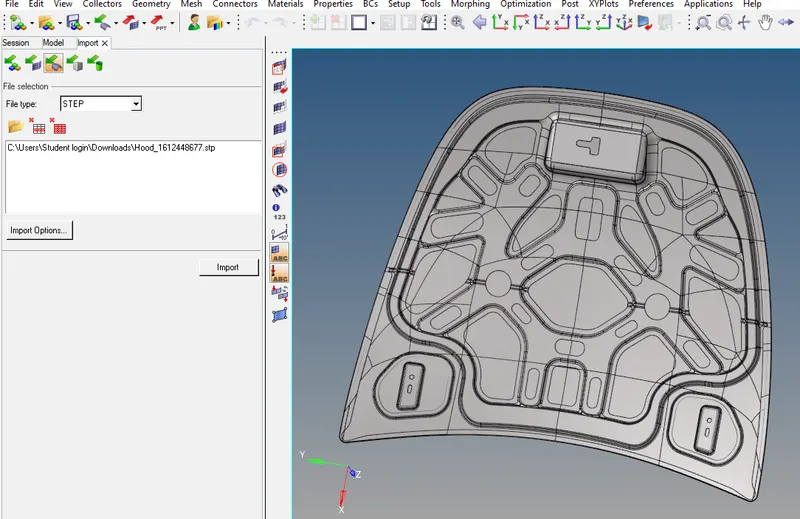
- This model includes 5 components , which has to be meshed individually.
- We have to delete all the solid surfaces
- Choose any one component , make it current and turn off other components surface.
- Extract Midsurface (Auto extraction) for each component and perform meshing on each of them saperately.
- COMPONENT 1 : LACH
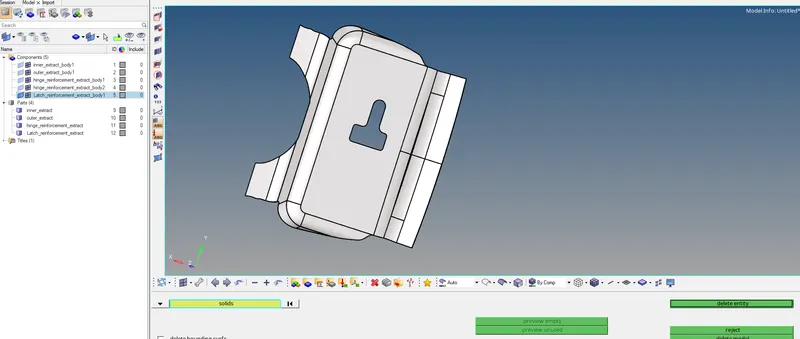
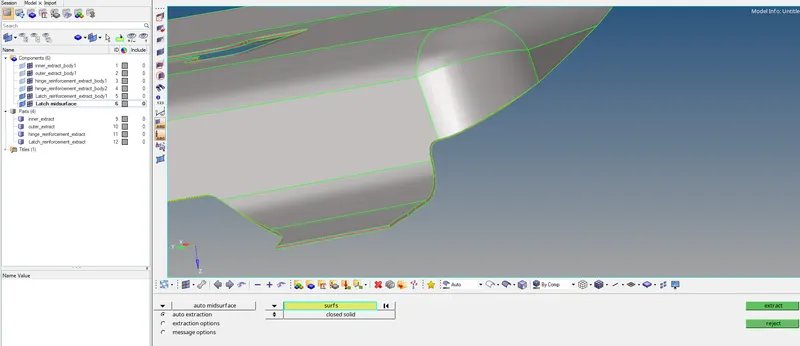
- Prior to meshing, we have to set the Criteria file settings in the prefference as mentioned above and save it. Every time when we open the Hyperworks, we have to apply the saved criteria.
- F12 is Shortcut for 2D meshing.
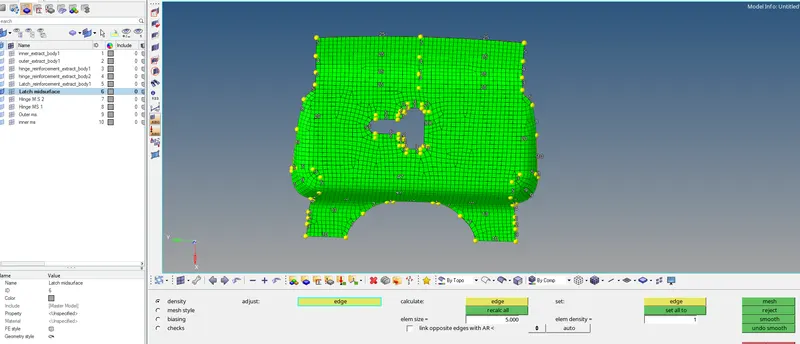
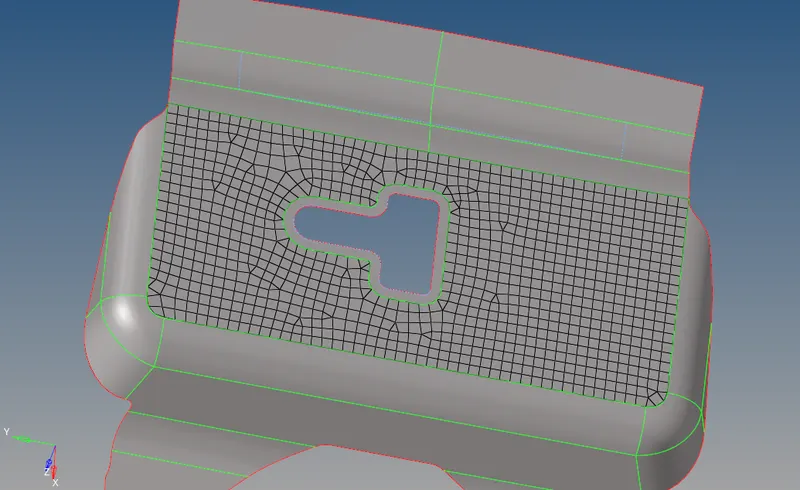
- We can toggle convient lines, to make the mesh on that surface easier.
- The below steps are mandatory to check with each component after meshing. [CHECK POINTS]
- We have to create a proper mesh, which satisfy all the required criteria.
- For ideal mesh, we have to clear all opposite trias, trias at edges, attached trias, rotational quads, triaquad.
- Attached/Trias at edges can be removed by draging them away from it, remesh that area. Use *2D--quality index--Drag trias.
- Quality index is a handy tool , where many corrections can be done.
- Nodes connectivity is very important, after completion of 2nd surface of that same component, check for edges *ShiftF3--select area--find edges.
Many times we miss them, so we wont get proper mesh. We can connect the nodes using-Replace nodes *F3--select nodes. - Some times we miss the node and feature line connectivity, where this leads the above problem, we can resolve this by projecting those missing noodes to the line *Tool--Project--To line--nodes (Normal to surface)
- F11 is Shortcut for Quick Edit, very handy tool, where many helpful options will be available like Toggle, Split surf line-node, replace node/retain.
FINAL VIEW :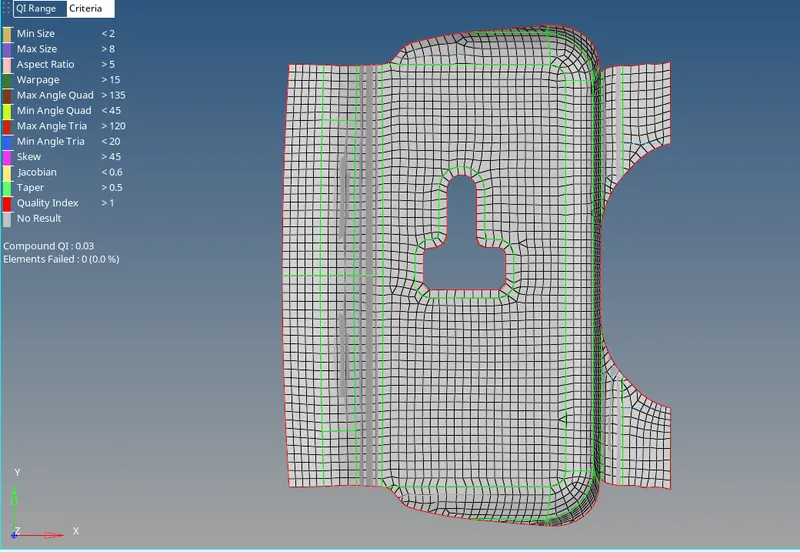
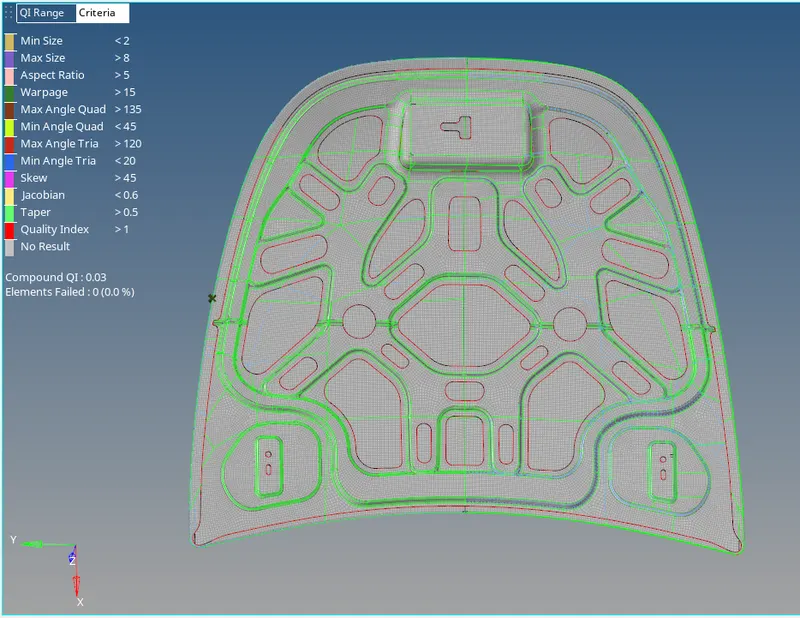
- For final review, we have to check elements , Criteria must be Zero.
- COMPONENT 2&3 : HINGE 1 & 2
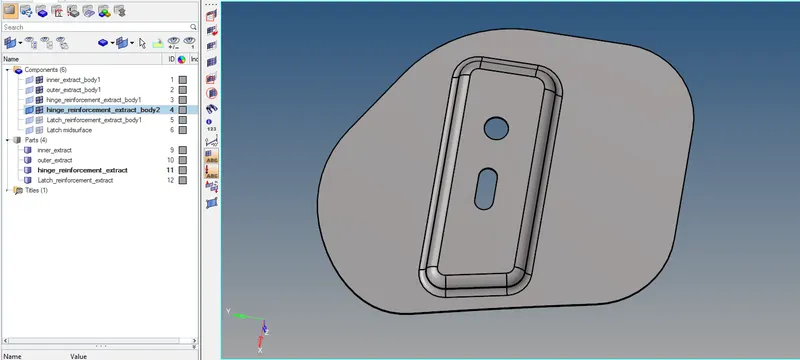
- Midsurface extraction
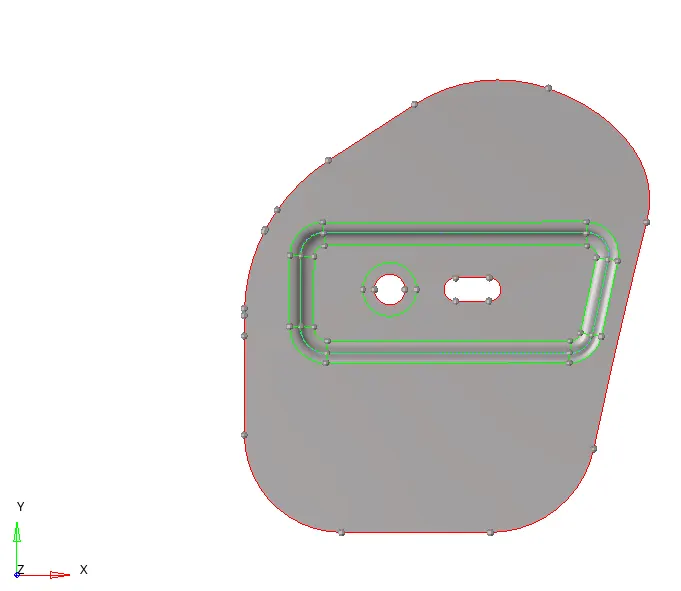
- Divide the surface as per convience and Mesh the surfaces
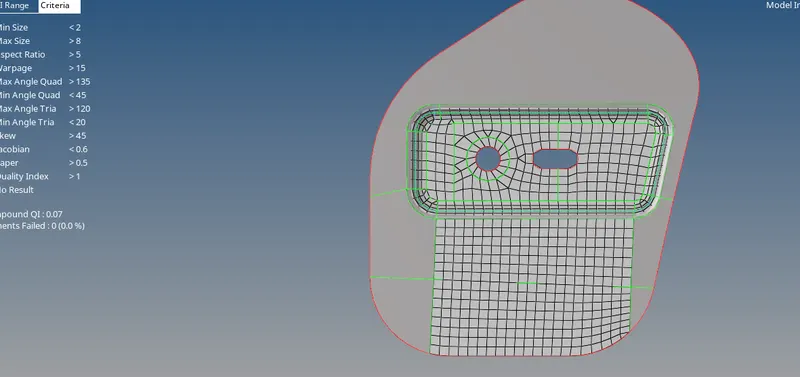
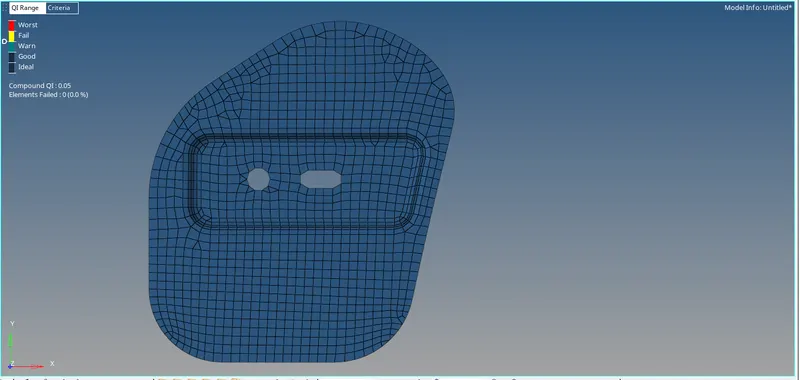
- REFFER ABOVE CHECK POINTS AFTER MESHING
- FINAL VIEW :
- For Second hinge , create Midsurface.
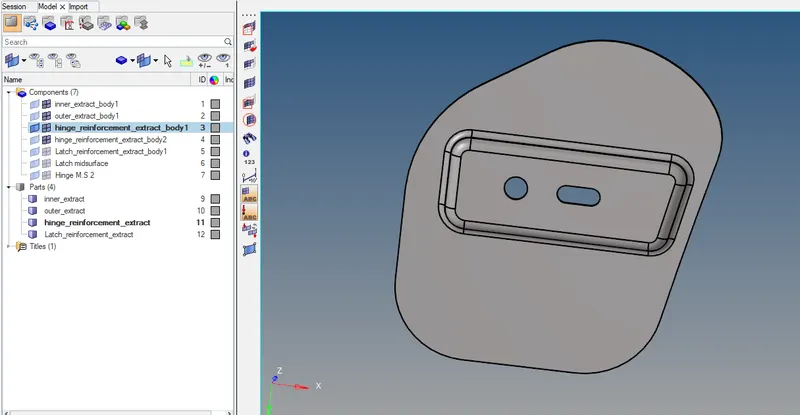
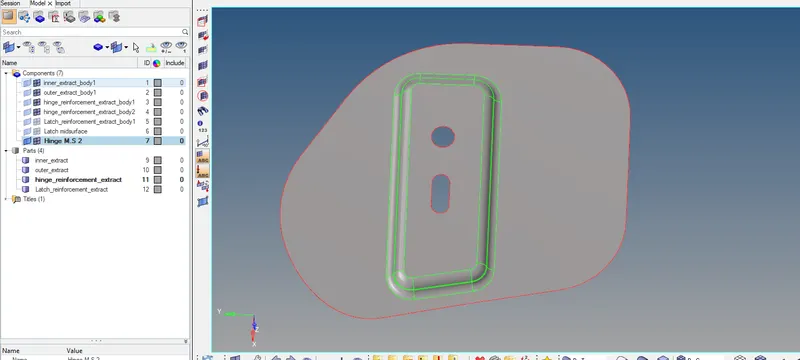
- As we can observe, Hinge 1&2 components are Symmetric in shape. We can mesh it once again or else we can reflect the elements.
- Before reflection, once again check all criteria points.
- Now make the Outer body extract surf ON and dont extract the midsurf of it. Make the Meshed hinge as current.
- Reflect *Tool--reflect--elem(make them Duplicate--current)--Select Axis--Ref point--reflect.
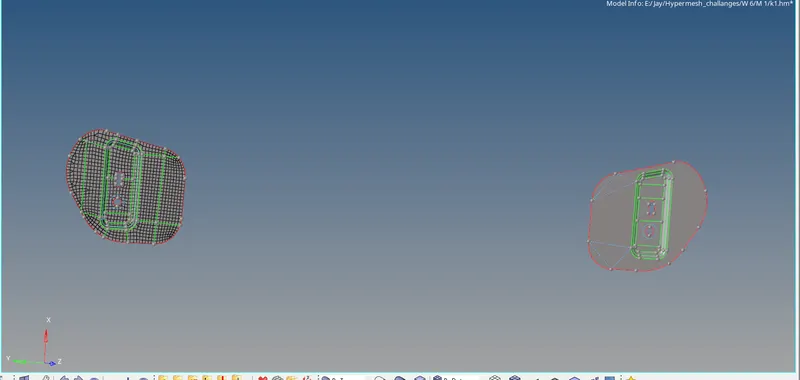
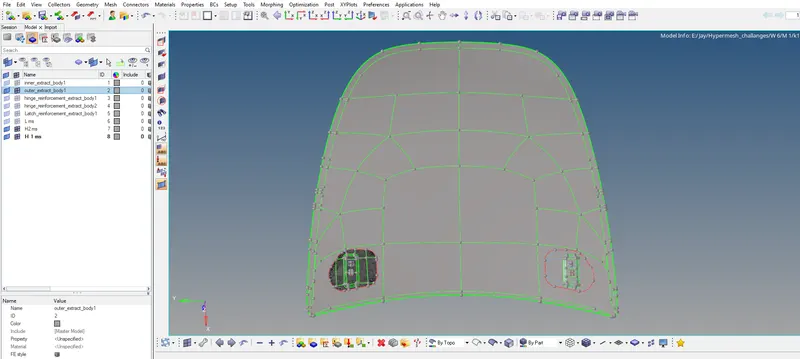
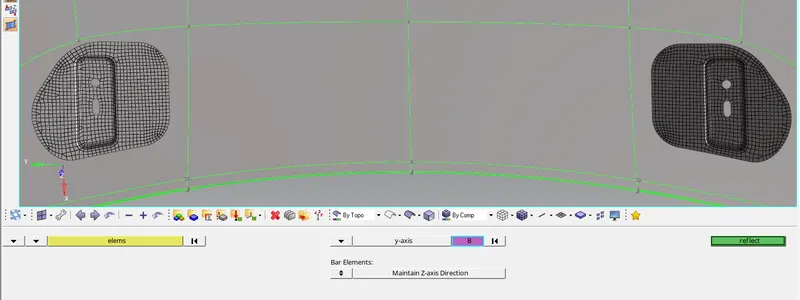
- FINAL VIEW :
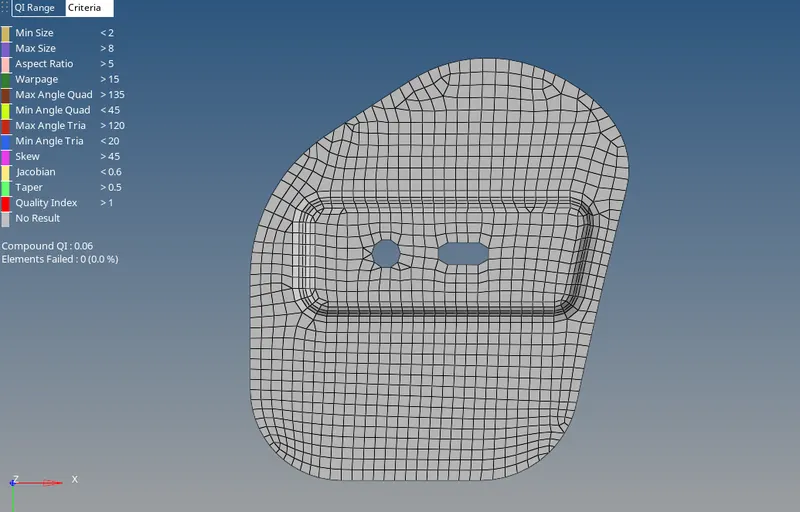
- NOTE Before going for next component, REFFER ABOVE CHECK POINTS AFTER MESHING
- COMPONENT 4 : OUTER BODY
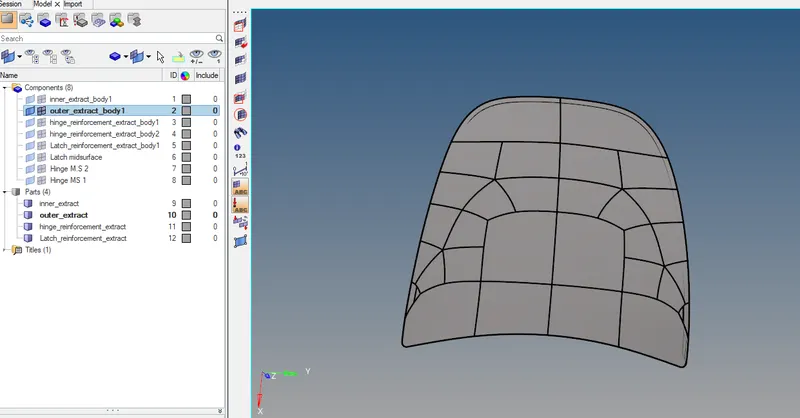
- Extract midsurf
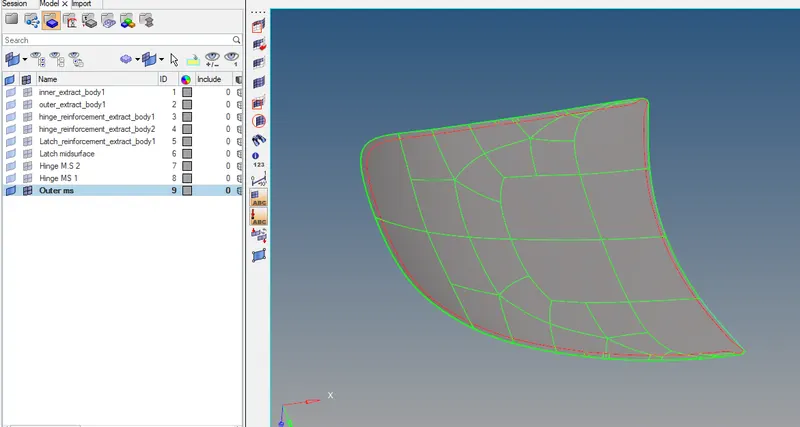
- Here also we can mesh entier component or else, we can mask half part and reflect the elem for another part.
- F5 is shortcut for Mask. Divide the surface as per convience and Mesh the surfaces
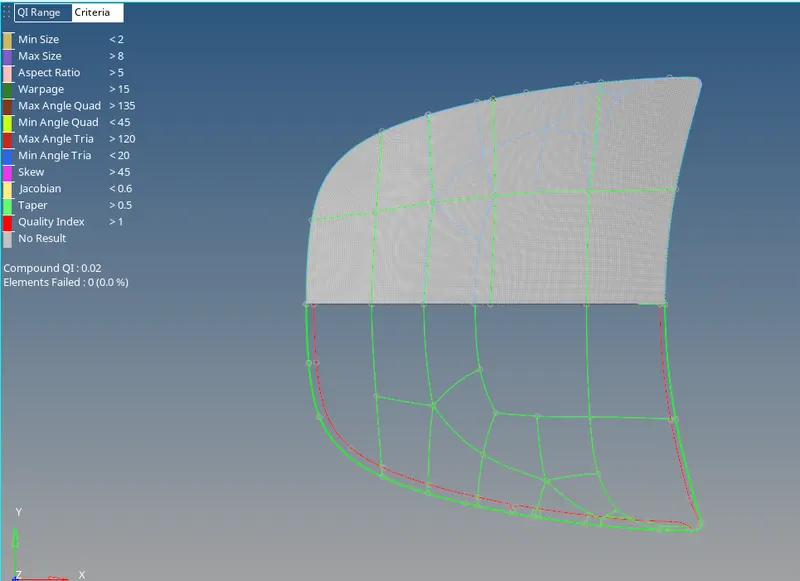
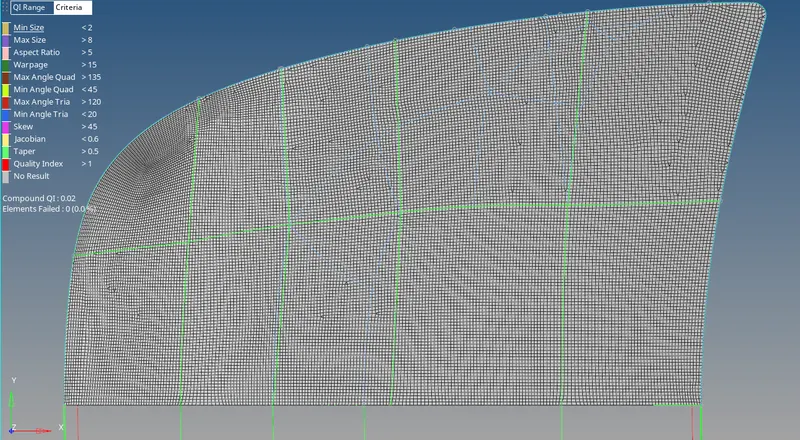
- Before reflection, once again check all criteria points.
- Reflect *Tool--reflect--elem(make them Duplicate--current)--Select Axis--Ref point--reflect.
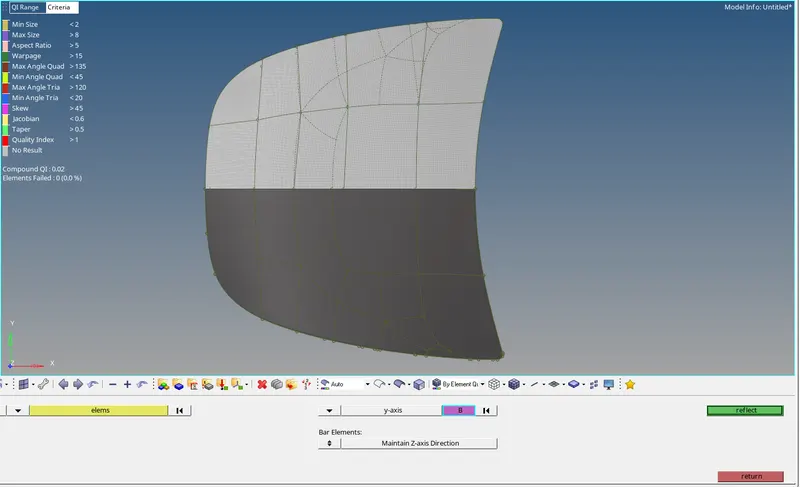
FINAL VIEW :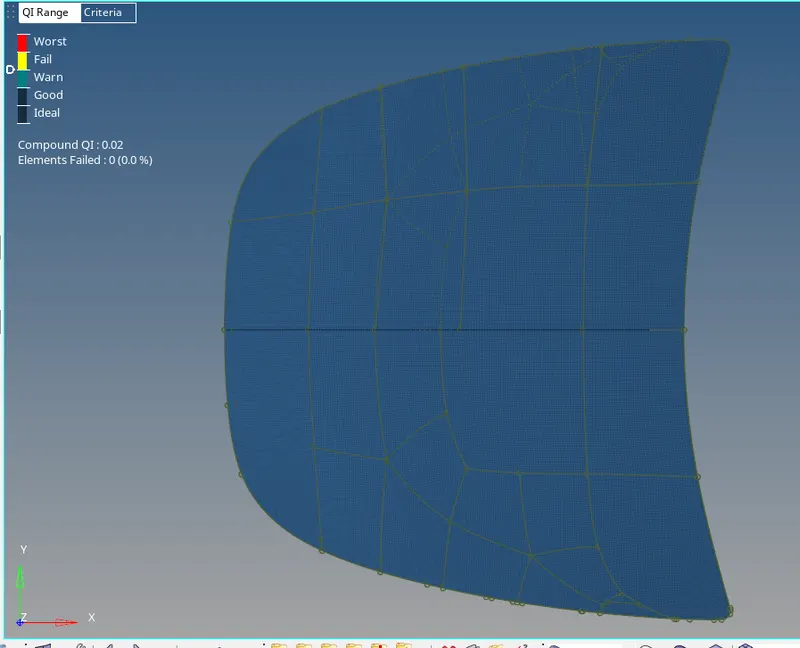
- NOTE Before going for next component, REFFER ABOVE CHECK POINTS AFTER MESHING
- COMPONENT 5 : INNER BODY
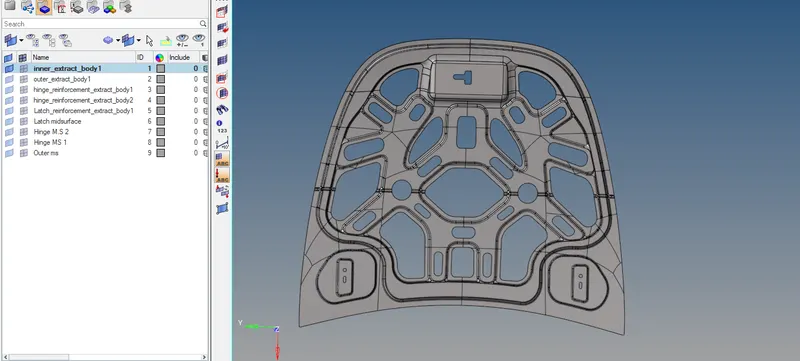
- Extract midsurf
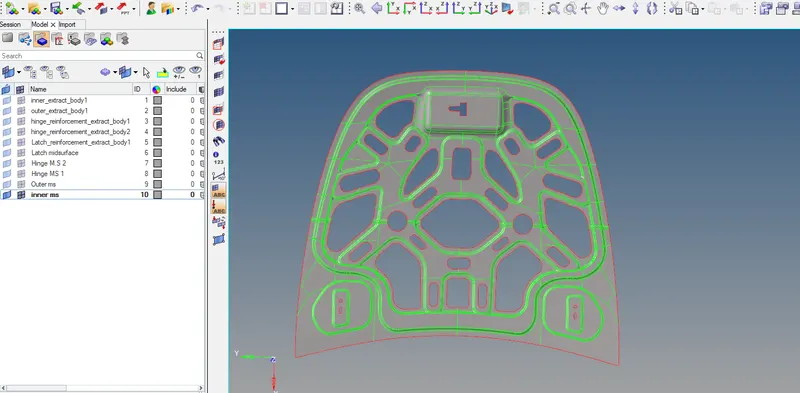
- Here also we can mesh entier component or else, we can mask half part and reflect the elem for another part, because they are Symmetric except upper layer of lach surf, mask it also.
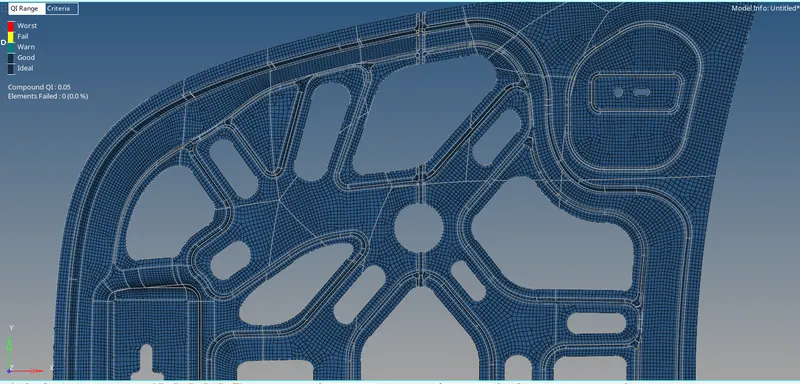
- NOTE Before SAVING component, REFFER ABOVE CHECK POINTS AFTER MESHING
- FINAL VIEW :