Week 5 Challenge
WEEK 5 ASSIGNMENT
1. Create new DGN file for horizontal geometry. Draw tangent lines with various methods. Insert curves in between them as well at the ends. Apply feature definitions to all these elements.
Aim: To create a DGN file for horizontal geometry, draw tangent lines using various methods, insert curves between them and apply feature definitions to all these elements.
Introduction: We can create the lines (tangents) and Curves (Arcs) using following metods.
Lines: The following are the various methods to create tangents.
- Line between points
- Line to elements
- Line between arcs
- Line from element
- Chamfer between points
Arcs: The following are the various methods draw arcs.
- Circle
- Arc between points
- Arc to elements
- Arc between elements
- Arc from element
- Arc between arcs
- complex transition between any element and arc
Procedure:
Draw a series of lines using the 'place line' tool. Place arcs at ends and after and before transitions using arc from element and arc between elements. Set feature definitions for every element ( Ribbon bar search “ Set feature definition”).
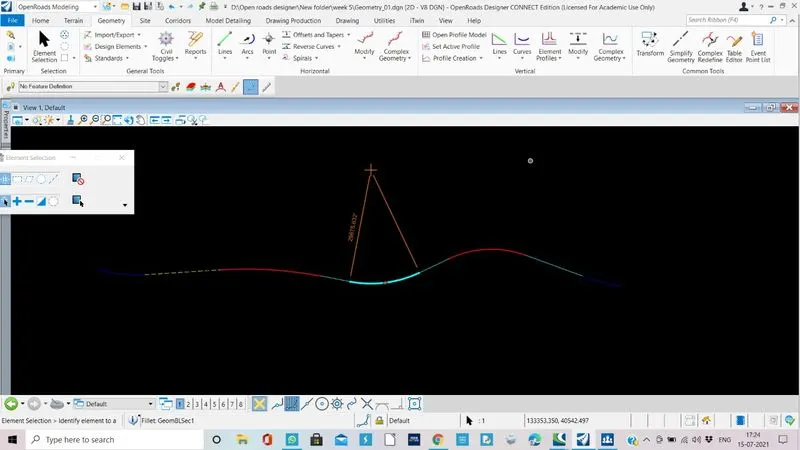
Result: Respective tangent lines, curves are created and feature definitions are added.
2. Create a square of 500’ side with fillets at 2 ends and chamfer at other two. Make complex. Offset this shape inside 5’ and outside 20’. Apply 3 different feature definitions for each of these shapes.
Aim: To create three squares with required specifications.
Procedure:
- Create a rectangle using the 'place line' tool (with the help of angles).
- Chamfer (ORD>Geometry>Lines>Chamfer between points or else directly type chamfer in ribbon bar) two ends.
- Place fillets at other two ends. (ORD>Geometry> Arcs> Arc between elements (2 point arc is used)).
- Then use the complex chain tool to make all elements (lines, curves and chamfers) to act as a single element.
- Go to ORD>Geometry>Offsets and tapers. Use ‘Single offset entire element’. Give the offset length for inside it is 5’ and outside it is 20’.
- Attach the whatever feature definition by placing the cursor on the respective square.
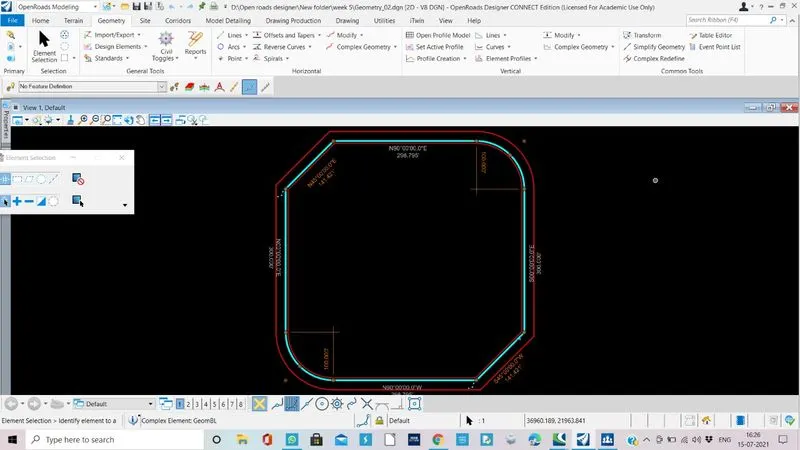
Result : The sqauares were created with chamfer at two ends and fillets at other two.
3. Create any point featured element along the outmost shape by point tools.
Aim: To create any point features element along the outmost shape by point tools.
Introduction:
Points:
- Point
- Equal space point
- Locate point
- Modify point
With these tools we can create the points with different space or equal space and edit them.
Procedure:
Gomto ORD>Geometry>Points>Equal space points. We can place the points for specific segment or along alignment. We have to give number of points required, method, offset and feature definition.
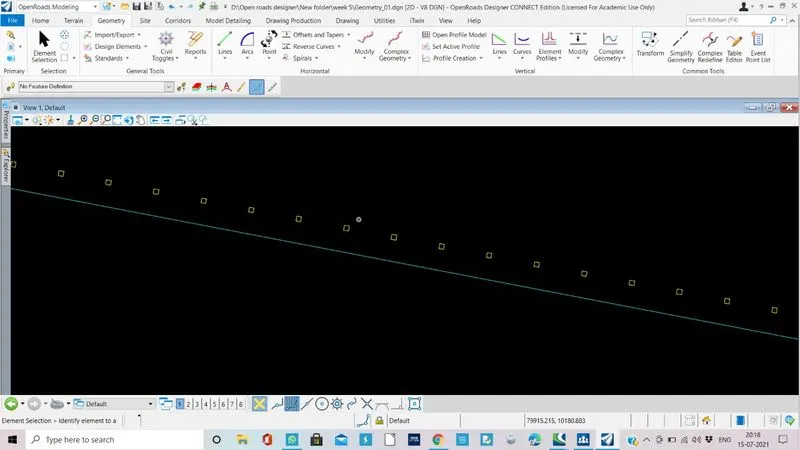
Result: The points are created.