Solid Meshing for a Rear View Mirror Model using ANSA.
Report on Solid Meshing of the given Rear View Mirror Model
Aim: To Mesh the given model with tetra elements with the stated Quality Criteria.
Procedure: 1. The very first step upon receiving the model is the procedure of Geometric clean up. For this step I used the Checks manager command. Then i selected the Geometry option under this command.
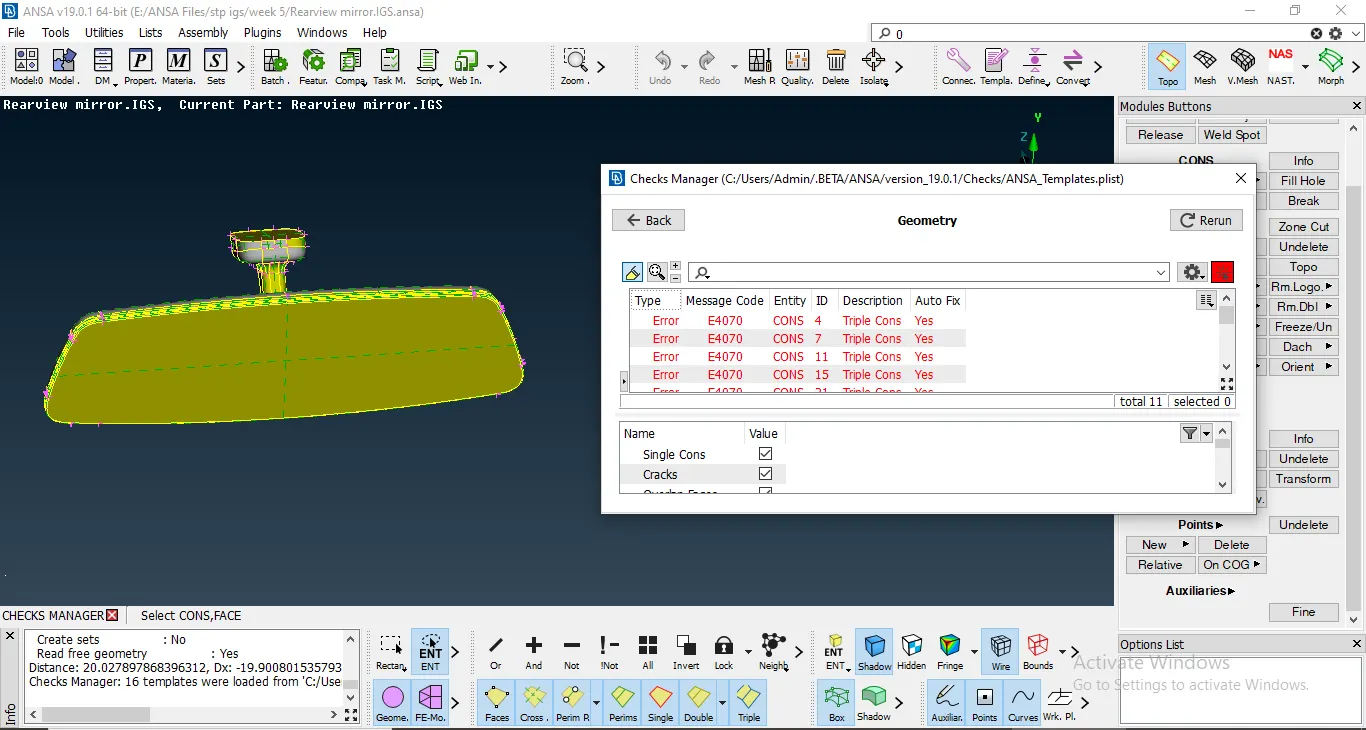
Model before Geometric clean up
On performing the Geometric clean up, we get a proper clean model without any errors.
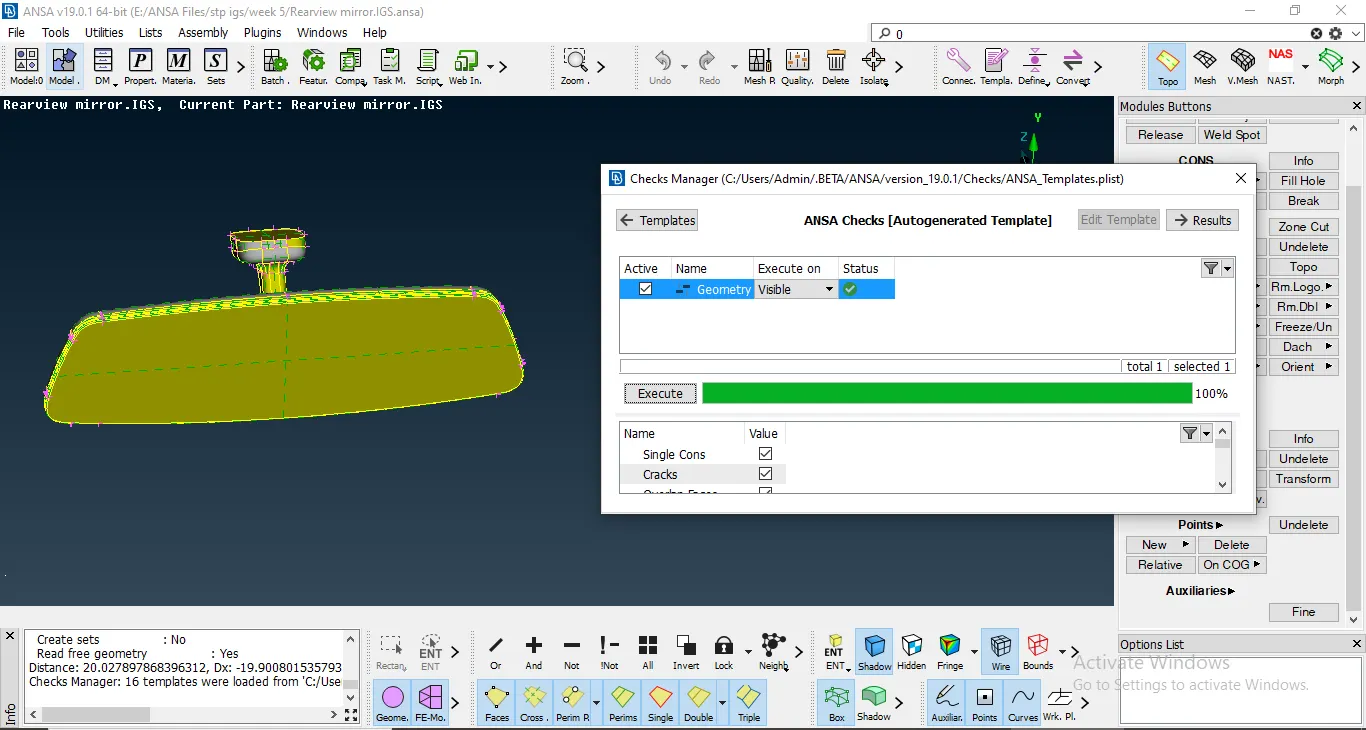
Model after Geometric clean up
2. After the Geometric clean up was performed, I firstly set the Quality criteria for meshing.
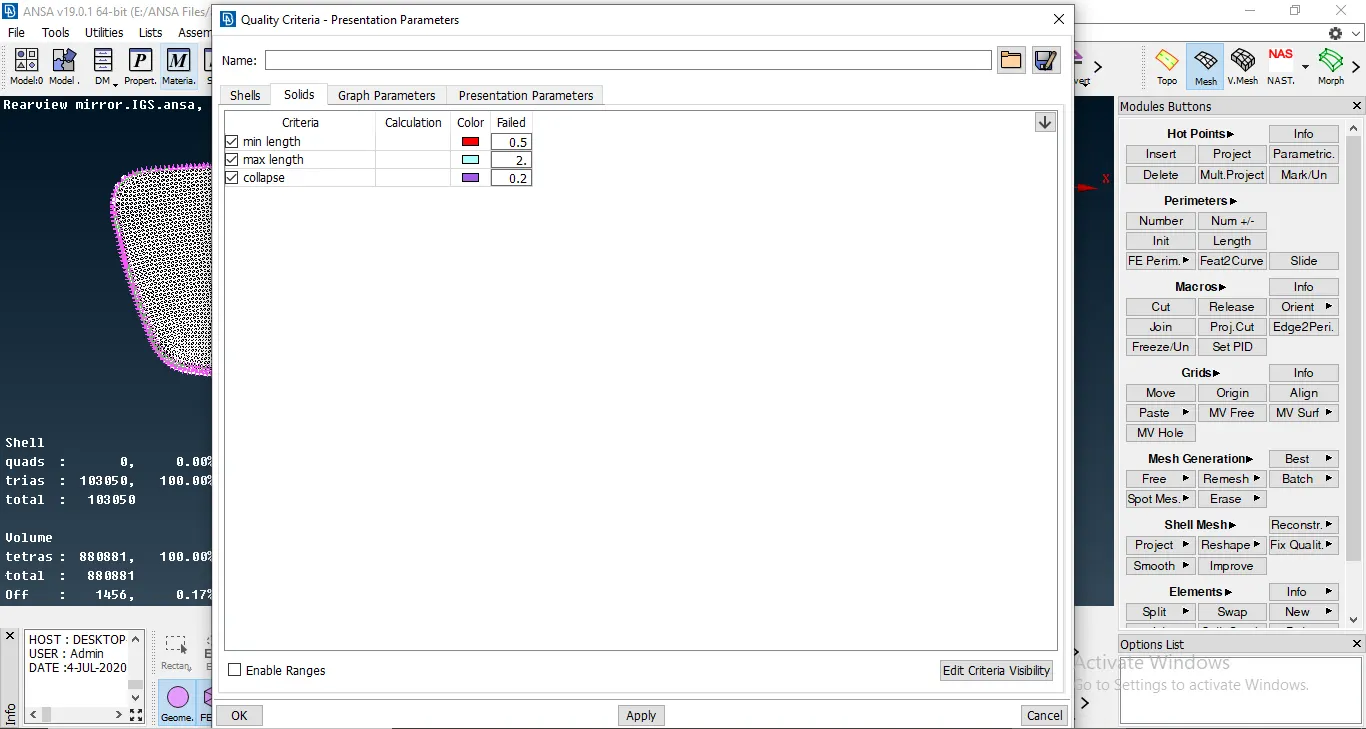
Quality critera for the Model
After giving the Quality criteria for the model, I used the Batch mesh command on the model. For this command, I gave in a certain few inputs to the software like the Meshing paramerters, Quality criteria and the content i.e. the model onto the Batch Mesh manager. After giving these inputs, I ran the command.
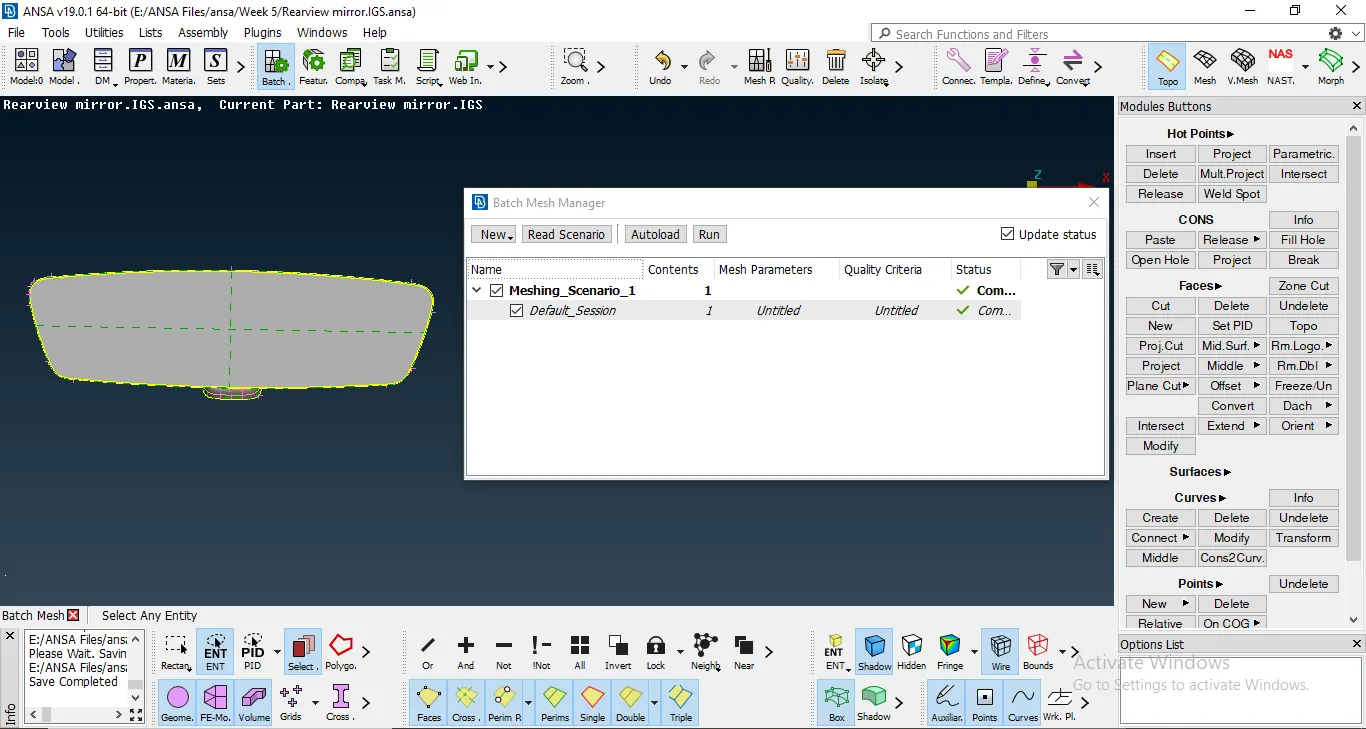
Batch mesh Tool.
After the batch mesh was done, I erased the mesh and used the model that was defeatured by the software. Then,I began meshing on the surface of the curved features with the ortho tria elements and with tria elements on the relatively flat faces. For Meshing, I used the Spot mesh command under Mesh Generation option.
I also checked the flow of the mesh and improved it without disturbing the Quality criteria.
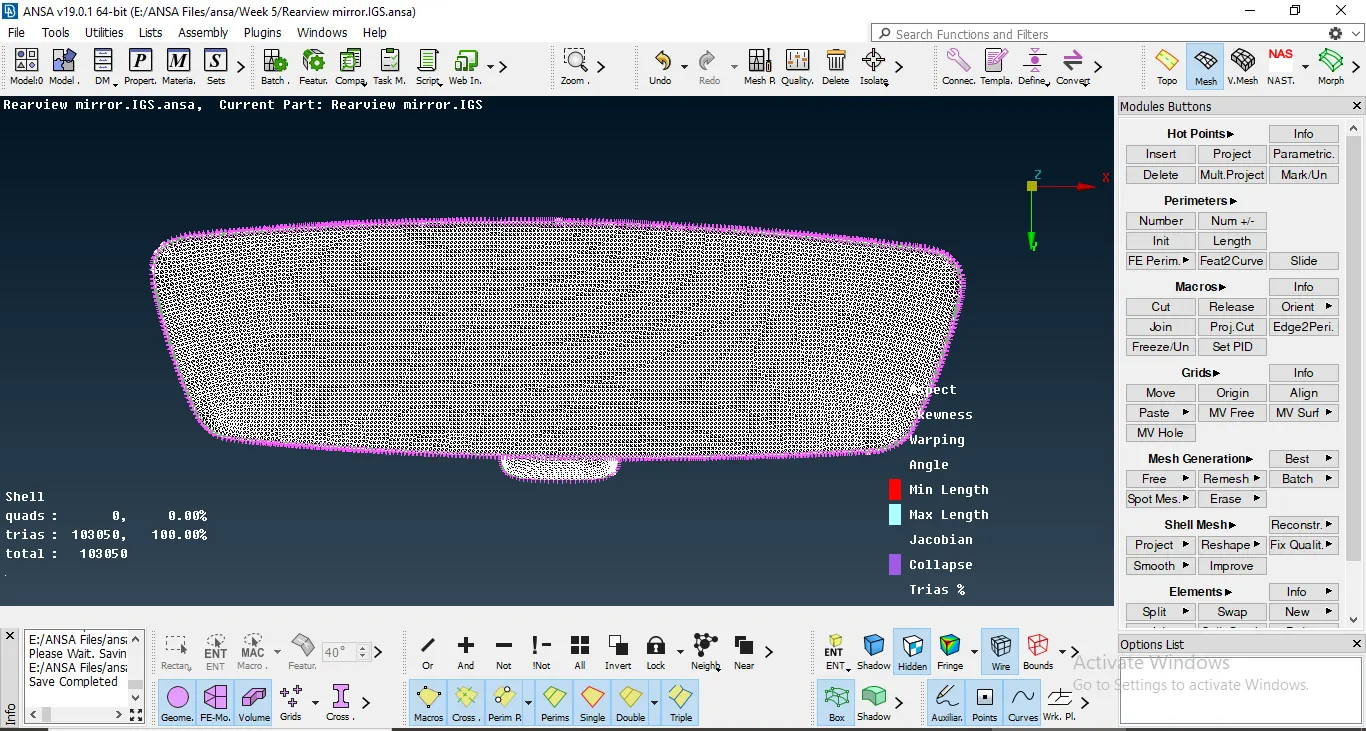
The model after meshing.
After completing the mesh on the model, I checked for the presence of any off elements and resolved them. Therefore, the model doesnt have any off elements on the surface.
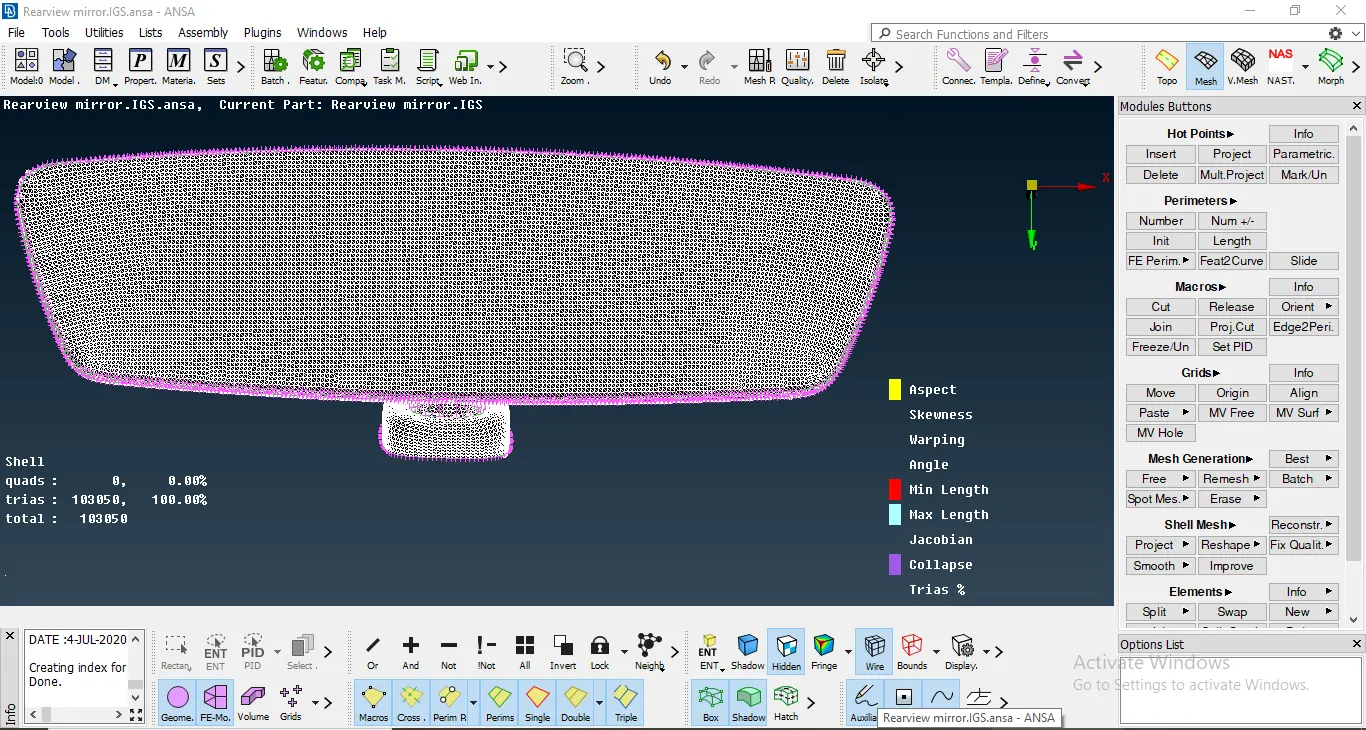
No off elements in the model
3. After the meshing was done on the surface, I defined the volumes according the PID of the different components in the model. For this feature I used the Volume Mesh tab. In the tab, I chose the Define command under Volumes opiton.
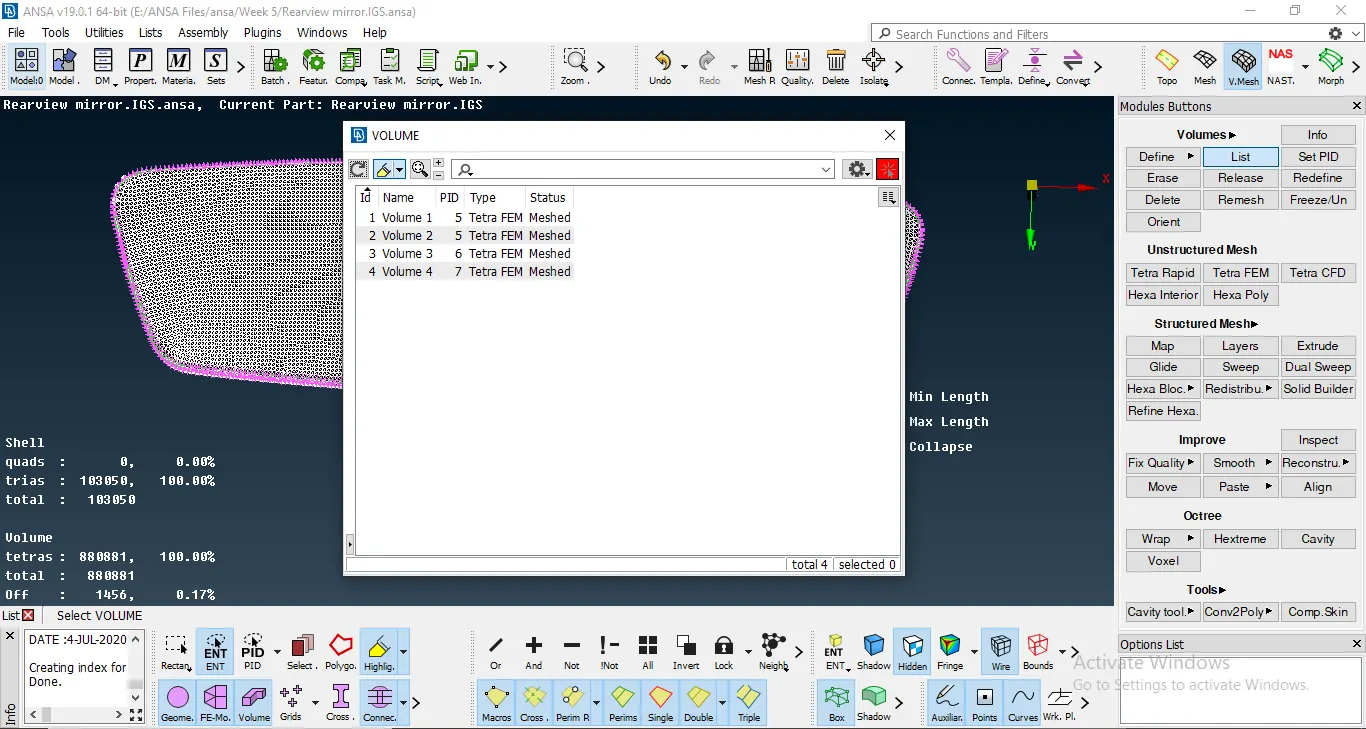
Different Volumes defined according to the various PID in the model.
After the volumes were defined, volumes are ready to be meshed. For this, I opened the List under Volumes option and Meshed one volume at a time. To do this, I right clicked on the Volume and selected the remesh option and meshed the volume with the Tetra FEM Algorithm.
After all the Volumes were meshed, we can view the volume by activating the Bounds and hiding the CAD Geometry and the Finite Element model.
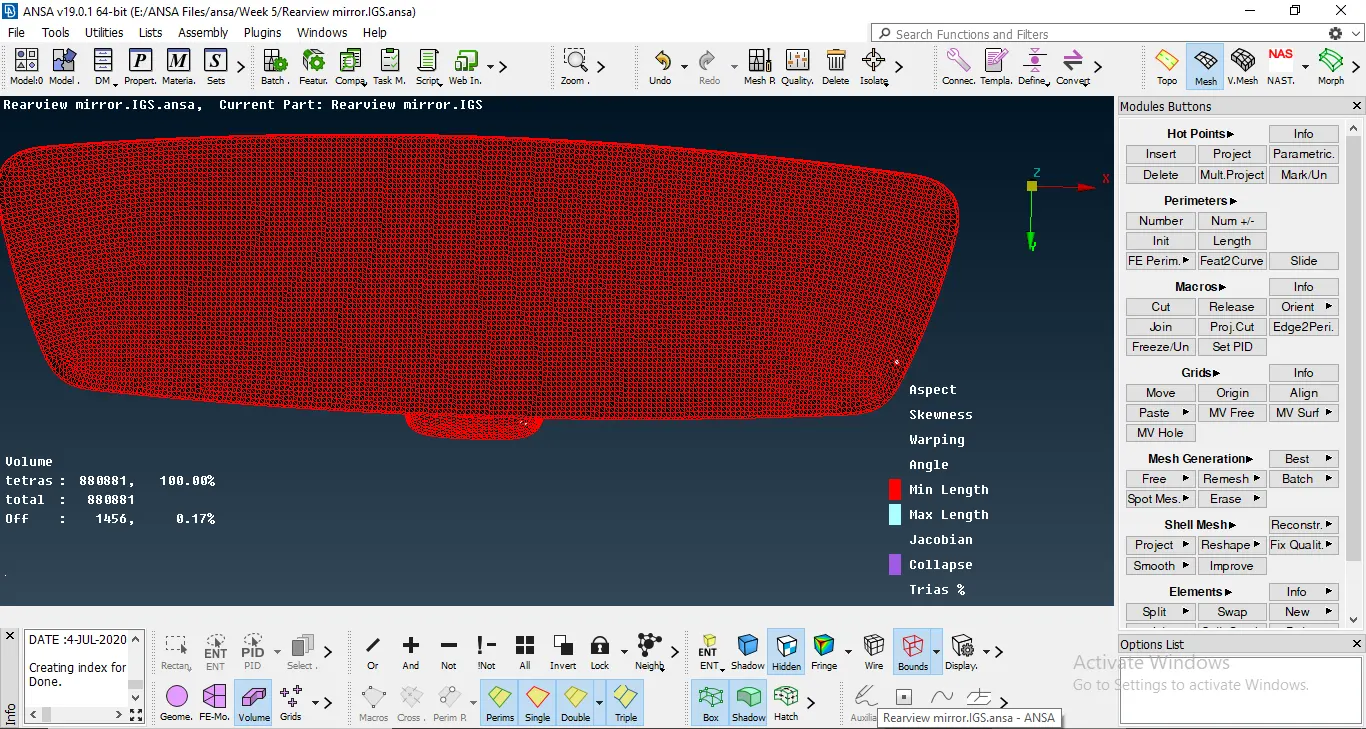
All the volumes of the component are meshed.
As we can see, the component with its volume is meshed properly.
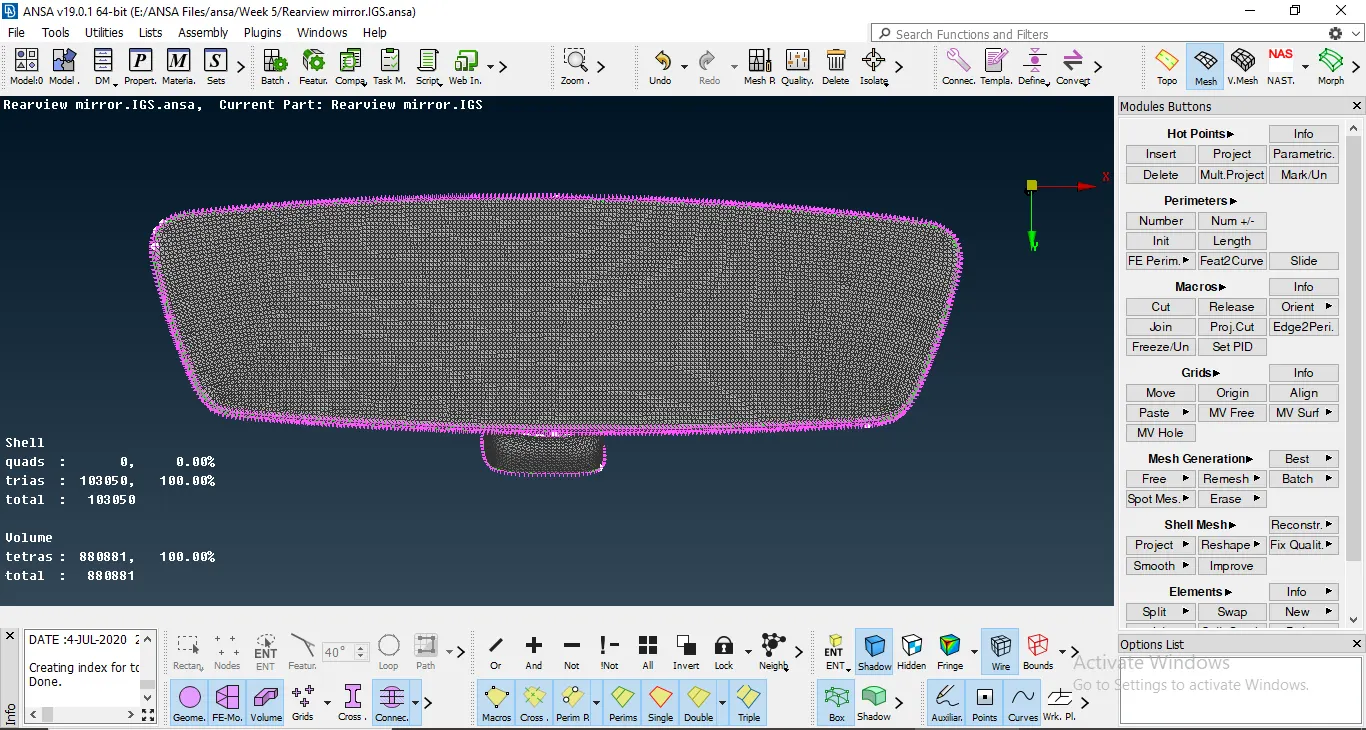
The component with its volume meshed.
Learning Outcomes: 1. How to properly Mesh the component using the Ortho Tria and Tria elements.
2. How to Define Volumes according to their PID.
3. How to Mesh the Defined Volumes.
4. How to use the Batch Mesh Manager.
Conclusion: In conclusion I would like to state that the tetra mesh method is the unstructured mesh method and that I have learnt how to define volume according to their PID and Mesh them accordingly.