Week 4- Challenge
Creat 1D elements on the following component with given cross-section and DOF
a. Rod element:- with only translational DOF and RBE2 link
Cross-Section: BOX- Dimension a= 12 mm
dimension b=10 mm
Thickness t= 0.75 mm
b. Beam element:- with all DOF and RBE3 link
Cross-Section: I Section- Dimension a= 8 mm
Dimension b= 10 mm
Dimension c= 8.5 mm
Thickness t1= 0.75 mm
Thickness t2= .6 mm
Thickness t3= .6 mm
c. Bar element:- with only x and y DOFs With RBE3 link
Cross-section: CROSS section- Dimension DIM1= 5 mm
Thickness DIM2= 1.2 mm
Dimension DIM3= 10 mm
Thickness DIM4= 1.2mm
d. & e. apply the mass of magnitude 10 with RBE2 link
f. Join the two components with Spring elements
PROCEDURE
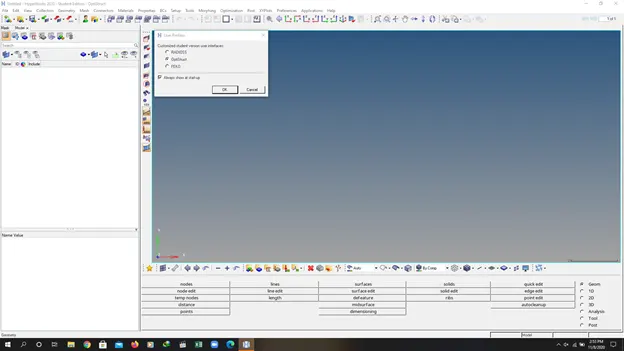
- Open the hyperworks desktop 2020.
- Impot the geometery.
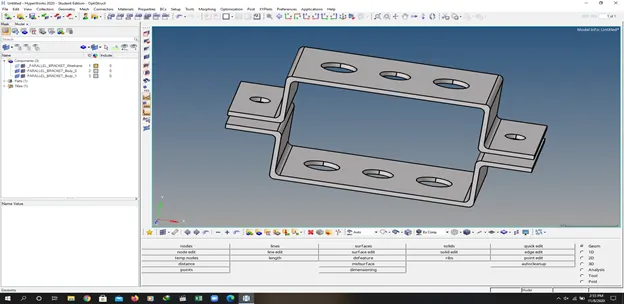
- If geometery is in wireframe then go to surface with hidden edges.
- For creating the midsurface select the bracket_0 and click on the extract and rename as bracket_0.
- Do the same for bracket_1.
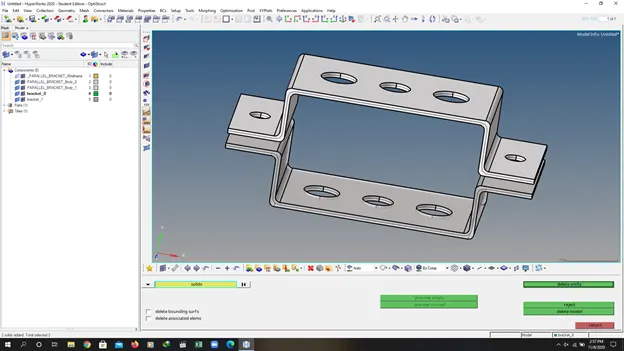
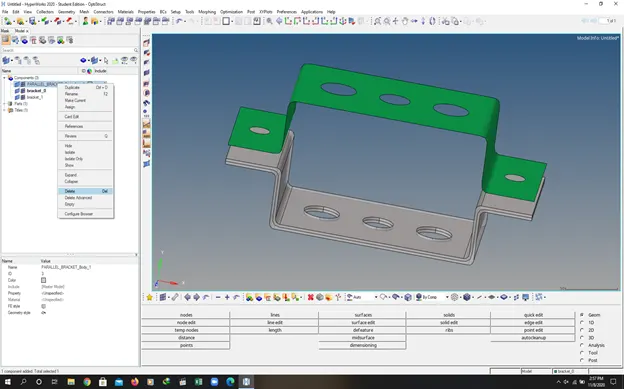
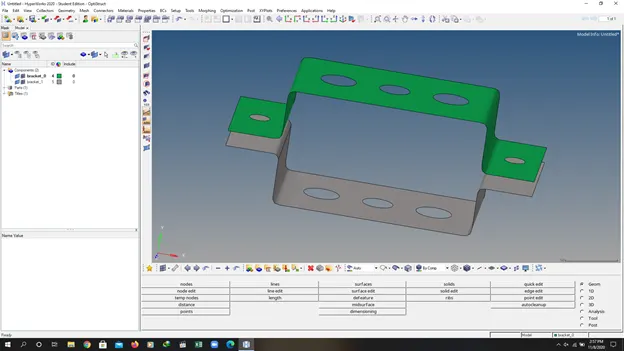
- After extracting select the all solids and delete the solids by using delete command.
- After deleting the solids then go to tree and in tree select and right click if there are any remaining files and delete them.
- After deleting the solids check there is no overlapping between surfaces or any multiple surfaces if there is any multiple surface then delete the extra surfaces.
- For identification purpose we can change the colour of bracket surfaces.
- Press f12 to mesh the surface for better results use the washer split command in geometery.
- Give the element size 10mm. and mesh the file.
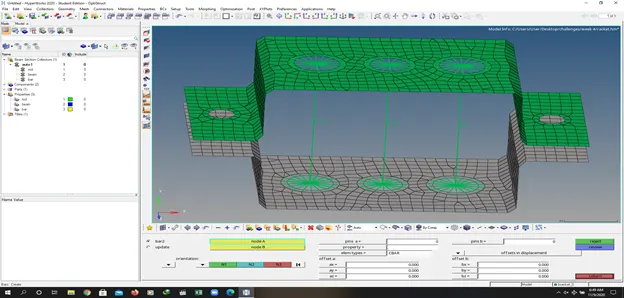
- Go to 1-d tool bar select the rigid command to make rbi 2 element.
- After creating the rbi 2 element create the rbi 3 element respectively. For creating rbi 3 element go to 1d tab and click and create the rbi 3 element.
- After that go to tab bar and click right click on mouse and create a three properties with the name rod, beam and bar respectively.
- After creating the properties go to 1 d tool bar again and click a hyper beam command and create the cross section for rod beam and bar according the given dimension in the objective.
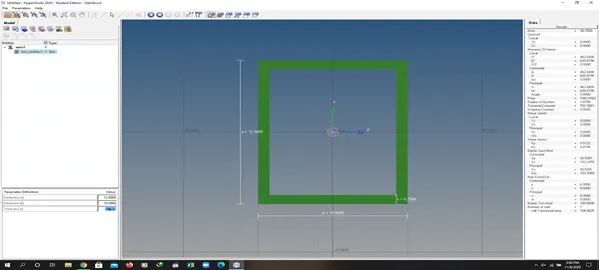
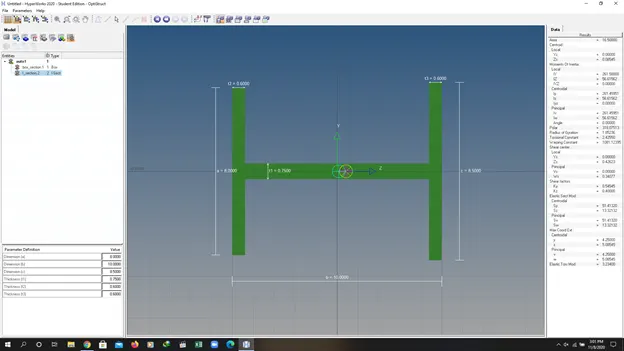
- After creating the cross section assign the cross section to the property respectively. After assigning the cross section go to 1d bar again.
- Select bar command and update the element and create the respectively elements.
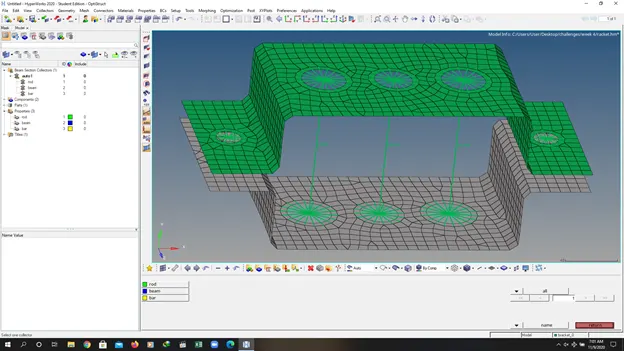
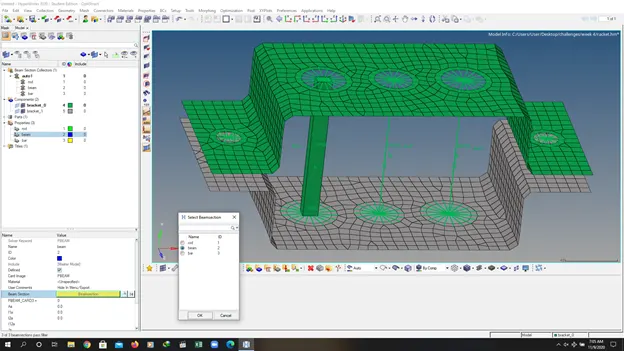
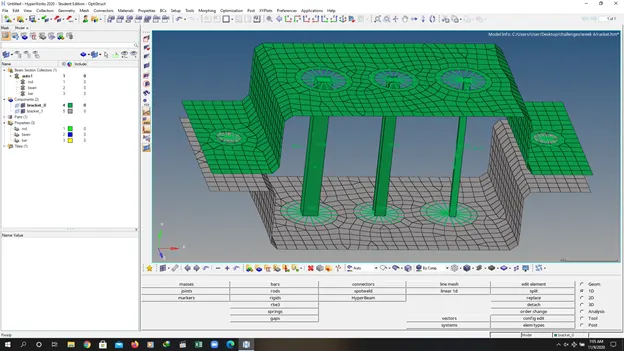
- For seeing the cross section which were assign to the elements go to toolbar below in workspace and click the 1 d detailed view that will show the the cross section.
- For creating mass again go to the same tool bar and select the command and give the magnitude of 10 and create the respective rbi 2 element.
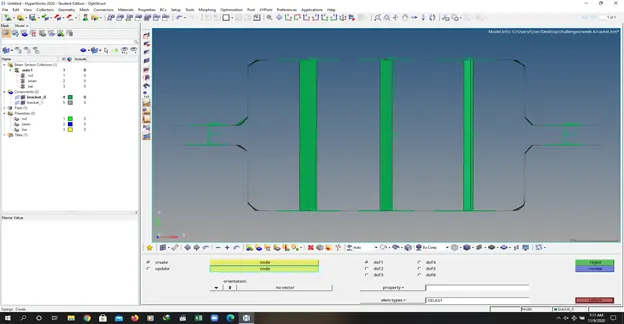
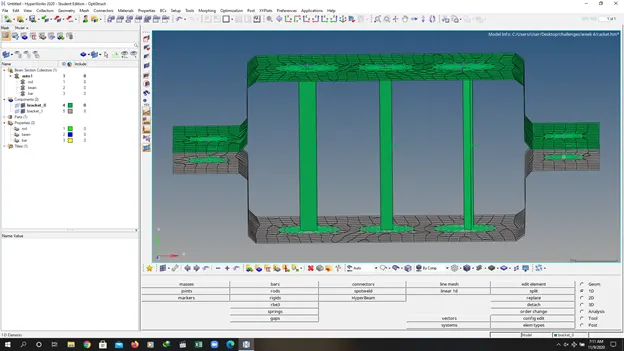
- After creating the mass go back to the 1d tool bar and select the spring to create a connection between surfaces.
CONCLUSION