Week 12:Project 2-Meshing of Rear Wheel Holder challenge
OJECTIVE:
For this week's challenge,
Follow the below-mentioned quality criteria, mesh the component given below and assign thickness:
Target Element Length = 5 Units
| S.N | Quality Criteria | Value |
| 1 | Aspect Ratio | 5 |
| 2 | Skewness | 45 |
| 3 | Warping | 15 |
| 4 | Taper | 0.5 |
| 5 | Min. Length | 2 Units |
| 6 | Max. Length | 8 Units |
| 7 | Min angle Quad | 45 |
| 8 | Max angle Quad | 135 |
| 9 | Min angle Tria | 20 |
| 10 | Max angle Tria | 120 |
| 10 | Tria % | 10 |
Component- Click here to download the file
You will have to submit a detailed report describing whatever you have performed in the challenge. You will be graded for the report as well
Important Points to Remember:
- Remove the buttons which are shown below because it will be difficult to capture that area as well mesh flow will not be proper. Except this feature, all the other features should be captured with proper element quality
Description and Procedure:
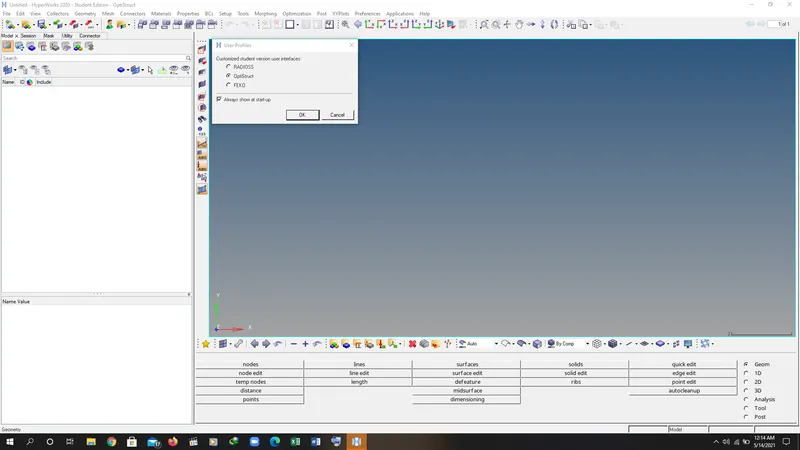
- Open the HYPERWORKS 2020.
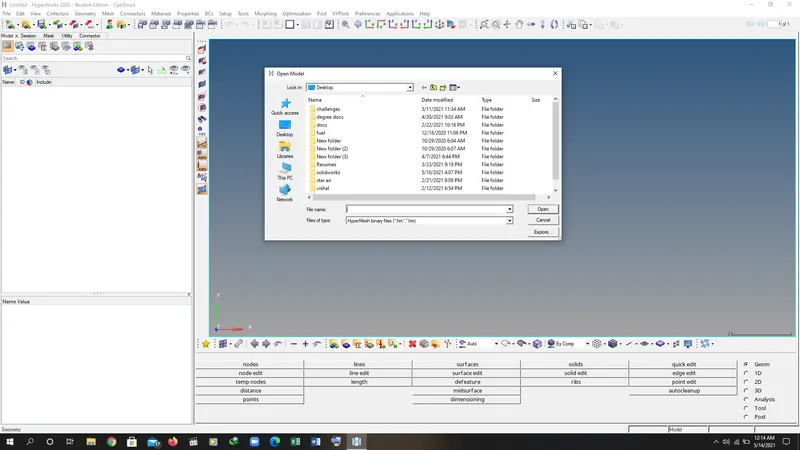
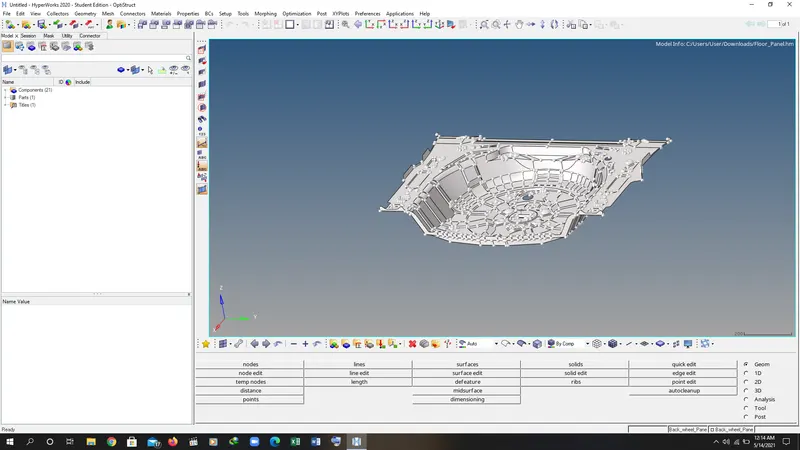
- Open the file.
- Check the thickness of the model and if you are doing manual mid surface then take the average value of the model as shown in the figures:
- Go to the geometry tool in the main tool bar then click the mid surface tool and generate the mid surface for the model.
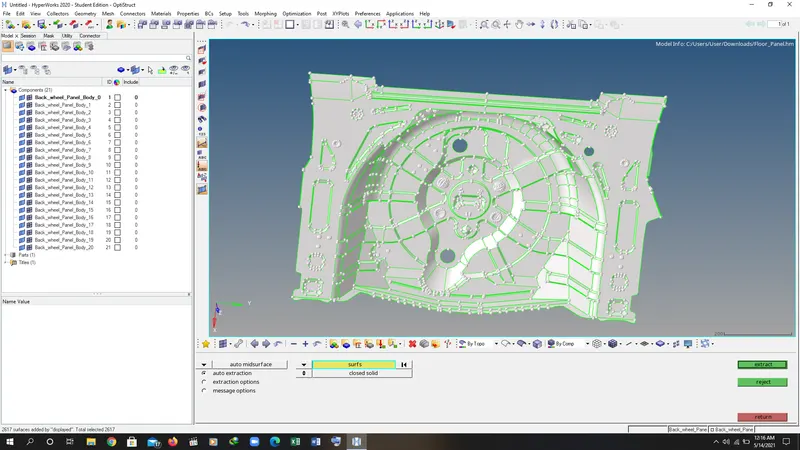
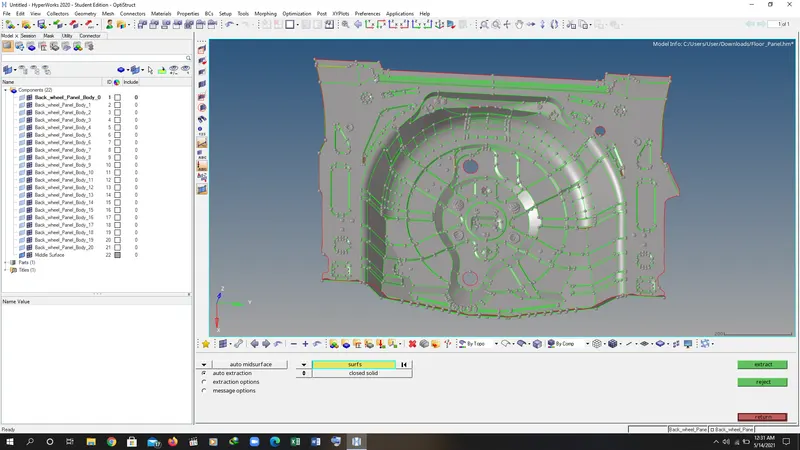
- After generating the mid surface then check the geometry where we need to work and do the clean up on the geometry.
- Delete the buttons which are present in the model and create the surface their to optimise the model.
- After deleting the buttons go to geometry tool in main tool bar and then go to the surface and select the fill option and generate the surface for the model.
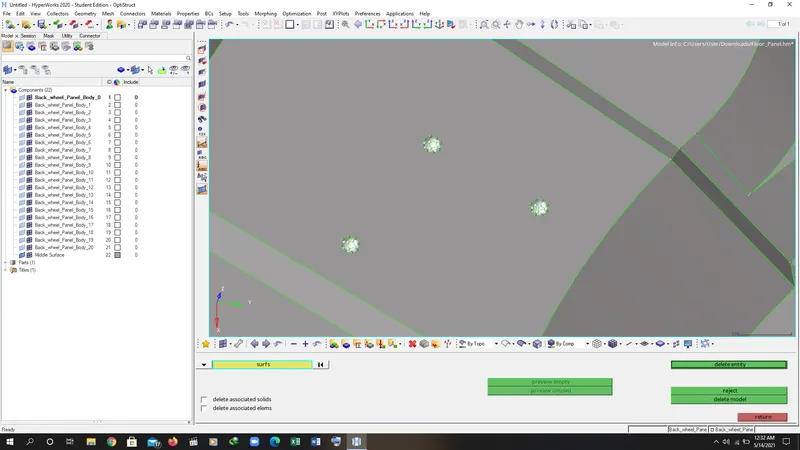
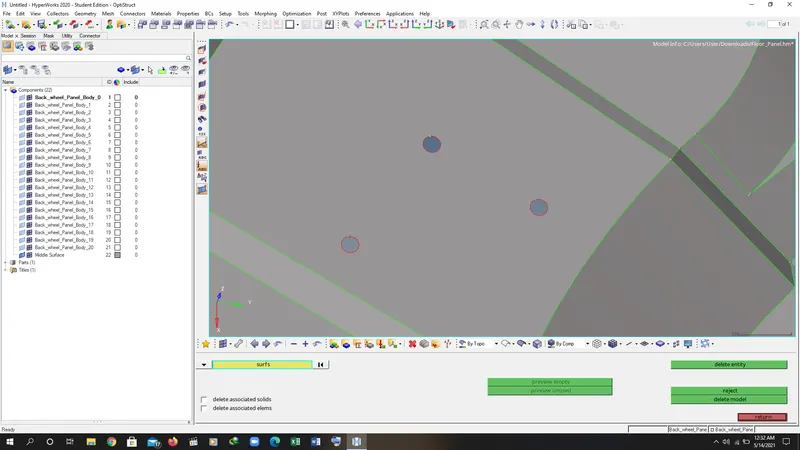
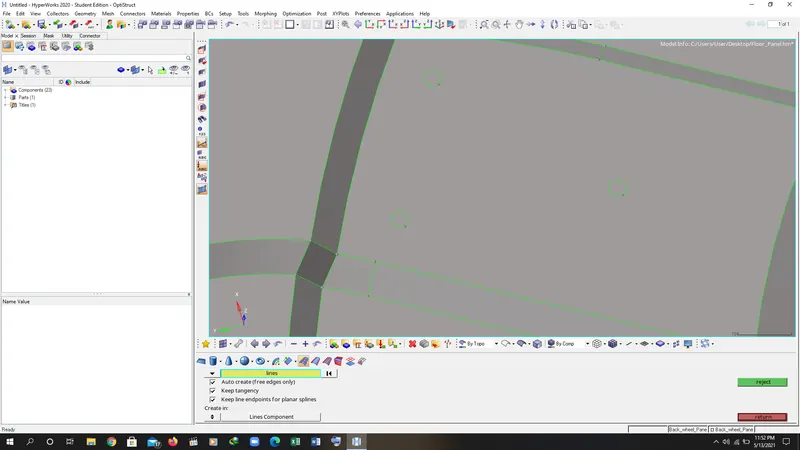
- Go to quick edit tool in main tool bar then do the necessary things by using those tools as shown in figure:
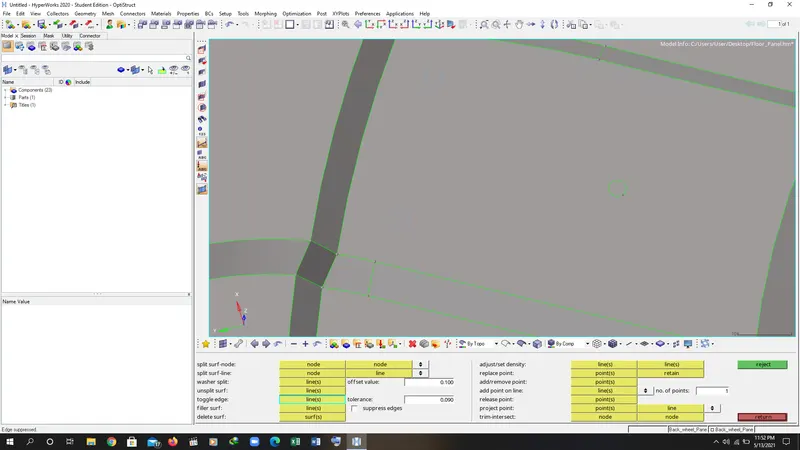
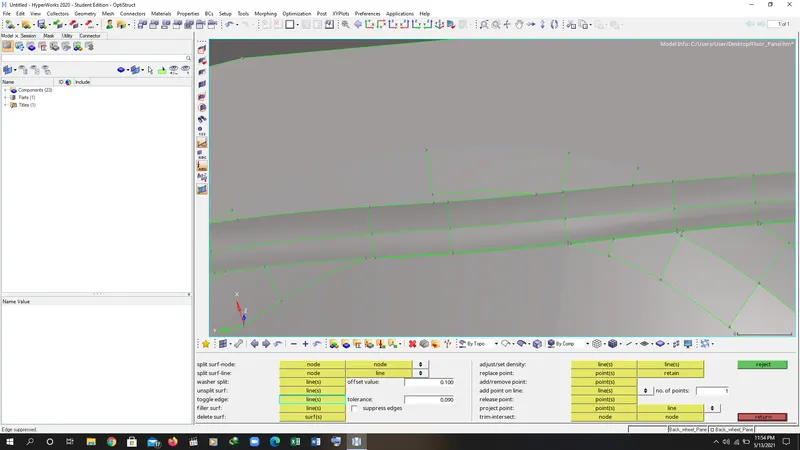
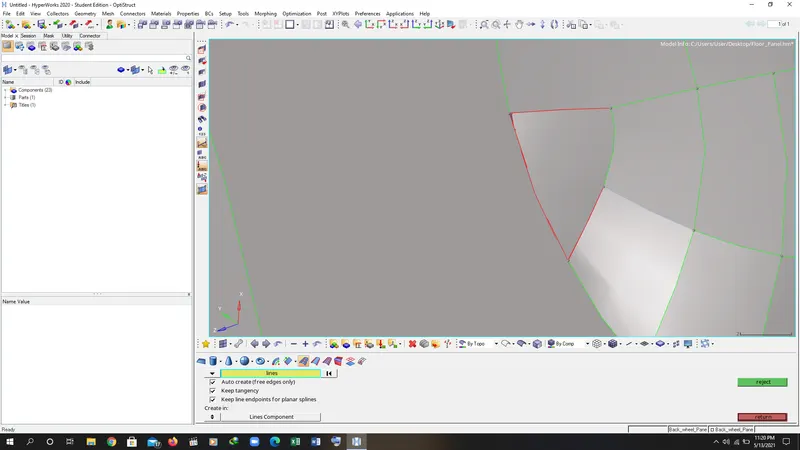
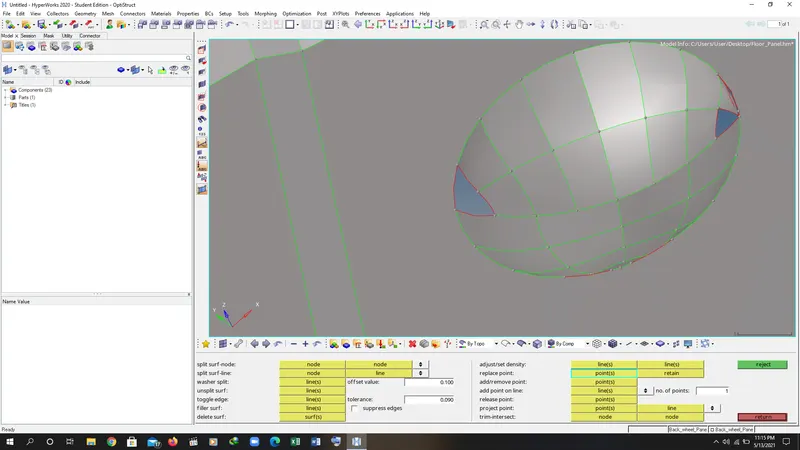
- After doing the geometry clean up then prepare the model for meshing.
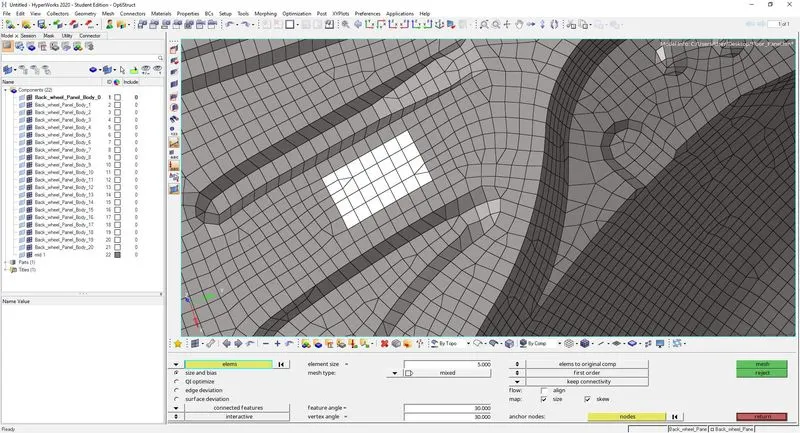
- To do meshing then click on the 2d tool in main tool bar and then AUTOMESH and create a mesh having target element size ‘5MM’ as shown in figure:
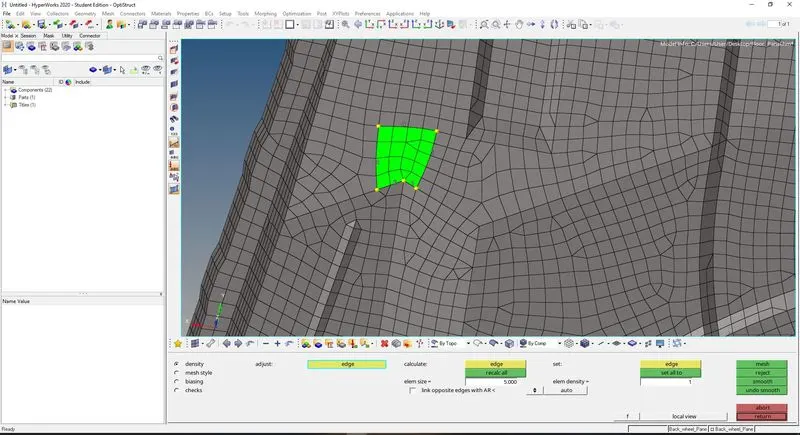
- Then check the quality criteria according to the objective as below:
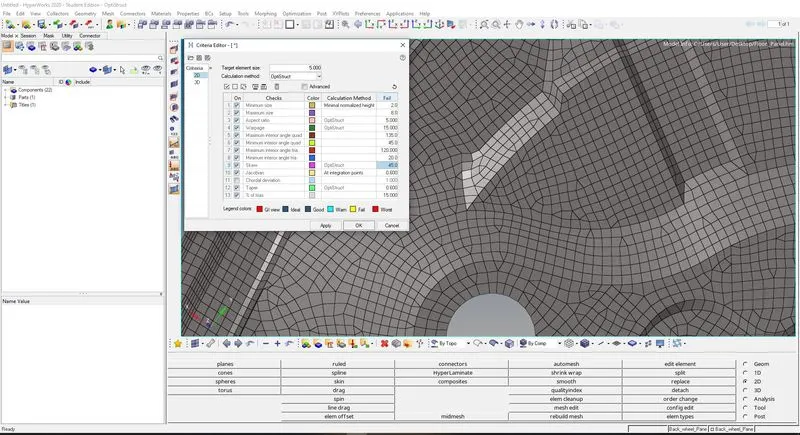
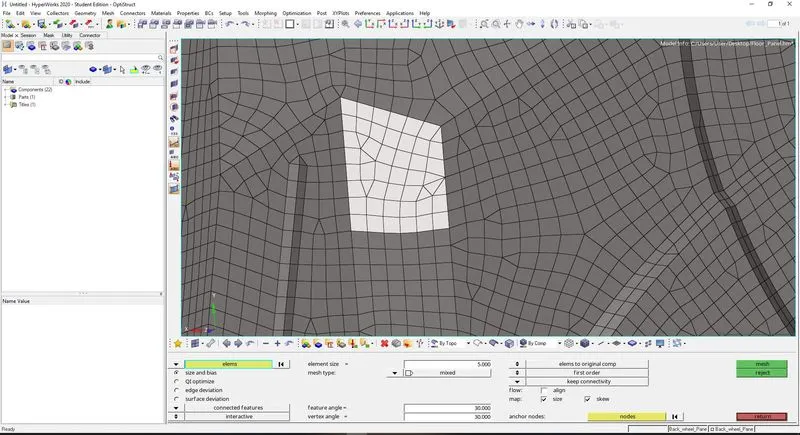
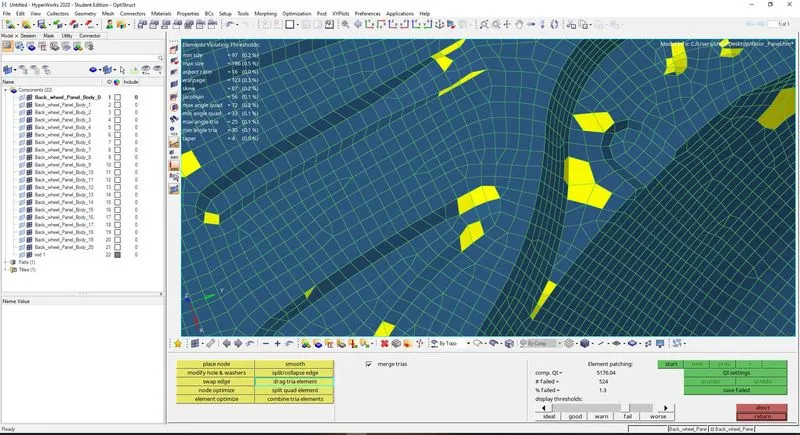
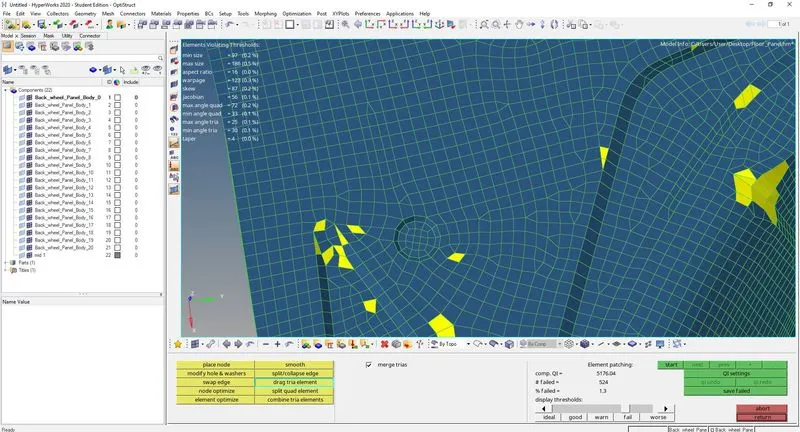
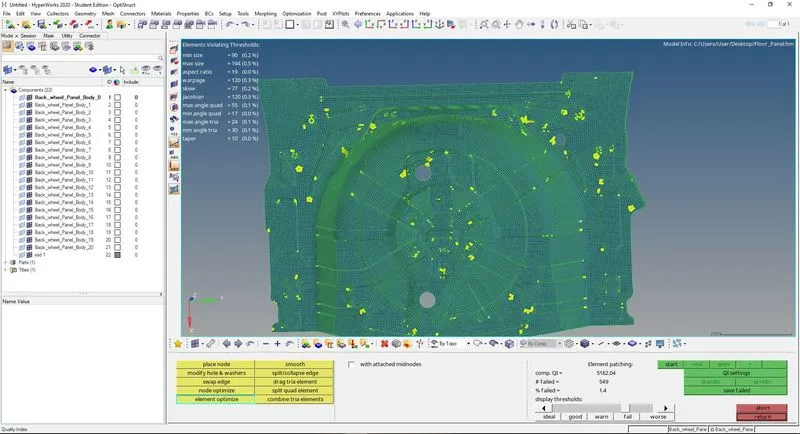
- After checking and passing the all the quality criteria then apply the thickness ‘1MM’.
- For assigning the thickness then create the property for the thickness keep the value for the thickness ‘1mm’.
- Right click in the TAB AREA and create the property.
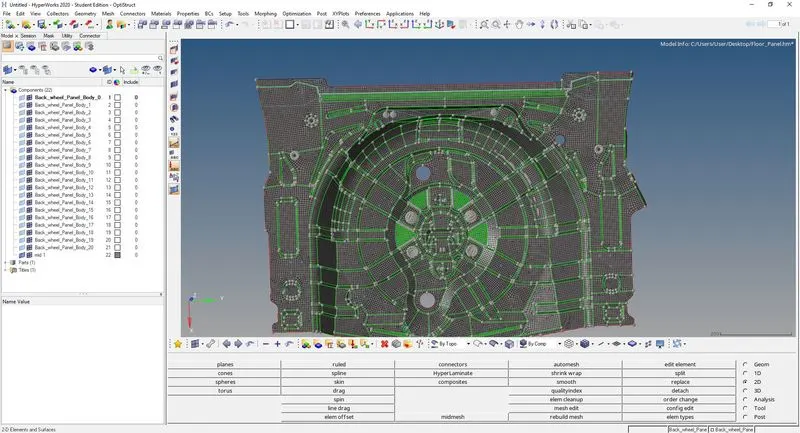
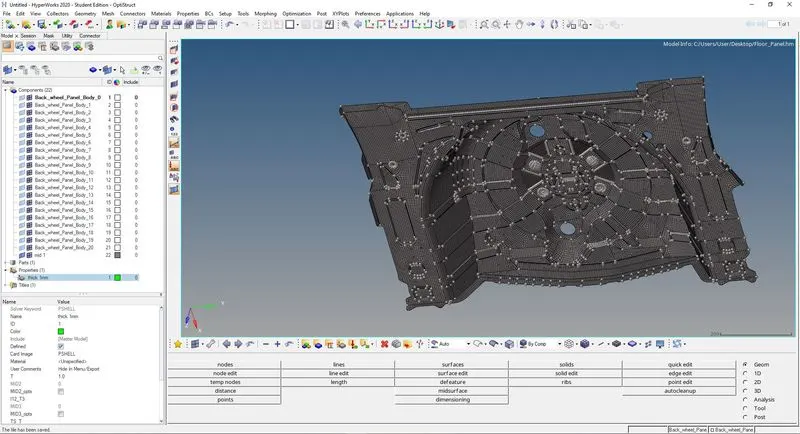
RESULT: