Week 4-1D Element Creation Challenge
1D ELEMENT CREATION CHALLENGE
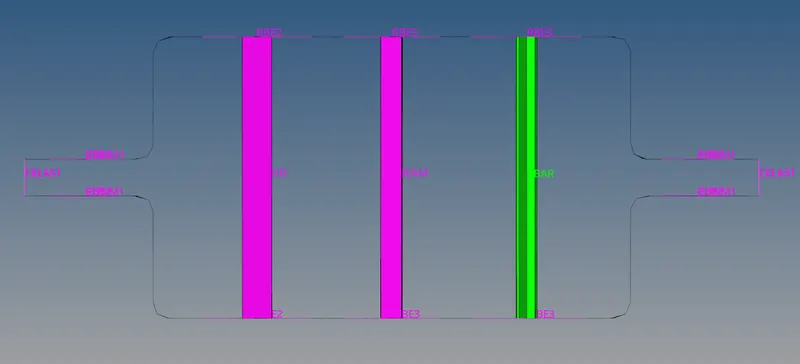
Aim: To generate mid-surface and mesh the model and create 1D elements within the given dimensions and Degree of Freedom (DOF).
Software Used: Hyper mesh.
Given Component:
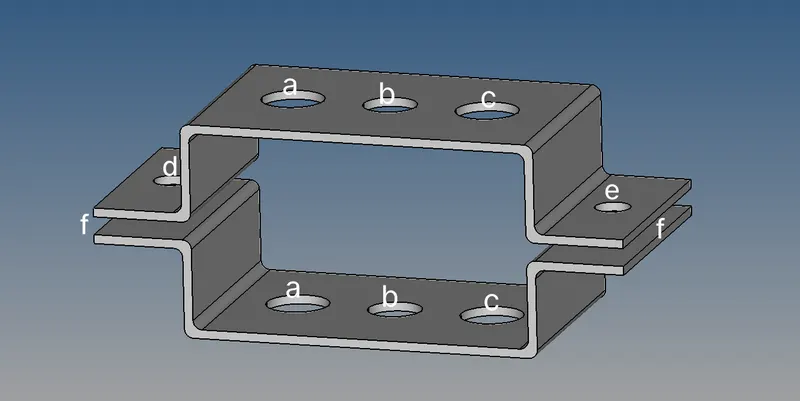
1D Elements Criteria:
a.Rod element: Translational DOF should be Constrained with RBE2 link
Cross-Section: BOX- Dimension a= 12 mm
Dimension b=10 mm
Thickness t= 0.75 mm
b.Beam element: All DOF should be constrained with RBE3 link
Cross-Section: I Section- Dimension a= 8 mm
Dimension b= 10 mm
Dimension c= 8.5 mm
Thickness t1= 0.75 mm
Thickness t2= .6 mm
Thickness t3= .6 mm
c. Bar element: Constrain only xand y DOFs With RBE3 link
Cross-section: X section- Dimension DIM1= 5 mm
Thickness DIM2= 1.2 mm
Dimension DIM3= 10 mm
Thickness DIM4= 1.2mm
d. & e. Apply the massof magnitude 10 with RBE2 link.
f. Join the two components with Spring elements.
Steps Involved:
- Extracting Mid-surface and generating mesh.
- Creating 1D elements with respective dimensions and DOF.
Procedure:
Step 1: Extracting Mid-surface and generating mesh:
- After importing the geometry, the mid-surface needs to be extracted first and meshing need to be done.
- To extract the mid-surface, midsurface option can be used which is present in Geometry and then solid is selected and click on create. Now the midsurface is created.
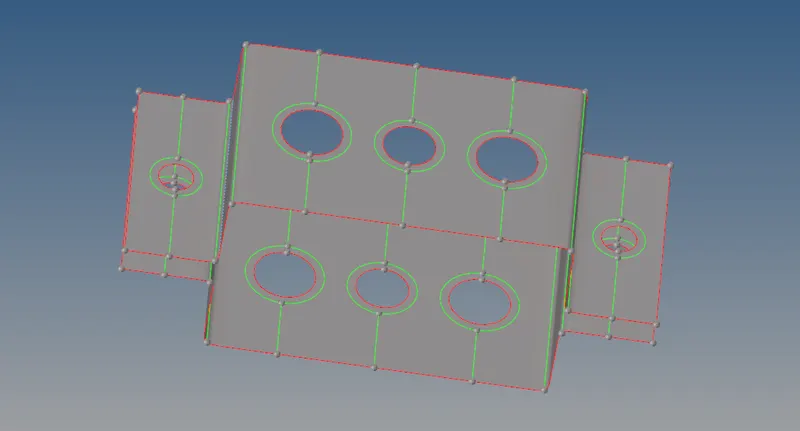
- Before generating the mesh, washer split should be to the holes for good mesh flow. To give washer split, select quick edit option and then washer split and then the offset value.
- After generating the washer split the meshing can be done on the midsurface. To generate the mesh, select 2D >> automesh >> select the surfaces where mesh needs to be generated.
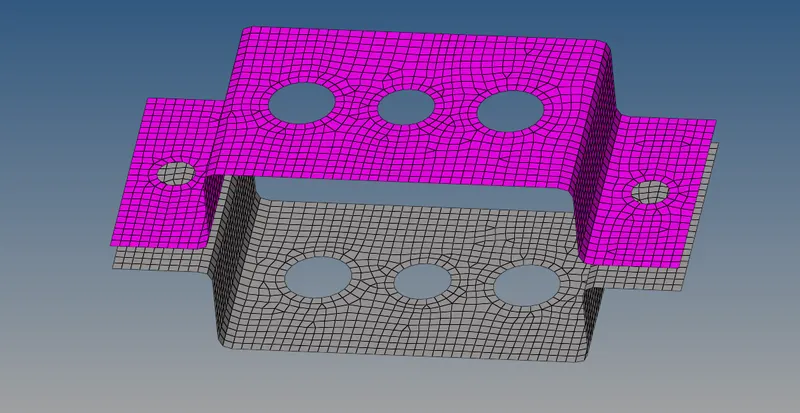
Step 2: Creating 1D element with respective dimensions and DOF:
- Before creating the 1D elements the RBE2 and RBE3 links are to be generated first. To generate the RBE2 link select 1D >> Rigids >> select the nodes where 1D element need to be created. Similarly, RBE3 link is also created.
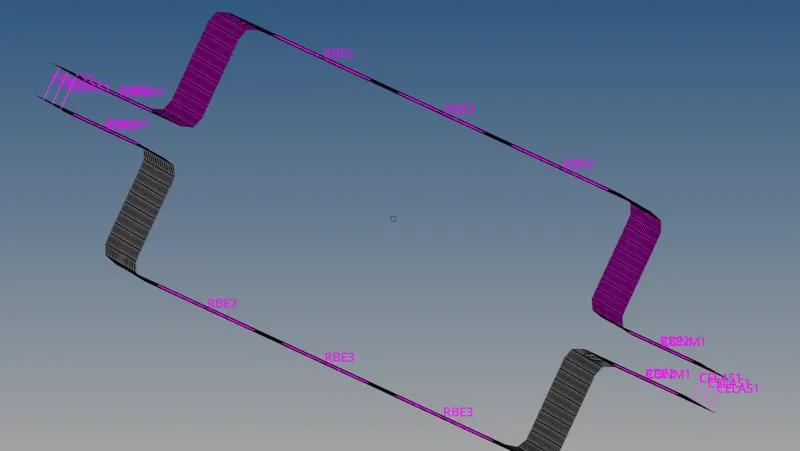
- After generating the RBE2 and RBE3 links, select Hyperbeam and then standard section and then create. This will take to hyperbeam module where 1D elements like Bar, Rod and beam are created.
- After entering into Hyperbeam, 1D elements are created by giving respective dimensions for the Rod, Bar and Beam.
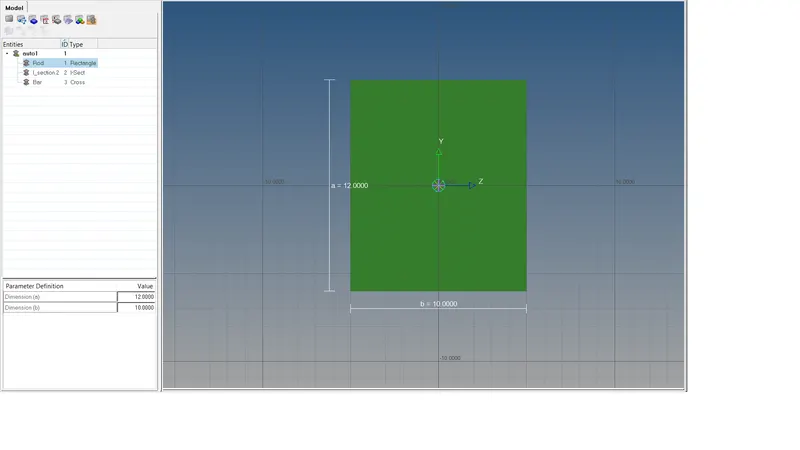
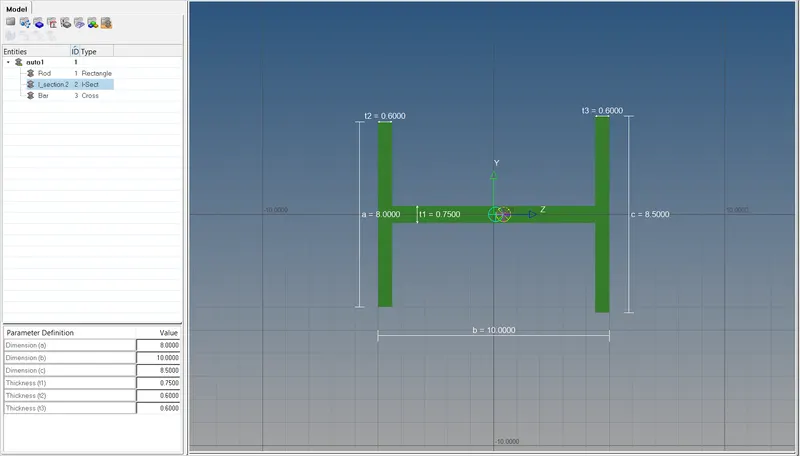
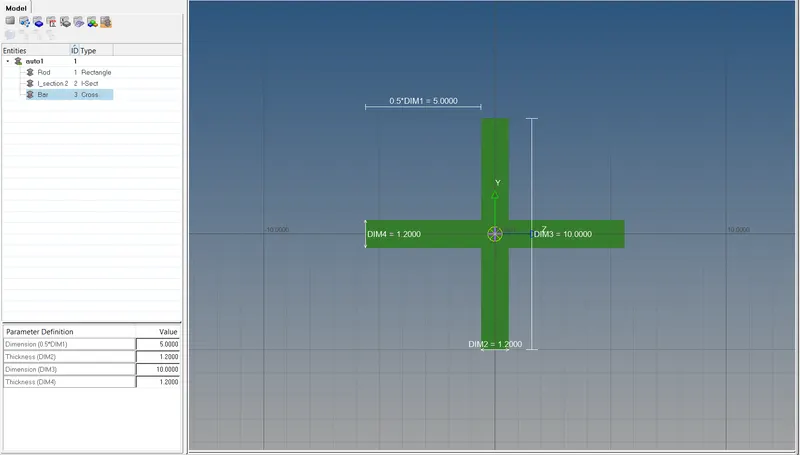
- Now three new properties are created under the name Rod, Bar and Beam and in each property the respective section need to be selected.
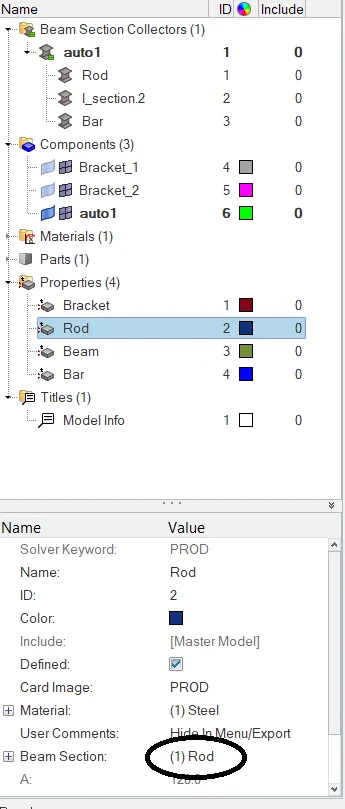
- Now to create the 1D elements, rod option present in 1D is selected and then the RBE2 clusters are selected and in properties select the Rod property.
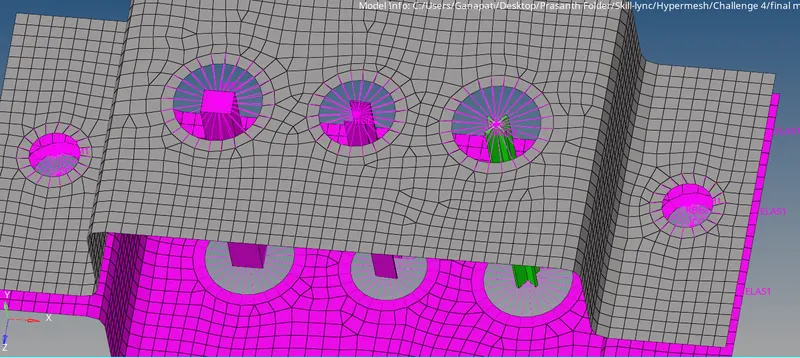
- Repeat the same for Bar and Beam elements. To view the 1D elements as solids change the 1D representation to 1D detailed element representation.
- To add the masses, masses present in 1D is selected and the respective RBE2 link is selected and CMASS1 is selected and value is given.
- To add the springs, springs option present in 1D is selected and in element type is selected as CELAS 1 and respected elements are selected.
The final model is shown below:
Conclusion:
In this challenge, 1D elements are created within the given dimensions and DOF.