Week 4-1D Element Creation Challenge
Week 4
1D Element Creation
AIM: To create a 2D mesh and create a 1D element on the given model using HyperWorks.
Objective: To mesh the given model in 2D meshing with mentioned length and to create the 1D element with specified DOF conditions on each case.
Procedure:
First, we have to import the model into HyperWorks, select the geometry using the “Import geometry” option and import it on the workspace.
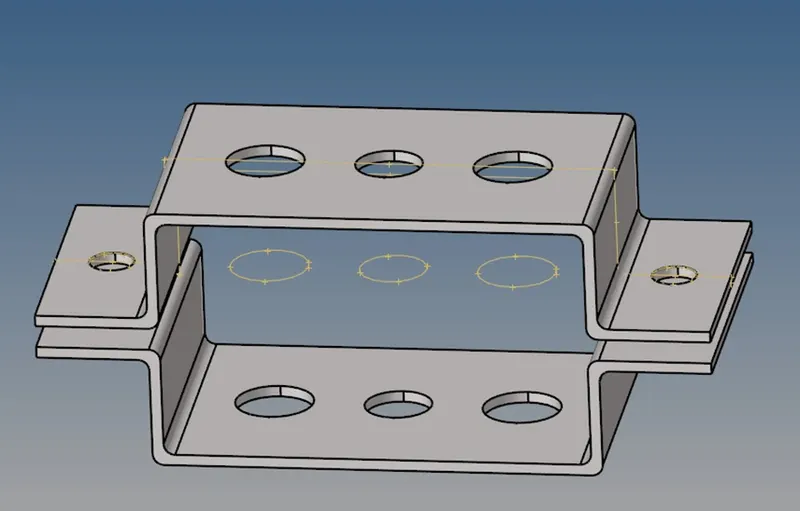
The above image shows the imported model, then unnecessary lines are eliminated using the delete option, and cleaned the entire model using the “Autocleanup” option available under “Geometry”.
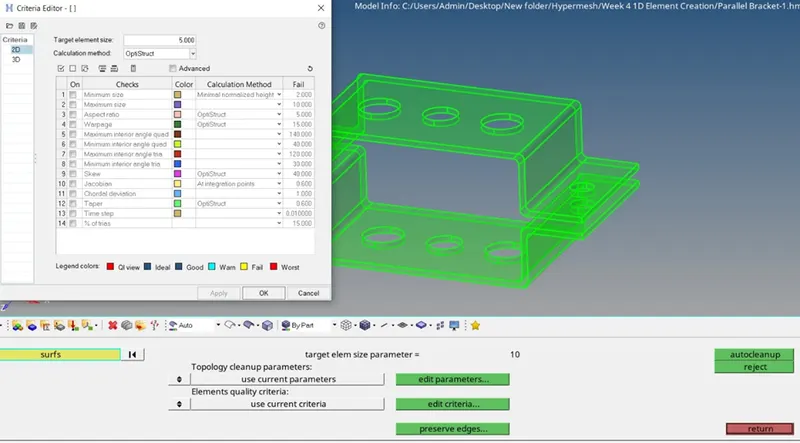
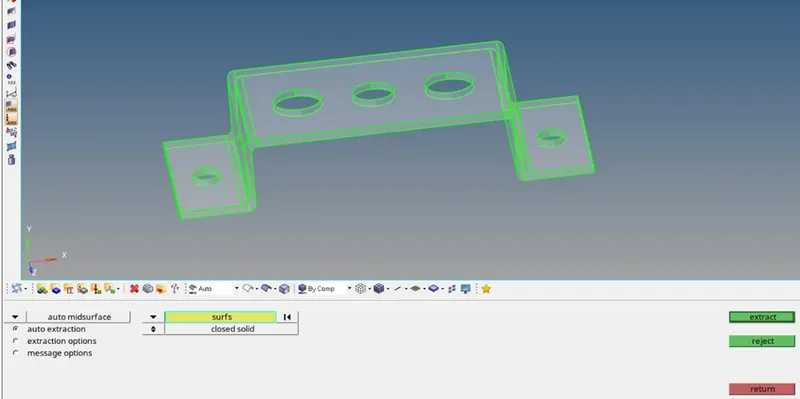
Now, the mid surface for the component has to be extracted, go to Geometry>Midsurface. Select the surface that needs to be extracted and extract the mid surface.
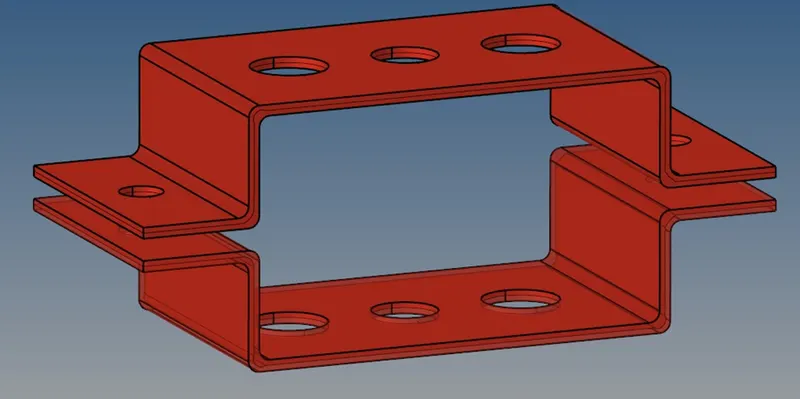
As mentioned previously, extract the mid surface of the other bracket and renamed the extracted mid surface to mid surface 1 & 2 respectively. Thus the mid-surface extracted will be
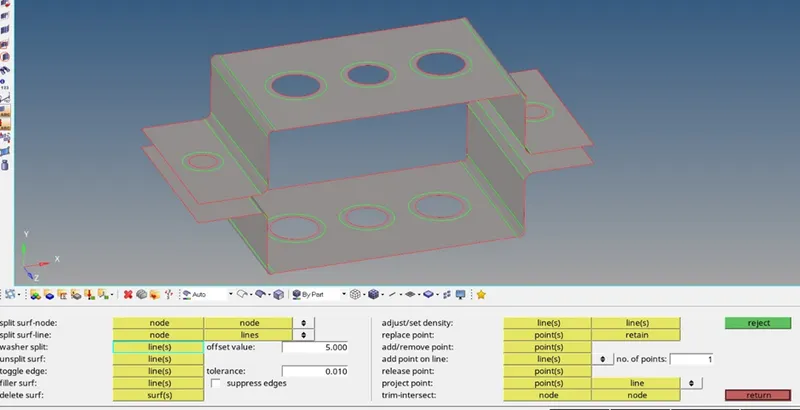
After creating a mid surface, the washer split has to be given to the holes engaged in the bracket, go to “Geometry > quick edit > Washer Split>” offset value has been assigned as 5mm.
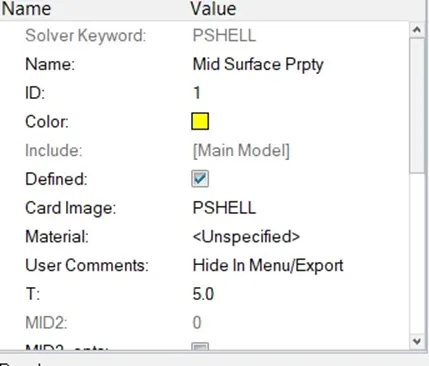
Now, material and property have to be assigned for the extracted mid-surface. Material has to be assigned as a whole and property has to be assigned separately for each bracket, to assign it go to model tree space > right click > Create > Property/Material, now the property and material will be created and have to assign to the material.
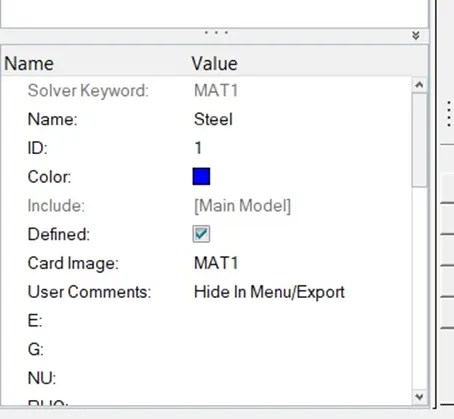
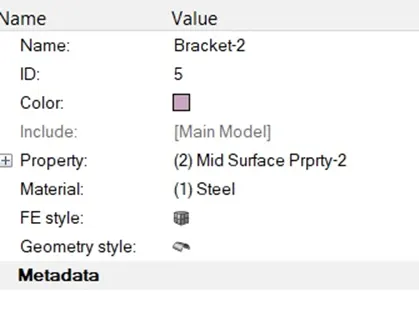
Assigning the property and material to the mid-surface.
Then, the cleaned-up geometry is carried to meshing. Go to “2D” > Automesh > Surfs, given input for element size as 5mm.

Thus the meshed model will be
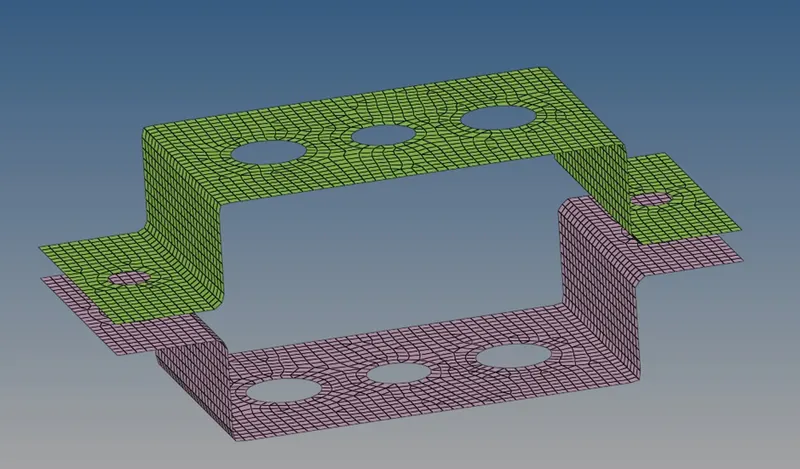
Now we have to create links as given, it’s been given as rod, beam, and bar elements have to be assigned for each connection, for that RBE2 and RBE3 links have to be assigned for each connection. Go to “1D elements > rigids”(for RBE2 connection), select the assigned nodes, and create the connection.
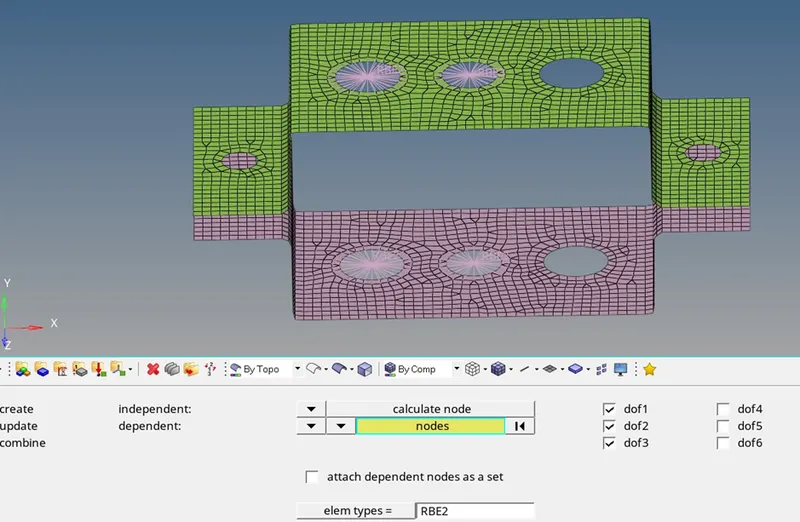
DOFs are enabled only for the translational axes.
For RBE3, go to :1D Elements > rbe3.
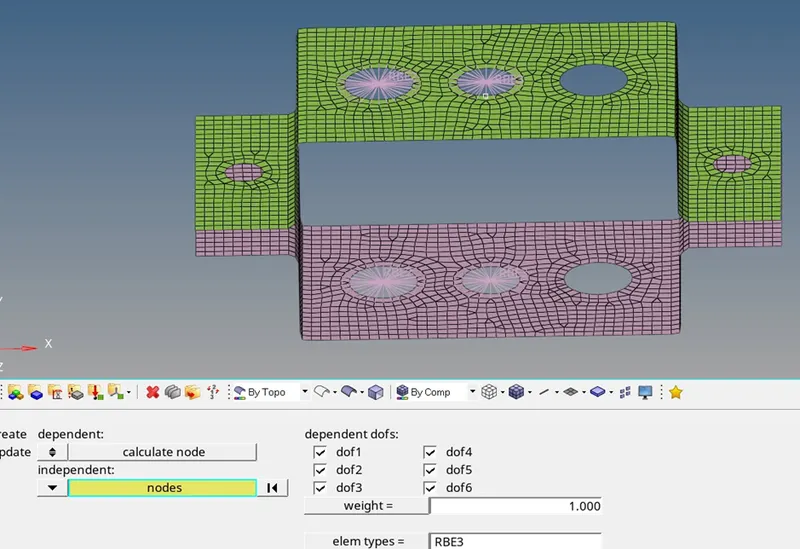
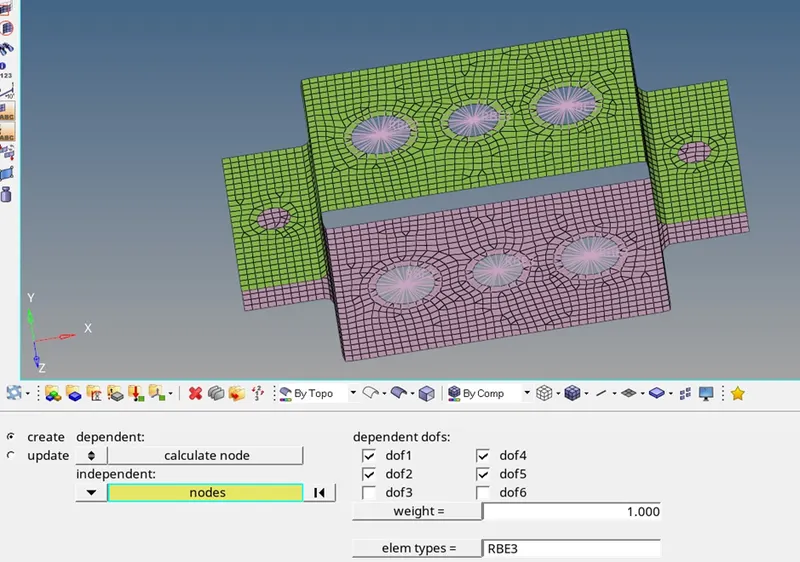
DOFs are assigned as per the given criteria.
Now we have to create cross sections for different elements like rod, beam, and bar. To create different elements go to “1D > Hyperbeam” then select the section library as “HYPER BEAM” and section type as “thin-walled box” for rod and proceed to create. This will take it to a new window for hyper beam, now give the input values as given in the input variables.
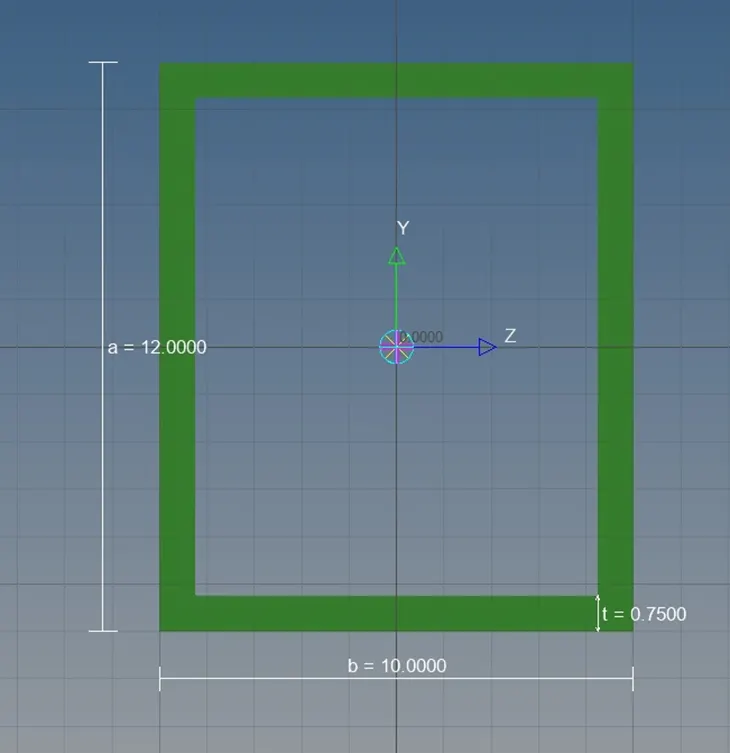
Now create other sections in the go-to model tree space and right-click to create a new section and cross-section for the beam and bar.
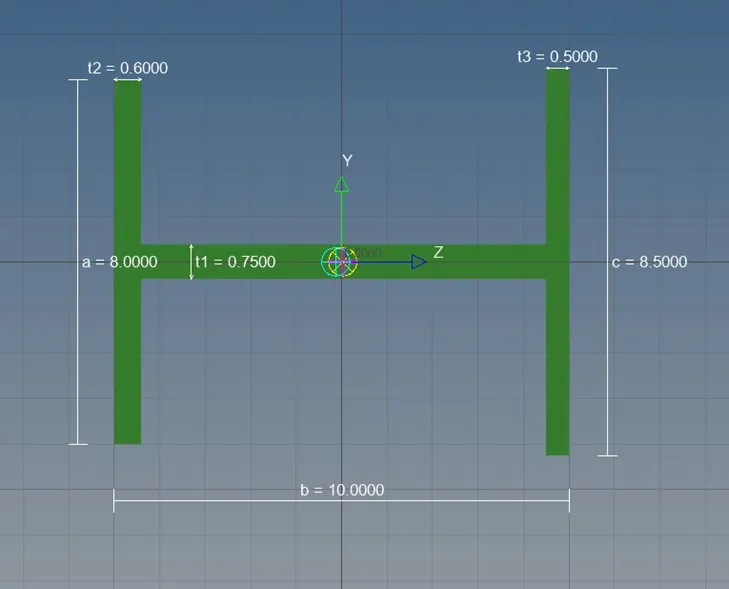
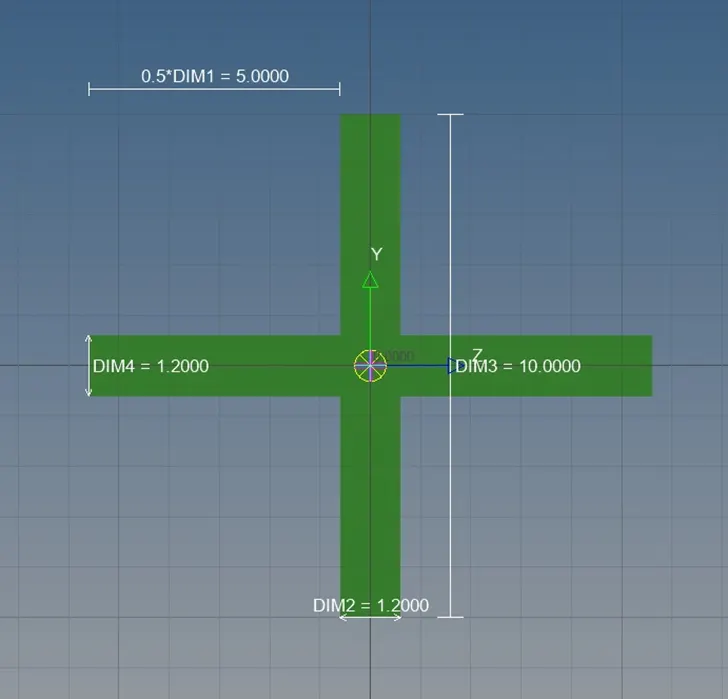
Now for each cross-section, properties have to be assigned separately. For that create new properties and assign “Card image as PROD”, assign material and beam section.
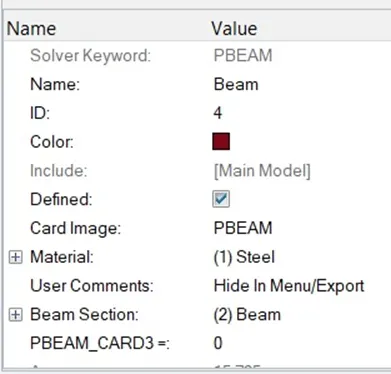
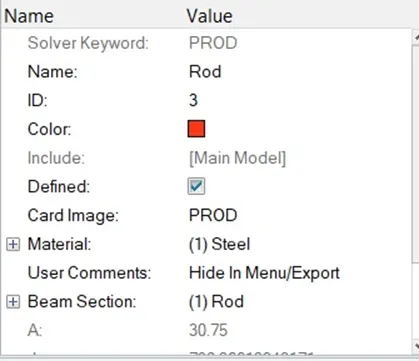
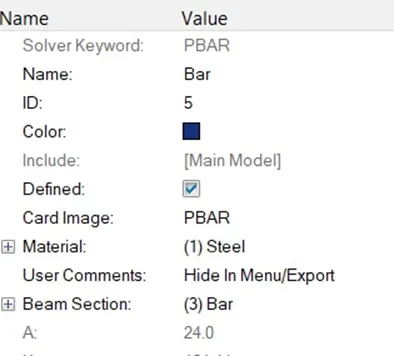
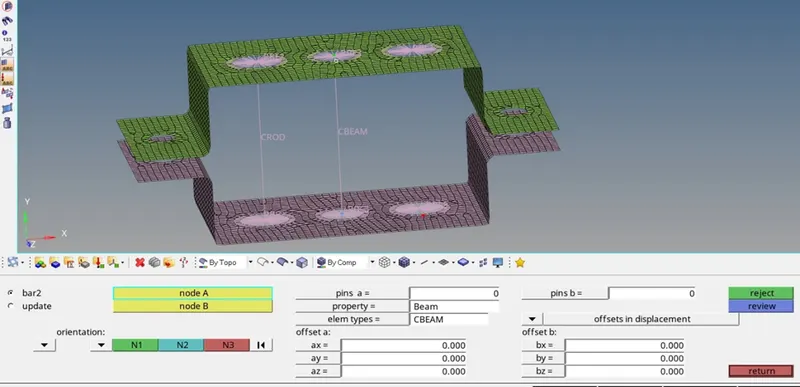
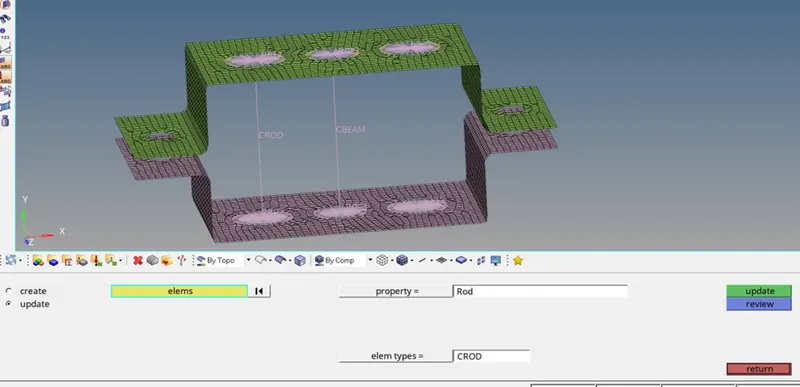
To create the links for rod, beam, and bar go to 1D >rods> select the nodes where links have to be installed, then set the property which we have created and element types respectively.
For Beam connection
For Rod connection
For Bar connection
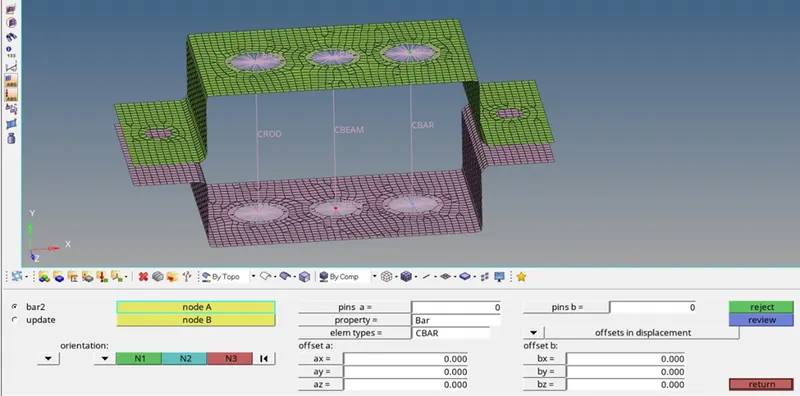
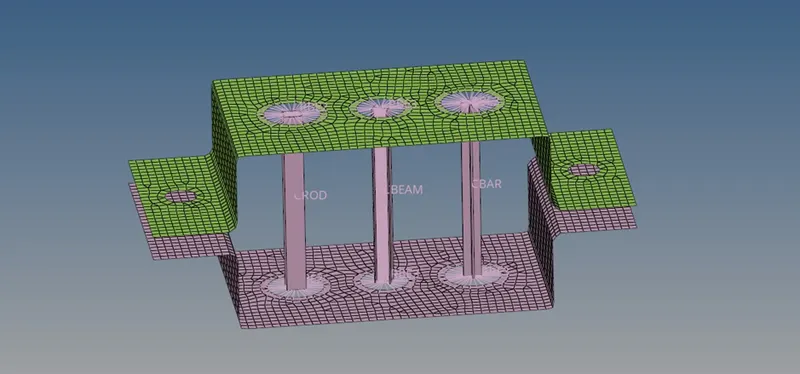
To exhibit the cross-sectional view, on the horizontal menu bar > 1D element > 1D traditional and detailed element representation.
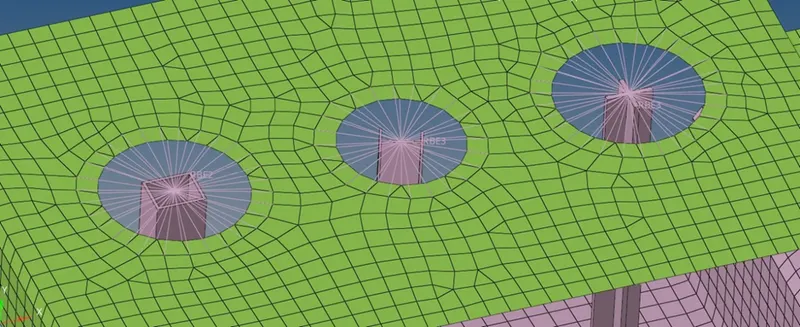
At two points mass have to be applied with a magnitude of 10. Assign rbe2 connection for the nodes together. Create a property of mass with a magnitude of 10. Now go to 1D > Massà select the node, set the property for mass, and then create.
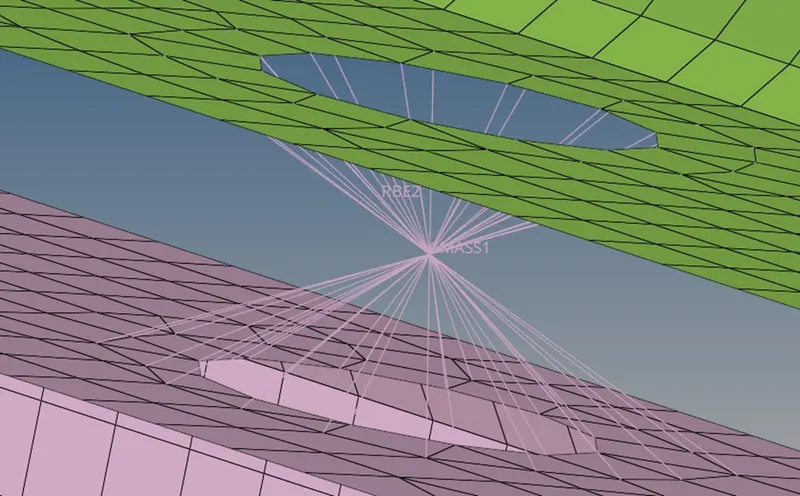
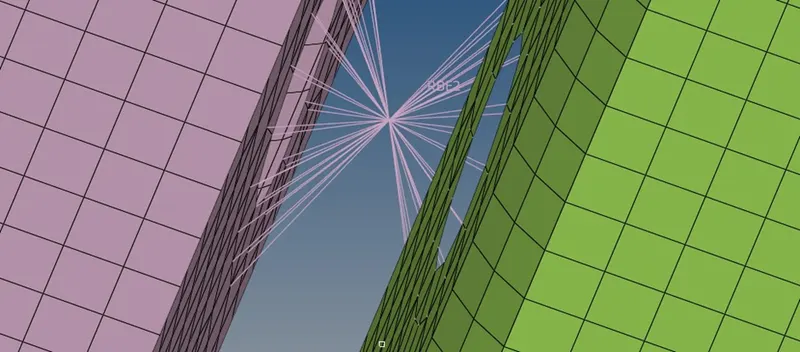
After that spring connection is assigned in the desired regions, for that initially create a new property for spring and the go-to 1D element>spring, set the property and select the nodes where it have to be assigned. The resulting output will be
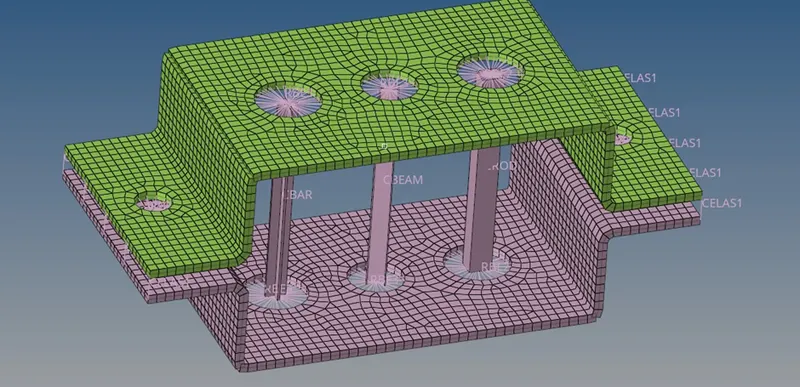
Conclusion:
The given component has been extracted to obtain the mid surface and then the mid surface has been meshed using 2a D mesh with the given criteria.
RBE2 and RBE3 Connections are assigned where the Connection element have to be linked.
Rod, beam, and bar elements have been assigned with the reqired DOFs constraints. And separate property cards have been assigned separately for each element.
Mass with the magnitude and spring elements have been assigned to the component.