Week 4-1D Element Creation Challenge
Q.1) OBJECTIVE- TO CREATE 1D ELEMENT
PROCEDURE
First phase of the element
1.1) First we import the model [Import<Import Geometry<Select the file type IGES], and click on import to import the model.
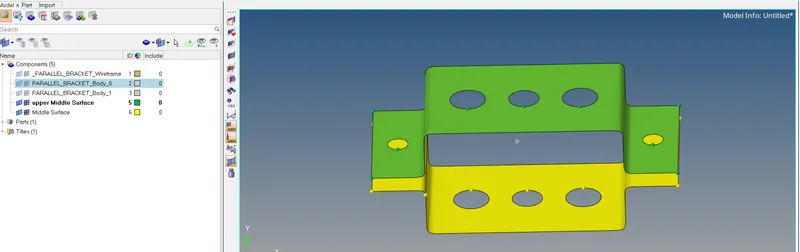
1.2) In this step we apply midsurface to the model [Command - Geometry<Midsurface<Auto midsurface < and click on extract to extract the middle surface] Do the same step for the upper and lower surfaces .
1.3) If both the surfaces are in the same component, move one surface in a new component so that both the surfaces are in separate components. [Command- Model Browser<Components<Create]
1.4) In this phase we have created middle surfaces for our model in two separate components.
Second phase of the element
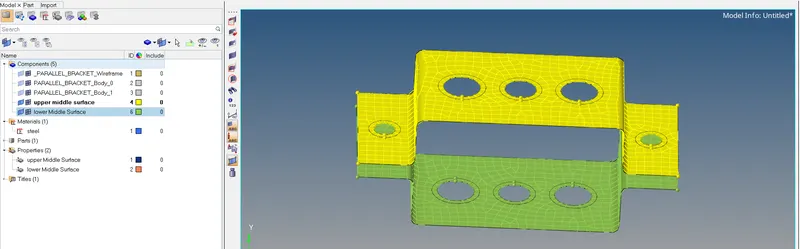
2.1) Now we assign material and properties to the midsurface components in the model browser .
2.2) After assigning material and properties we do 2D mesh of the component. Before doing the 2D mesh we give a washer split to the holes.
[Command – Geometry<quick edit<washer split]
[Command- 2D< Automesh<Element size=8< And create mesh]
Third phase of the element
3.1) Now we create RBE2, RBE3 and MASS links in the component.
[Command -1D<rigids<Calculate nodes as per path<Select only translational DOFs for the 1st case]
[Command -1D<rbe3< Calculate nodes as per path<Select all DOFs for the 2nd case]
[Command -1D<rbe3< Calculate nodes as per path<Select only X and Y DOFs for the 3rd case]
[Command- 1D<masses<nodes<magnitude of mass=10<create]
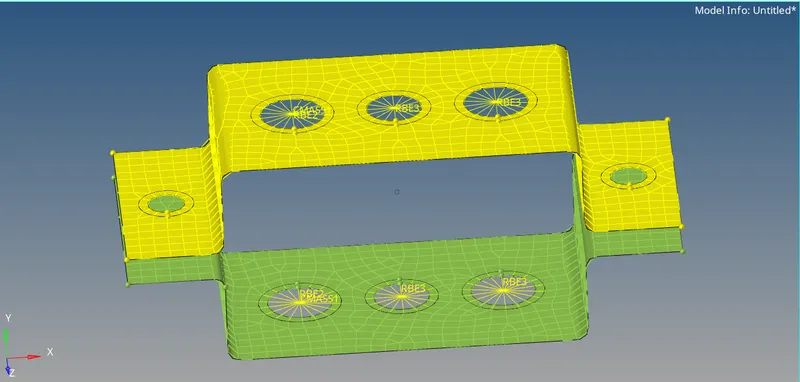
3.2] After creation of rbe2, reb3 and mass links we assign properties to them.
[Command – Model browser< create properties< rename property as PROD]
[Command – Model browser< create properties< rename property as PBAR]
[Command – Model browser< create properties< rename property as PBEAM]
Fourth phase of the element
4.1) Now we create cross-sections for rod, beam and bar.
4.2) For rod we create a box section as mentioned for the first case.
[Command-1D<Hyperbeam<Standard section< standard section library=HYPER BEAM<standard section type=thinwalled box]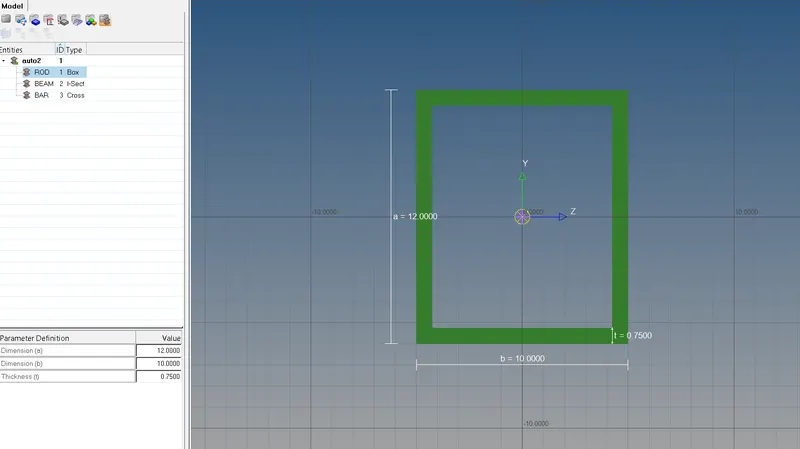
4.3) For beam we create a I -section as mentioned for the third case.
[Command-1D<Hyperbeam<Standard section< standard section library=HYPER BEAM <standard section type=standard I-section]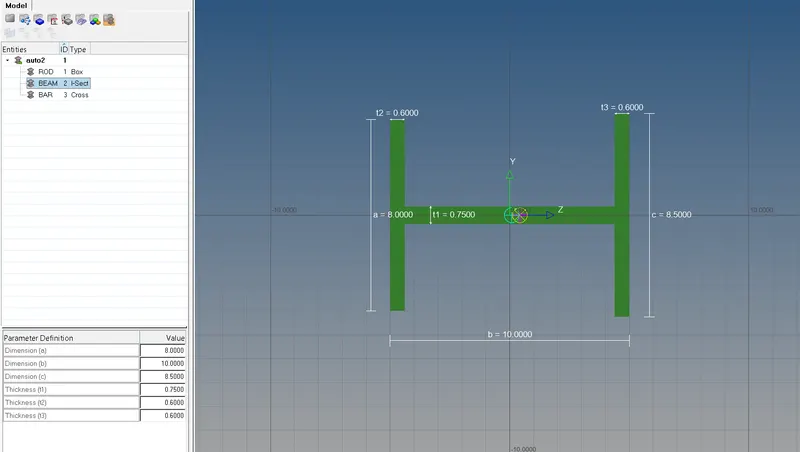
4.4) For bar we create a X- section as mentioned for the second case.
[Command-1D<Hyperbeam<Standard section< standard section library=OPTISTRUCT <standard section type=cross]
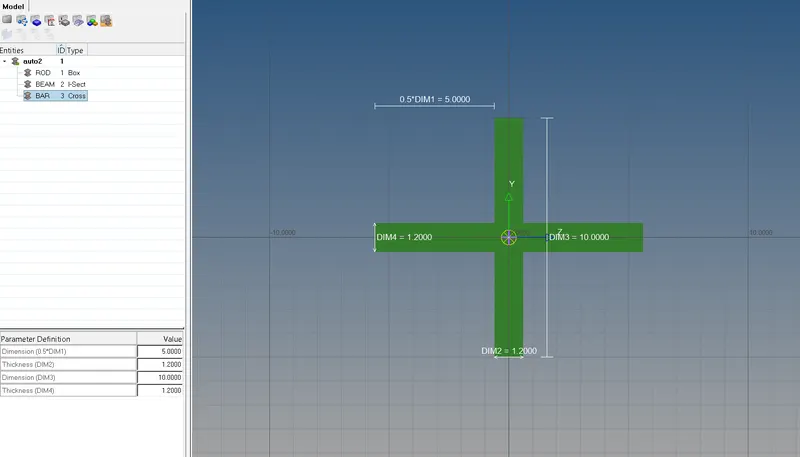
4.5) Now we assign the beam section property to PROD, PBEAM and PBAR respectively and create rod, beam and bar.
For rod [Command-1D<rods<Select the nodes < select the property=PROD <and click on create]
For beam [Command<1D<bars< Select the nodes <select the property=PBEAM, element type=CBEAM<and click on create]
For bar [Command<1D<bars< Select the nodes <select the property=PBAR<element type=CBAR <and click on create]
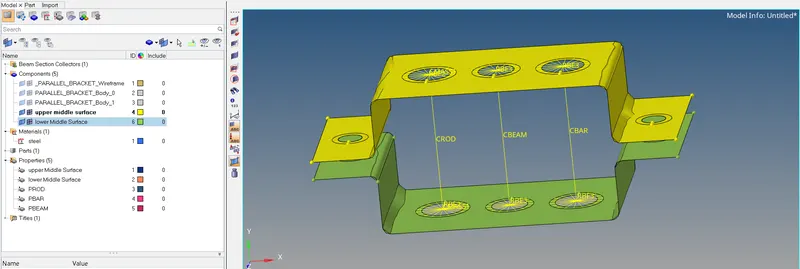
Fifth phase of the element
5.1) Now we create spring [Command<1D<springs<select the nodes and click on create]
5.2) We also create properties for spring and assign the card image as PBUSH.
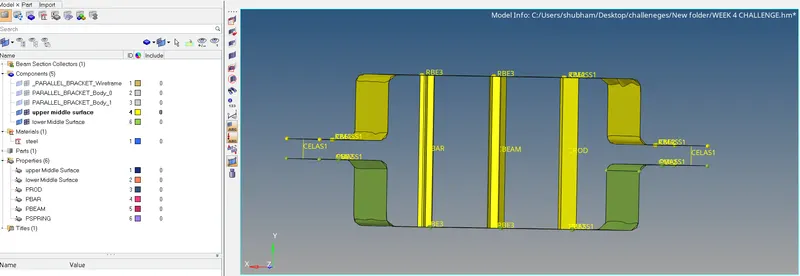
Conclusion – 1D element has been created with the given data .