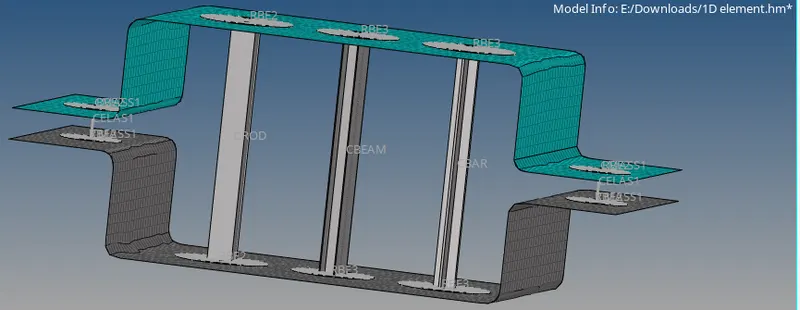
Week 4-1D Element Creation Challenge
Objective : Mesh the Given component with the Size of 5 Units. Create 1D elements on the component with given cross-section and DOF.
Given comonent :
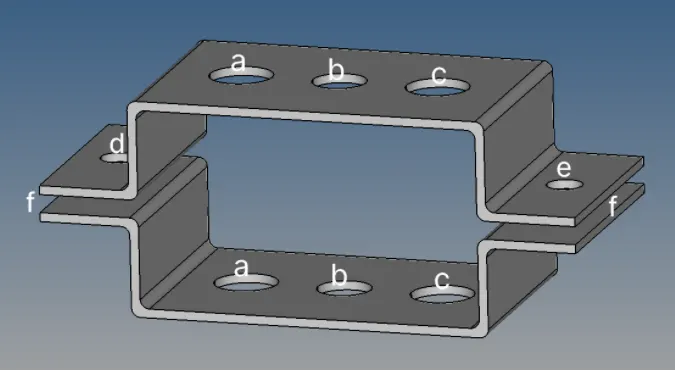
Procedure for meshing to given component
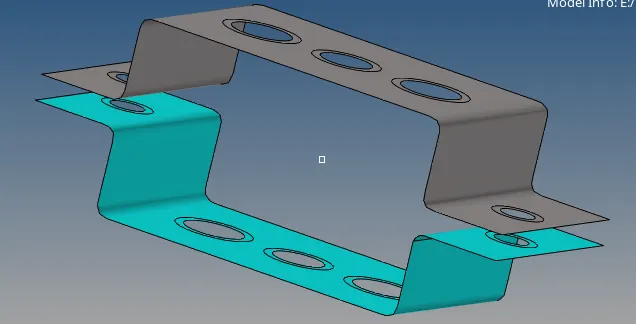
1) Midsurface creation and extraction
- First we have to import model in hyperworks and go to Geometry, select surface and extract.
- Use this process for uppper and lower bracket
- Assign material and property to midsurface in status tree
- Create two independent midsurfaces. If they are to be in the same component, then transfer the midsurface. Go to tools, organize, select surface, give destination and Move.
- Create washer split to hole go to geometry, quick edit, washer split, select edges and create washer split.
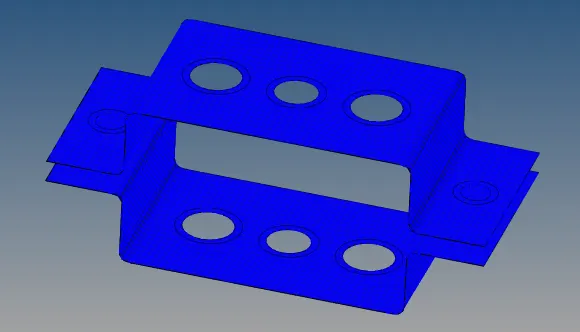
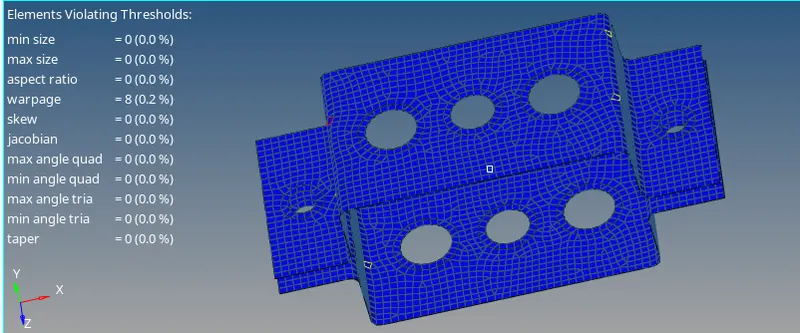
- For 2D meshing go to 2D, automesh, surface and select all elemnts in the surface using displayed all option.




Final meshed component with mesh quality
2) Creation of element
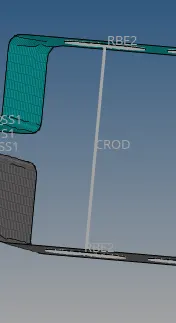
a) Rod element
- We have to create RBE2 link for that go to 1D, Rigid, nodes and using by path option select appropriate nodes, assign DOF and create link.
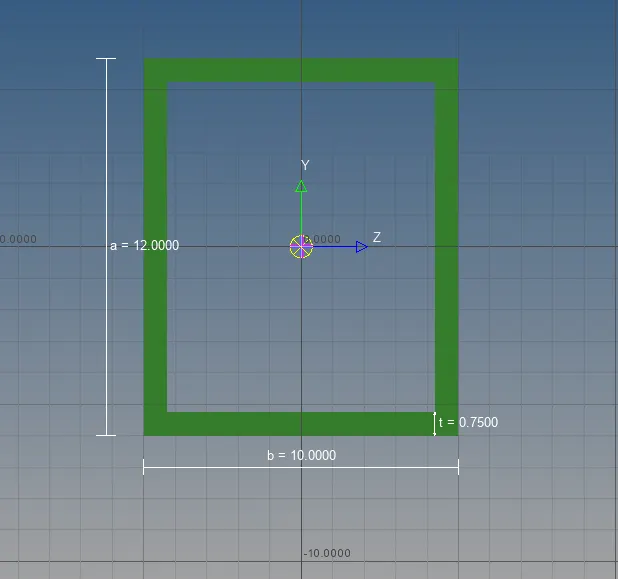
- To give cross section of following details :- Cross-Section: BOX- Dimension a= 12 mm dimension b=10 mm Thickness t= 0.75 mm Go to hyperbeam, standard section, select hyperbeam from upper menu and thinwalled box from bottom and create box
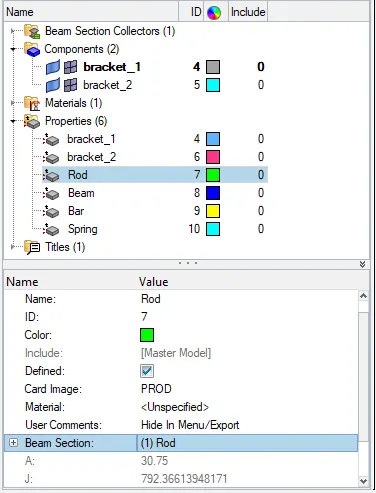
- Assign property for rod assign card image as PROD and beam section as created in hyperbeam.
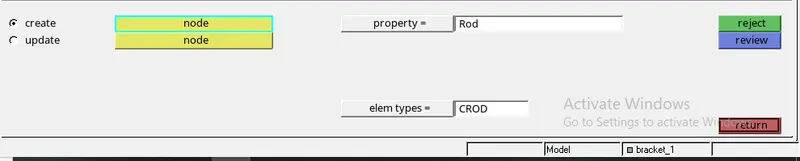
- To create element go to 1D, Rod, select property that we created, element type CROD, select nodes and created element

b) Beam element
- We have to create RBE3 link for beam element for that go to 1D, RBE3,select nodes and created link
-
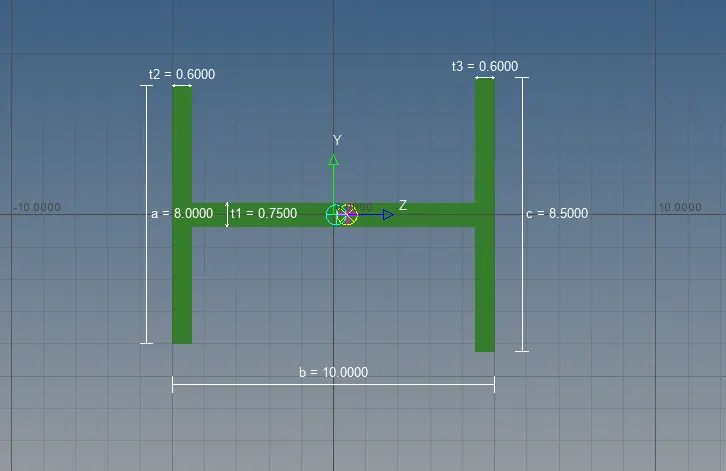
Cross-Section: I Section- Dimension a= 8 mm Dimension b= 10 mm Dimension c= 8.5 mm Thickness t1= 0.75 mm Thickness t2= 0.6mm Thickness t3= 0.6 mm
- Go to hyperbeam, standard section, select hyperbeam fro upper menu and select standard I section from bottom.
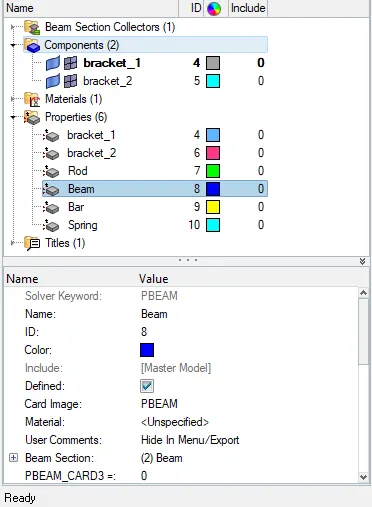
- Assign property select card image as PBEAM and beam section as beam crteated in hyperbeam
- To create element go to 1D, bars, Property as beam, element as CBEAM, select nodes and cross section and create element.



c) Bar element
- Here also we have to create RBE3 link for bar element for that go to 1D, RBE3,select nodes and created link
-
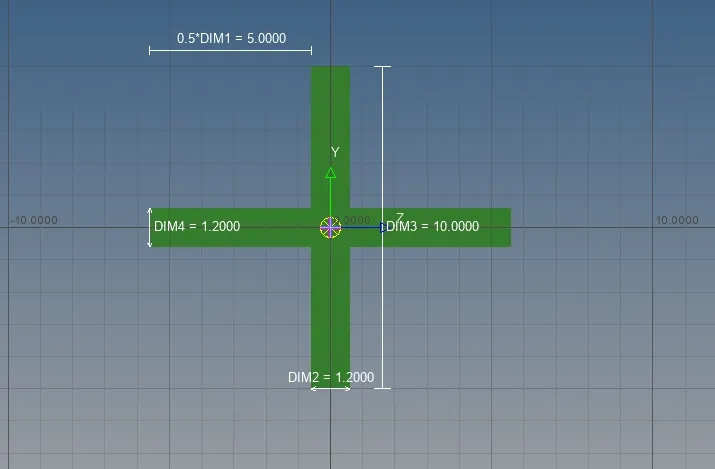
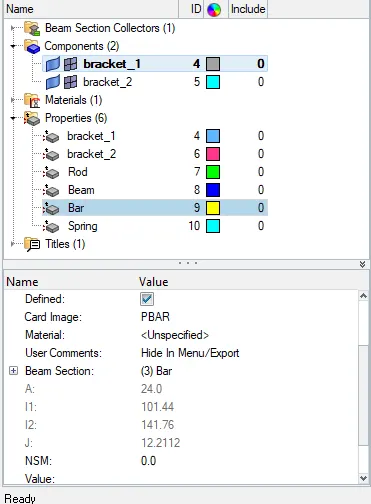
Cross-section: X section- Dimension DIM1= 5 mm Thickness DIM2= 1.2 mm Dimension DIM3= 10 mm Thickness DIM4= 1.2mm
- Go to hyperbeam, standard section, select optistruct from upper menu and select standard cross section from bottom.
- Assign property select card image as PBAR and beam section as bar that crteated in hyperbeam
- To create element go to 1D, bars, Property as bar, element as CBAR, select nodes and cross section and create element.


d) Mass of magnitude 10 units with RBE2 link
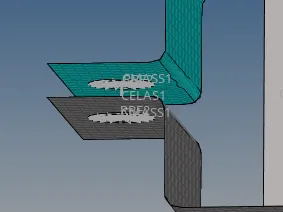
- We have to create RBE2 link for that go to 1D, Rigid, nodes and using by path option select nodes and create link.
- To assign masses go to 1D, masses, give input 10 units, select property that assign already, element type as CONM2 and create.

e) Spring element
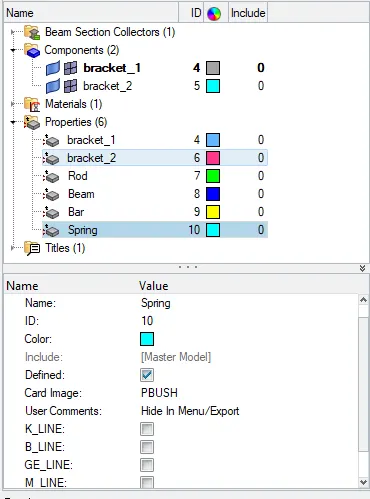
- Assign property for spring element and select car image as PBUSH.
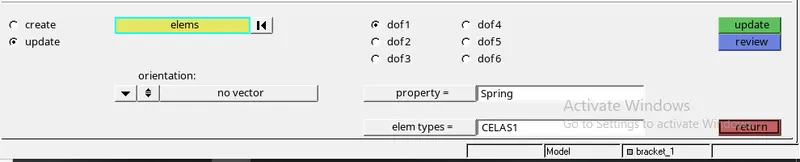
- To ceate element go to 1D, spring, select property as spring that already assigned, element type as CELAS1, select nodes and create element.
Result : Hence meshing of component is done with creating and extracting midsurface and all 1D elememt is created with given requirements.