Week 3- Geometry cleanup and Mid-surfacing
Aim:- To extract mid-surface for the tube model and provide a connection with a sharing option at the tube joint locations. create a model in spaceclaim, and perform a model analysis.
Case 1:- To extract mid-surface for the tube model and provide a connection with a sharing option at the tube joint locations.
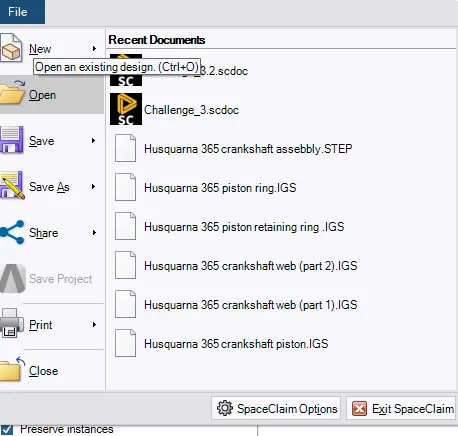
- open the space-claim and import the model, To import the model go>file>open and import your file as shown below.
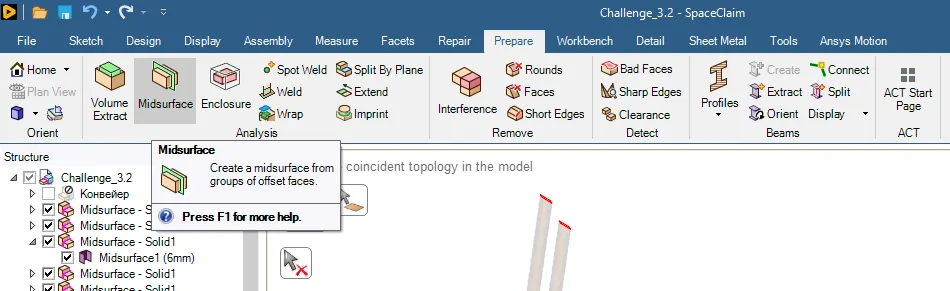
- To Extract the middle surface go>prepare tab>in the Analysis section click on midsurface.
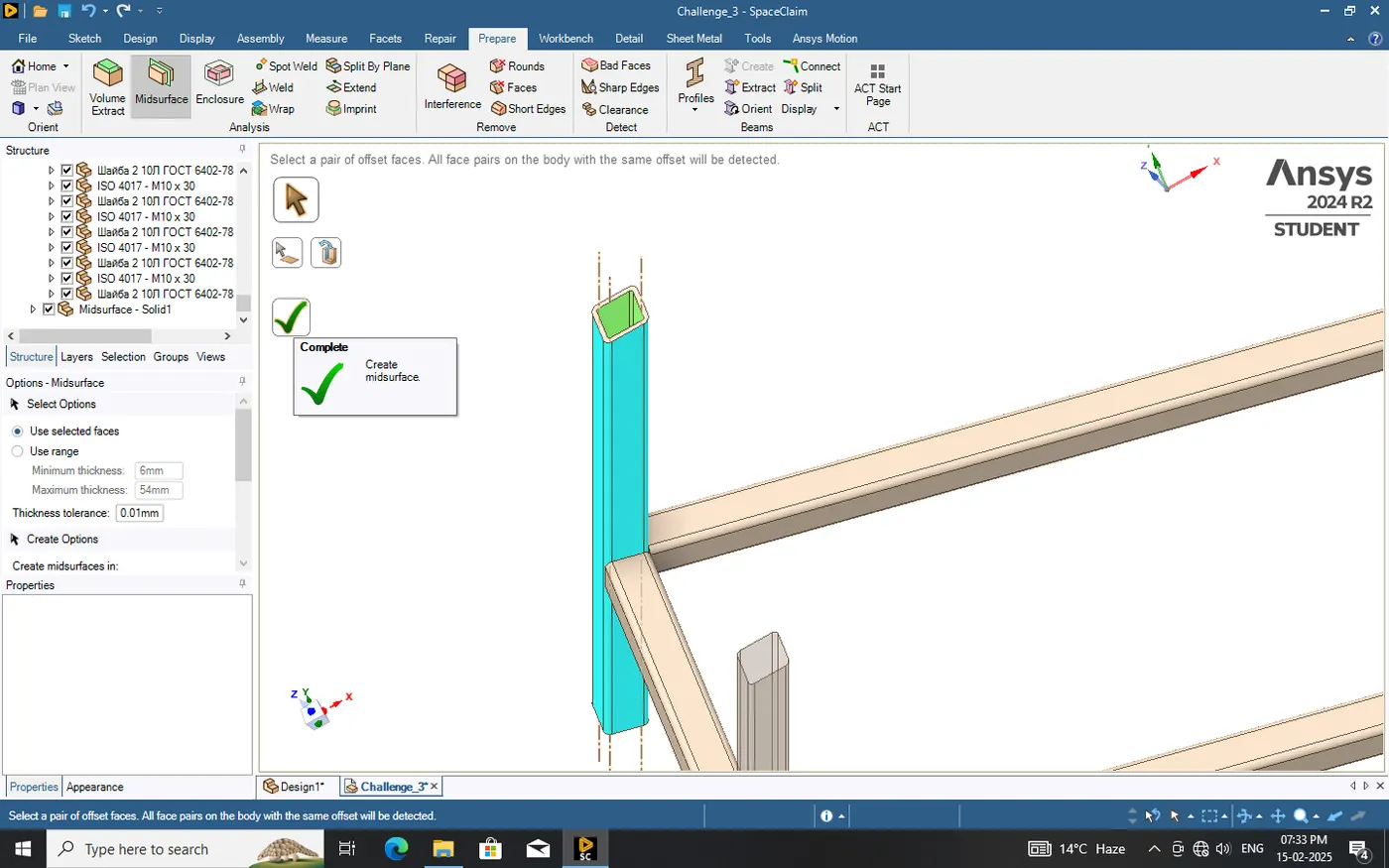
- After that select the surface click on the right button, then mid-surface extract.
- After extracting the midsurface, click on the share option in the workbench tab.
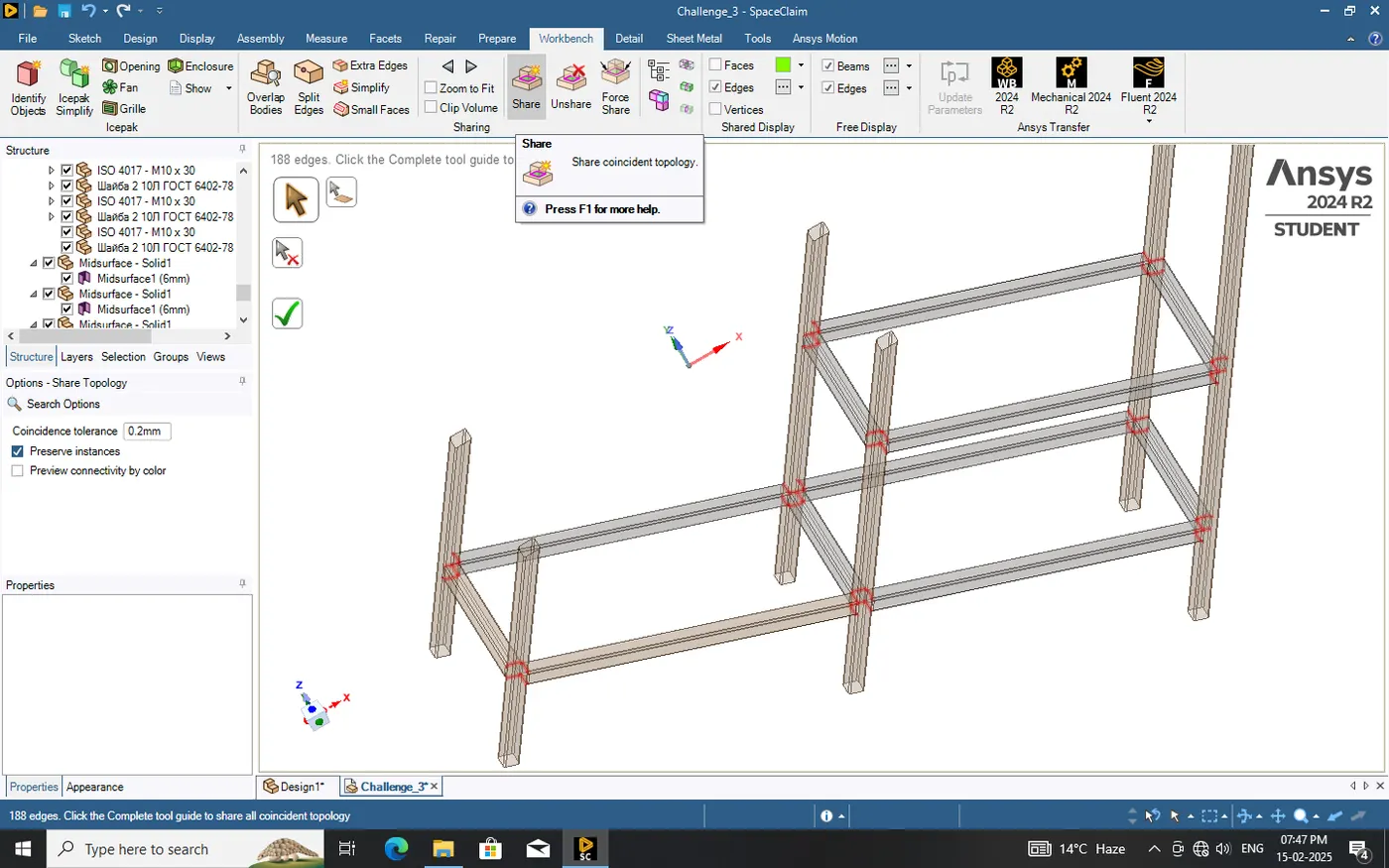
- we seen the ages glow in pink colour then we click on right button.
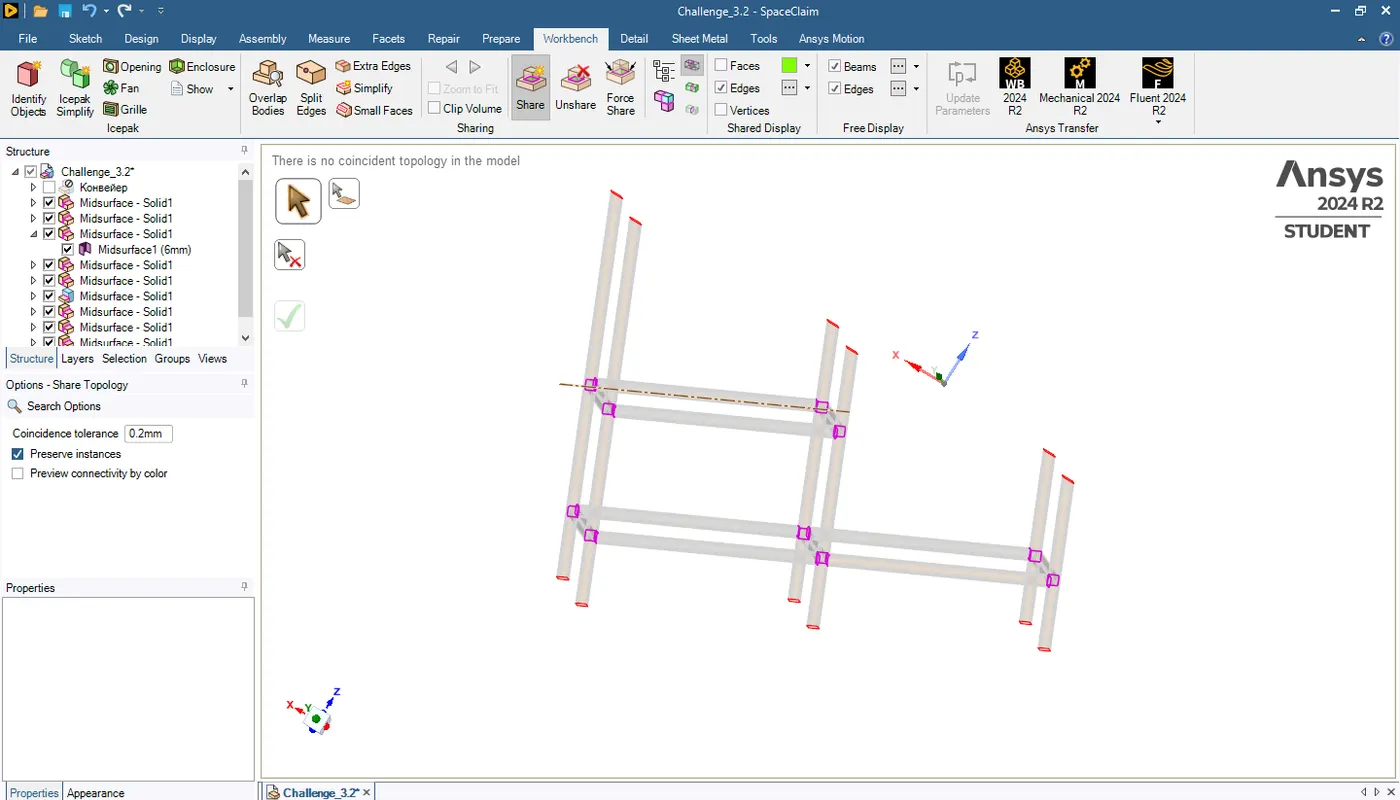
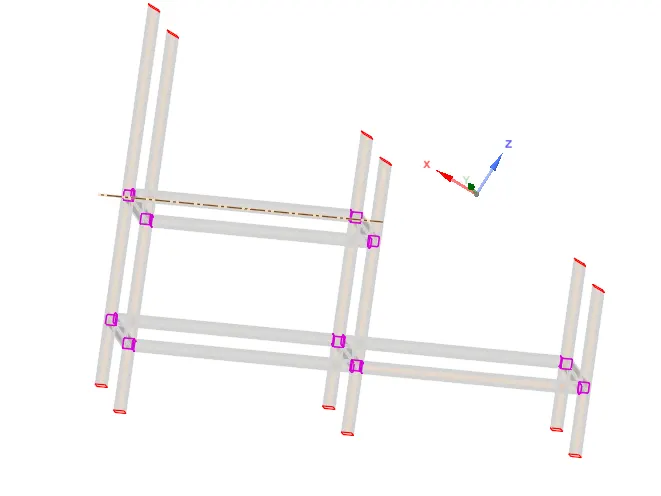
- Then we saw some ages connected to the tube and some not connected; these are shown in red. Now we go to the Prepare tab> Analysis section extend option.
- now select the ages and extend them. now the connection is ready.
Case 2:
Create a model in Spaceclaim one on top of each other and create a shared topology between the top block and the bottom block.
Dimension of Top Block A: 20 x 20 x 5 mm
Dimension of Bottom Block B: 40 x 40 x 10 mm
Boundary Conditions: Provide Fixed support for the bottom face of Block B
Perform a modal analysis (free run) to verify connections and analyze the results.
- open the workbench then open model analysis in the workbench after that open spaceclaim.
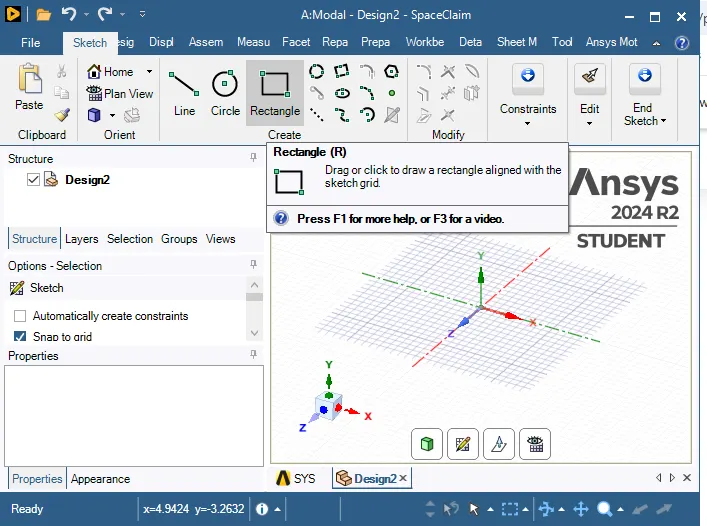
- Now we create the geometry according to the question as shown below.
- First create a rectangle 40*40 then click on return to 3D model and activate pull command and pull the surface to 10mm height.
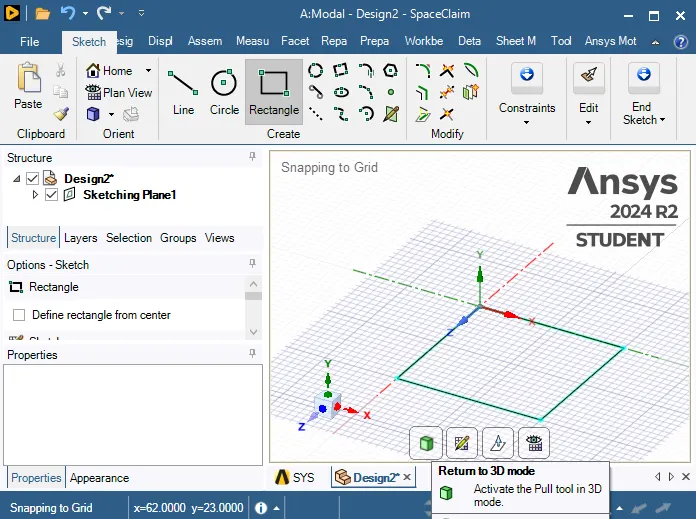
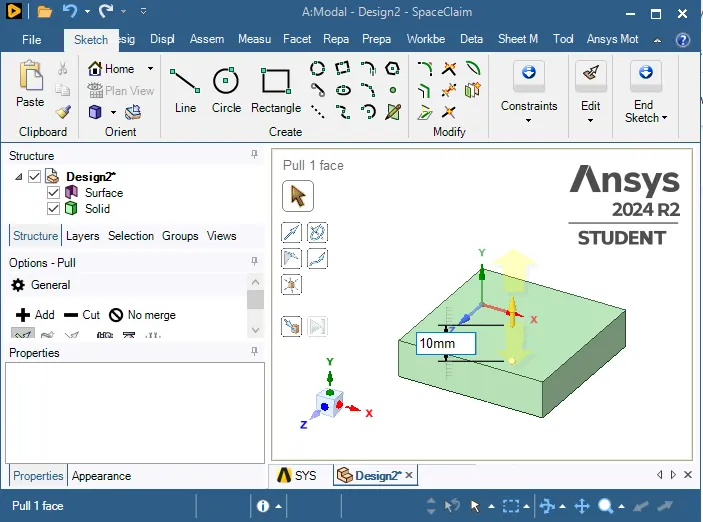
- Now we create a second block on the first surface and activate sketch mode select the rectangle and define the rectangle from the canter draw a rectangle 20*20 then click on return to 3D model activate pull command and pull the surface to 5mm height.
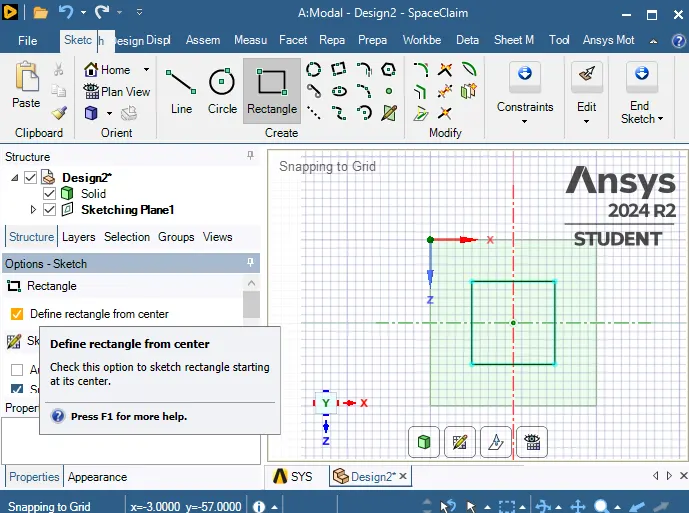
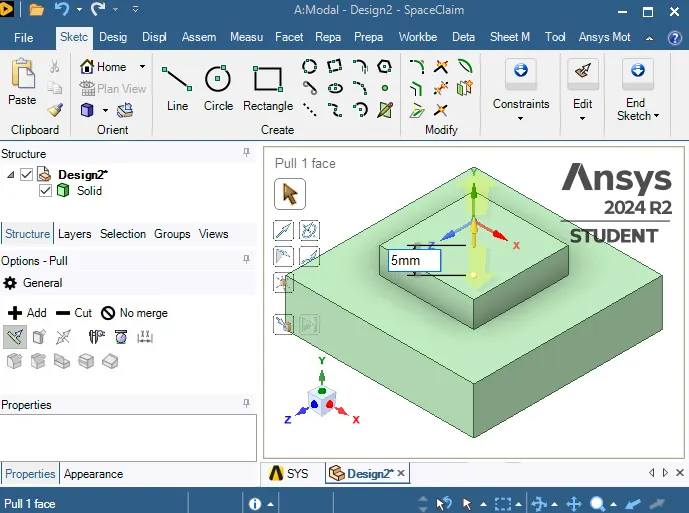
- This model is a single body, now we separate them using the split body command.
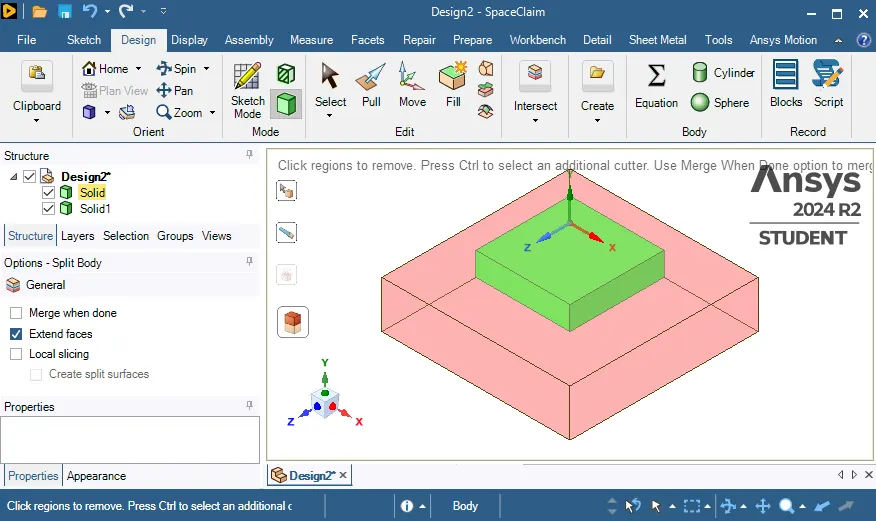
- now we create a connection between both bodies using the share option in the workbench tab.
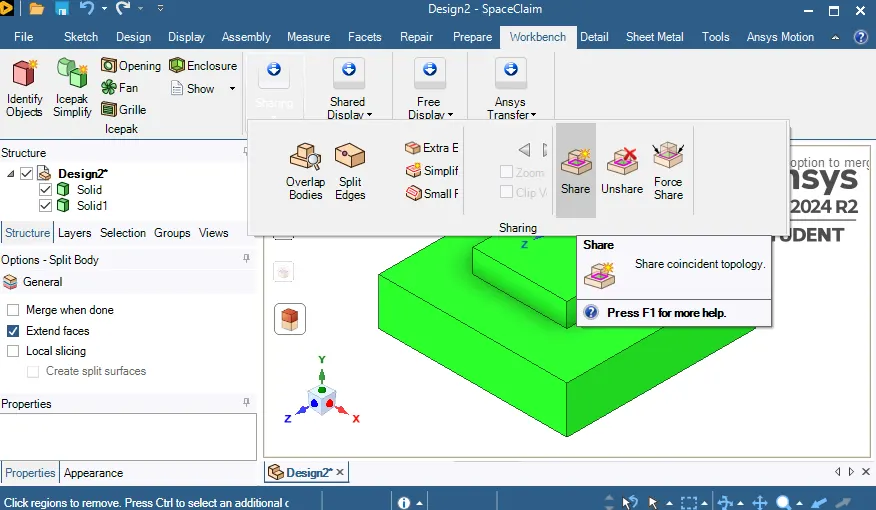
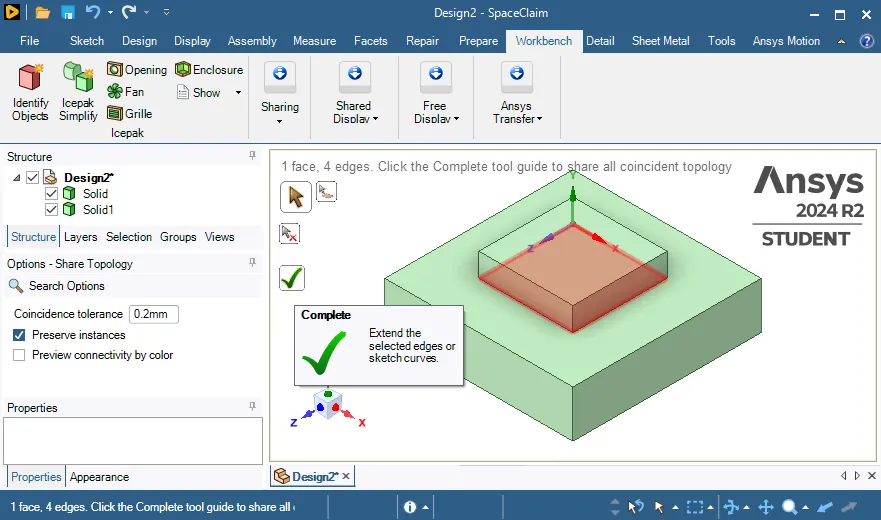
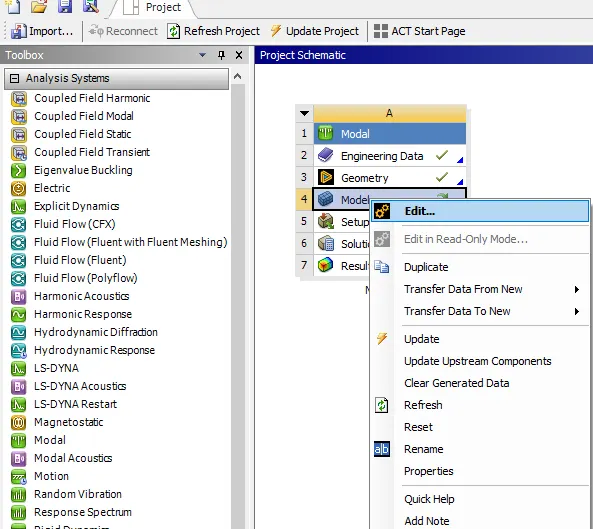
- Now model is ready then we go to workbench>model> and open the mechanical.
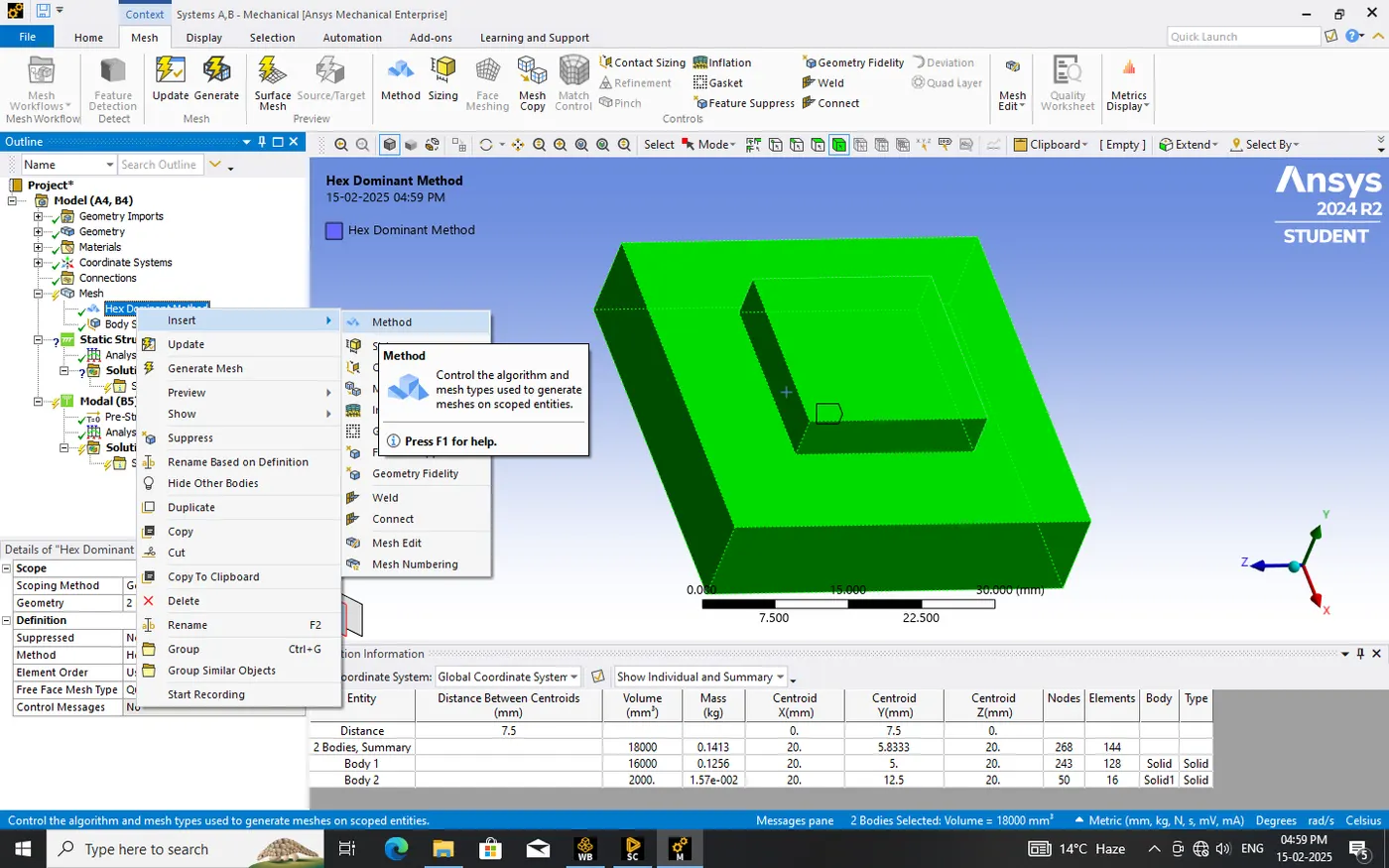
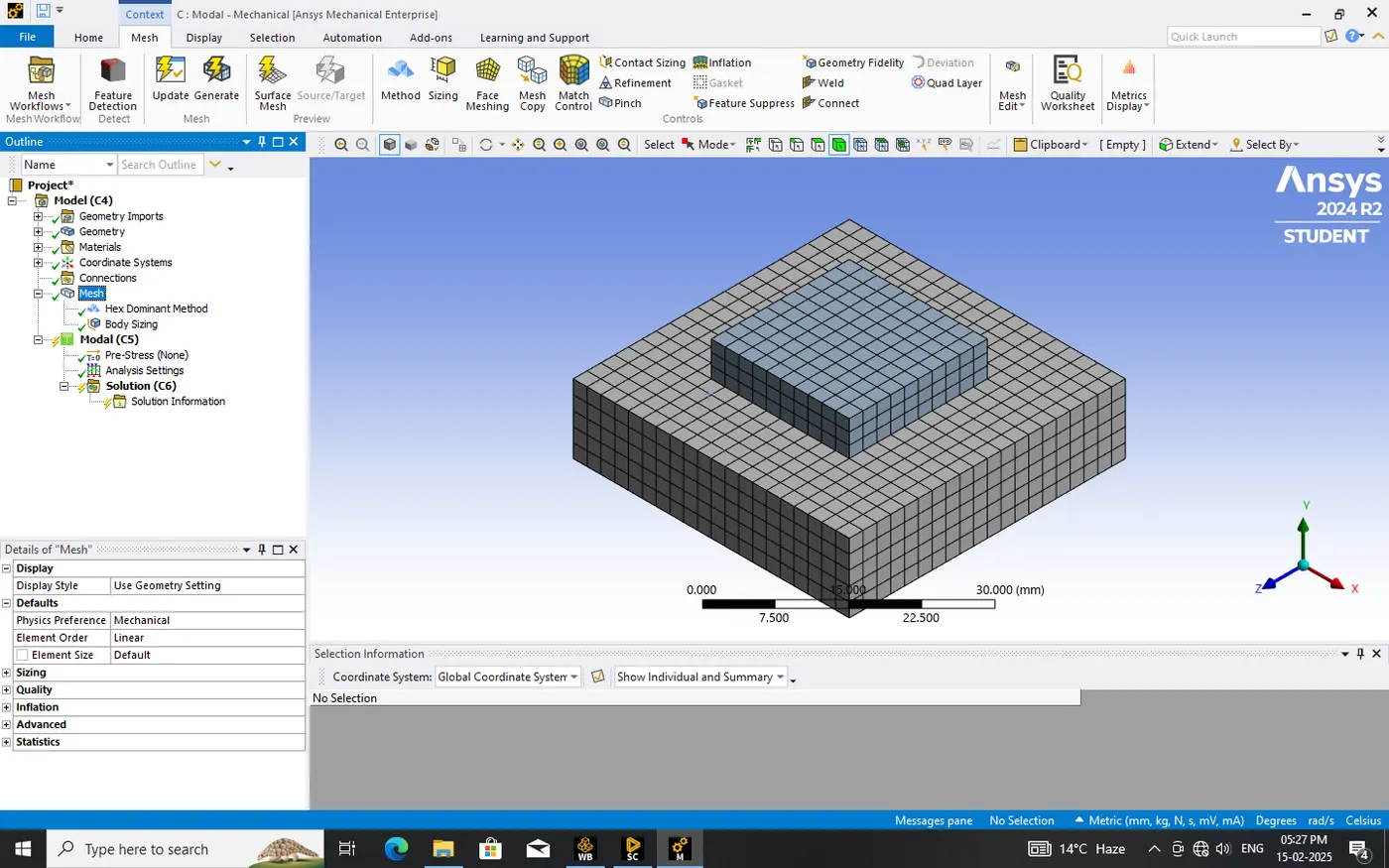
- now the model is open in the mechanical, go to mesh >insert>method select all geometry and set Quadrilateral Dominant>insert sizing select the body and give element size 2mm then create.
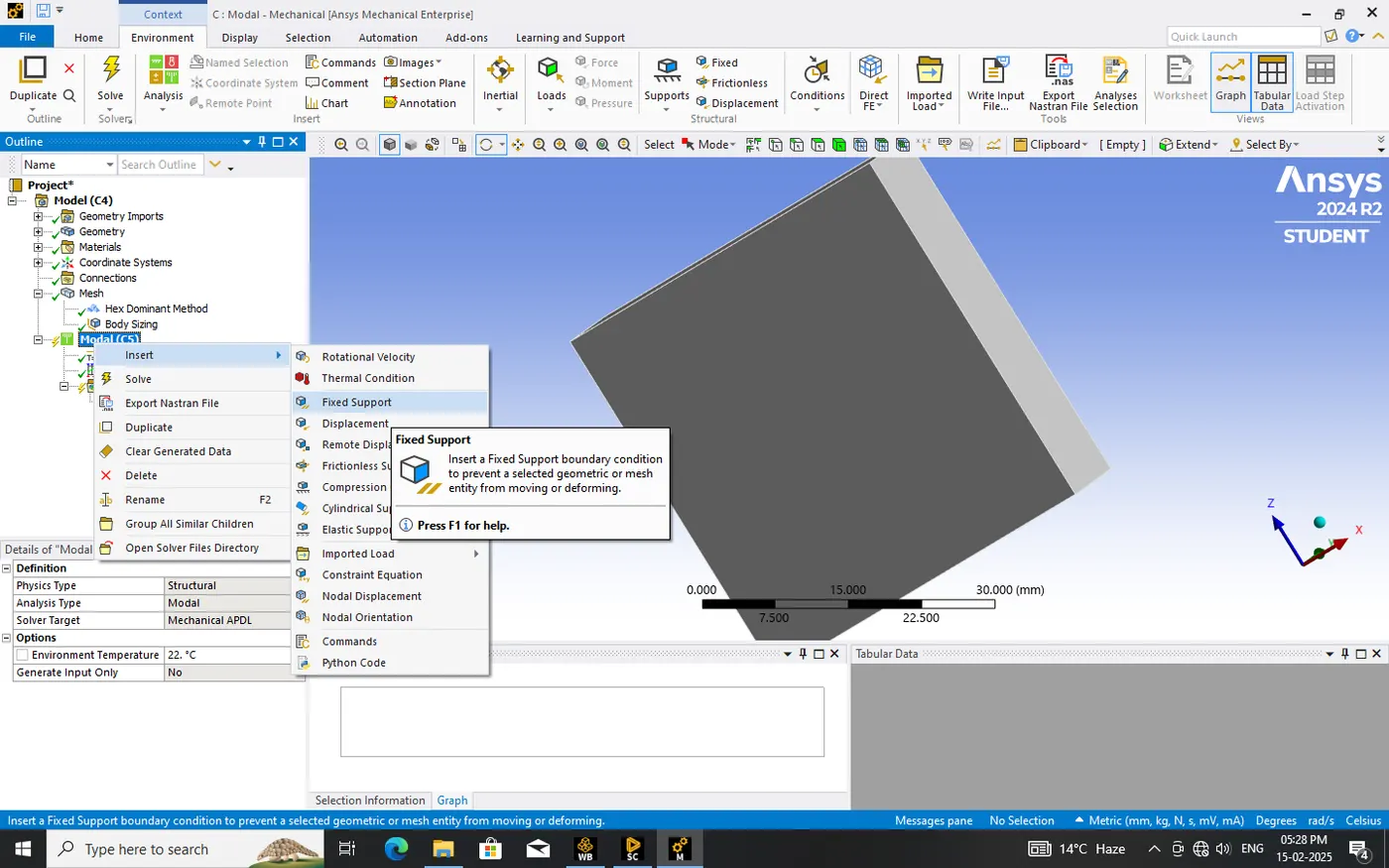
- In the model section insert the fix support in the bottom of the B block.
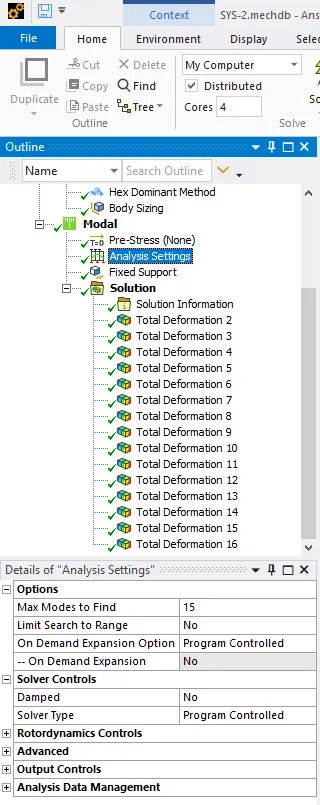
- In an analysis setting we can set max modes to find that you want.
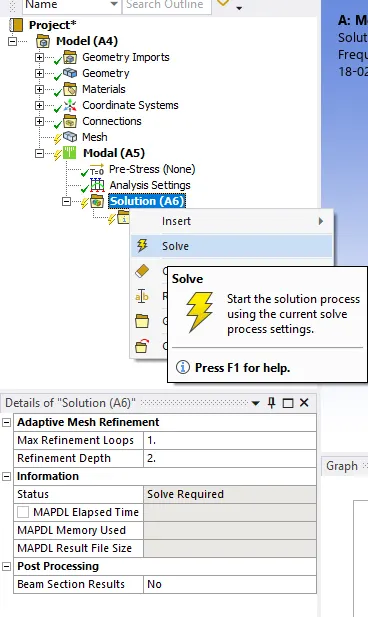
- in the solution tab insert the deformation. than solve it.
- To get the modeshape results select the data in frequency table>right click >create mode shape results from of total deformation than in project tree solve all results.
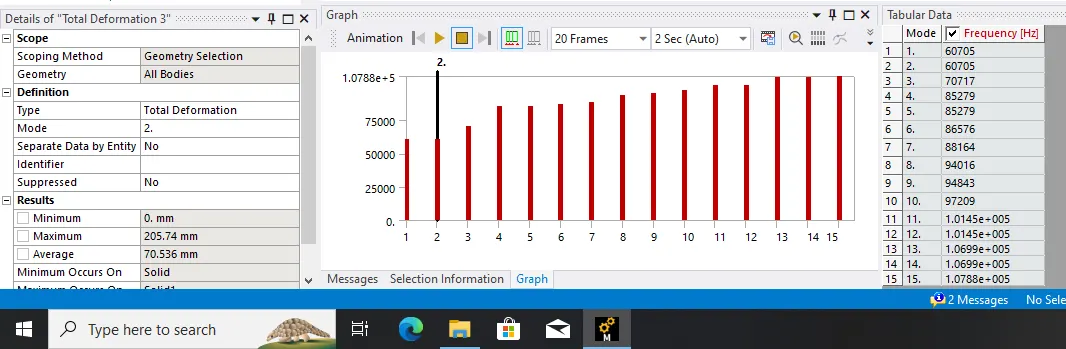
Result comparison
1. second model shape.
frequency-60705HZ and max deformation-205.74mm
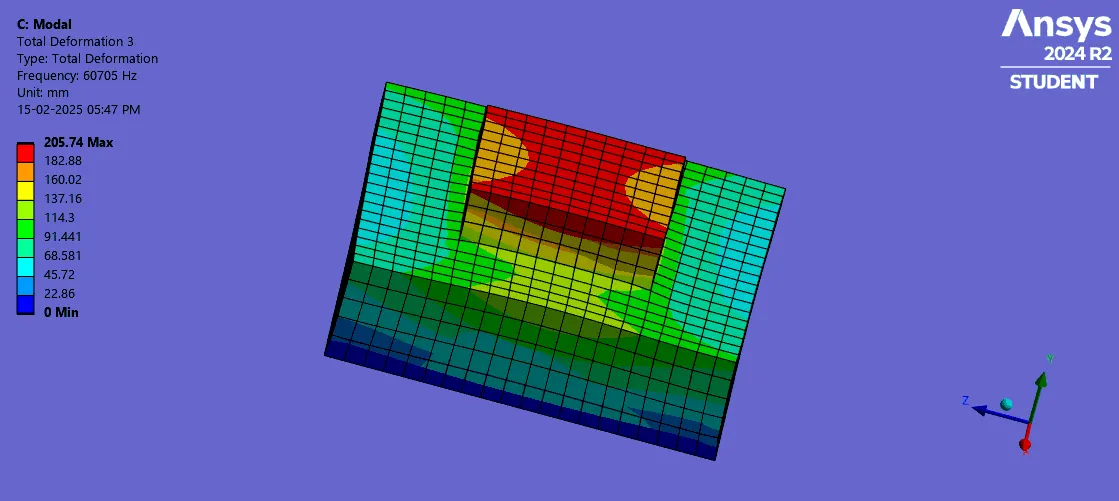
2. third model shape
frequency-70717HZ and deformation-219.65mm
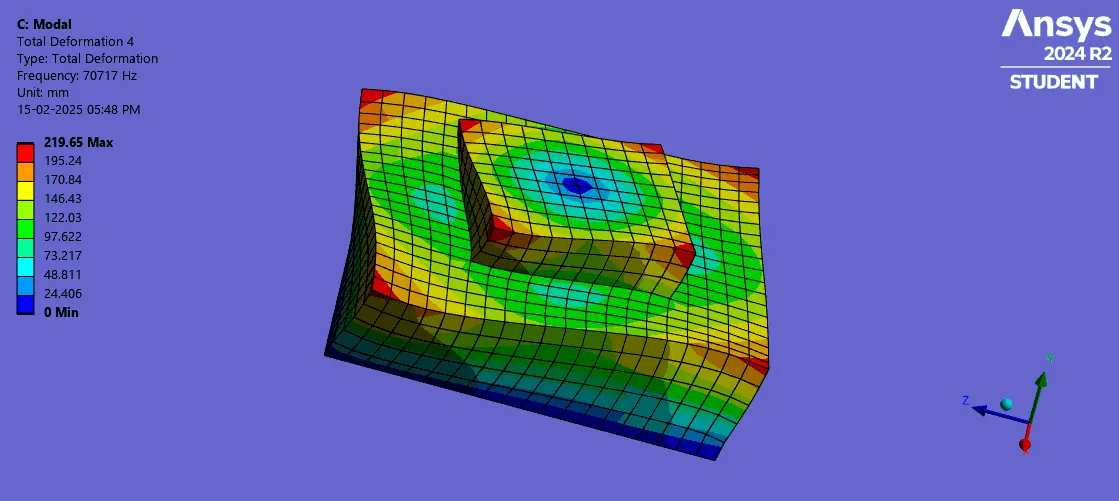
3. fourth model shape
frequency-85279HZ and deformation-355.44mm
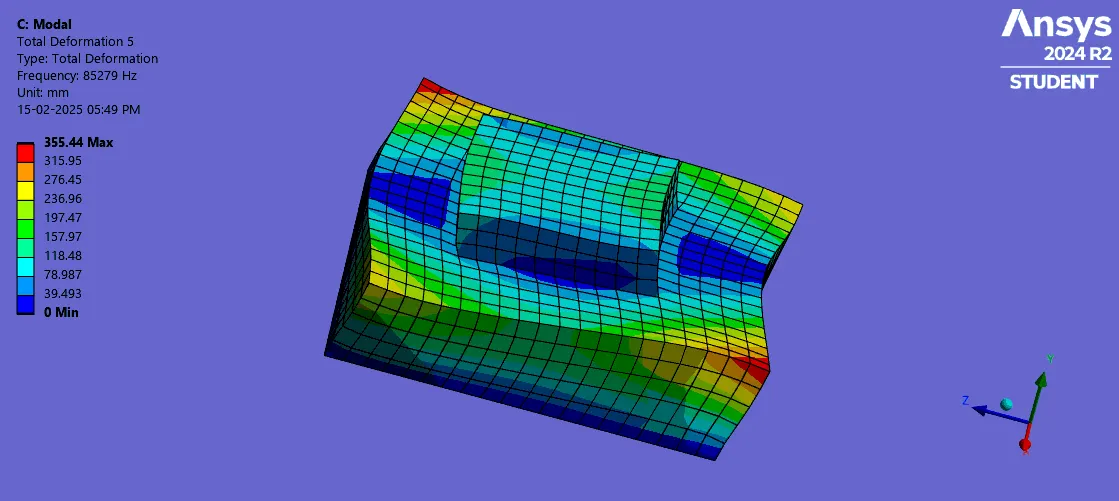
- sixth model shape
- frequency-86576HZ and deformation-269.51mm
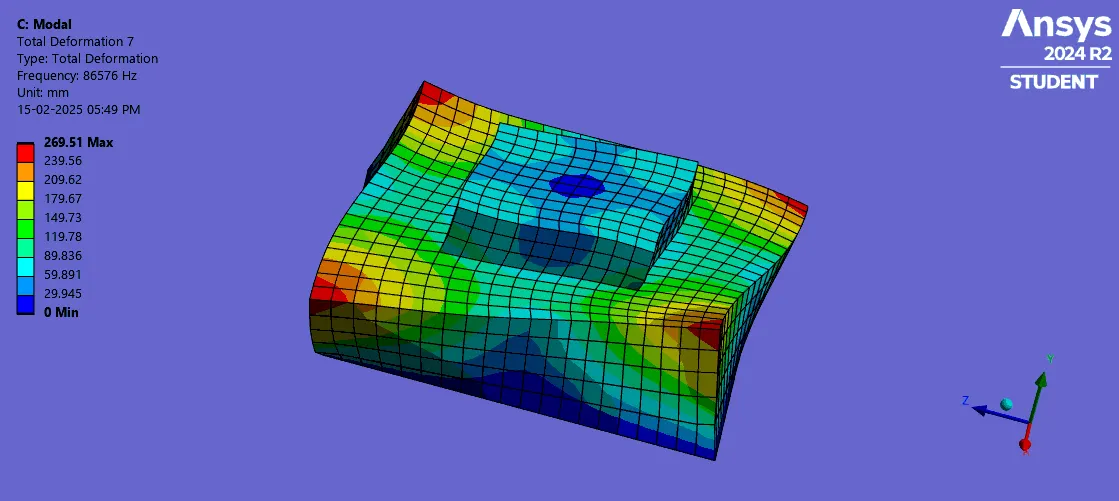
- seventh model
- frequency-88164HZ and deformation-201.48mm
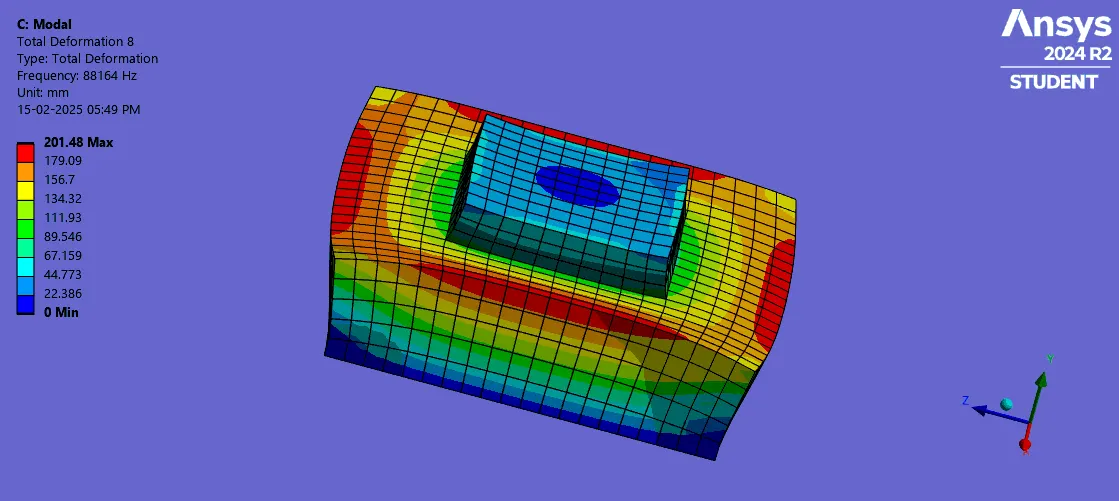
- eight model
- frequency-94016HZ and deformation-215.4mm
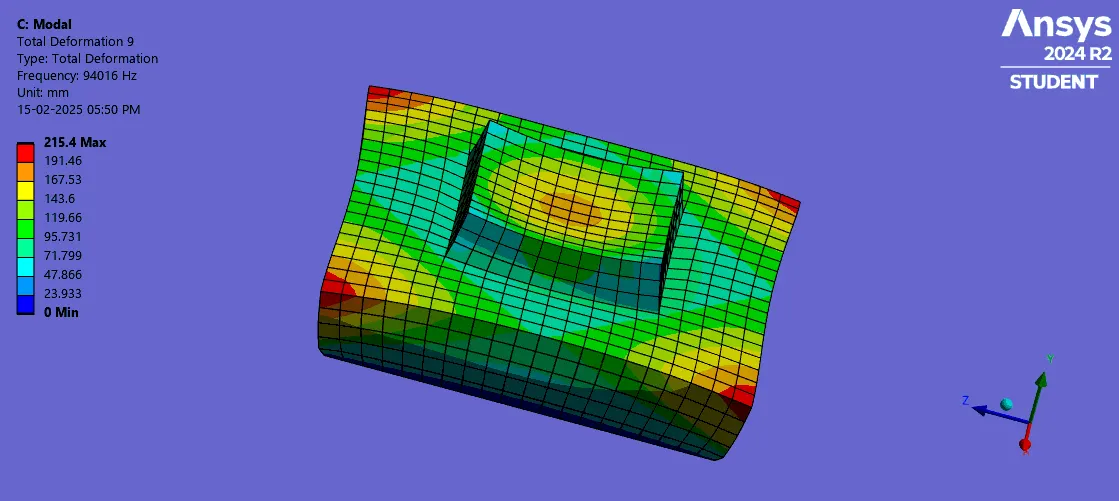
- ninth model
- frequency-94843HZ and deformation-391.5mm
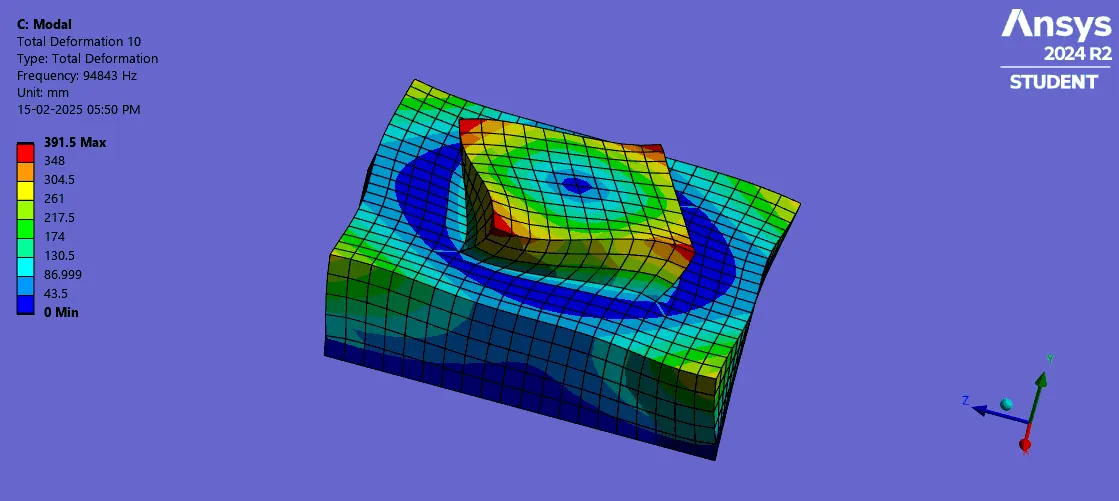
- tenth model
- frequency-97209HZ and deformation-431.66mm
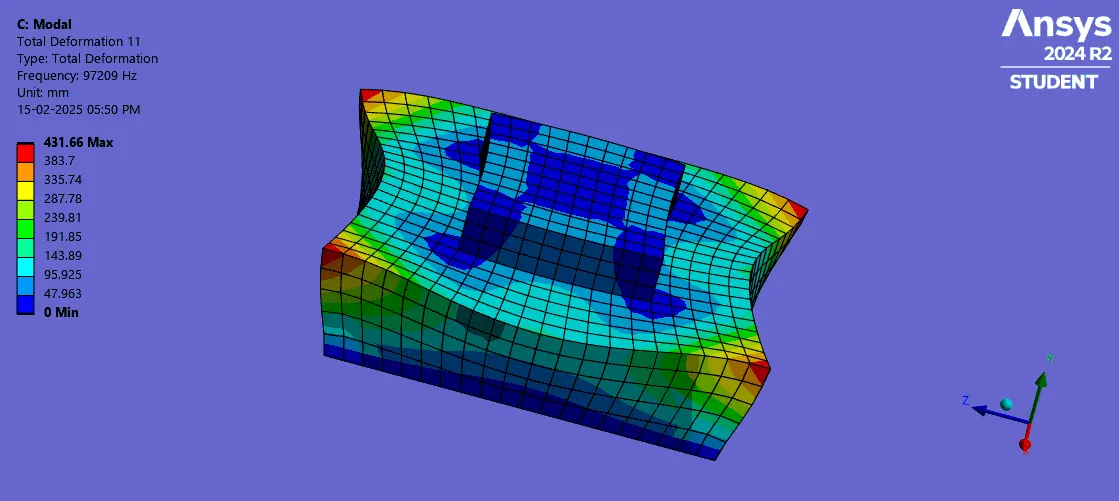
- eleventh model
- frequency-1,0145e+5HZ and deformation-413.03mm
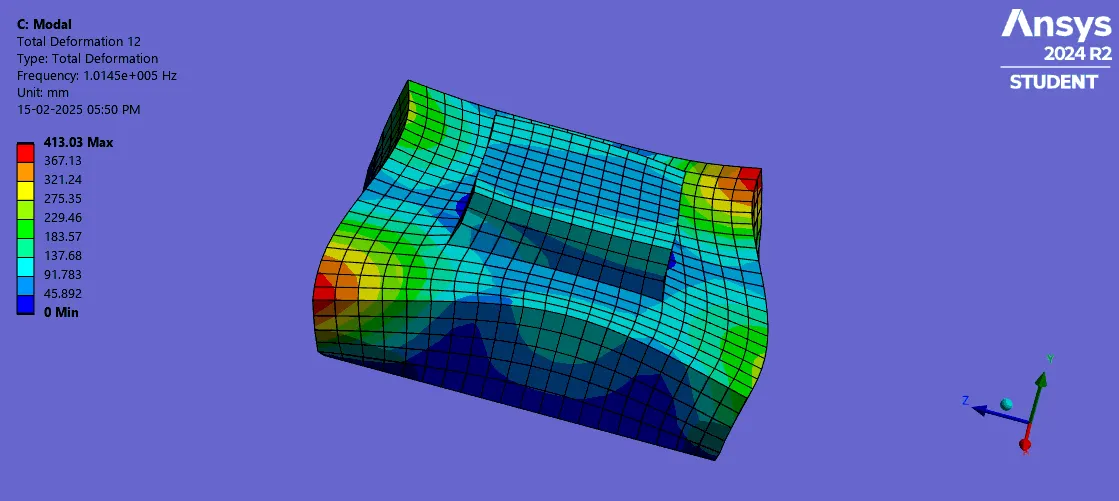
- twelfth model
- frequency-1.0145e+5HZ and deformation-413.03mm
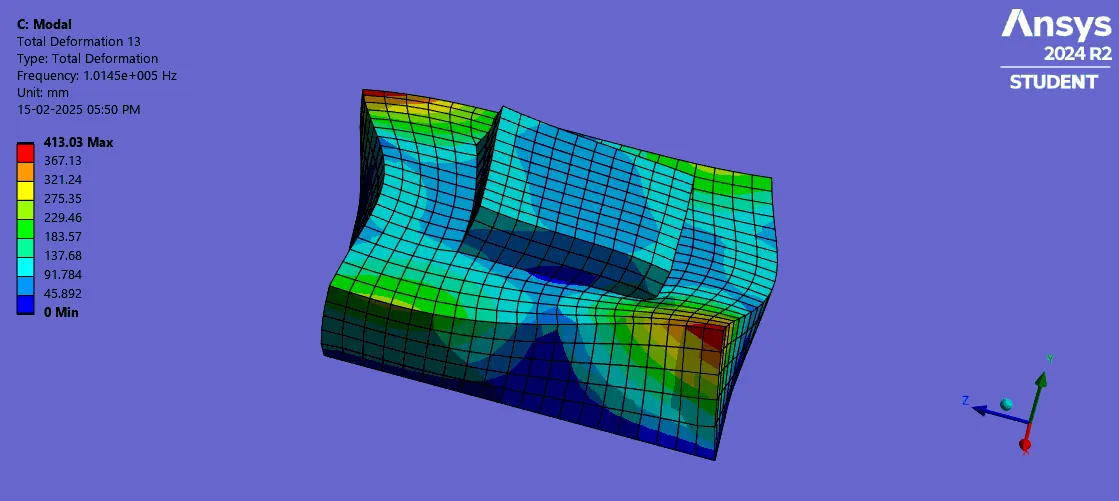
- thirteen model
- frequency-1.0699e+5HZ and deformation-318.85mm
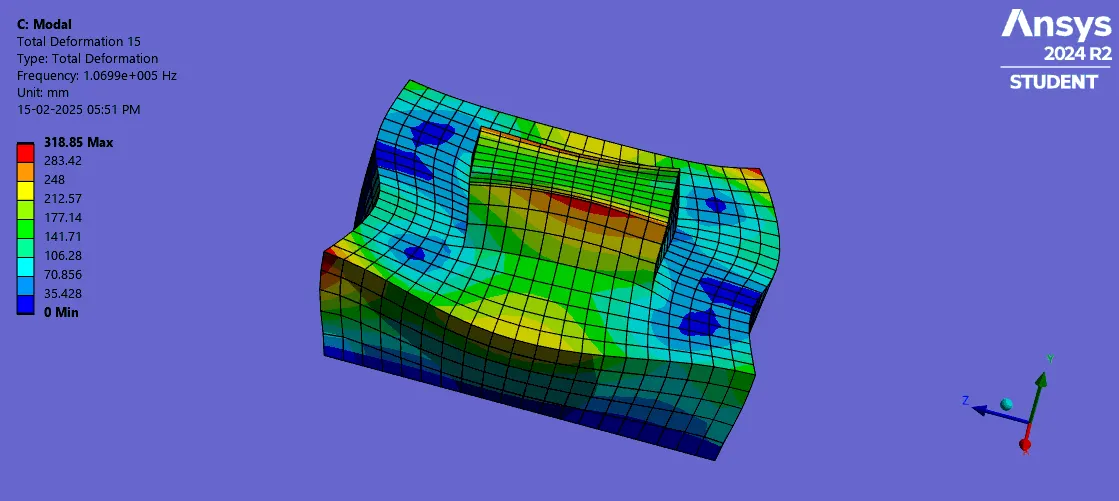
- fourteen model
- frequency-1.0788e+5HZ and deformation-314.64mm
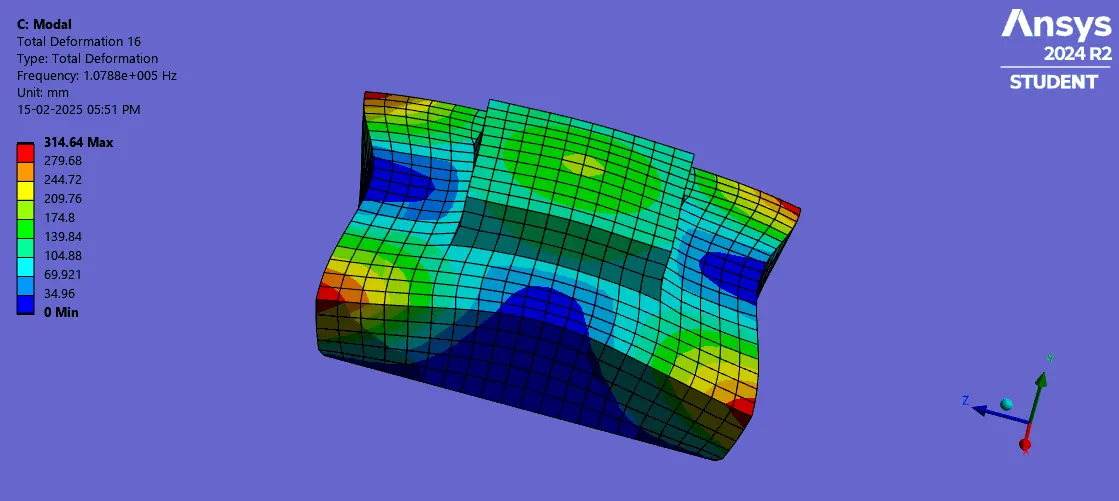
- In-tube model connection is properly done.
- in the second case geometry shared successfully between blocks A and B.
- Total deformation and frequencies find out.
- How to do extract midsurface, splitbody, shared option, and create geometry in spaceclaim.
- How to do meshing, and model setup in ansys mechanical.
Conclusion