Week 3: Flow over a backward facing step
Aim: To set up channel flow simulation over a backward-facing step in three different mesh sizes 1) 2e-3m 2) 1.5e-3m 3) 1e-3m.
Theory:
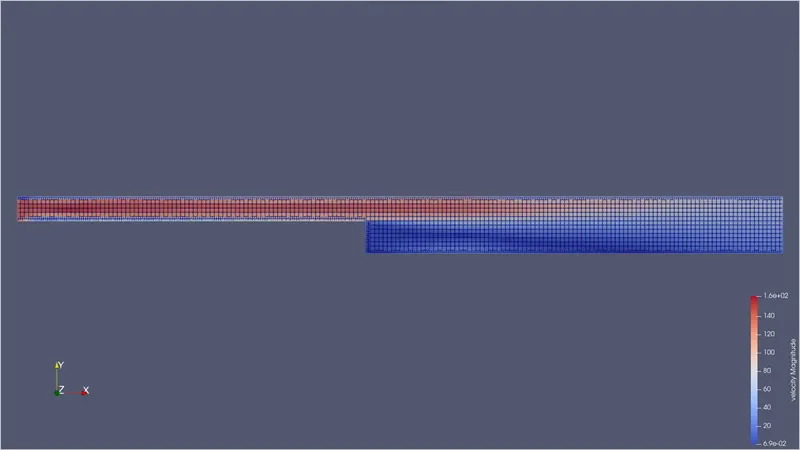
Fluid enters the channel through the narrow passage as it is flowing through the passage the velocity profile is parabolic but when the fluid enters the region where a step is introduces it gets separated into 2 layers outer layer and the inner layer, due to the flow separation vortices are created. At Xr flow reattaches to the original flow.
Procedure:
- To create / import geometry:
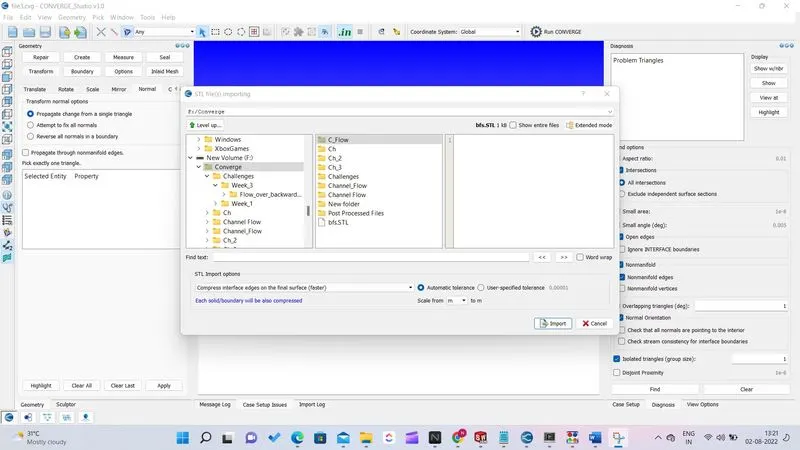
1) click on file > import > import STL then select the path of .STL file to be imported and click import.
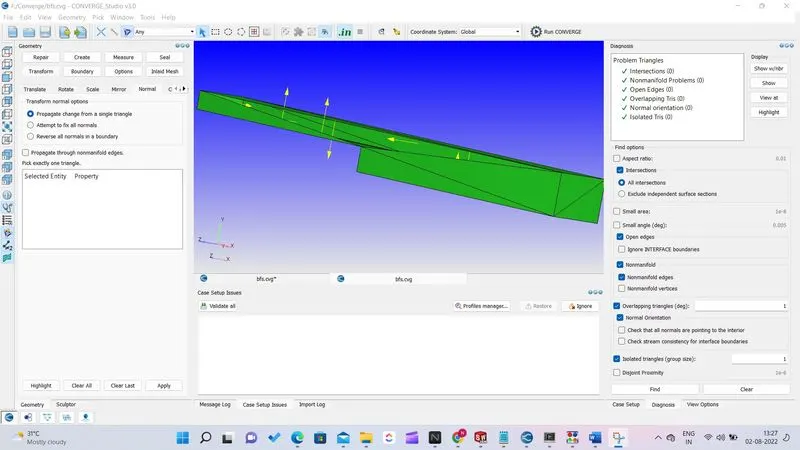
2) after importing geometry check for errors using the diagnosis dock. If there are no errors we can check the orientation of normal to the triangles. If all the normals are pointing inside the geometry then we can move ahead if not we can flip the orientation of normals inside using Transform > Normals > Propogate change from single triangle slect a triangle and hit apply.
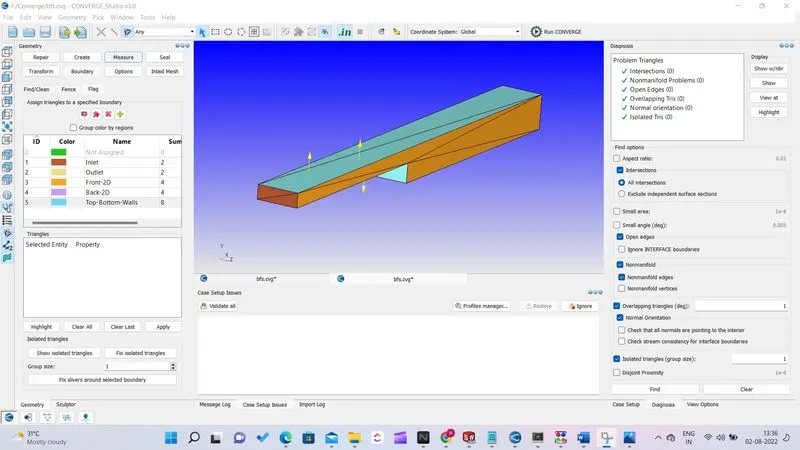
3) Now the next step is to create boundaries to create a boundary click boundary > Faces Select triangle for inlet, outlet, front 2D, Back 2D and Walls.
- Case set up:
1) Click on begin case set up to start case set up select application type as time-based and Predefined mixture as the air. Uncheck reaction mechanism and check species.
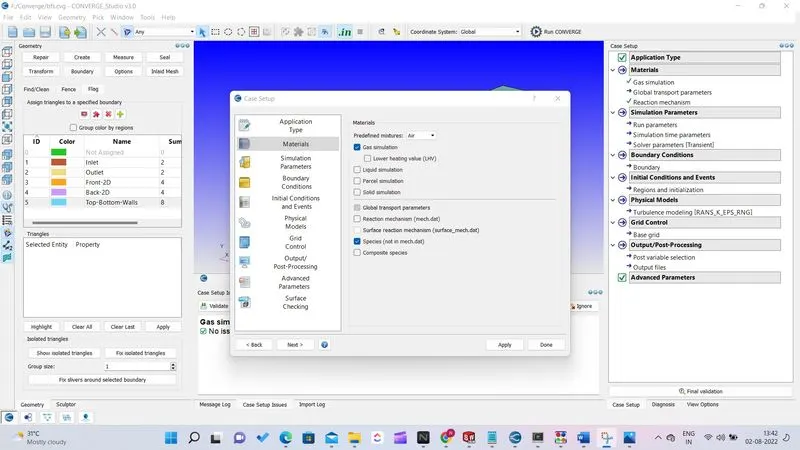
2) Do not change global transport properties and add species N2 and O2 in species section.
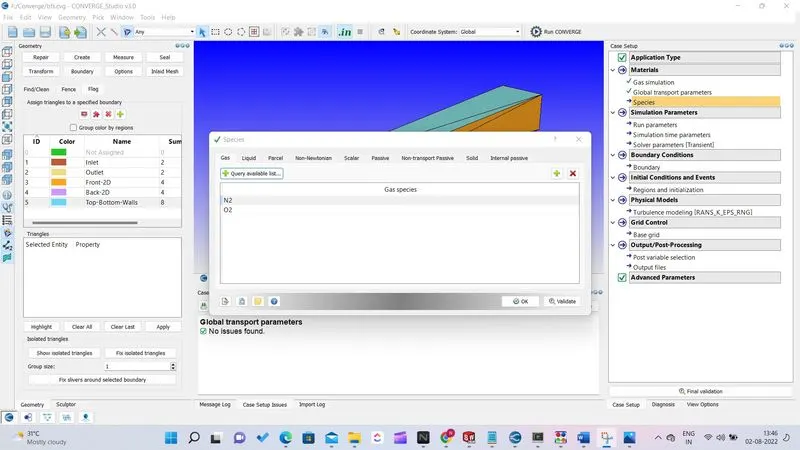
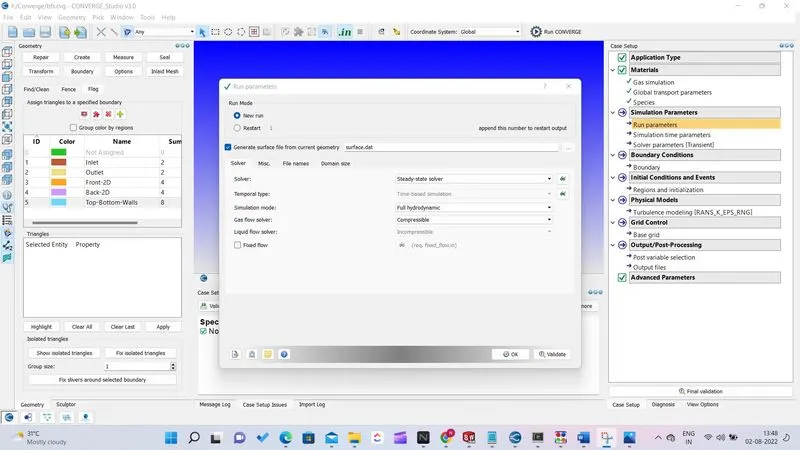
3) In run parameters select solver type to be steady-state solver
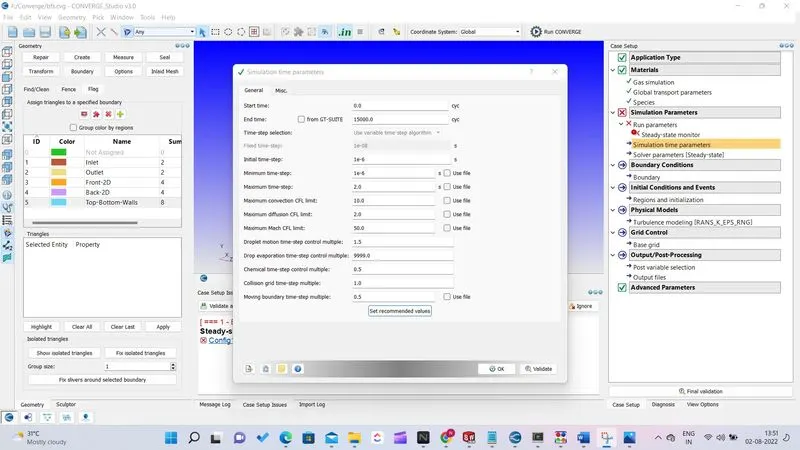
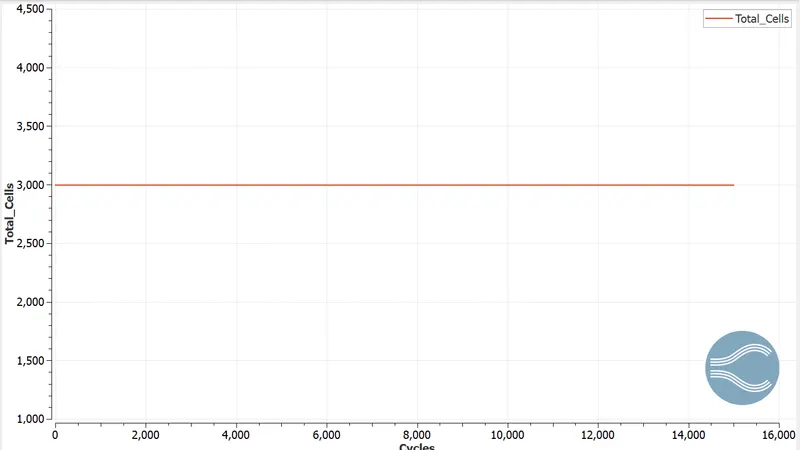
4) in simulation time parameters start time is 0 cycles and the end time to be 15000 cycles initial time step is 1e-6 secs, the minimum time step is 1e-6 sec and the max time step is 2 secs.
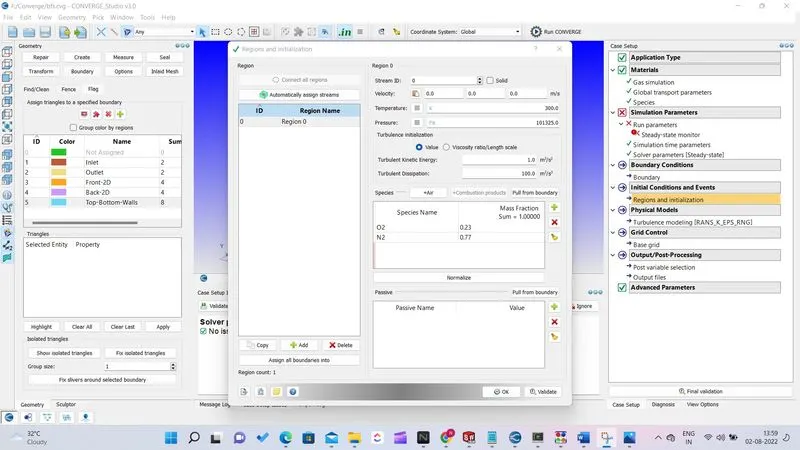
5) Do not change any values in the solver Parameters. The next step is to set up regions and initializations instead of boundary. Add a new region and include air as species in it keeping other default values as it is.
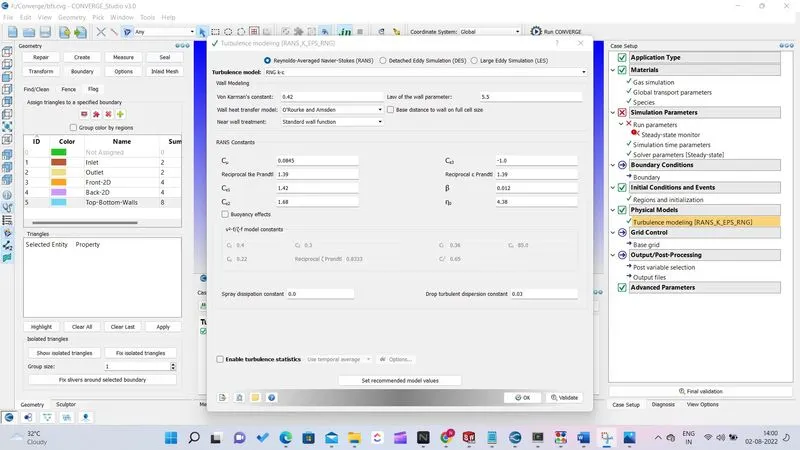
6) In the Physical model select RNG k-`epsilon` keeping other values as default.
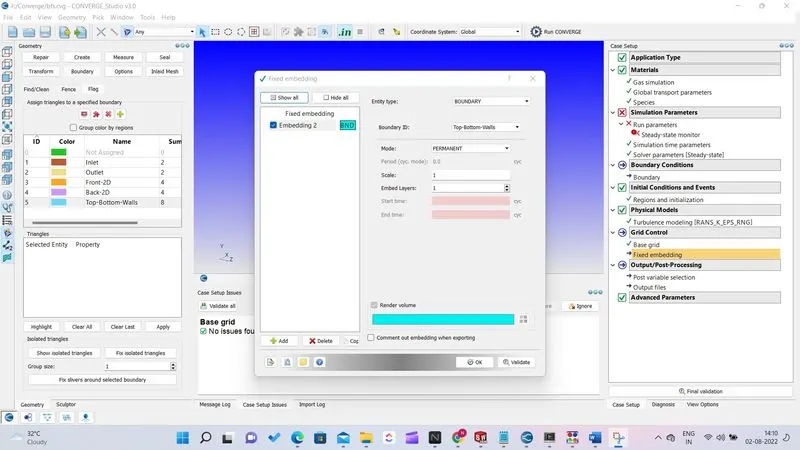
7) the next step is to create a mesh size. Click on grid control then check on fixed embedding. In embedding select entity type as boundary and boundary ID as Top-Bottom-walls.Selct Mode to be permanent and scale as 1.
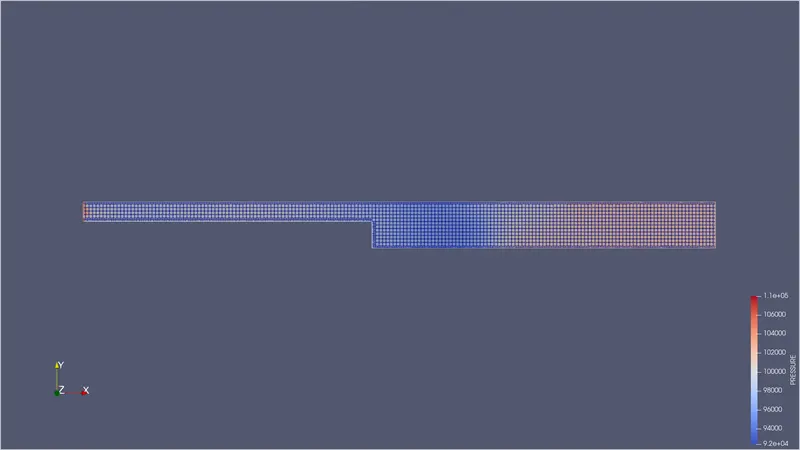
8) Now we can edit Boundary parameters: Inlet - Inflow P= 110325Pa T=300K Species: Air
Outlet - Outflow P=101325Pa T=300K Backflow species: Air
Front-2D, Back-2D - Two_D
Top-Bottom-Walls- Walls and select law of wall.
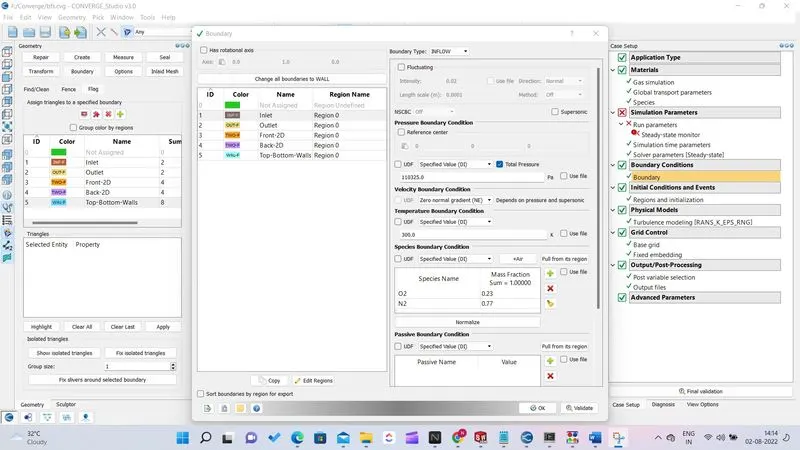
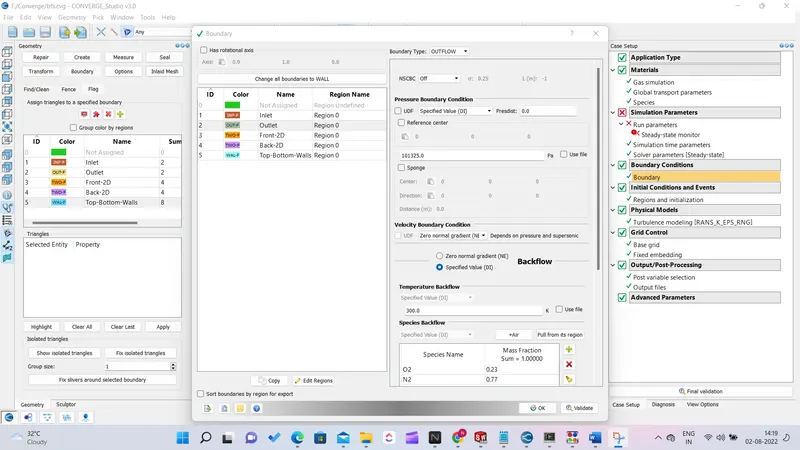
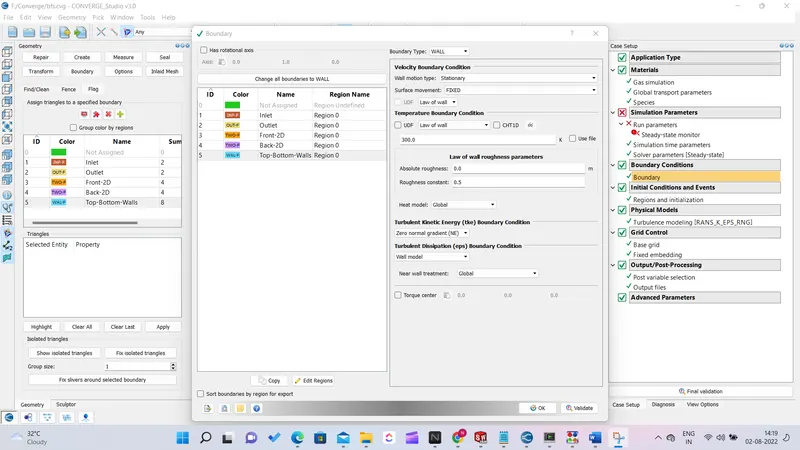
9) Do not change anything in Output files and post variable selection. Click on final validation to check for any errors.
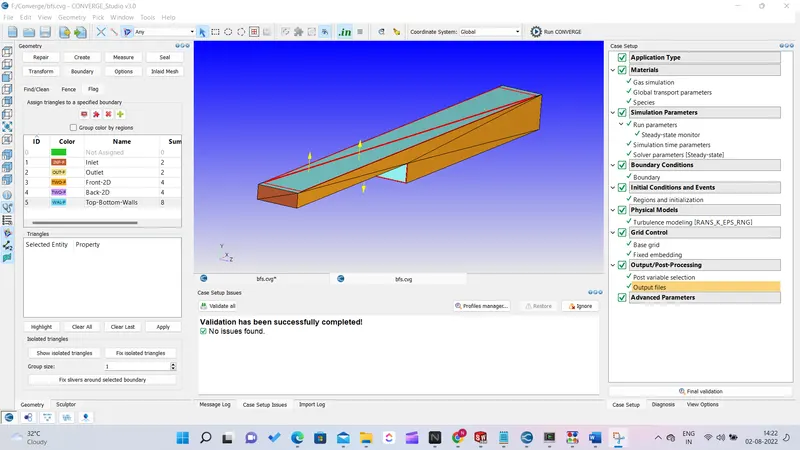
10) Input files are now ready for export.
- Proceesing input files:
1) Click on file > export > input files
2) Copy and paste licence.lic and mpiexec.exe file in the folder of input files
3) Open Cygwin browse to input files folder
4) Enter the following commands
mpiexec.exe -n 6 “C:\Program Files\Convergent_Science\CONVERGE\3.0.16\bin\intelmpi\converge.exe” restricted
5) After completion of the process.
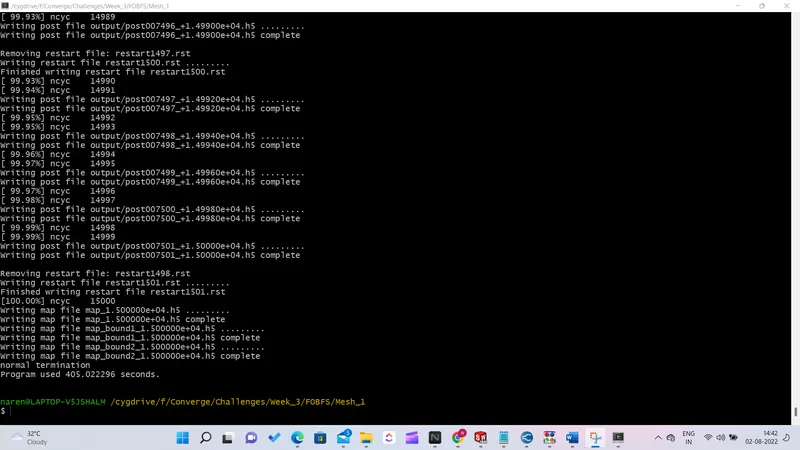
6) Copy and paste post_convert file in the output folder in cygwin Enter command
mpiexec.exe -n 6 post_convert
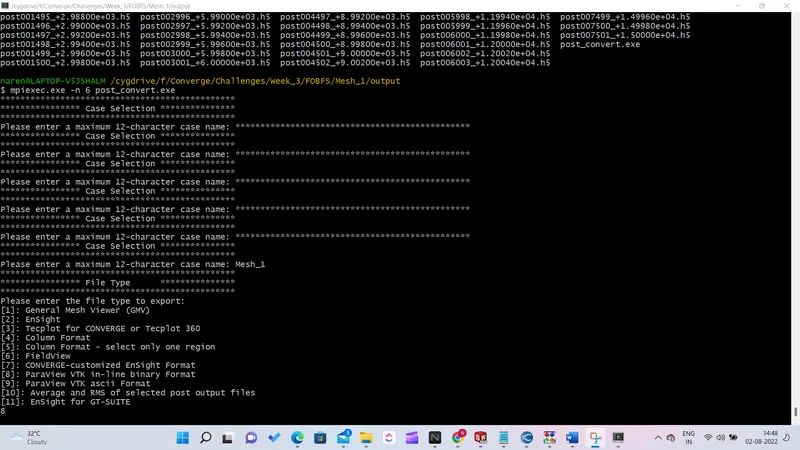
7) Enter Name for the case selection
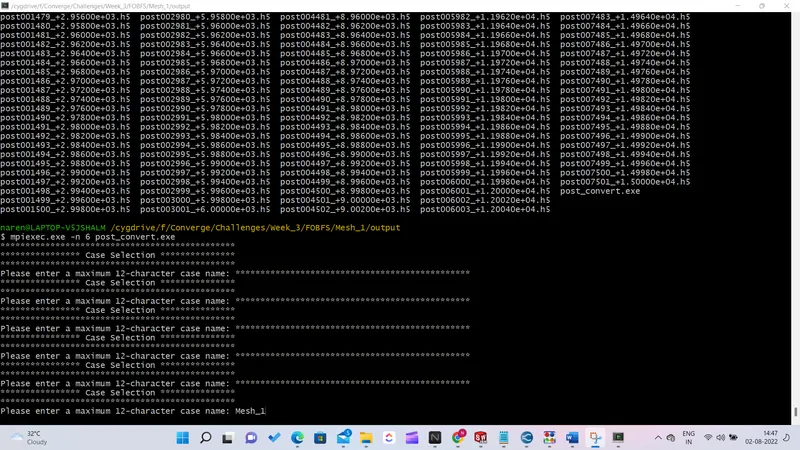
8) Enter file type to export as Paraview VTK in-line binary format
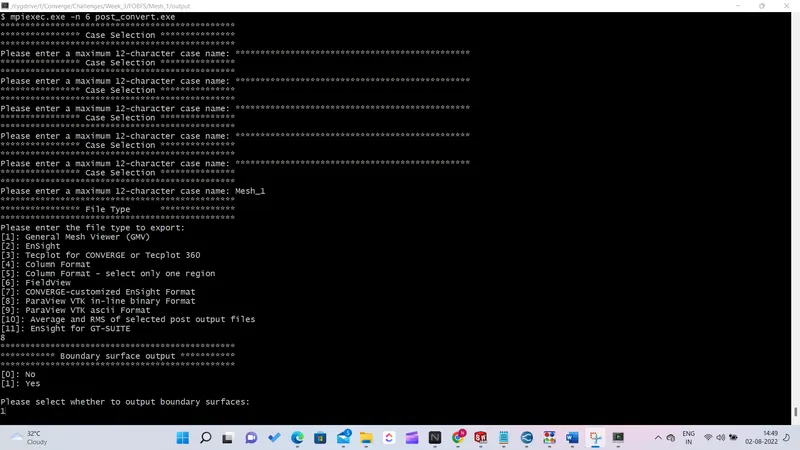
9) Select yes to put boundary surface output
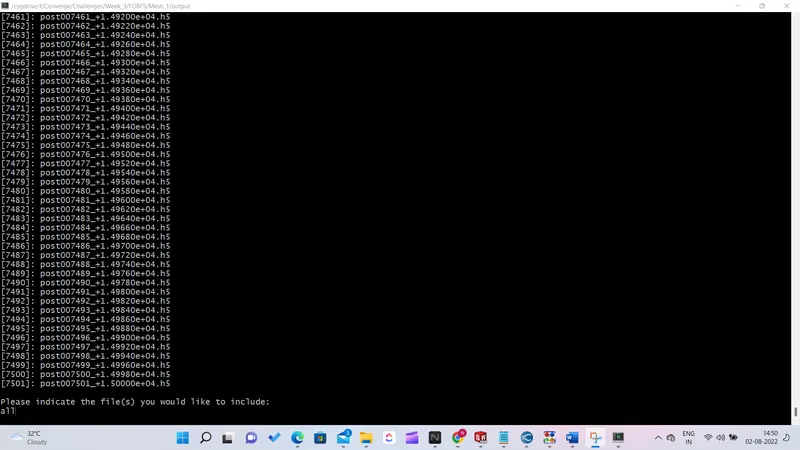
10) Include all file for post processing
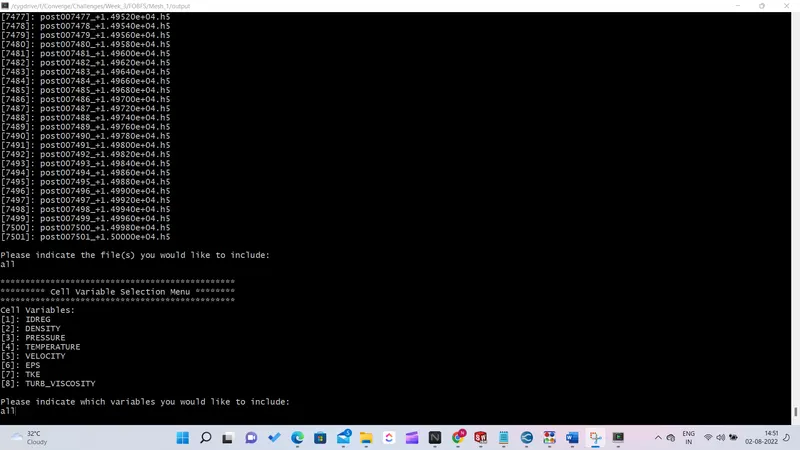
11) Include all cell variables
- Post processing of files:
1) Open Paraview for post processing and open folder named output and open file with extension .vtm and click apply.
2) Click on slice and along Z normal uncheck triangulate slice and show plane.
3) Select velocity click play and check on visibility change.
- Results:
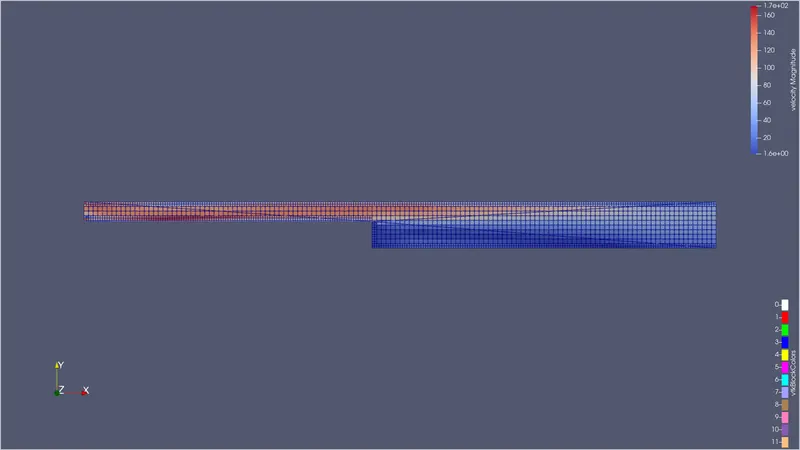
1) Mesh- 1 dx=1e-3m dy=1e-3m dz=1e-3m.
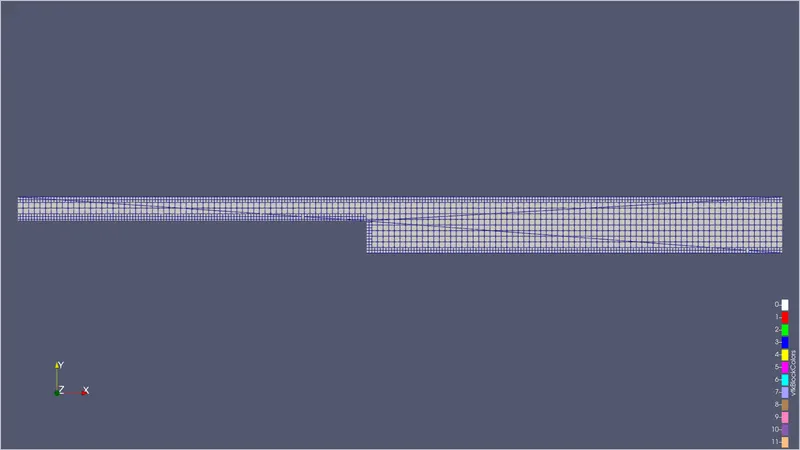
Velocity Contour:
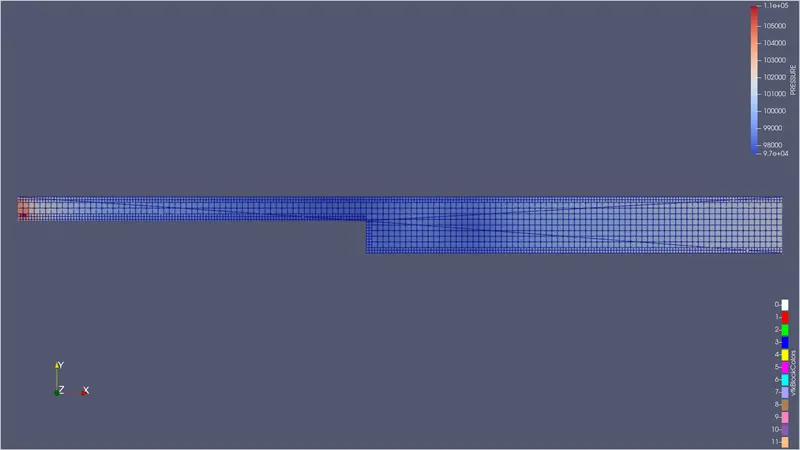
Pressure Contour:
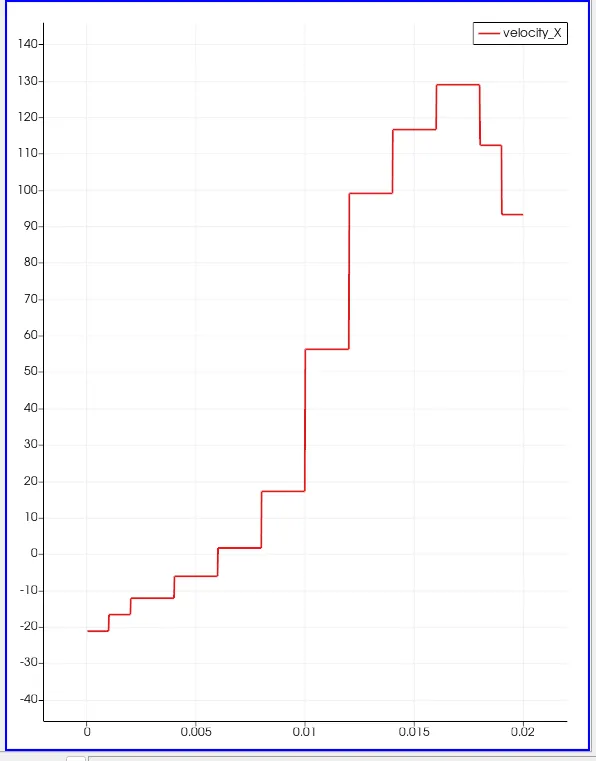
Velocity Profile:
Pressure
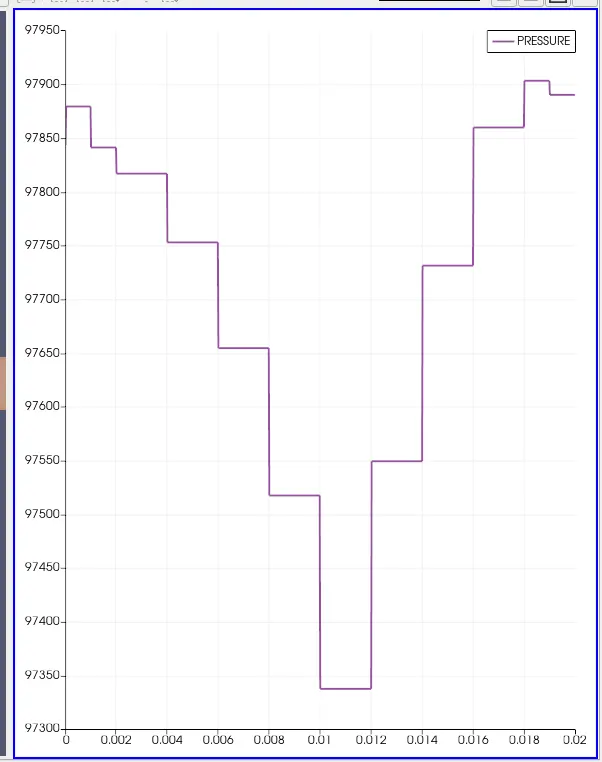
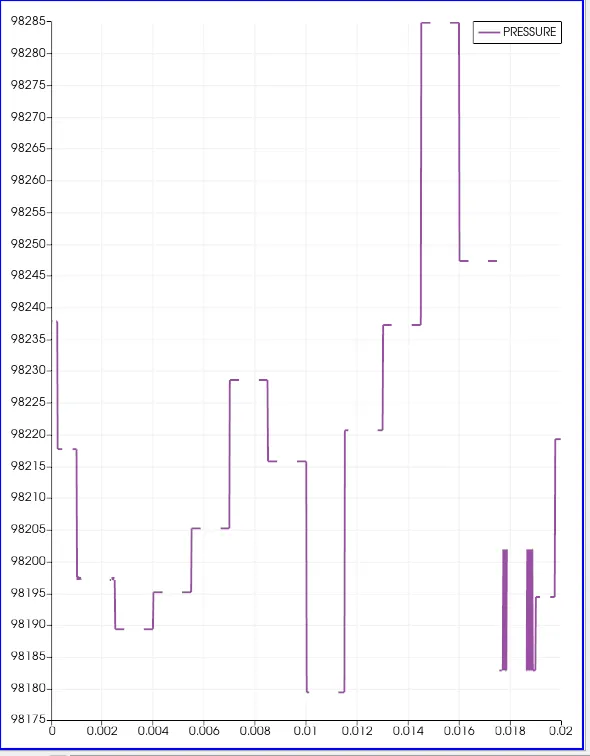
pressure continuesly changes at each time frame as the flow is turbulant.
Mass Flow Rate:
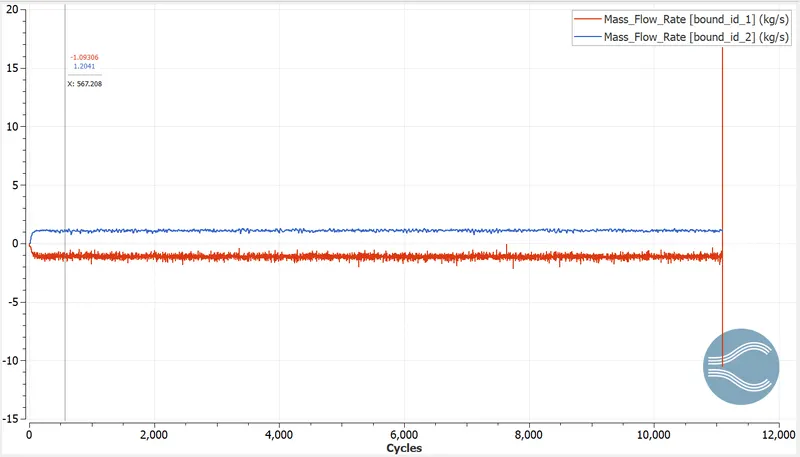
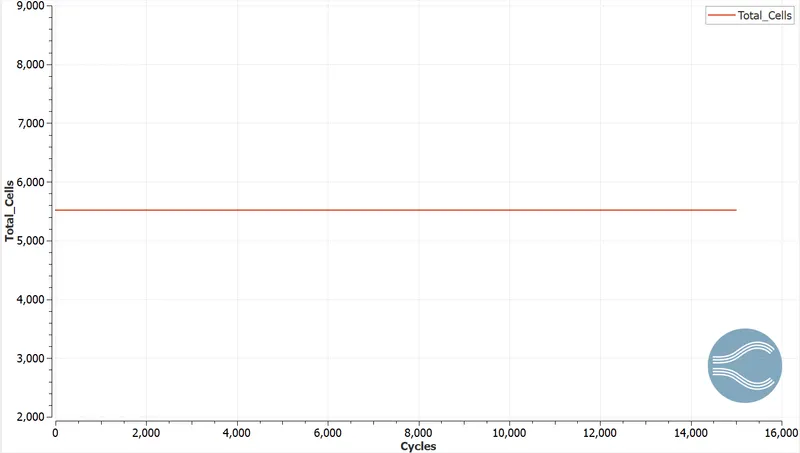
Total Cell count:
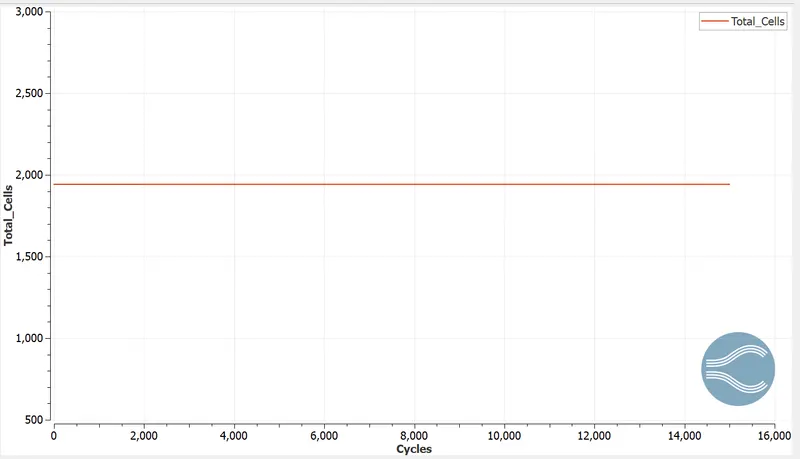
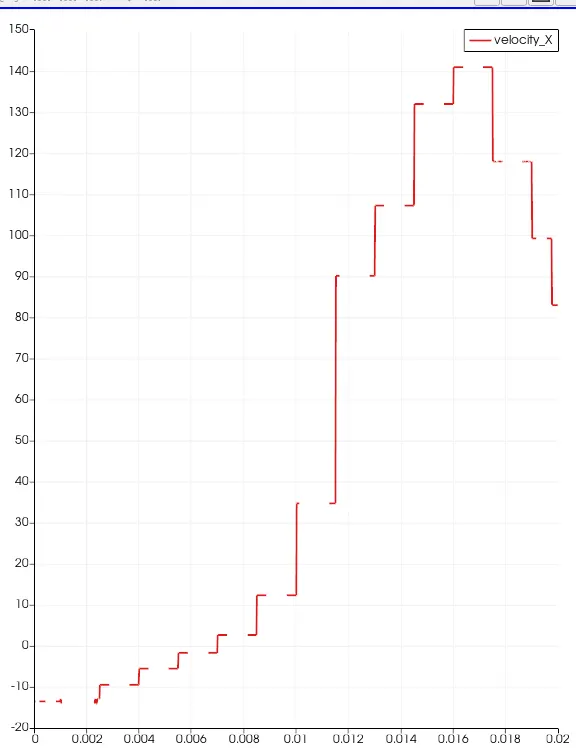
2) Mesh- 2 dx=1.5e-3m dy=1.5e-3m dz=1.5e-3m
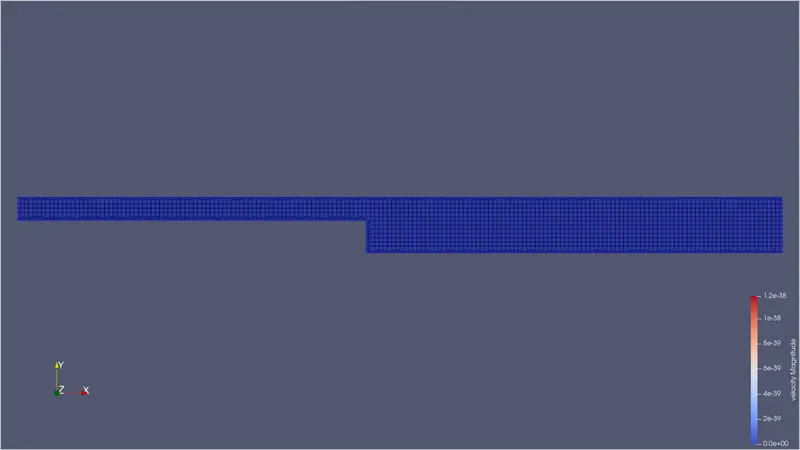
Velocity Contour:
Pressure Contour:
Velocity Profile:
Pressure
Mass Flow Rate:
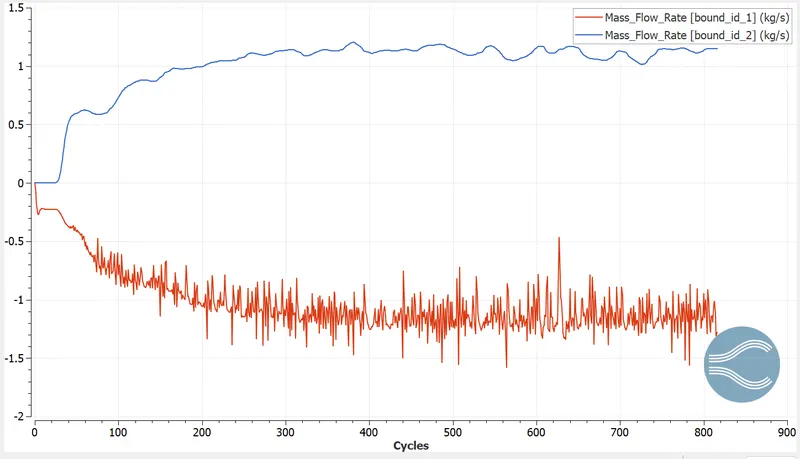
Total Cell Count:
3) Mesh- 3 dx=1e-3m dy=1e-3m dz=1e-3m
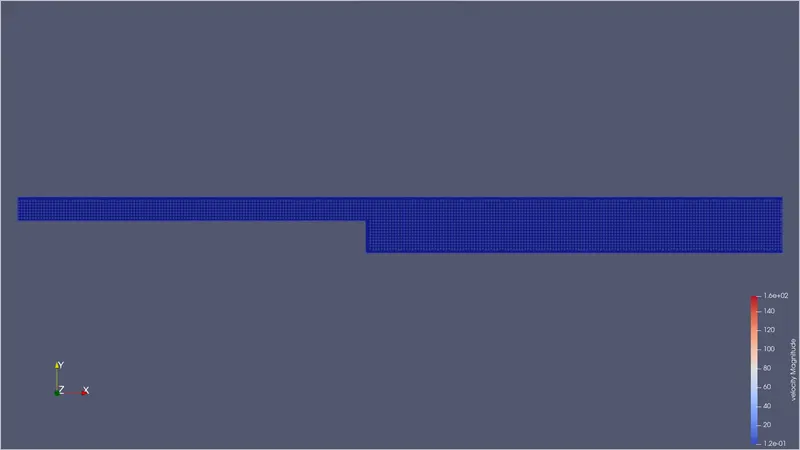
Velocity Contour:
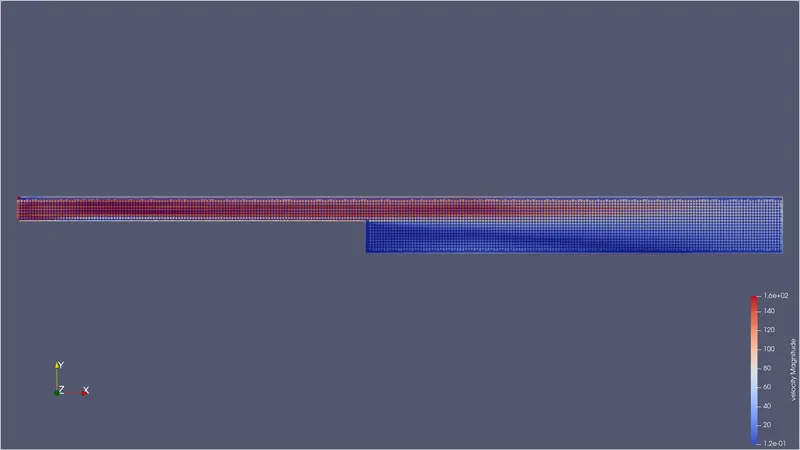
Pressure Contour:
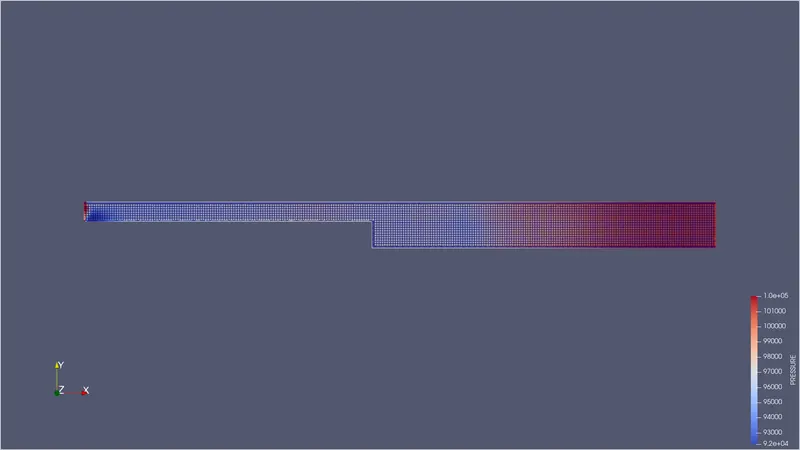
Velocity Profile:
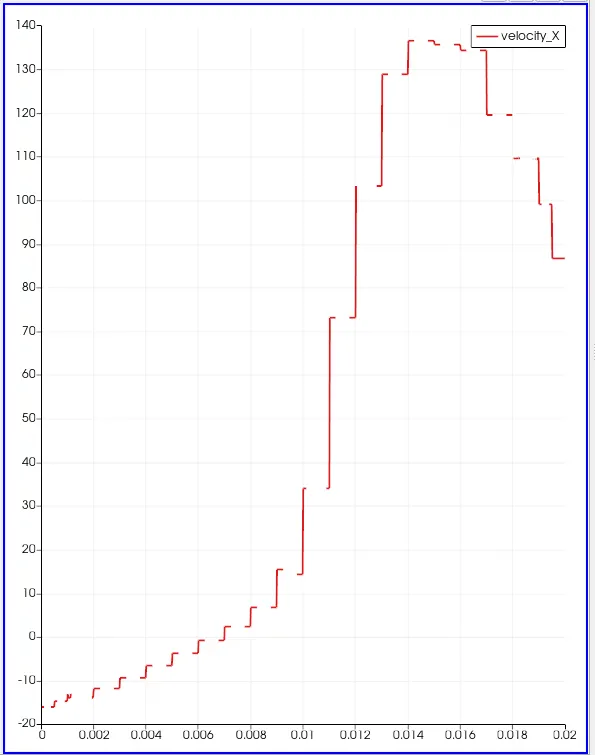
Pressure
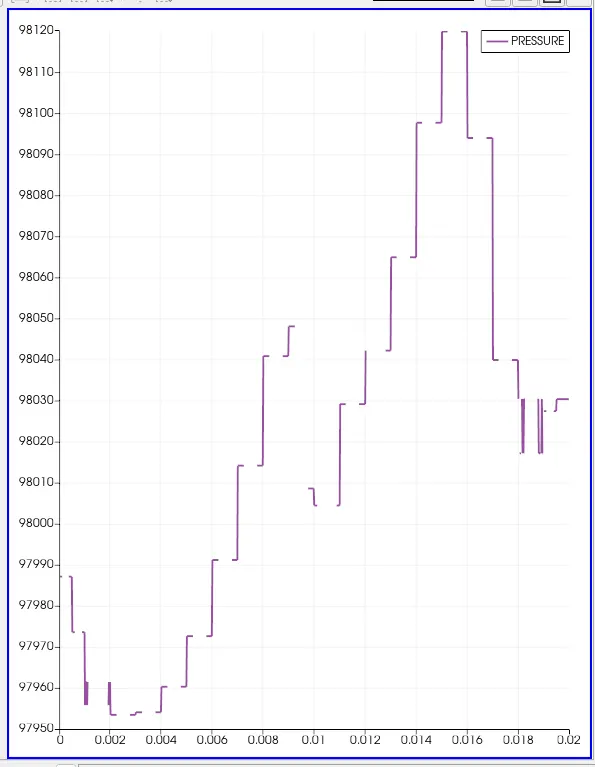
Mass Flow rate:
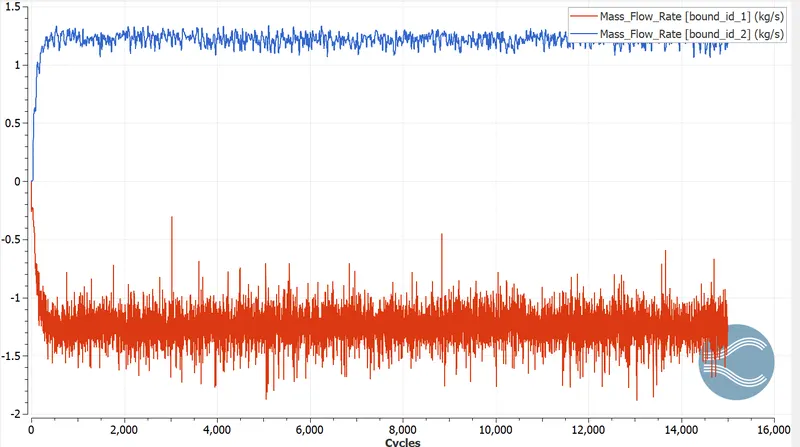
Total Cell Count:
Youtube
Velocity: https://youtu.be/eC9zQt1lO6g
Pressure: https://youtu.be/JYZYLqNBCXE