Week 3 Challenge : CFD meshing on Turbocharger
CFD meshing on Turbocharger
Aim:-
- For the given model, check geometrical errors and assign PIDs.
- Generate surface mesh with the given target lengths as per PIDs.
- Generate Volumetric mesh for the required volumes.
Objective:-
- Perform surface mesh with the given target lengths as per PIDs.
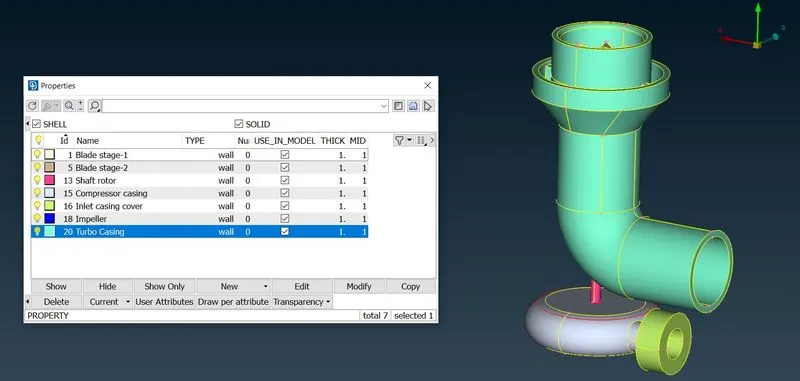
- Blade stage-1 = 1 mm
- Blade stage-2 = 1 mm
- Impeller = 2 mm
- Shaft rotor = 1 mm
- Turbo casing = 5 mm
- Compressor casing = 5 mm
- Inlet casing cover = 5 mm
- Perform Volumetric mesh
- Prepare a detailed report on the procedure followed for the Surface meshing and Volumetric meshing.
Procedure:-
- Import the required ANSA file on which mesh has to be generated.
- Conduct a geometry check. Initially, there will be geometrical errors and intersection errors in the given model.
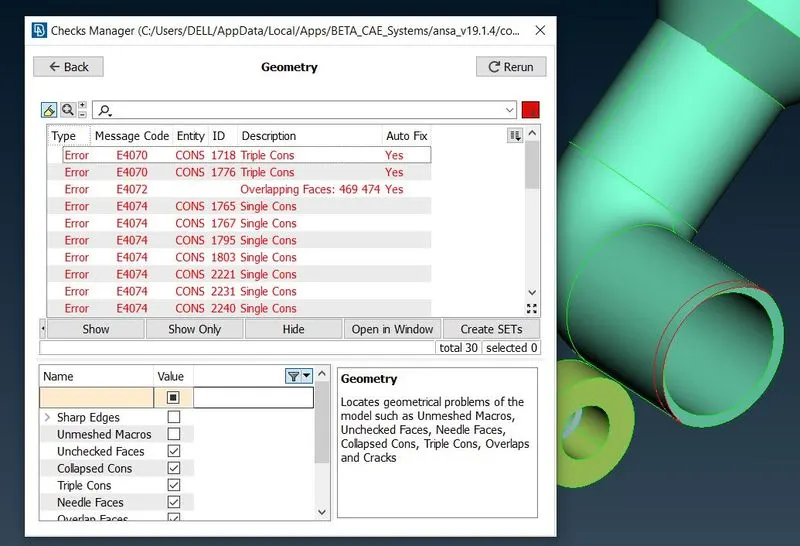
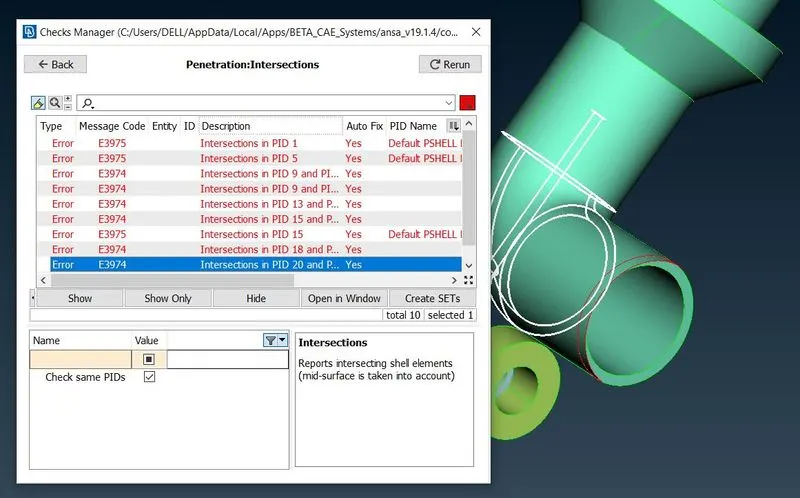
- Start with deleting any overlapping surfaces using the universal delete tool from MENUBAR.
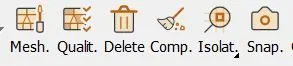
- Then start clearing single con errors by using the "Fill Hole" tool and "New" option under the Faces section as per the requirement.
- In the case of an extended surface, delete the surface and create a new one.
- In the region where the above 2 options cannot be used, we can implement the "Transform" tool from MENUBAR. Select the entity after clicking the "Transform" option and select 'Mirror 3 points plane' under the symmetry tab. Select 3 hot points and click the middle mouse button. It will create a new surface.
- Delete all the unnecessary surfaces inside the shaft rotor so as to avoid any complications during volumetric mesh. Delete all the overlapping surfaces to convert them into double cons.
- After the required geometry cleanup, conduct a geometry check. We can ignore triple con errors if it is a part of geometry.
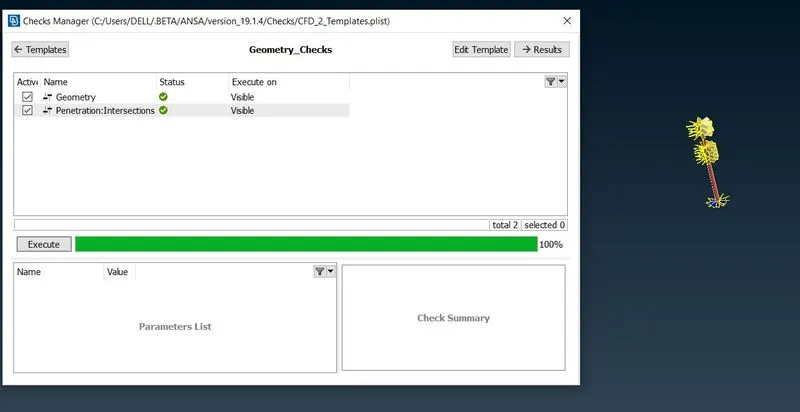
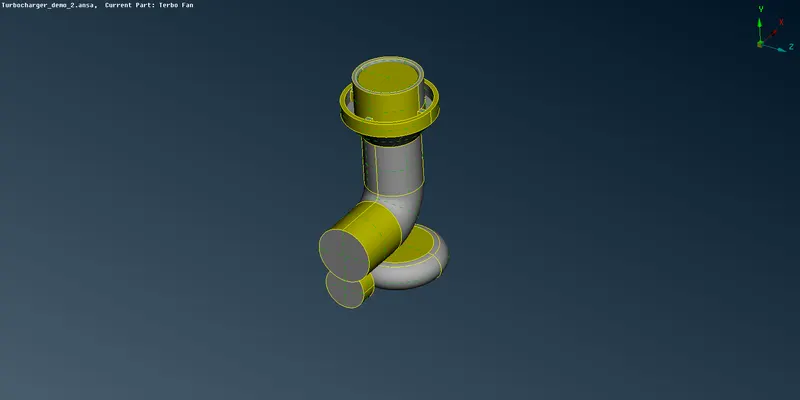
- Now we can start assigning PIDs for individual components as per the challenge statement.
- Now we can move on to the surface mesh generation part. For that, we need to enter the target length under both mesh parameters and the quality criteria section. Then proceed to the Length under the Perimeters section and enter the target length for both Macros and Perimeters.
- We need to mesh every component individually as per the challenge statement. Start from Blade stage 1 and Blade stage 2 and freeze the mesh once it is generated. This is done to avoid any interference on the common surfaces shared by 2 components.
- Once the entire mesh generation process is completed, we can check node length using the Measurements option to make sure that the mesh created is under the target length.
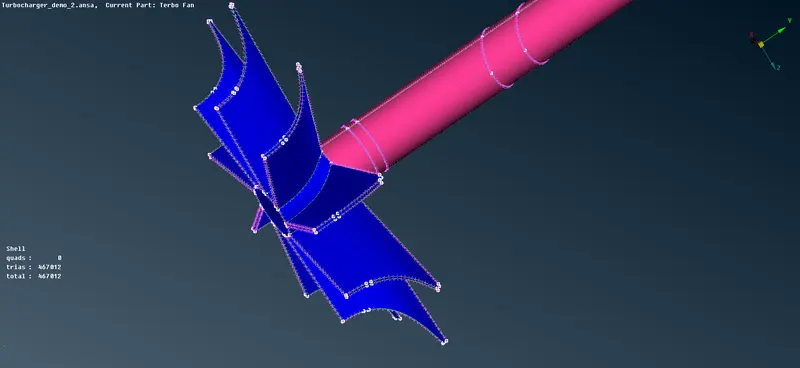
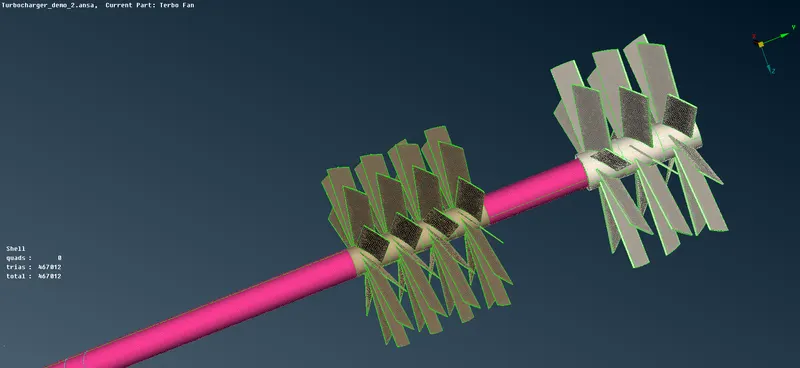
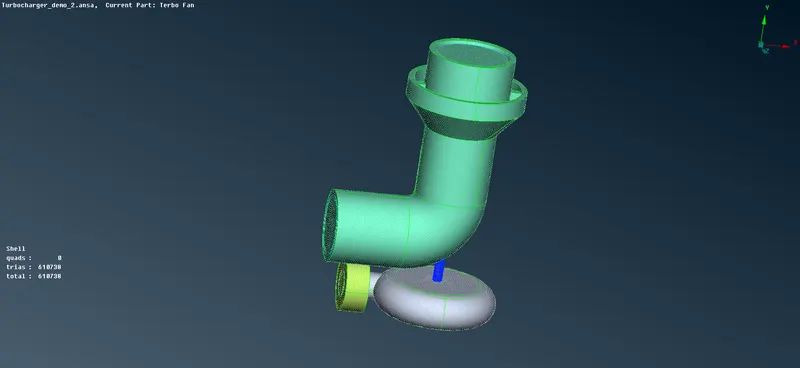
- Now we can move on to the volumetric meshing part.
- Under volumetric meshing, select the "Define" option. Select 'the whole db' in the pop-up window. This will auto-detect all the volumes present in the model.
- We can delete the unwanted volumes and keep the necessary ones where the fluid flow is anticipated.
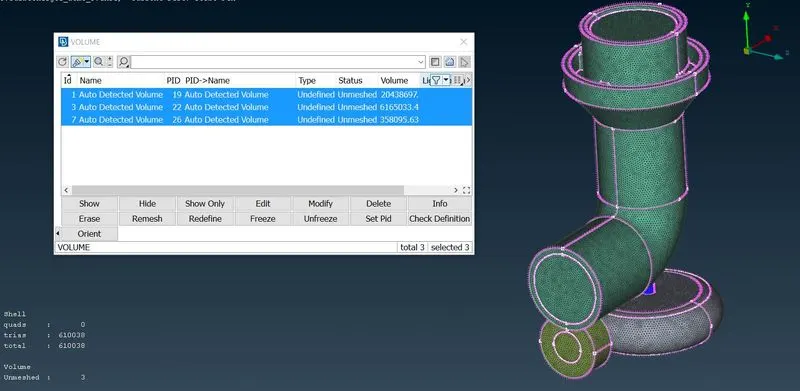
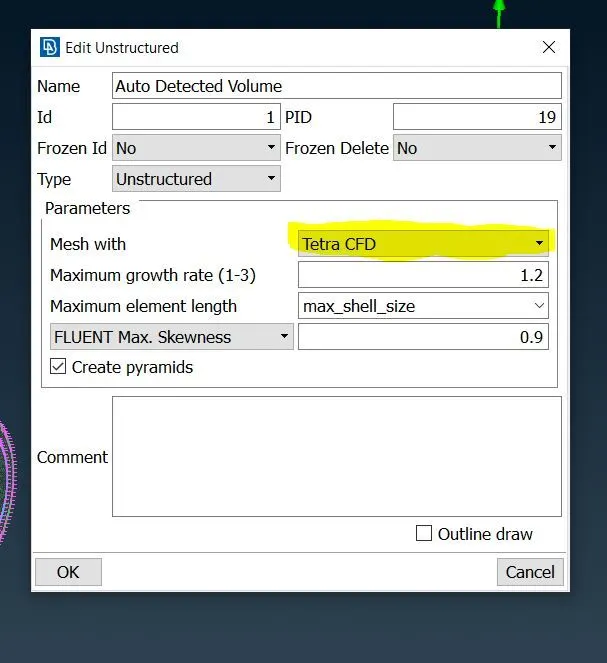
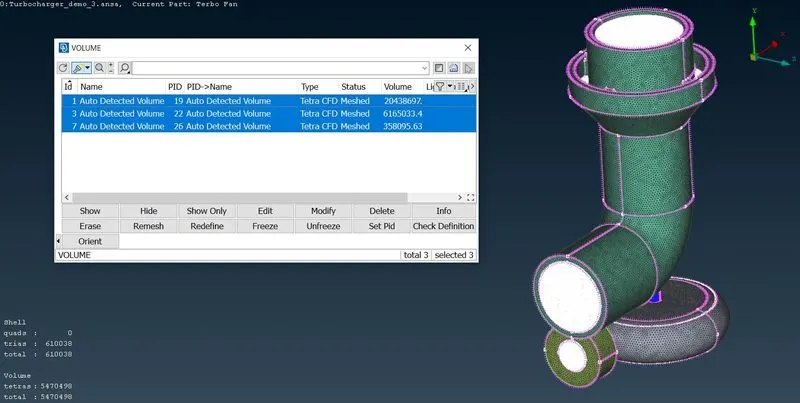
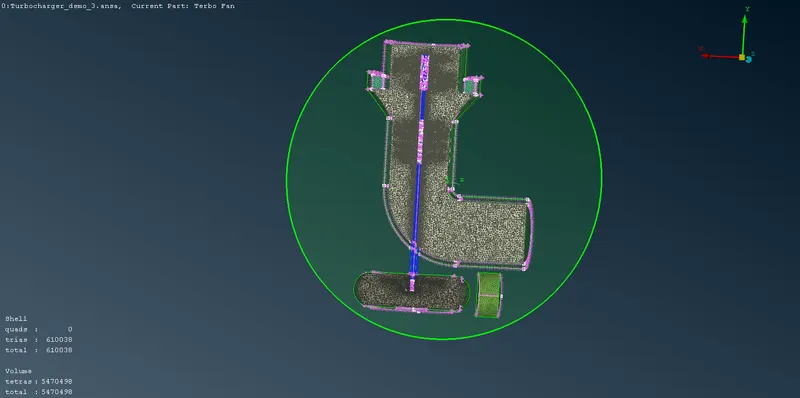
- Now double click on the type and select mesh with "Tetra CFD". Then generate volumetric mesh using the Remesh option.
Learning Outcomes:-
- Use of the universal delete option in order to delete the overlapping and unwanted surfaces.
- Use of Transform tool to create a new surface.
- Geometry cleanup by eliminating single con errors.
- Assigning PIDs.
- Surface mesh generation of individual components and the use of the "Freeze/Un" tool to maintain mesh length at common surfaces.
- Familiarization with the volumetric mesh module.
- Identifying the required fluid volumes and deleting the unwanted ones.
- Volumetric mesh generation and use of "Cut plane" to view the cross-section.
Results:-
- Geometry cleanup was done on the given ANSA model.
- Surface mesh generation was conducted as per the given challenge statement and target lengths.
- Volumetric mesh generation for the required volumes was generated.
Conclusion:-
- Universal delete option can be used to remove overlapping surfaces.
- Surface meshing should be performed first in order to conduct a volumetric mesh.
- Different mesh lengths tend to give errors at the common surface of 2 components. we can either use the freeze option or give a range to the mesh.
Google drive link -- https://drive.google.com/file/d/1GCaqifnQTR0arCpEhHyP9mhSv16NUXqk/view?usp=sharing