Week-3 Challenge: ADVISOR Tool
Advisor Tool:
ADVISOR (Advanced vehicle simulator)was created in the MATLAB/Simulink environment.ADVISOR uses three primary graphical user interface (GUI) screens to guide the user through the simulation process. With the GUIs, the user can iteratively evaluate the impacts of vehicle parameters and drive cycle requirements on the vehicle performance, fuel economy, and emissions.
Advisor tool have 3 windows:
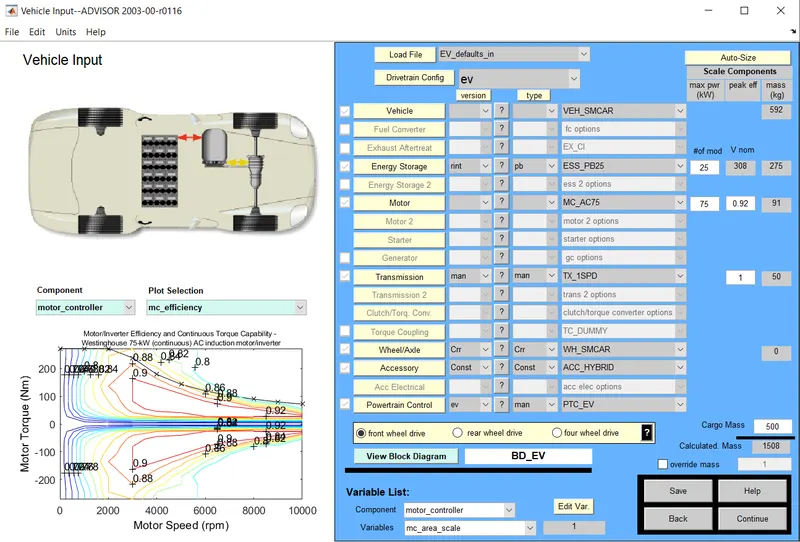
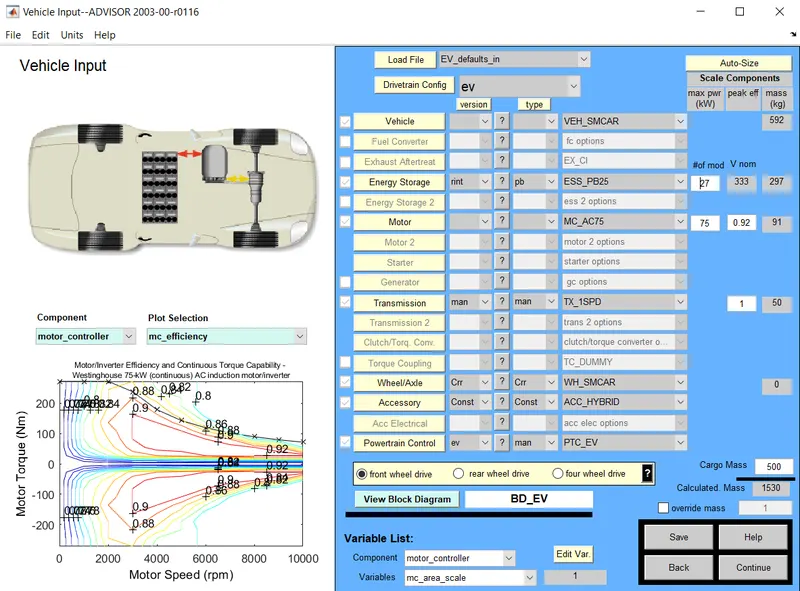
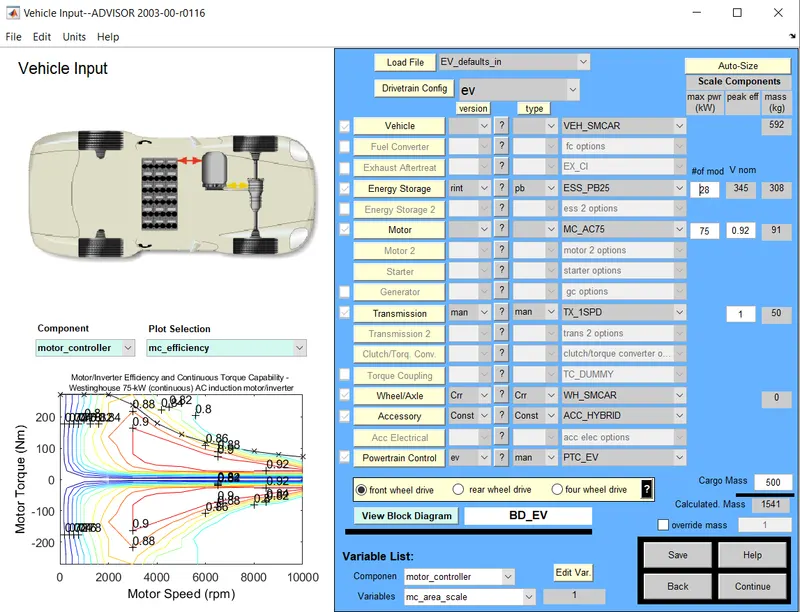
1. Vehicle input:In the ADVISOR vehicle input window, the user ‘‘builds’’ the vehicle of interest. Pull-down menus are used to select a vehicle configuration (i.e. series, parallel,conventional, etc.), and the components that will compose the driveline.
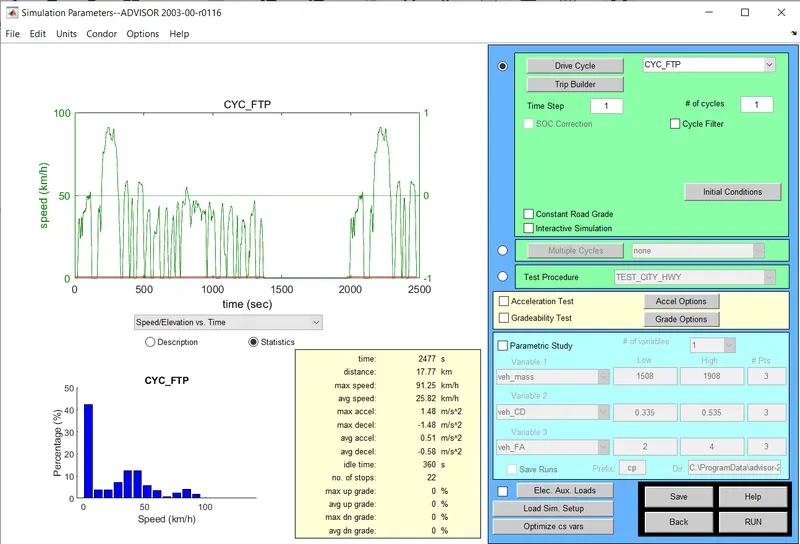
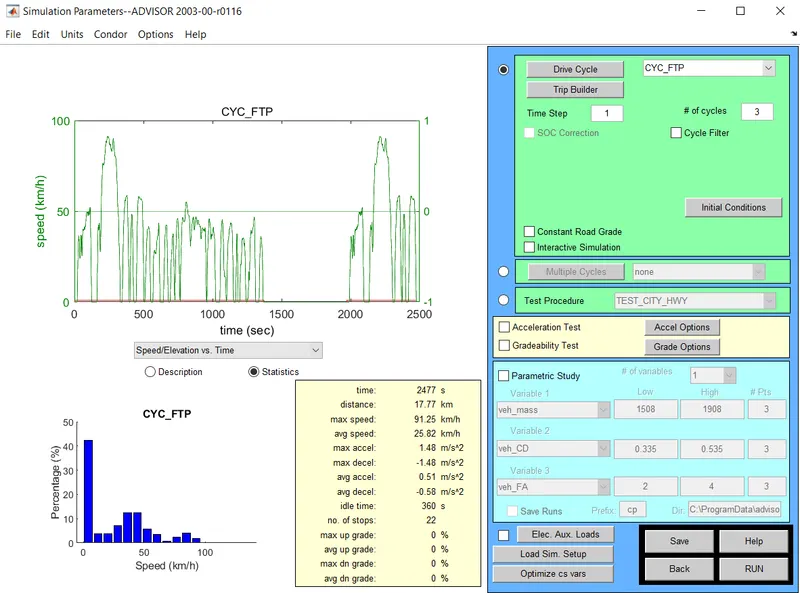
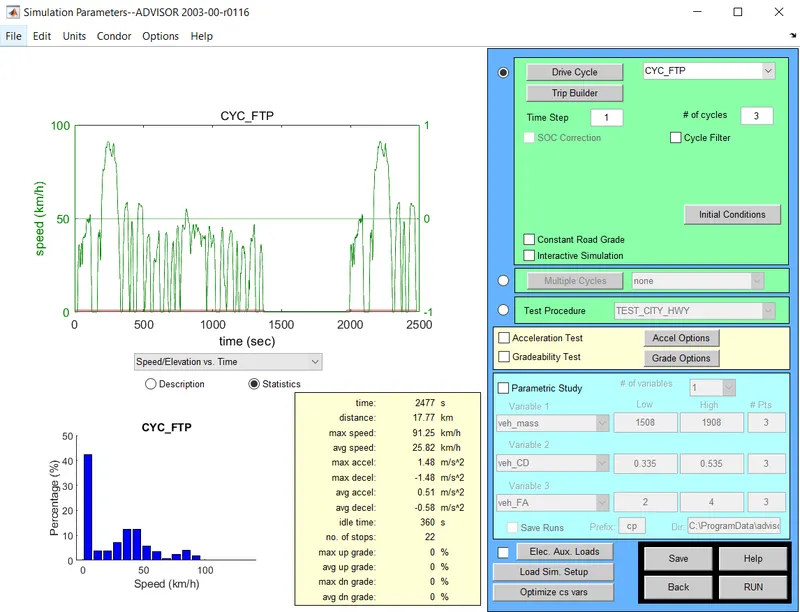
2.Simulation Parameters:In the ADVISOR simulation Parameters window ,the user defines the event over which the vehicle is to be simulated. Some of the events that may be simulated include a single drive cycle, multiple cycles, and special test procedures. Again, in the right portion of the window, the user selects cycles and defines the simulation parameters while in the left portion; information about the selections is provided.
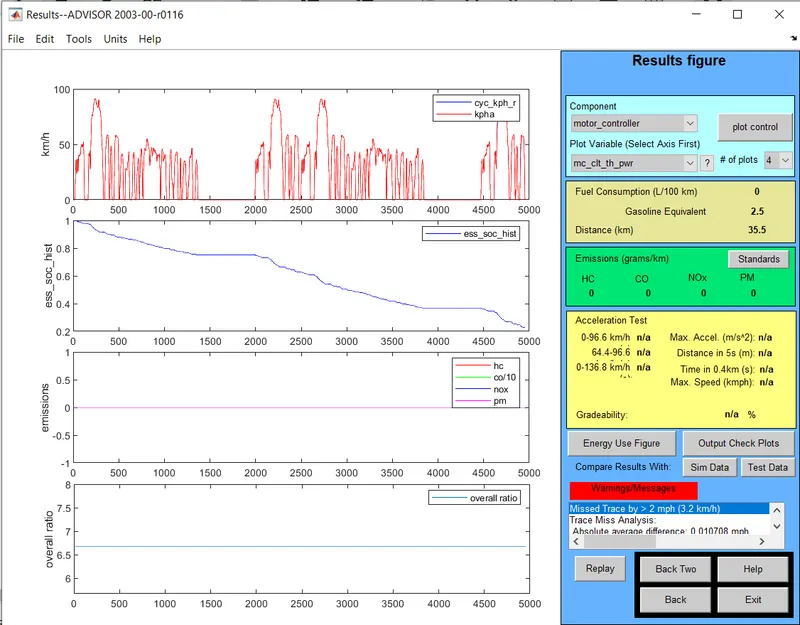
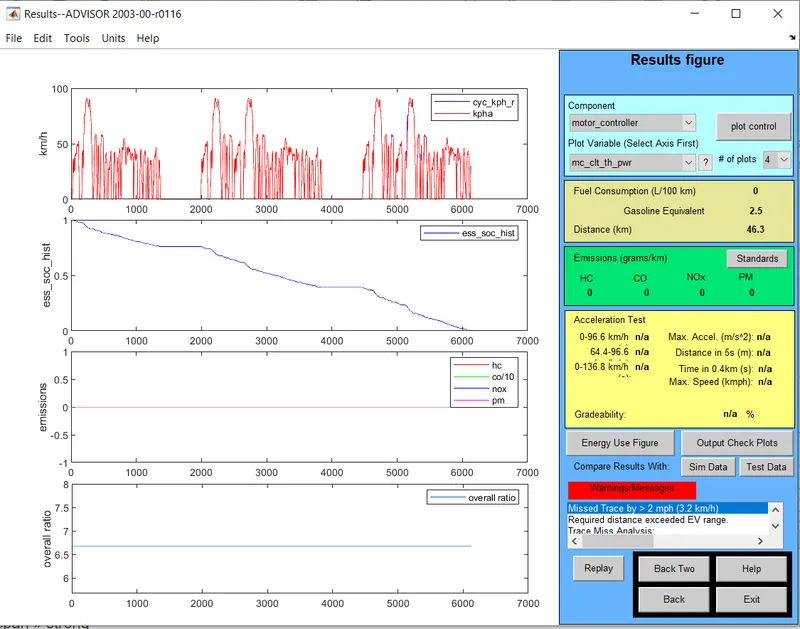
3.Results:The ADVISOR results window , provides the ability to review the vehicle performance, both integratedover a cycle and instantaneously at any point in the cycle. On the right portion of the window, summary results such as fuel economy and emissions are provided. In the left portion, the detailed time-dependent results are plotted. The results displayed on the left can be dynamically changed to show other details (e.g. engine speed, engine torque, battery voltage, etc.) using the pull-down menus in the upper right portion of the window.
To start Advisor tool in MATLAB:
- Download the Advisor tool and open the advisor(.m) file in MATLAB and add path to the MATLAB folder.
- In the command window type 'advisor' and run the program.
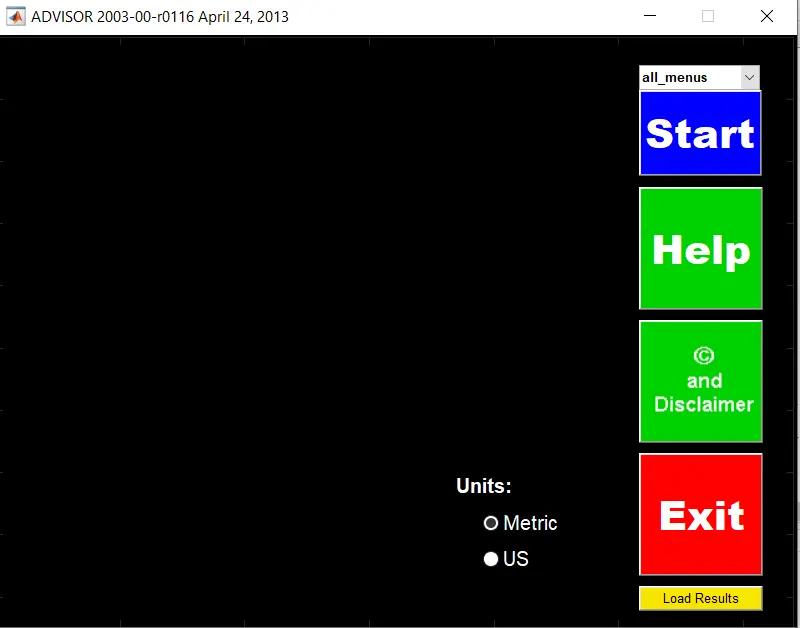
- Advisor tool start window pop up and change the units to metric and click on start button.
Study1: To check the vehicle travel for 45km with FTP cycle and other given conditions
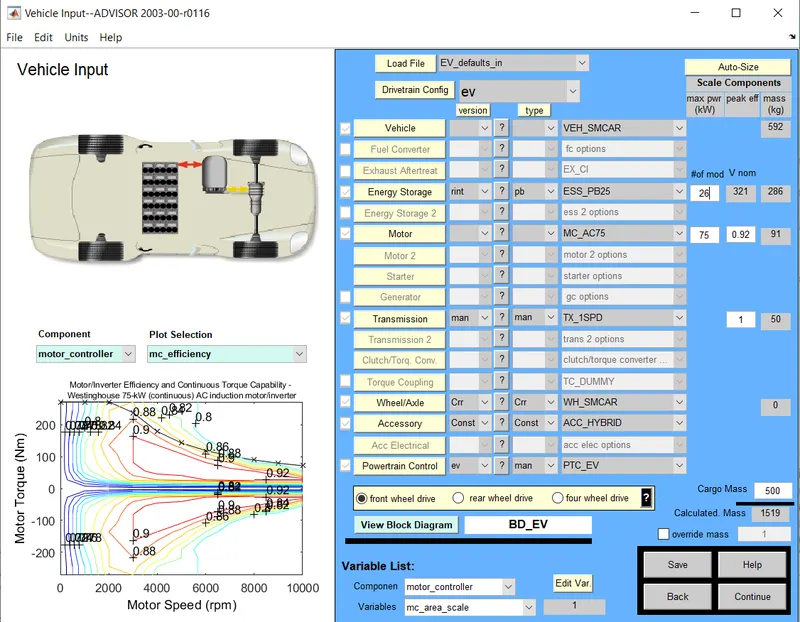
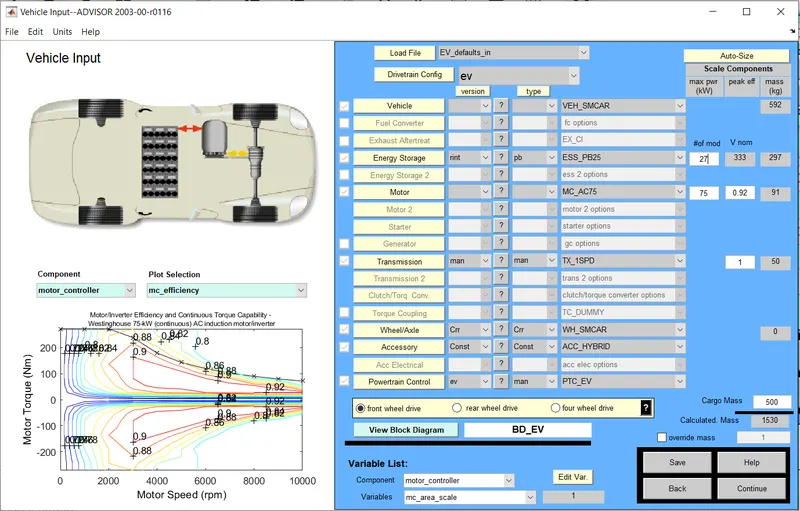
- After opening Advisor tool in MATLAB we need to select the file in the 'load file' as 'EV_defaults_in
- Cargo mass of 500kg is an input
- By clicking continue the simulation parameters opens.
Drive cycle 1:
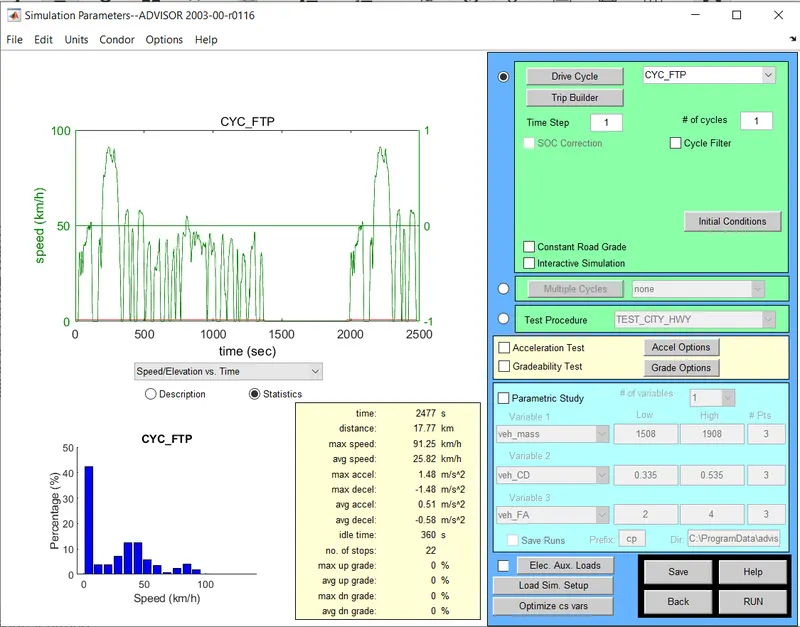
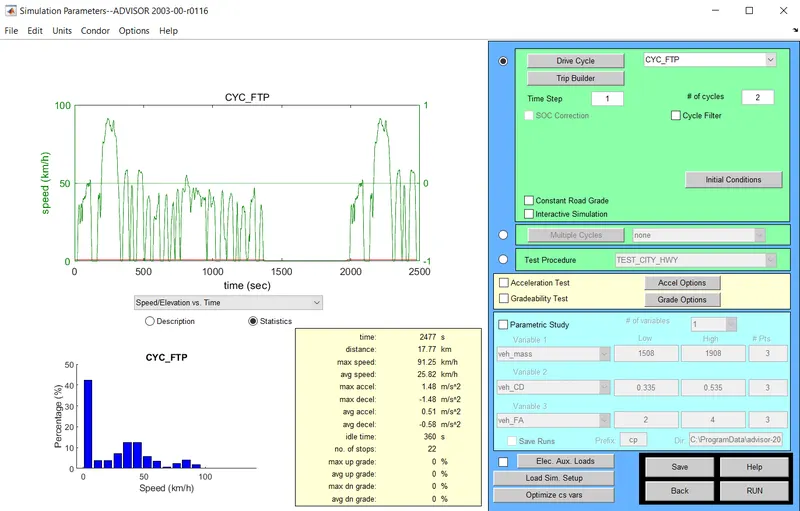
- As already given we need to change the drive cycle to 'CYC_FTP
- And no. of cycles to be given and click 'RUN' to see the vehicle can travel 45km.
- If it is not travelled 45km we will increase the no.of drive cycles untill it reaches the given condition.
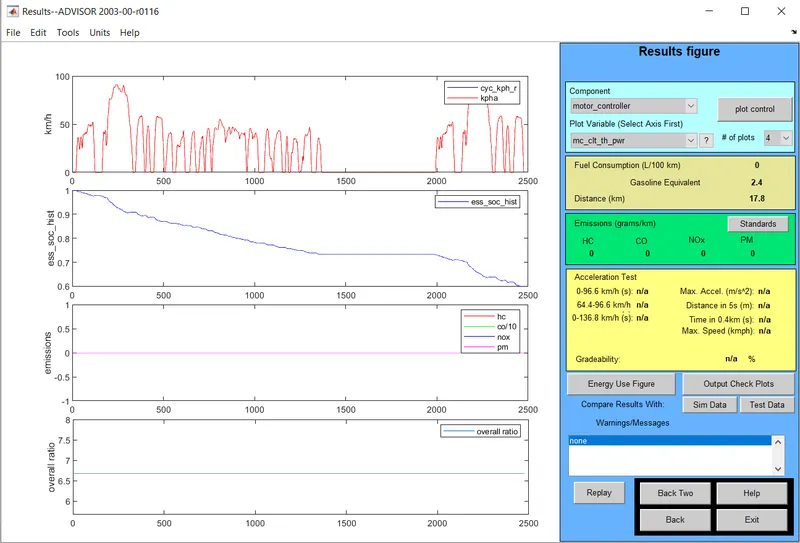
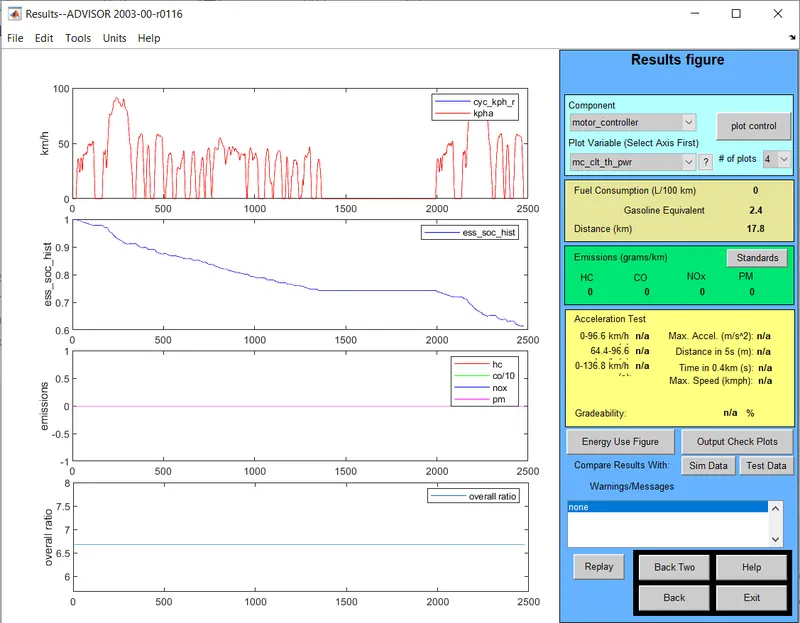
- With one drive cycle , the vehicle covered the distance of 17.8km
Drive cycle 2:
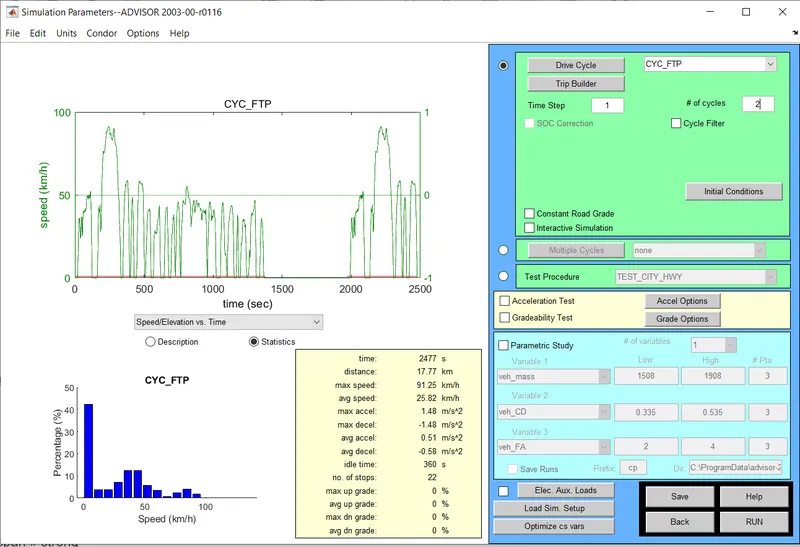
- change the no. of cycles to 2 and click on 'RUN' button.
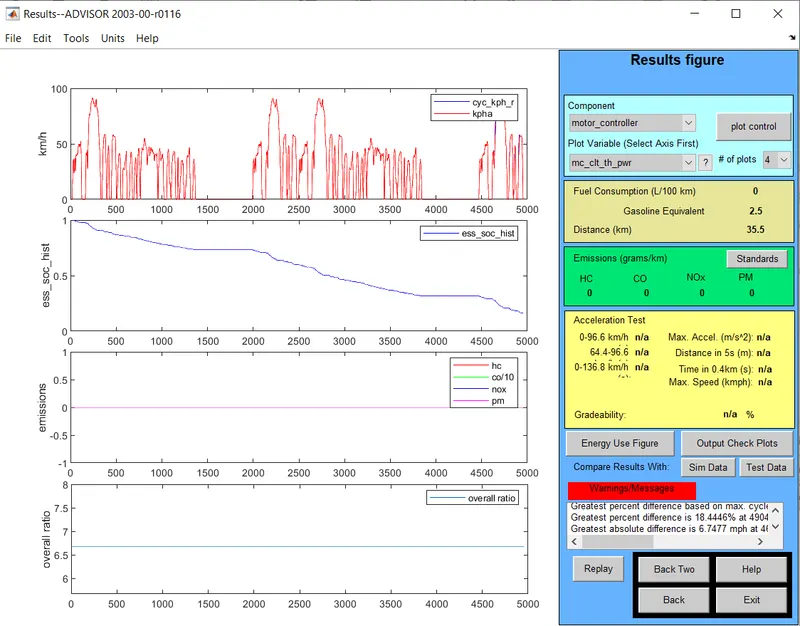
- With 2 drive cycles it has covered the distance if 35.5km
Drive cycle 3:
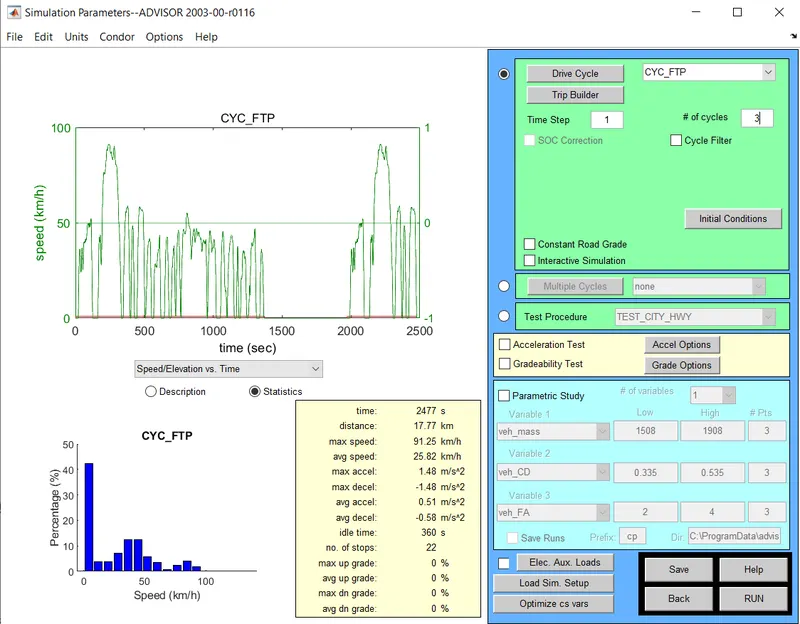
- change the drive cycle to 3 and run the model.
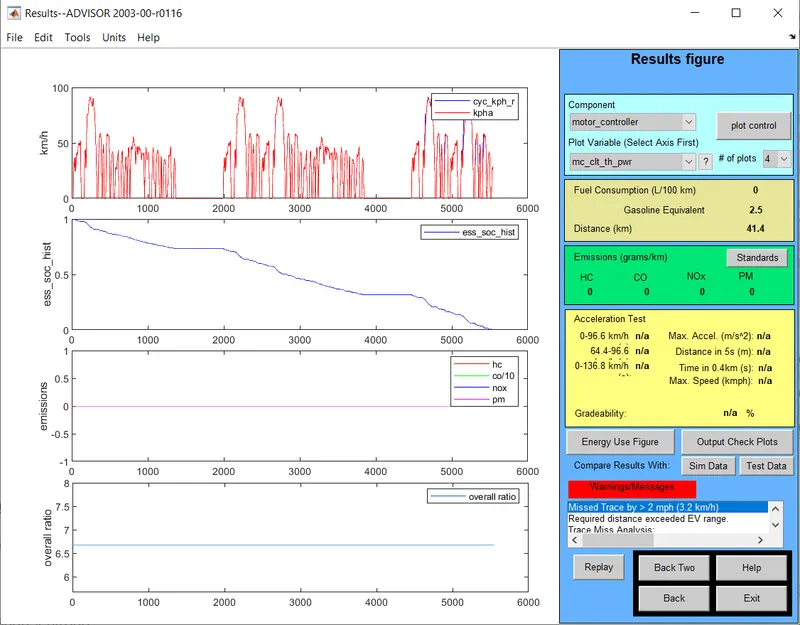
- with 3 drive cycle it covered the distance of 41.4km
conclusion:
With the given condition the vehicle cannot travel the distance of 45km
| cargo_mass(kg) | Drive cycle | No. of Drive cycle | Distance travelled |
| 500 | CYC_FTP | 1 | 17.8 |
| 500 | CYC_FTP | 2 | 35.5 |
| 500 | CYC_FTP | 3 | 41.4 |
Study 2: Changing the battery capacity , simulaton is repeated for the above conditions:
- To the same file we are changing the battery capacity by giving the inputs to the energy storage
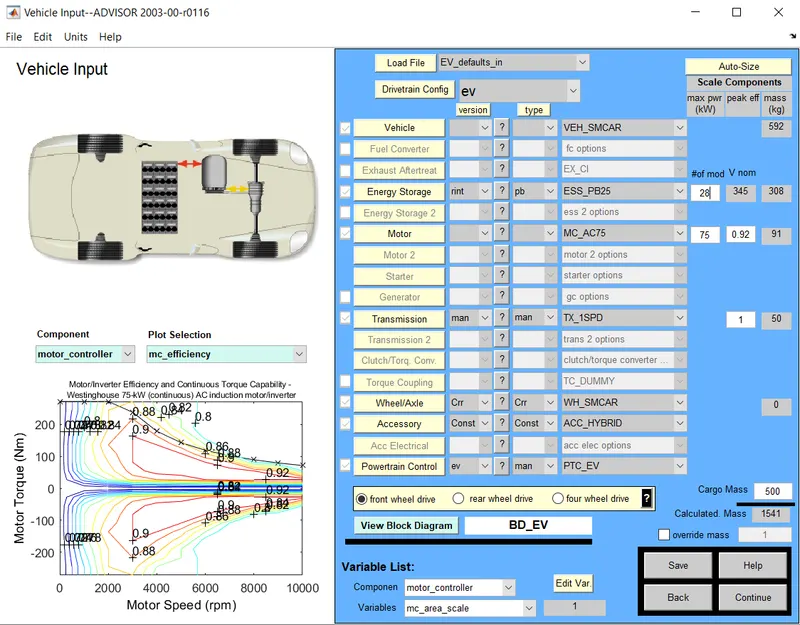
- In the 'Energy storage' the no. of modules are to be changed for simulation.
- For no.of modules , no. of drive cycle also to be given and simulation is done
- In this study , the no. of modules given as follows
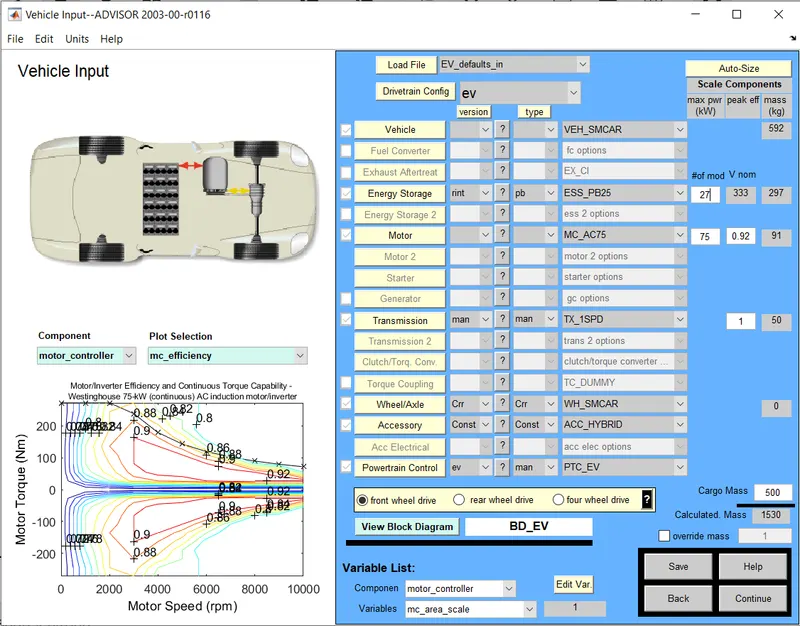
- we have considered the no. of modules as 26,27,28 and drive cycle 1,2,3
- For each module all the three drive cycles are to be simulated and observe the distance covered by the vehicle.
1.No. of modules :26 with drive cycle 1
2.No. of modules :27 with drive cycle 1
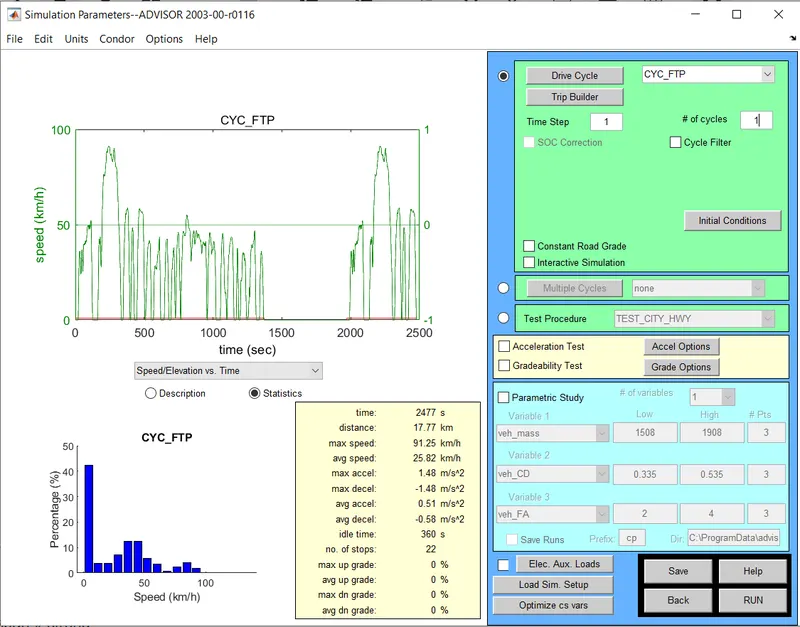
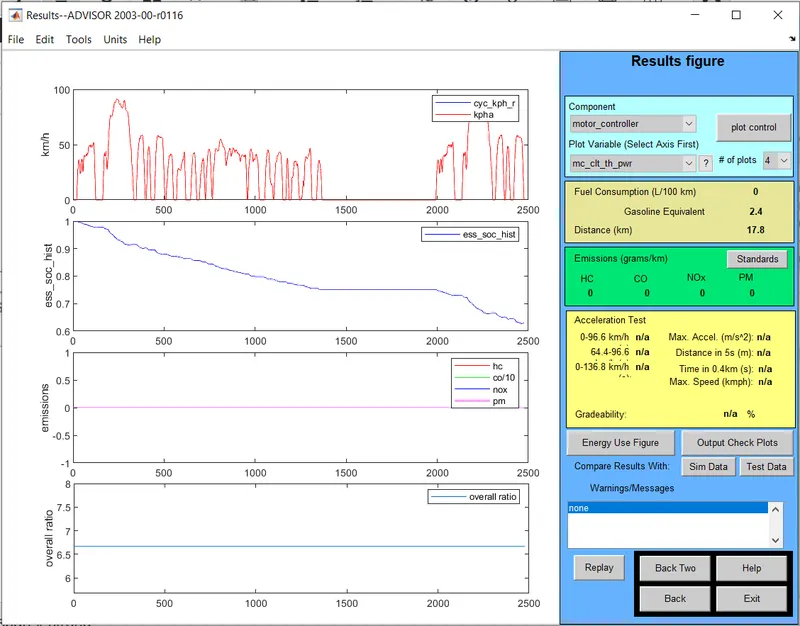
3.No.of modules:28 with drive cycle 1
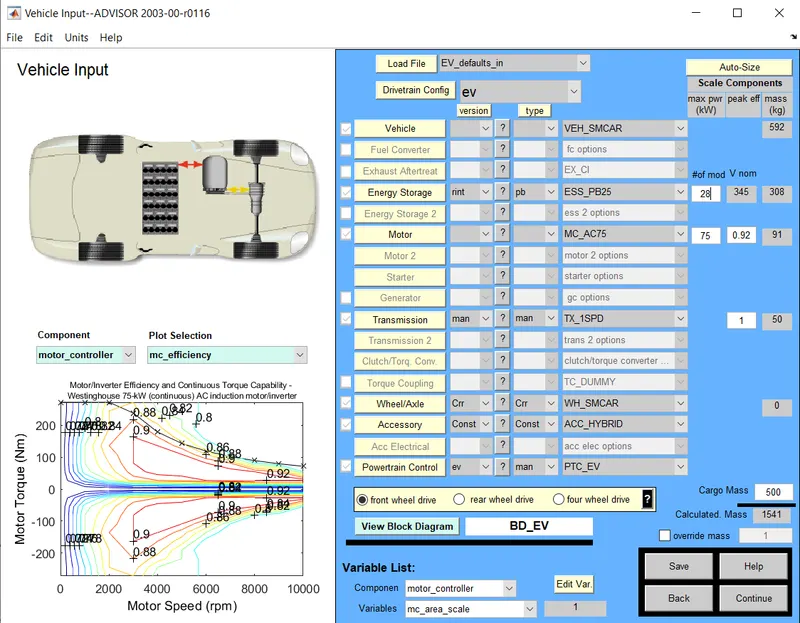
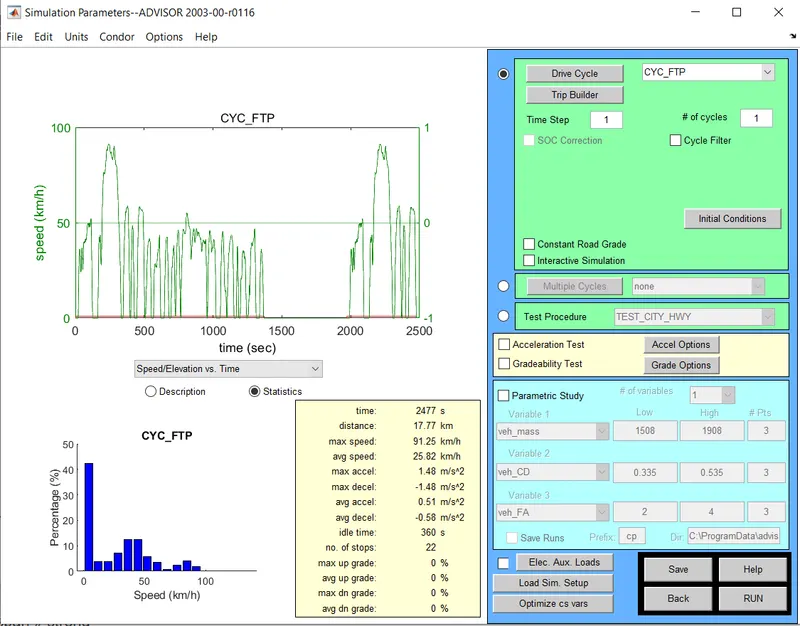
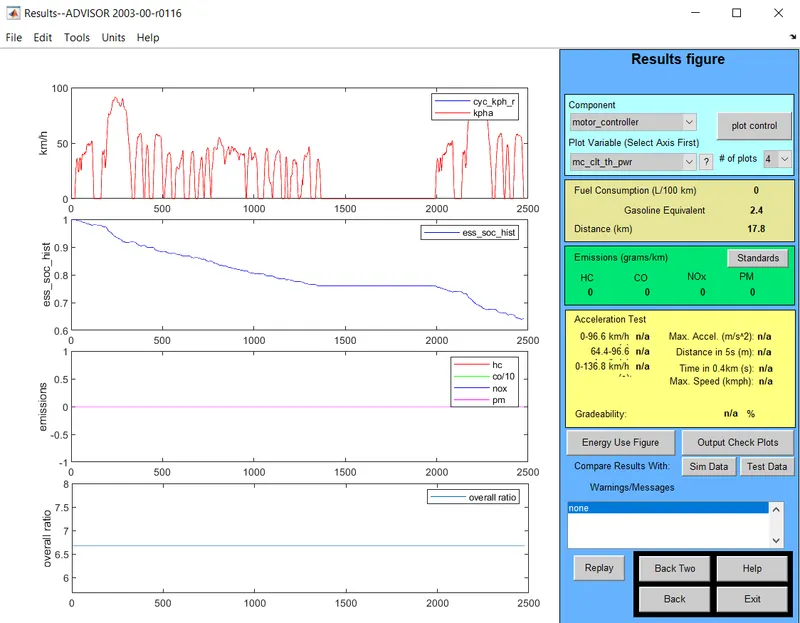
4.No. of modules :26 with drive cycle 2
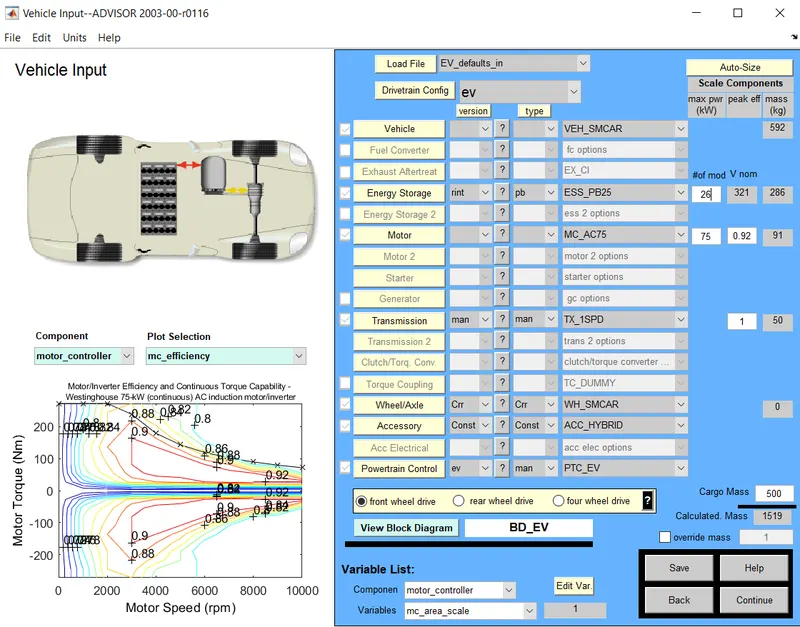
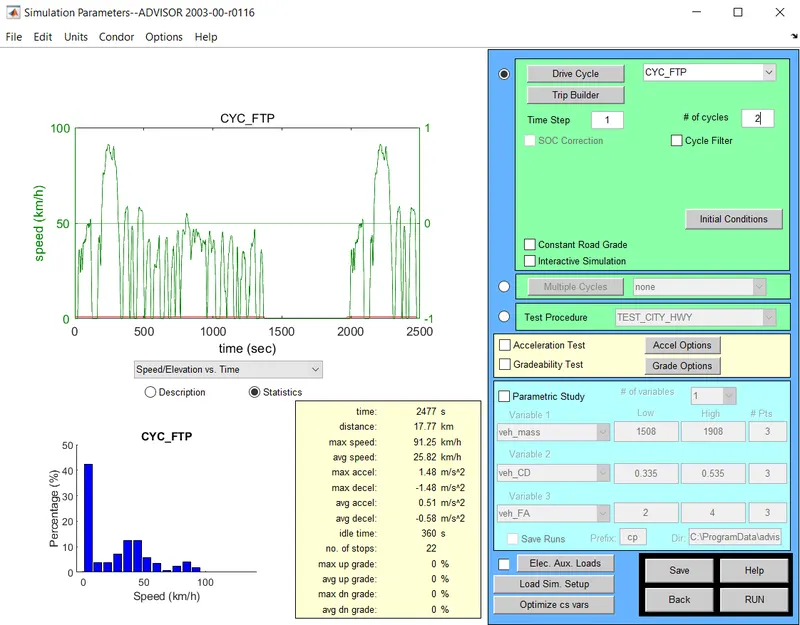
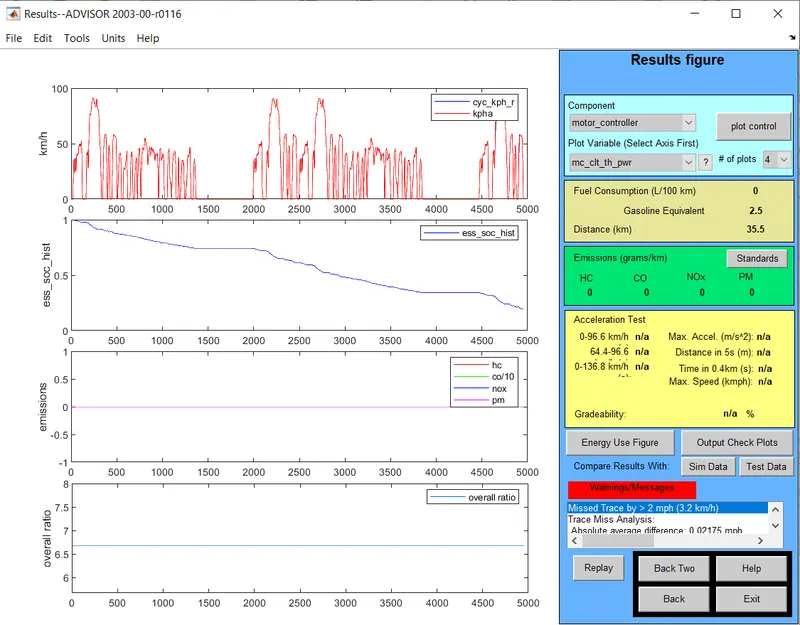
5.No. of modules :27 with drive cycle 2
6.No. of modules :28 with drive cycle 2
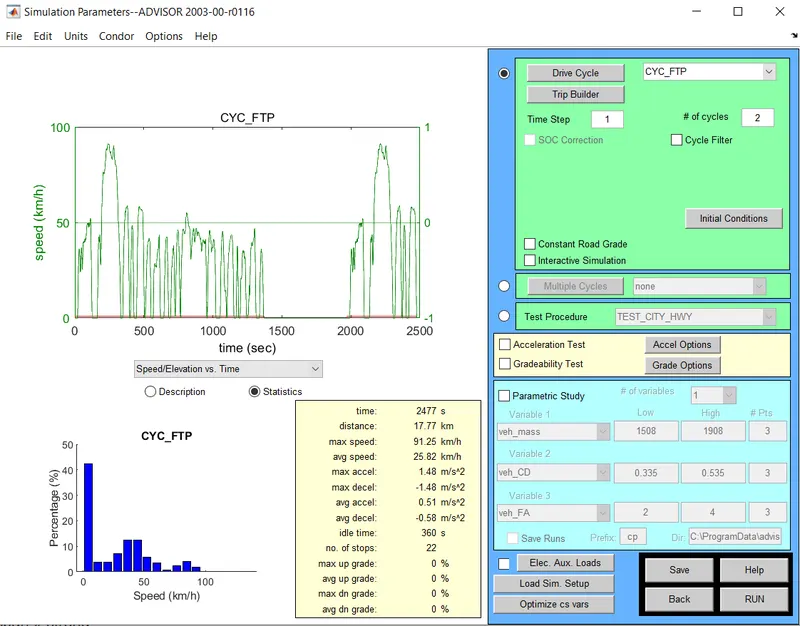
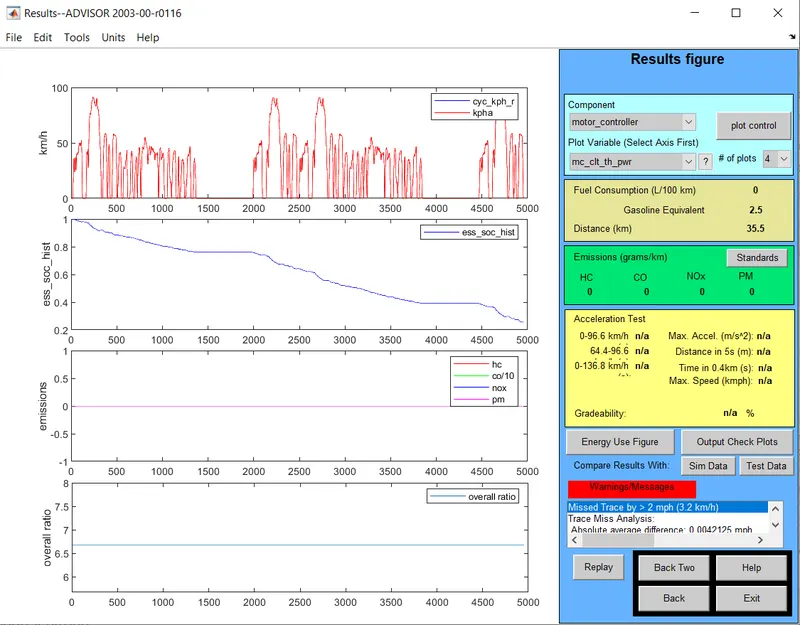
7.No. of modules :26 with drive cycle 3
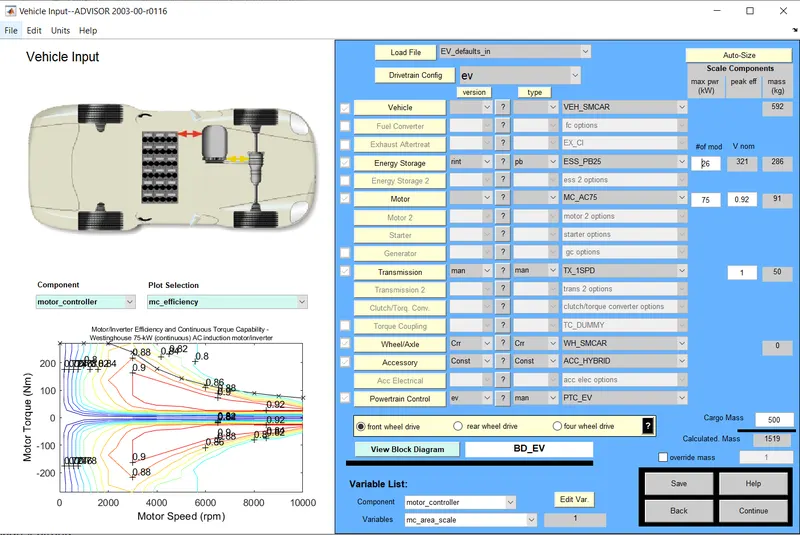
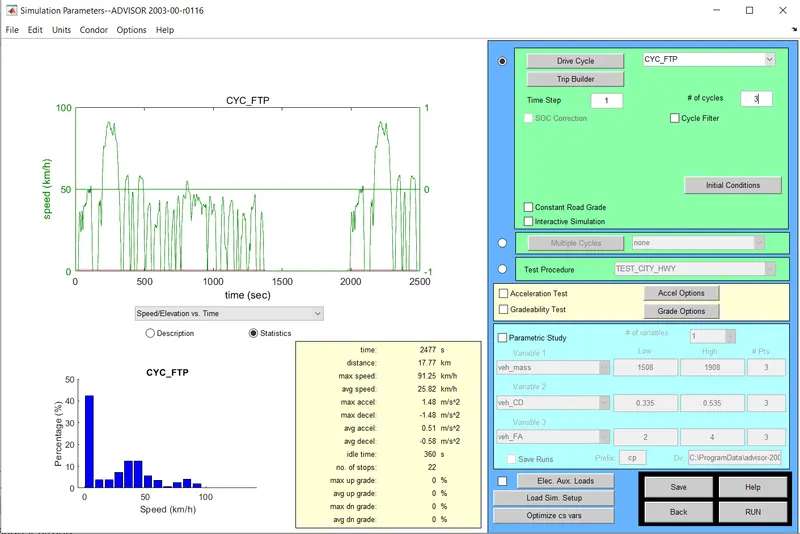
8.No. of modules :27 with drive cycle 3
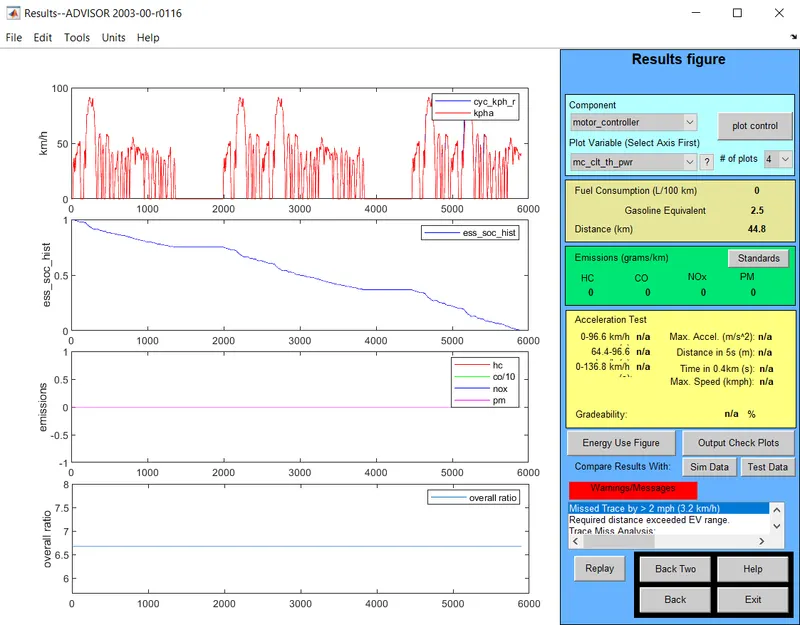
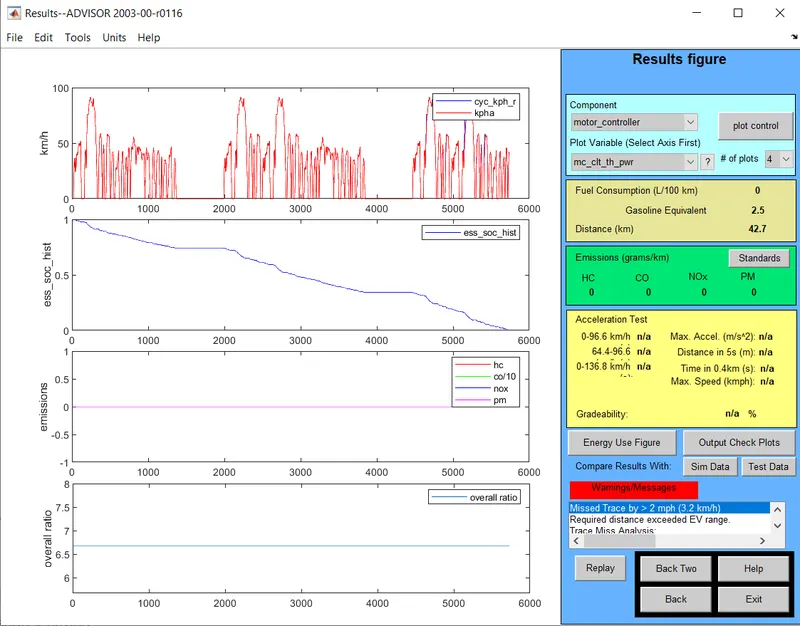
9.No. of modules :28 with drive cycle 3
Results:
| Drive cycle | No. of Drive cycle | No. of modules | voltage | Battery weight | Distance covered,km |
| CYC_FTP | 1 | 26 | 321 | 286 | 17.8 |
| CYC_FTP | 1 | 27 | 333 | 297 | 17.8 |
| CYC_FTP | 1 | 28 | 345 | 308 | 17.8 |
| CYC_FTP | 2 | 26 | 321 | 286 | 35.5 |
| CYC_FTP | 2 | 27 | 333 | 297 | 35.5 |
| CYC_FTP | 2 | 28 | 345 | 308 | 35.5 |
| CYC_FTP | 3 | 26 | 321 | 286 | 42.7 |
| CYC_FTP | 3 | 27 | 333 | 297 | 44.8 |
| CYC_FTP | 3 | 28 | 345 | 308 | 46.3 |
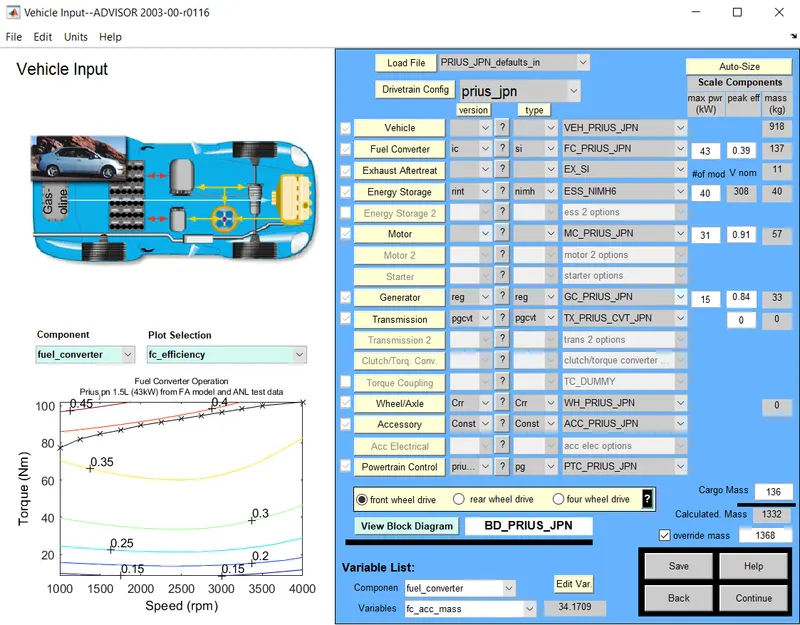
STUDY 3: Performing the Gradeability test for given load file 'PRIUS_JPN_defaults_in
- After opening the advisor tool from MATLAB , a vehicle input window will pop up
- In vehicle input, change the Load file to 'PRIUS_Jpn_defaults_in'
- By keep all other paramters same click on continue.
- Simulation paramters window will pop up.
- keeping the same drive cycle , select the gradeability and click on 'grade options'.
- Gradeability test advanced options will pop up.
- By changing the speed and duration the gradeability test can be performed.
- In this study keeping the duration 10sec constant we change the speed.
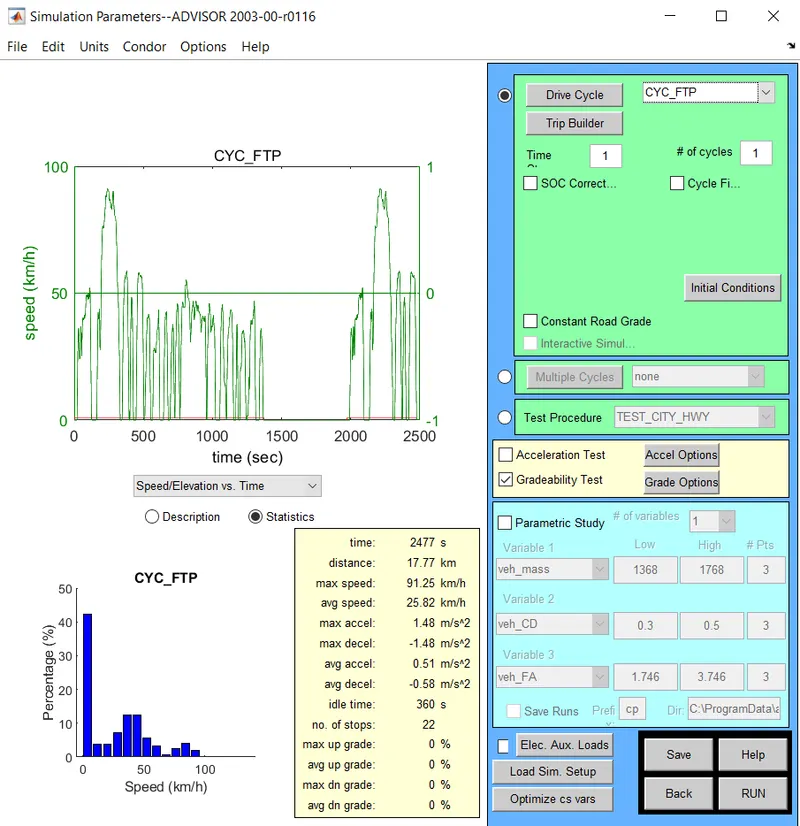
- Speed is changed to 55mph
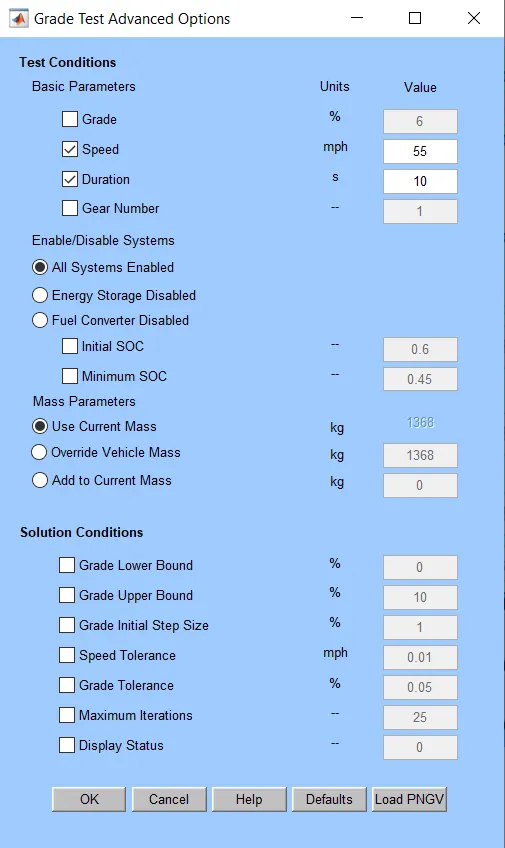
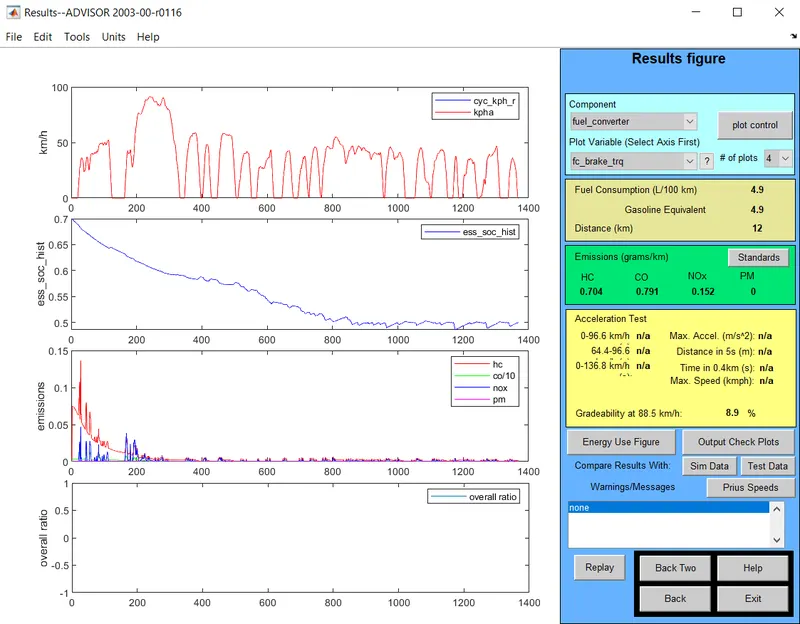
Gradeability observes at 88.5km/h is 8.9%
2.changing speed to 60mph
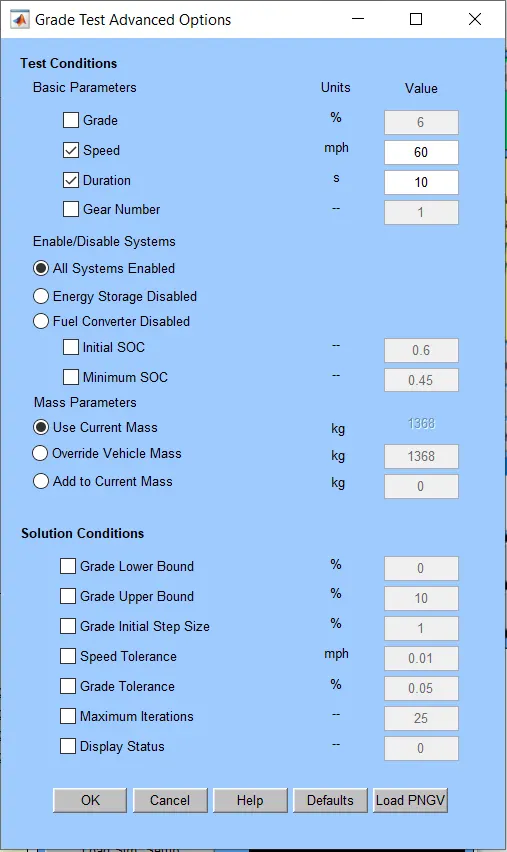
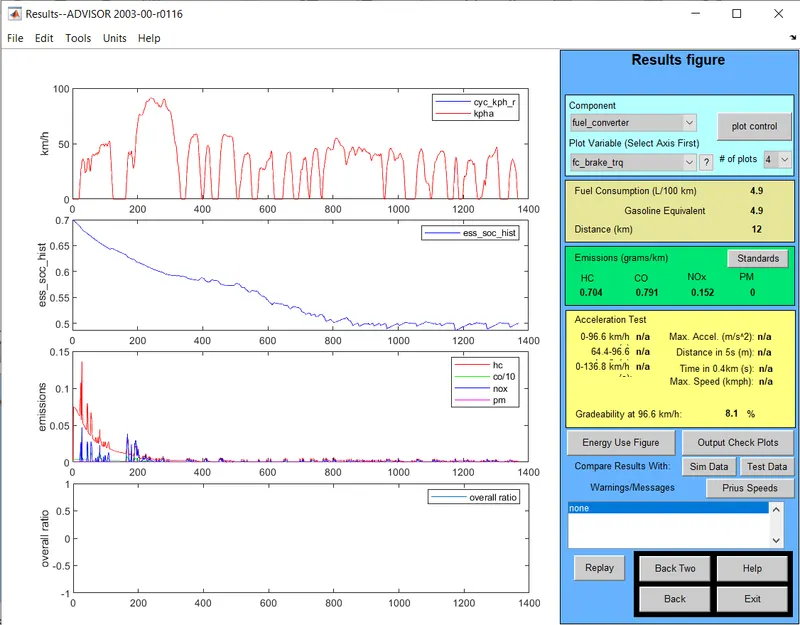
Gradeability observed at 96.6kmph is 8.1%
3.changing speed to 65mph
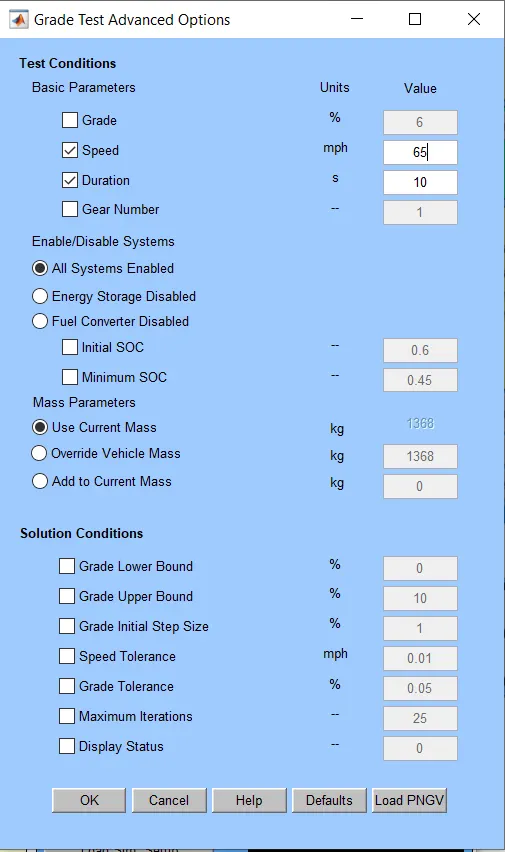
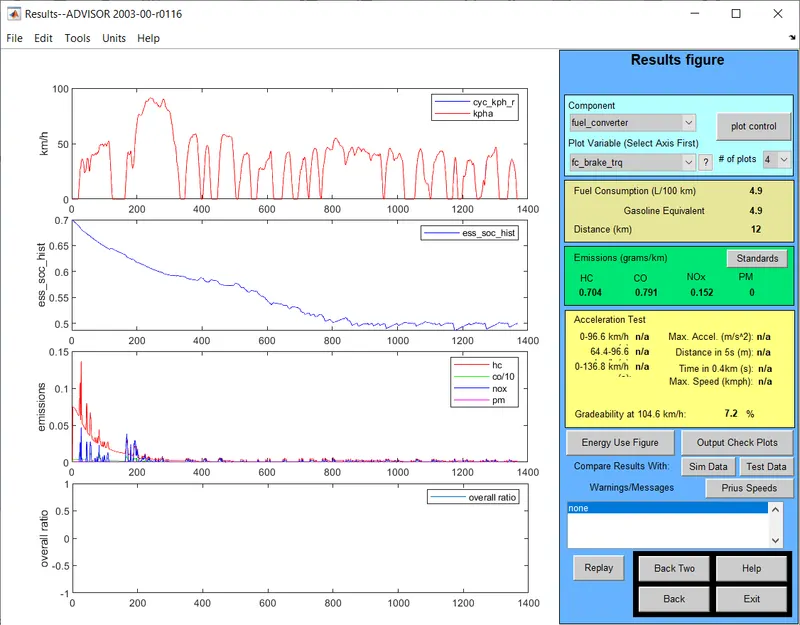
Gradeability at 104.6kmph is 7.2%
4.changing speed to 70mph
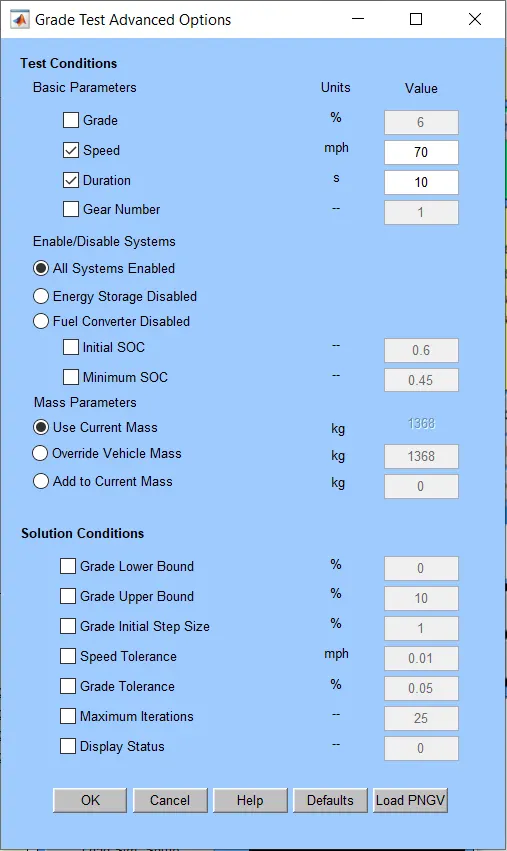
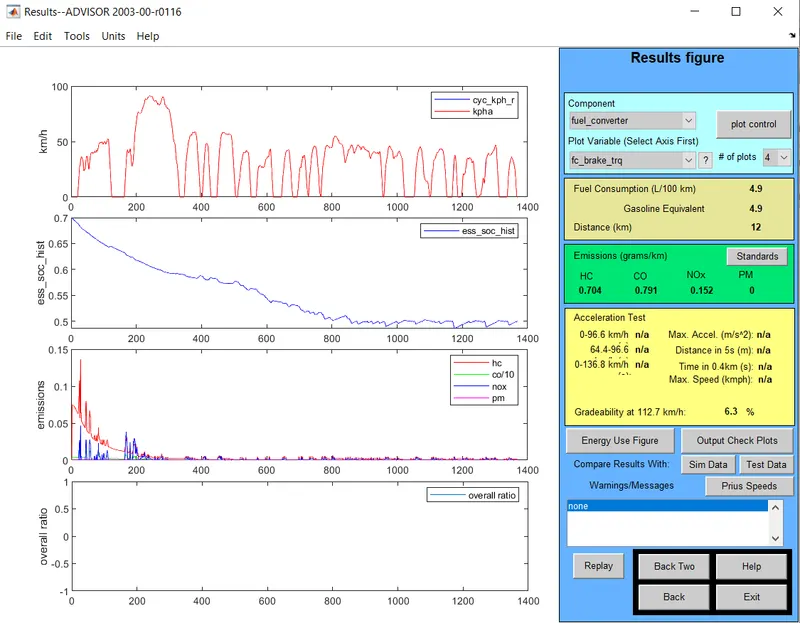
Gradeability at 112.7kmph is 6.3%
5.changing the speed to 55mph and duration to 20sec
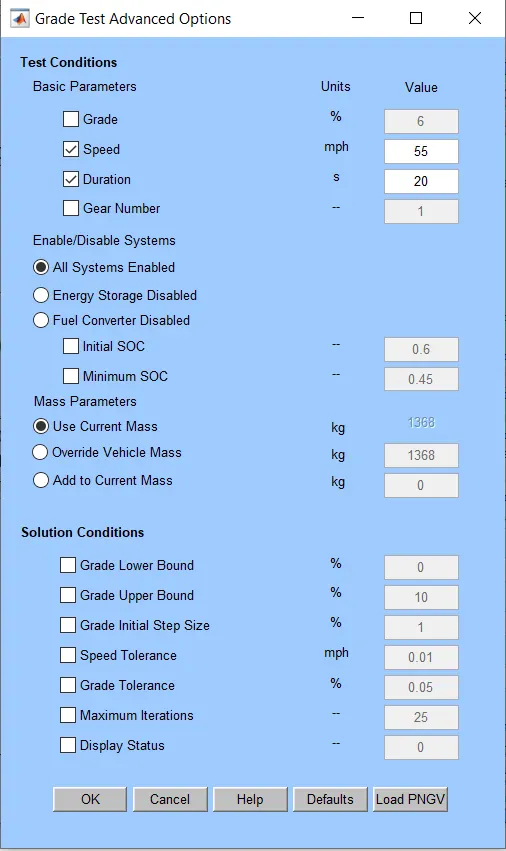
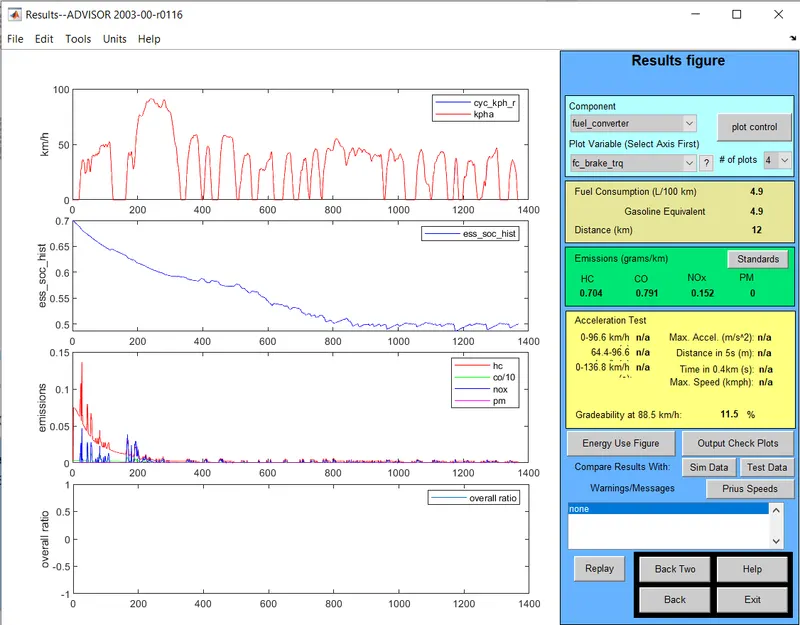
Gradeabillity at 88.5kmph is 11.5%
- speed changed to 60mph
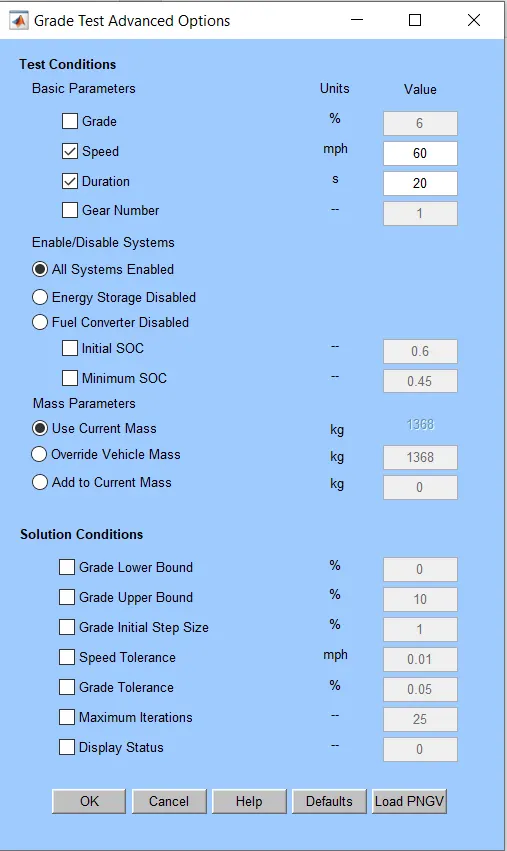
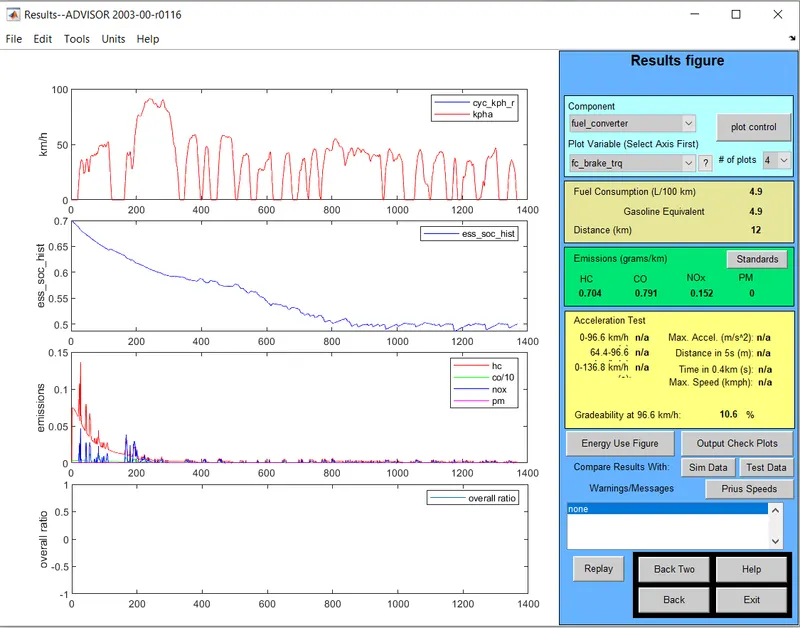
Gradeability at 96.6kmph is 10.6%
- speed changed to 65mph
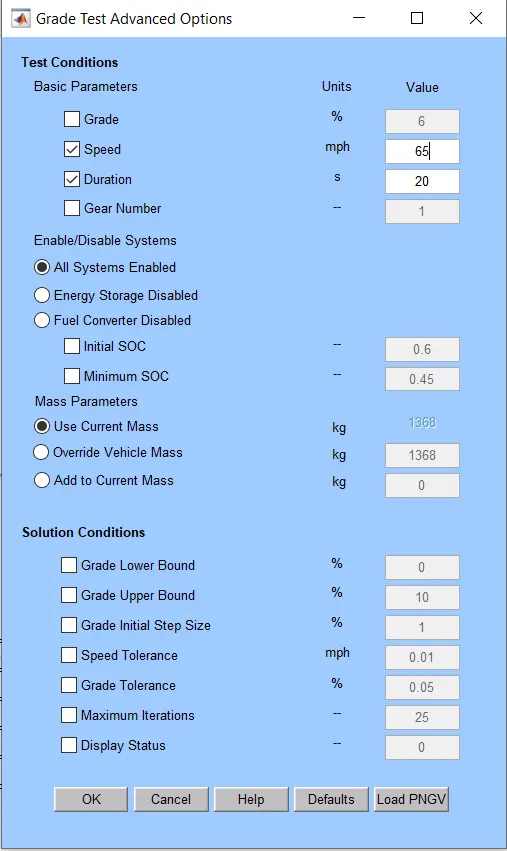
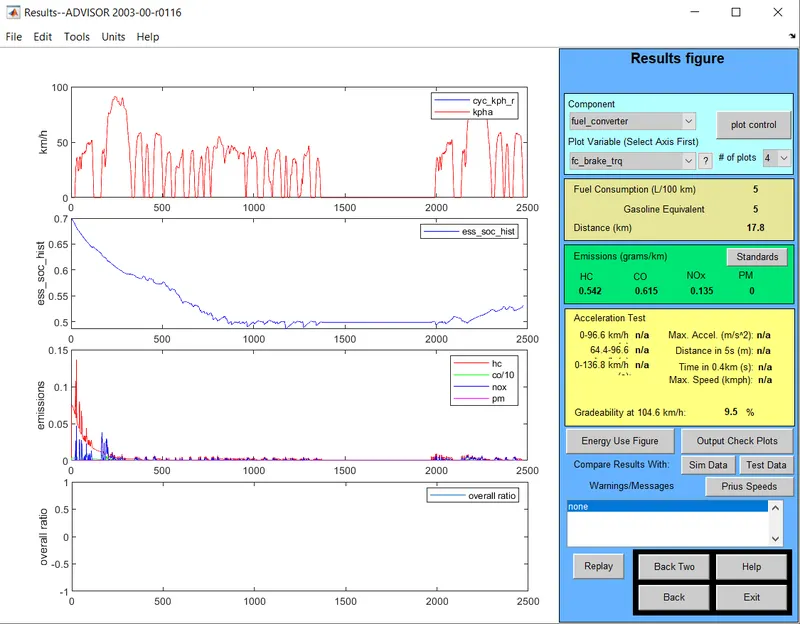
Gradeability at 104.6kmph is 9.5%
- speed changed to 70mph
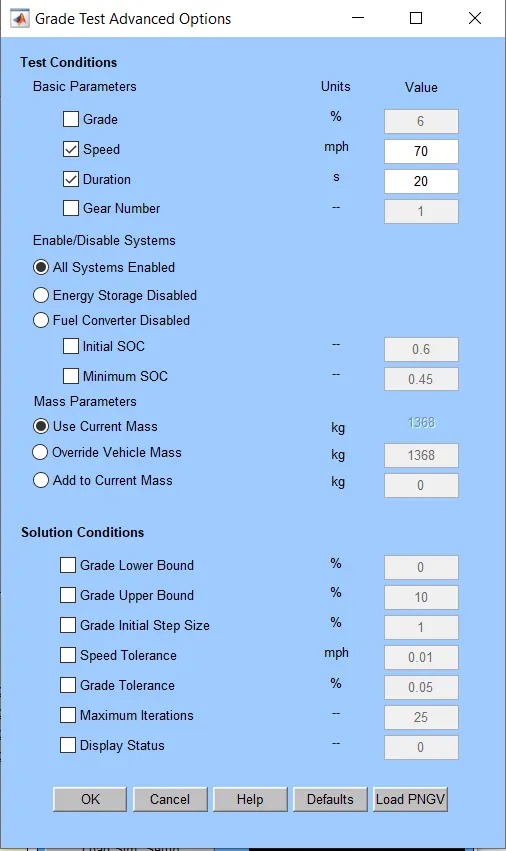
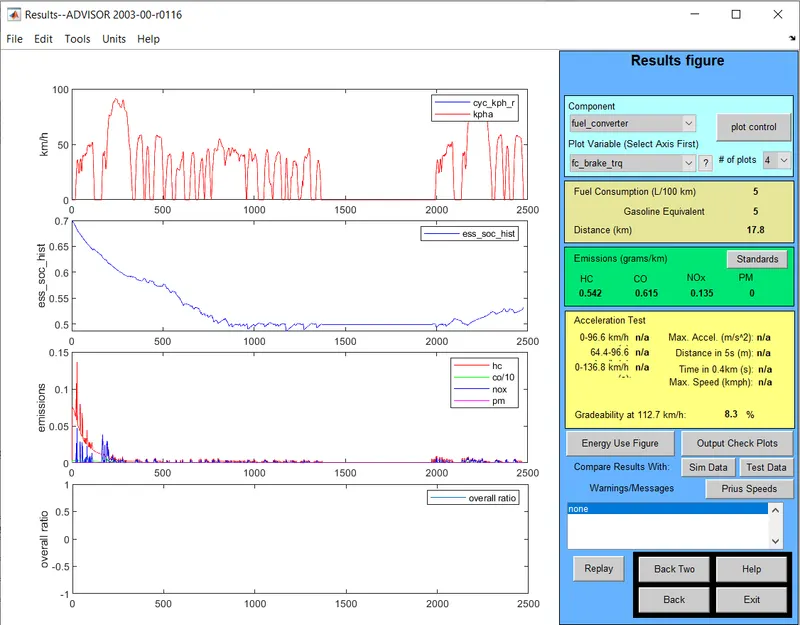
Gradeability at 112.7kmph is 8.3%
Comparison:
| speed, mph | speed, kmph | Gradeability,% |
| 50 | 88.5 | 8.9 |
| 60 | 96.6 | 8.1 |
| 65 | 104.6 | 7.2 |
| 70 | 112.7 | 6.3 |
| Speed,mph | speed,kmph | Gradeability,% |
| 50 | 88.5 | 11.5 |
| 60 | 96.6 | 10.6 |
| 65 | 104.6 | 9.5 |
| 75 | 112.7 | 8.3 |