REVIT_Usage of Elements & Properties_Week 3
1) Use the project file created from Week 2. Use it for this assignment. Based on your layout from week 2, using floor tool under architecture tab and select the floor with appropriate material and thickness using the property browser create a layout in the Ground floor Level. Align the floor plan with grids created from week 2
Aim:- Create floor layout and apply the properties of the floor as specified
Commands Used:-
Architectural command
Floor command
Property command
Edit property command
Procedure:-
Open the revit and then click file open week 2 file
Select the architectural command in ribbon bar
select the floor command and select floor architectural
In the property select the floor finish and click edit
In the edit specify the thickness of the floor and the materials
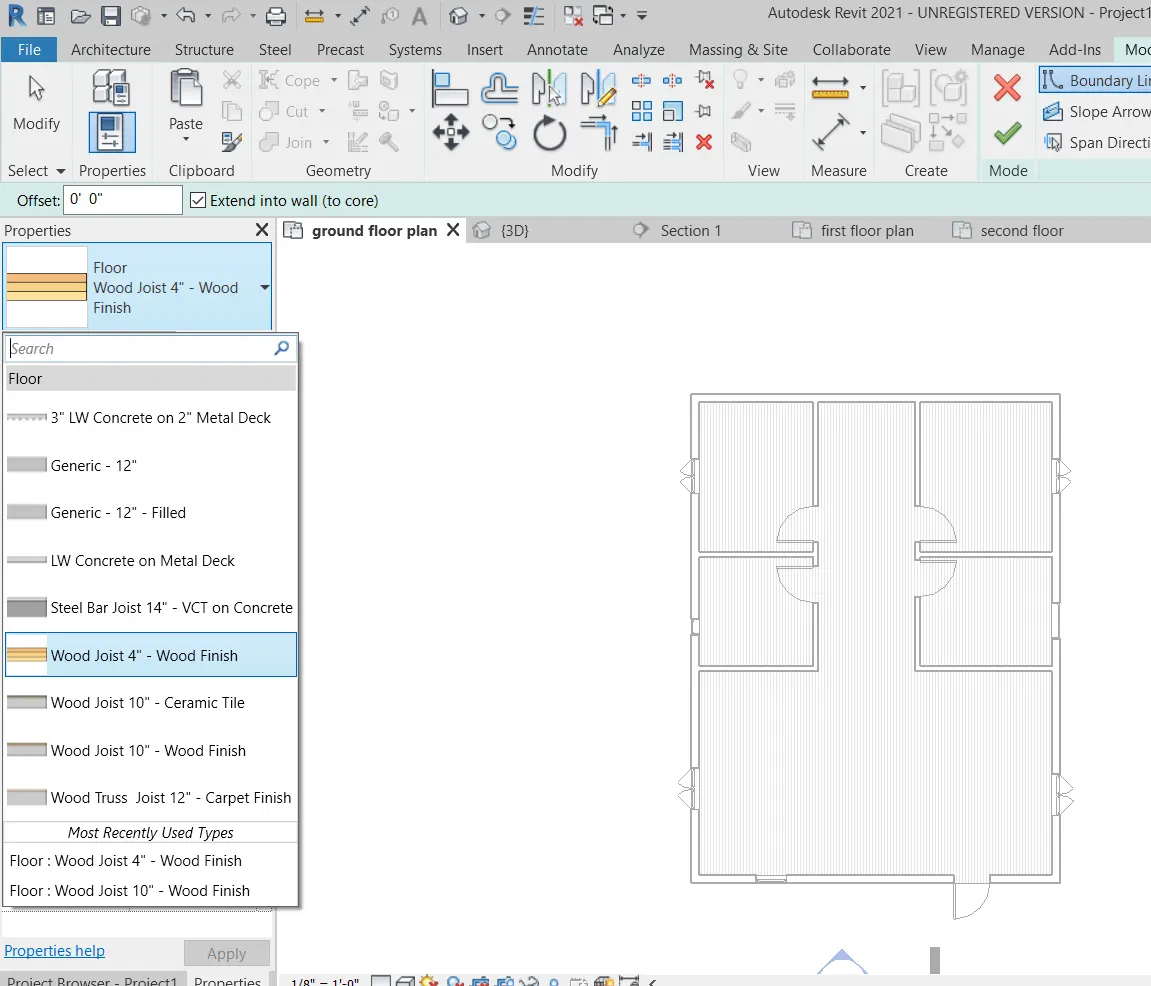
Apply the changes
and floor is assigned
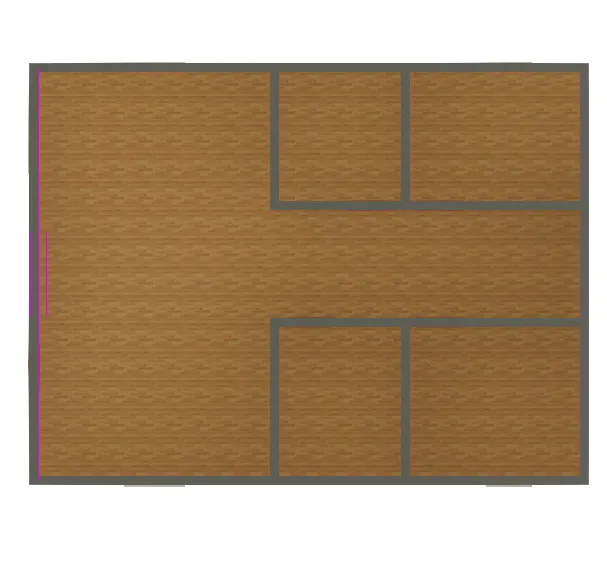
Result:-
2) Add walls based on the floor layout. Pick lines or use the draw tool to modify the boundary of walls. Use the property browser to select appropriate material and thickness for walls. After creating the walls verify using the property browser to see if the top and bottom of the walls are constrained.
Aim:- Draw inner partition walls and modify the boundry of walls and assign the proper properties for the walls
Commands used;-
Architectural
Walls
Procedure
Open the file in revit
select the walls in architectural
select the type of wall which is requires as partition wall
Draw the walls of specified length and breadth of rooms, kitchen toilets
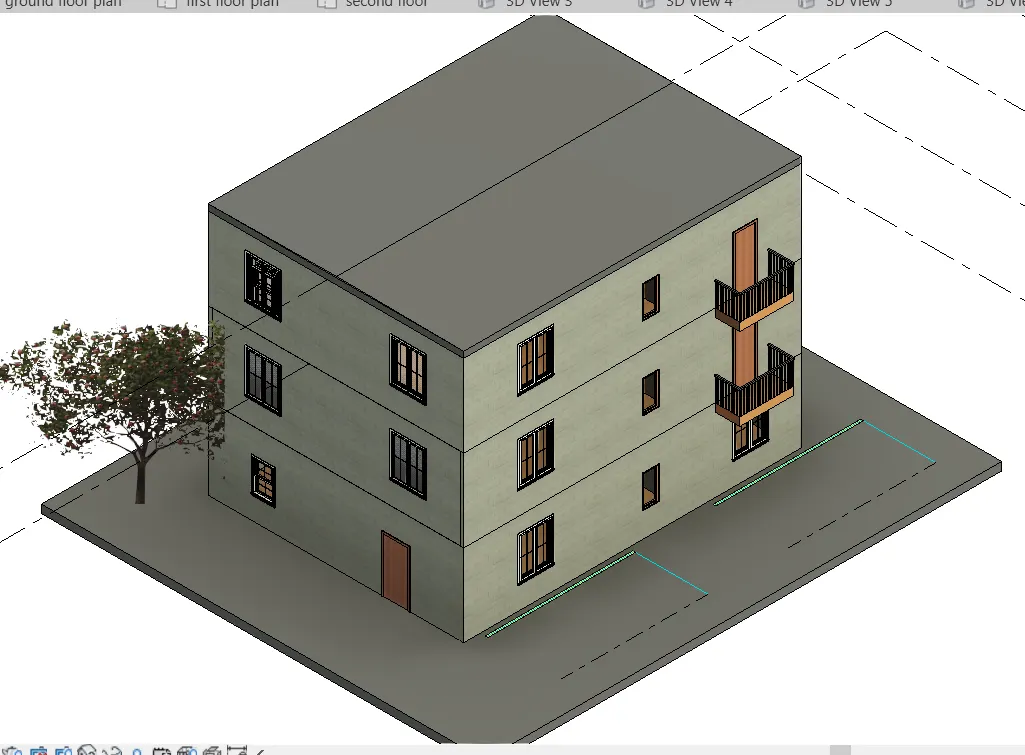
View in 3D
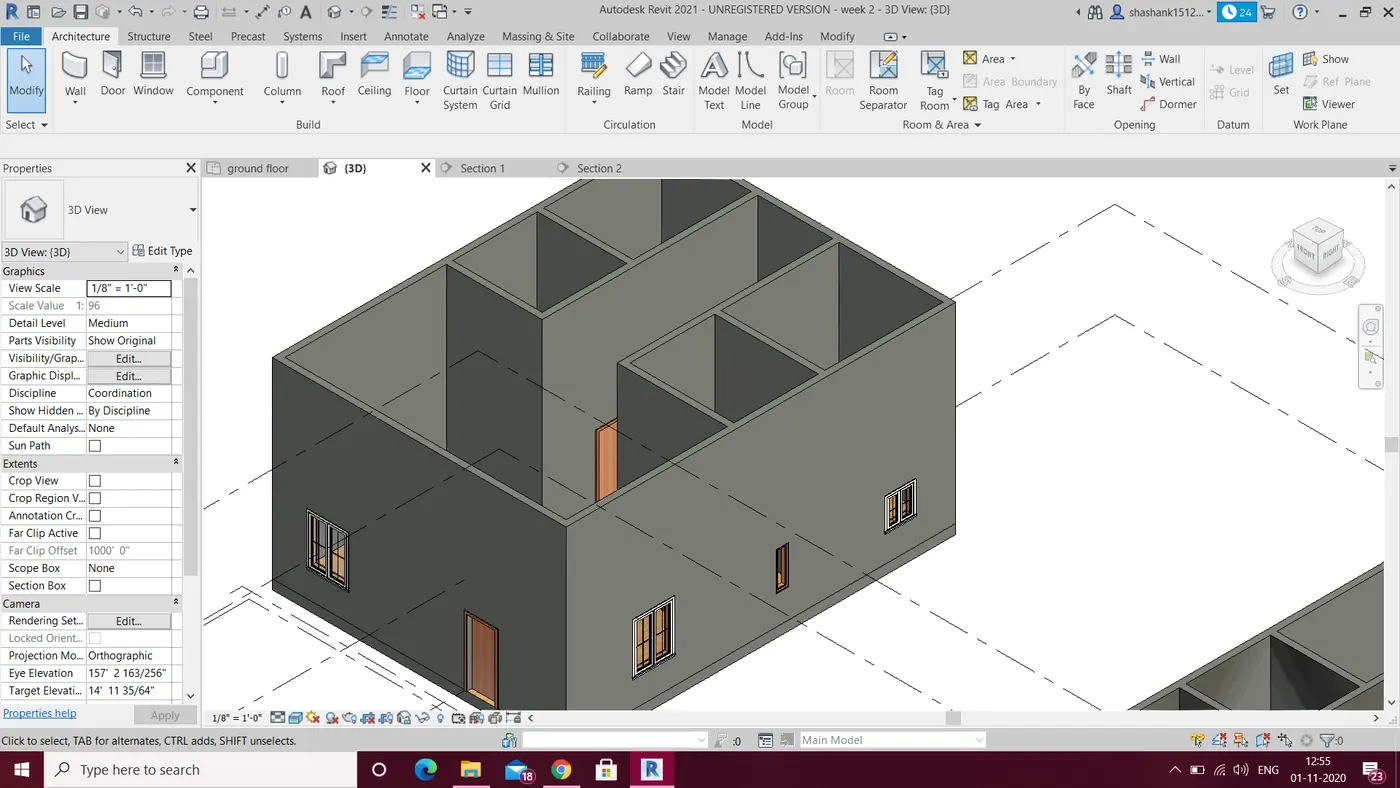
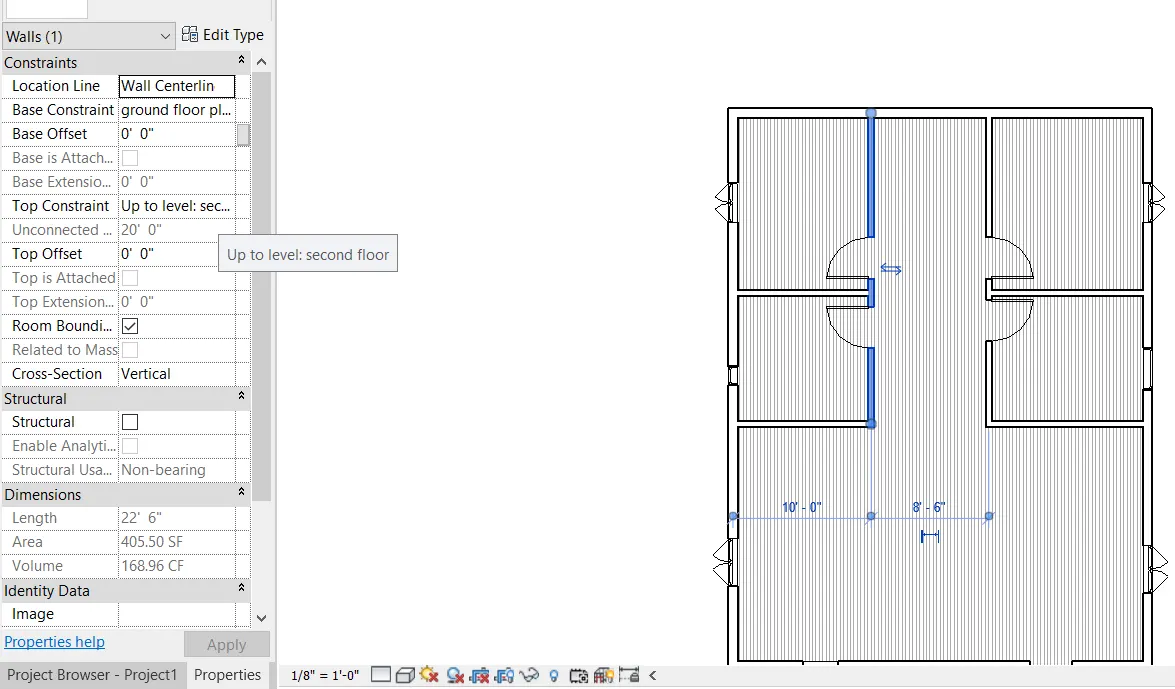
Here we can see the wall is constrained upto the second floor
Benefits of connecting walls is that when walls are connected with the constraints any changes in the height of the building in any view the walls automatically adjusts its height with the building levels and whereas if walls are unconnected then we have to edit the height of the walls manually which will take lots of time and chances of error will be more.
According to me the best way to model walls is by height rathen then depth
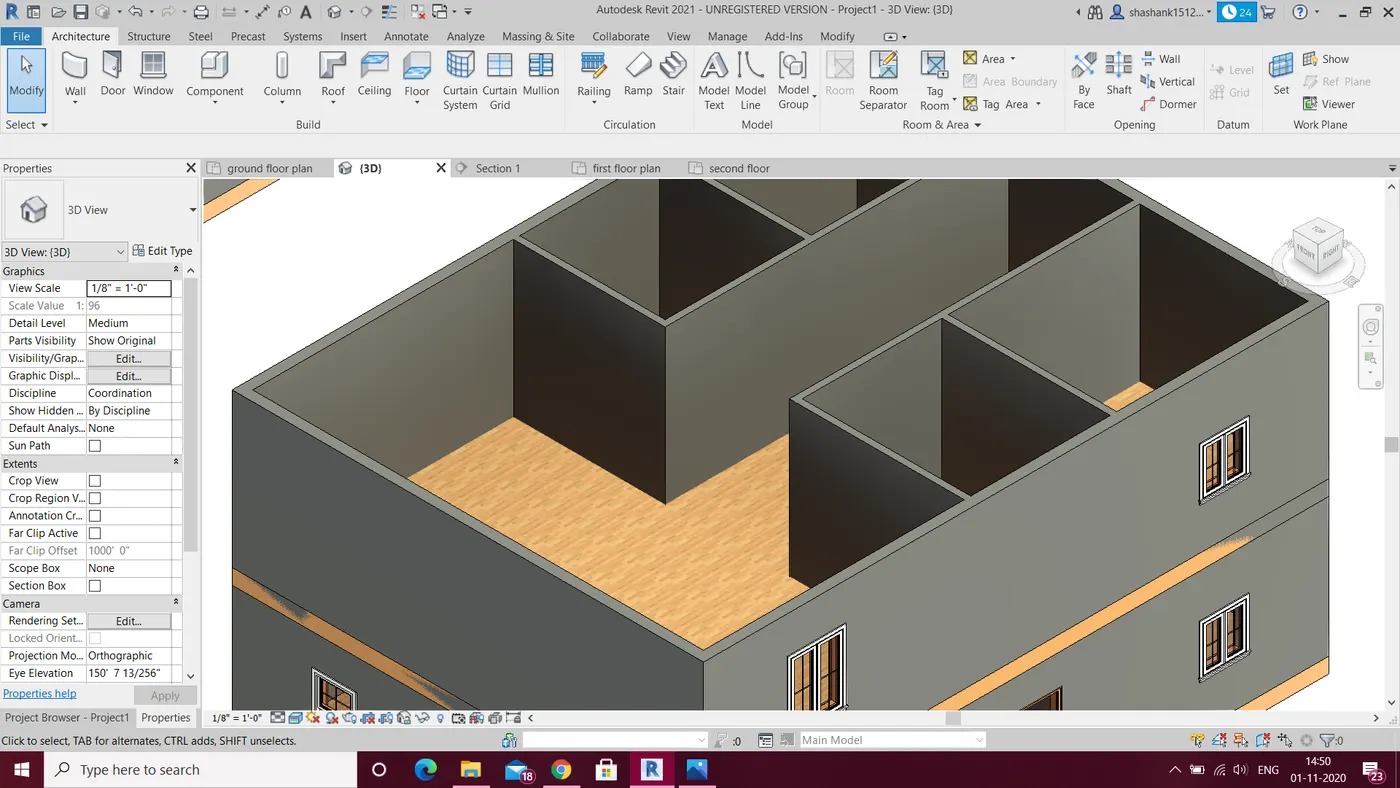
3) Copy the model elements ( wall, floor ) modelled to Ground Floor Level and paste it aligned to First Floor Level . Use modify tab to utilize copy and paste options to align
elements to a different level
Aim:- Use the commands as copy and paste for modelling the plan
Commands used
Copy
paste
Alligned to the level
modify
3d view
Procedure
Select the wall and floor by dragging the mouse
Select copy or use ctrl+c
then use ctrl+v
select the paste command in modify
select the paste alligned to first floor and press enter
Go to the 3d view and see the changes
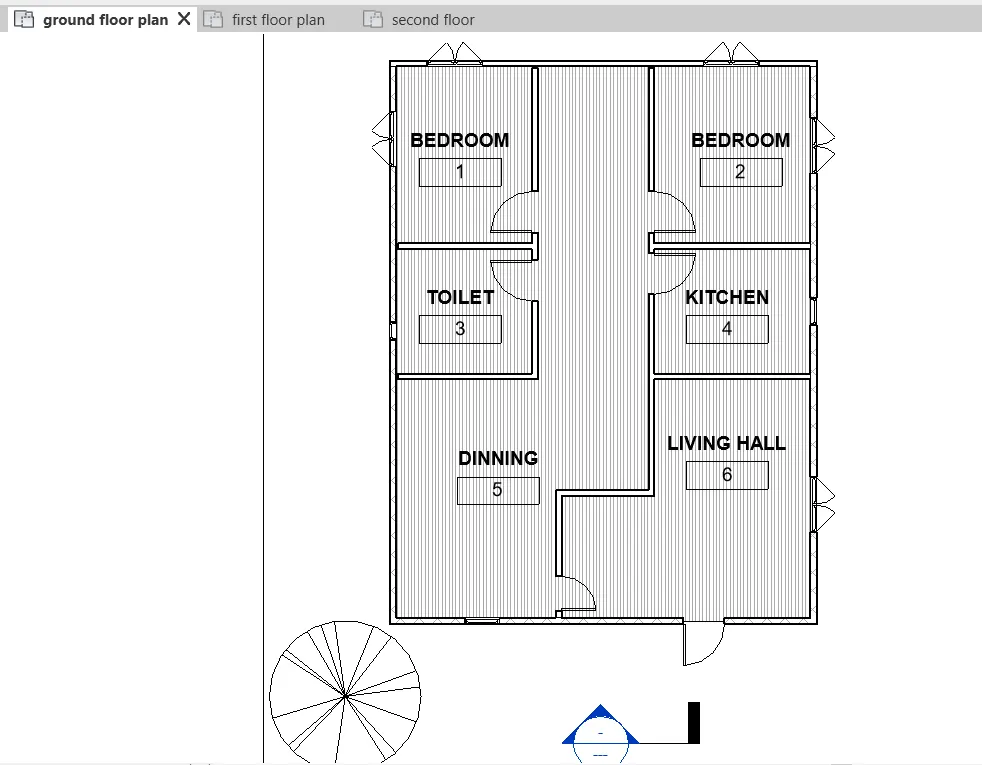
4) Use interior partition walls to create separate rooms within your residential unit. The model must include the following rooms
a. Living Room/ Drawing Room ( 15’ X 18’)
b. Dining Room (9’ X 11’)
c. Bed Room ( 9’ X 12’ and 15’ X 11’)
d. Rest Room ( 10’ X 12’ )
e. Kitchen (8’ X 10’)
AIM:- create interior partition walls to create separate rooms of residential building
Commands used:-
Architectural
walls
property tab
interior partition walls
Procedure:-
Open the revit
Select teh imperial architectural template
Select the walls and draw a layout
Select the wall and go to property tab and select interior partition wall of the specific thickness and draw the walls
Select the doors and windows and draw whereever it is required
go to the 3d view and see the changes
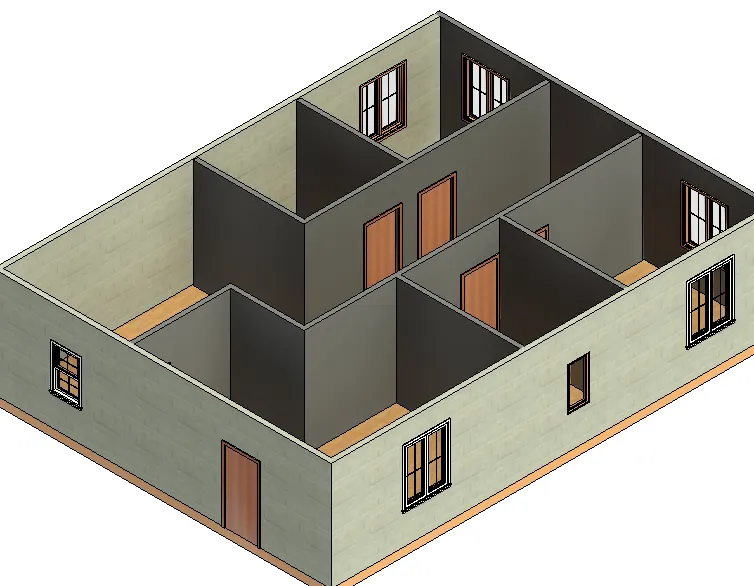
5) Based on week 2 assignment, the components to be included in a residential unit were inserted to the Revit file. Place these components in appropriate locations to add details to your residential model
a. Place Doors and windows in the wall at appropriate locations
b. The Living Room must include furniture set, couch table and TV desk and shelf cabinets
c. The Dining Room must include a table and chairs serving the purpose of eating
d. Bed Room must include a bed set, shelf, lighting and individual study desk and chair
e. Rest room should include bath tub and plumbing fixtures discussed in class
f. Kitchen should include countertops, gas stove cabinet and shelves to store food items
g. The wash/storage room can include washing machines and shelves to store clothes
Aim:- Insert the following components in the week 2 assigment
Commands used;-
Architectural
component
Select the component which we require
Insert
Load family
Select the family like furniture and select the component and insert
Procedure
Open the file in revit
Select the architectural and then go to components
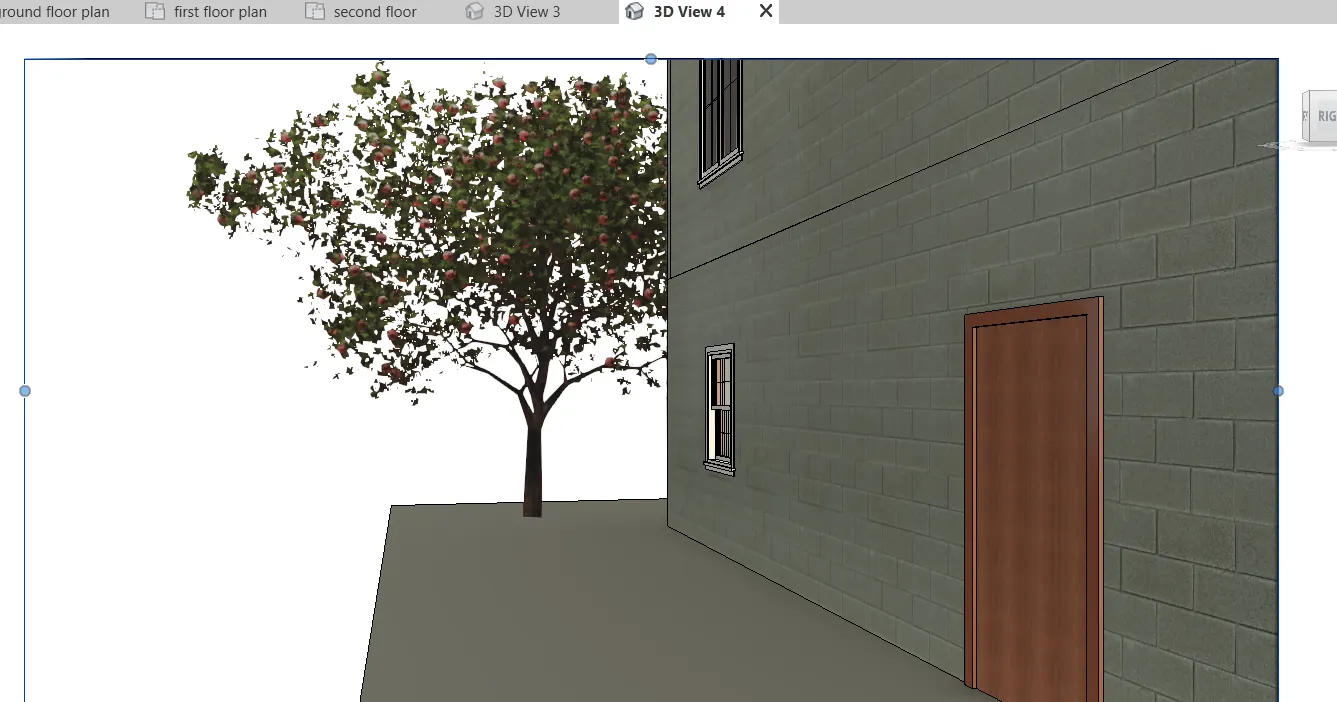
Select the components like trees parking and other component in the building
Select the insert option and go to load family
Select the furniture and then select beds and add beds
Select the lights and then add lights from the option and other components as required
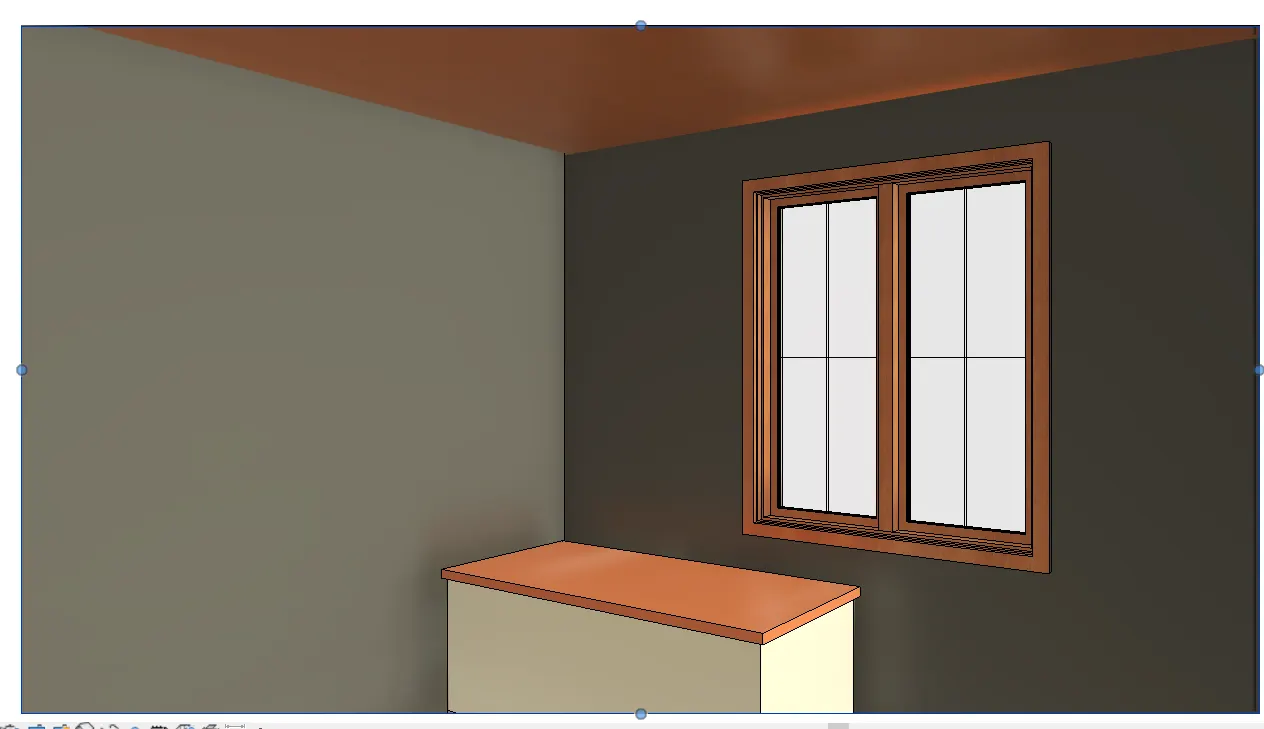
Select the camera and place it room and see the view in 3d all the components will be placed
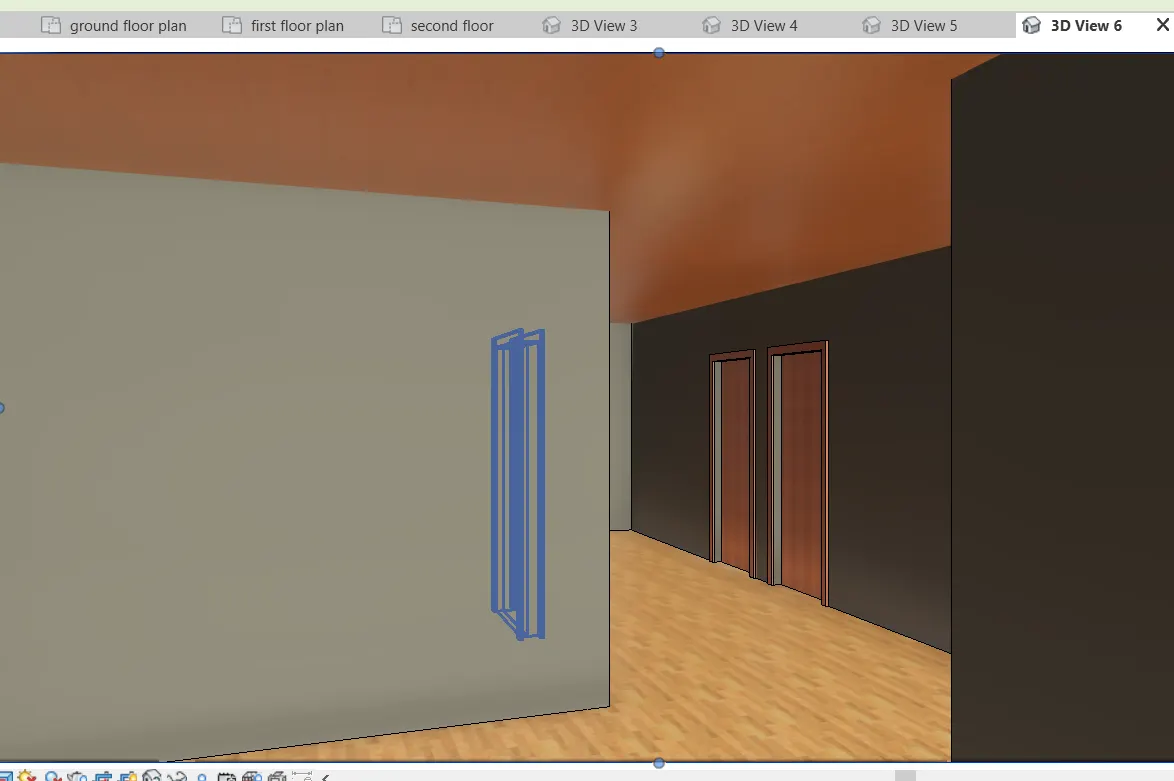
P.S :- THE FAMILIES IS NOT LOADING IN MY SOFTWARE SO I HAVE NOT PUT BEDS AND AOTHER FURNITURE IN THE DRAWING.