Week 3 - 2D meshing for sheet metal
Aim: To create a 2D Mesh on the given sheet metal parts of an automobile
Objective:
- Perform geometry checks and fix any errors.
- Create mid surfaces for the components of the given assembly and assign PID separately.
- Create a 2D mesh consisting of mixed elements.
- Follow the given quality for the mesh generation.
Procedure:
Open the given hood model.stp. Go to File> Open.
The given component has different parts assembled together and each part has its own PID which can be identified in the Property Card Manager. The components are renamed accordingly. The components in the assembly are: Outer Panel, Inner Panel, and Striker reinforcement, hinge reinforcements (LH and RH).
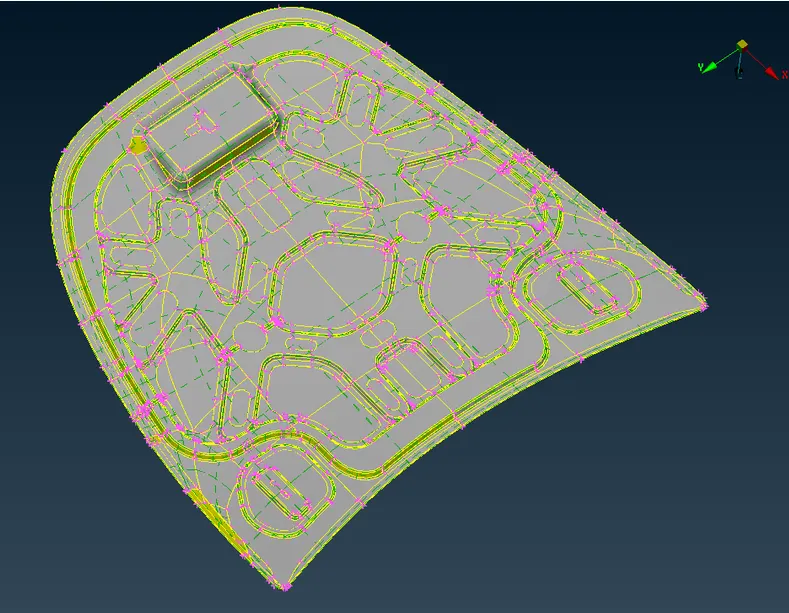
Fig. 1: Given hood assembly.
Geometry Clean-up:
After importing the model, it needs to be checked for any geometric irregularities. Go to Checks Manager> Geometry.
The error in the geometry can be fixed automatically using FIX command. If any errors still exist, need to clear manually. After all the errors are cleared, the geometry is said to be ‘Cleaned up’.
Measuring Thickness:
Using the ‘!Not’ command separately, separate the components of the hood assembly in the different view and measure the thickness using the ‘Measure’ command and selecting the nodes on the surfaces of the components. The thickness were measured as follows:
Outer Panel = 0.75mm
Inner Panel = 0.75mm
Hinge and Latch Reinforcements = 1.2mm
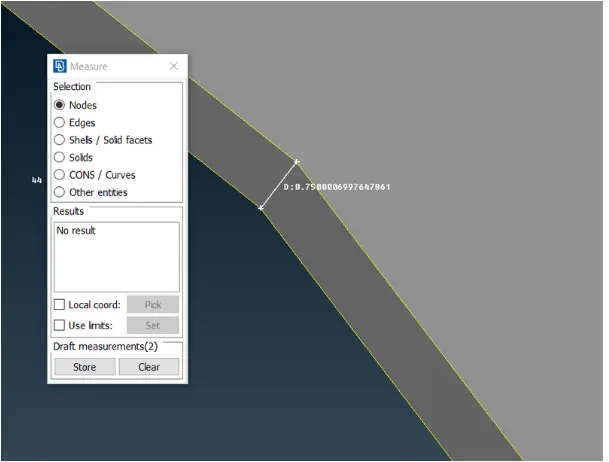
Fig. 2: Measuring thickness.
Following is the process described for the outer panel. Follow similar process for all other parts of the assembly.
Using the PID Manager box, ‘Show Only’ the outer panel and start working on the geometry.
Orientation:
The first step to start working on the given geometry, we need to orient the faces in one direction. The faces should be either in yellow or grey colour. If there is mixture of yellow and grey orientation colours, go to Topo> Faces> Orient>Visible.
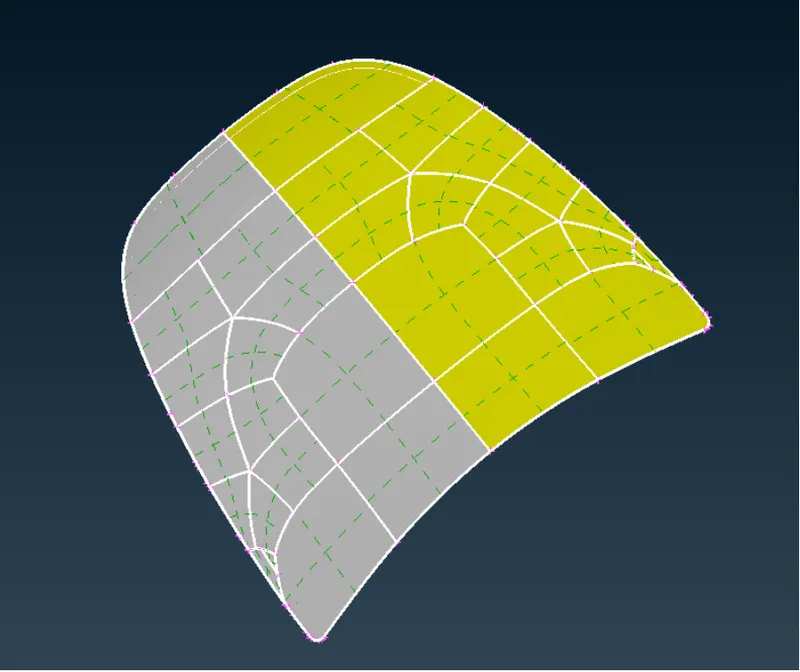
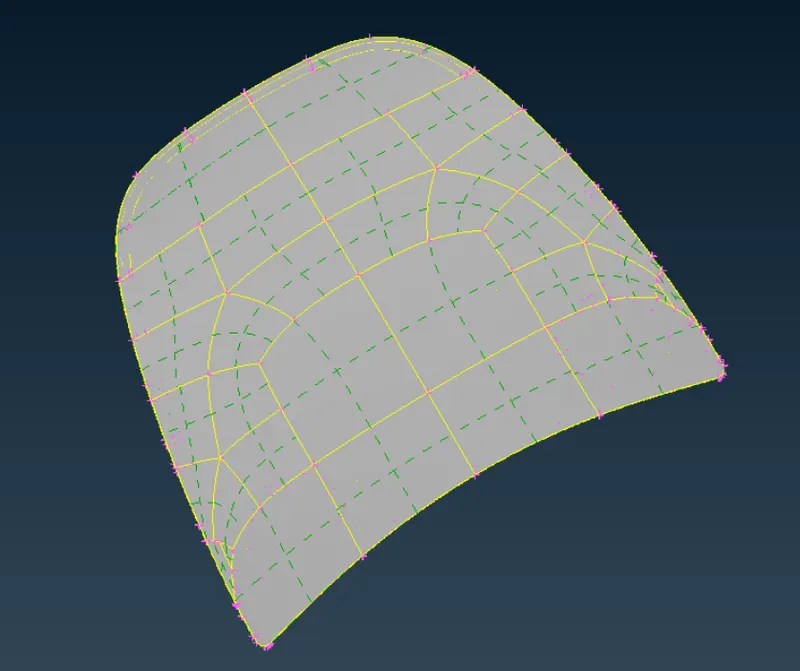
Fig. 3: Orienting the outer panel.
Mid-Surfacing:
There are two methods to generate the Mid-surface for the given geometry
- Auto Mid-surfacing:
Auto mid surface can be generated using this tool inside ANSA. It can be done using the ‘Mid-Surface’ tool in the faces menu inside ‘Topo’ module. This is used for a component having uniform thickness such as sheet metal components. Use ‘Mid-Surface’ command to generate a mid-surface for the outer panel as shown below:
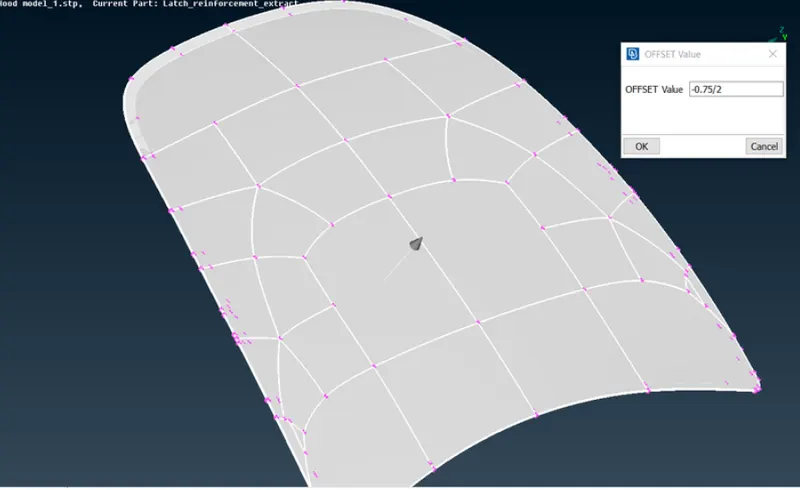
Fig. 4: Creating the mid-surface using Auto Mid-Surfacing tool.
The (+/-) sign while entering the offset value depends upon the direction of the arrow in above figure. Since we need the surface towards the inside of the geometry, we can reverse the direction using the minus sign.
- Manual Mid-Surfacing:
It can be done using the ‘Offset’ command in the faces menu from the ‘Topo’ Module. Using this method, we can either create mid-surface individually for every part. Select the geometry using ‘Feature Selection’ and give offset value as half of thickness, 0.375mm in this case. Also, take care of the direction and use + or – sign accordingly. This method was used on the inner panel as shown below:
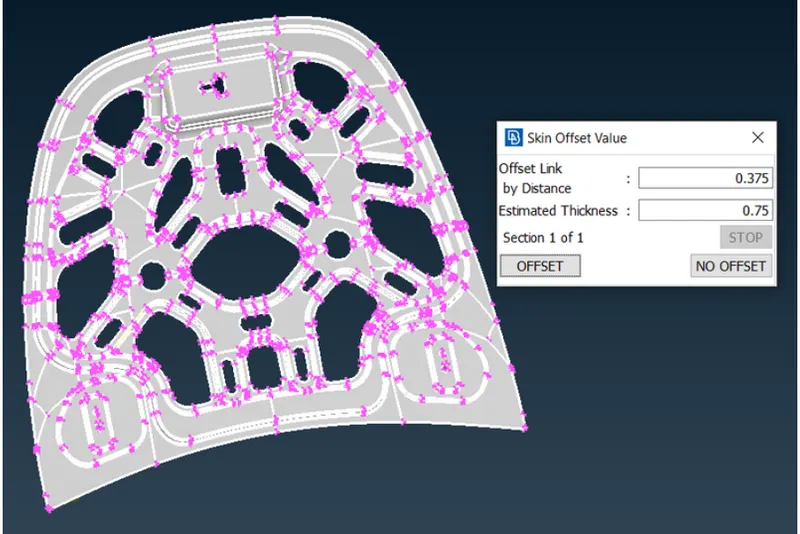
Fig. 5: Mid surface of inner panel using ‘Offset’ method.
The mid surface of all the components are shown below:
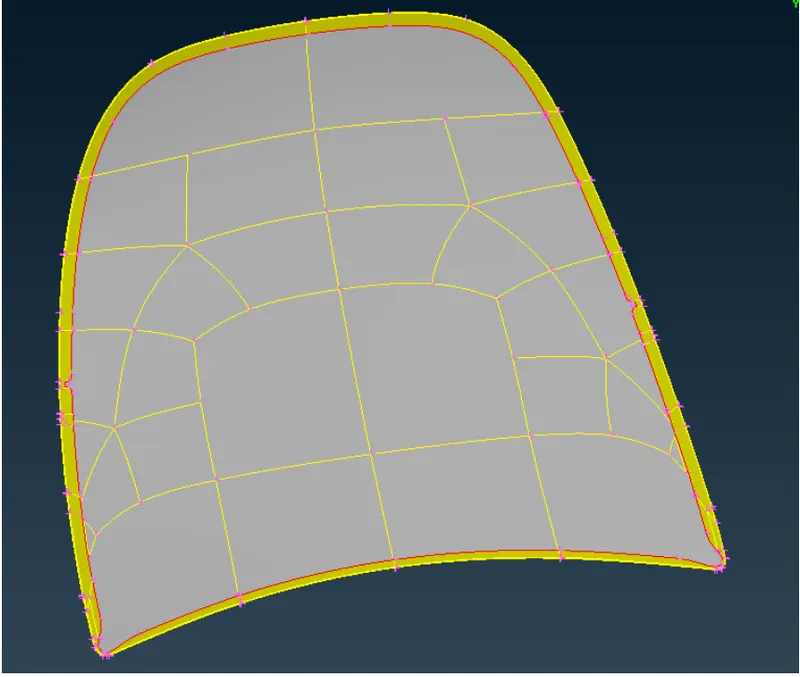
Fig. 6: Mid-surface of outer panel
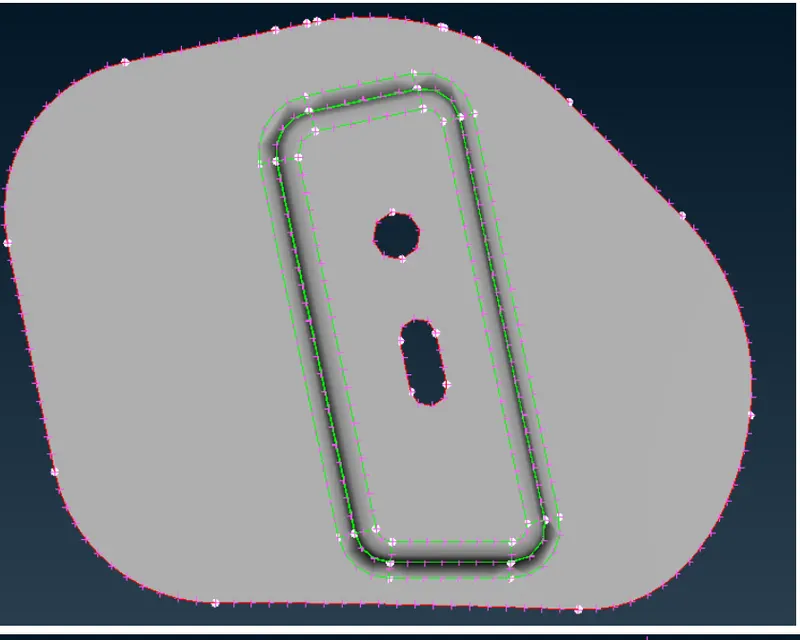
Fig. 7: Mid-surface of hinge reinforcement
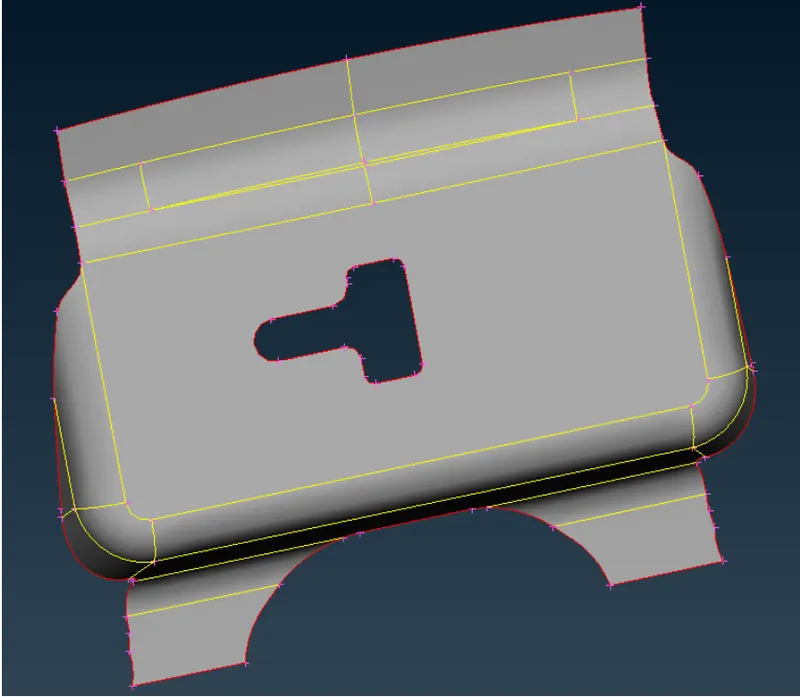
Fig. 8: Mid-surface of latch reinforcement
Meshing:
The first step to start meshing is to set the mesh element length. This tool is available in the ‘Perimeter’ tool under the ‘Mesh’ module. As per the required quality parameters, the element length is needed to be 5mm.
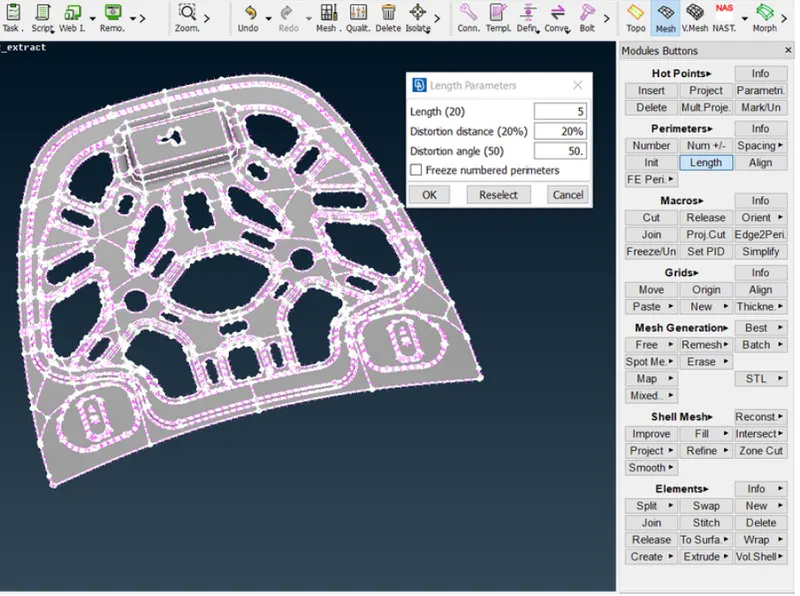
Fig. 9: Setting the element length for meshing.
A similar setting should be done in the Mesh parameters in the ‘Utilities’ bar.
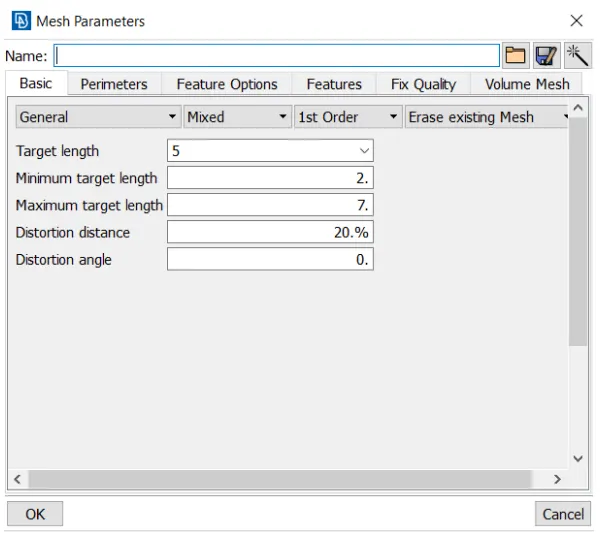
Fig. 10: Setting the Mesh Parameters.
Next step is to assign the Quality Parameters. The required quality is shown below:
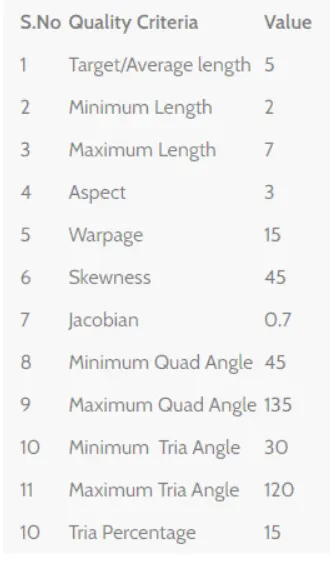
Fig. 11: Required quality parameters.
The quality parameters for the geometry as set as below:
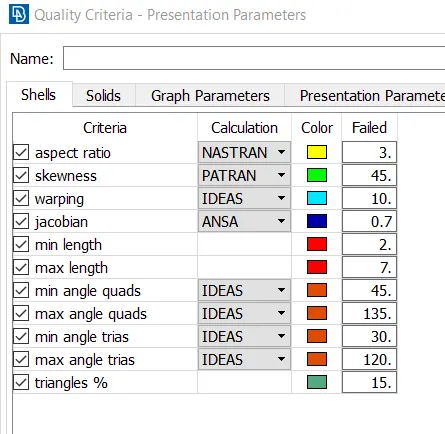
Fig. 12: Setting quality parameters.
The total area can be divided into multiple simple geometric shaped areas so that the mesh can be made easily. To do this use ‘Cut’ command to hide the existing lines and make new grid lines as per requirement.
The mesh can be generated by using the ‘Best’ Mesh option in the Mesh Generation tab in the Mesh module. Click on the individual areas to generate the mesh. Use ‘Reconstruct’ option to fix the mesh pattern.
Finally, for a symmetric part such as the outer panel, generate the mesh on one half of the part, and use the ‘Copy’ option from the Transform bar and mirror the mesh w.r.t the middle plane.
In case of the outer panel, there is a part where the hemming process will be carried out and the portion will fail for the minimum length of the mesh element. To solve this, hide the upper and lower edges of the hemming fillet and create a ‘Cut’ along the center of the fillet. This will merge the top and bottom areas with the hemming fillet and pass the minimum length of the mesh quality parameter.
The mesh generated are shown below:
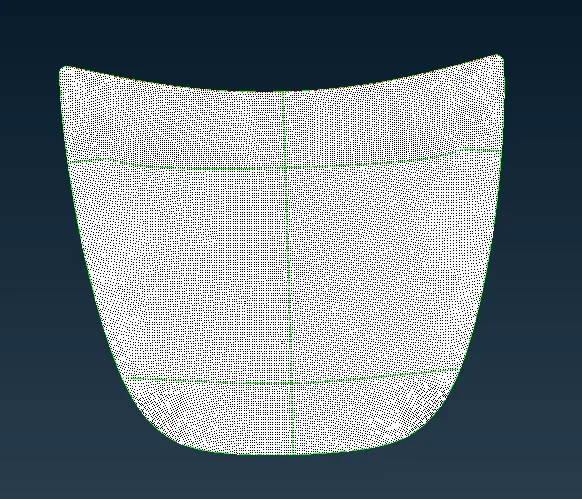
Fig. 13: Mesh generated on the outer panel by creating different areas using the Cut command.
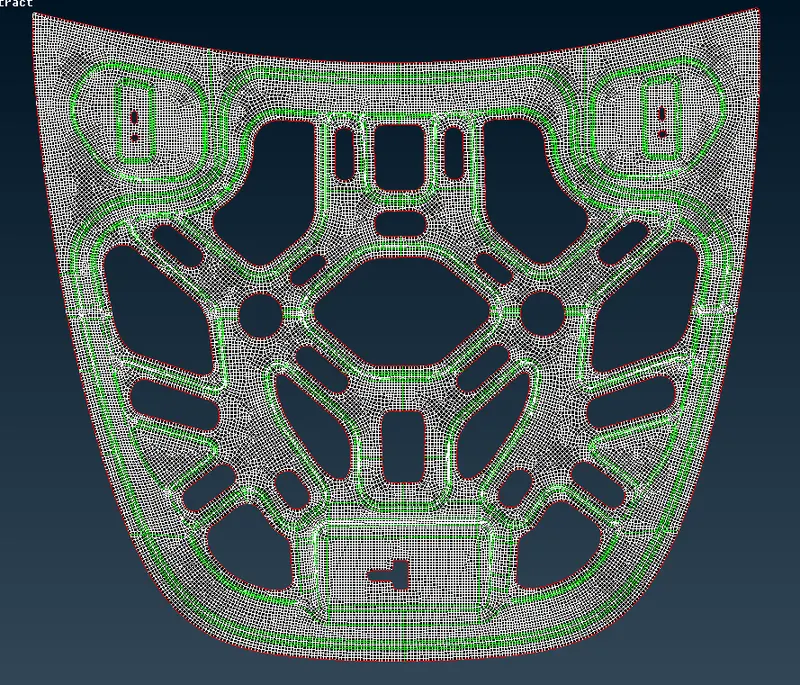
Fig. 14: Mesh generated on the inner panel by creating different areas using the Cut command.
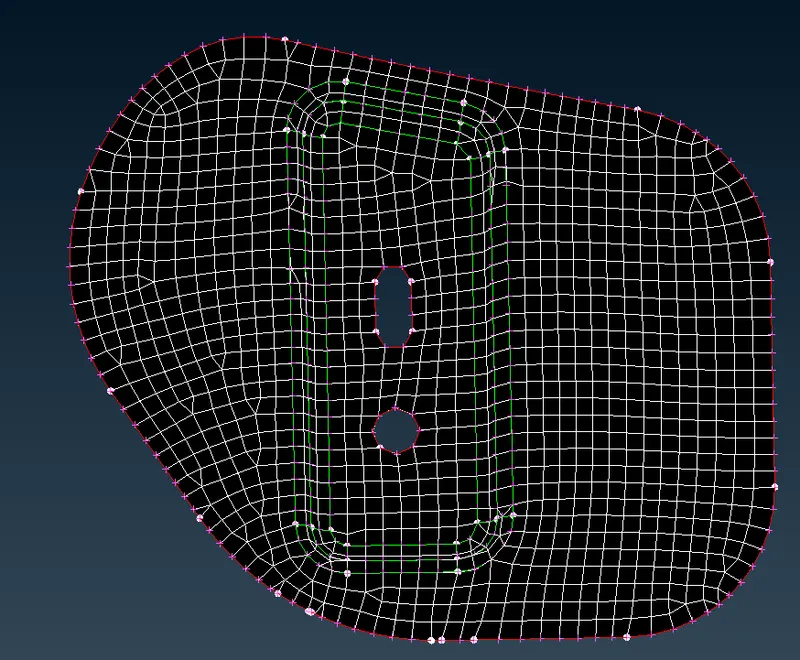
Fig. 15: Mesh generated on the hinge reinforcement
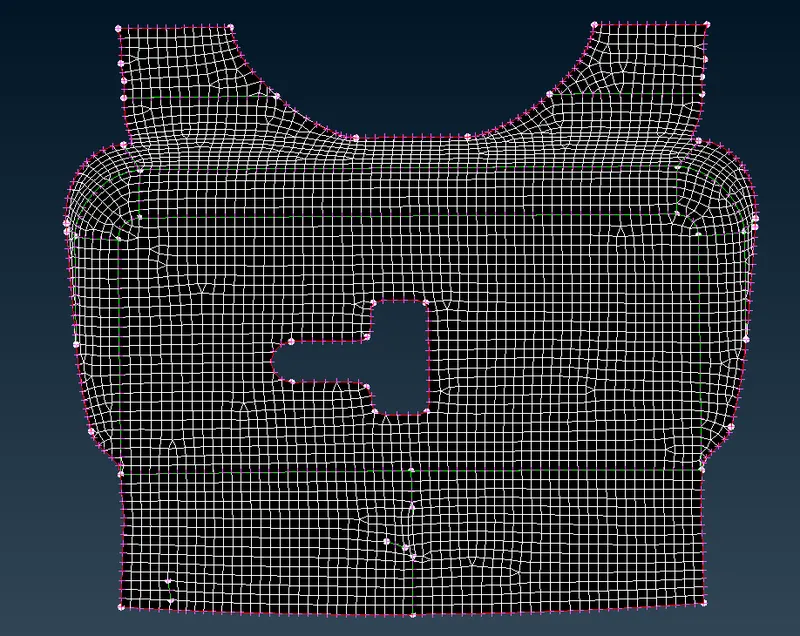
Fig. 16: Mesh generated on the latch reinforcement
Learning Outcomes:
- Learned to do topological clean-up.
- Generated mid-surface using 2 different methods.
- Learned to use the given quality criteria.
- Generated mesh grid for a complex geometry.
- Learned to improve the ‘Best’ mesh made by the software using the ‘Split’, ’Reconstruct’ and ‘Join’ commands
Conclusion: The given hood assembly was meshed as per the quality criteria after carrying out topology clean-up, and generating the mid-surfaces for each component of the assembly.