Week 3.2 - 2R Robotic Arm Challenge
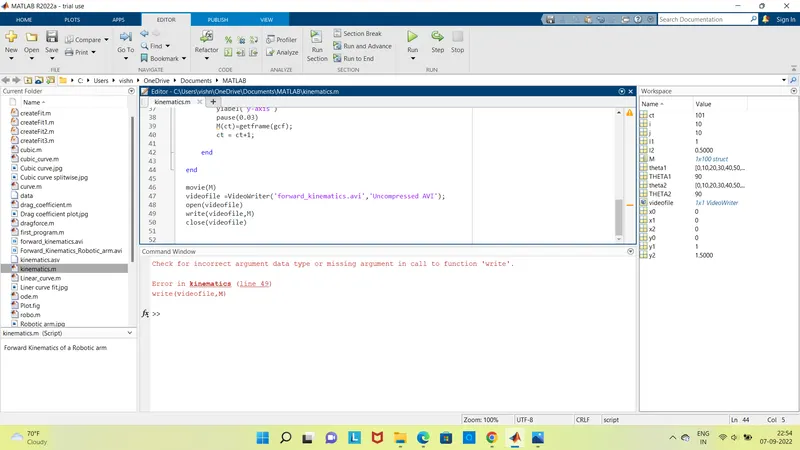 The output is then corrected by typing writeVideo and the output is then corrected
The Video refrence can be found here
https://www.youtube.com/watch?v=7MIc55mw_RI
Forward Kinematics of a 2R Robotic Arm
% Forward Kinematics of a Robotic arm
clear
close all
clc

%Inputs
l1 = 1; %length of link 1
l2 = 0.5; %length of link 2

theta1 = linspace(0,90,10);
theta2 = linspace(0,90,10);

ct = 1;
for i = 1:length(theta1)
    THETA1 = theta1(i);
    for j = 1:length(theta2)
        THETA2 = theta2(j);

        %coordinates for starting point of link 1
        x0 = 0;
        y0 = 0;

        %coordinates for end point of link 1 and also the starting point of
        %link 2
        x1 = l1*cosd(THETA1);
        y1 = l1*sind(THETA1);

        %coordinates for ending point of link 2
        x2 = x1 + l2*cosd(THETA2);
        y2 = y1 + l2*sind(THETA2);

        %Plotting
        plot([x0 x1],[y0 y1],[x1 x2],[y1 y2],'lineWidth',3)
        axis([-0.1 1.5 0 1.5])

        xlabel('x-axis')
        ylabel('y-axis')
        pause(0.03)
        M(ct)=getframe(gcf);
        ct = ct+1;

    end

end

movie(M)
videofile =VideoWriter('forward_kinematics.avi','Uncompressed AVI');
open(videofile)
writeVideo(videofile,M)
close(videofile)


Code explanation

1 From the fixed Support, the initial value of X and Y for the Link-1 (X0, Y0) and the final value is (X1, Y1)
2 For the Link-2 starting point is the Ending point if the Link-1 ie (X1, Y1) and Ending point is (X2, Y2)
3 Input L1 as 1m and L2 as 0.5m , By using linspace creating equal parts of angle for theta 1 and theta2
4 Using for loop to calculate the change in length of different values for theta1 and theta2 by giving new variable names Theta1 and Theta2
5 Now the starting point and ending pont for the Link 1 and Link 2 are derived .
6 Now plotting the points of  links Link1 and Link2 using plot command having a linewidth of 3 , labling the respective axis by using xlabel and Ylabel command and we run this we can see a plot .
7 To create an Movie or animation video for the program a counter varible  Ct is defined at the startiing of for loop and M for capturing the frame. An increment is added to the counter variable as it records the capturing frame every time and for loop has been ended .
8  Now for creating a complete movie a command named ‘movie’ is used and then fro assigning the file name and file format ‘VideoWriter’ command is used, the format used here is ‘.avi’. Then for opening the video file ‘open’ command is used and then ‘writeVideo’ command is used which writes the video with plot frames. After this, with the use of ‘close’ command the video file is closed.
9 Save the program in the desired folder and then run the program by using a shortcut key i.e. ‘F5’ key or it can also be done with the option present in the top bar. After the successful running of the program, an animation can also be seen running and this animation is saved in the format that you have assigned in the folder in which the program file is saved.