Week 2 Challenge : Surface meshing on a Pressure valve
Aim:
To check for the geometrical errors and perform topology clean up accordingly. Set three different target lengths as three different cases (5mm, 3mm, 1mm) and mesh the model.
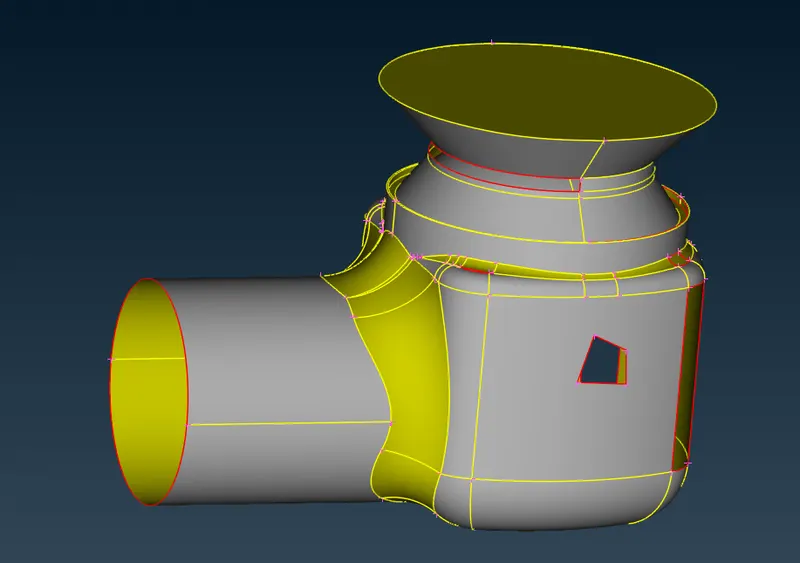
Procedure:
- Open ANSA, change to CFD mode then click on the “?” symbol another window is opened in which scroll down you will find “-performance_mode 3” copy and paste it near the “?” symbol click ok.
- Drag and drop the pressure value model in the ANSA window.
- Click on Tools >> Checks >> Geometry >> Execute. Now we could see the error which we need to clean up in topology in order to resolve the error.
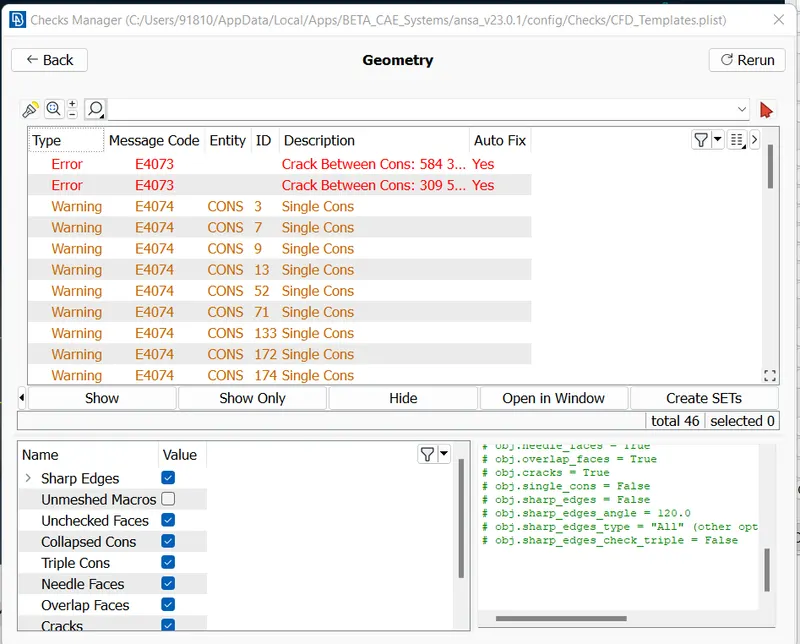
- It is necessary to remove the single cons from the model.
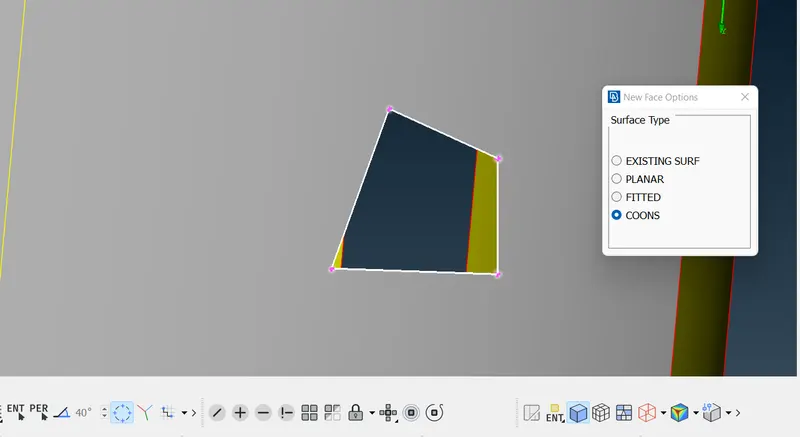
- TOPO >> Face >> New >> Cons >> Loop >> Select the single cons >> Middle click the mouse >> Projected Face is displayed >> OK. Instead of selecting the entire single cons by using loop option we could select the entire cons in one go.
- TOPO >> Cons >> Fill Holes >> Select the small holes in the geometry >> OK. It is used to patch small holes in the model.
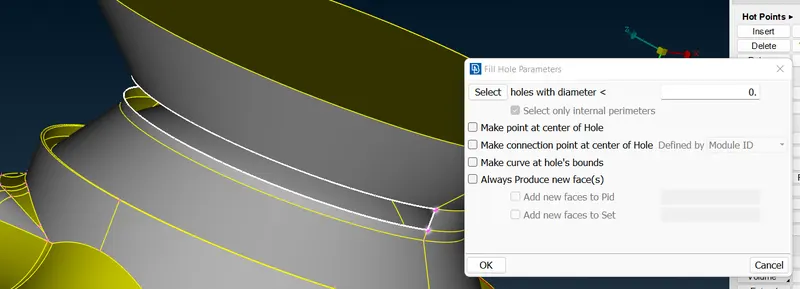
- TOPO >> Face >> New >> Cons >> Select same length single cons on both the layers >> Middle click the mouse >> Projected Face is displayed >> OK. By using Fill hole option this is not possible, as it result in distorted surface.
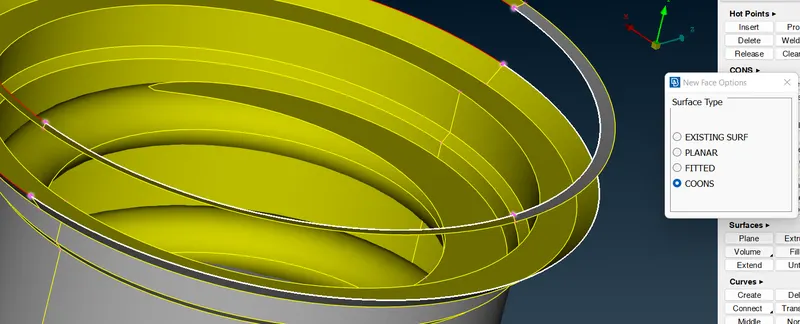
- TOPO >> Face >> New >> Fitted >> Loop >> Select the single cons >> Middle click the mouse >> Projected Face is displayed >> OK.
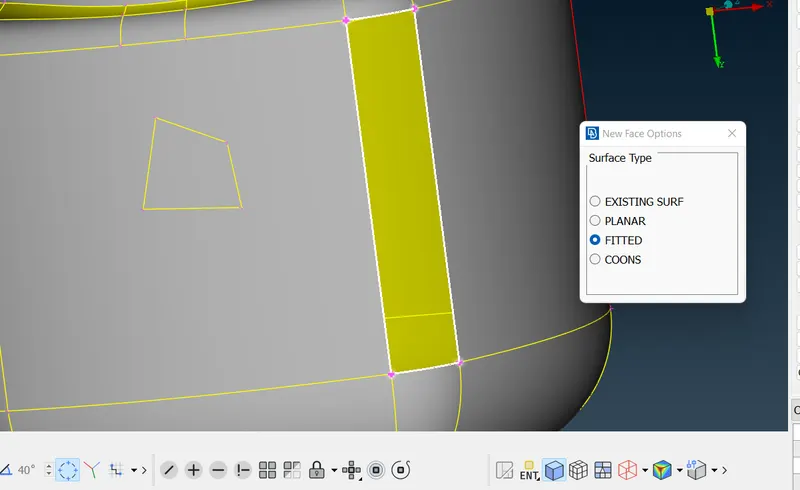
- TOPO >> Face >> New >> Planar >> Loop >> Select the single cons >> Middle click the mouse >> Projected Face is displayed >> OK. This method helps to patch the planar surface.
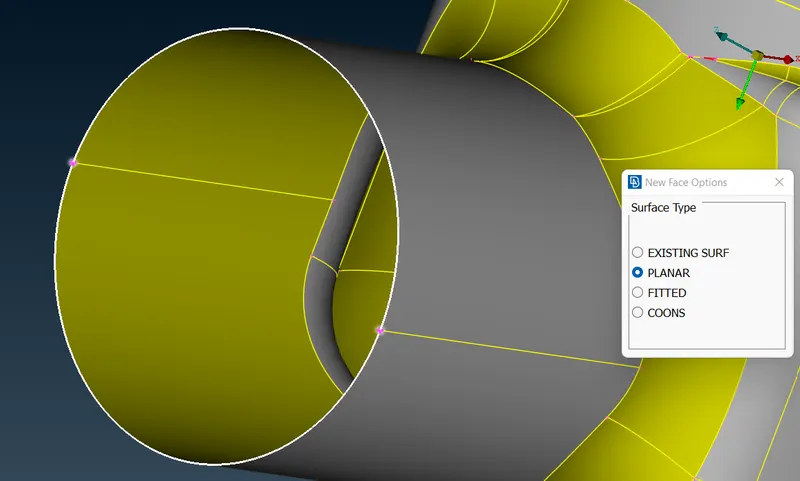
- In order to perform volume mesh it is essential to close all openings in the model.
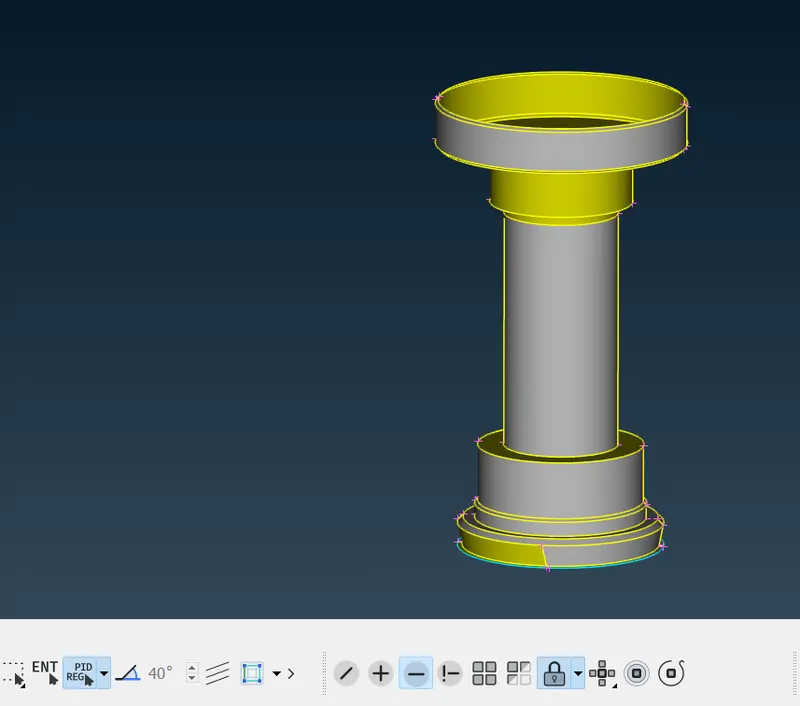
- Now, lets work on intersection errors. Remove all the faces using the NOT option and keep only the Column & spring and Lock the model. By locking the model it will allow only those bodies to appear when called which were earlier locked.
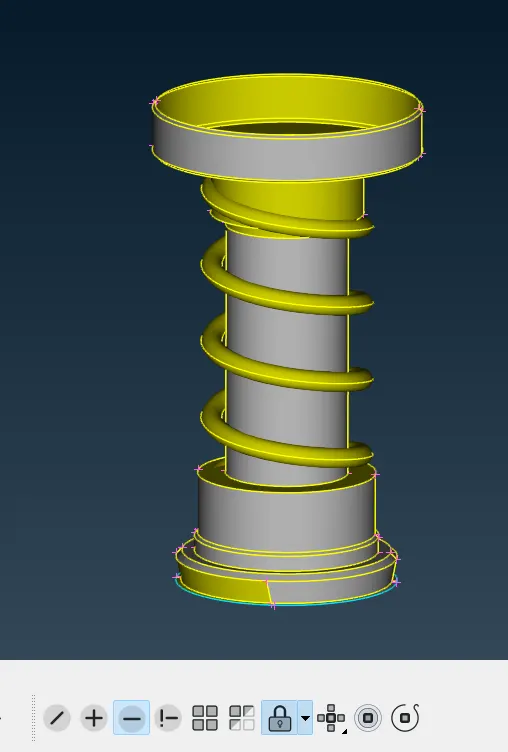
- Click on the PID region >> NOT >> Select the Spring surface >> Middle click in the mouse. The spring will disappear, then TOPO >> Face >> Set PID >> New >> Give body name as Column. Similarly set PID for Spring as well.
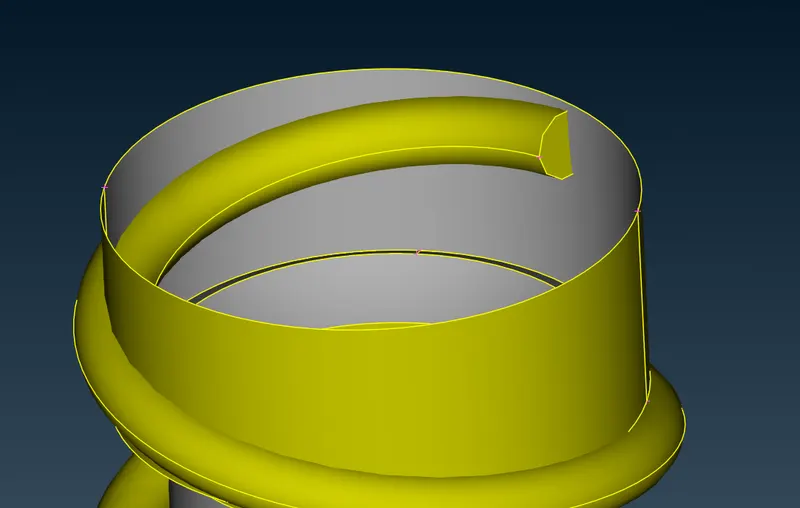
- When you zoom to view the spring and column it is seen that the spring body is intersecting the column, as there is no double cons present at the intersection hence it becomes difficult to delete the unwanted surfaces.
- TOPO >> Intersect >> First >> PID selection Column >> Middle click the mouse >> Second >> PID selection Spring >> Middle Click the mouse >> then delete the unwanted surfaces and keep the wanted surfaces.
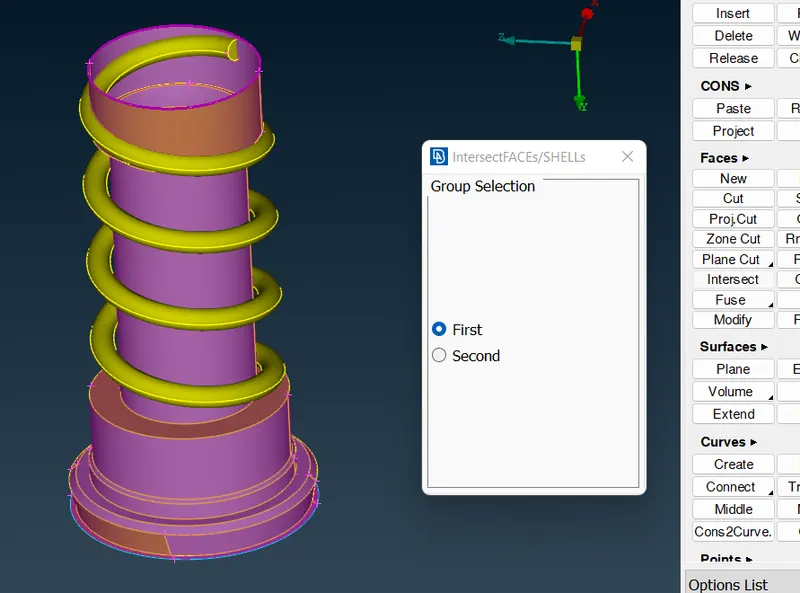
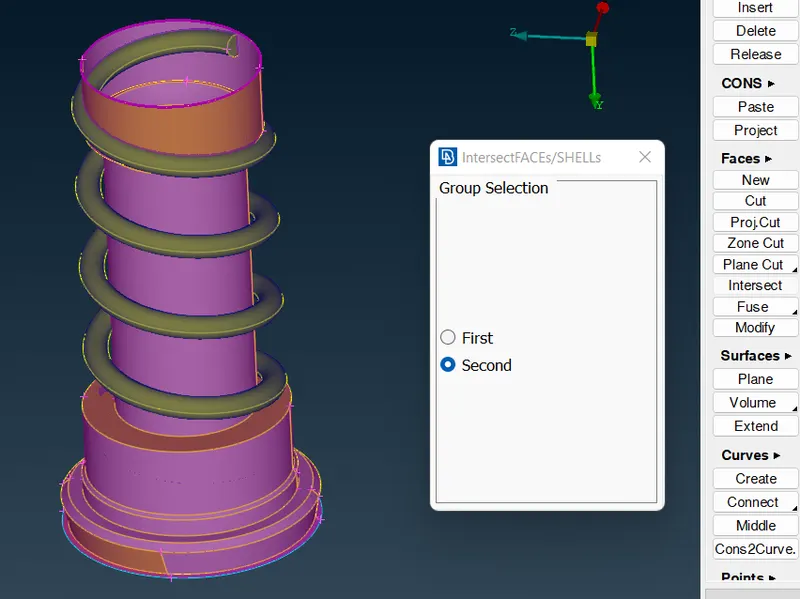
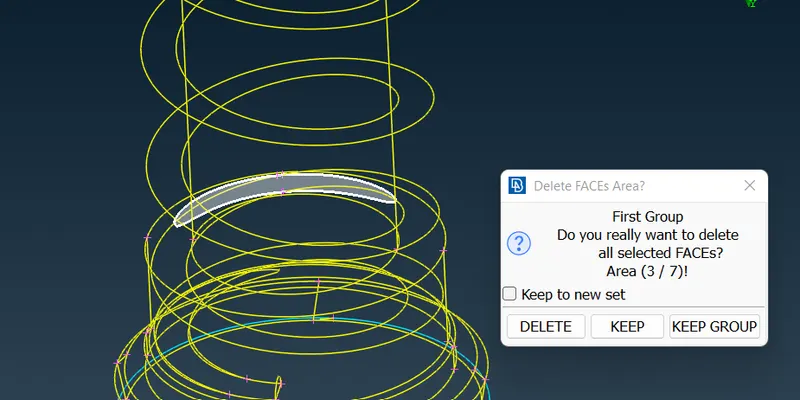
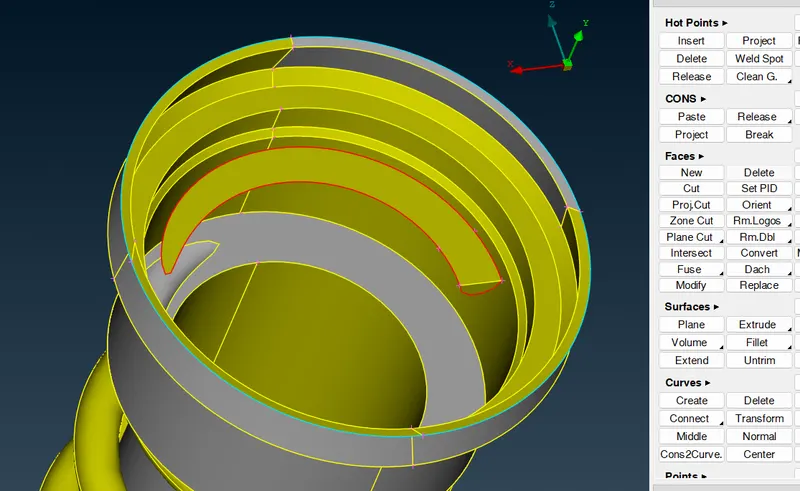
- Unlock the body >> ALL . Again, check the geometry.
- Click on Tools >> Checks >> Geometry >> Execute. Now the error which appears are unavoidable geometrical error, in order to resolve it is advised to change the geometry.
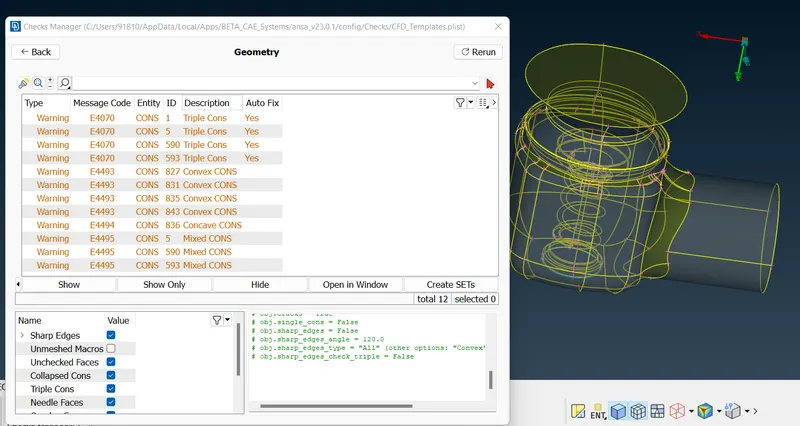
- Now, go for Surface Mesh.
Case-1: 5mm Mesh
- Mesh >> Perimeter >> Spacing >> Auto CFD >> Perimeter >> Provide the Max. & Min. range for the element length >> Macros >> Provide the Max. & Min. range for the element length >> OK. This Condition is provided to ANSA so that during mesh generation it is limited to the provided range.
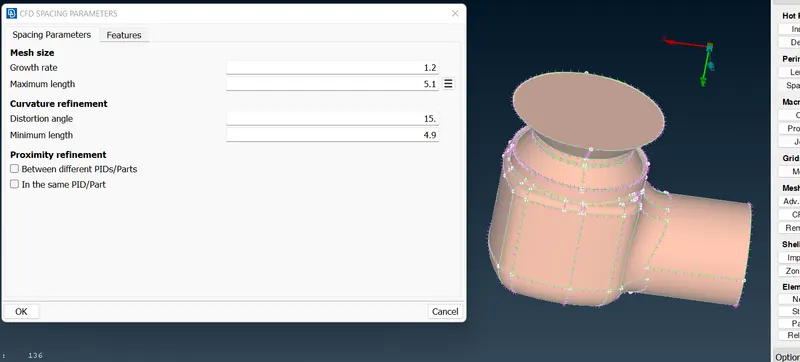
- Mesh >> Length >> Perimeter >> 5mm >> Ok >> Macros >> 5mm >> Ok.
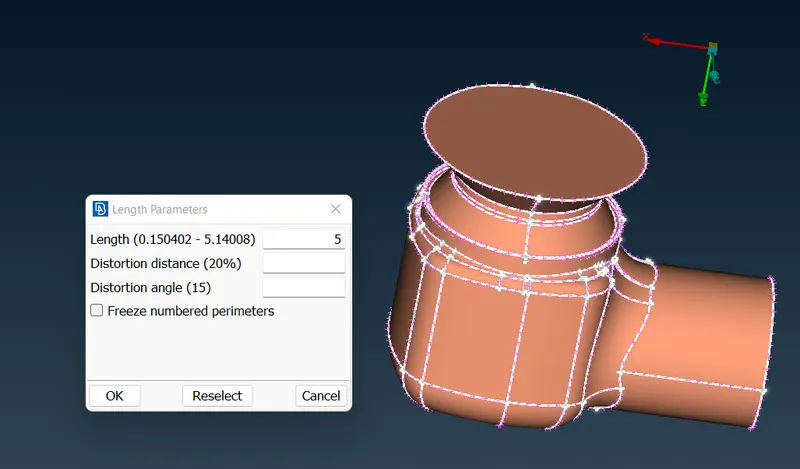
- Mesh Generation >> Choose Tria element.
- Mesh Generation >> CFD >> Visible. Mesh is created.
- Check if all the geometric features are captured or not for individual bodies by hiding PID’s.
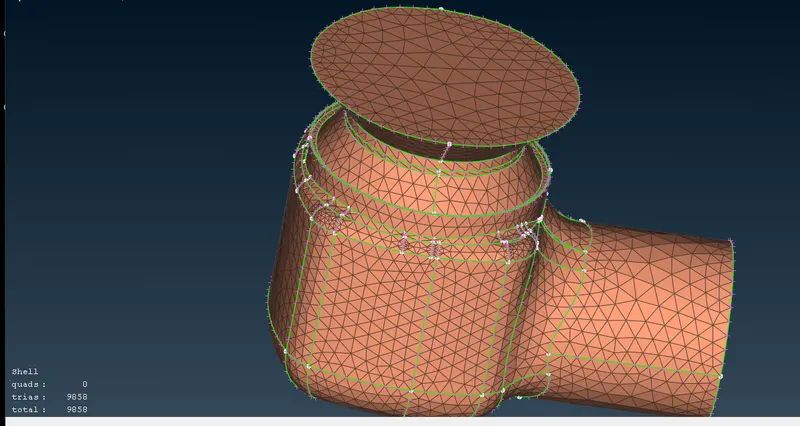
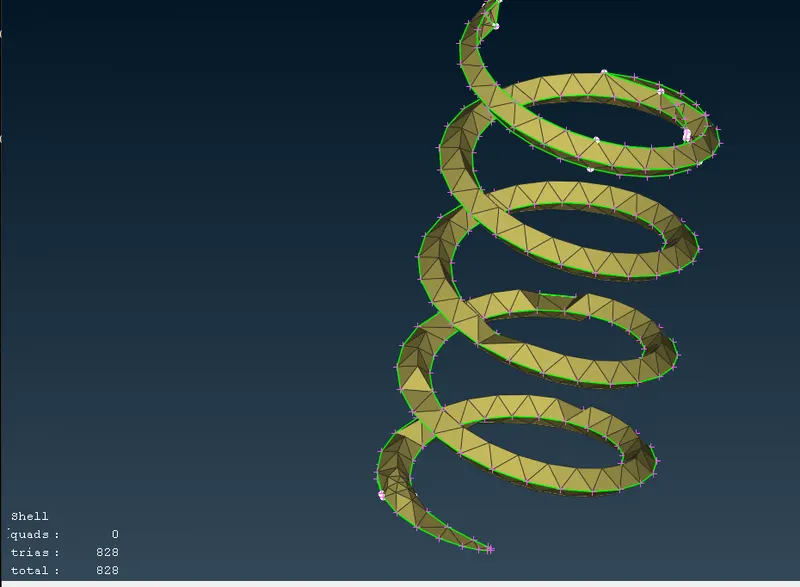
- It is seen that the Spring geometry is not captured properly for the given element size, hence we need to refine the mesh further.
Case-2: 3mm Mesh
- Mesh >> Perimeter >> Spacing >> Auto CFD >> Perimeter >> Provide the Max. & Min. range for the element length >> Macros >> Provide the Max. & Min. range for the element length >> OK. This Condition is provided to ANSA so that during mesh generation it is limited to the provided range.
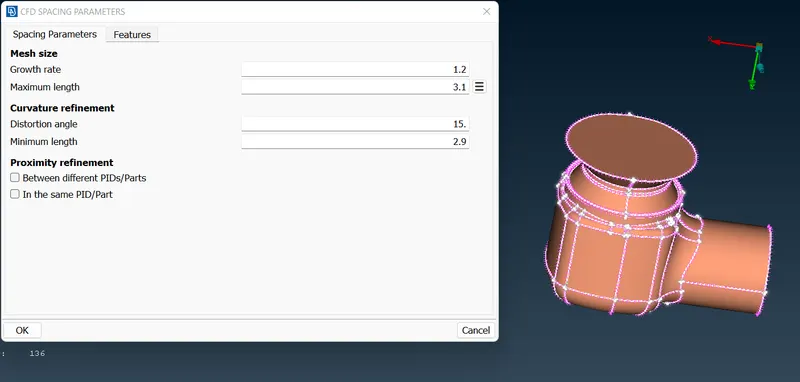
- Mesh >> Length >> Perimeter >> 3mm >> Ok >> Macros >> 3mm >> Ok.
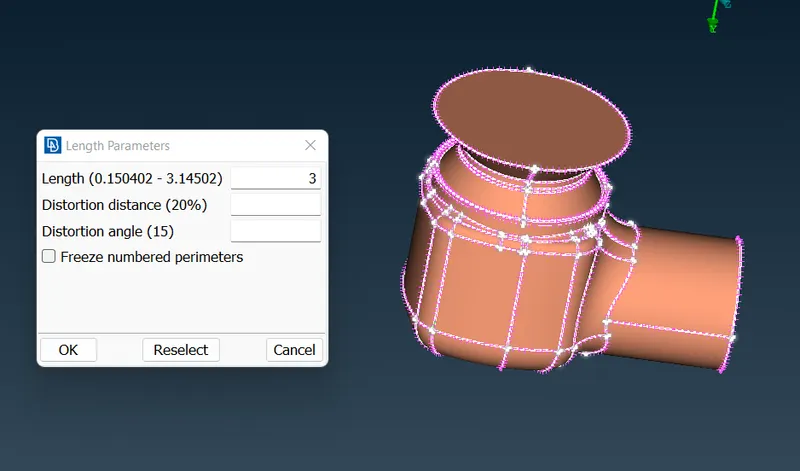
- Mesh Generation >> Choose Tria element.
- Mesh Generation >> CFD >> Visible. Mesh is created.
- Check if all the geometric features are captured or not for individual bodies by hiding PID’s.
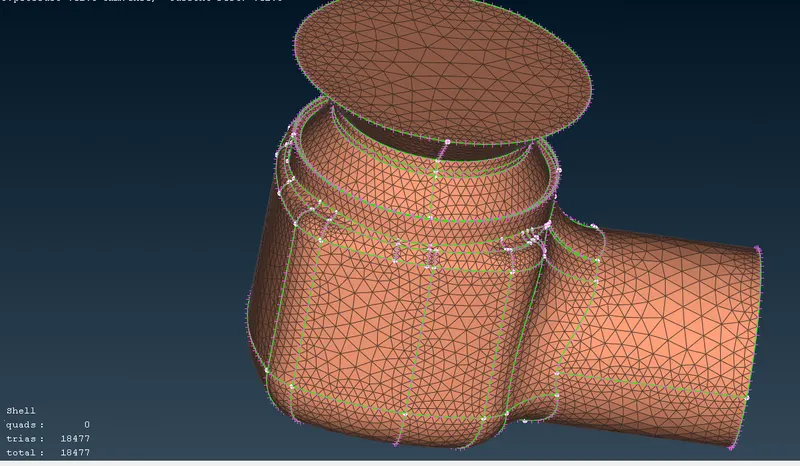
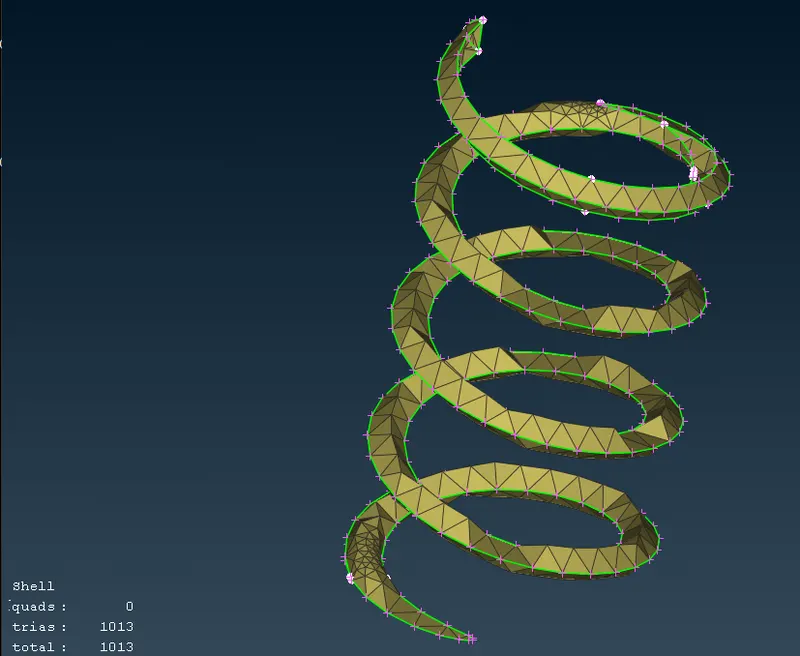
- It is seen that the Spring geometry is not captured properly for the given element size, hence we need to refine the mesh further.
Case-2: 1mm Mesh
- Mesh >> Perimeter >> Spacing >> Auto CFD >> Perimeter >> Provide the Max. & Min. range for the element length >> Macros >> Provide the Max. & Min. range for the element length >> OK. This Condition is provided to ANSA so that during mesh generation it is limited to the provided range.
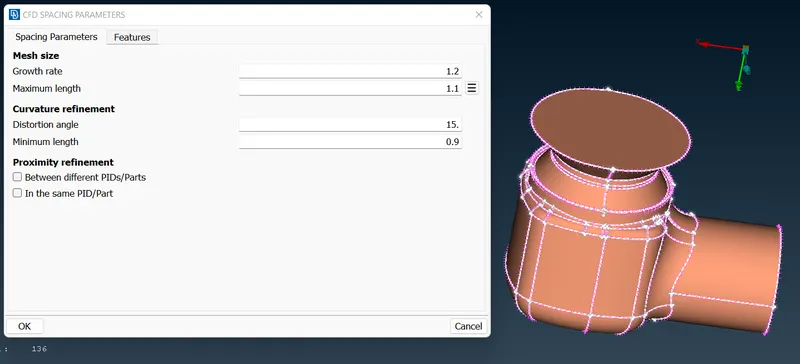
- Mesh >> Length >> Perimeter >> 1mm >> Ok >> Macros >> 1mm >> Ok.
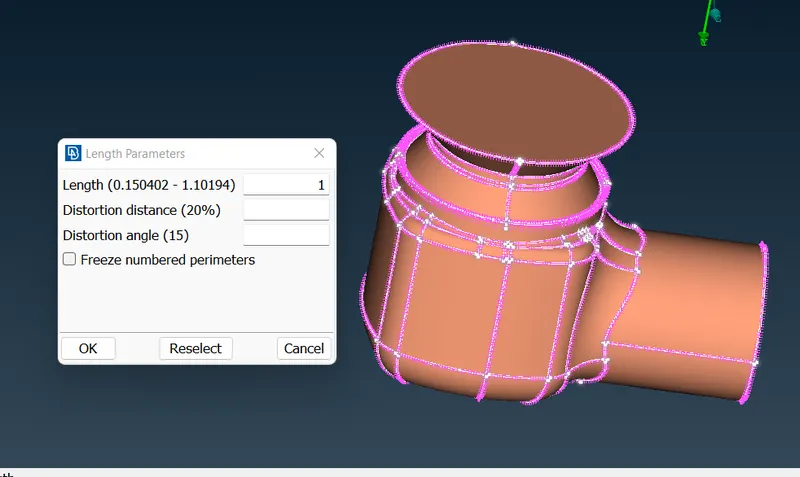
- Mesh Generation >> Choose Tria element.
- Mesh Generation >> CFD >> Visible. Mesh is created.
- Check if all the geometric features are captured or not for individual bodies by hiding PID’s.
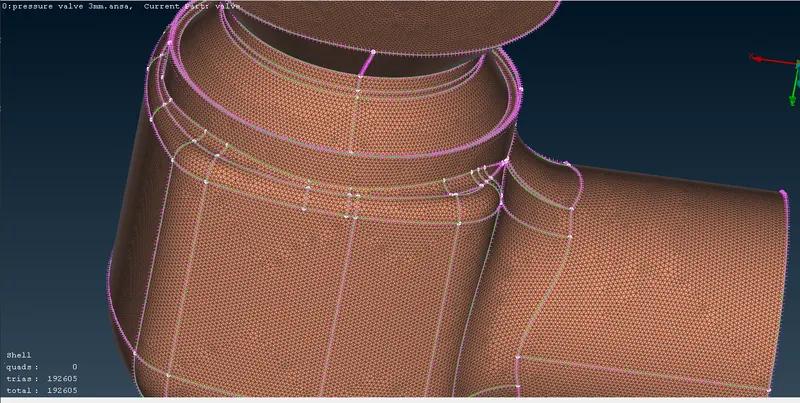
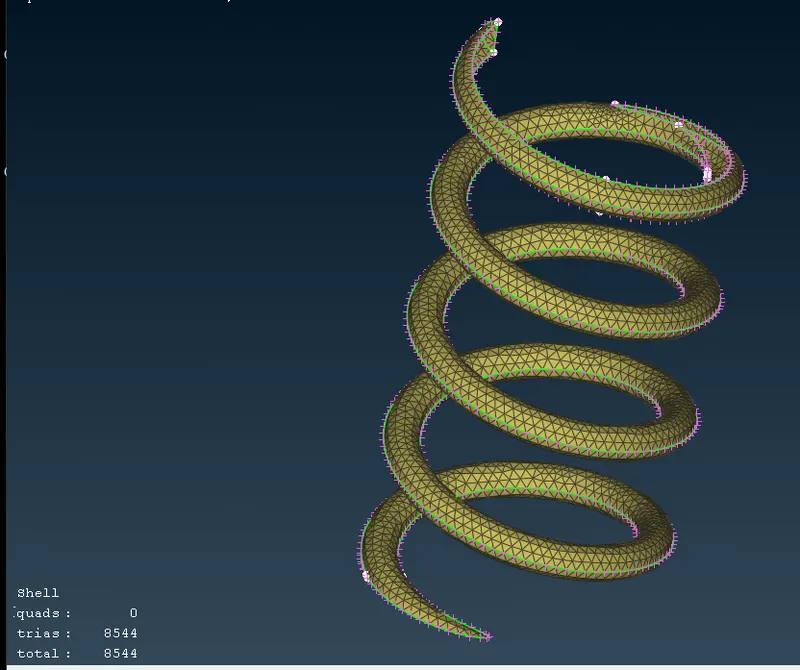
- Now the Spring geometry is captured correctly, hence we can go for Volume Mesh.
- Open V. Mesh >> Define >> Ok >> right click and delete the un wanted volume of column and spring >> OK.
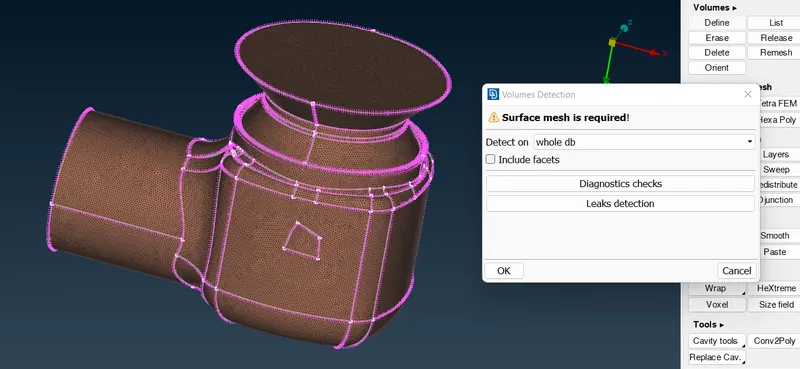
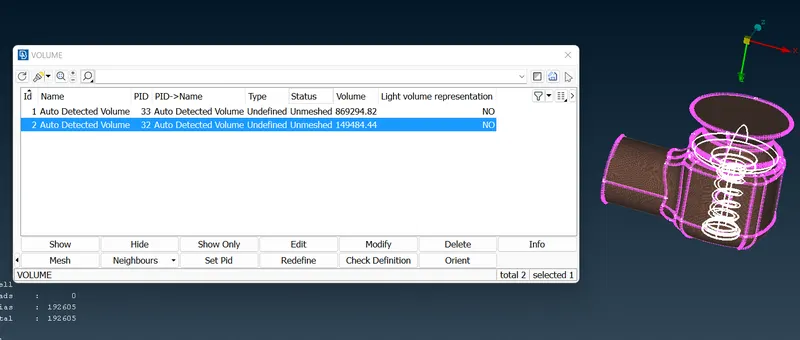
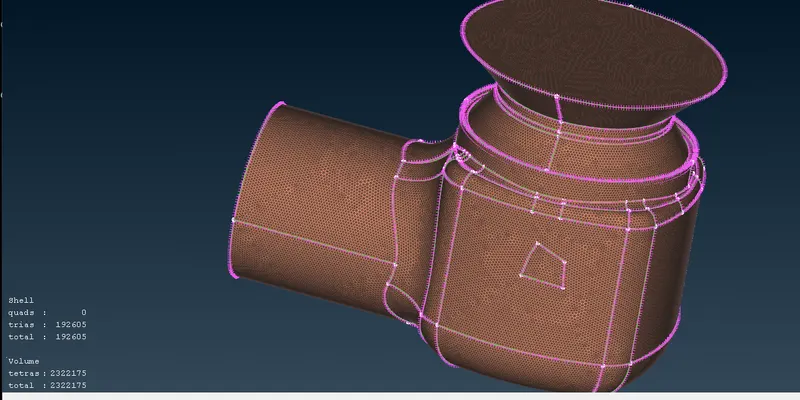
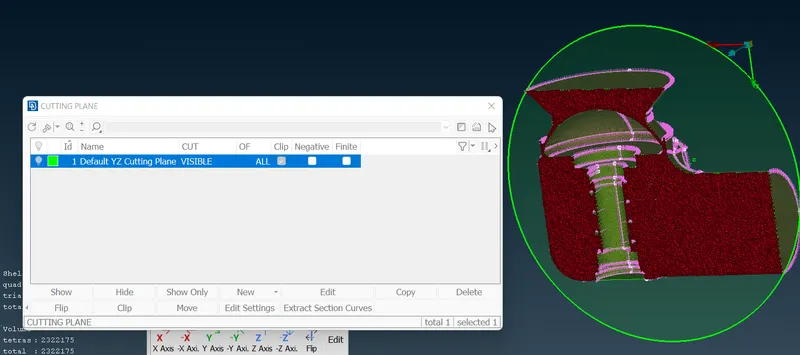
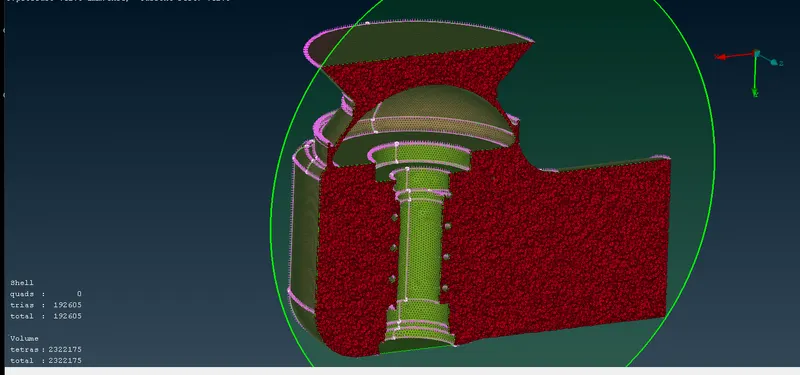
- Now, the volume mesh is generated, in order to view the volume mesh we make use of Cut plane.
- Click Cut plane >> List >> New >> Select the desired plane >> click the model >> Middle click the mouse >> Change the desired values for the cut plane position >> OK.
Result:
|
Sr. No. |
Element Size |
No. of Element |
No. of Spring Element |
Remarks |
|
1 |
5mm |
9858 |
828 |
Geometric Feature not Captured |
|
2 |
3mm |
18477 |
1013 |
Geometric Feature not Captured |
|
3 |
1mm |
192605 |
8544 |
Geometric Feature Captured |
- No. of elements in volume mesh is 23,22,175 for 1mm of surface mesh model.
Conclusion:
- Thus model is studied for different surface mesh and found that 1mm mesh is suitable for analysis as it captures better geometric features.
Mesh File:
- 5mm Element Size Mesh Model
https://drive.google.com/file/d/1yrDvaXG72LHZEWwmXnlfMXW0_72gRBoZ/view?usp=share_link
- 3mm Element Size Mesh Model
https://drive.google.com/file/d/1g4zz_iZR9H7Sx5ol16vlHS6PyCKnOYgD/view?usp=share_link
- 1mm Element Size Mesh Model
https://drive.google.com/file/d/1N1WqvX6KRYT7LjXWRcAFrHq2C5961uuv/view?usp=share_link