Week 2 Challenge
Q1
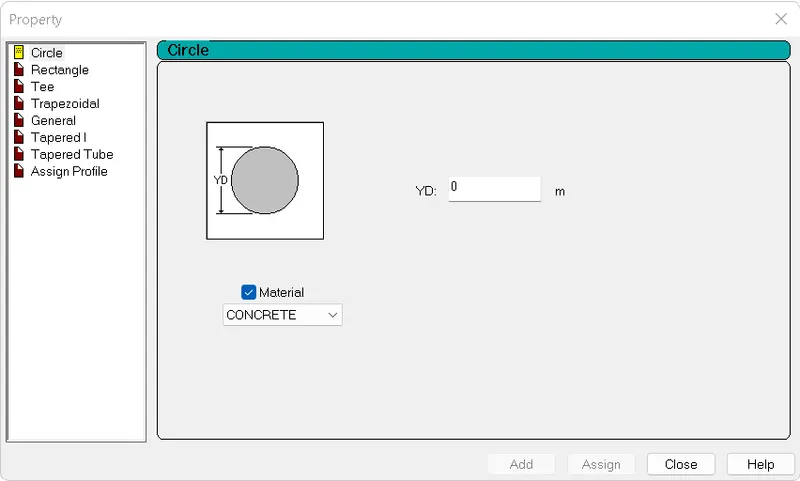
1.How to assign a circular section to the column
- draw the column with a certain height
- then go to the properties command
- click on define
- select the circular section and specify the diameter
- then click on assign
2.how to assign unit system to the std model file
- open staadpro
- click om new
- then specify the project details and give the units as english/ metric
- then click on create
- we can also change the unit system using the command unit convertor
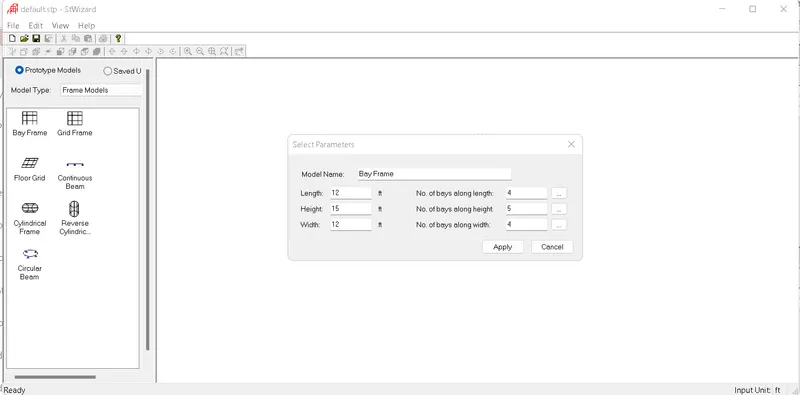
3.what are the parameters to be specified while using bay frame option
- open staadpro> new file
- click on the structural wizard
- select the model type as frame> bay frame
- then specify length, width and height of the building
- then specify number of bays and number of frames
- click on assign
4.list of codal standards incorporated in staadpro
- IS 456:2000
- IS 800:2007
- SP 16
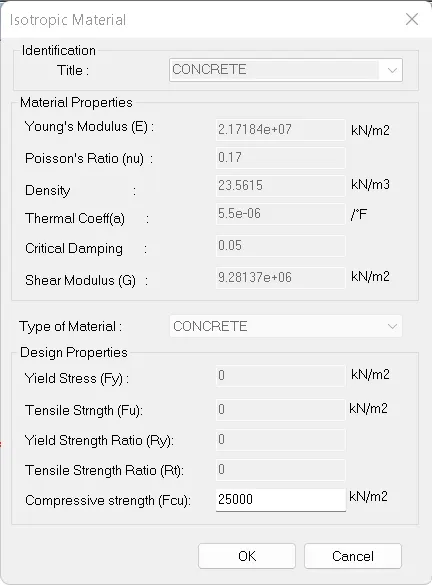
5. How to specify the design compressive strength of RCC column
- firstly draw the column with certaiin properties
- then go to material tab
- select the material type as concrete and click on edit
- specify the compressive strength of the concrete as per the design in the given dialogue box
- click on ok
Q2
1.Input steps involved in RCC design
- study of architechtural plan
- creating the geometry/ skeletol structure
- assign the properties to the elements
- assign the material properties
- define the structural supports
- assign the loads to the structure
- perform / Run analysis
- define the design commands/ design parameters
- assign all the design commands to the structure
- run the analysis
- click on go to post processing view to view the results
2. Difference between fixed support and enforced fixed support in staadpro
| fixed support | enforced support |
| all the translational and rotational displacements are restained | translational and rotational displacements are not restrained |
| when fixed supports are assigned for the structure support displacements are not calculated | support displacements are calculated by assigning the enforced supports |
| there is no provision for springs | staad itself assigns the spring but there is no provision to specify the spring constant |
Q3
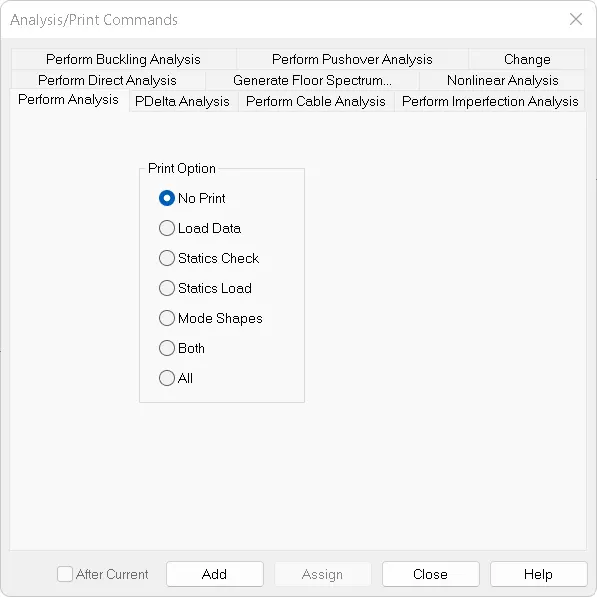
1.Explain the steps involved in the analysis of the model in a staadpro sequentially
- click on Run analysis command from the analysis and design tab
- then select the mode of analysis > no print
- then add the analysis command
- click on assign to run the analysis
2.Explain two ways of creating a model/ frame in staadpro
- By adding nodes
- take a node cursor and add nodes as per the drawings
- copy the nodes to the next level as per the height of the floors
- then take a beam cursor
- add beams and columns connecting the nodes
- connect all the required nodes to generate the model
- By selecting the frame from the standard model
- open staadpro> new file
- click on the structural wizard
- select the model type as frame> bay frame
- then specify length, width and height of the building
- then specify number of bays and number of frames
- click on assign
3.elaborate the difference between the support conditions in staadpro
there are 5 types of support conditions that are predefined in the software
- fixed: all the translational and rotational displacements are restained
- pinned: translational displacements are restrained but rotational moments are not restrained
- fixed but: the fixed support is similar to pinned support it allows us to provide the degree of freedom to view the displacements either translatuional or rotational
- enforced : when enforced supports are assigned to the structure the software allows the springs to itself and the displacements can be calculated however there is no provision to provide the spring constants
- enforced but: the software assigns the spring itself with zero stiffness or high stiffness
4.how to extract the stress distribution of the staircase slab
- firstly define the nodes to the staircase design
- then add beams
- add plate/solids to represent the staircase slab
- assign all the material and design properties
- then run the analysis
- after the analysis is done
- double click on the plate element to view the stress
5.explain the different ways to view SFD and BMD in staadpro
- after the analysis is done
- click on the beam >go to graphs
- select the category as SFD and BMD to view the resuts
TO ANALYSE THE SIMPLY SUPPORTED BEAM
Given data:-
- span of the beam 20m
- loading is 50KN
- load located at 5m from each support
- assume the cross section of the beam as 300 x 500 mm
procedure:-
- open staadpro file
- take a node cursor and create a nodes at the distance of 20m
- then add beam by taking beam cursor
- assign the supports to the beam
- after assigning the beams define cross section properties and material properties to the beam
- then add loading as per the given pattern
- go to analysis and design tool bar and click on run analysis
- after the analysis is done go to post processing to view the results
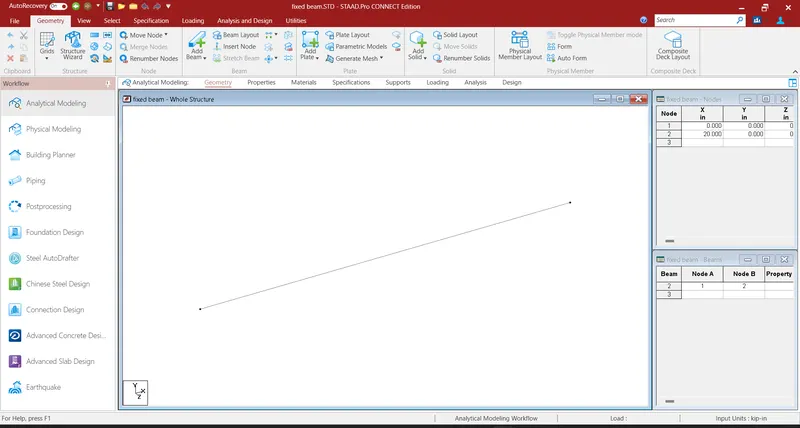
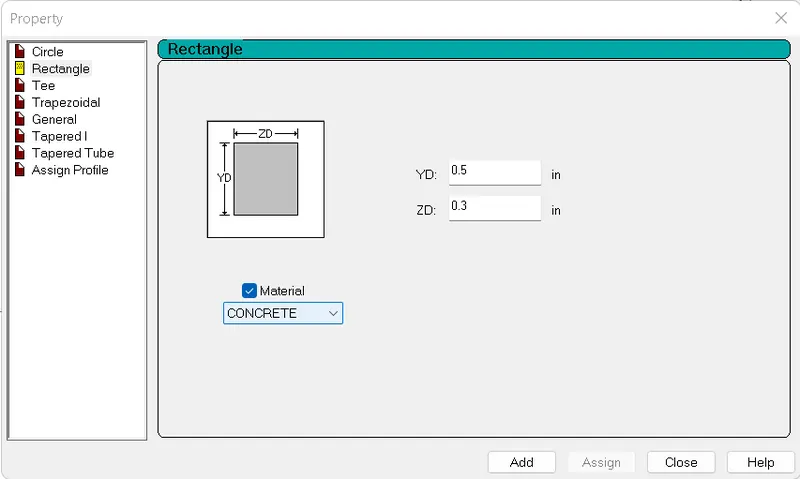
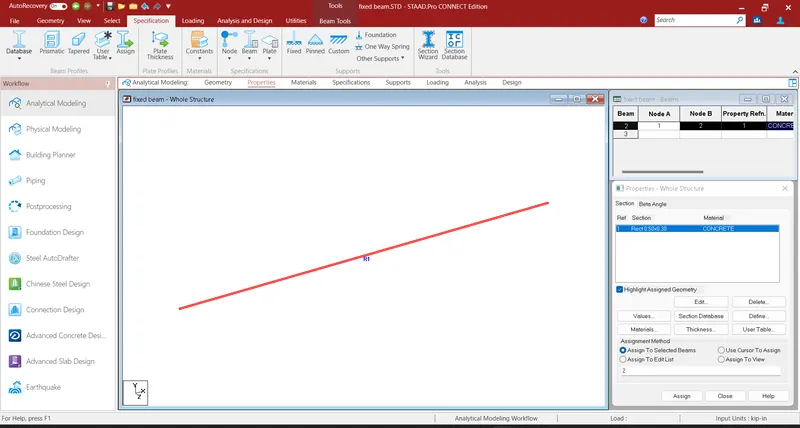
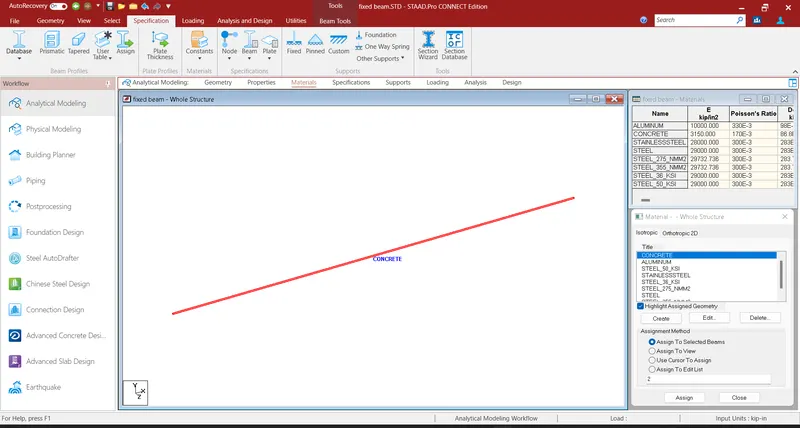
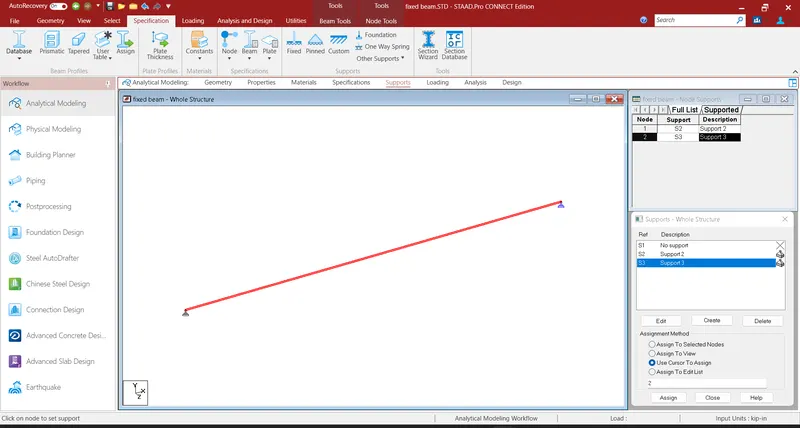
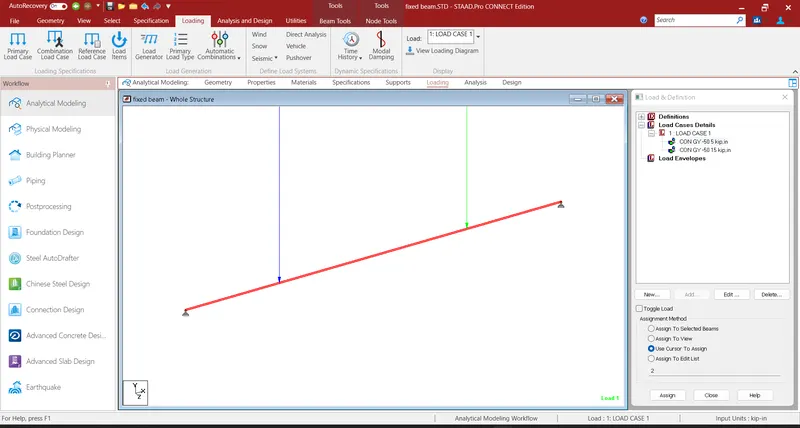
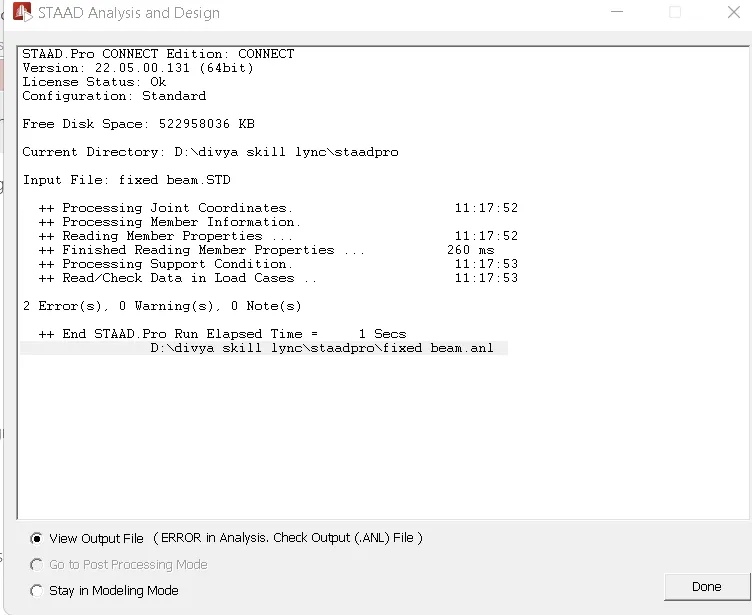
RESULT:- the analysis of the simply supported beam is done for the given loading
ANALYSIS OF FIXED BEAM
Given data:-
- span of the beam is 16m
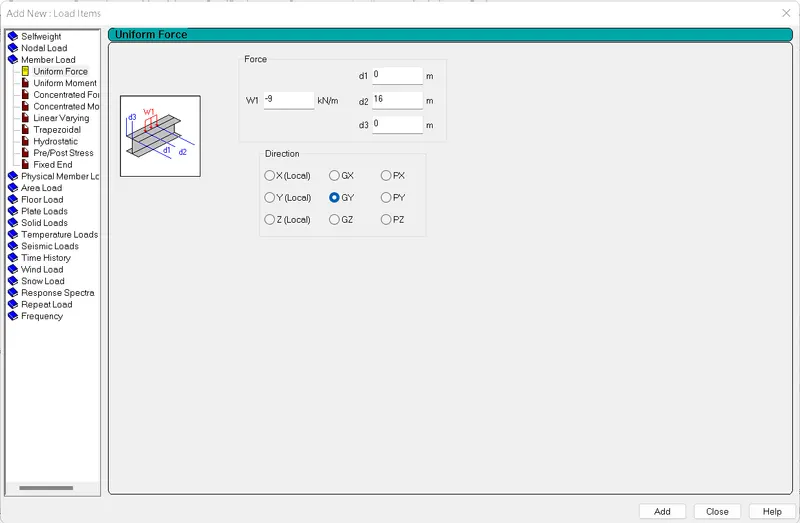
- uniformly distributed load of 9kn/m
- assume the cross section of the beam as 300 x 500mm
procedure:-
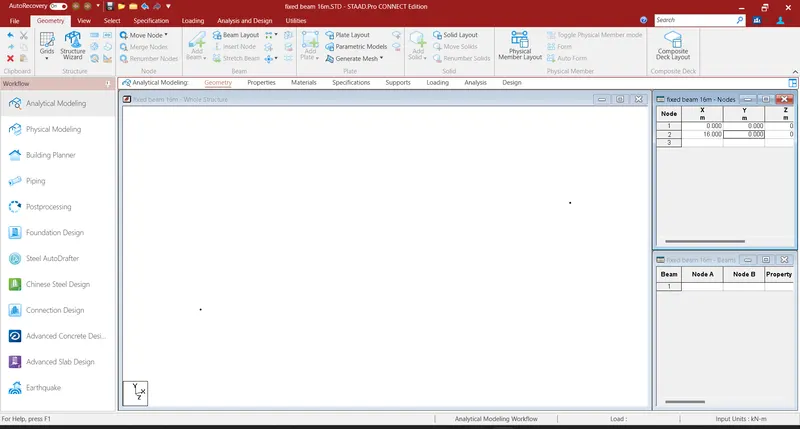
- open staadpro> new file
- select the units as metric and create a new file
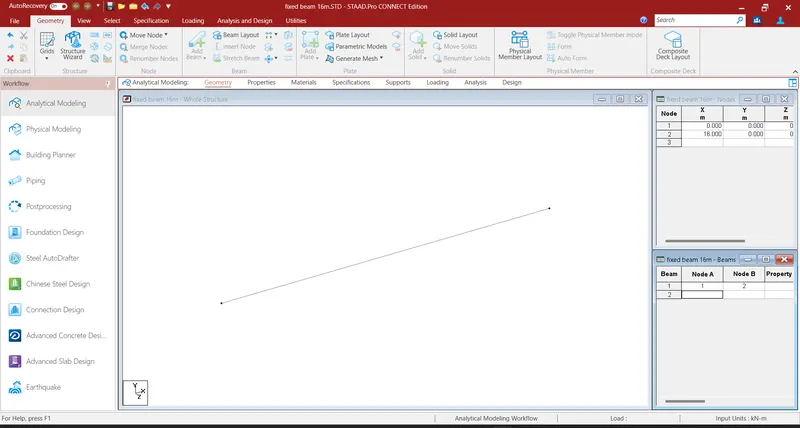
- then add nodes at the distance of 16m
- then take a beam cursor and beam connecting the node points
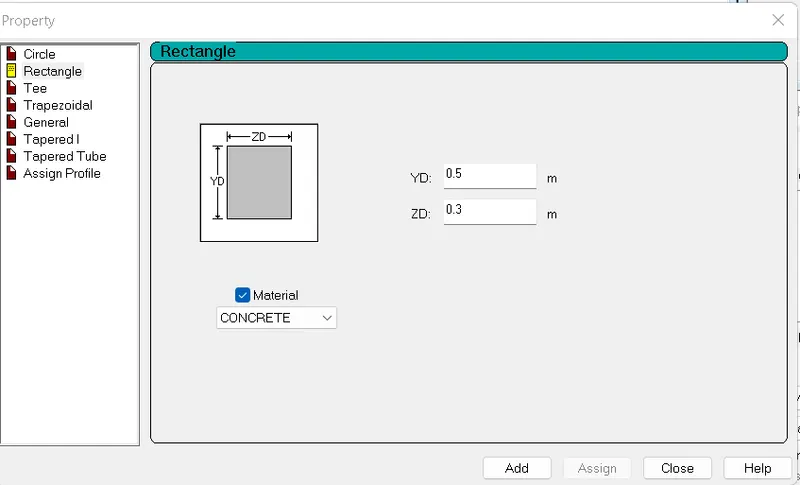
- then go to the properties dialogue box
- select the cross section as rectangular
- specify the dimensions of the beam
- assign them to the beam
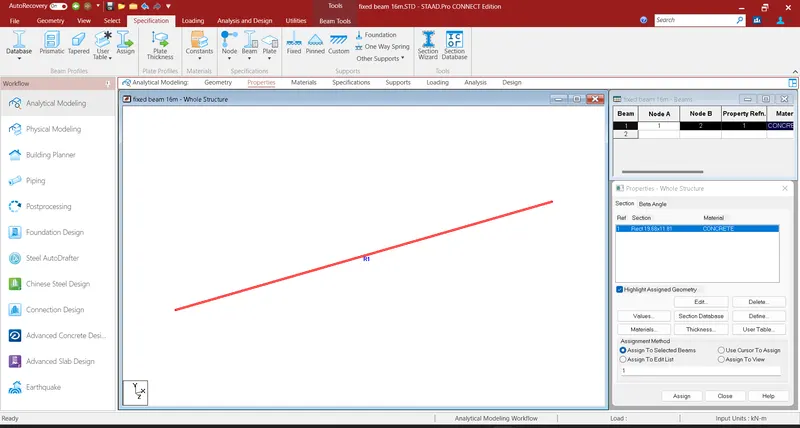
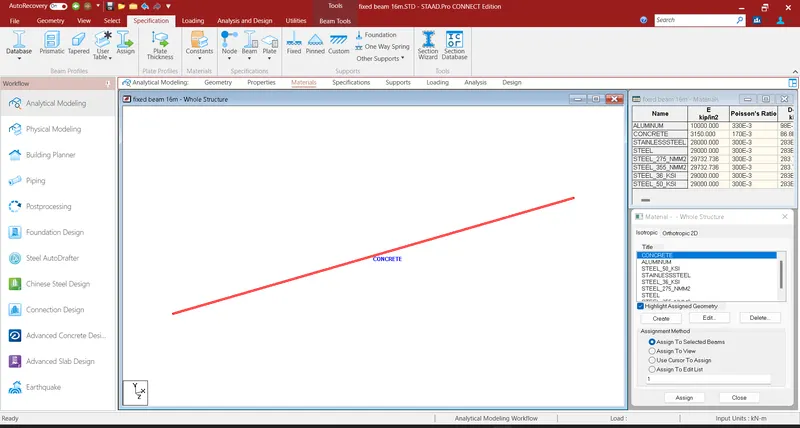
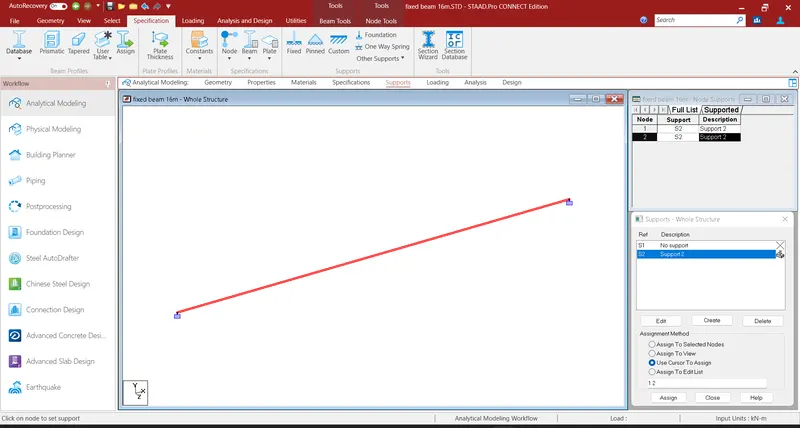
- them assign the material properties and supports to the beam
- then to assign the loads
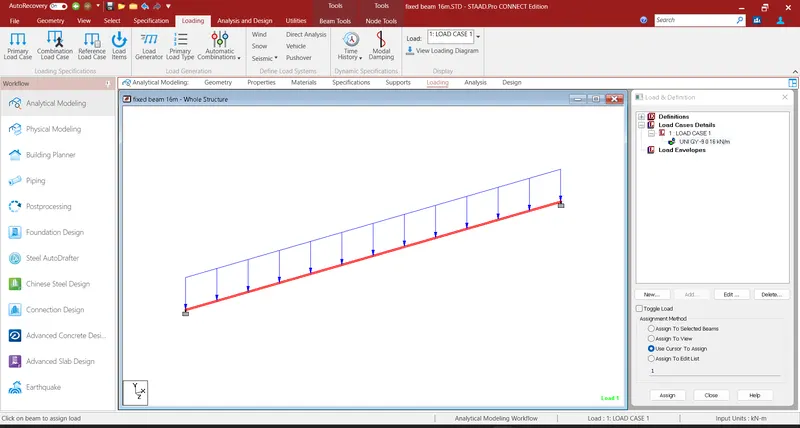
- add the load case> select on the memberload
- then click on uniform load
- specify the loading details and assign them to the beam
- after the loads are assigned click on run analysis
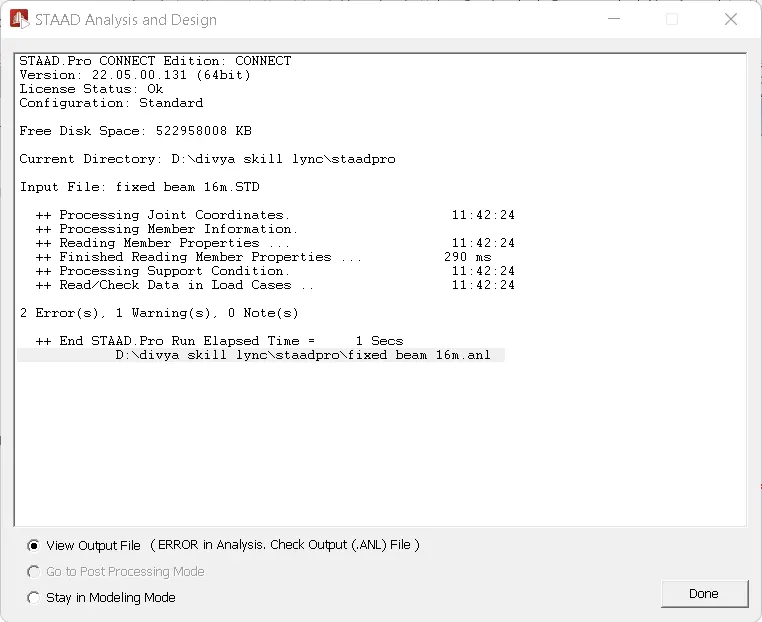
- select the code as indian IS 456
- add the design parameters and assign them to the beam
- again run the analysis to view the design results
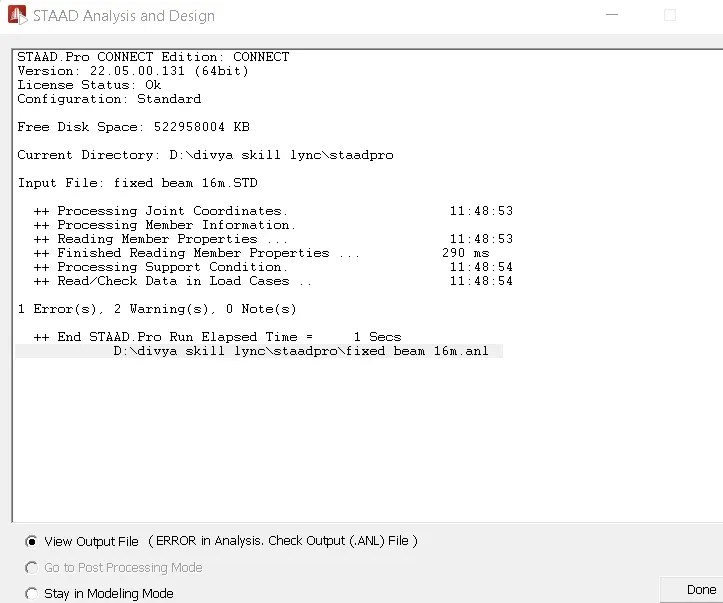
RESULTS:- The analysis and design of fixed beam is done.