Week 2 Challenge
Q1.
1. How will you assign Circular section to column?
ANS :
> Go to properties
> Select define property
> Select circle and give the radius for the member
> Assign the defined circle to the member created
2. How will you assign Unit system to a .std model file?
ANS :
> Go to unit system and assign the units
> Then go to geometry in that elect input units and assign the units
> Go to view menu - select display options - select structure units
3. What are the parameters to be specified while using “Bay Frame” option?
ANS :
It can be obtained from geometry tab -> structural wizard -> Select frame model in that select bay frame
>> Parameters like length, height, width, No. of bays along length, No. of bays along height and No. of bays along width
4. Name few codal standards incorporated in STAAD Pro software.
ANS :
Codal standards incorporated in STAAD Pro software are Euro code, ACI, IS code
5. How will you specify the design compressive strength for a RCC section?
ANS :
In design - select material as concrete - select the code - go to define parameters - select FC - specify the value
Q2.
1. State the “Input” steps involved in RCC design.
ANS : Steps involved in RCC design are
- Geometry
- Properties
- Materials
- Specification
- Support
- Loading and Load combinations
- Analysis
- Design
-
2. Explain the difference between Fixed and Enforced support condition in STAADPro.
ANS :
- Fixed support : In the fixed type of support, for those degrees of freedom which are to be treated as fully restrained, the displacements to be known
- quantities is zero.
- In it degrees of freedom are not considered for the stiffness matrix and their value is not calculated
- Enforced support : In the enforced type of support is specified, for those degrees of freedom are restrained, STAAD assign a spring with a spring stiffness – translational stiff springs for translational restraints and rotational stiff springs for rotational restraints.
- In it degrees of freedom which are free to displace are assigned springs of zero stiffness. Hence, for all the six degrees of freedom at such supports, the displacements are calculated.
Q3.
1. Explain the steps involved in analysis of a model using STAAD Pro sequentially.
ANS: Steps involved in analysis of a model using STAAD Pro sequentially are
- > Input Geometry
- > Input Properties
- > Input Specifications/Constants/Supports
- > Run analysis
- > Specify analysis type
- > Input design standards
- > Input load and load combinations
- > Verify results
- > Design
- > Represent design as document and drawing
-
2. Explain the two ways in which a structural framework/model can be created in STAAD Pro software.
ANS:
- Node by node method
- Structural wizard method
-
The two ways in which a structural framework/model can be created in STAAD Pro software are:
- Node by Node method.
- Structure wizard method.
- >>> Node by node method
- In this method we assign the nodes as per the architectural drawings that are placed manually by placing the co-ordinates.
- We can assign the nodes to our building by using the geometry panel.
- And these nodes can be transitionally repeated based on the building dimensions and the levels.
- >>> Structural wizard method
- This method is an automated method as compared to the node-by-node method.
- We can create truss, frame and other structures just by using this method.
- 3. Elaborate the different support conditions in STAAD Pro.
ANS
The different support conditions in STAAD Pro are listed below
- Fixed Support Condition
- Pinned Support Condition
- Enforced Support Condition
- Enforced But Support Condition
- Multilinear Support Condition
- Tension/Compression only springs
- Foundation Support Condition
- - Fixed Support Condition
- Fixed support are restrained in all six degree of freedom i.e FX, FY, FZ, MX, MY and MZ.
- - Pinned Support Condition.
- Pinned support are restrained against translation i.e FX, FY and FZ but can rotate freely i.e MX, MY and MZ.
- - Enforced Support Condition
- Enforced support are also restrained in all six degrees of freedom but It contains spring constant.
- 4. How will you extract the stress distribution for a staircase slab?
ANS :
The stress distribution for a staircase slab can be distracted by following steps
- > Create the nodes of a staircase using the geometry panel option
- > Assign the plate element as the Slab property. - Define load cases - Calculate the area load that is acting on the staircase slab
- > Apply the load cases and the load combinations to the plate element as the area load
- > Create a mess on the plate element
- > Go for the analysis of the model successfully, go to the Post-Processing mode option which can be present on the left side of the screen
- > Click on the plate result option
- > There will be a dropdown list, Select option stress distribution
- > Choose the appropriate stress type accordingly
- After clicking on the OK button, the STAAD Pro software will show the stress distribution result. We can see the distribution result in the form of different colour zones which shows the maximum and the minimum stress values
- Different colours shows the different results of minimum and the maximum stress distribution among the staircase.
- 5. Explain the different ways to view SFD & BMD in STAAD Pro.
- ANS.
The different ways to view the SFD and BMD in STAAD Pro software are as under
- > Create the model using the nodes method in the geometry panel
- > Go to the Properties panel and assign the properties to the model
- > Assign the support conditions, after assigning the support condition to the model do the analysis
- > Go to the post-processing mode
- > Select beam result option
- > After clicking the option a tool pallete will appear on the screen. Here we can see different values such as Shear force or the Bending moments.
- To see the shear force diagram, click on the Fy option and if we want to see the bending moment diagram then click on the option Mz.
- Practical
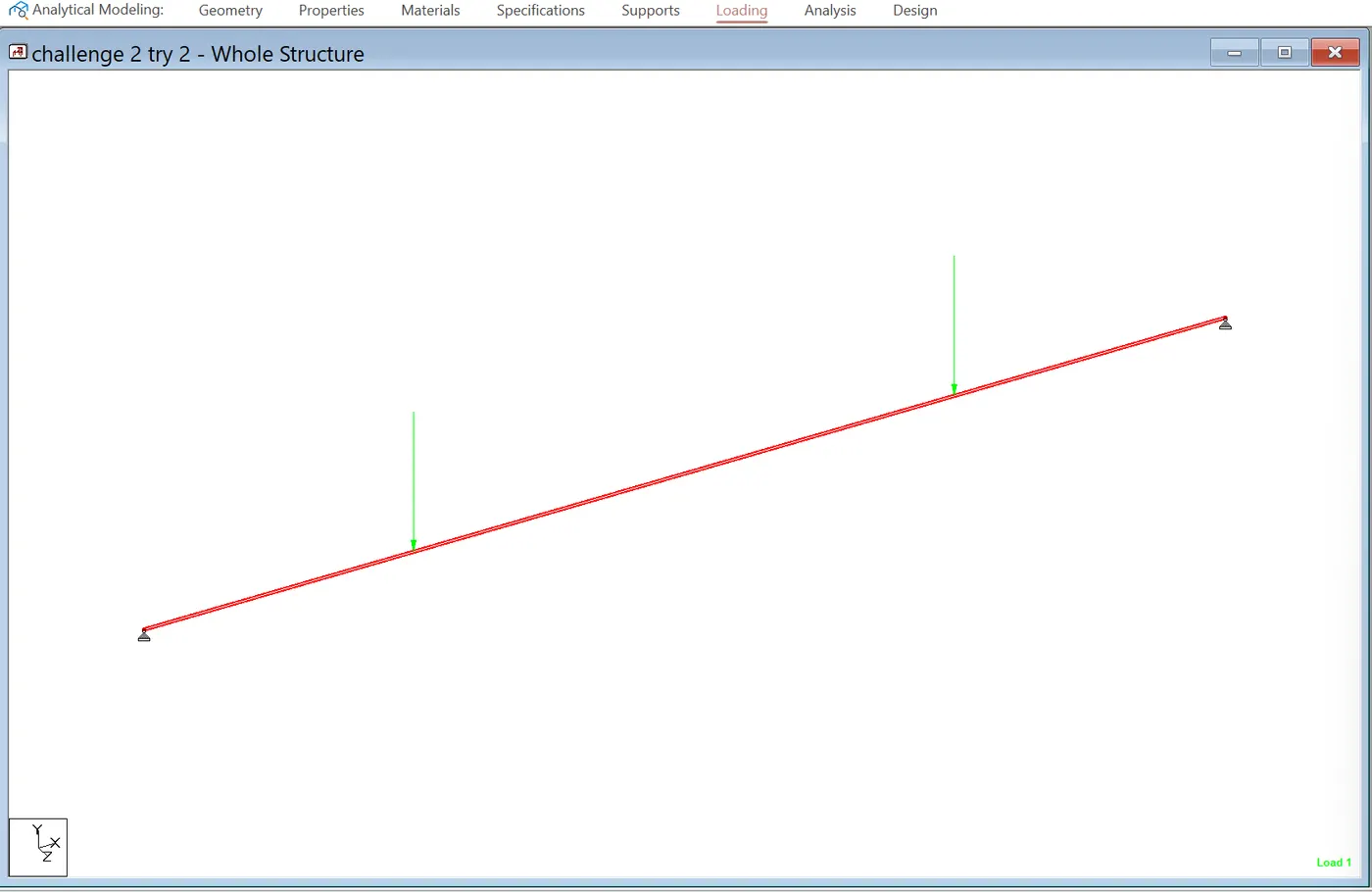
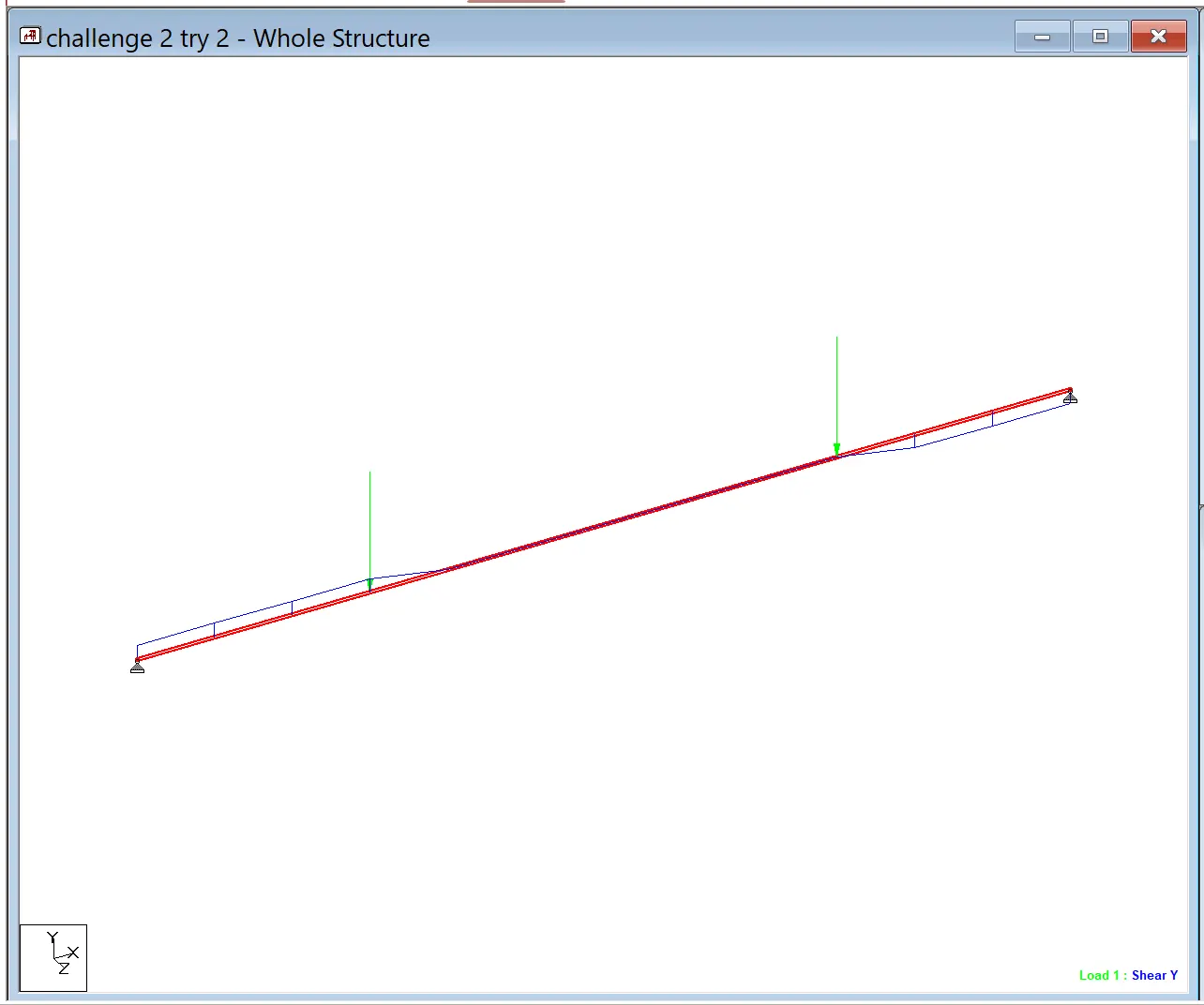
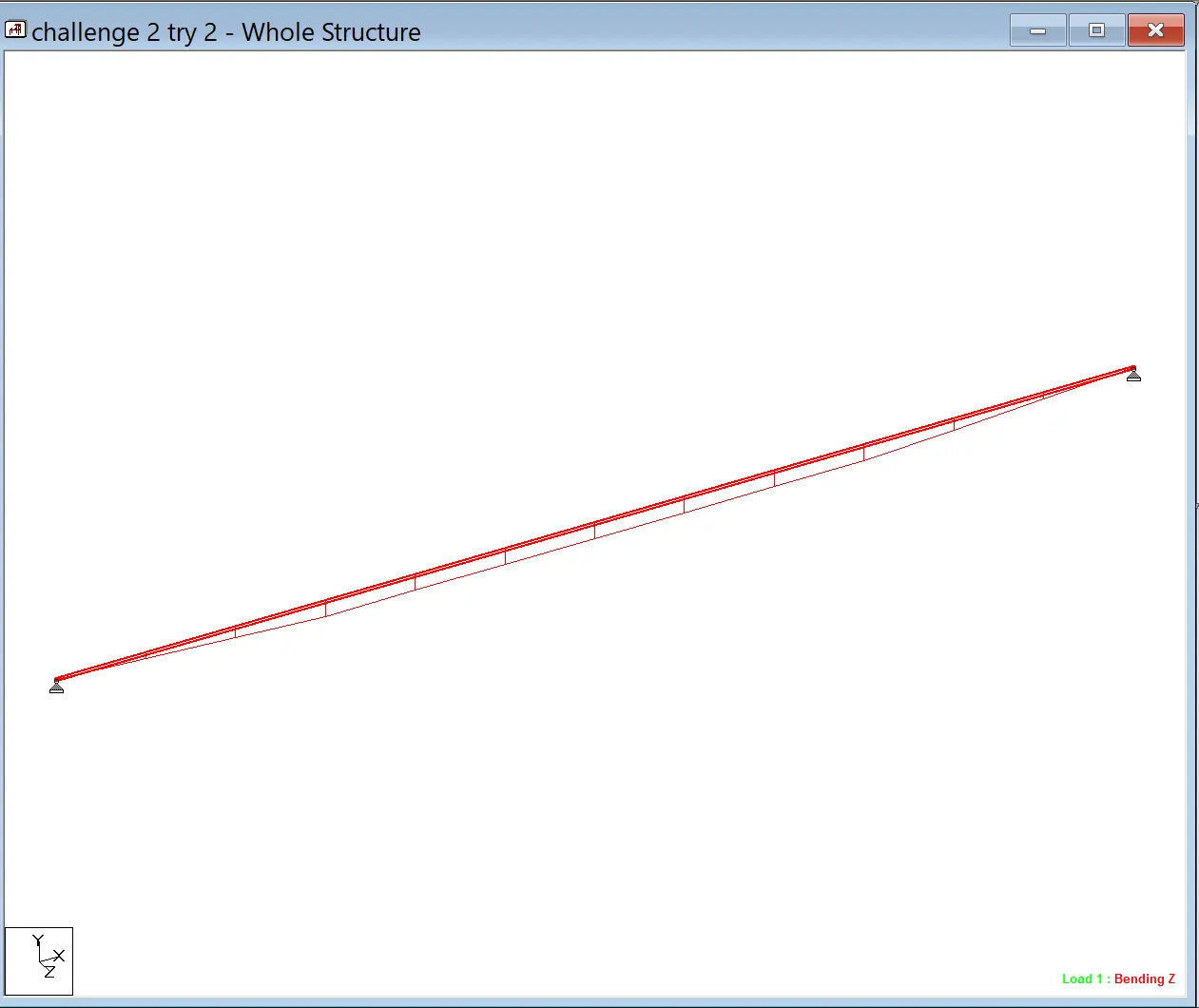
1. Analyze the following structural elements and validate the results- A. Simply Supported Beam
a. A Simply supported beam with two point loads symmetrically placed
b. Span L = 20m
c. Load P = 50kN each
d. Both P located at 5m from each support - Aim : To design simply supported beam with two point loads symmetrically placed of given dimension and loads
-
Introduction :
-
Staad pro is one of the popular software for analysing and designing structures like buildings, towers, bridges etc
- It is compactable with steel concrete and timber design codes
- Staad pro developed in 1997 in california and later bentley systems
- It supports several steel, concrete and timber material in a seprate member and this seprate member will cordinate and the formed in to a structure
- Procedure :
- - Open Staad Software
- - Create new Model
- - Select Matric
- - Go to the Geometry and give ditance of 0-20 m in Table
- - Go to property and add property of beam
- - Choose rectangle and material concrete
- - Assign the Property to the view
- - Go to the support
- - Create support
- - Create Support as simply supported (Only Restraint at Fy){pinned}
- - Go to the Loading Tab
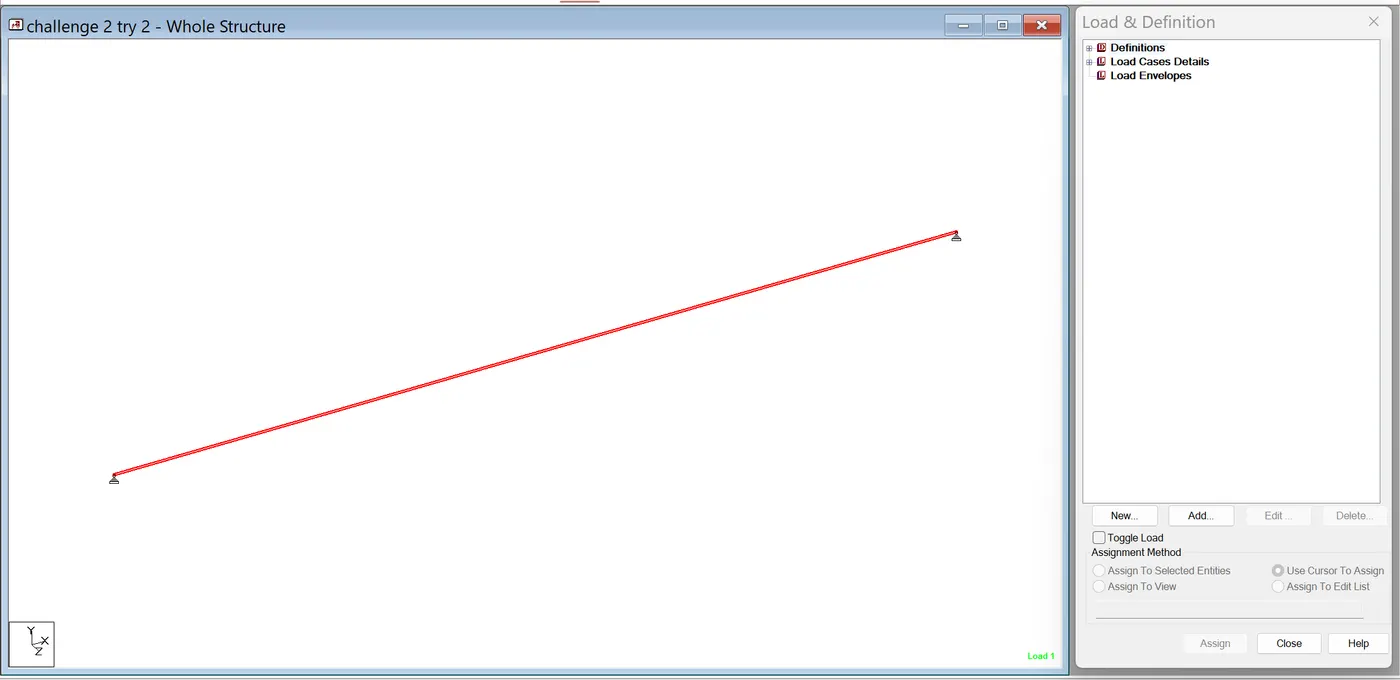
- - Click on Load Case Details
- - Add Load case
- - Click on Load case
- - Click on Member Load
- - Add concentrated Load of 50 KN at the distance of 5 and 15 m.
- - Now add the Load
- - Assign the Load to the Member
- - Now To go Assign Tab
- - Click on Define Command And Add Perform Analysis
- - After Analysis Go to PostProcessing
- - Click on Load Case
- - Check SFD & BMD
-
RESULT:
To Analyze the structural elements and validate results for Simply Supported Beam are successfully completed by using STAAD PRO software.
-
B.Fixed Beam
a. Span L = 16m
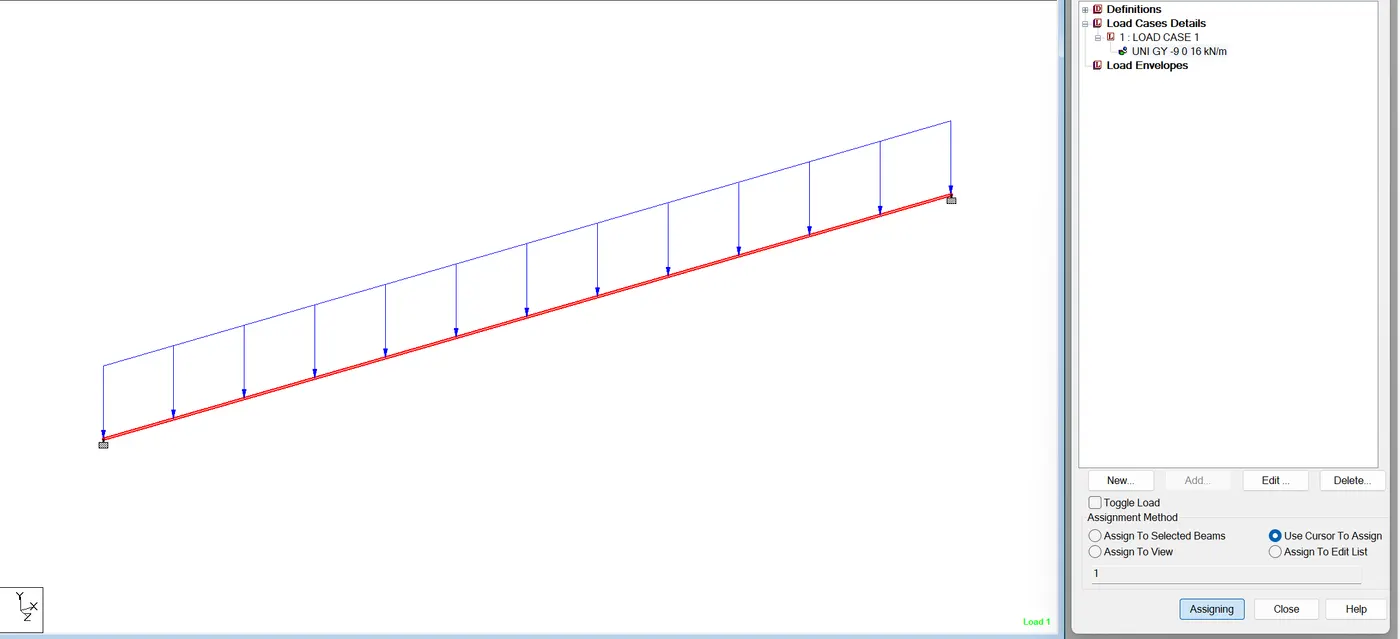
b. Uniformly Distributed Load w=9kN/mAim:
Analyze the following structural elements and validate the results Fixed Beam of Span L = 16m and Uniformly Distributed Load w=9kN/m
-
Introduction :
- Staad pro is one of the popular software for analysing and designing structures like buildings, towers, bridges etc.
- It is compactable with steel concrete and timber design codes.
- Staad pro developed in 1997 in california and later bentley systems.
- It supports several steel, concrete and timber material in a seprate member and this seprate member will cordinate and the formed in to a structure
-
Procedure :
- - Open the staad pro software
- - Create new file
- - Take analytical type and metric units
- - Go to beam tab and enter and take 16m beam
- - To add the properties to enter define option and take rectangular beam
- - Assign the properties
- - Apply material is concrete
- - Apply the fixed supports
- - Apply the load cases in to the beam like uniformly distibuted load of 9 kn/m.
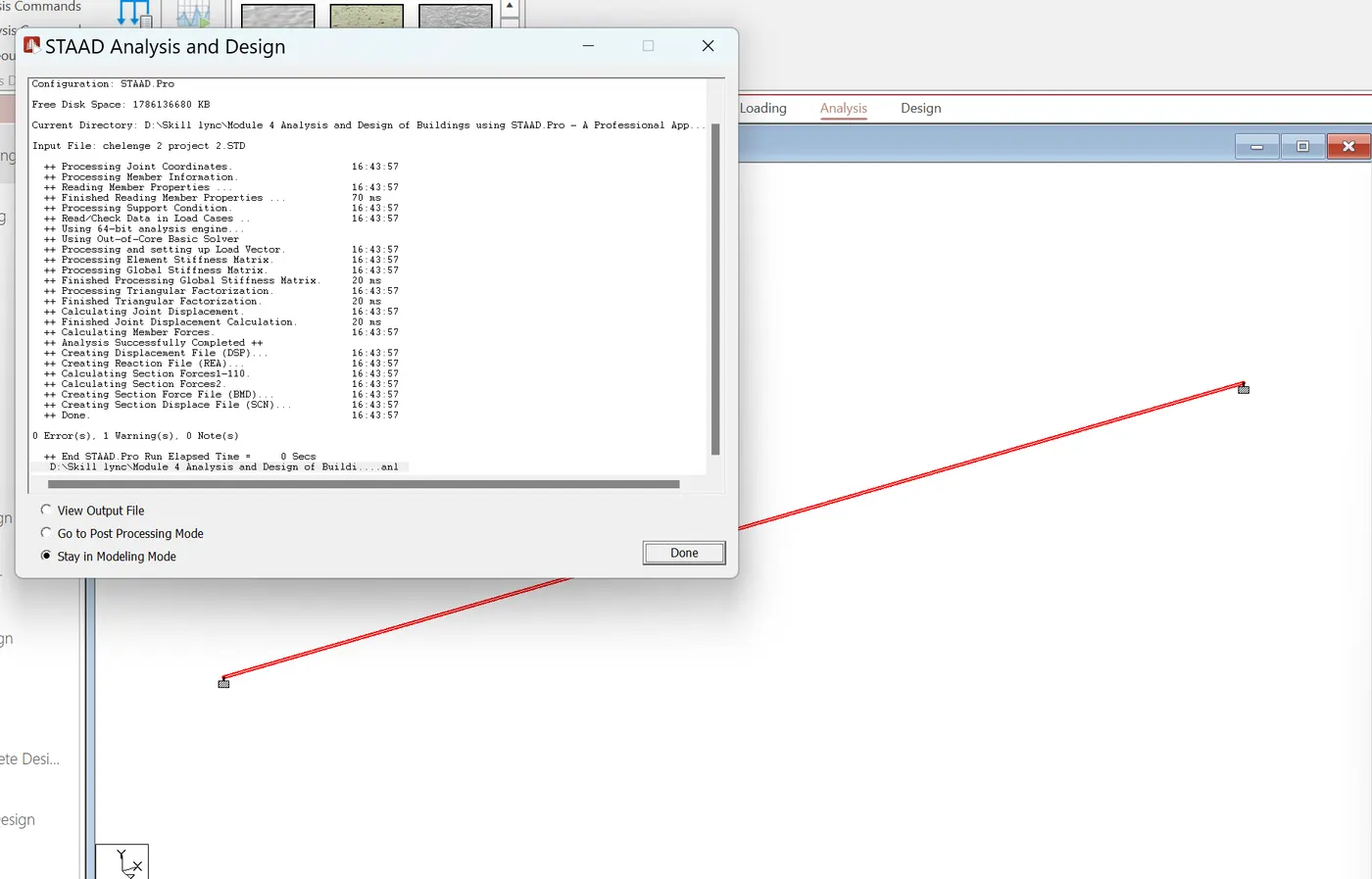
- - Go to analysis tab and run the analysis
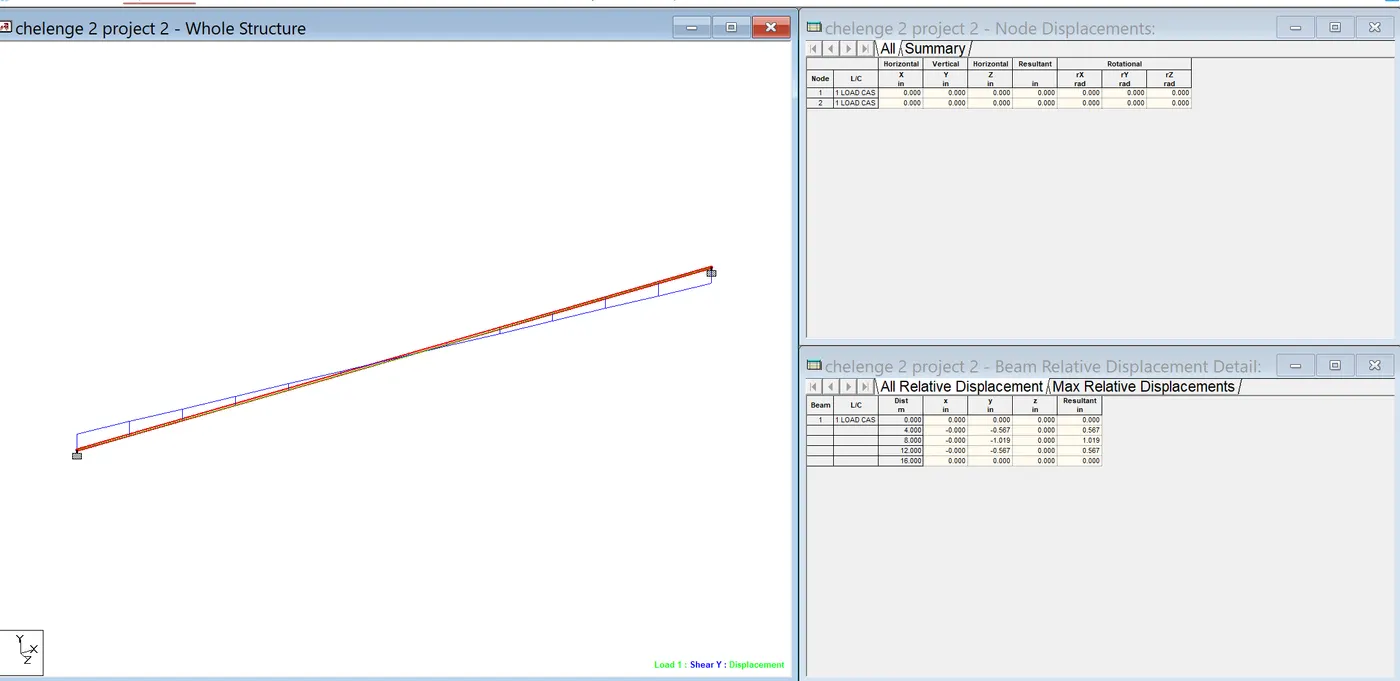
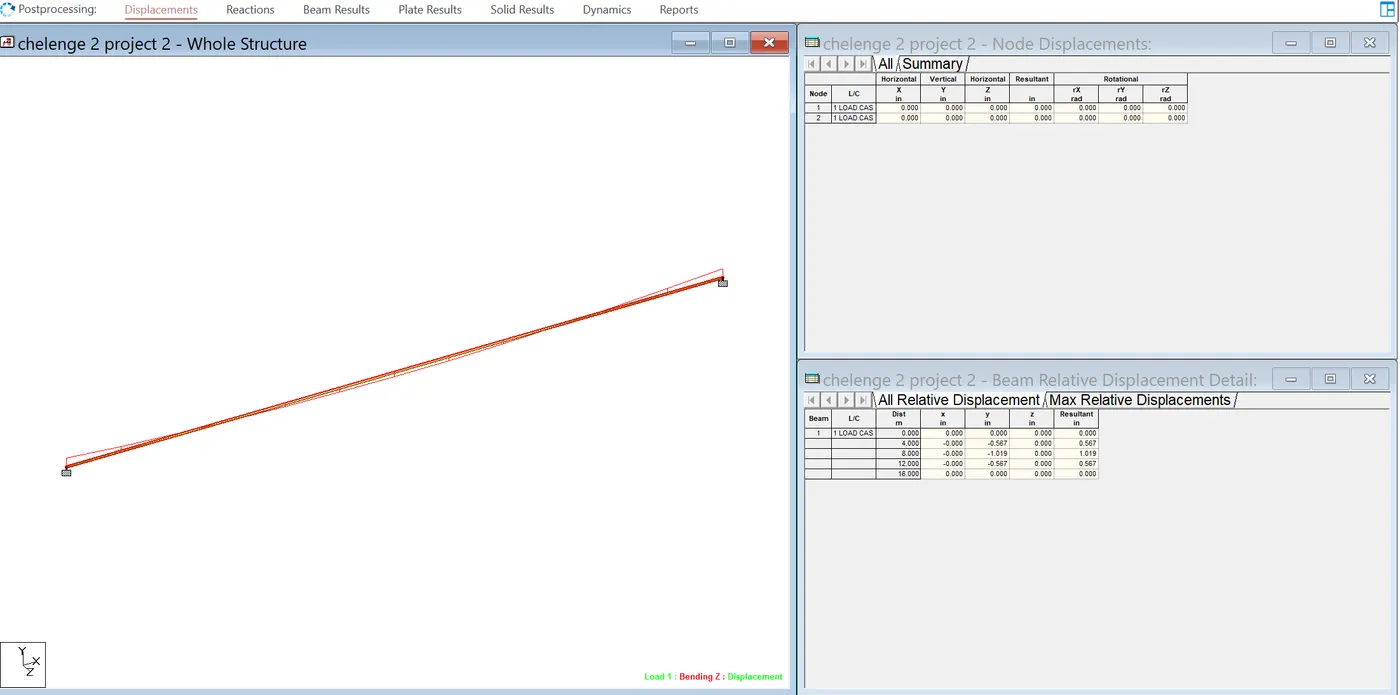
- - Click on Load Case
- - Check SFD & BMD
-
RESULT:
To Analyze the structural elements and validate results for Fixed Beam are successfully completed by using STAAD PRO software.
- A. Simply Supported Beam