Week 2- 2R Robotic Arm Challenge
AIM :
To write a program in MATLAB to simulate the forward kinematics of a 2R Robotic Arm.
INTRODUCTION :
Kinematics of mechanisms is concerned with the motion of the parts without considering how the influencing factor(force and mass) affect the motion. Therefore, kinematics deals with the fundamental concept of space and time and the quantities, velocity and acceleration derived there from. Here, kinematics is the relationship between the positions, velocities and accelerations of the manipulator's link.
Forward Kinematics refers to the use of the kinematic equations of a robot to compute the position of the end-effector from specified values for the joint parameters.
2-R Robotics Arm means the robotic arm has 2 Rotating Link, where "2-R" means the arm has two no. of links and two number of Rotating joints.
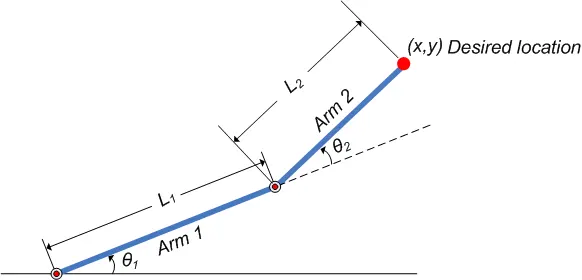
figure1. 2R Robotic arm kinematics
PROCEDURES AND EXPLANATION :
Step-1 : Calculate position of Link-1
Position of both the ends of link1, connected to the base support and link2, having coordinates (X0, Y0) and (X1,Y1), respectively.
x0 = 0;
y0 = 0;

x1 = l1*cosd(theta1);
y1 = l1*sind(theta1);
Step-2 : Calculate position of Link-2
Position of both the ends of link2, connected to the one end of link1 and manipulator, having coordinates (X1,Y1) and (X2, Y2) , respectively.
x2 = x1 + l2*cosd(theta2);
y2 = x1 + l2*sind(theta2);
Step-3 : Programming
- First of all we have to assign values for l1(link1), l2(Link2), theta1(`theta1`) and theta2(`theta2`) as input as follows :
l1 = 1;
l2 = 0.5;

theta1 = 45;
theta2 = 30;- Then we have to write conditions for positions of Link-1 and Link-2, as discussed above in Step1 and Step2.
- Then we have to write conditions for Plotting. Here we are using line function instead of plot function, as plot function gives an error. Additionally we are using linewidth of 3mm and different color for different link as red and green, respectively, for better visibility of plot.
line([x0 x1], [y0 y1], 'linewidth', 3, 'color', 'r')
line([x1 x2], [y1 y2], 'linewidth', 3, 'color', 'g')
Execution
%Forward kinematic of a 2R Robotic Arm Manipulator
clear all
close all
clc

%inputs

l1 = 1;
l2 = 0.5;

theta1 = 45;
theta2 = 30;

%coordinates

x0 = 0;
y0 = 0;

x1 = l1*cosd(theta1);
y1 = l1*sind(theta1);

x2 = x1 + l2*cosd(theta2);
y2 = x1 + l2*sind(theta2);

%Plotting

line([x0 x1], [y0 y1], 'linewidth', 3, 'color', 'r')
line([x1 x2], [y1 y2], 'linewidth', 3, 'color', 'g')
Output
The output of the above programming printed as a plot as shown below:
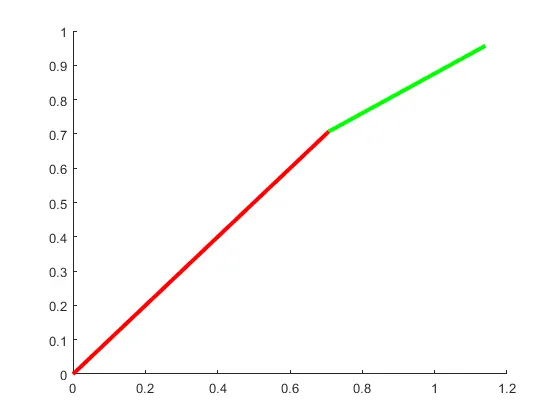
Here, we are able to get a simple plot, but our aim was to program an simulation, which is not achieved till now.
So, we have to modify the program a little, which will be discussed in next steps.
Step-4 : Programming for simulation in plotting area
- To create an simulation in plotting area, first of all, we have to take multiple angles for link, which would be achieved by linspace as follows:
theta1=linspace(0,90,10);
theta2=linspace(0,90,10);- To access the different values of theta, we have to use a for loop
for i = 1:length(theta1)
    THETA1=theta1(i)
    THETA2=theta2(i)
end- Here, THETA1 and THETA2, are variables only which stores a single value,i.e., theta1 and theta2, respectively.
- Here, i is a loop counter, which takes the value of theta repeatedly until the condition satisfied. But, in the above for loop, due to a single loop counter i, it displays multiple values of theta1 only. In order to display value of theta2, we need to inroduce one more loop counter, say j, with another for loop inside the existing for loop as follows:
for i=1:length(theta1)
    THETA1=theta1(i)
    for j=1:length(theta2)
        THETA2=theta2(j)
    end
end- Now, to perform the forward kinematics calculations, we have to copy the codes from previous programme as in step3, and paste it inside this for loop.
for i=1:length(theta1);
    THETA1=theta1(i);
    for j=1:length(theta2);
        THETA2=theta2(j);
        x0=0;
        y0=0;

        x1=l1*cosd(THETA1);
        y1=l1*sind(THETA1);

        x2=x1+l2*cosd(THETA2);
        y2=y1+l2*sind(THETA2);

%Plotting

line([x0 x1], [y0 y1], 'linewidth', 3, 'color', 'r')
line([x1 x2], [y1 y2], 'linewidth', 3, 'color', 'g')
    end
end- Here, inside the forward kinematics calculation, we replaced arrays theta, with the variables THETA, as variables are defined in the loop. Then, we get the output as:
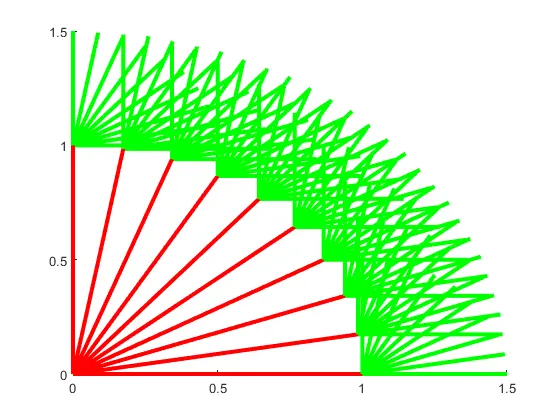
- Here, all the values of link1 & 2, with every values of theta1 & 2, got plotted at same time. To avoid this type of plotting, and show one value of theta1 & 2 at one time, we are going to use a variable, say ct(represents counter), before the loop, and execute it during plotting by calling the function figure(ct) and increment the counter variable ct at the end of loop:
ct=1
for i=1:length(theta1);
    THETA1=theta1(i);
    for j=1:length(theta2);
        THETA2=theta2(j);
        x0=0;
        y0=0;

        x1=l1*cosd(THETA1);
        y1=l1*sind(THETA1);

        x2=x1+l2*cosd(THETA2);
        y2=y1+l2*sind(THETA2);

        %Plotting
        figure(ct)
        line([x0 x1], [y0 y1], 'linewidth', 3, 'color', 'r')
        line([x1 x2], [y1 y2], 'linewidth', 3, 'color', 'g')
        ct = ct+1
    end
end- By the above program we are able to get single value of theta1 &2, plotted, but, it will print various no. of plots of single values until loop satisfied.
- To avoid this error, we need to use plot command instead of line command, adding pause option, and fix the axis with axis function.
- as we are using plot, we can exlude figure(ct), in order to get animated visualisation.
  %Plotting

        plot([x0 x1], [y0 y1],[x1 x2], [y1 y2], 'linewidth', 3)
        axis([-0.1 1.5 0 1.5])
        pause(0.3)
        ct = ct+1
- Finally, we are getting simulation visualisation, So the next step is to make Movie.
Step-5 : Create Movie
- To create movie, we need to get individual frames and store it in an array , say, M(ct), ct is taken as it is a variable for counter.
- Now, we use a command getframe(gcf), get the frame and save it in the array M(ct).
- After getting frame, we use command Movie(M),Outside the loop to generate a movie, with all the frames in the array M.
- Now, we need to create a new AVI file to dump out all the frames, by using the command, videofile=VideoWriter('forward_kinematics.avi', 'Uncompressed AVI').
- Here, in above command, file name is forward_kinematics.avi and file type is Uncompressed AVI.
- After creating videofile, we need to open videofile, by command open(videofile), and write the videofile by command writeVideo(videofile,M), and finally close the videofile by close(videofile).
 plot([x0 x1], [y0 y1],[x1 x2], [y1 y2], 'linewidth', 3)
        axis([-0.1 1.5 0 1.5])
        pause(0.3)
        M(ct)=getframe(gcf);
        ct = ct+1
    end
end
movie(M)
videofile=VideoWriter('forward_kinematics.avi', 'Uncompressed AVI');
open(videofile)
writeVideo(videofile,M)- Now, the next step is to Run the whole program and see what happens.
FINAL PROGRAM
Hence, we can execute and run the whole program as follows:
clear all
close all
clc

%inputs

l1=1;
l2=0.5;

theta1=linspace(0,90,10);
theta2=linspace(0,90,10);

%programming
ct=1
for i=1:length(theta1);
    THETA1=theta1(i);
    for j=1:length(theta2);
        THETA2=theta2(j);
        x0=0;
        y0=0;

        x1=l1*cosd(THETA1);
        y1=l1*sind(THETA1);

        x2=x1+l2*cosd(THETA2);
        y2=y1+l2*sind(THETA2);

        %Plotting

        plot([x0 x1], [y0 y1],[x1 x2], [y1 y2], 'linewidth', 3)
        axis([-0.1 1.5 0 1.5])
        pause(0.3)
        M(ct)=getframe(gcf);
        ct = ct+1
    end
end
movie(M)
videofile=VideoWriter('forward_kinematics.avi', 'Uncompressed AVI');
open(videofile)
writeVideo(videofile,M)
close(videofile)
OUTPUT
The output is shared by a link below:
https://drive.google.com/file/d/1-1jRDyKQOjg2Ef9zL-YVBlIpNKqNcIZd/view?usp=sharing
CONCLUSIONS
Hence, we are able to program a 2R Robotic arm, and simulate it as an animation, by which we are able to monitor likely the working area of a 2R Robotic arm, by specifying length of links and working angle (`theta1 and theta2`). The above program gives us an idea that we may generate simulation for different mechanisms such as 3R Robotic arm and many more.
ERRORS DURING PROGRAMMING
- I have got errors due to case of alphabets, as the MATLAB is case-sensitive, i mistakenly typed Videowriter, instead of VideoWriter, where 'w' in writer, remained lower case. The error thrown by the MATLAB is shown below:
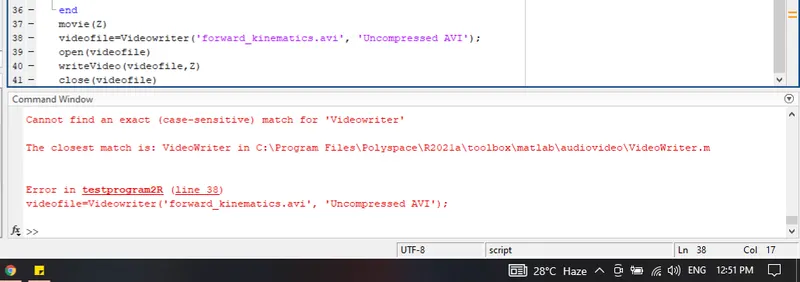
So i overcome this error by simply turning the lower case 'w' to the uppercase 'W' in 'VideoWriter'