Week 12:Project-1-Meshing of Door Inner Panel Challenge
Objective-
- Generating Midsurface and performing the necessary geometry clean up on the component.
- Generating mesh on the component with low tria concentration and proper mesh flow.
- Model should pass all the quality criteria.
- Assigning thickness to component.
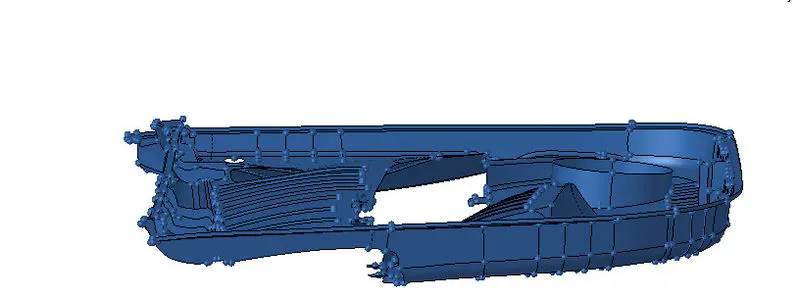
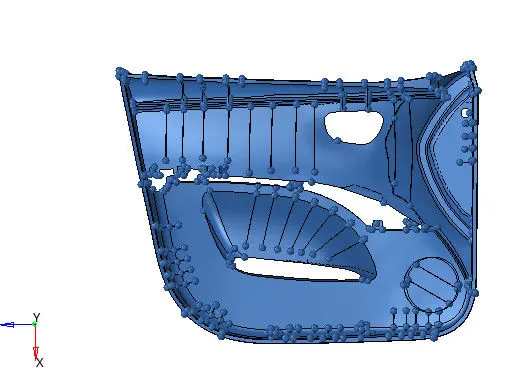
CAD Model-
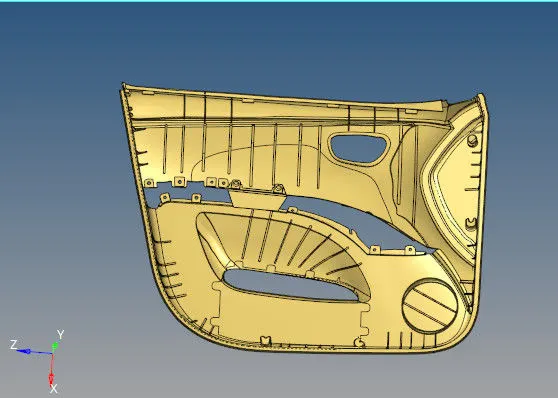
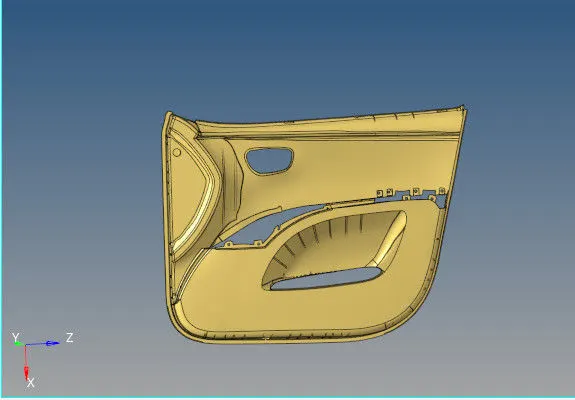
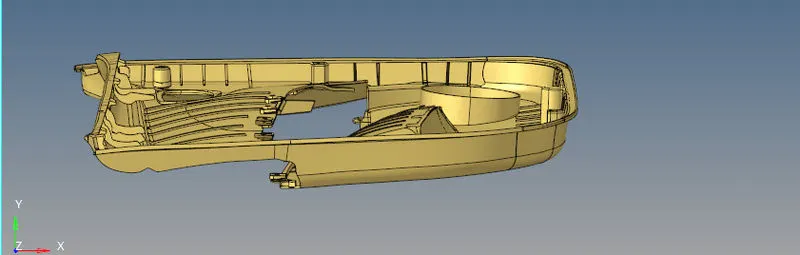
Procedure-
1. Geometry Clean up.
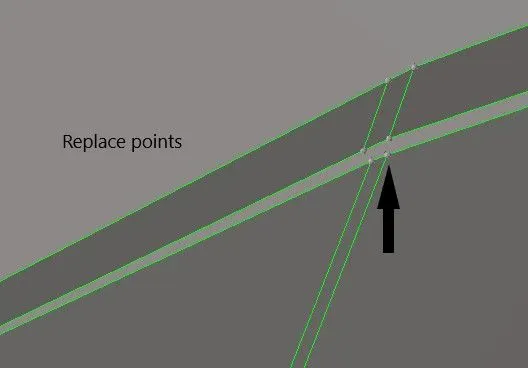
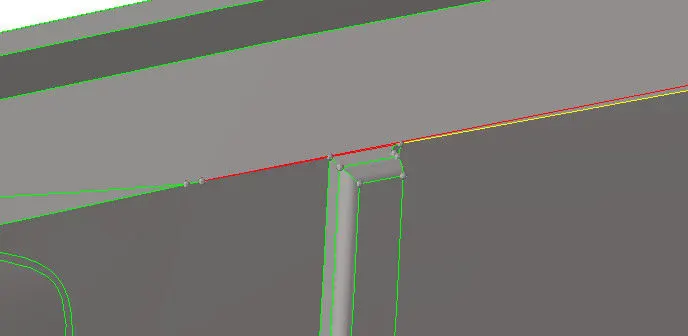
- As it is a complex geometry, before extracting the Midsurface we have to go through the entire geometry carefully and do proper geometry clean up for various part.
- The geometry cleanup before extracting midsurface consist of, replace points, toggling unnecessary edge, spliting the surface, filling geometry, etc. For doing so we will make use "Quick edit" option which is present in the main menue bar under "geometry".

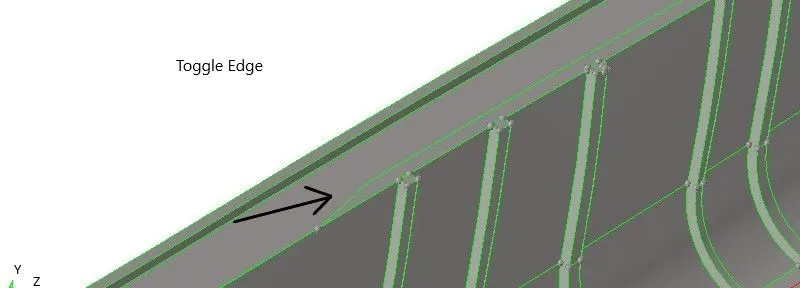 .
.
2. Extracting Midsurface.
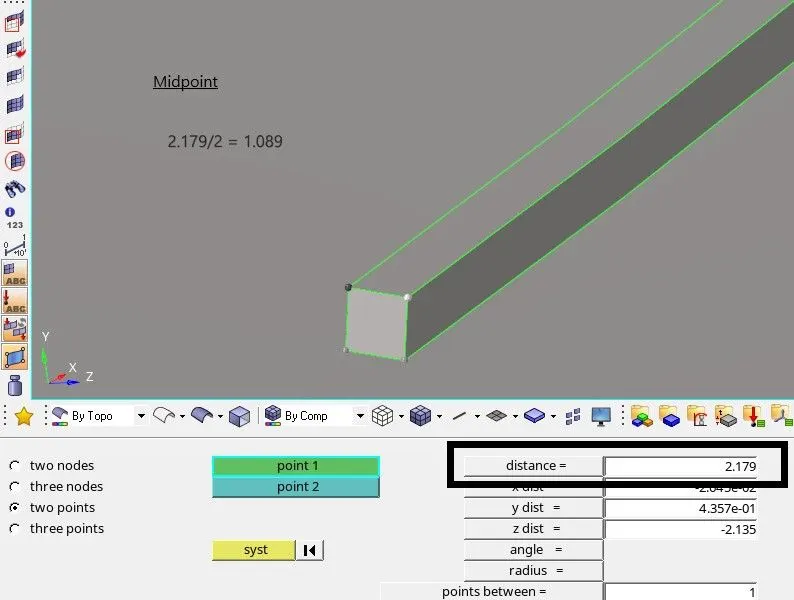
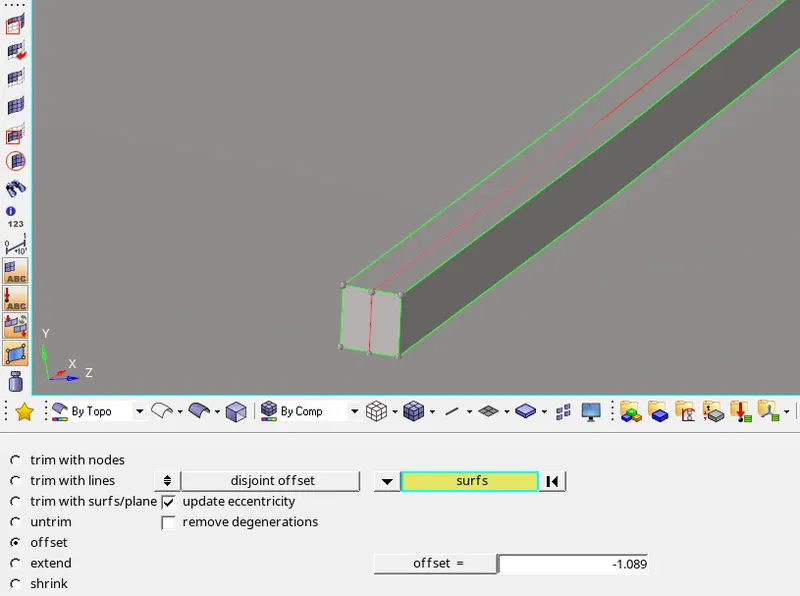
- Extraction of Midsurface will be done manually, with the help of "distance" and "offset" option. Distance option will basically help us to check the thickness and offset option will help us to offset a particular surface.
- Distance option is present in the main menue bar under "geometry" and for offset option, first go to "geometry" and then select "surface edit", under surface edit click the option "offset".



- For extracting manual midsurface, we will first calculate the midpoint of a particular geometry by using distance option, after finding out the midpoint, we will then offset the particular geomtry upto the midpoint. Before doing offset we will duplicate the surface to the current componet (Middle surface), then enter the offset value and click offset.
- After extracting the midsurface manually, we have to make sure about the connection between different surface. There are various option to connect those surface using, toggle edge, filler surface, extend, etc.
- "Toggle edge" and "filler surface" are present in the main menue bar under "quick edit". For using extend option, first go to "geometry" then select "surface edit", under surface edit select the option as "extend".

- Select the surface to be extend, target surface and line to extend over, then click "extend".
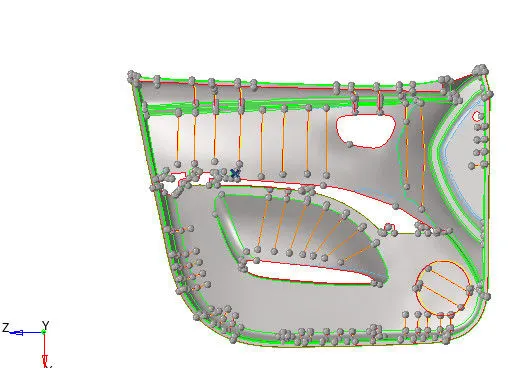 "Midsurface"
3. Setting Quality Parameter.
| S.N | Quality Criteria | Value |
| 1 | Aspect Ratio | 5 |
| 2 | Skewness | 45 |
| 3 | Warping | 15 |
| 4 | Taper | 0.5 |
| 5 | Min. Length | 2 Units |
| 6 | Max. Length | 6 Units |
| 7 | Min angle Quad | 45 |
| 8 | Max angle Quad | 135 |
| 9 | Min angle Tria | 20 |
| 10 | Max angle Tria | 120 |
| 10 | Tria % | 10 |
- Target element size as "4". For setting quality parameter, go to "preference" then select "parameter file setting", enter the value as per the given table and then click apply.
4. Meshing.
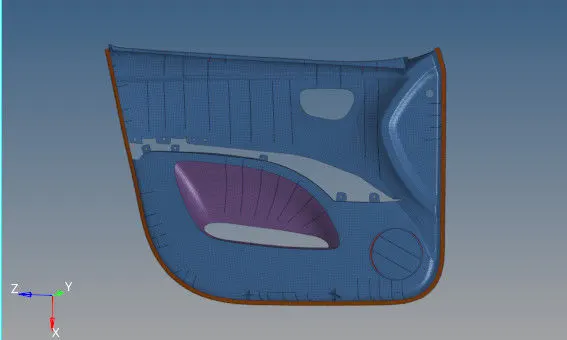
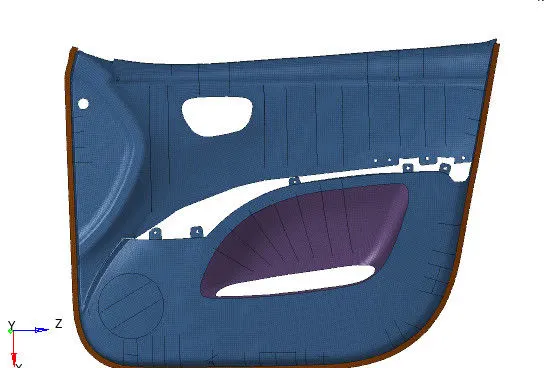
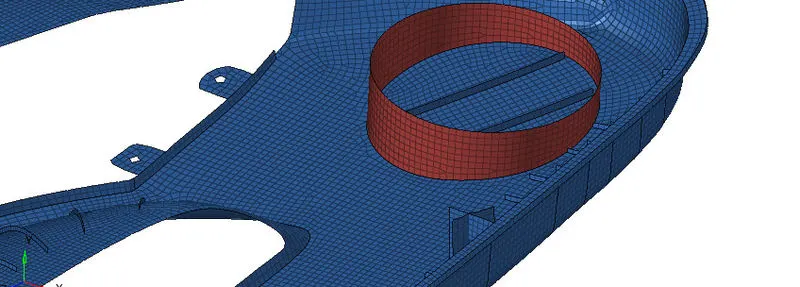
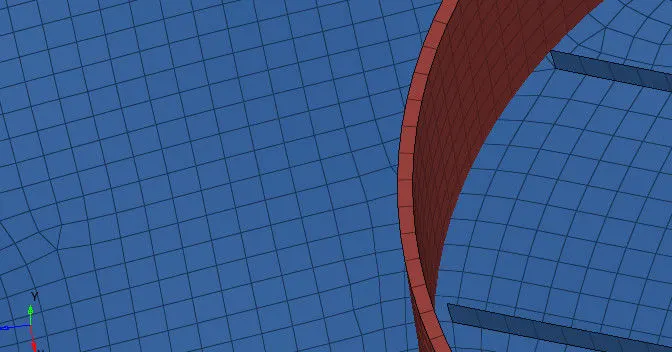
- We will perform "2D" meshing on the follow component, then assign the thickness to it. For "2D" meshing, go to "2D" then select "automesh", under automesh select the surface and enter the element size as "4". Split the entire component into different surface and then mesh them accordingly for getting a proper mesh flow.
- There are various options to optimize the mesh flow and manage trias properly, one of the easiest method for doing so, is by "quality index" which is present in the main menue bar under "2D".


- We can also make use of, project node or elements, place nodes, distance, edges, remesh, smooth, etc command to optimize the mesh flow and connectivity.
5.Assigning thickness.
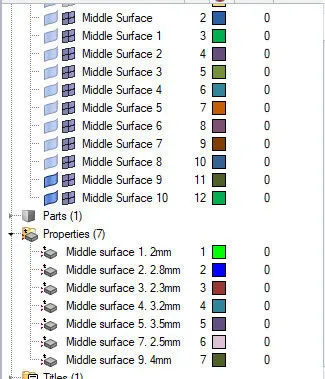
- For assigning thickness to a particular surface, we have to create a property, enter the thickness value and assign the property to the particular surface. Thickness is different for different component, so we have to first create different component collector and then move those elements to that collector accordingly.
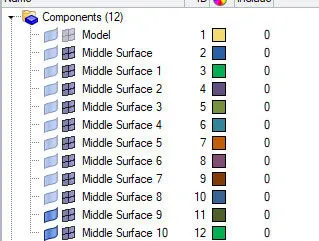
- For moving the elements to a particular collector, first go to "tool" then select "organize", under "collector" select the option as "elements" and "dest component" as that component to which the element is be to moved, then click "move".


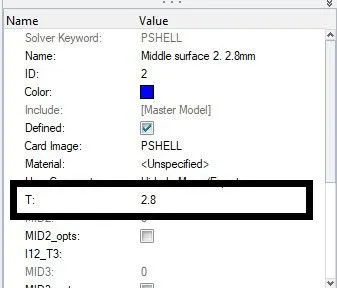
- For creating property, just right click on tab bar and select the option as "create", under create select "property". In the property option enter the thickness as per the given component thickness by measuring it by distance option and then assign that property to the particular component. Similarly create different property collector for different thickness and assign them accordingly.
RESULT.
1.Quality
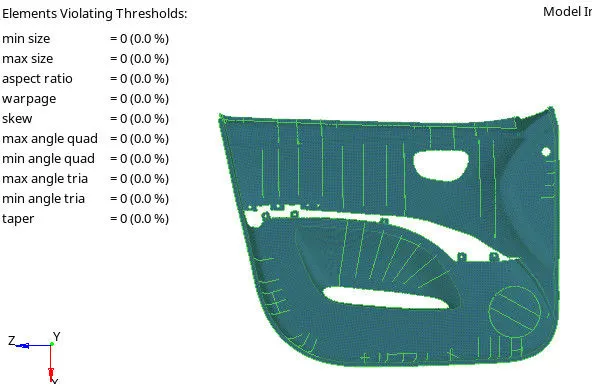
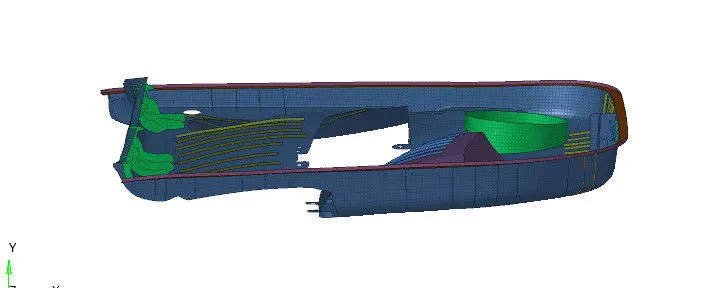
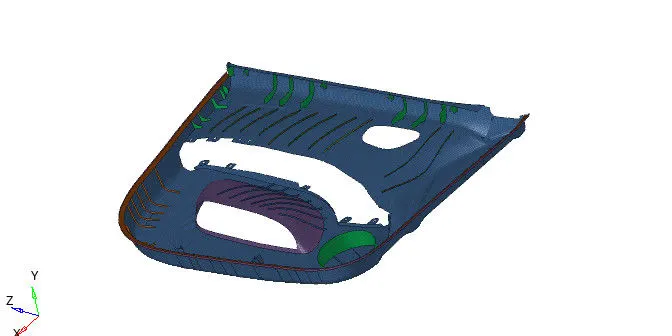
2.Mesh