DOOR INNER PANEL
AIM:-
To extract the midsurface and mesh the following component and assign thickness
PROCEDURE:
1.IMPORT THE MODEL
- Open the hyper mesh and select the profile
- Import the model
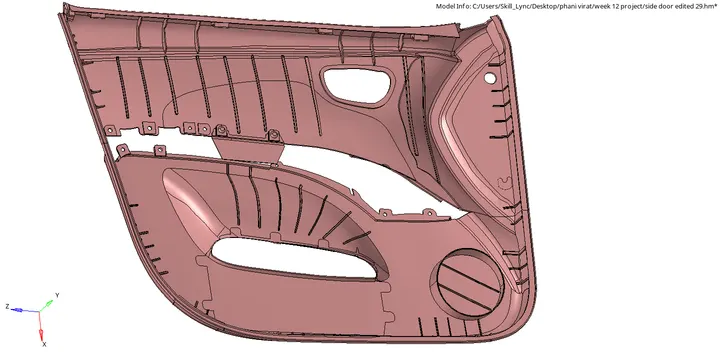
2.CLEAN UP THE PARENT COMPONENT
- Clean up parent component is that while extracting the midsurface not to get unevensurface and to get fine midsurafce
- And we have to defeature the ribs as shown in the fig below
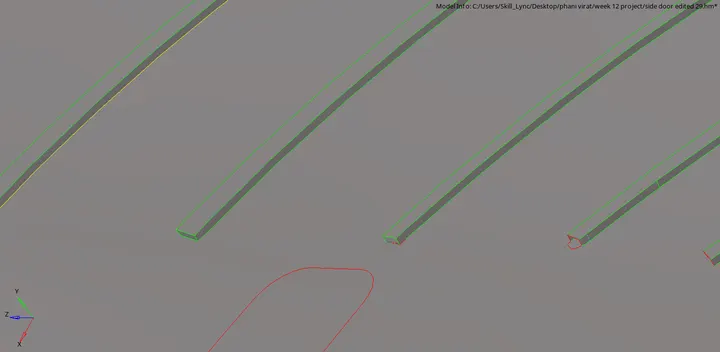
- separate the parts to make easier to extract the midsurface
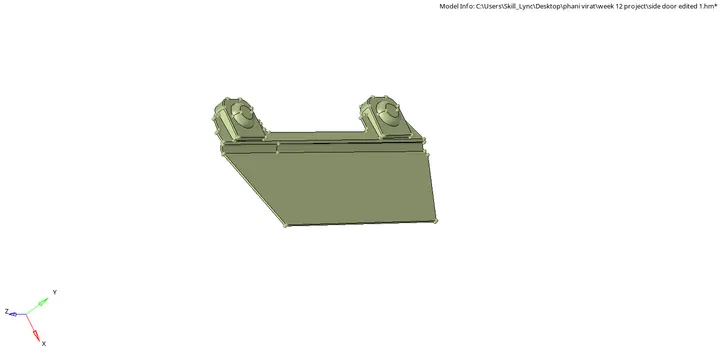
- Delete the volumetric holders that apart from the plastic component
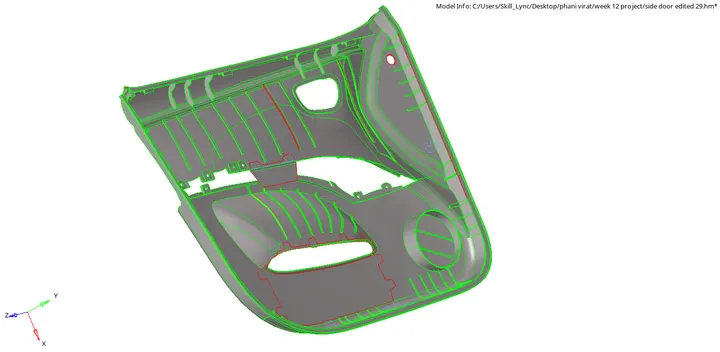
3. Extracting the mid surface manually
- Before extracting the mid surface we have to cross check the component thickness at different places
- Go to the surface edit and click on the offset and we can see that as shown in the fig below

- Select the surface and give the magnitude to off set the surface and right click on the sufs and click on the duplicates and slick on current component and current should be midsurface and click on offset and select the color normal or vector to which direction it should offset
- Same as for all surfaces and according to their length we have to offset to the middle
- For the ribs we creat the mid line and trim the mid line to the surface and and by selecting the lines in surfaces we creat the surface
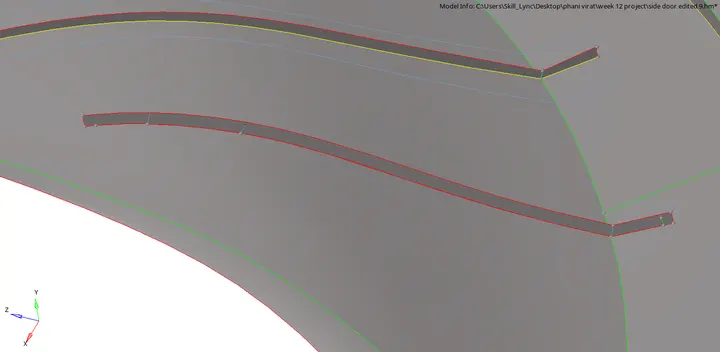
- extend the line of the rib to the surface using extend in surface edit
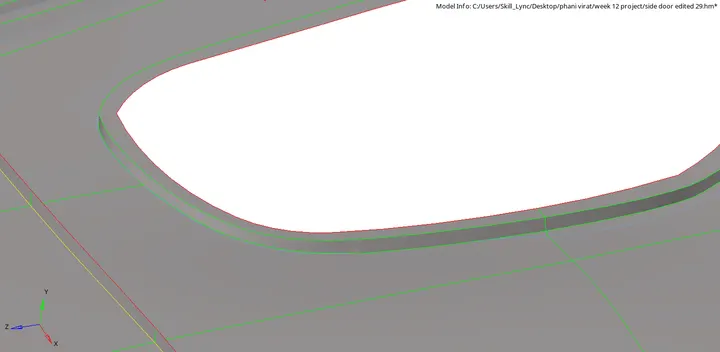
- In this area we going to extract the midsurface and trim with surface and delete the surface and above fig shows the result
- And extend the all ribs , clips and snips to the surfaces as per the parent component

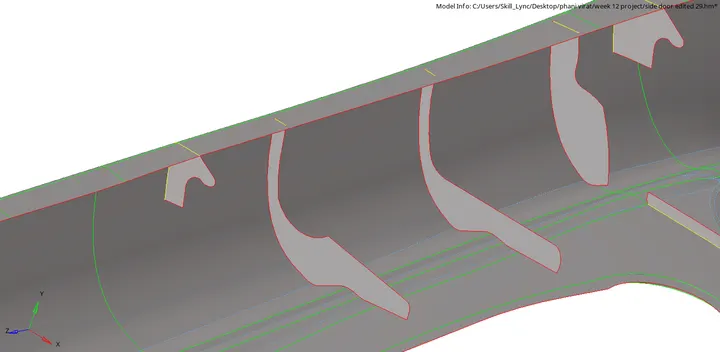
- Below fig shows the final after extracting the midsurface from the parent component
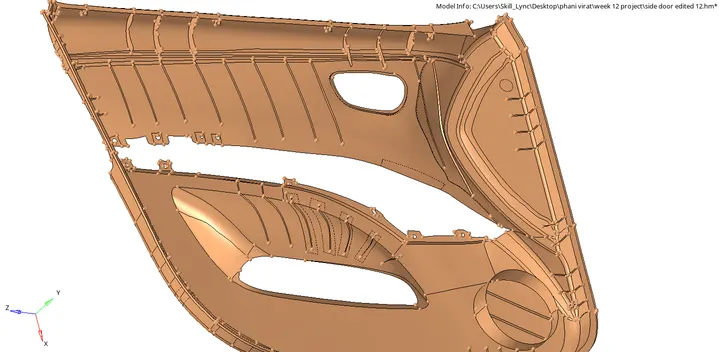
4.MIDSURFACE GEOMENTRY CLEANUP
- Geomentry clean up is that where we feel that the element is going to fail we going to do clean up the geomentry
- Below fig shows the cleanup of the midsurface
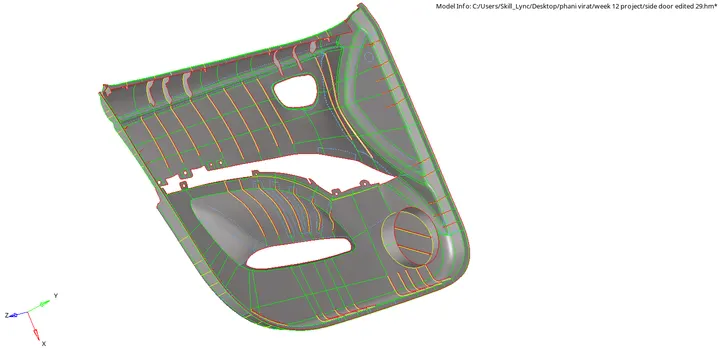
- Fine meshing is depended on the geomentry clean we are going to do
5.CRITIRIA FILE SETTING
- Go to the preferences click on the critiria file setting and set the values as per the given critiria
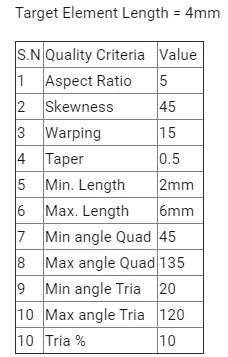
- Target element length is 4mm
6.MESHING MIDSURFACE
- Go to 2D automesh and change the element length to 4mm and check on the align and size and select mixed and mesh the component surface by surface
- Do meshing with less trias and mesh flow should be fine and smooth
- After meshing go to the quality index in 2D and check that how many elements are failing to the given critiria
- Fix the elements that which are failing to the given critiria
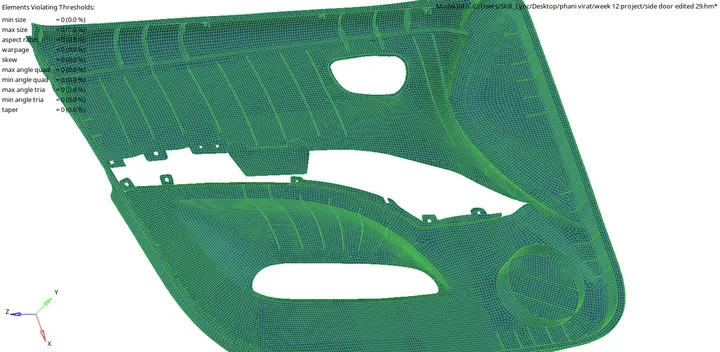
- And decrease the tria% for good meshing
- After meshinf the ribs and surface we have to attach the nodes of the elements on ribs and surfaces same to all which are attached to the surface
7.THICKNESS ASSIGN
- We have to check the thickness of the each part and creat a separate component to that part
- Creat the property of the different thickness and in cardr enter the thickness and assign the property to tyhe respective component
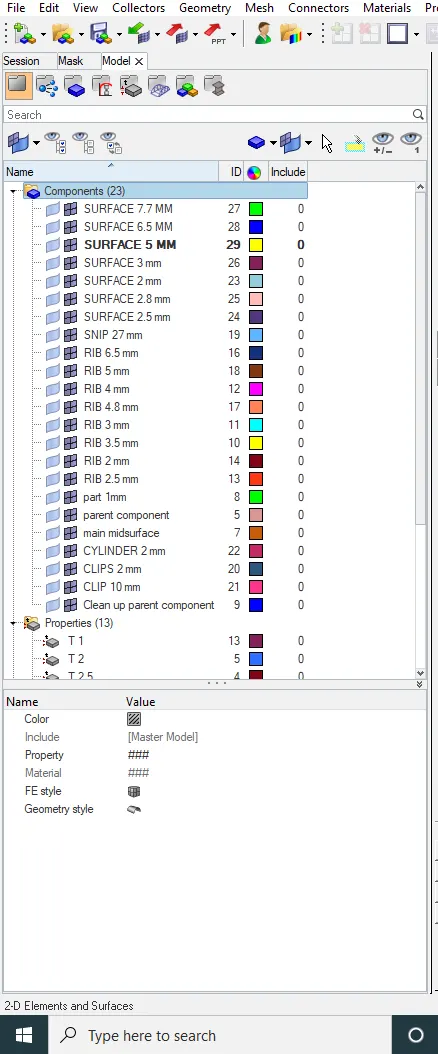
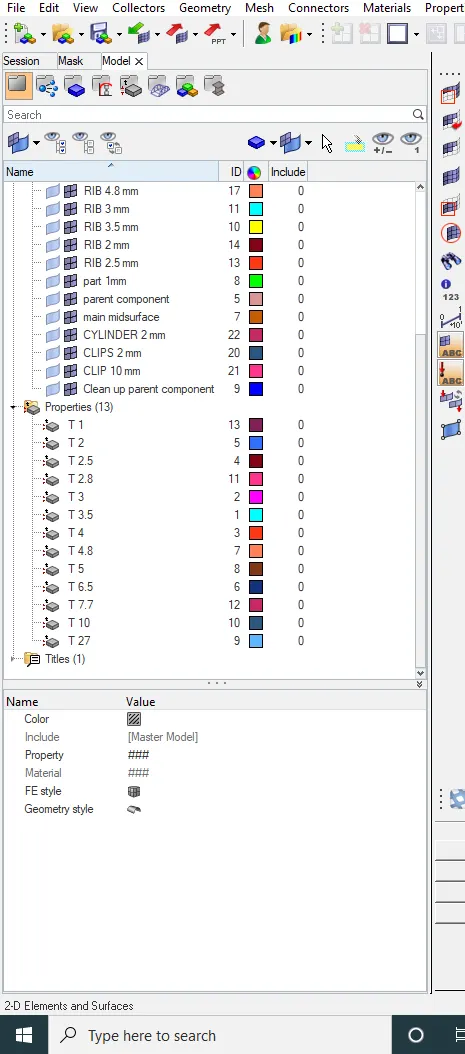
- click on 2D detailed element representation
- Below fig shows the components which is assign as per the thickness
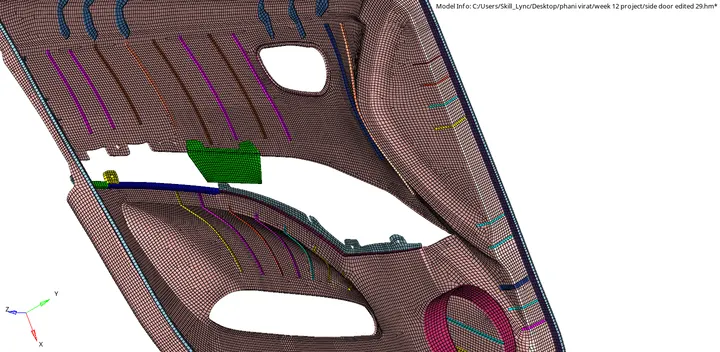
FINAL COMPONENT AFTER MESHING AND THICKNESS ASSIGN
CONCLUSION:-
Extraction of the midsurface and geomentry cleanup and meshing is doneas per the given critiria andthickness assign is also done